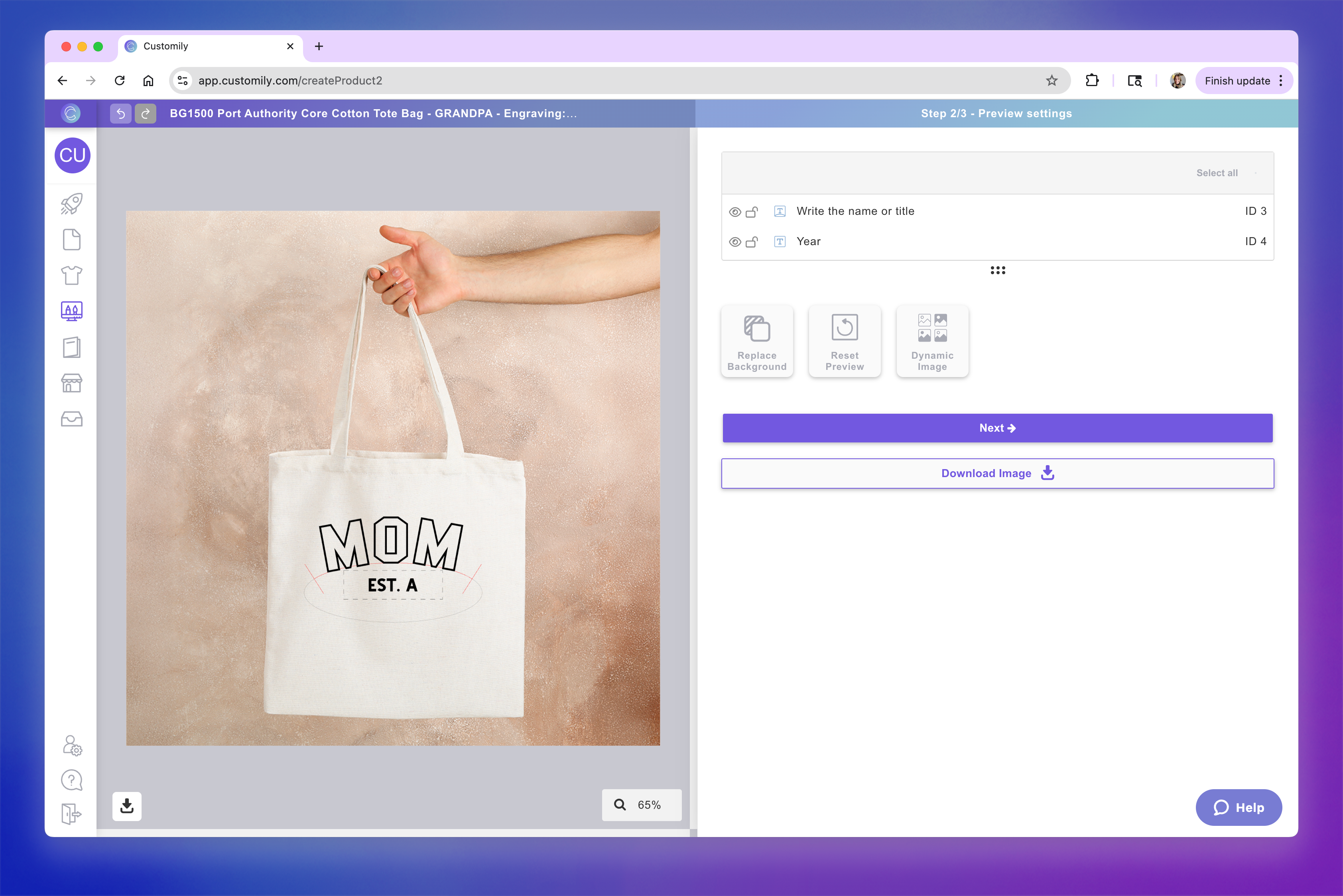
Replacing the background image in your Template Preview
Last updated: April 28, 2026
What Happens When You Replace the Background?
-
Only the background image or color is updated
-
Your personalization elements stay exactly as they are
-
Any dynamic images, layout changes, or positioning on the preview remain untouched
This is the best option when you want to change the background without resetting your entire preview layout.
To replace the background image
-
Open your template in the Design Studio
-
Go to Step 2 – Preview
-
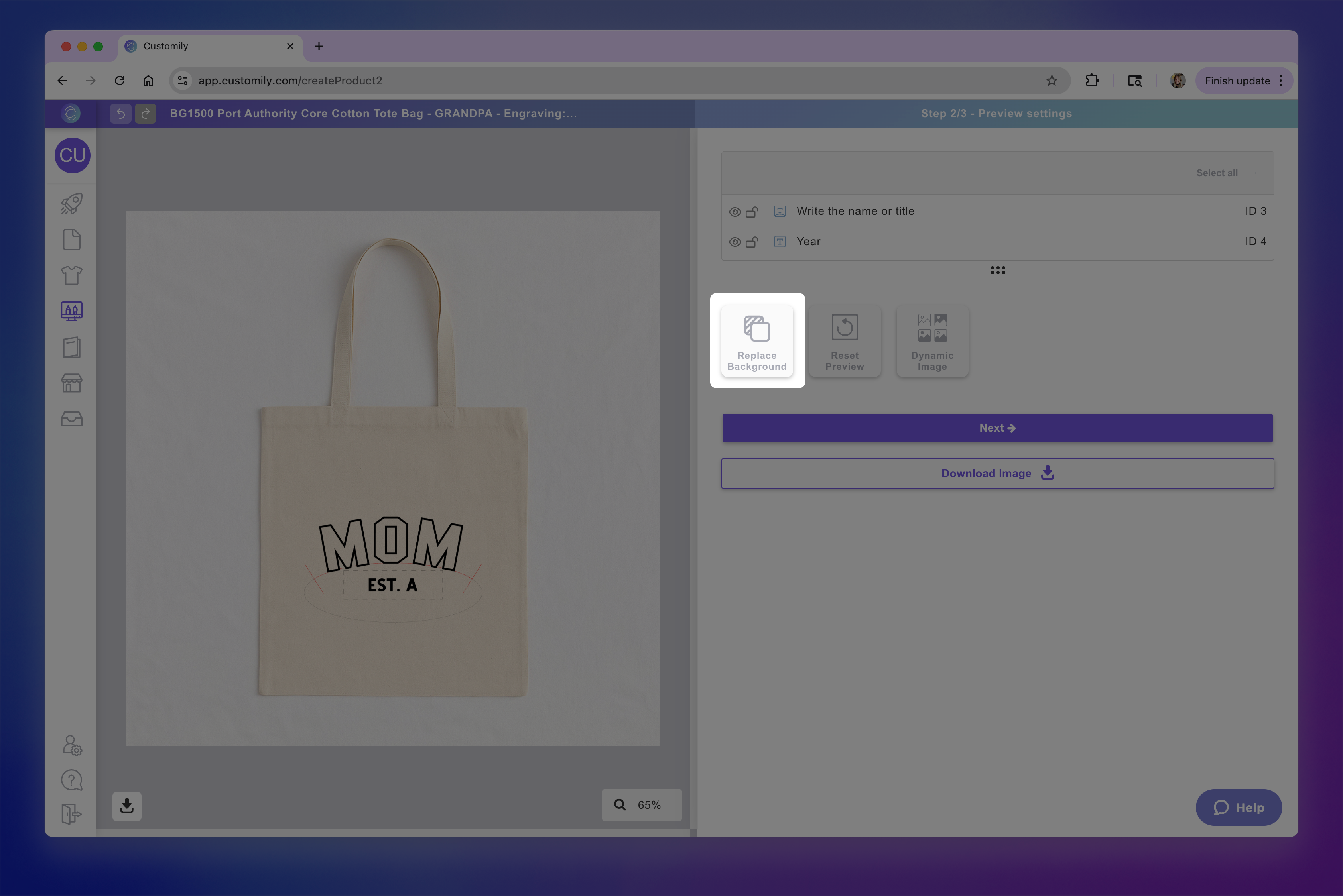
Click Replace Background
-
If you're background was an image, then upload a new image. If you're background was a color, you'll be able to pick a different color.
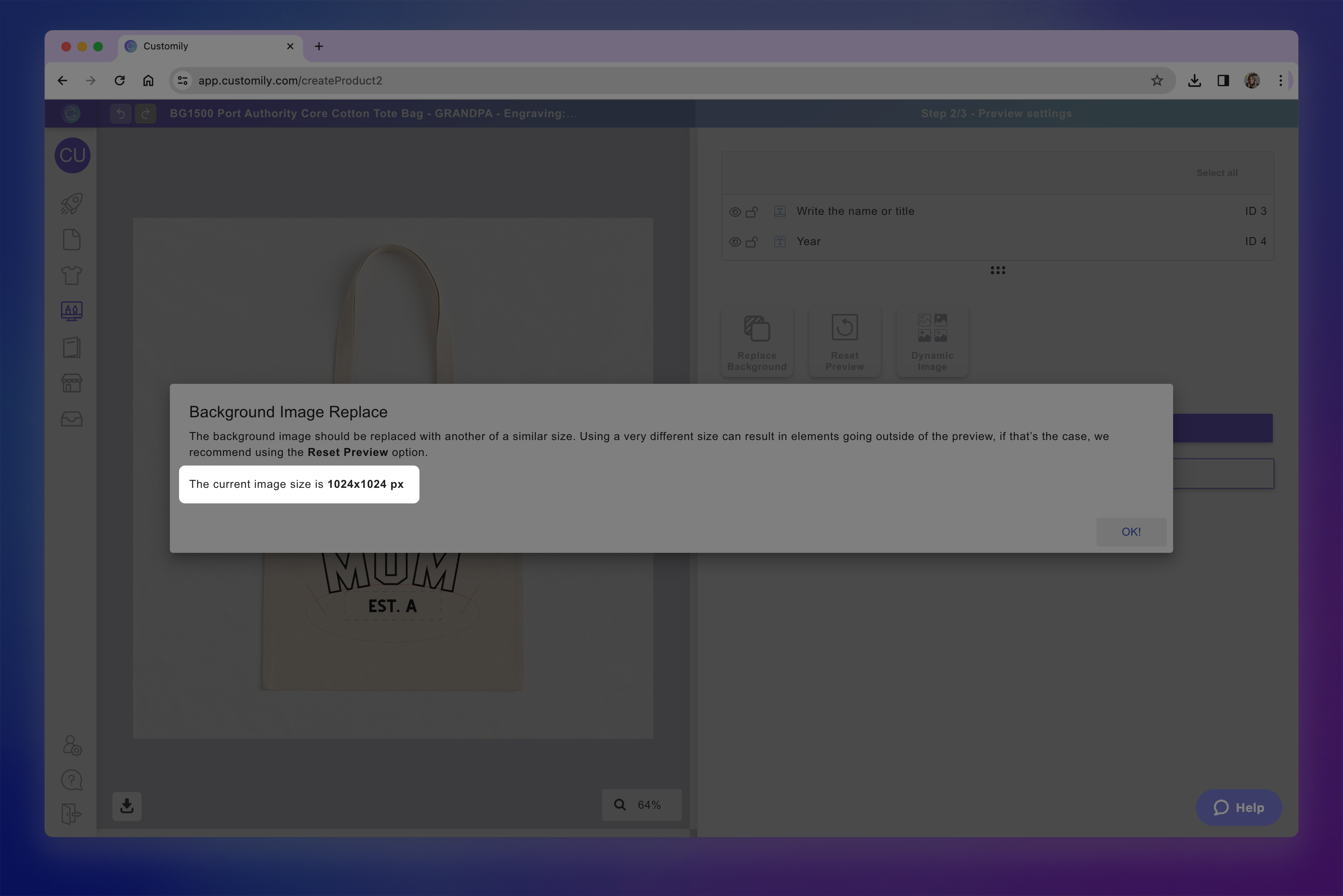
Pay attention to image size
We recommend using a background image with a similar size to the original. If the new file is significantly smaller, some personalization elements may fall outside the canvas. You can find your current background size in the warning message.
-
Your elements will remain exactly where they were. Of course you can always reposition or resize them to fit the new image if needed.