How to Add Functions to Product Variants
Last updated: April 28, 2026
Sometimes the changes in your preview should be triggered by the product’s variants (such as Shopify’s size or color options) rather than by a Customily option.
For example:
You sell a hoodie in 5 base colors. Each color is already set up as a variant in Shopify. When the shopper switches from “Black” to “Blue,” you want the preview to show the blue hoodie automatically.
In cases like this, you can assign a Customily function directly to the variant. This way, your product’s built-in variant controls the preview change, keeping the personalization form clean and easy to use.
If you’re not sure whether to use variants or Customily options for a particular product choice, see Understanding the difference between variants and Customily options for guidance.
Common Use Cases
Changing the garment color in the preview
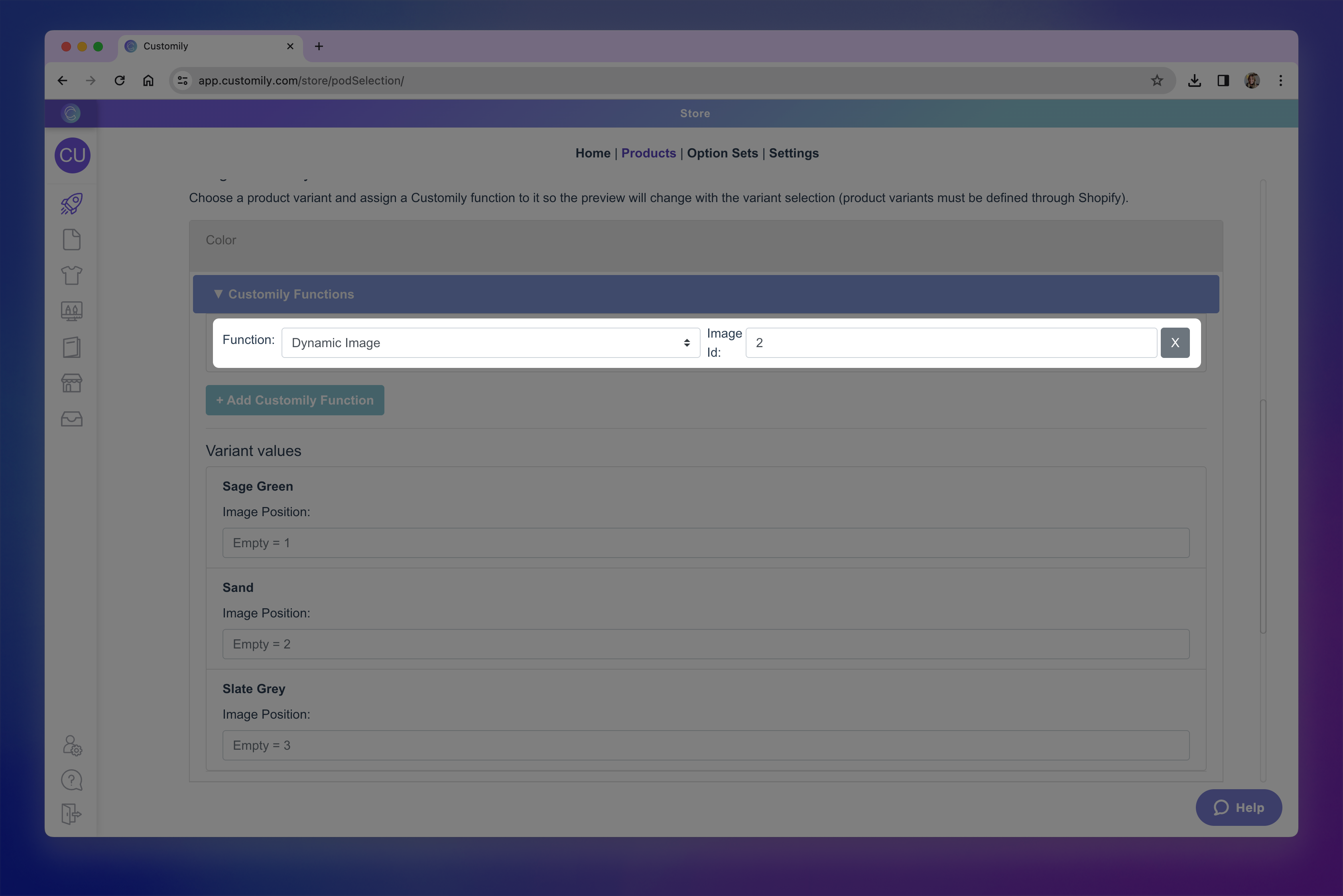
When the variant represents the color of your garment, you can use the Change Dynamic Image function to swap the garment image in the preview. You’d select the element that holds your garment image, then assign the correct image option for each variant.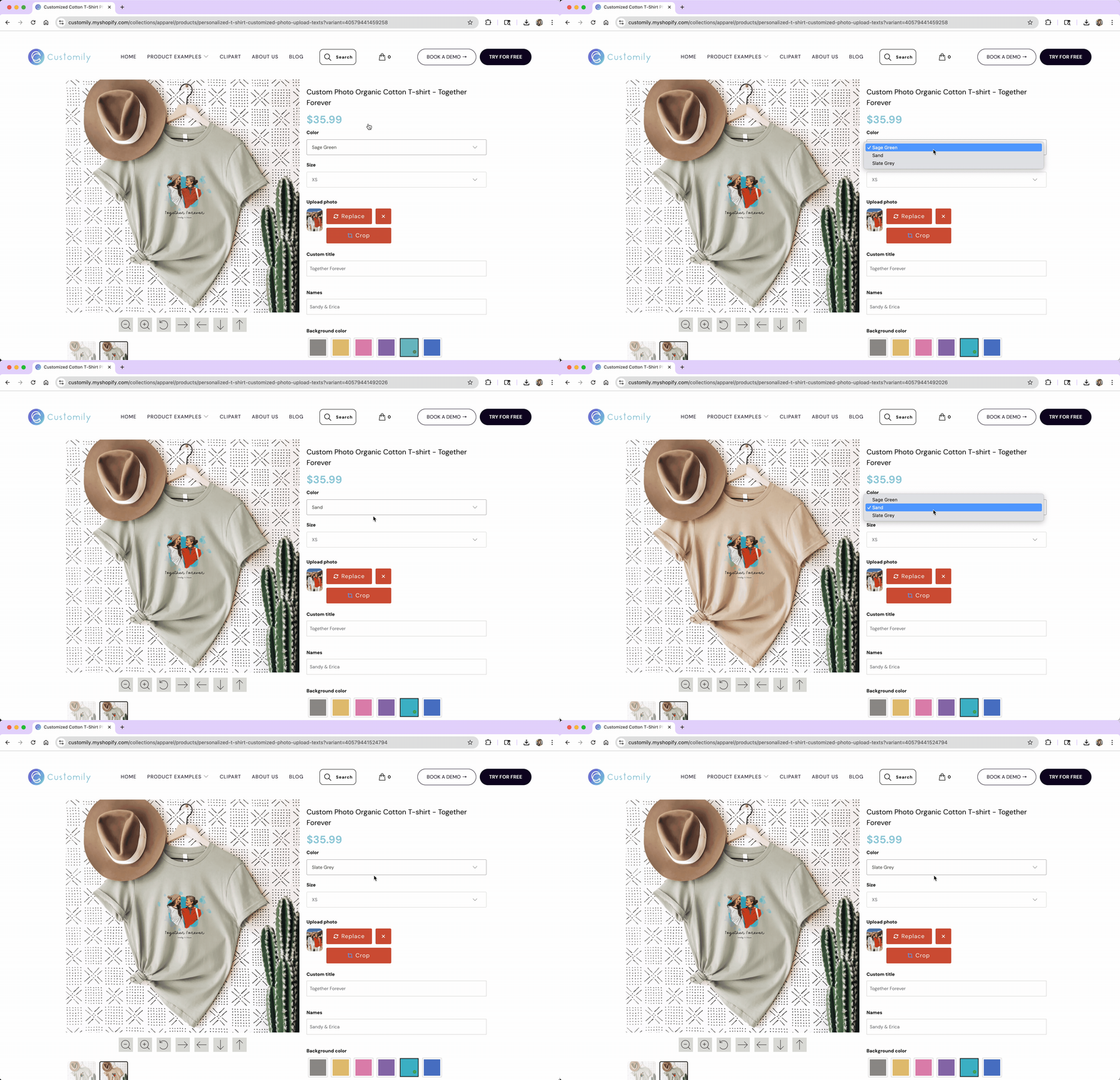
Switching templates based on size
When the variant is size and the print file or preview needs to adjust (for example, you sell posters and need larger/smaller print files), you can use the Change Template function and assign a different template to each variant.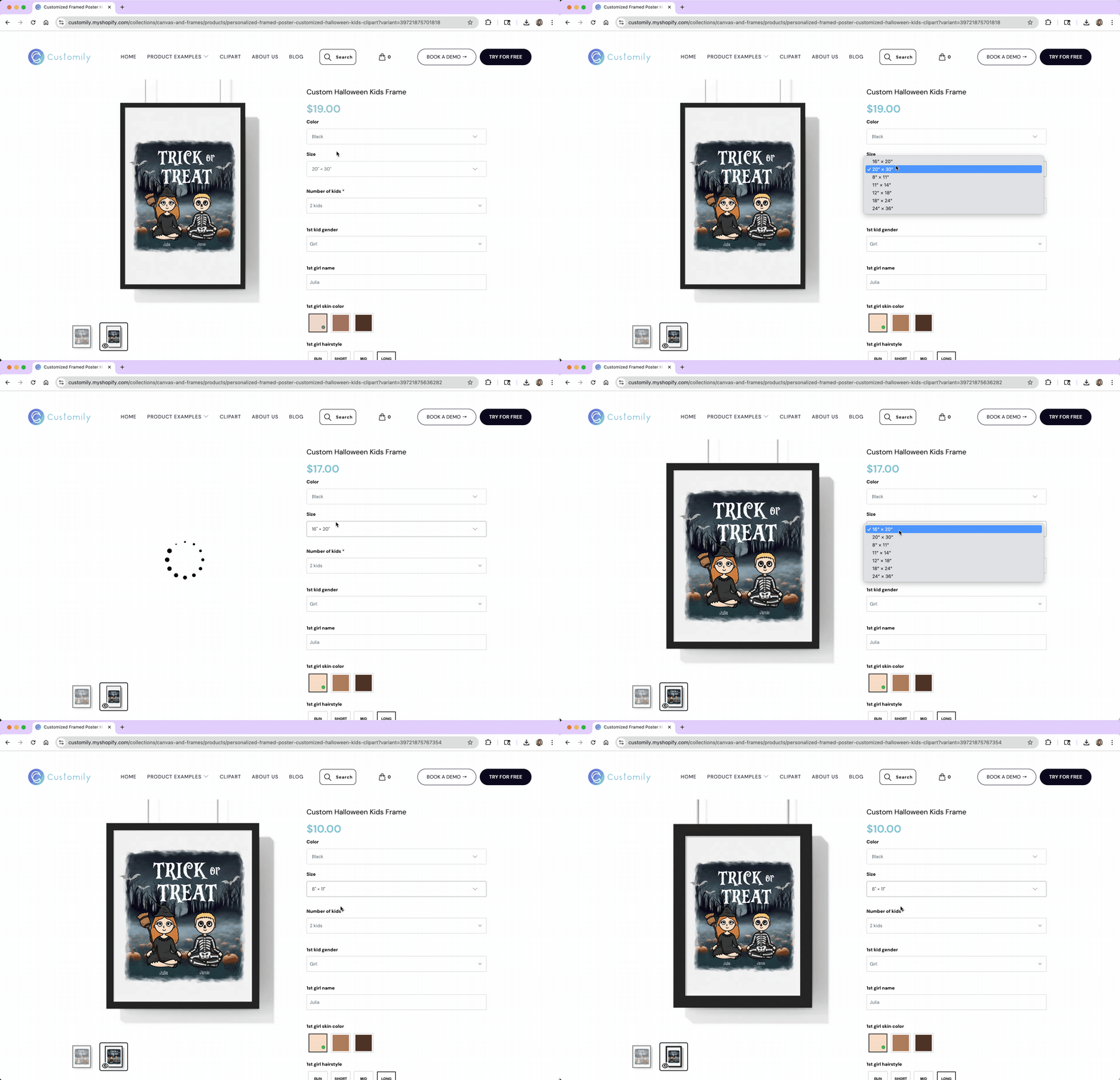
Tip
If your product was created automatically using a product base and a design, variant functions are configured for you. You don’t need to manually assign them.
Assigning Functions to Variants
-
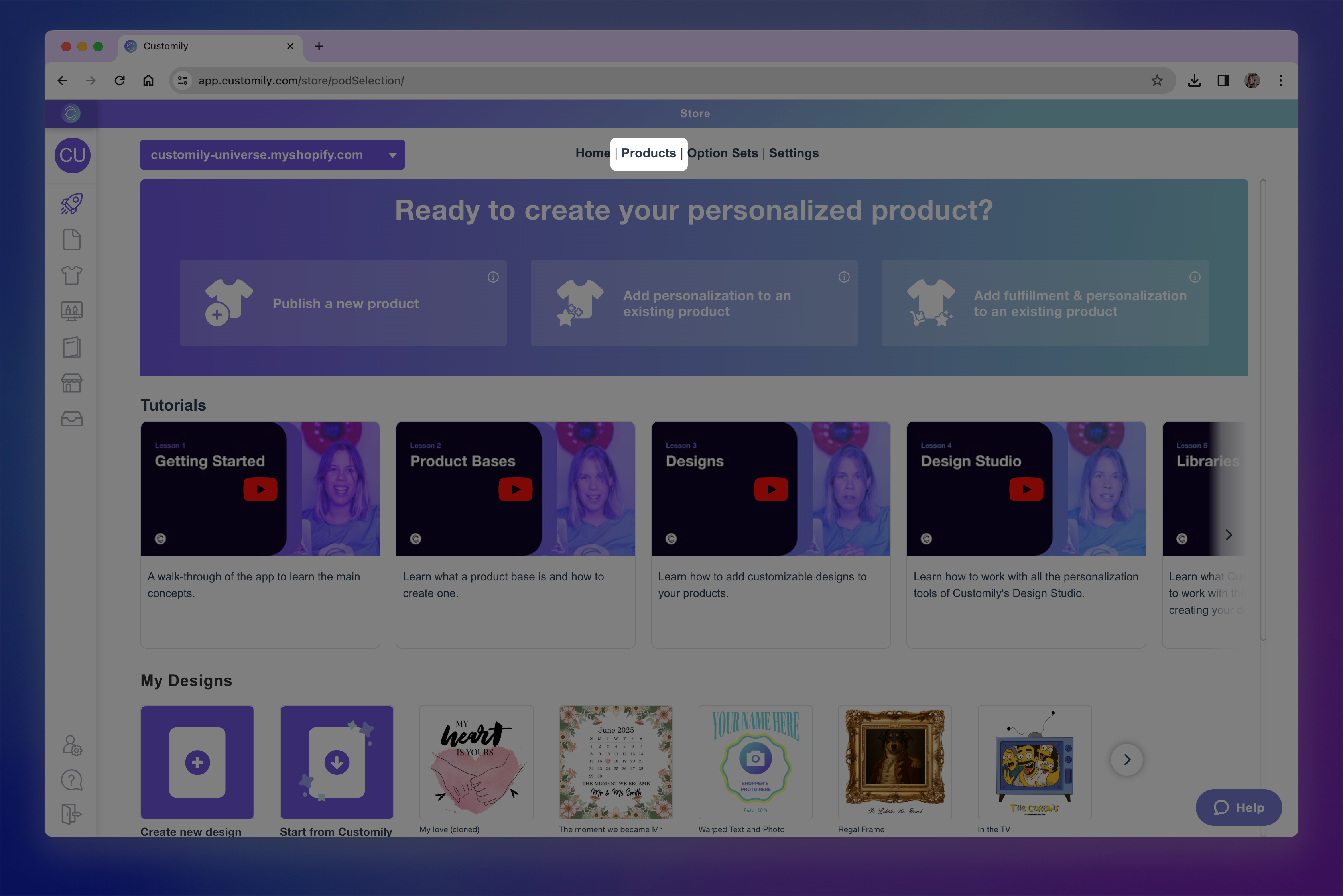
Go to your Products section in Customily.
-
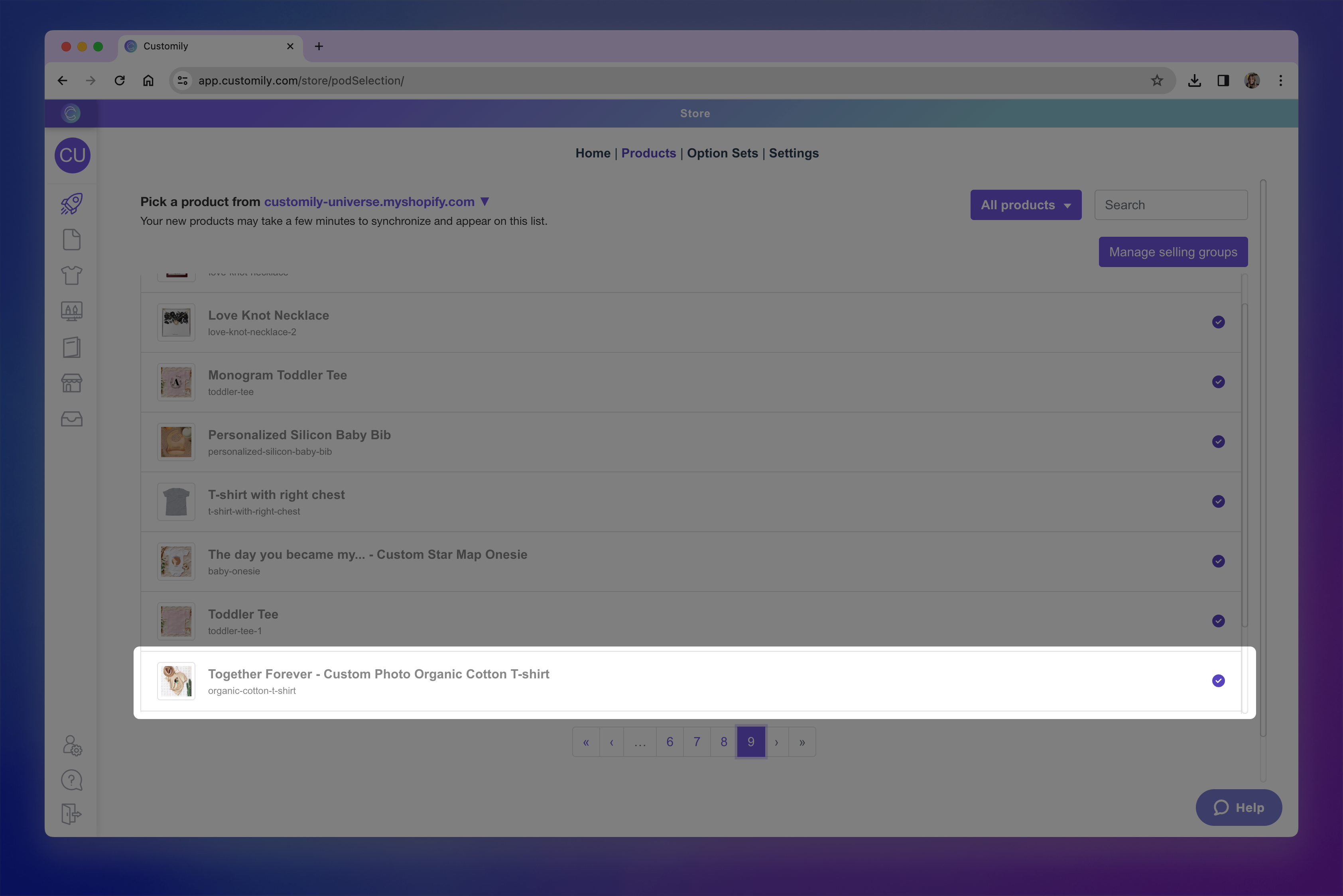
Find the product you want to edit and click to open it.
Make sure the product is already connected to a template (and an option set if needed).
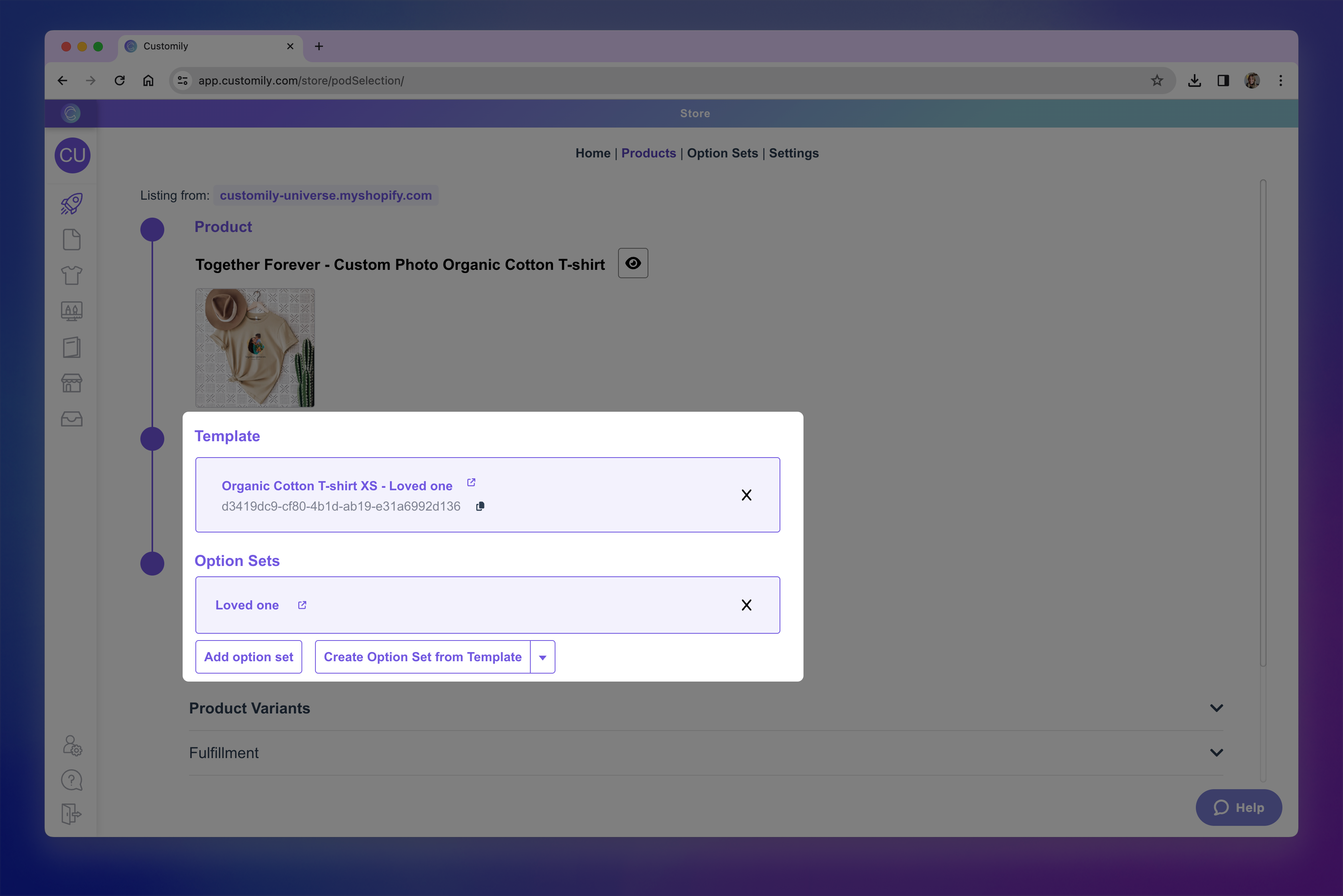
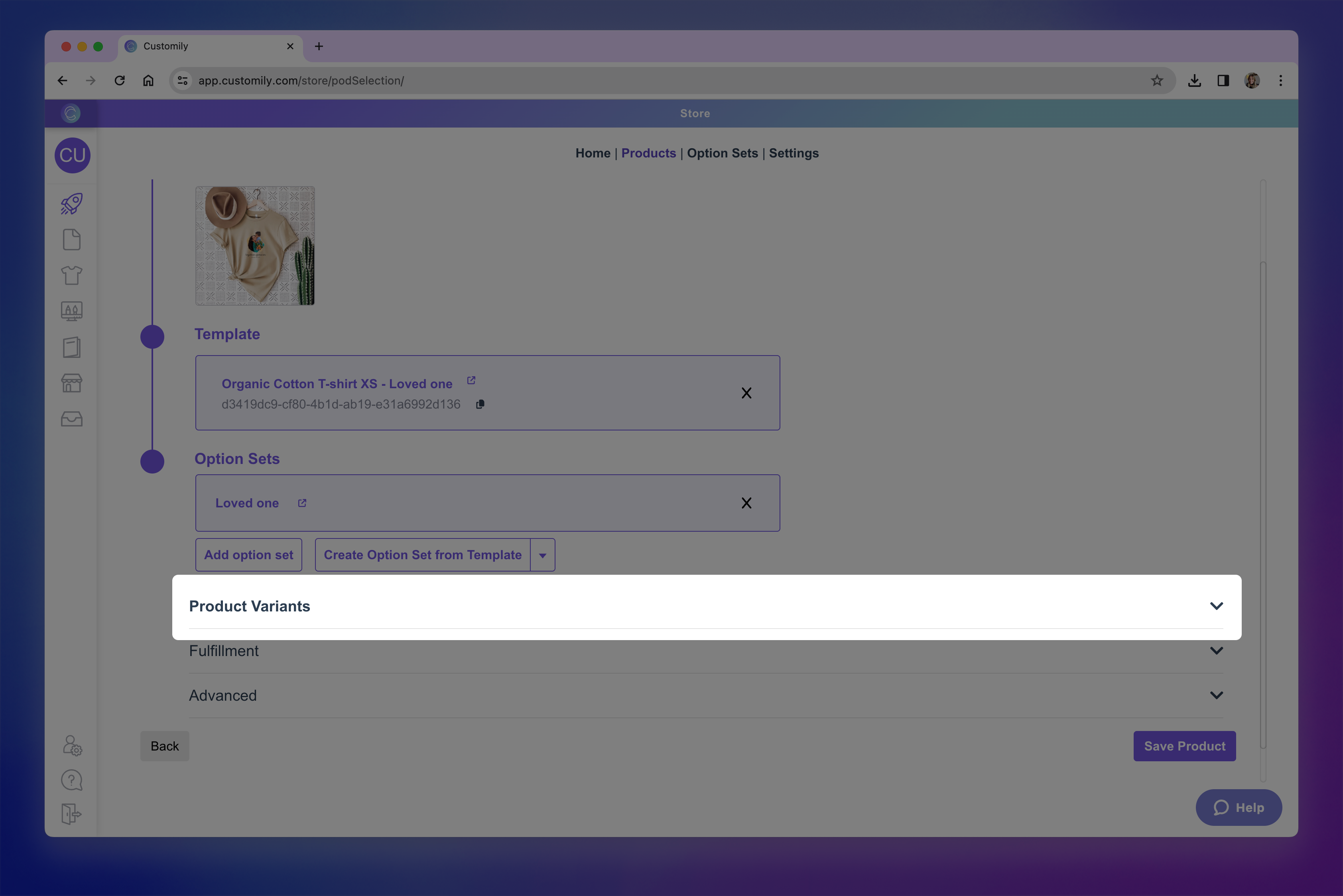
Expand the Product Variants section to see their settings.
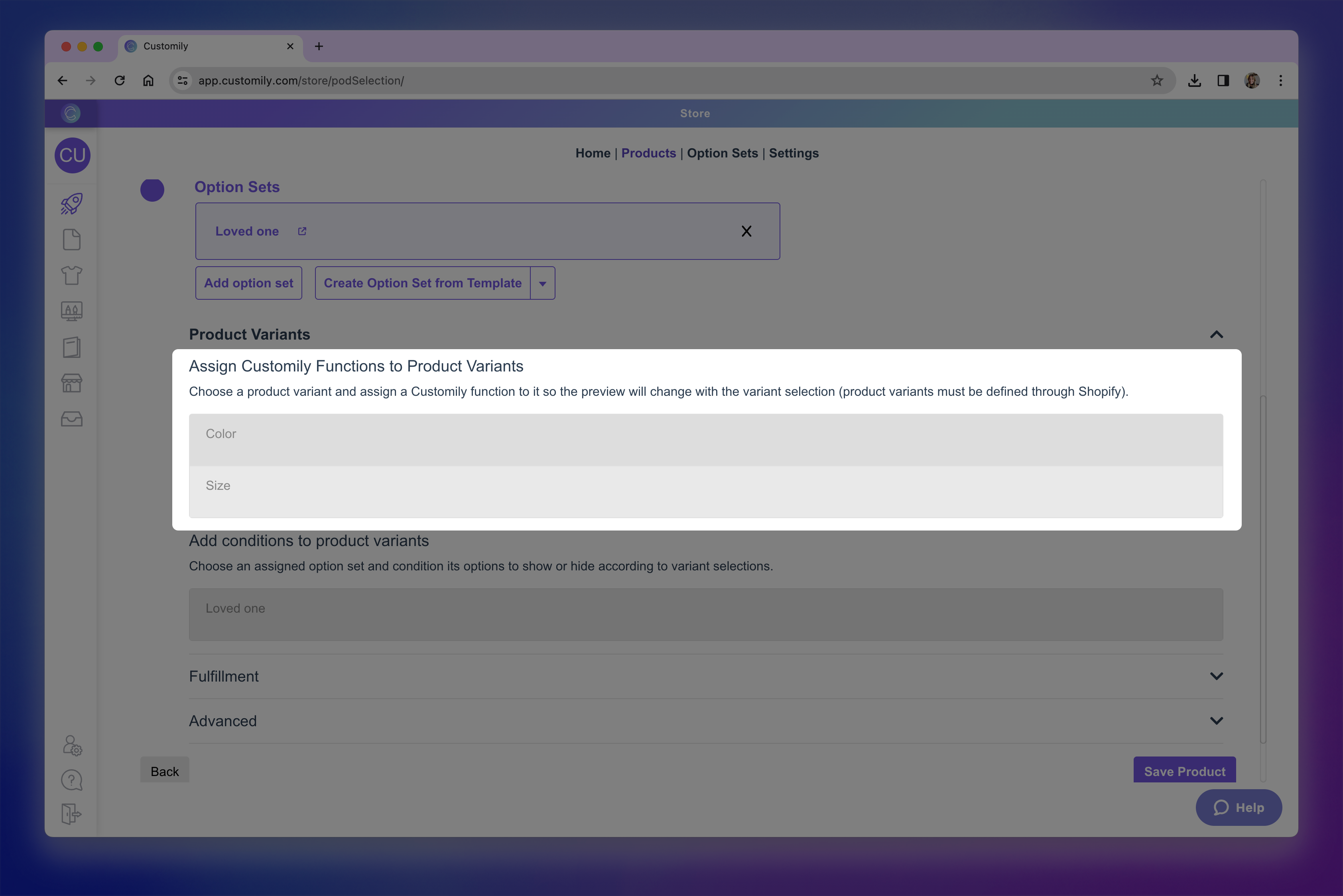
Under the Assign Customily Functions to Product Variants section, find the variant you want to configure and click it to expand it.
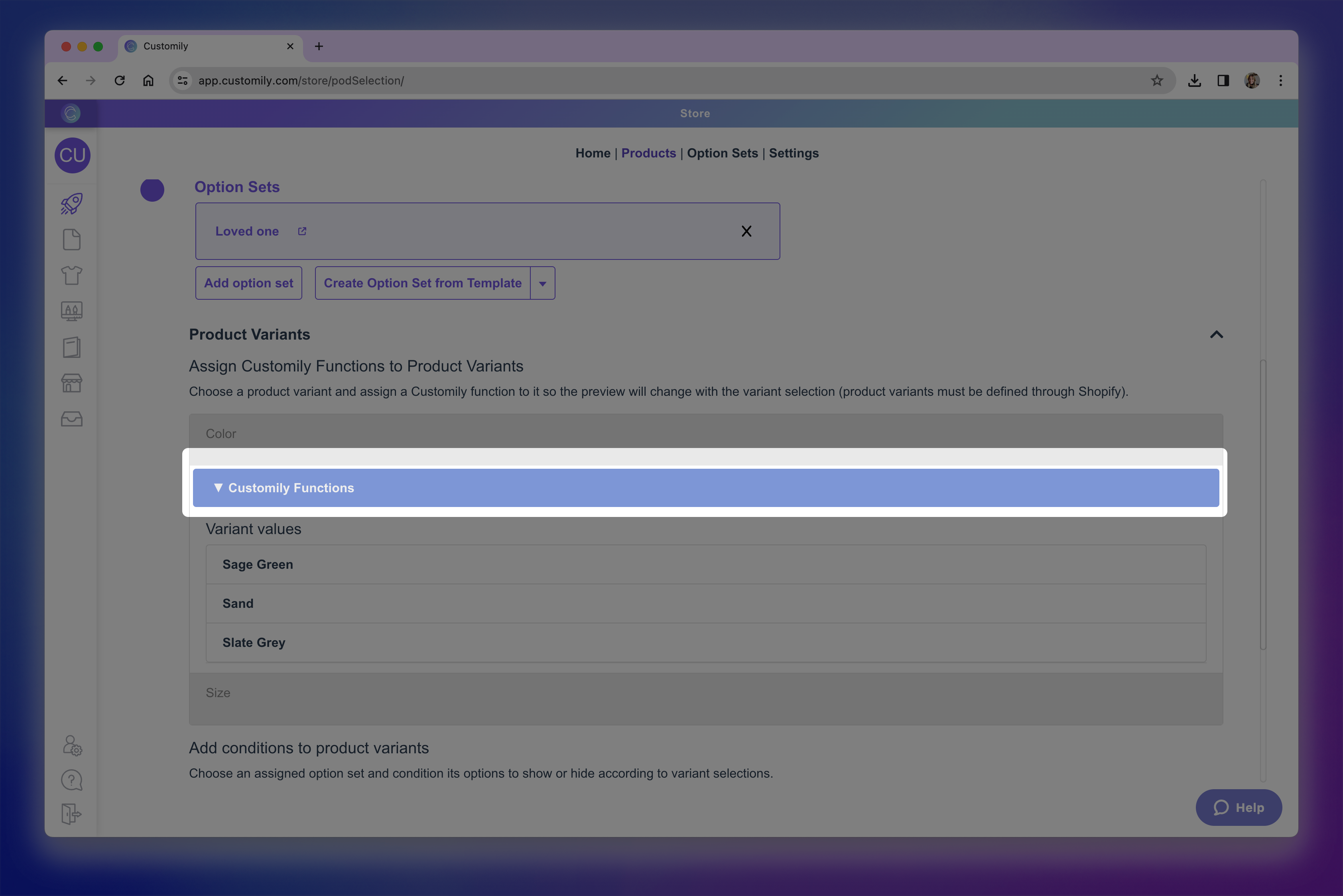
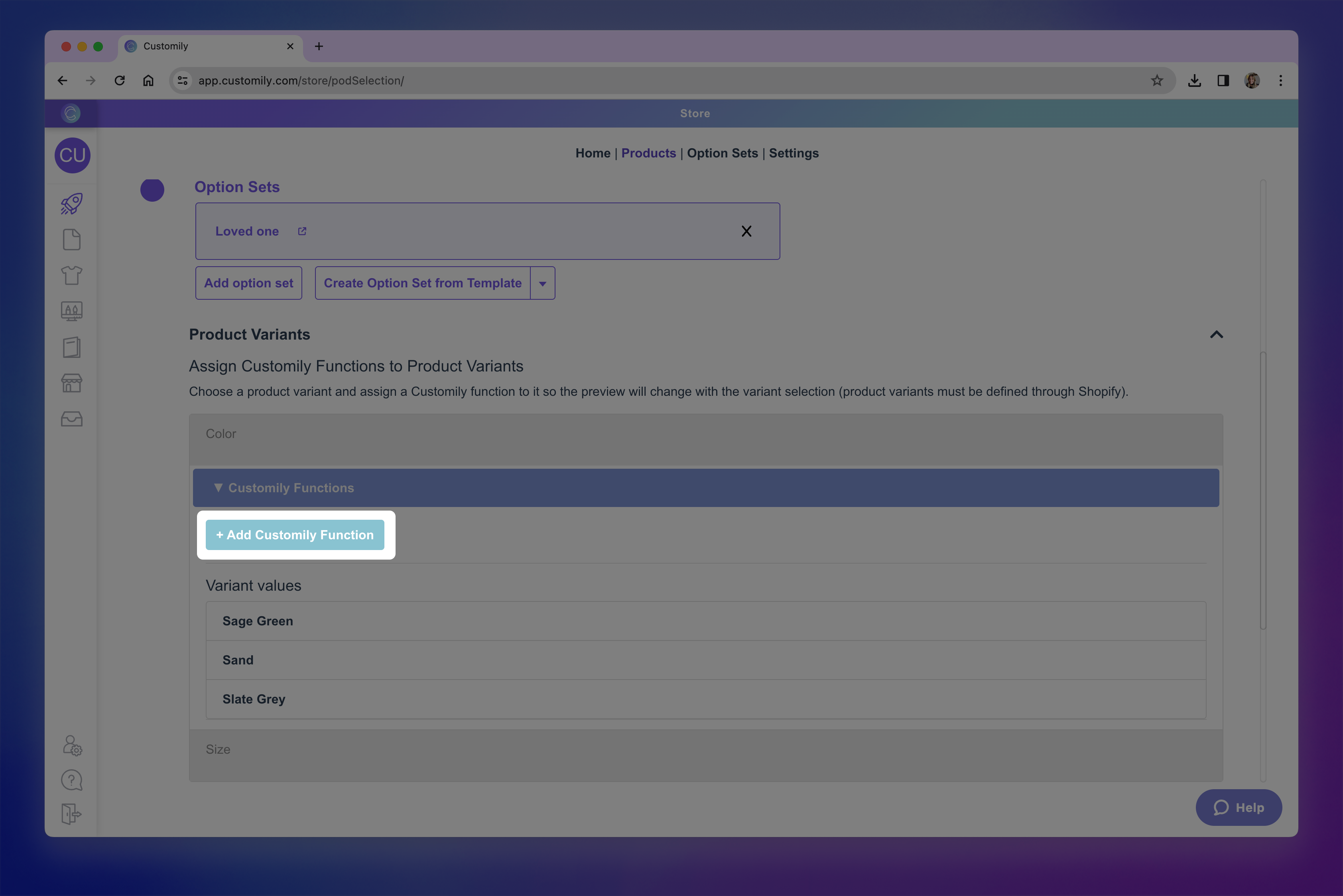
Click Customily function to expand it.
Click +Add Customily Function
-
Configure the function just like you would for a Customily option — selecting the correct function type, and element.
Need help setting up the function?
See Understanding Functions in Option Sets for a detailed explanation of how each function works and how to configure it.
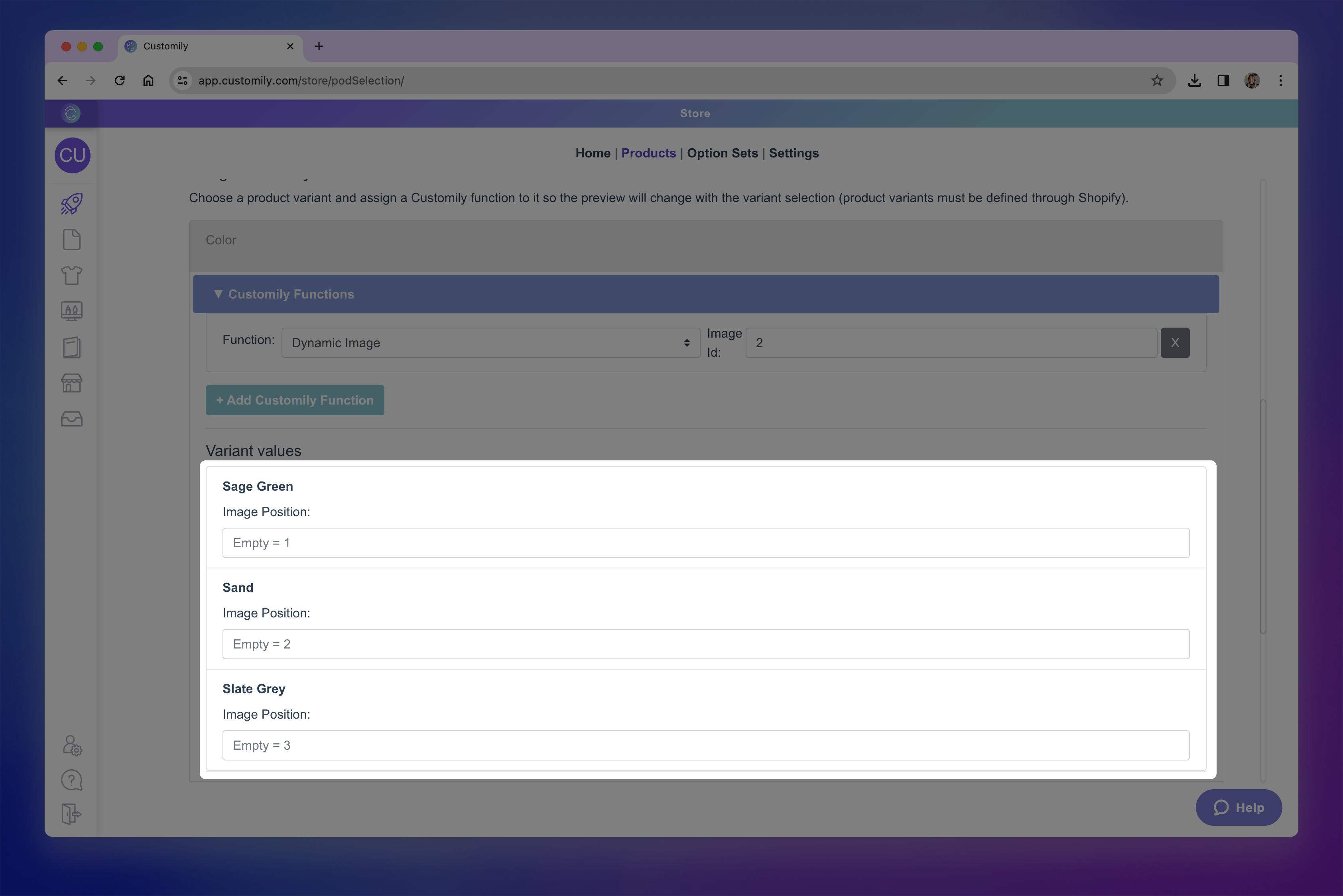
Go to Variant values, and make sure you assign the correct values for each variant. This could be image position, color position, template id, depending on the function you selected.
Save your changes.
Each variant can have as many functions as you need. This is especially useful when you want to change multiple things on the preview at once. A classic example is when changing a garment color also requires changing the text color in your design — for instance, showing black text on a white T-shirt, but switching to white text when the T-shirt color is dark navy.