Connect a Print-on-Demand provider
Last updated: October 6, 2026
Connect your Print-on-Demand (POD) provider to Customily to use it for fulfilling personalized products.
Once connected, Customily can send your personalized orders and their production files to your POD provider for fulfillment.
Before connecting a provider, make sure you already have an account with the POD service you want to use.
Connect your POD account
Go to Store Settings > Fulfillment Integrations.
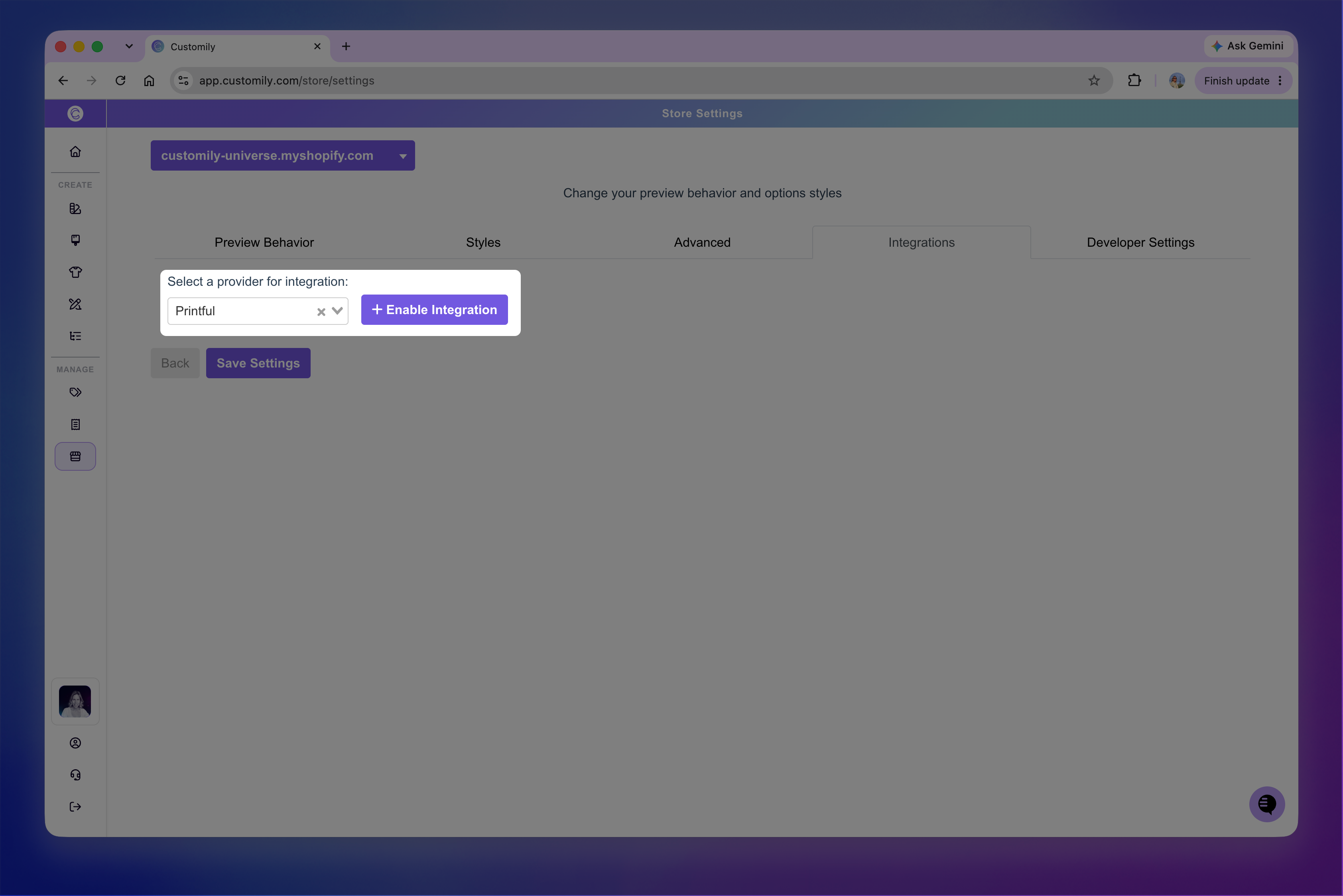
If you have multiple stores in Customily, select the store you want to connect the POD provider to on the top left corner.
Select the POD provider you want to connect.
Click Enable integration.
Enter the information required by the provider, such as an API key or access token.
Save your changes.
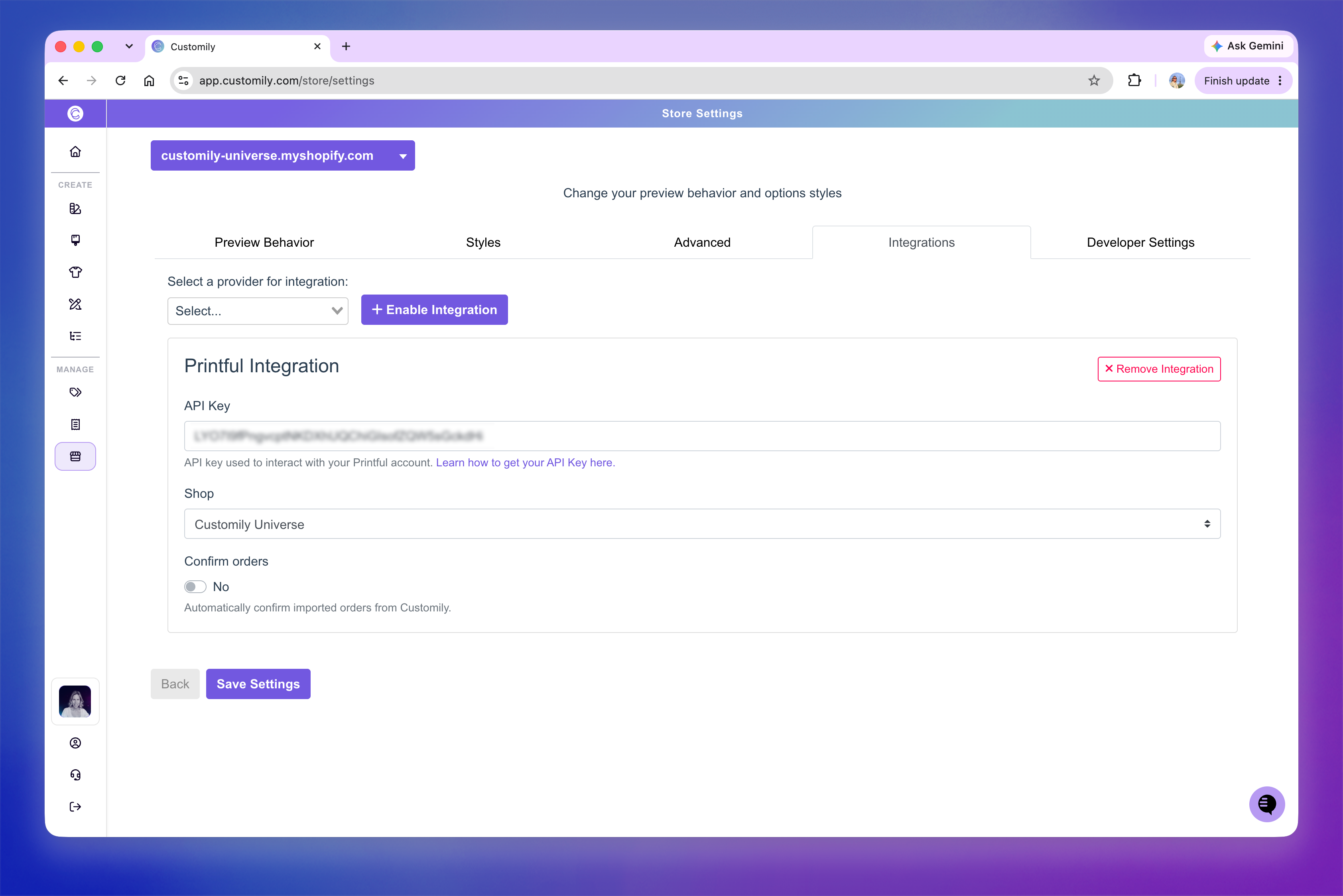
Each POD provider requires slightly different information. If you're not sure where to find the required key or token, see 📄 How to find the API key of POD providers
If you use more than one POD provider, you can enable multiple integrations from this page.
Note
POD integrations are configured separately for each store in Customily. If you want to use the same POD provider with multiple stores, enable the integration for each store individually.
Troubleshoot an invalid key
If you see an Invalid Key message, check that the API key or token was copied correctly and that you entered the complete value.
API keys and tokens can be long, so make sure no characters were missed when copying them.
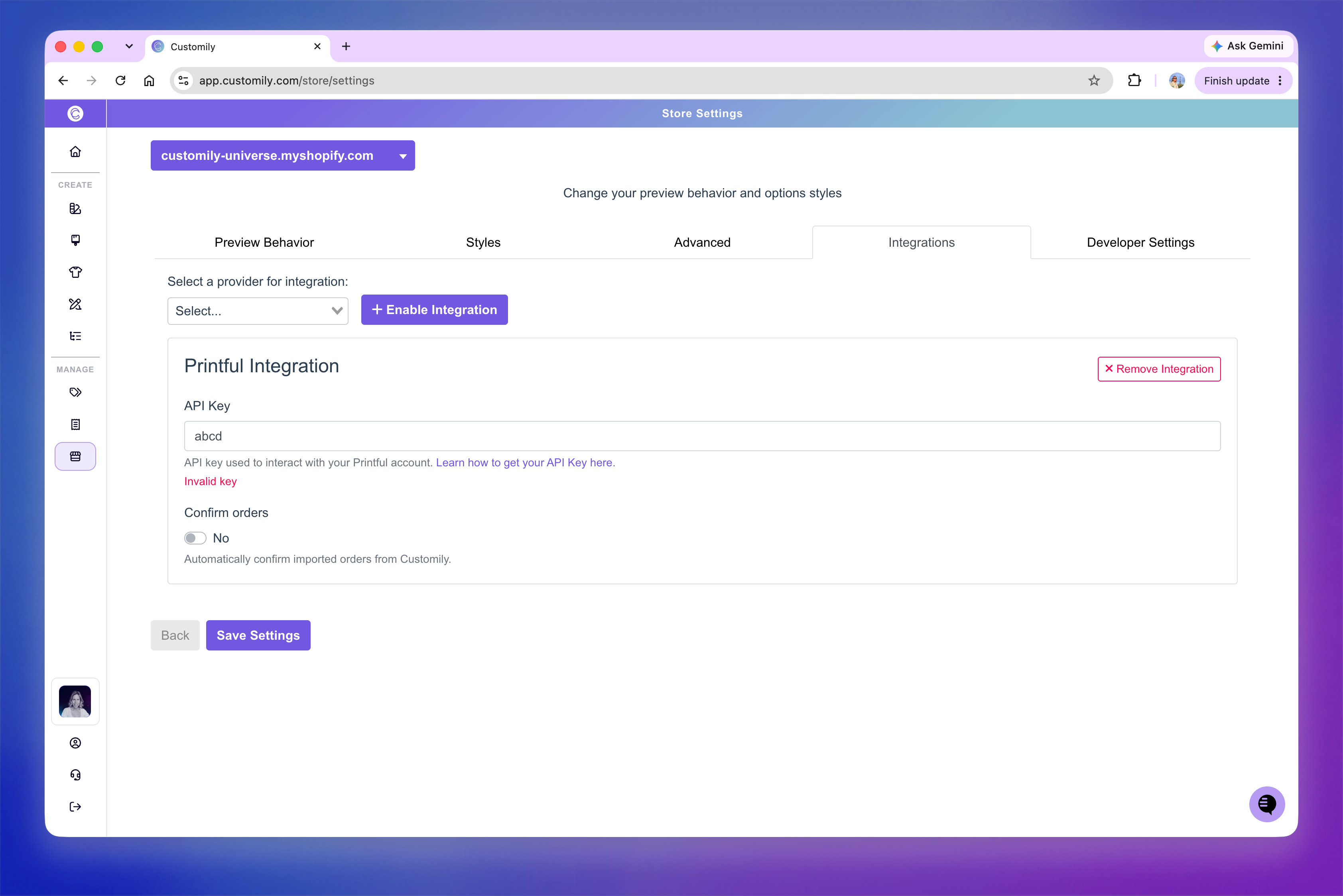
If you're unsure whether you're using the correct credentials, see 📄 How to find the API key of POD providers