Change options styles
Last updated: April 28, 2026
The way Customily Options are displayed depends on the type of option if it's a text field, a swatch, a dropdown, etc.
Specific styles can be defined through the settings panel
To change Customily Options styles
Click on settings

Click on the styles tab
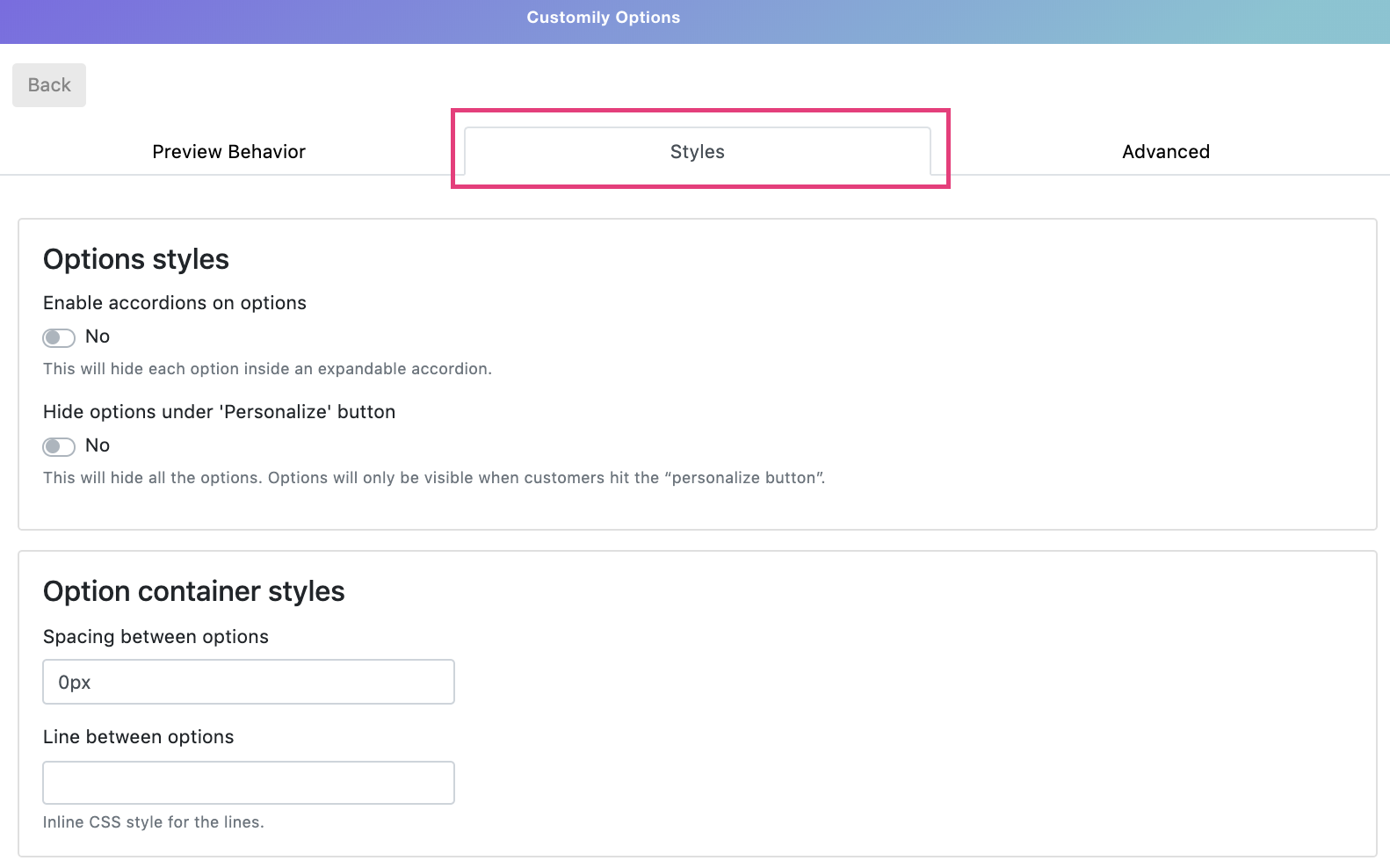
There you'll find all the different styles you can edit for the different Customily Options. The styles you can edit are:
Style | What does it change? |
|---|---|
Enable accordions on options | This will hide each option inside an expandable accordion. |
Hide options under 'Personalize' button | This will hide all the options. Options will only be visible when customers hit the “personalize button”. |
Spacing between options | Determine how many space there is between options |
Line between options | Add a line between each option |
Change swatch shape | Choose from square, round or rounded square swatches |
Change swatch size | Choose from small, medium and big swatches |
Required message styles | Change the wording from the required text, and the text color |