How to add Customily to your store
Last updated: October 13, 2026
Customily offers seamless and user-friendly integration with the most important e-commerce platforms. Select your e-commerce platform to get instructions on how to install Customily in your store.
Shopify
Go to the Customily page on the Shopify App Store.
Click on Add app.
Log-in or sign-up to Shopify.
Click on Install app.
Approve to start your free trial.
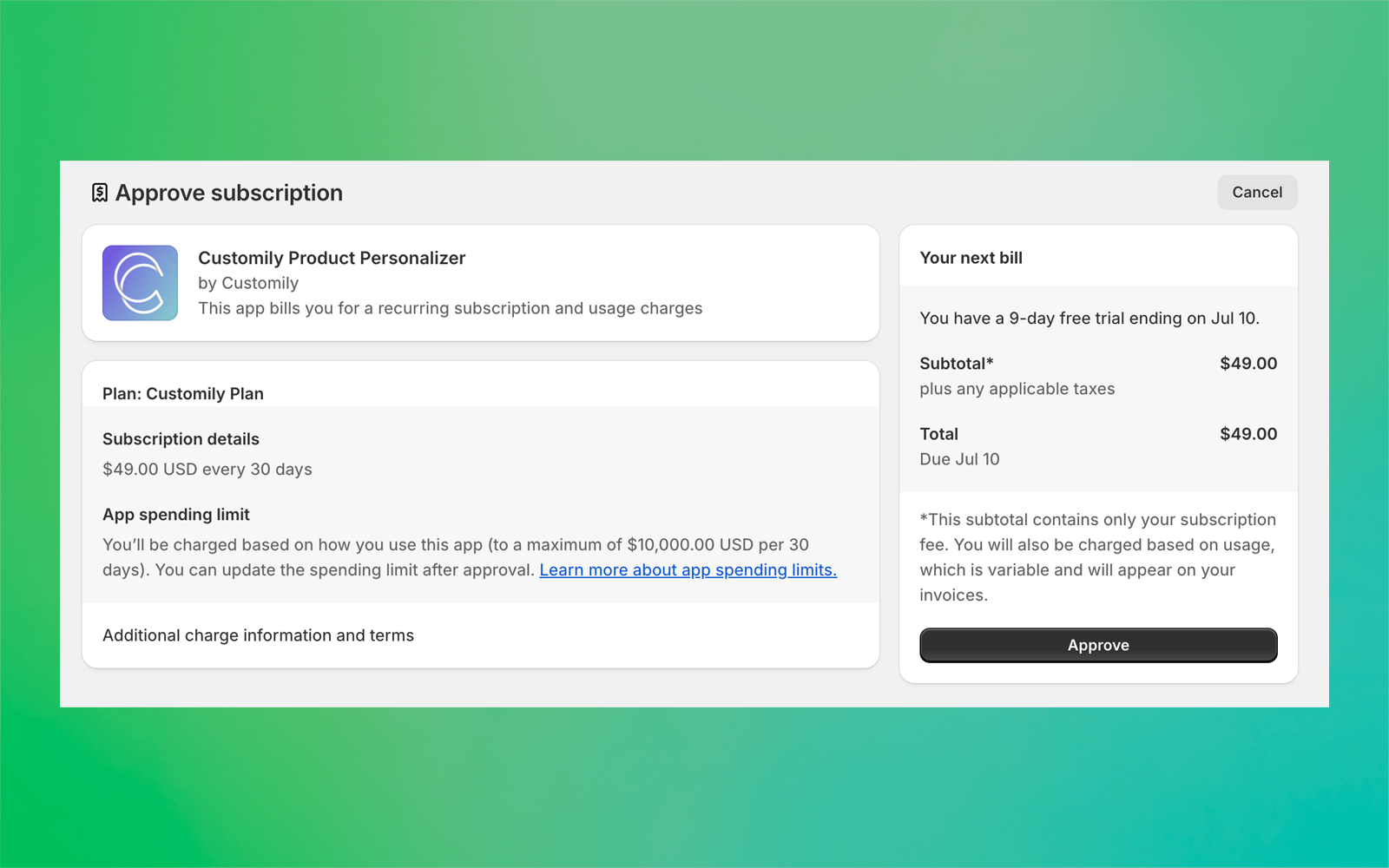
Important
A new Customily account associated with the shop will be created automatically when you install the app. To access Customily design studio, go to your Shopify admin panel > Apps > Customily
Etsy
Sign up using your email address or your Etsy account.
Enter your billing information to complete your account setup. You won't be charged until your free trial ends.
Tip
If you already have a Customily account that you use on another store, instead of creating a new account click on Already have an account? Click here instead to let us know! So we can add your Etsy store to your existing user
Once your account is created, follow the steps below to connect your Etsy store to Customily.
Sign in to Customily with your username and password.
Click on Connect Customily your Etsy store
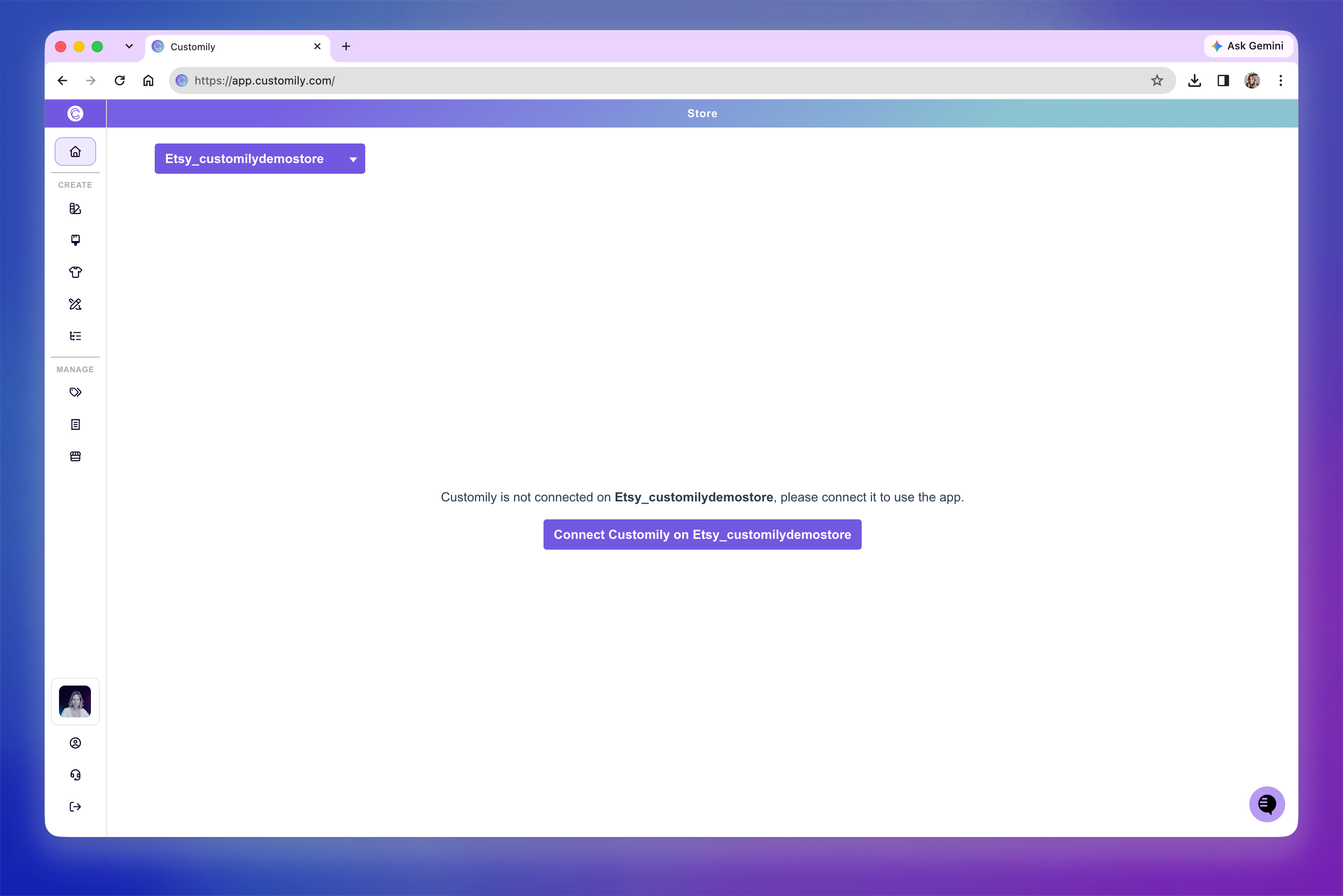
Note
If you have more than one store on your user, make sure you select your Etsy store from the dropdown at the top left to be able to see the Connect Customily on Etsy button.
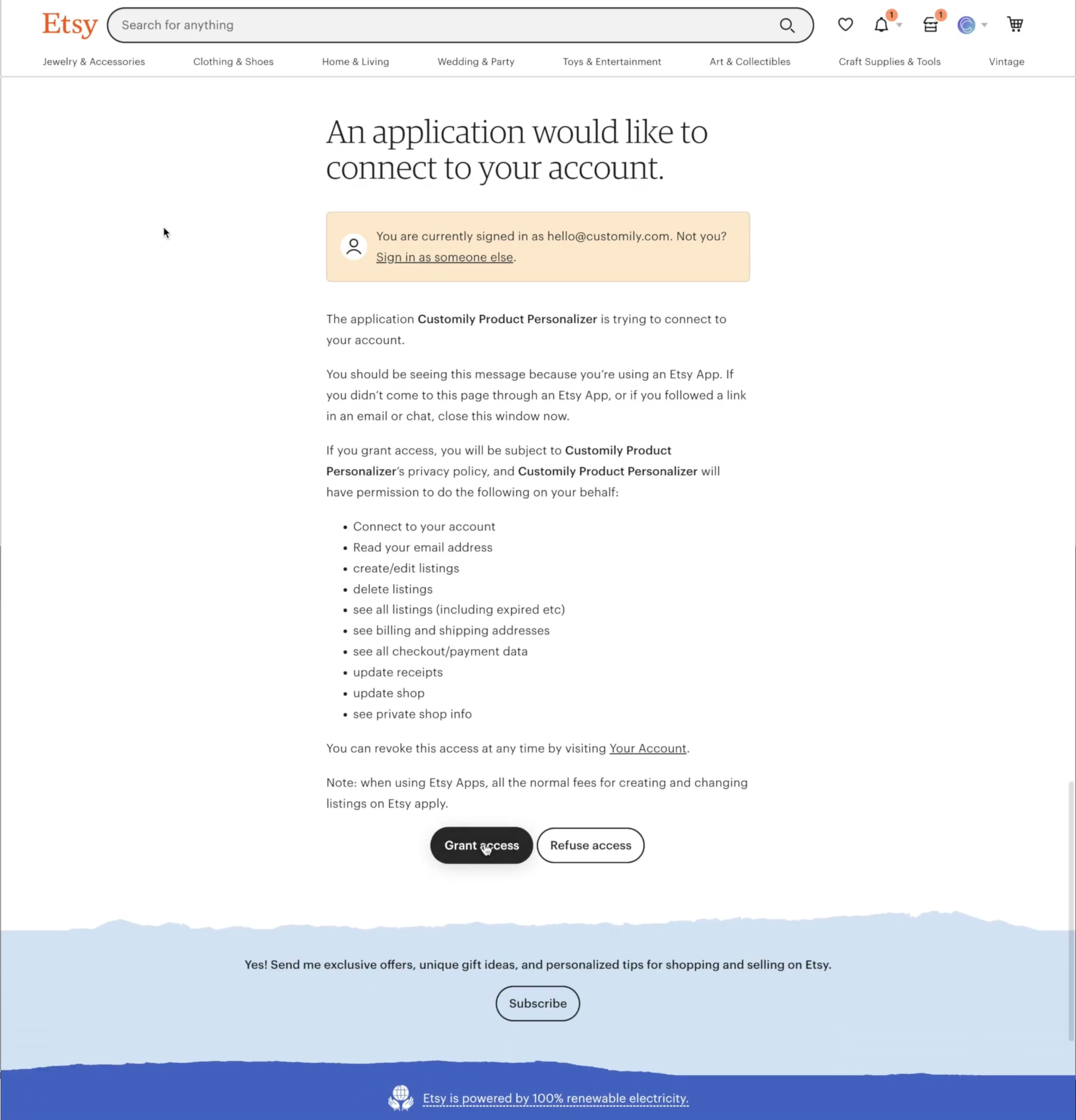
This will open a new tab with your Etsy account. If you are not logged in, you will be asked to log in to your Etsy account.
Once you are signed in, it will let you know that an application would like to connect to your account. Scroll to the bottom of the notice and Grant access.
WooCommerce
Sign up using your email address or your Google account.
Enter your billing information to complete your account setup. You won't be charged until your free trial ends.
After creating your account, you'll receive an email with the Customily plugin.
Download the ZIP file from the email.
Log in to your WordPress dashboard.
Go to Plugins → Add New Plugin → Upload Plugin.
Select the ZIP file you downloaded and click Install Now.
Once installed, click Activate Plugin.
Return to Customily and click Connect Customily on your Woo Store to finish connecting your WooCommerce store.
Note
You must install and activate the Customily plugin before you can connect your store.
BigCommerce
Enter your information to create your account.
Enter your billing information and complete your subscription.
After creating your account, you'll receive an with instructions.
Go to the Customily page on the BigCommerce App Store.
Click on Get this app.
Log-in or sign-up to BigCommerce.
Click on Install.
Follow the instructions onthe email to create an account for our team to finish installation.
Magento
Enter your information to create your account.
Enter your billing information and complete your subscription.
After creating your account, you'll receive an email with the Customily extension.
Download the ZIP file from the email and unpack it.
Connect to the server where the website source folder is located with FTP/SFTP client (WinSCP, Filezilla, Cyberduck, etc).
Go to upload > app and upload the files from the app folder to the root app folder of your Magento website using ‘Merge’ upload mode. This way, your FTP/SFTP client will only add new files.
Connect to your Magento directory with SSH.
Run the next commands:
php bin/magento setup:upgrade - to install the extensionphp bin/magento setup:static-content:deploy - to deploy static view files.If you use the default or developer mode, you can skip the last command.
Important
The extension is compatible with Magento 2. If you are using a previous version of Magento, please contact our support team for detailed instructions.
After the plugin is installed open it to connect it with Customily
Open your Magento backend.
Go to Stores > Configuration > Customily > Api Settings.
Add your Customily API Key. See where you can find your Customily API key here.
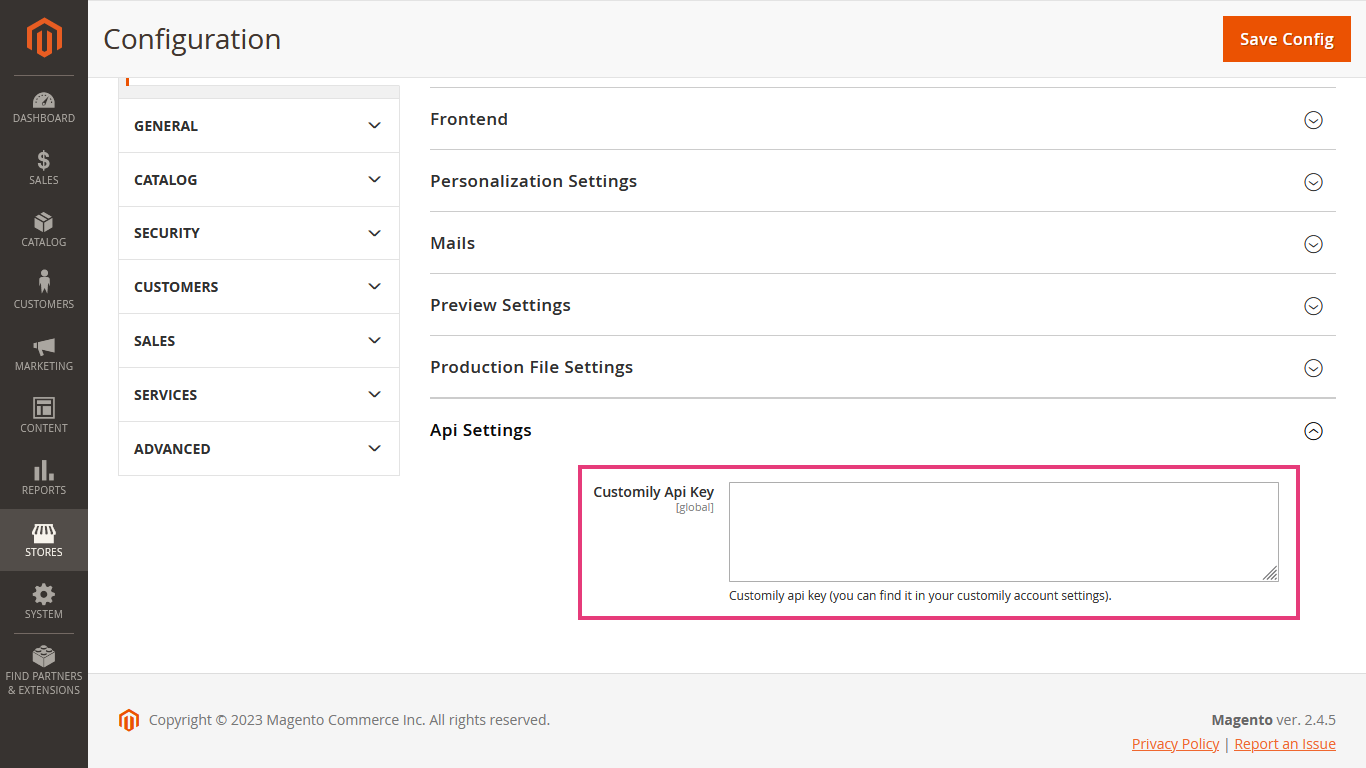
Save Config
Walmart DSV
Enter your information to create your account.
Enter your billing information and complete your subscription.
Important
You need a Walmart DSV account in order to use Customily. Walmart sellers accounts do not work.
After creating the account, connect it with your Walmart DSV
Sign in to Customily with your username and password.
On the left menu, go to Manage Options
Go to Settings > Advanced
Fill in the information under Walmart Credentials
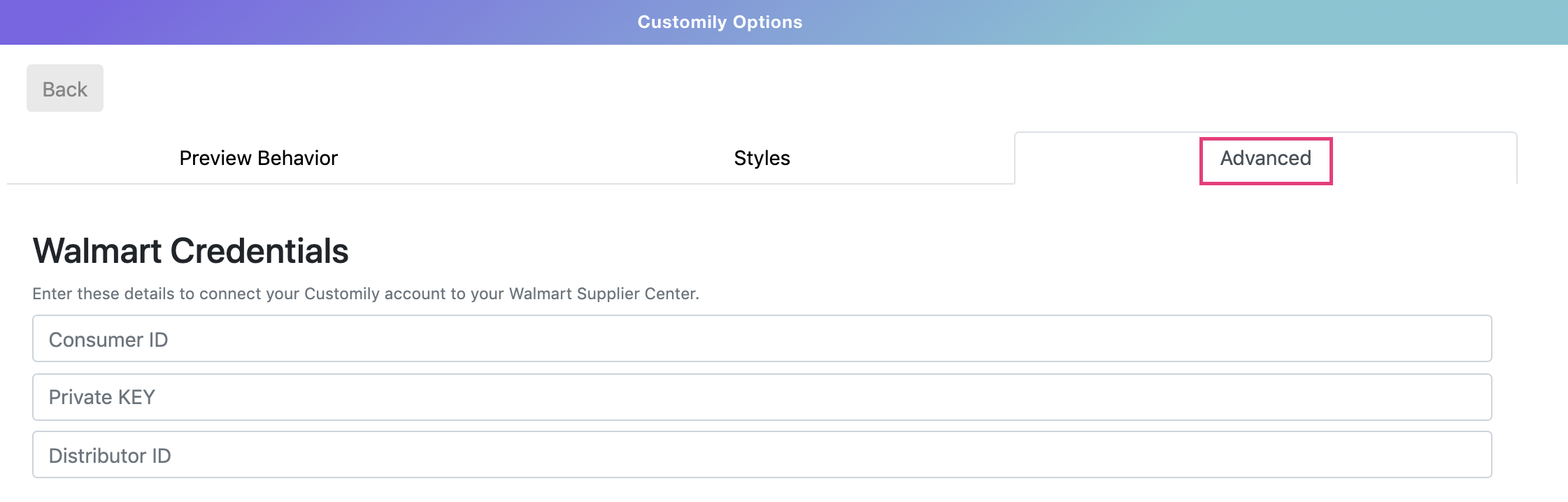
If you're not sure where to find your information on Walmart, see 📄 Where to find your user credentials on Walmart
Others
Enter your information to create your account.
Enter your billing information and complete your subscription.
Depending on your platform or integration method, the steps to connect Customily to your store may vary.
If you're using a custom integration, visit our Developer Documentation for instructions on integrating Customily using our API.
If you need additional help connecting your store, contact our support team.