Where can I find my merchOne API Key
Last updated: October 6, 2026
Log in to your merchOne account or register with them here if you don't have an account yet.
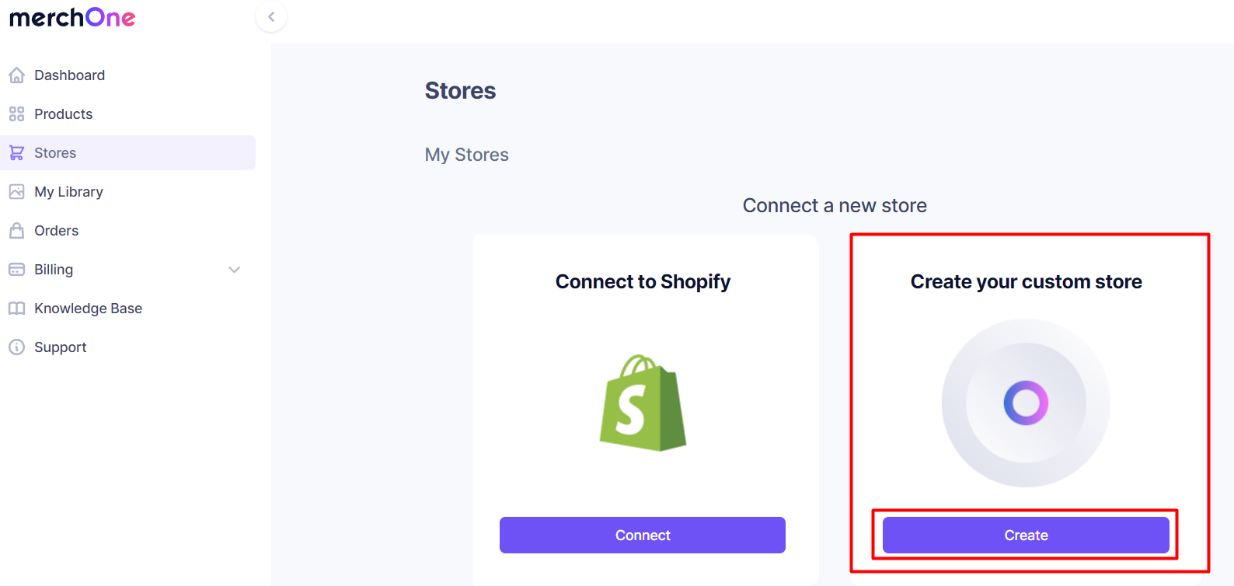
Go to Stores section and create a new store by clicking Create button under Create your custom store.
Note
If you would like to link Customily with an existing API store, please start with step #4 from these instructions.
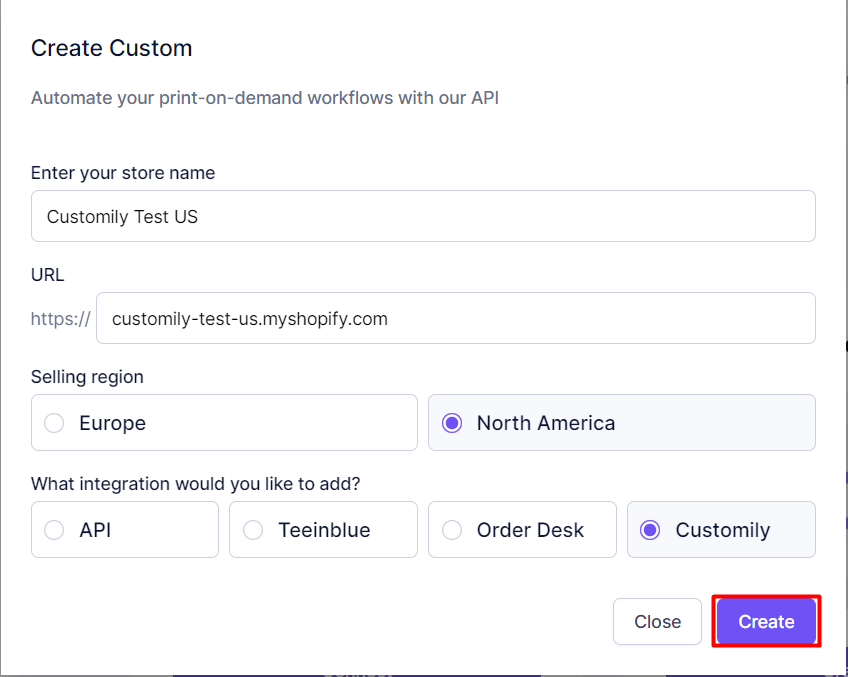
Enter the desired Store Name and URL, select the selling region and Customily Integration, and then click the Create button.
Once the store is created, access it's settings to get the API KEY.

Scroll down to the Store credentials section, to find API USER and API KEY.
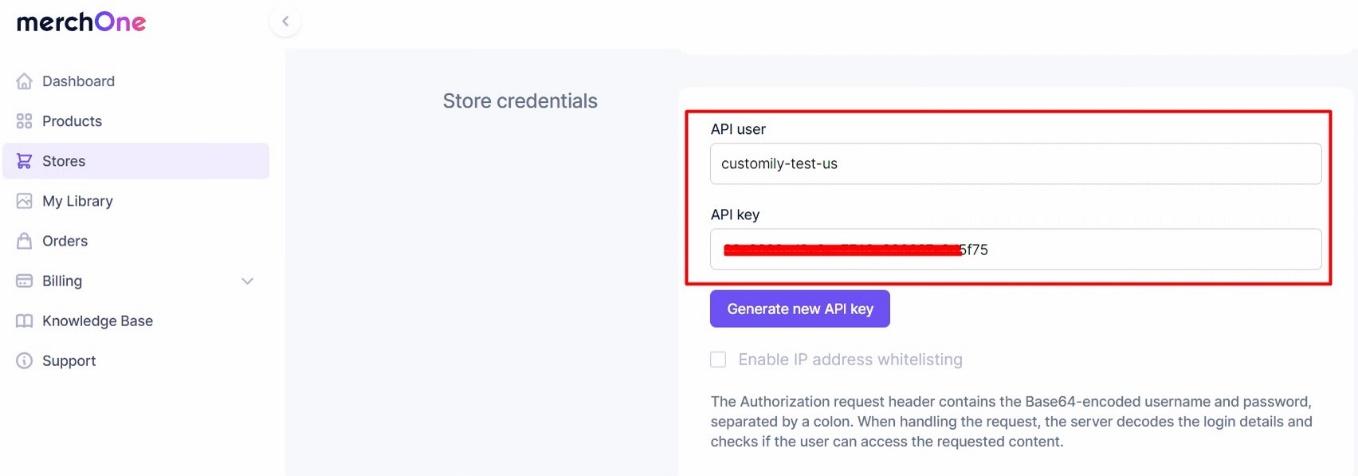
The API Key is now generated. Copy to clipboard and paste it on your Customily Settings to complete the integration.
Go back to the merchOne platform and under Webhook, paste the following:
https://sh.customily.com/provider/hooks/orderShipped?provider=picanova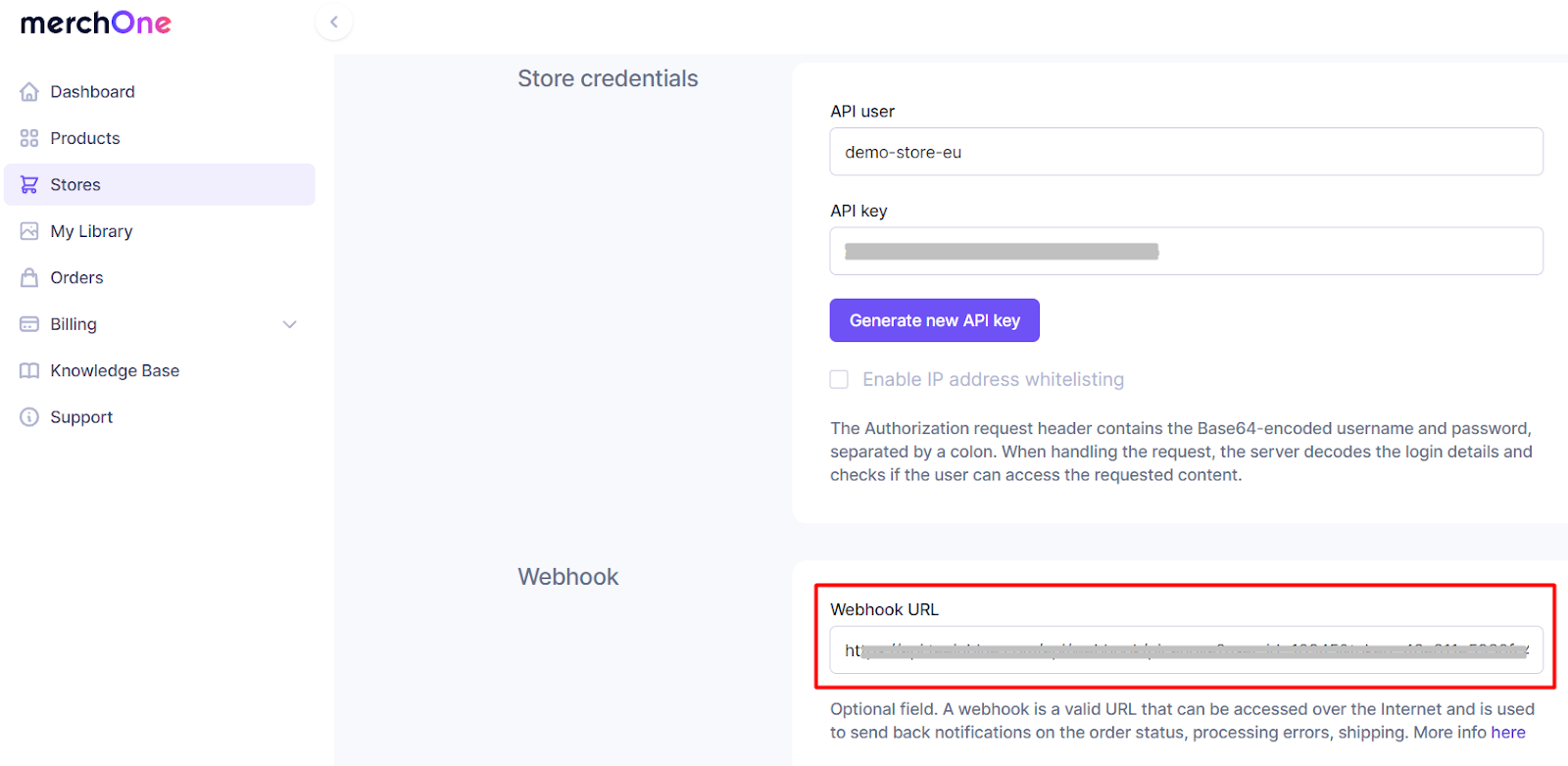
Make sure to Save your changes in merchOne and Customily App.