Configure preview zoom
Last updated: September 23, 2026
Add zoom to your live preview so shoppers can see their personalization in more detail. You can choose how zoom behaves on desktop and enable zoom separately for mobile devices.
Keep in mind
Zoom settings apply to all products using Customily in your store.
How to configure Preview Zoom
To customize zoom behavior:
Go to Store Settings.
Open Preview Behavior.
Scroll to Zoom.
Choose your Zoom Style for desktop and enable or disable zoom for mobile devices.
Save your changes.
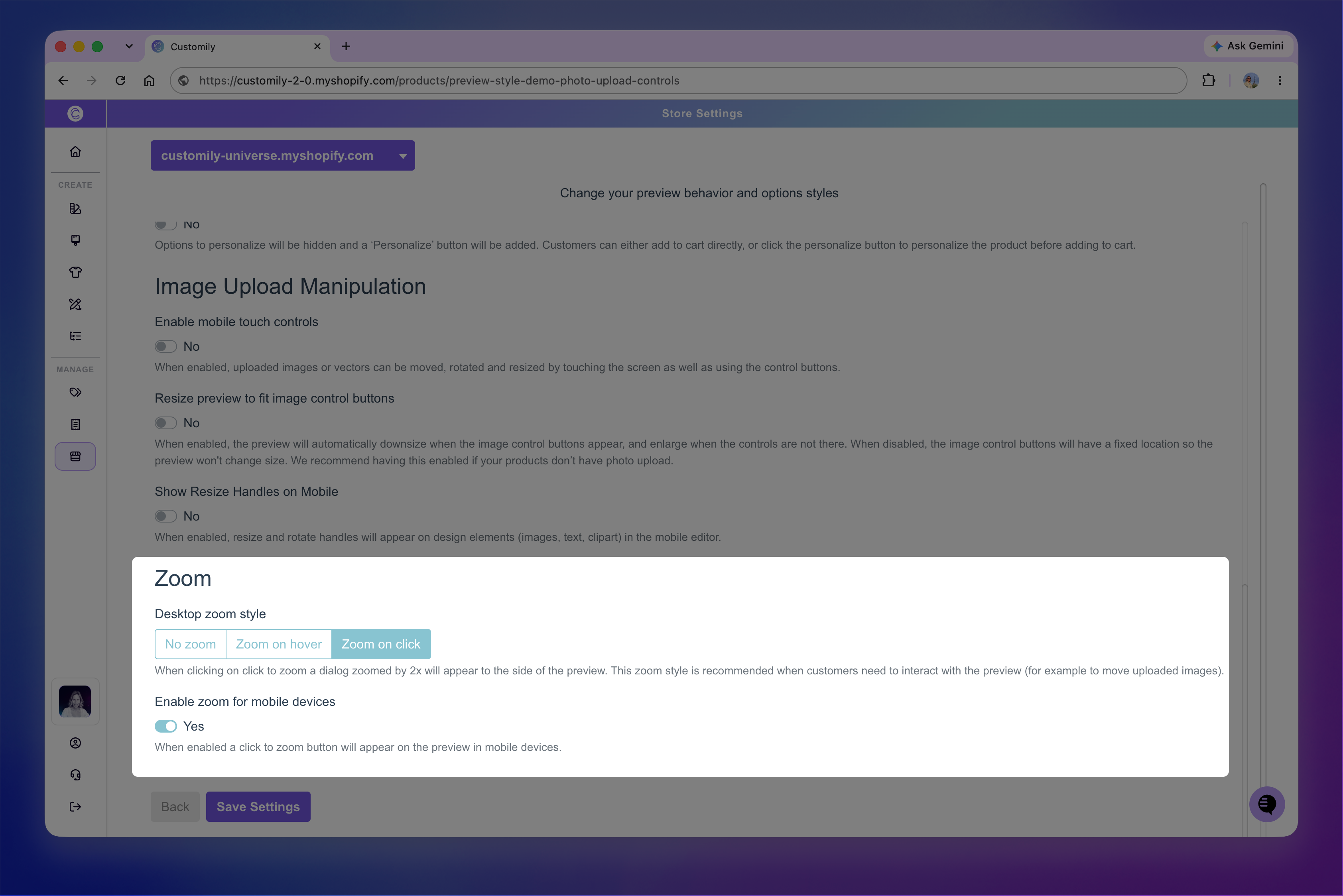
Choose a Zoom Style for desktop
For desktop devices, you can choose from three Zoom Styles:
No Zoom
Select No Zoom if you don't want shoppers to be able to zoom into the preview.
Zoom on hover
With Zoom on hover, moving the cursor over the preview magnifies the canvas to 2x, letting shoppers see personalization details more closely.
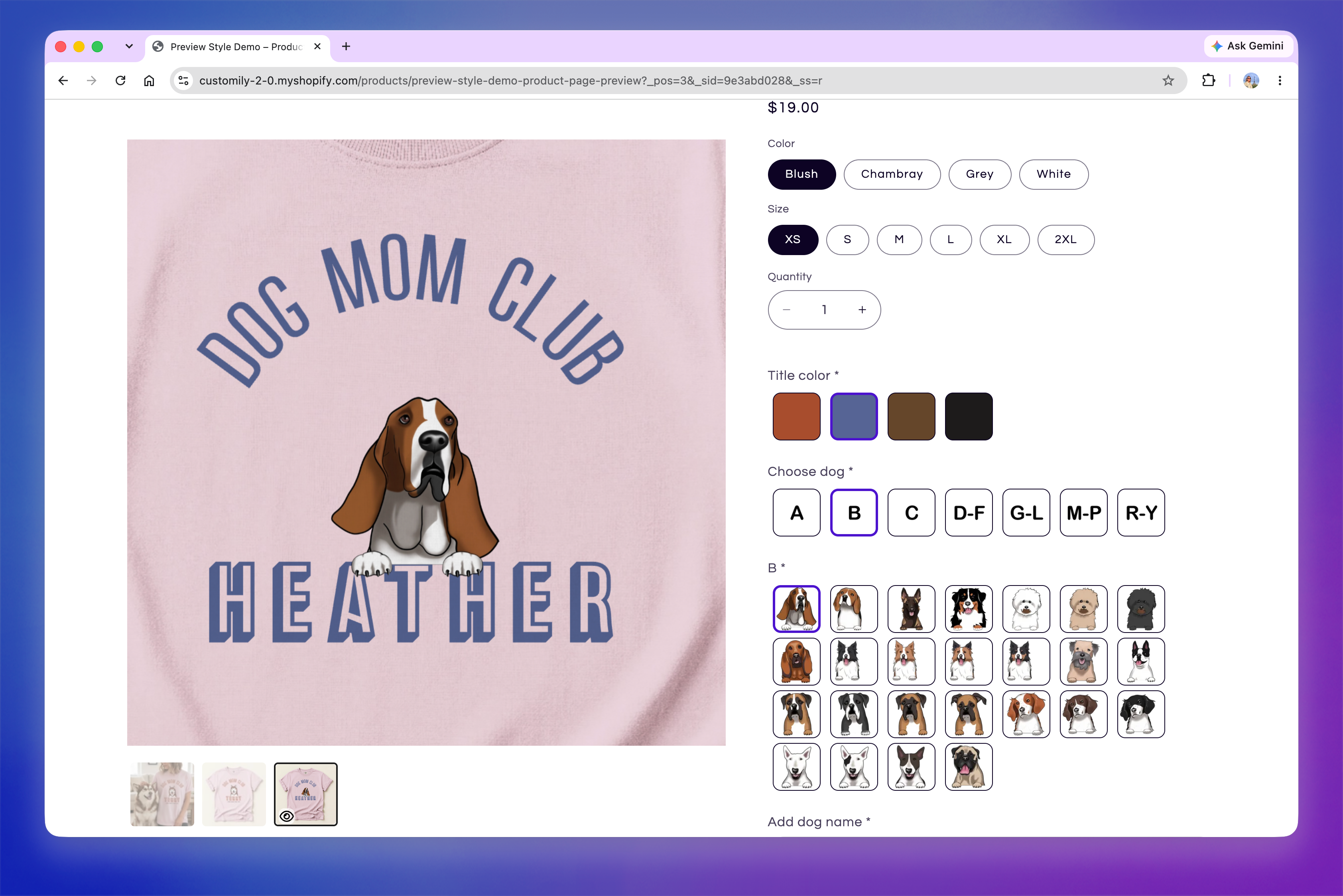
Important
When Zoom on hover is enabled, shoppers can't manipulate elements directly in the preview with their cursor. If your products include uploaded images, movable text, or other elements shoppers can reposition, they will need to use the available manipulation controls instead.
Zoom on Click
With Zoom on Click, a small zoom button appears in the top-left corner of the preview.
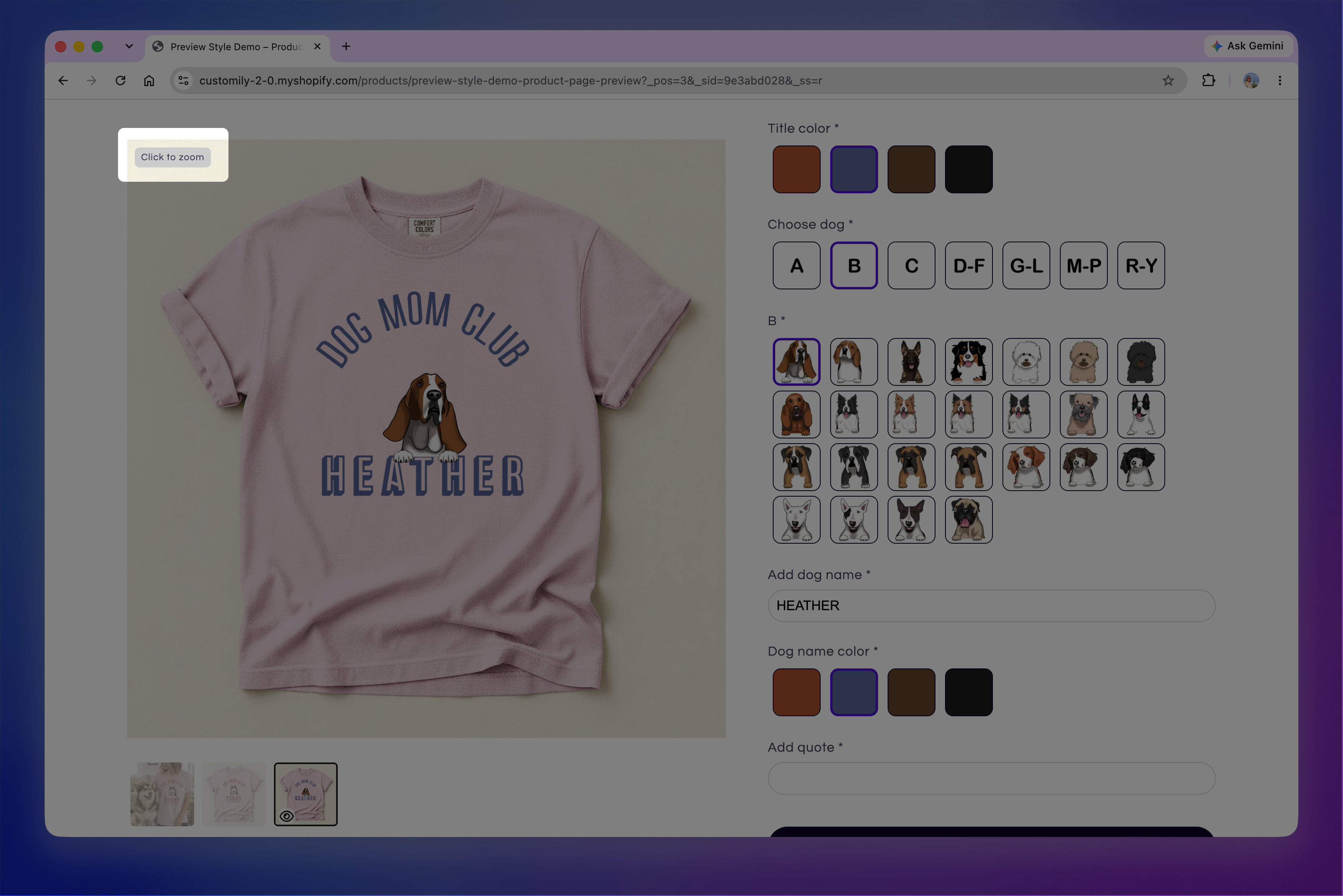
When shoppers select it, a secondary 2x magnified view appears next to the original preview.
As shoppers move their cursor around the original preview, the magnified view follows it, showing a closer look at that area. Moving the cursor outside the preview closes the zoomed view.
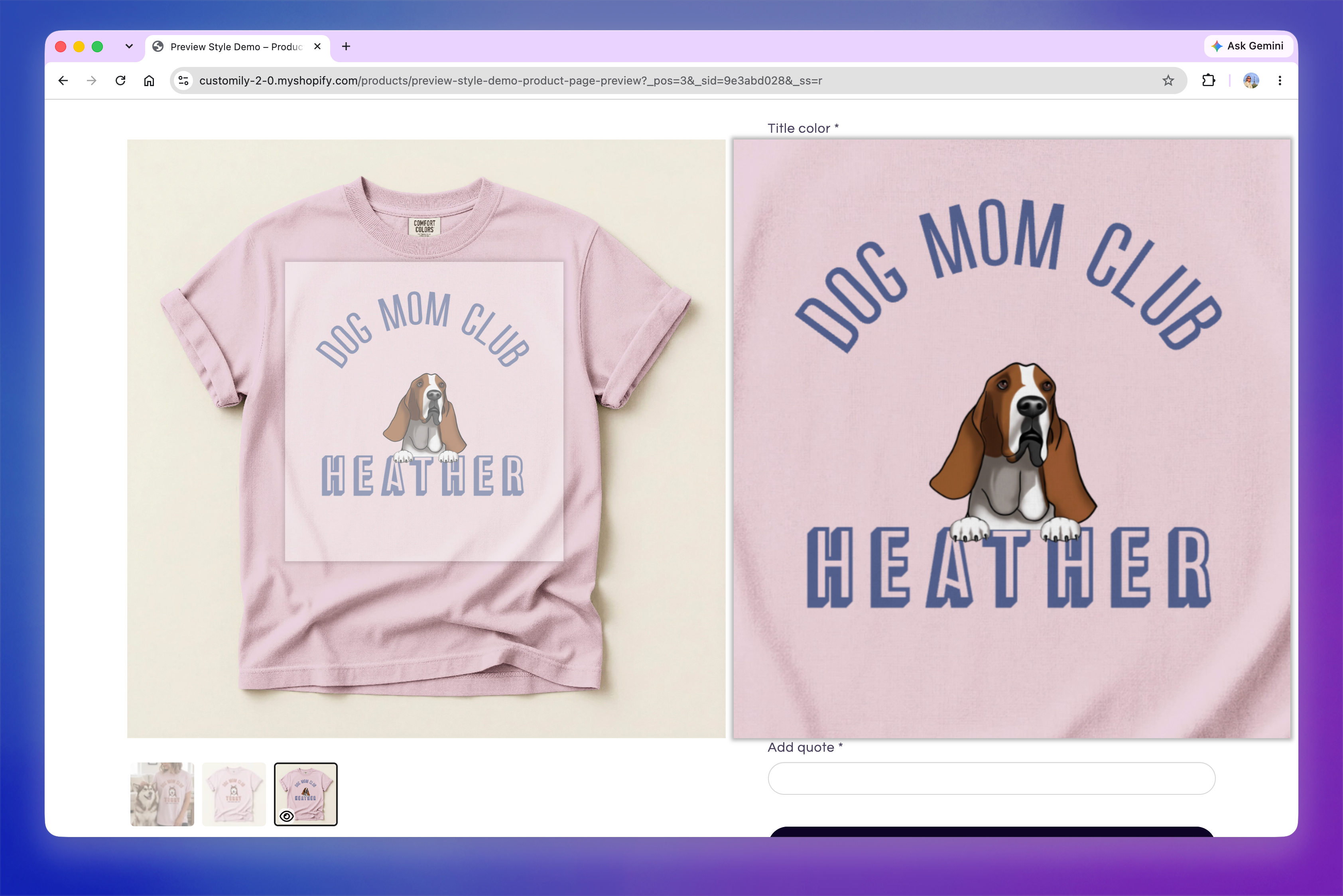
Because zoom is triggered from a separate button, the preview itself remains interactive. Shoppers can use their cursor to move or adjust elements directly in the preview when the product supports it.
Tip
We recommend Zoom on Click for products with interactive elements, such as uploaded images or movable text. It gives shoppers access to a detailed view without interfering with their ability to use the preview as a design area.
Enable zoom on mobile devices
Enable Zoom for mobile devices to add a Click to Zoom button to the preview on mobile.
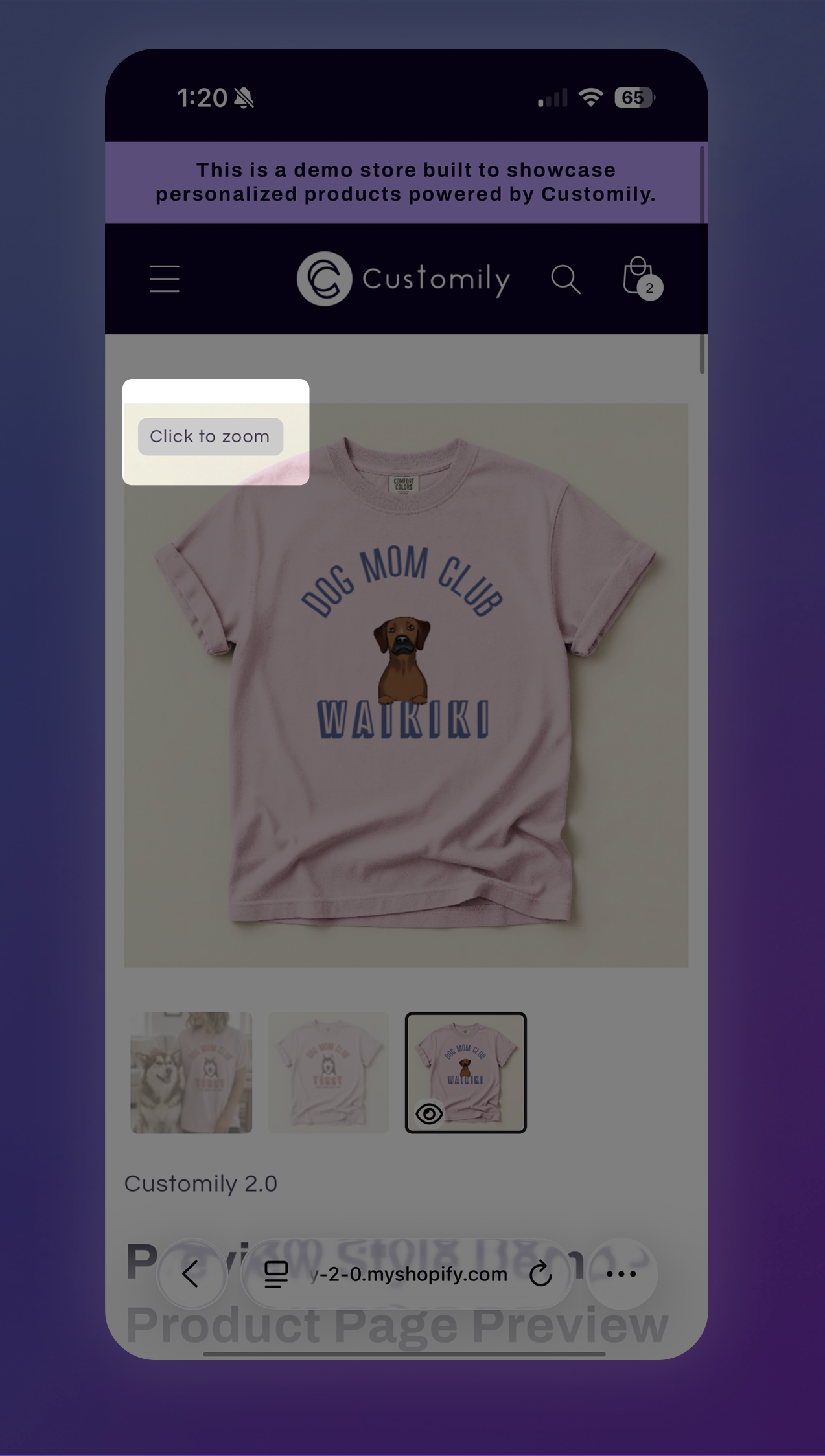
When shoppers tap the button, the personalized design opens as an enlarged image in a separate dialog. They can then use touch gestures to zoom in and explore different areas of the design.
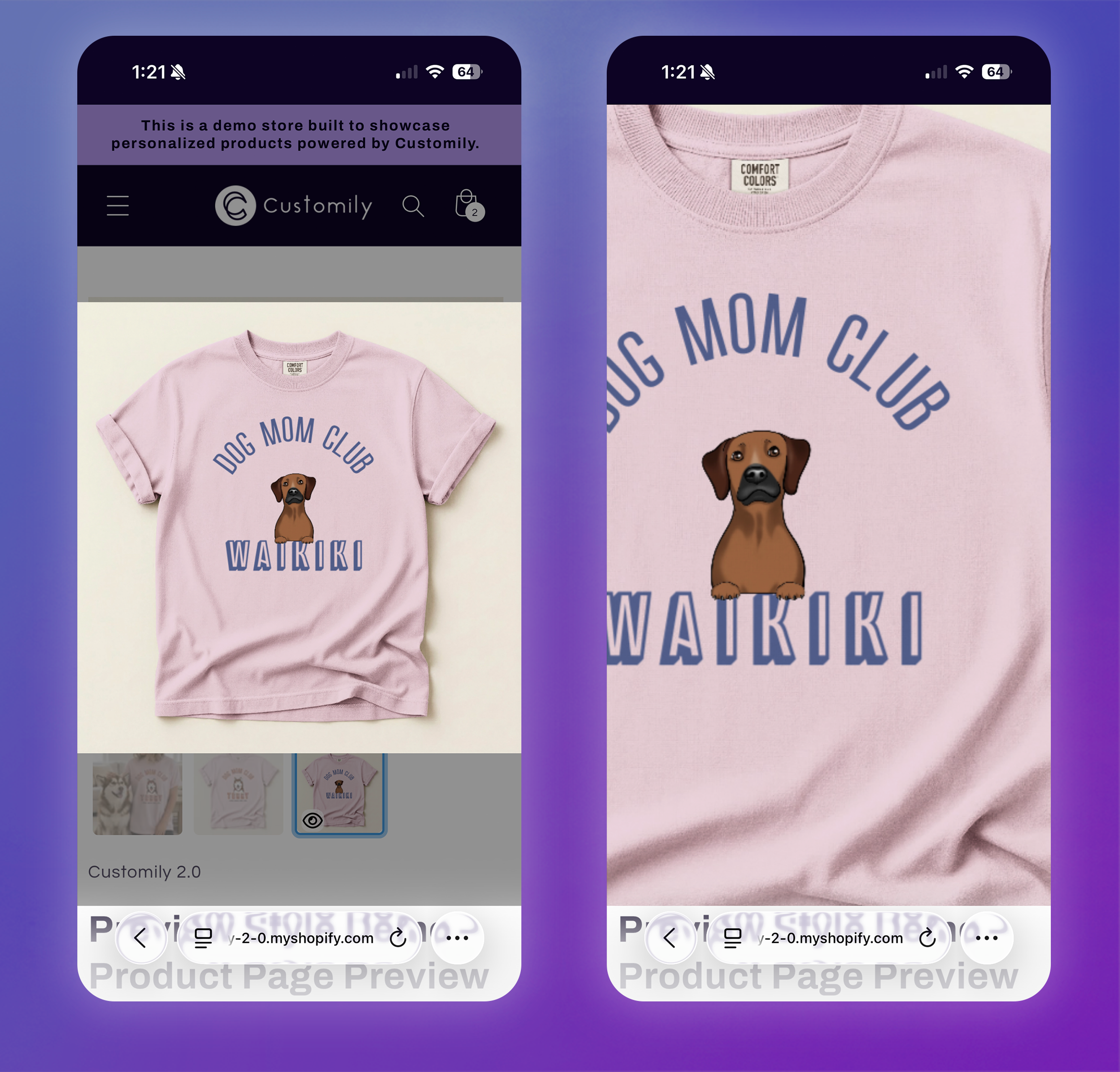
Opening the preview separately allows touch gestures to be used specifically for zooming, without interfering with product gallery navigation.