Introducing Customily’s new Shopify interface
Last updated: August 13, 2026
Customily can now be accessed directly from your Shopify Admin, with a new interface designed to match Shopify’s look and navigation.
While things may look a little different, most Customily features and workflows work exactly the same. The main changes are where things are located, how they’re organized, and how they look.
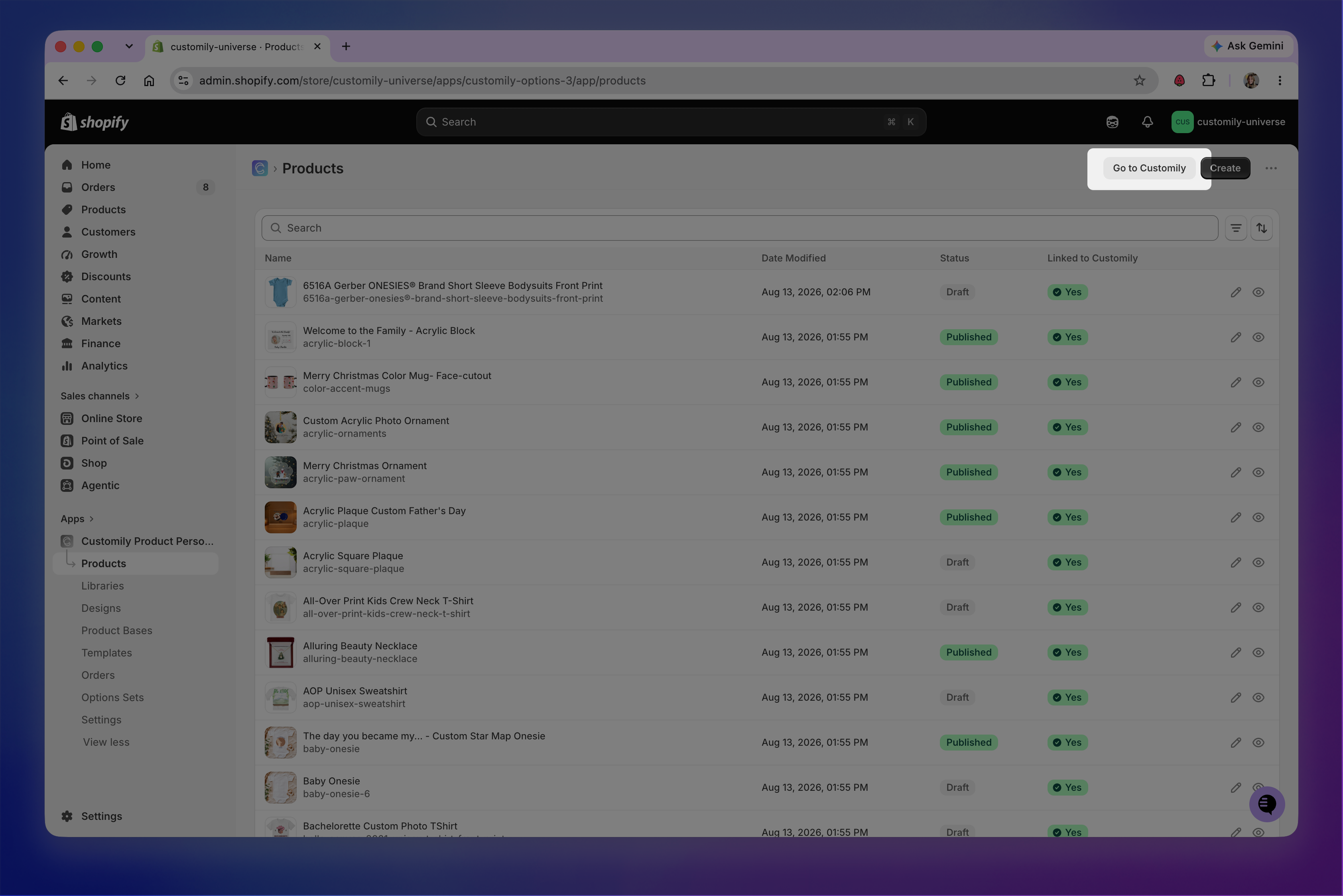
If you prefer the familiar Customily interface, you can continue using the full Customily app at any time. You’ll find Go to Customily buttons throughout the Shopify interface, or you can access the app directly at app.customily.com.
This guide walks you through the new Shopify interface and highlights the differences you should know about.
If you're working with multiple stores
The Shopify interface is connected to the store you're currently logged into. If your Customily account has multiple stores, you can open the full Customily app whenever you need to work across stores.
Navigating Customily inside Shopify
Customily appears under Apps in your Shopify Admin. Because Shopify uses a flat app navigation, the menu looks slightly different from the navigation in the full Customily app.
You’ll find the main Customily sections directly in the Shopify menu. If there isn’t enough room to display all of them, Shopify places the remaining sections under View more.
To return to the Customily Home page, click Customily at the top of the app menu.
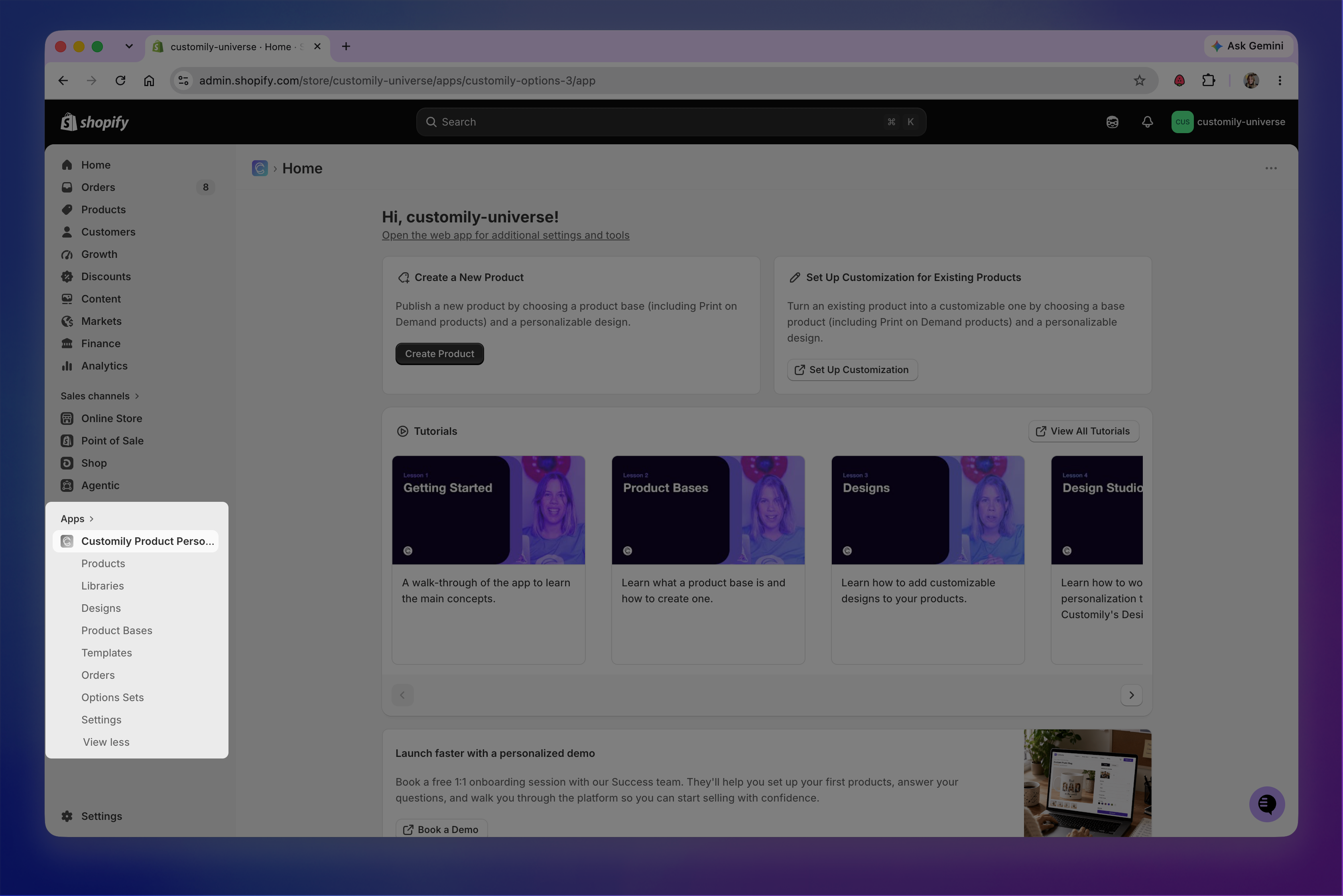
Although the navigation looks different, the same main areas of Customily are still available.
Home
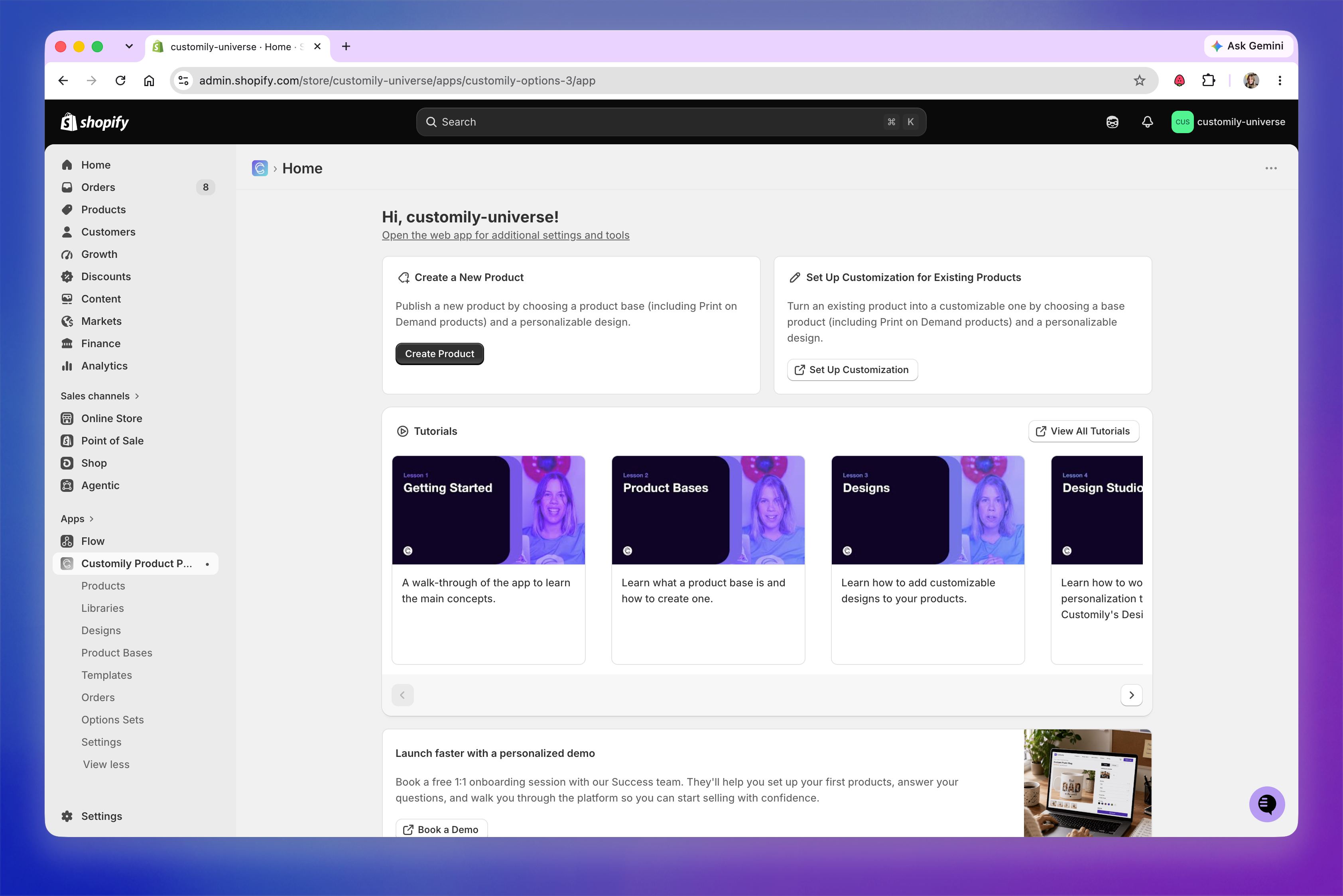
The Home page has a new layout, while keeping the main actions you’re already familiar with.
At the top, you can still:
Create a new product
Set up personalization for an existing product
Access video tutorials
The new Home page also gives you the option to book a call with our team, see statistics from your store, including personalized products, orders, and sales, and quickly access your published personalized products.
Products
The Products page has a refreshed look, but managing your products works the same way.
You’ll still see a list of the products in your Shopify store, whether they’re Published or Draft, and whether they’re linked to Customily.
The new interface also includes a Create button on the right side of the page, so you can start creating a new personalized product directly from Products.
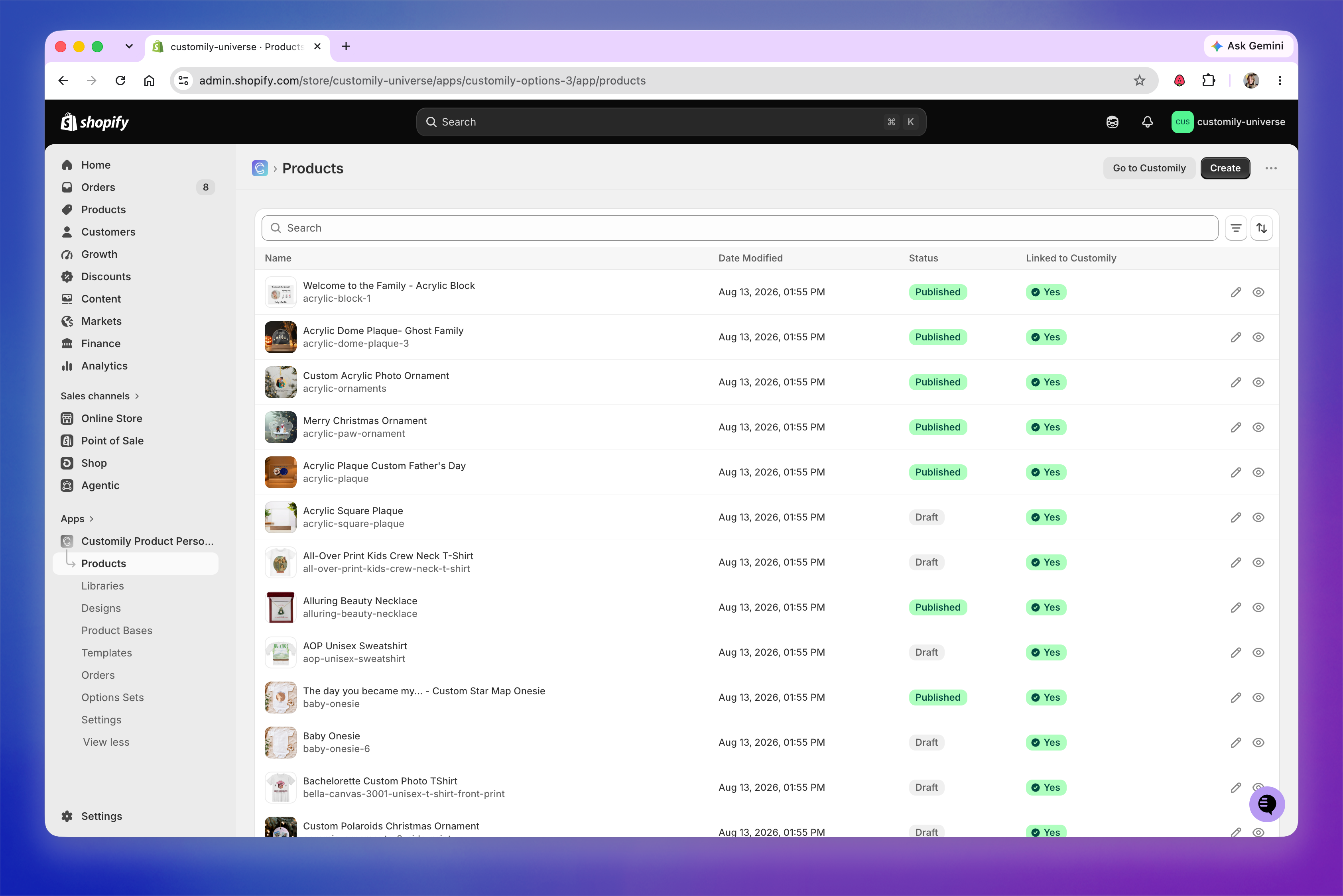
When you open an existing product to edit its personalization setup, the configuration experience is the same as in the full Customily app.
Creating a new product
The product creation flow has also been redesigned to match the Shopify interface, but the process remains the same.
You can start by clicking Create from Products or by going to the Home page and selecting Create Product.
From there, you’ll:
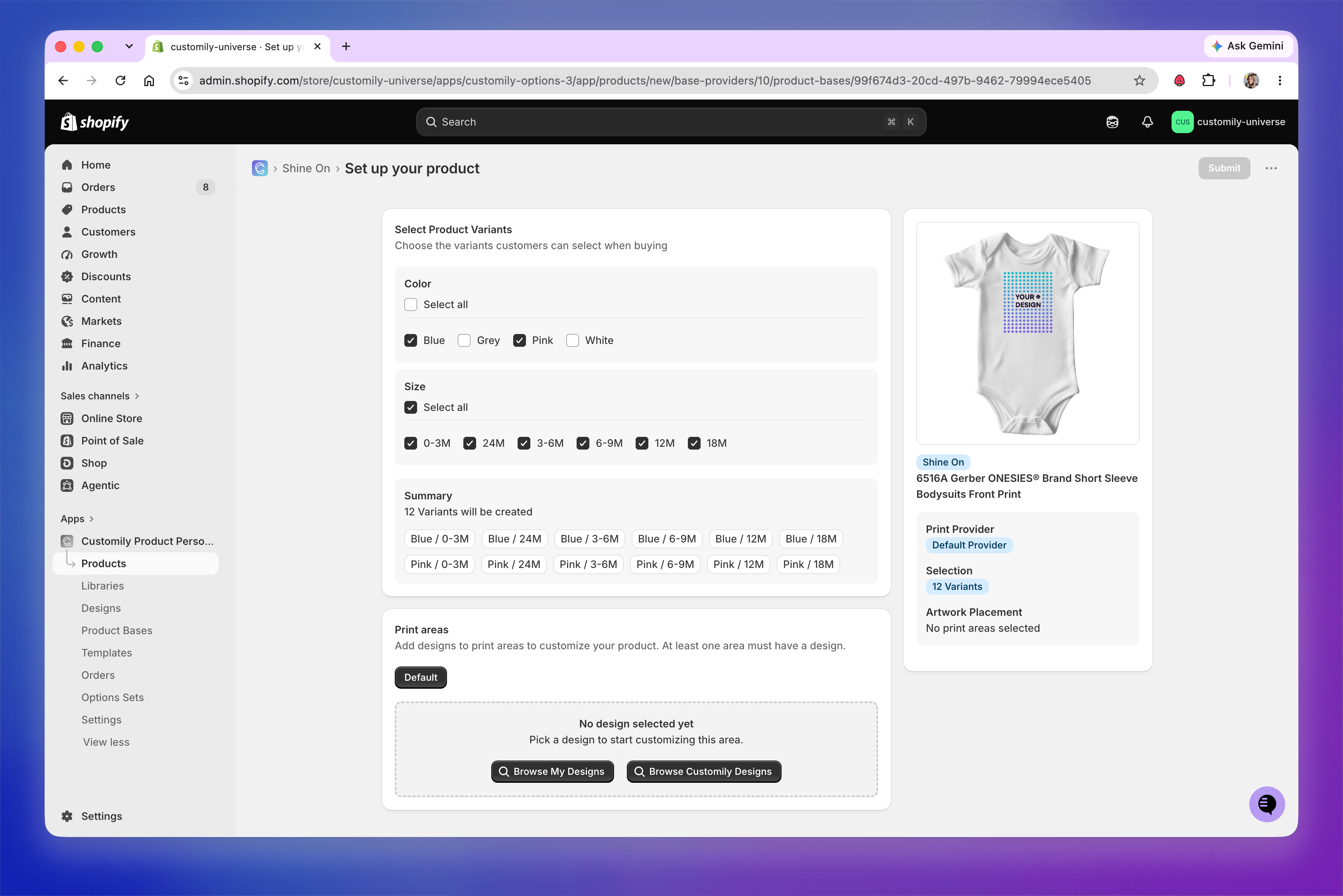
Choose a POD provider or one of your own Product Bases.
Select the product you want to use.
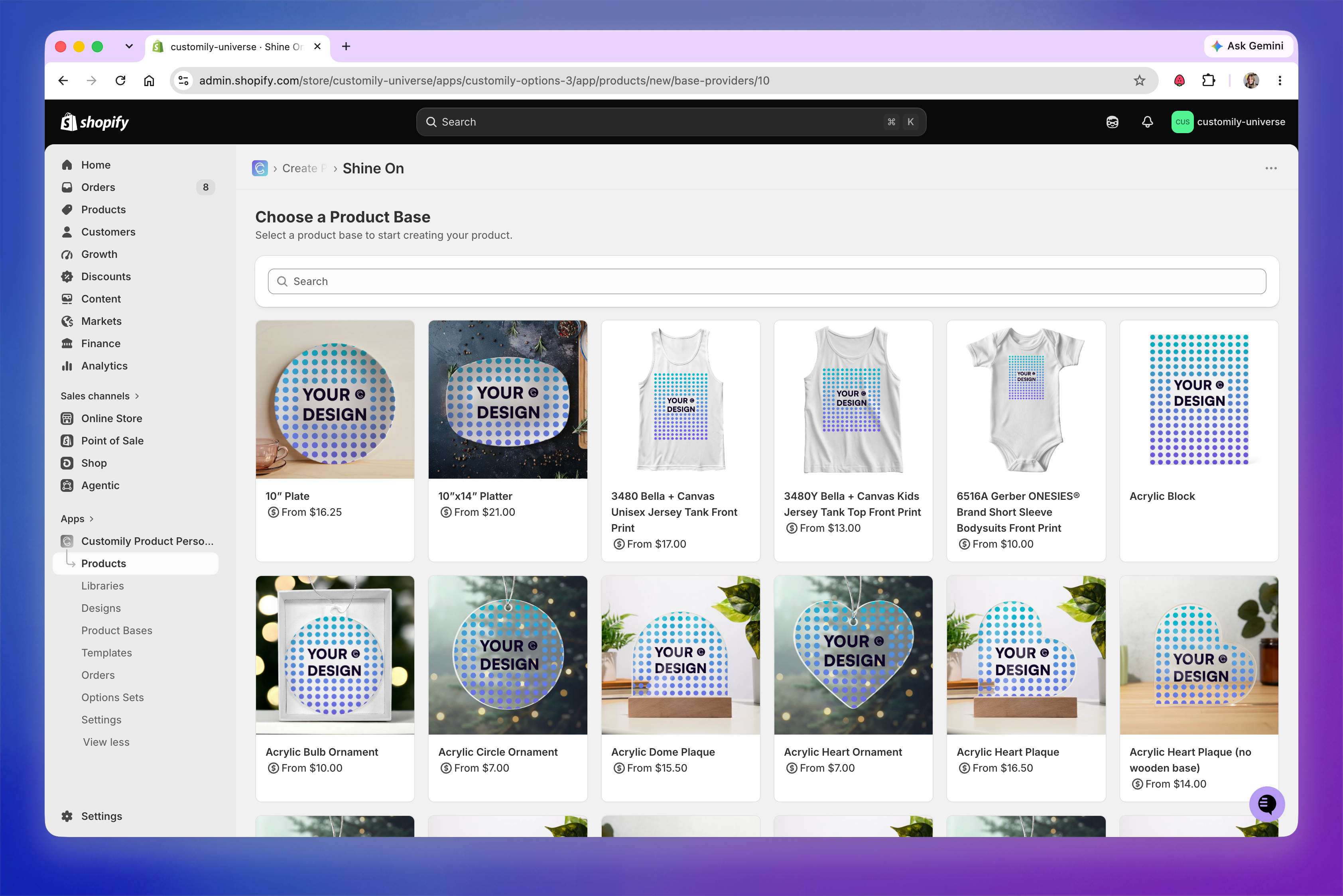
Choose the variants you want to offer.
Select a print area and a design.
Adjust the design placement.
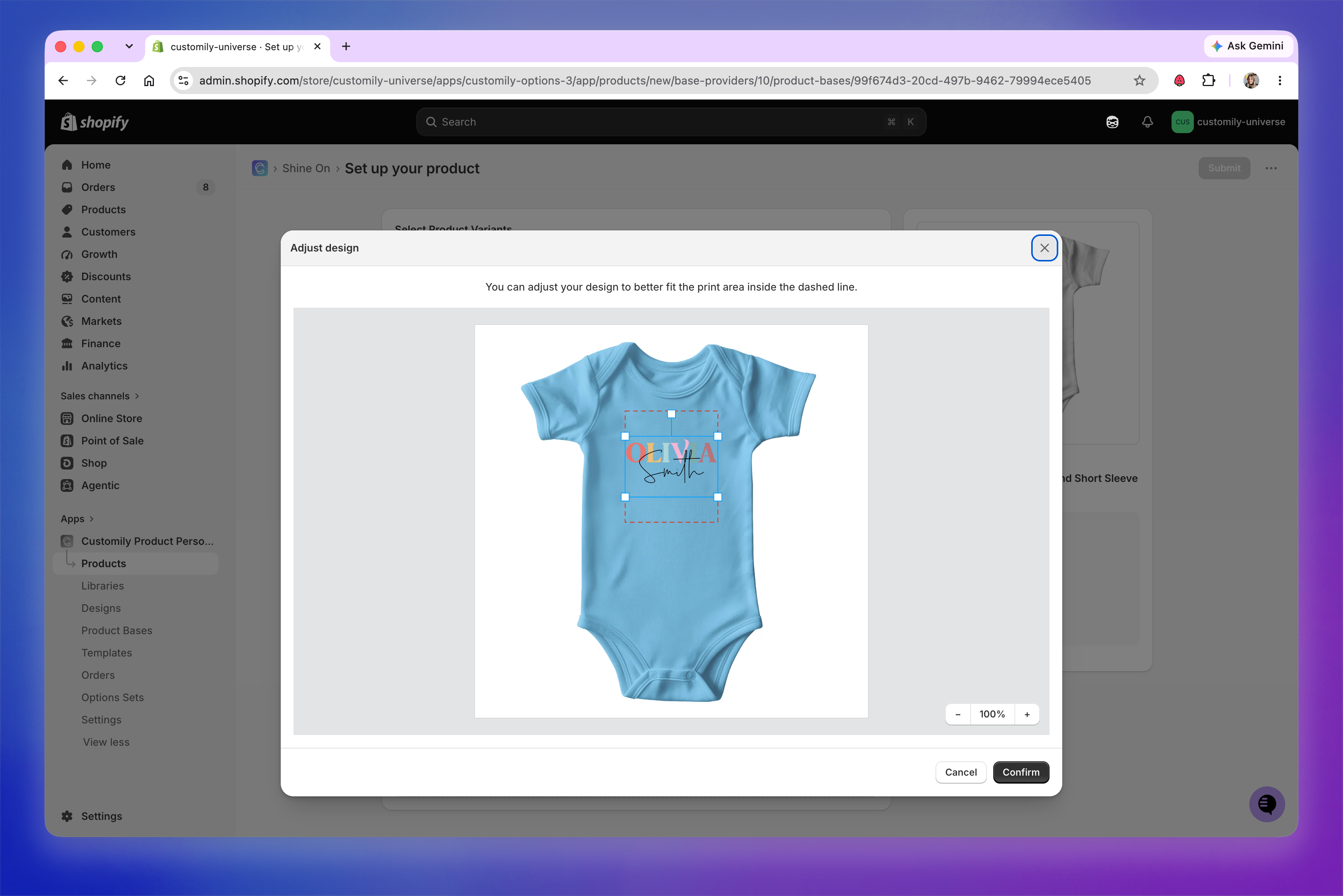
Complete the setup and create your product.
There is one difference at the end of the product creation flow.
The Shopify interface doesn’t include the Preview Your Product Before Publishing screen available in the full Customily app.
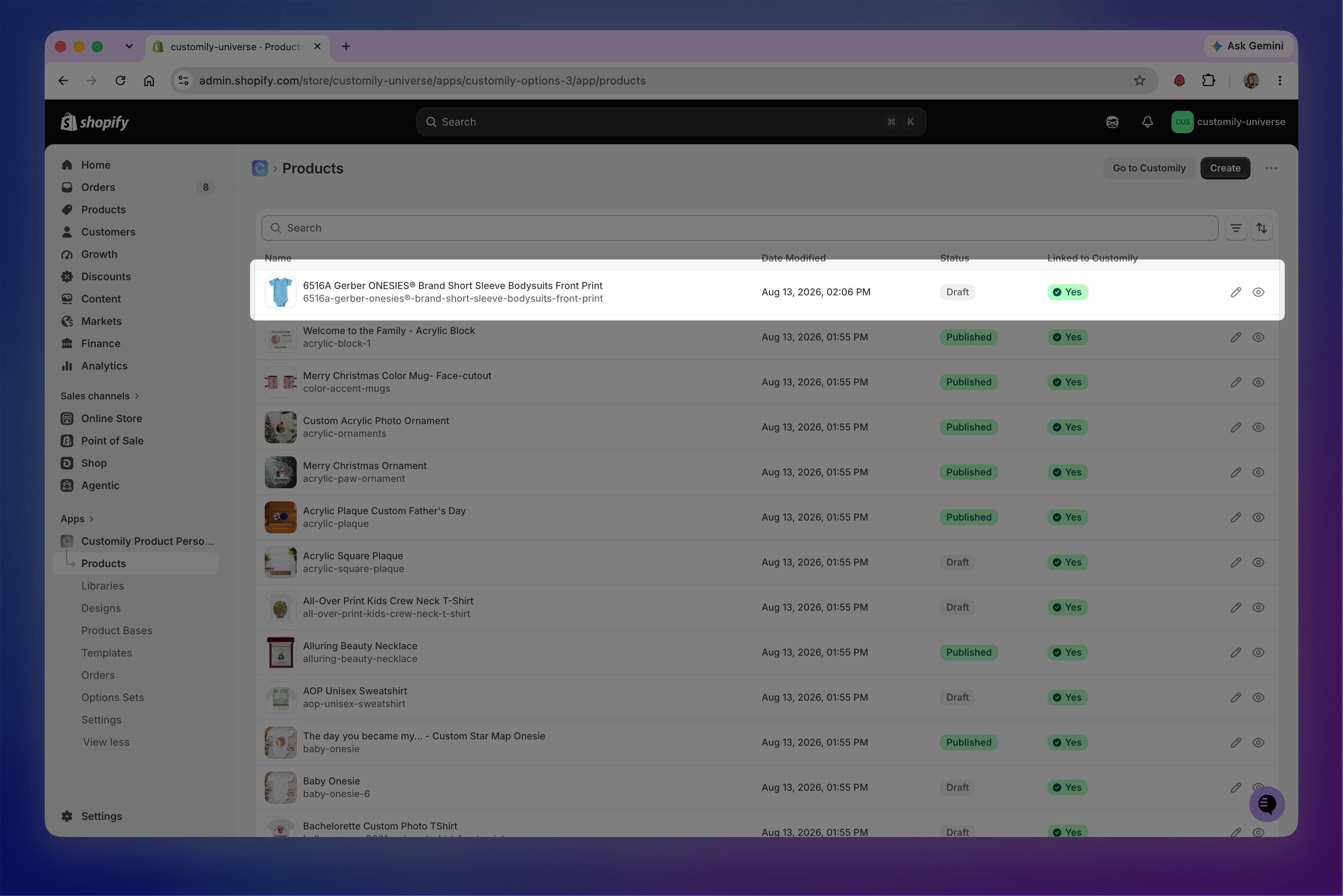
Instead, once your product is created, you’ll find it on the Products page as a draft. From there, you can open the product to edit its title and description, manage product images, create AI mockups, review its configuration, and make any other changes before publishing it.
If you're working with multiple stores
When creating a product from inside Shopify, you can only publish it to the Shopify store you're currently logged into. If your Customily account is connected to multiple stores and you want to publish to another store, open the full Customily app.
Setting up customization for an existing product
From the Home page, you can select Set Up Customization for Existing Product to add Customily personalization to a product that already exists in your Shopify store.
This opens the full Customily app in a new tab, where you can follow the same guided setup process as before:
Choose the product from your store.
Select a Product Base and match its variants to the variants of your product.
Choose a design and place it on the product.
Save your setup.
This guided flow is only available from the Home page. You can also configure an existing product directly from the Products page by opening the product and manually assigning a Template and an Option Set.
Libraries
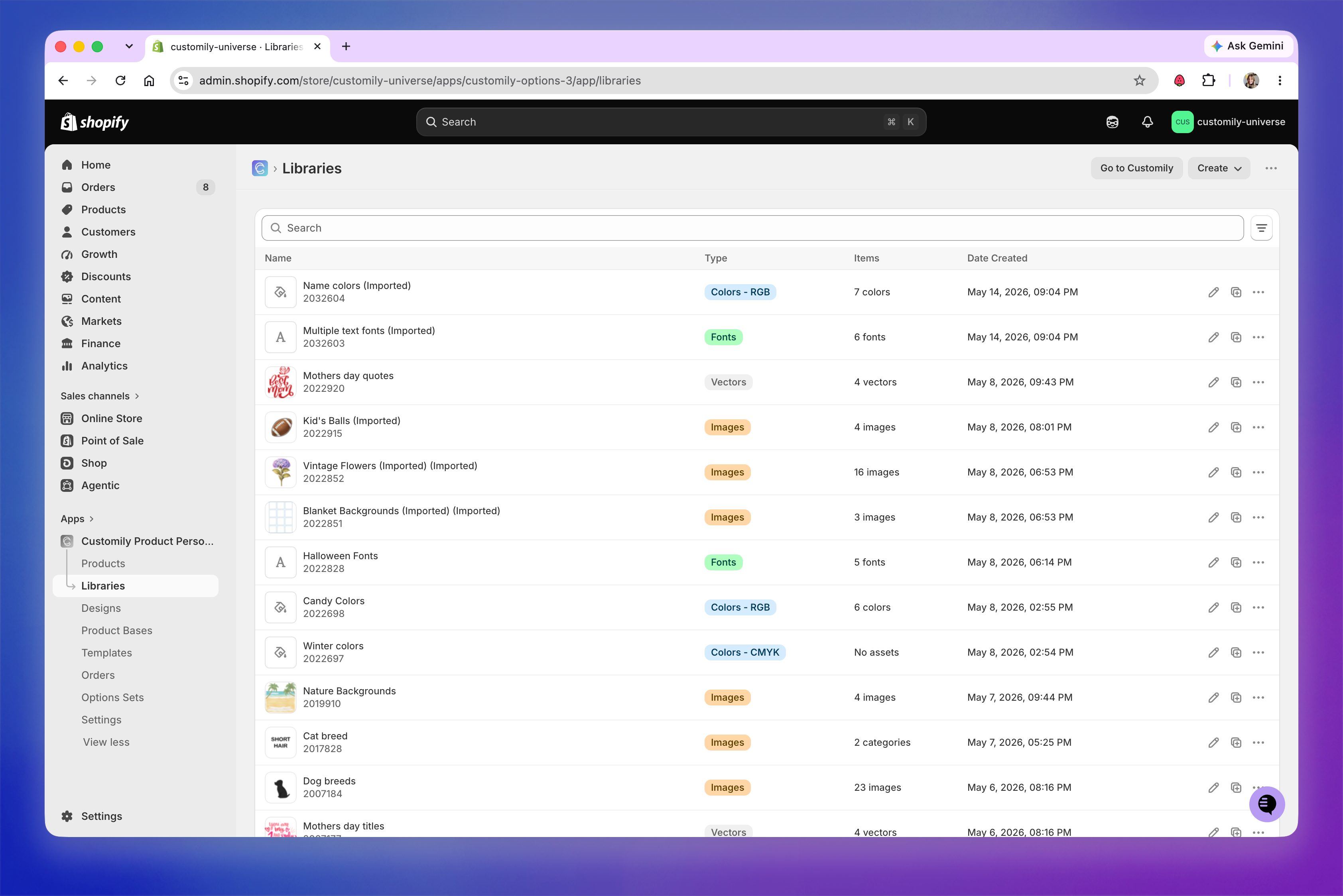
The Libraries page has a refreshed look, but creating and editing libraries works the same way.
You’ll still see a list of your libraries and their type, and you can open any library to edit it.
The options to create a new library or upload a ZIP file are now located on the right side of the page. Once you create a new library or open an existing one, the experience is the same as in the full Customily app.
A couple of library management features are only available in the full Customily app. Click Go to Customily if you need to:
View a library’s usage information
View a library’s history
Designs
The Designs page has a refreshed look, but you’ll still see a list of all your designs and can open any design to edit it.
The Create button is now located on the right side of the page. Once you create a new design or open an existing one, the Design Studio experience is the same as in the full Customily app.
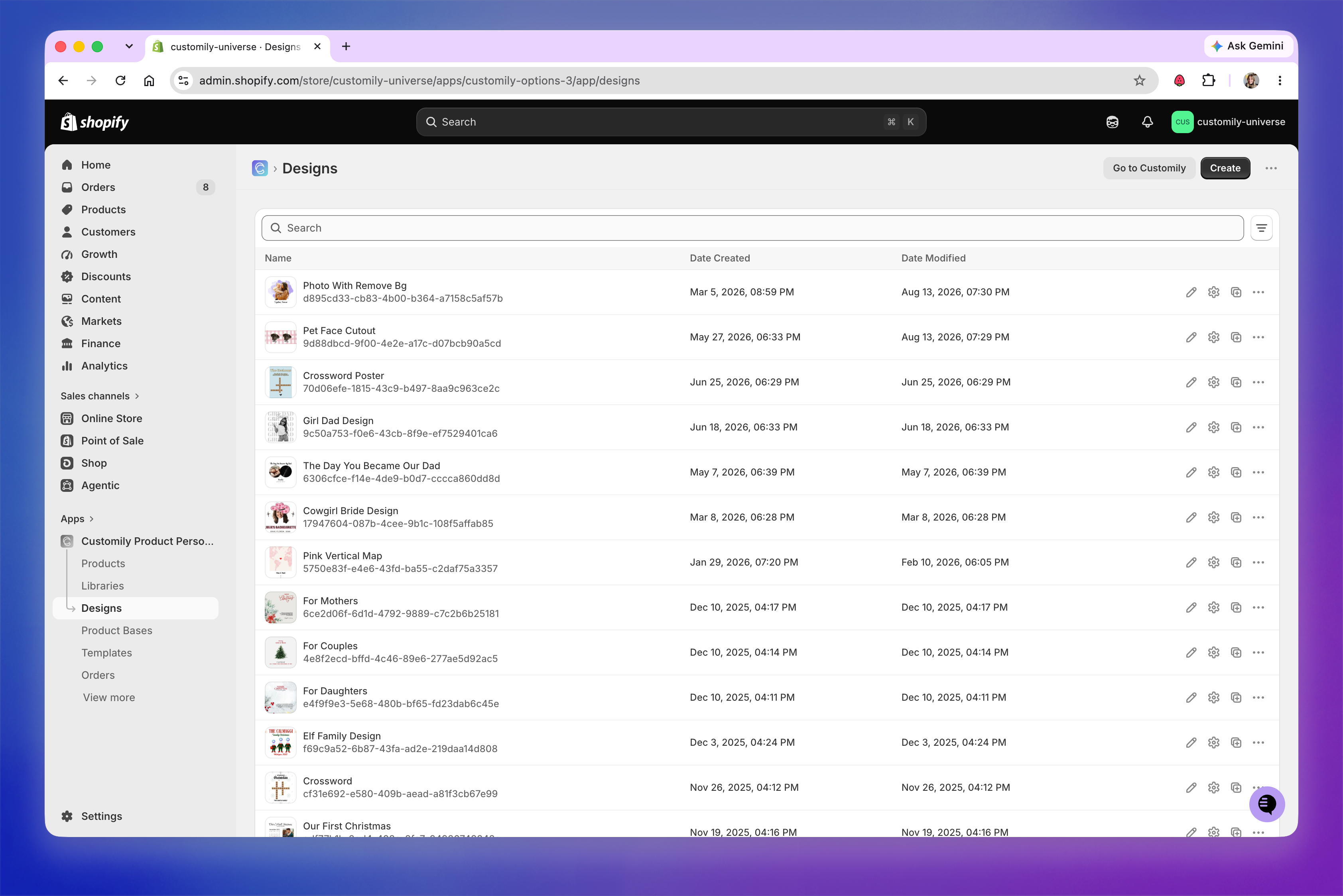
A few design management features are only available in the full Customily app. Click Go to Customily if you need to:
View a design’s history
Import a design from Canva
Import a design from the Customily Design Library
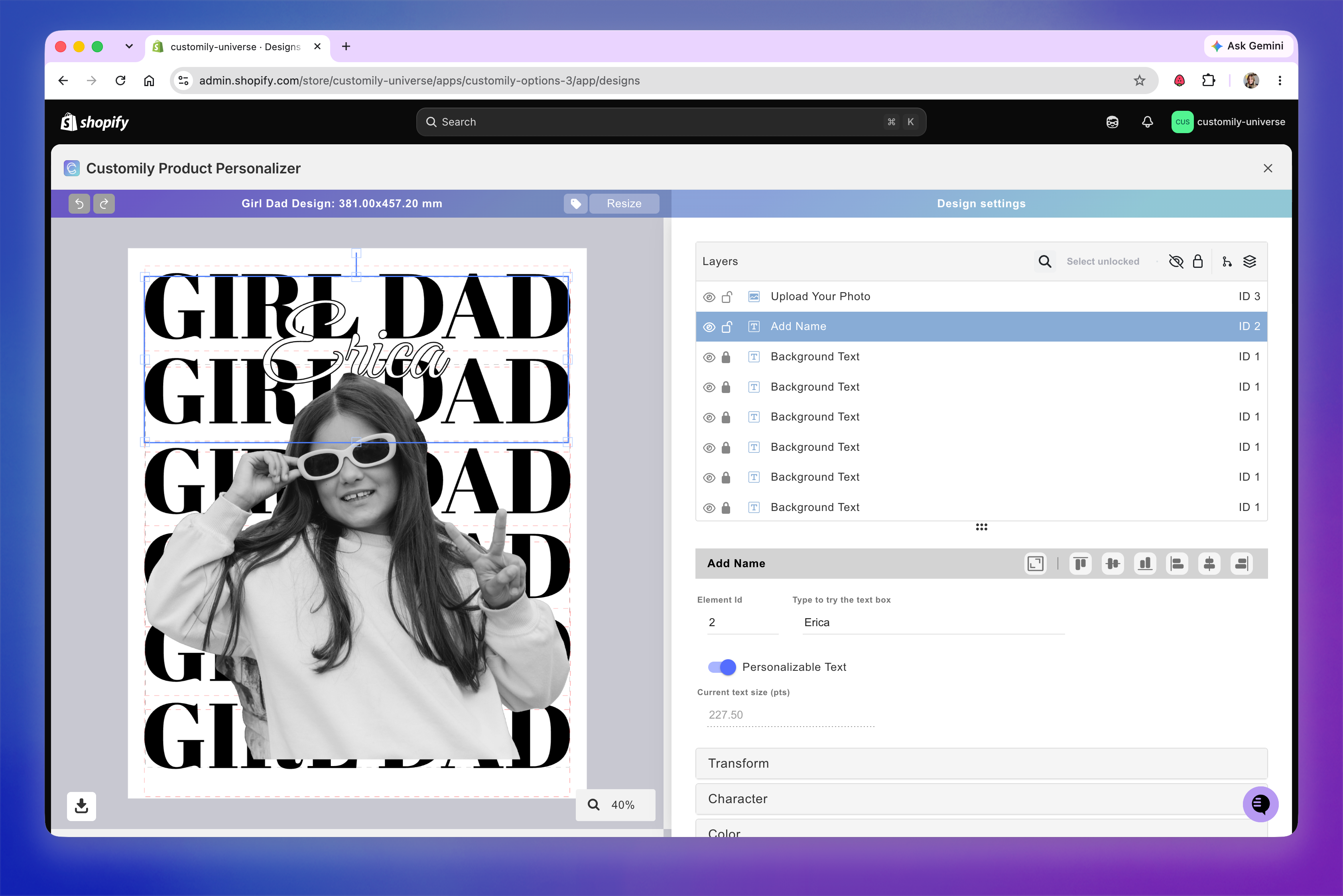
Design Studio
The Design Studio itself hasn’t changed. When you create or open a Design, you’ll enter the same Design Studio you’re already familiar with, with the same tools and workflows as before.
The same applies when creating or editing Product Bases and Templates: although their list pages have a new look in Shopify, they all open the same Design Studio as before.
Product Bases
The Product Bases page has a refreshed look, but you’ll still see a list of all your Product Bases and can open any one to edit it.
The Create button is now located on the right side of the page. Once you create a new product base or open an existing one, the experience is the same as in the full Customily app.
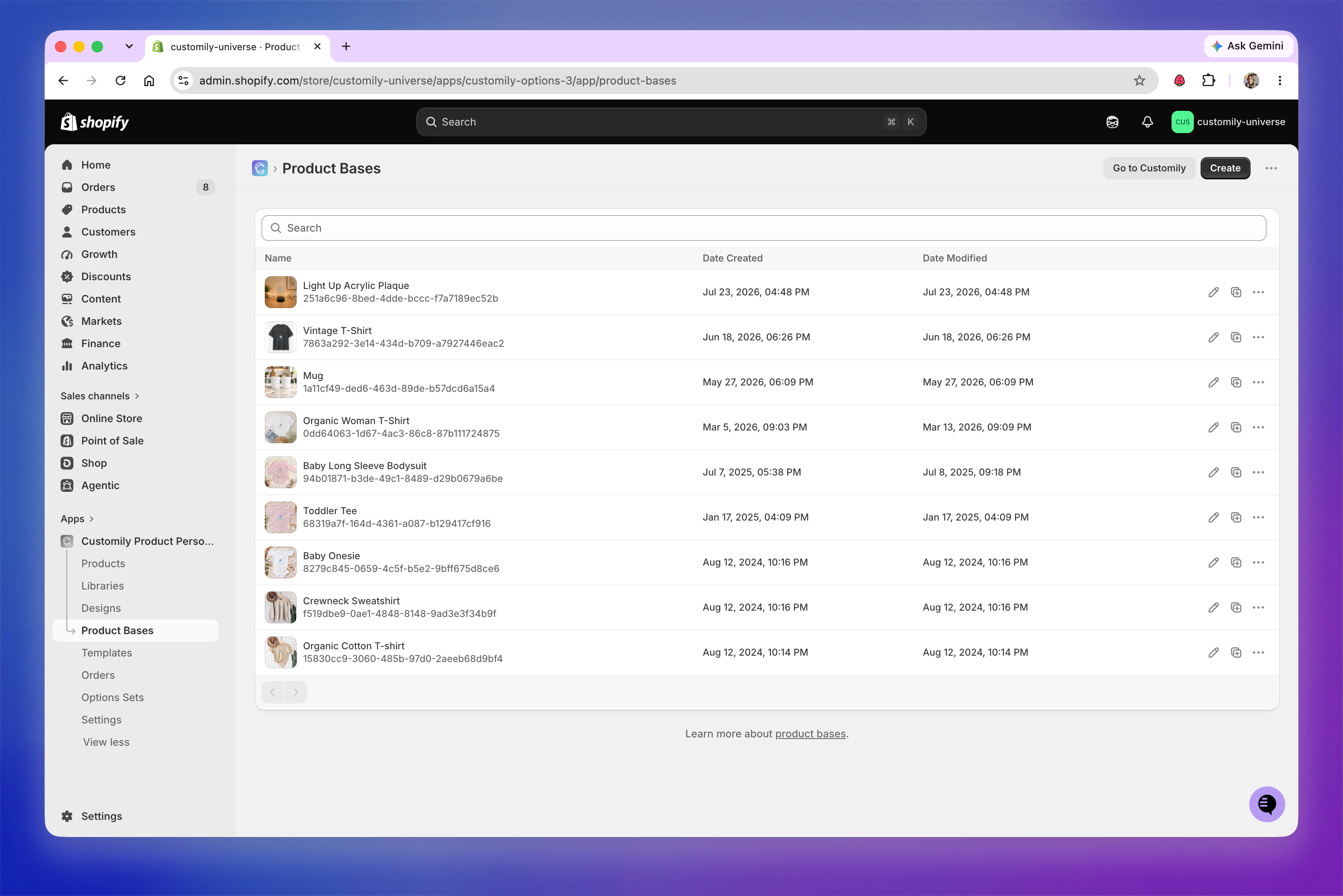
All Product Base features are available from the Shopify interface.
Templates
The Templates page has a refreshed look, but you’ll still see a list of all your templates and whether each one is linked to a product.
The Create button is now located on the right side of the page, and you can still use the filters to find the templates you need. Once you create a new template or open an existing one, the editing experience is the same as in the full Customily app.
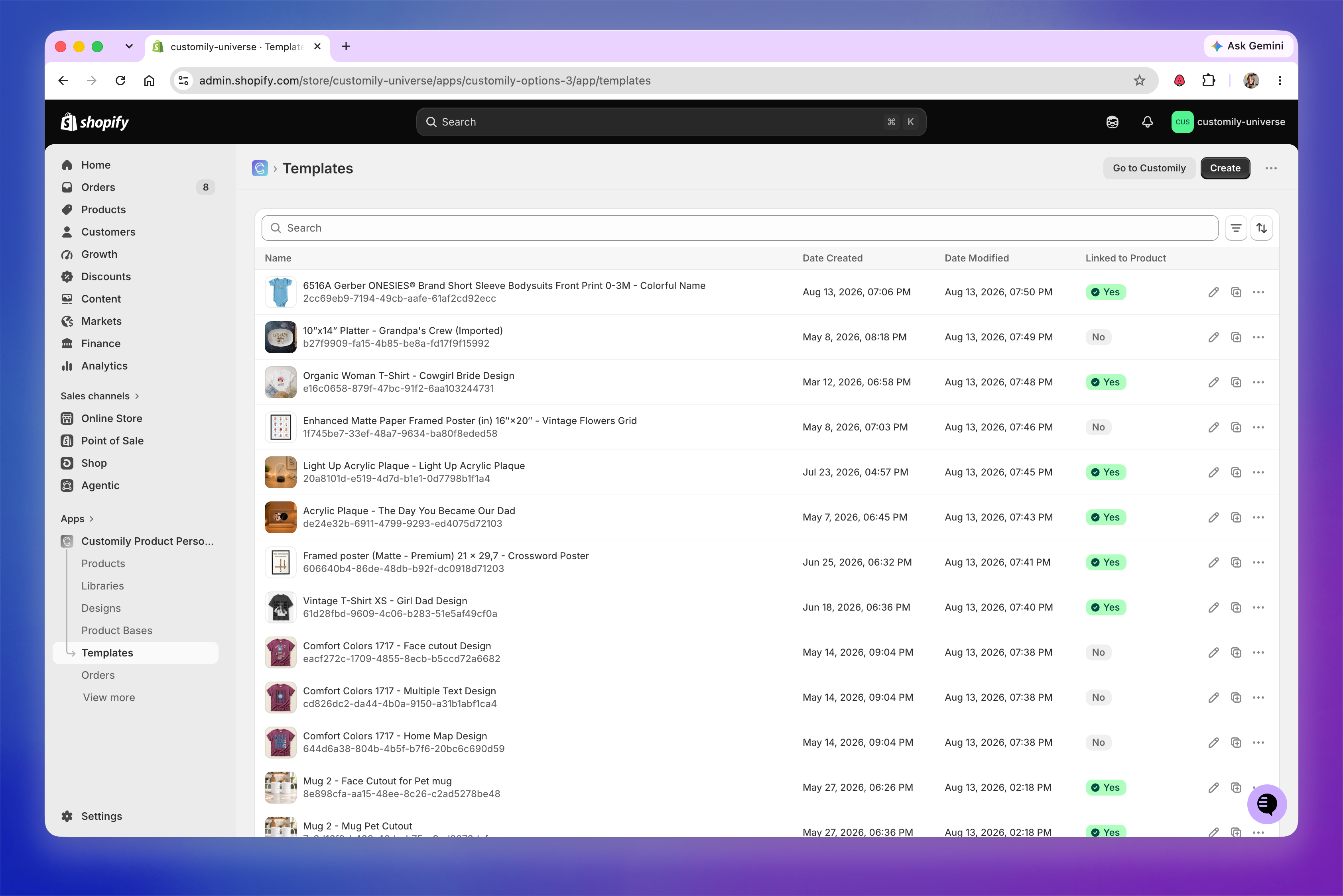
A few template management features are only available in the full Customily app. Click Go to Customily if you need to:
View a template’s history
View details about which product a template is linked to
Bulk delete templates
Orders
The Orders page has a refreshed look, while keeping the same order management features.
You’ll still see your orders in a list, and when you open an individual order, the order details screen and available actions are the same as in the full Customily app.
The new interface also adds store statistics at the top of the page.
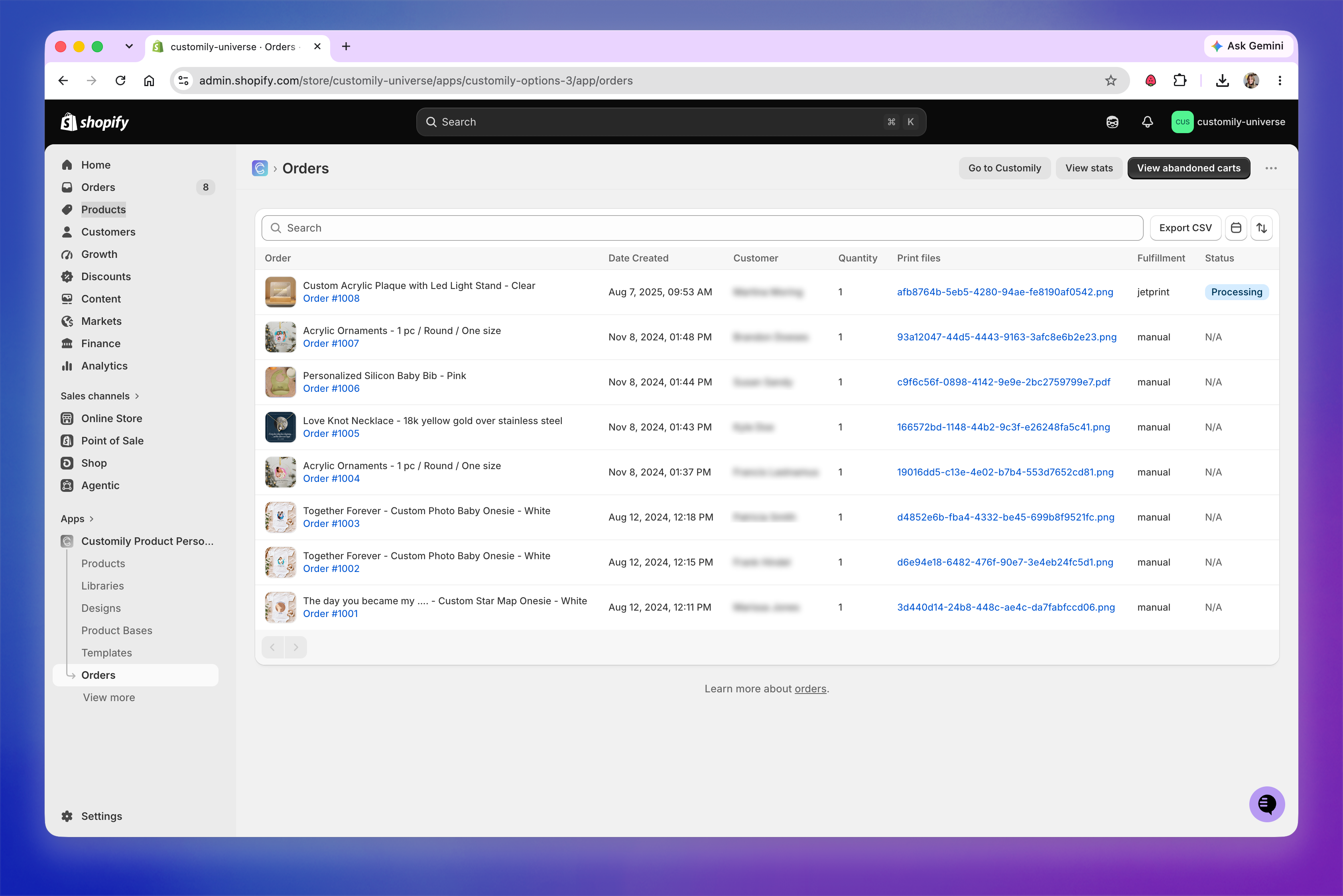
Abandoned Carts are still available, but instead of appearing as a separate tab, you’ll now access them through the View abandoned carts button.
If you're working with multiple stores
When using Customily inside Shopify, you’ll only see orders for the Shopify store you’re currently logged into. To view orders from another connected store, click Go to Customily to open the full Customily app.
Option Sets
The Option Sets page has a refreshed look, but creating and editing Option Sets works the same way.
You’ll still see a list of your Option Sets and whether each one is linked to a product, and you can filter the list based on whether they’re currently being used.
The Create button is now located on the right side of the page. Creating and editing an option set works the same way as in the full Customily app.
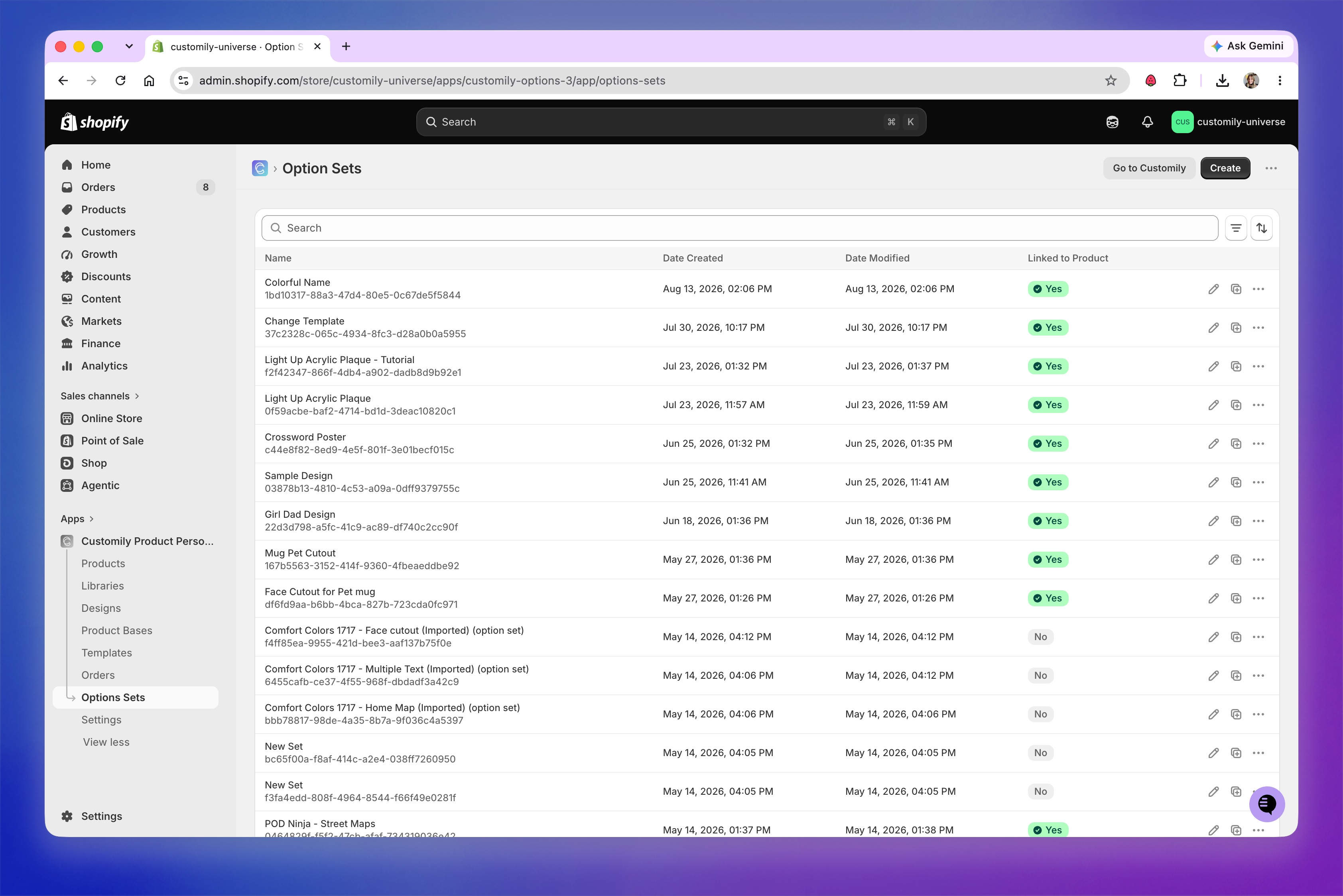
A couple of Option Set management features are only available in the full Customily app. Click Go to Customily if you need to:
View an Option Set’s history
Bulk delete Option Sets
Settings
Settings have been reorganized in the Shopify interface to make integrations easier to access.
You’ll now find two main options: Integrations and Store Settings.
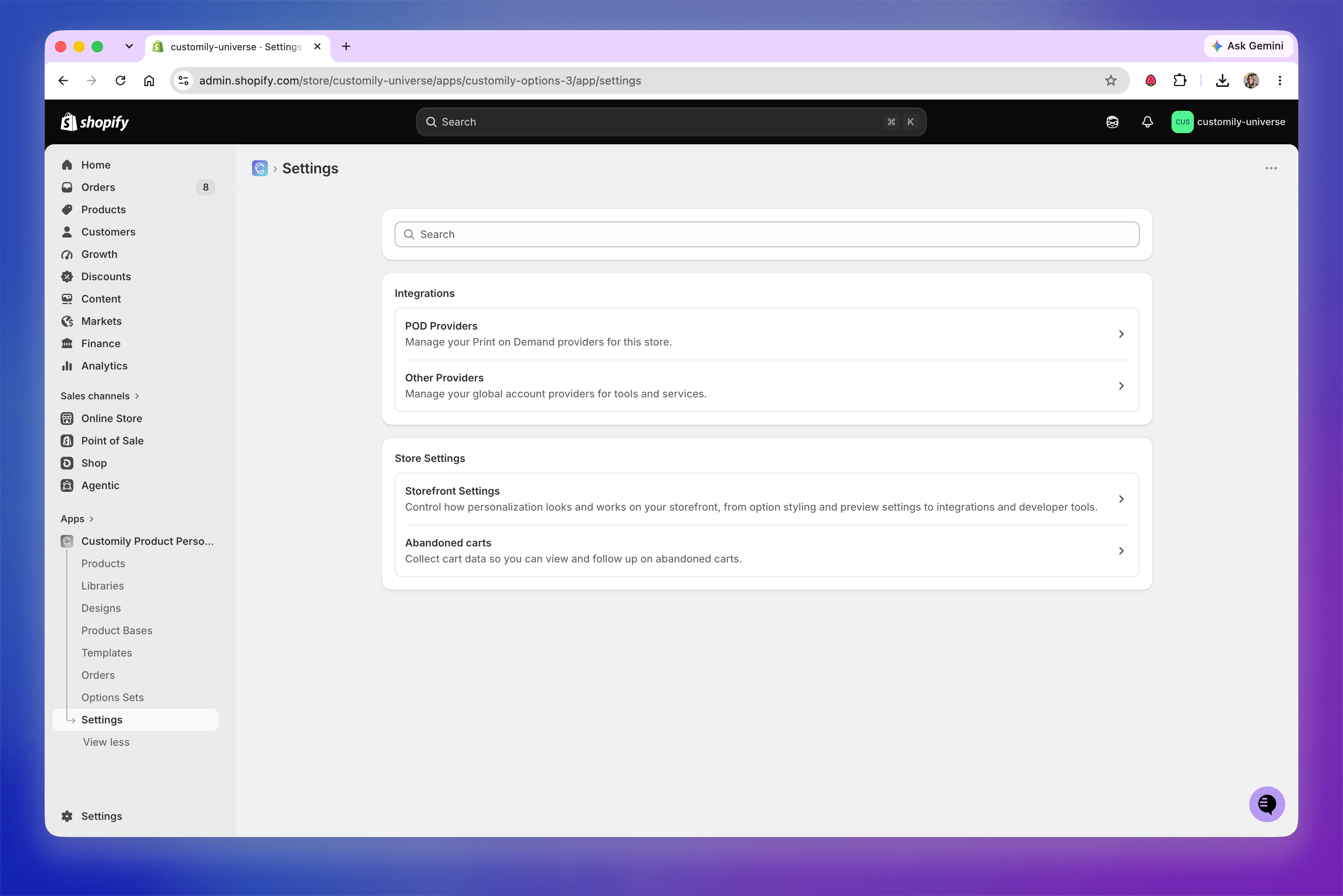
Integrations
Integrations now have their own dedicated area, making it easier to connect Customily with POD providers and other third-party services.
Under POD Providers, you can connect and manage your print-on-demand integrations.
Under Other Providers, you can connect other third-party services, including AI and image-processing tools, background removers, and spotify.
Store Settings
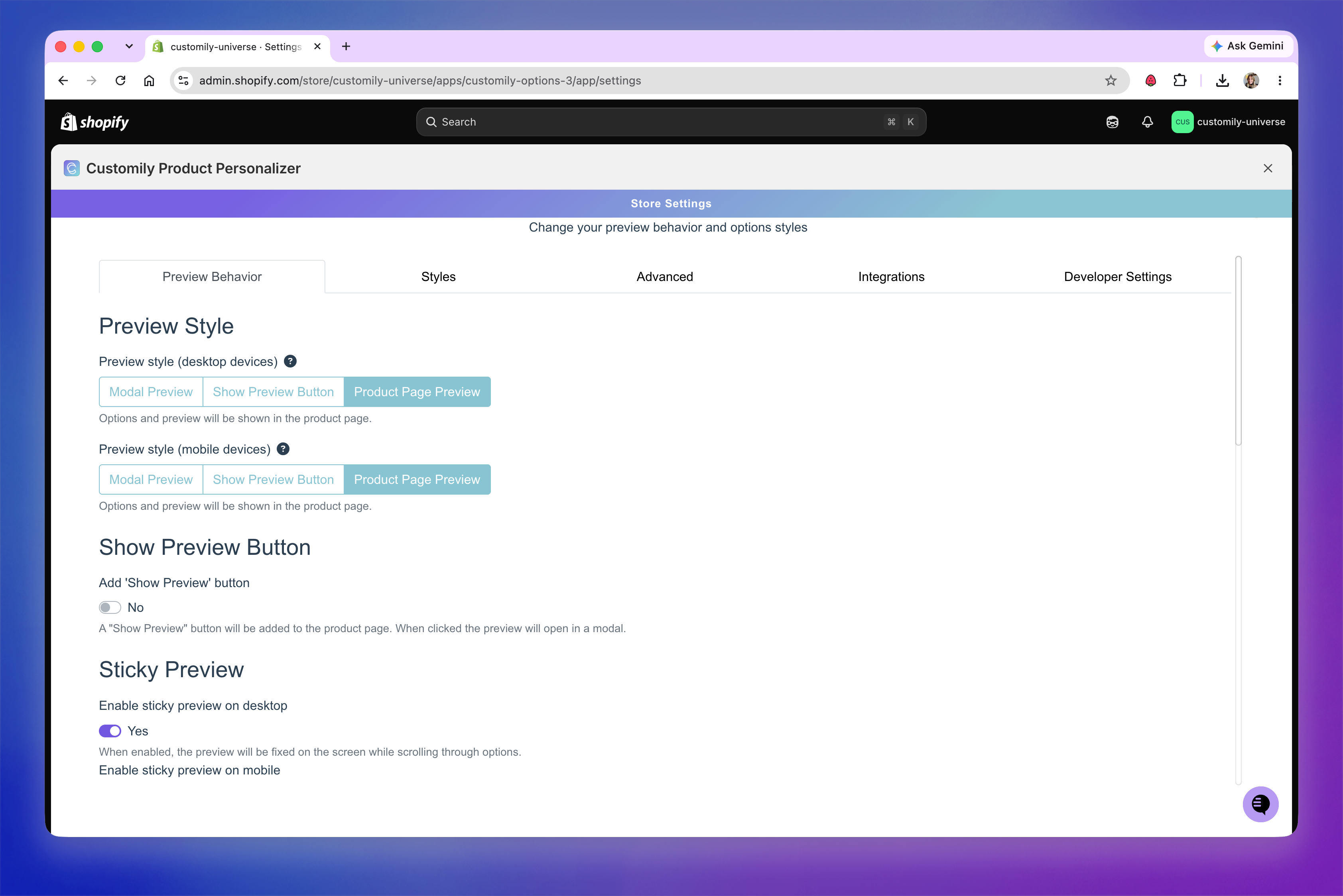
For all other Customily settings, select Storefront Settings.
This takes you to the same settings available in the full Customily app, where you can manage your storefront configuration, preview settings, styles, advanced settings, developer settings, and more.
Account management
Some app and account management options are available directly through Shopify, while others are still managed from the full Customily app.
Managing the Customily app in Shopify
Click the three dots in the upper-right corner of Customily and select Manage app to open Shopify’s app management page.
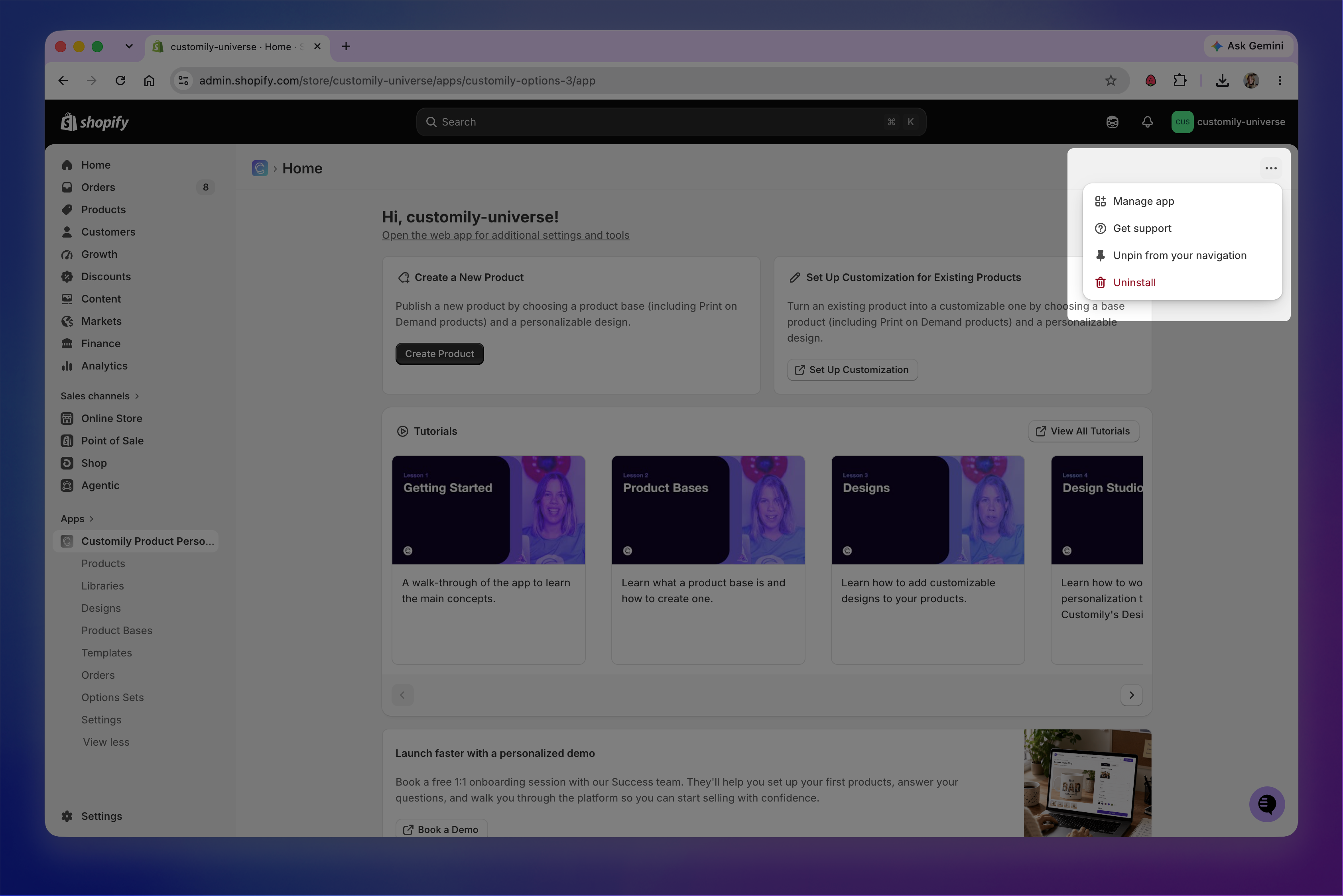
From there, you can access information and settings including:
Billing
Extensions
Activity and permissions
App history
Privacy
Uninstall
To cancel your Customily subscription for the store, select Uninstall app from this page or from the three dots i the upper-right corner. Uninstalling Customily cancels the subscription associated with that Shopify store.
Managing your Customily account
Some account settings are still managed through the full Customily app:
To change your email or password: Open the full Customily app, and go to Account > Settings to update your account information.
To manage your team: Open the full Customily app, and go to Account > Teams to add or manage team members.
Opening the full Customily app
You can open the full Customily app at any time by clicking Go to Customily from the Shopify interface. The app will open in a new tab.
You may prefer to use the full Customily app if you:
Want to work in a larger workspace
Want access to all the latest Customily features
Need to work across multiple stores
Need to use any of the features that aren't available directly in the Shopify interface
Note
Make sure your browser allows pop-ups from Shopify. If pop-ups are blocked, the full Customily app may not open when you click Go to Customily.
You can also access the full app directly at app.customily.com.