How to create a new Design
Last updated: October 19, 2026
Creating your own Design gives you complete control over the artwork and personalization options you offer shoppers.
You can create anything from a simple Design with an editable name to more advanced personalization experiences with photos, clipart, maps, calendars, and more.
This guide walks you through creating a Design from scratch in Customily's Design Studio.
1. Create and name your Design
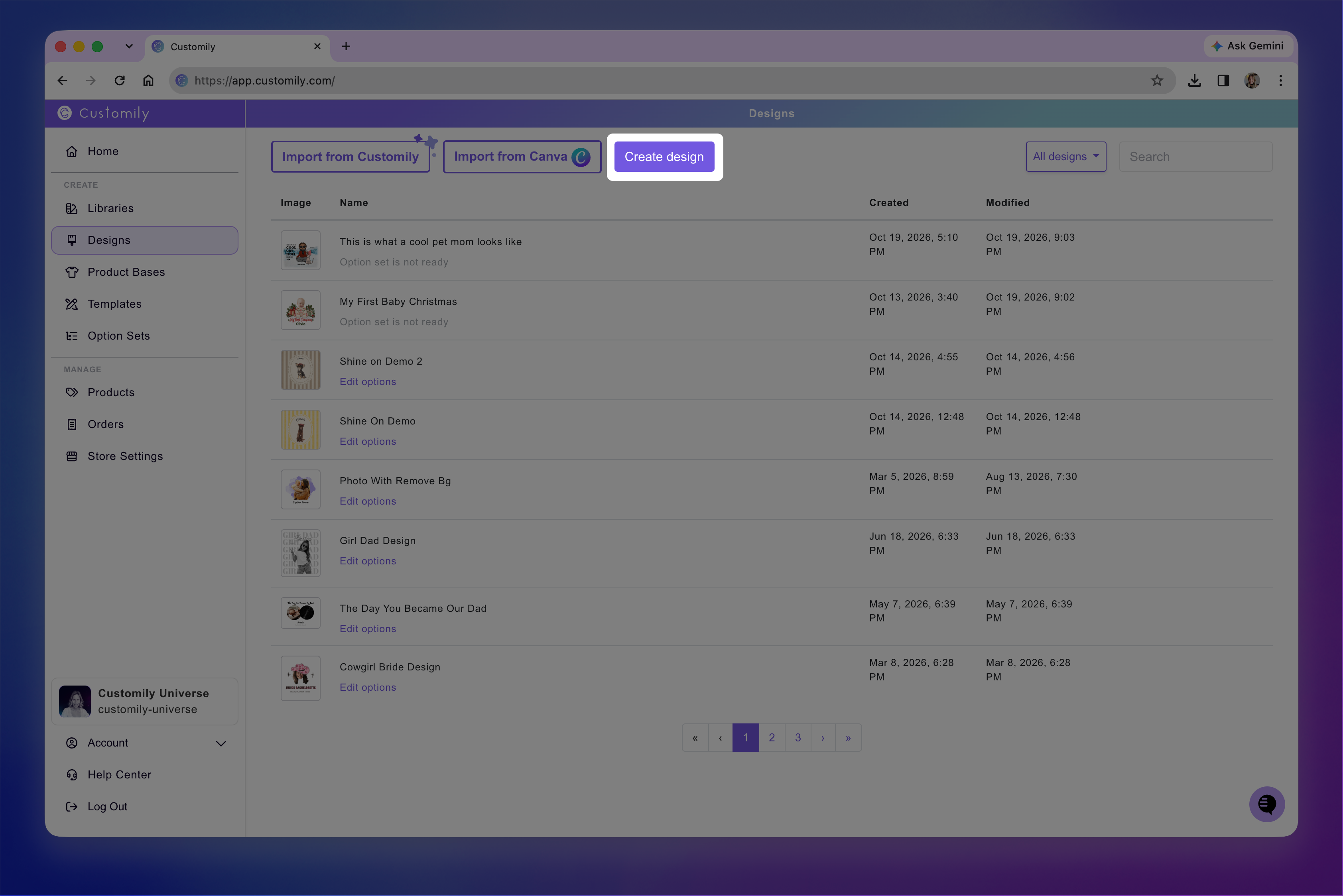
To get started, open My Designs from the left-side menu and click Create Design. Alternatively, click Create New Design from the home screen.
Enter a descriptive name for your Design so you can easily identify it later. You can always rename it.
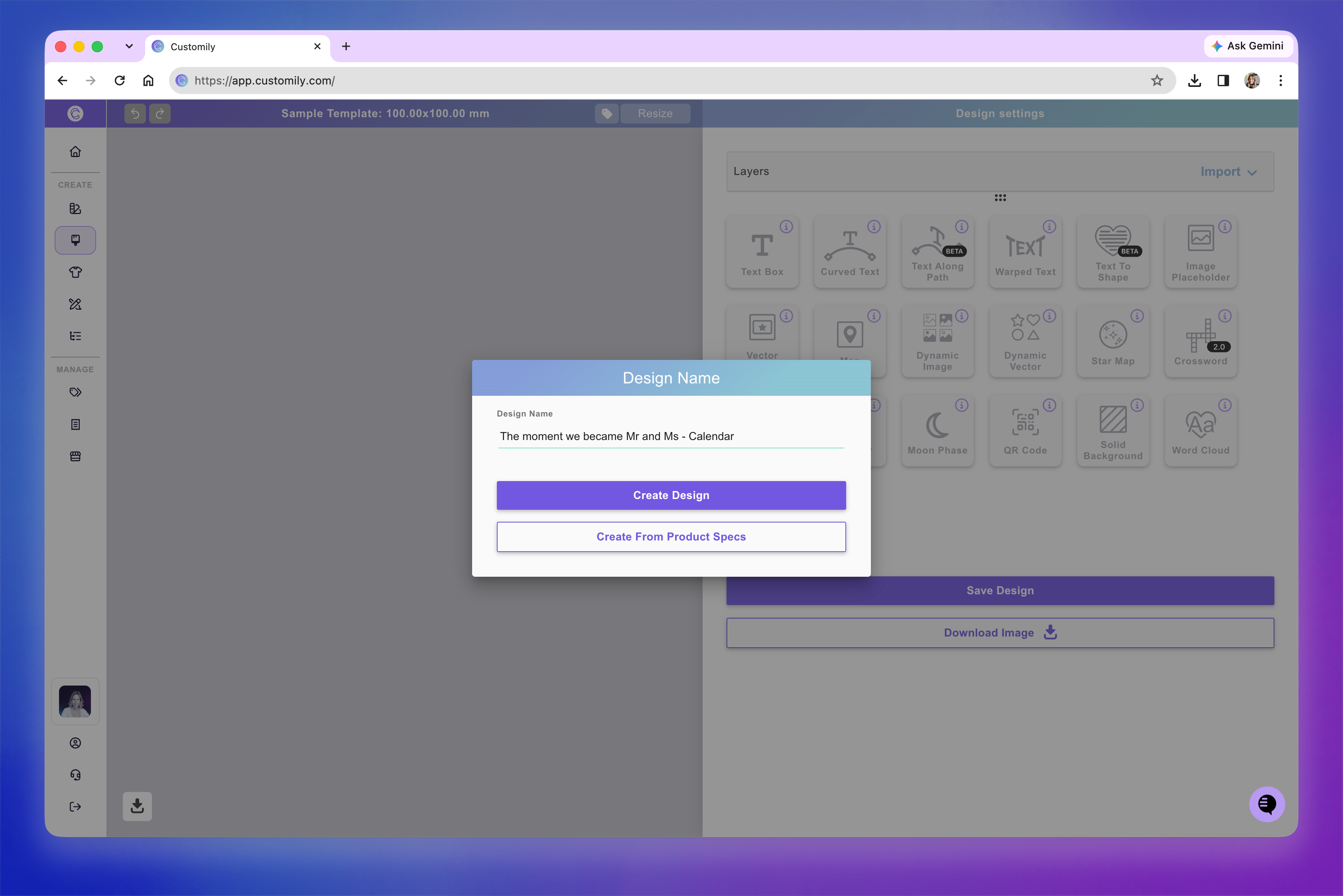
You can now choose how to set up your canvas:
Create Design: Start with a default 1000 × 1000 mm canvas.
Create From Product Specs: Select a Product Base to create your canvas using its print area dimensions.
2. Set your canvas size
Your canvas size determines the dimensions of your Design. You can start with the default size, use dimensions from a Product Base, or resize your canvas manually.
Start with the default canvas
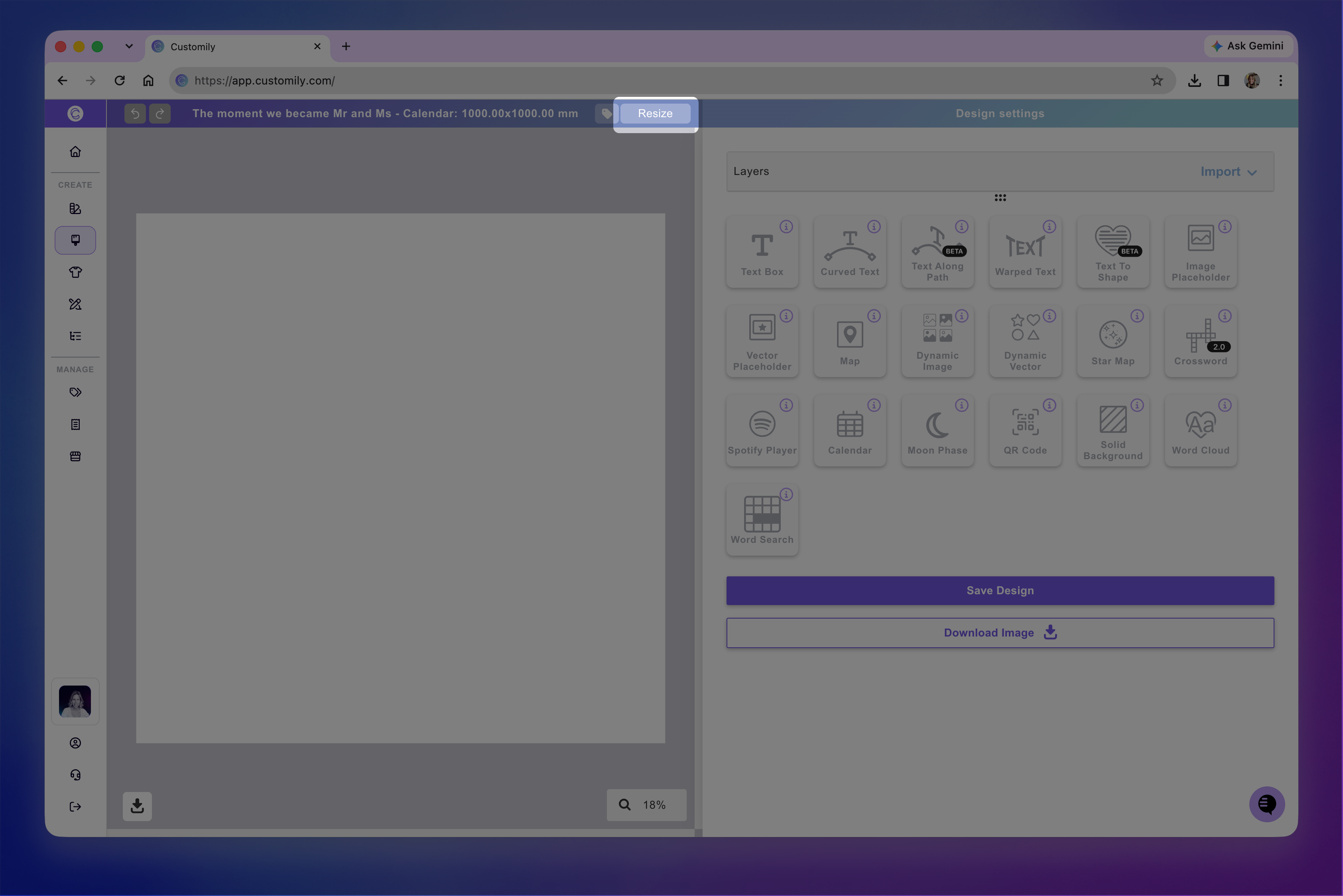
If you selected Create Design, your canvas starts at 1000 × 1000 mm, a recommended size that works well across most products.
You can change it anytime by clicking Resize at the top of the Design Studio and entering your preferred width and height.
Create a Design sized for a specific Product Base
If you selected Create From Product Specs, search for and select the Product Base you want to design for.
Customily creates your canvas using that Product Base's print area dimensions and displays any available print guidelines to help you position your artwork.
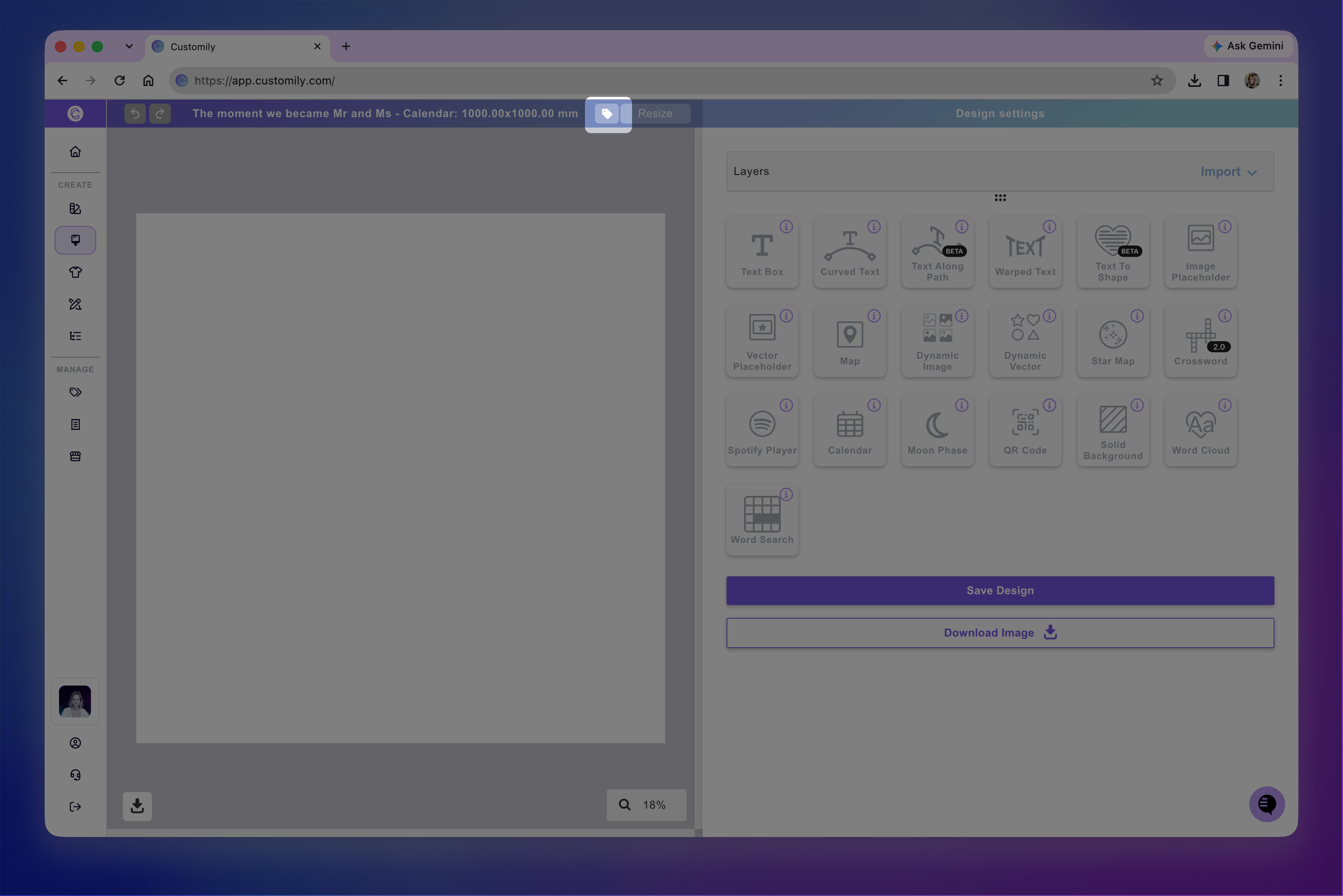
You can also import these dimensions later by clicking the tag icon next to Resize.
Note
Starting with a specific Product Base doesn't limit your Design to that product. You can still reuse it on other products, adjusting its size and placement to fit their print areas.
3. Build and customize your Design
Use the tools on the right side of the Design Studio to add personalizable and static elements to your artwork.
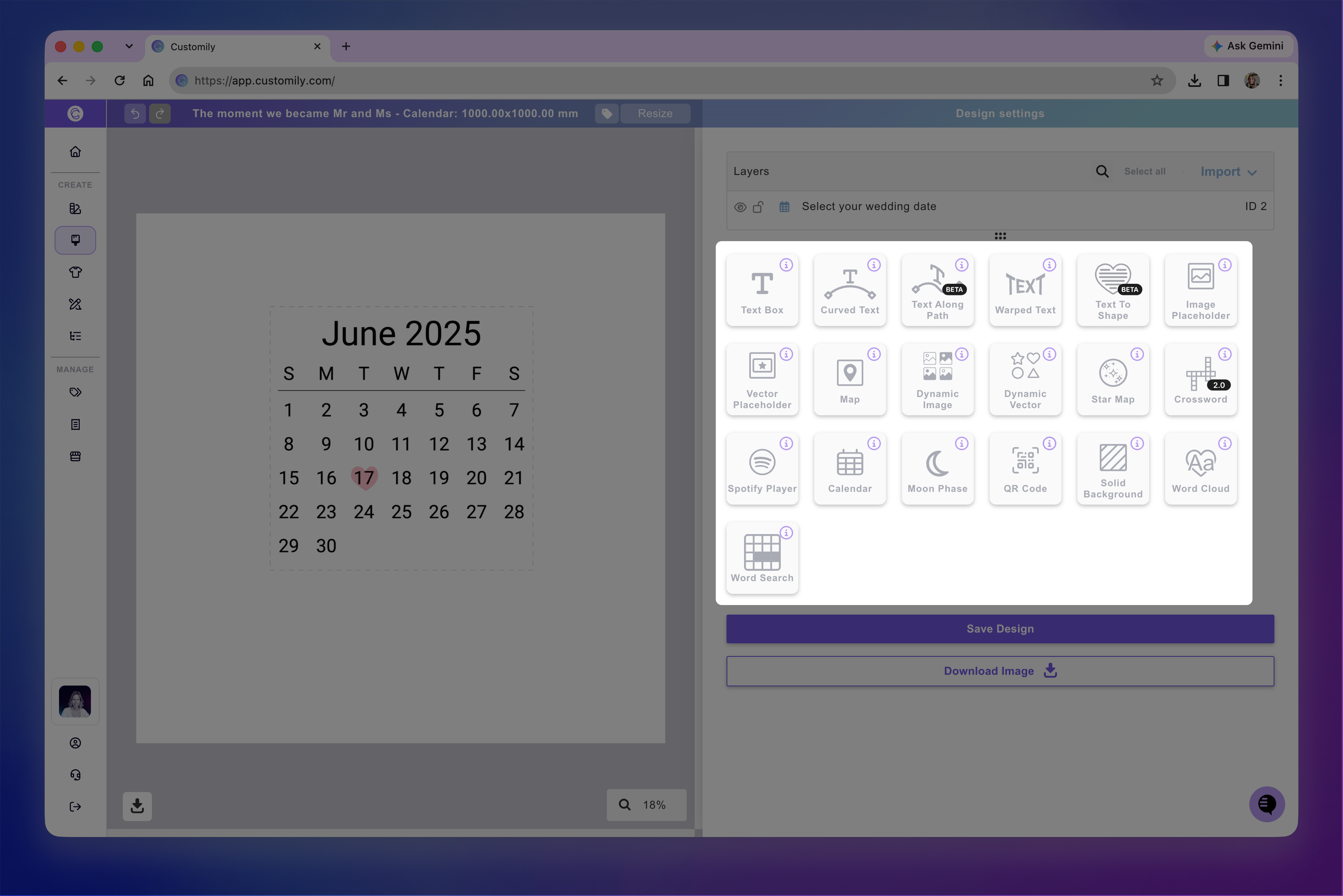
You can add:
Text fields
Clipart and image Libraries
Shopper-uploaded images
Maps, calendars, moon phases, and more
See the Design Studio elements guides to explore the available elements.
Customize your elements
Select any element to adjust its appearance, position, and personalization settings using the toolboxes on the right.
You can also use the Layers panel to organize, rename, and reorder elements in your Design.
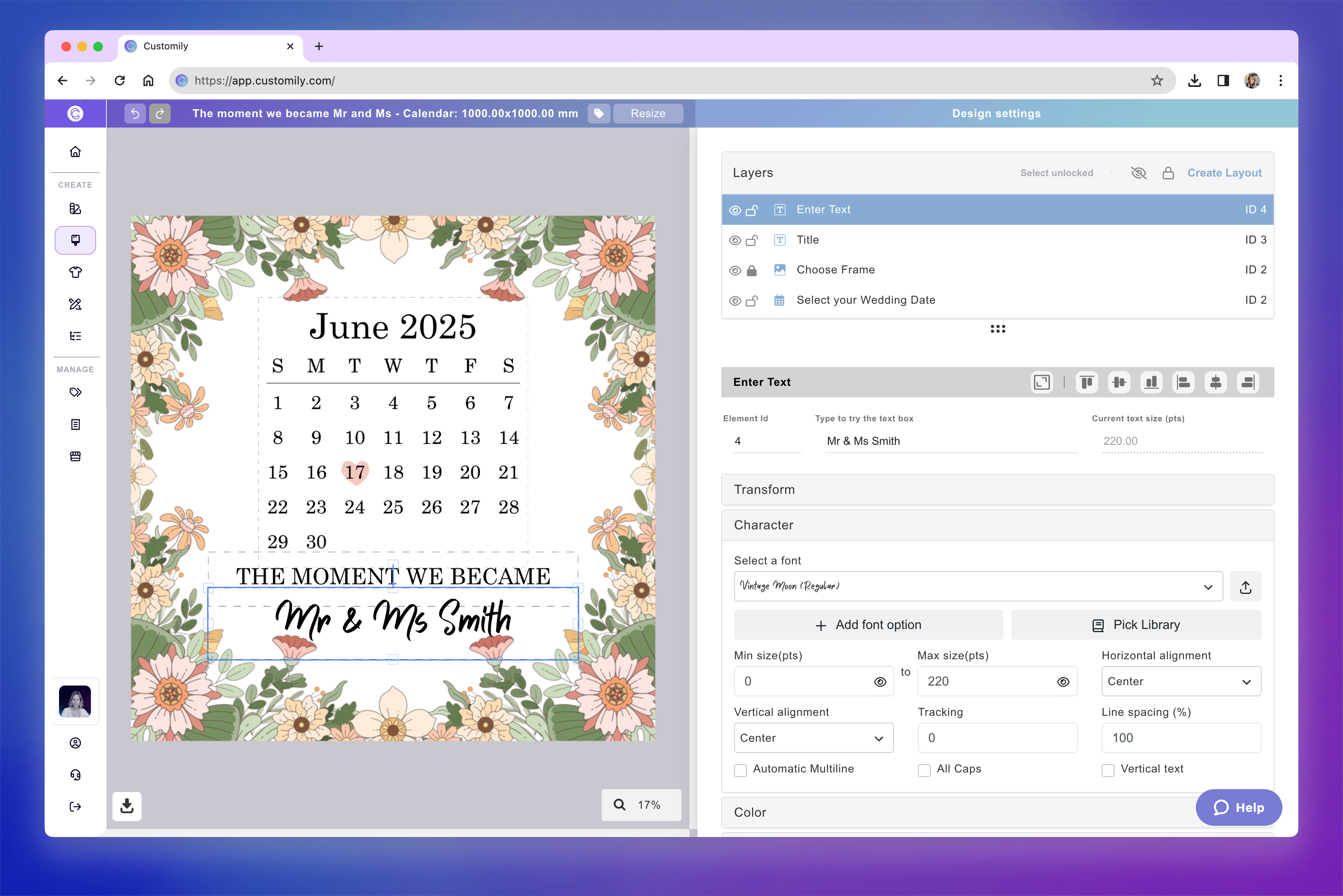
For example, this Design includes a text box for shoppers to enter their names, a static title reading “The moment we became,” a calendar for selecting a wedding date, and a dynamic image featuring a floral frame with four different artwork options.
Tip
Give your layers clear, descriptive names. Customily uses these names to automatically generate the labels in your Option Set.
For example, naming a text layer Name or Add your name helps create a clear personalization field for shoppers.
4. Save your Design
Once you're happy with your artwork and personalization setup, click Save in the top-right corner.
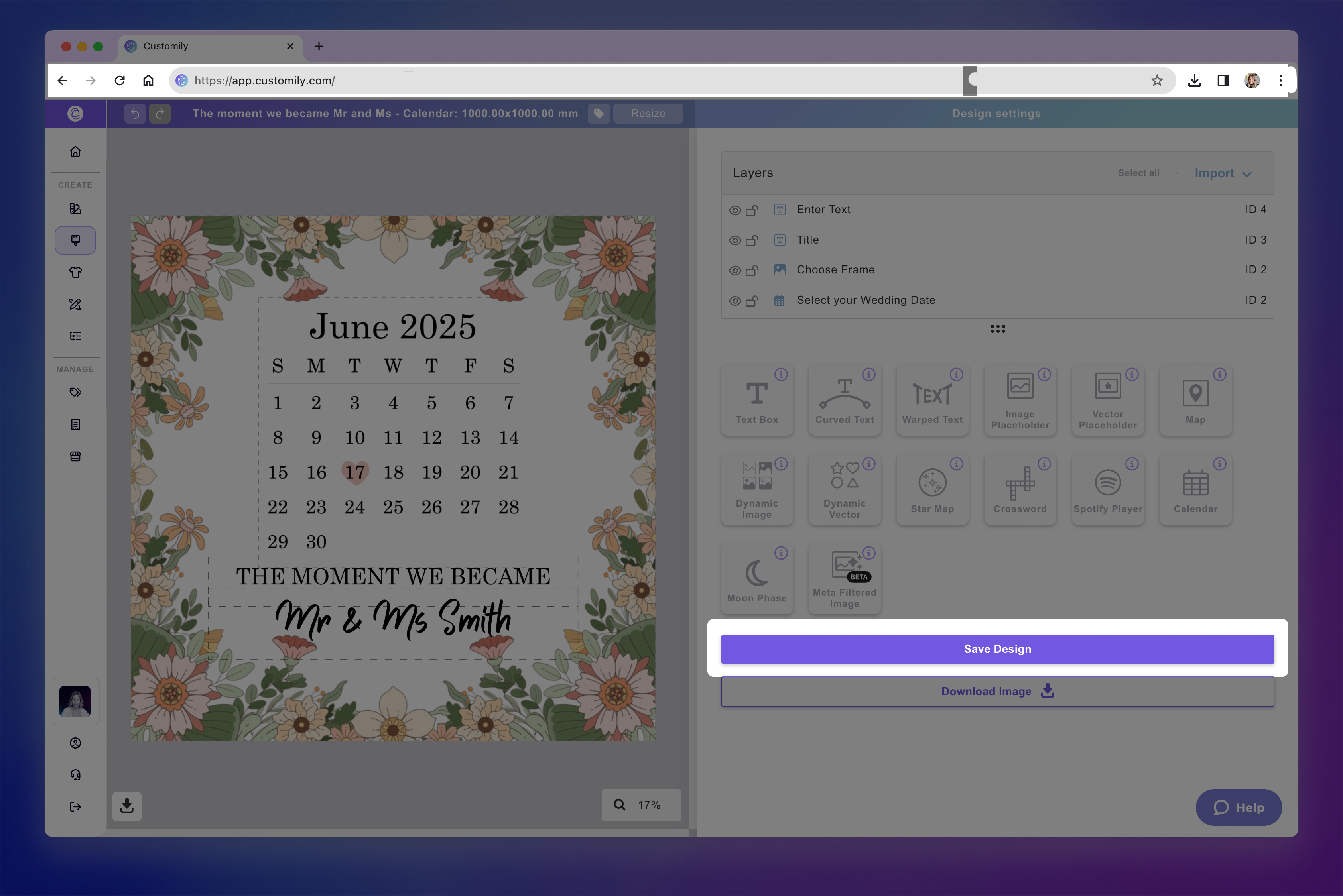
Your Design will be saved under My Designs, where you can find and edit it later.
Tip
Below the Save button, you'll find Download image. This lets you download a static image of your Design for promotional graphics or additional product mockups, without affecting the Design itself.
5. Review and customize your Option Set (optional)
When you save your Design, Customily automatically generates an Option Set based on its personalizable elements and layer names.
The Option Set controls the personalization fields shoppers see on your product page.
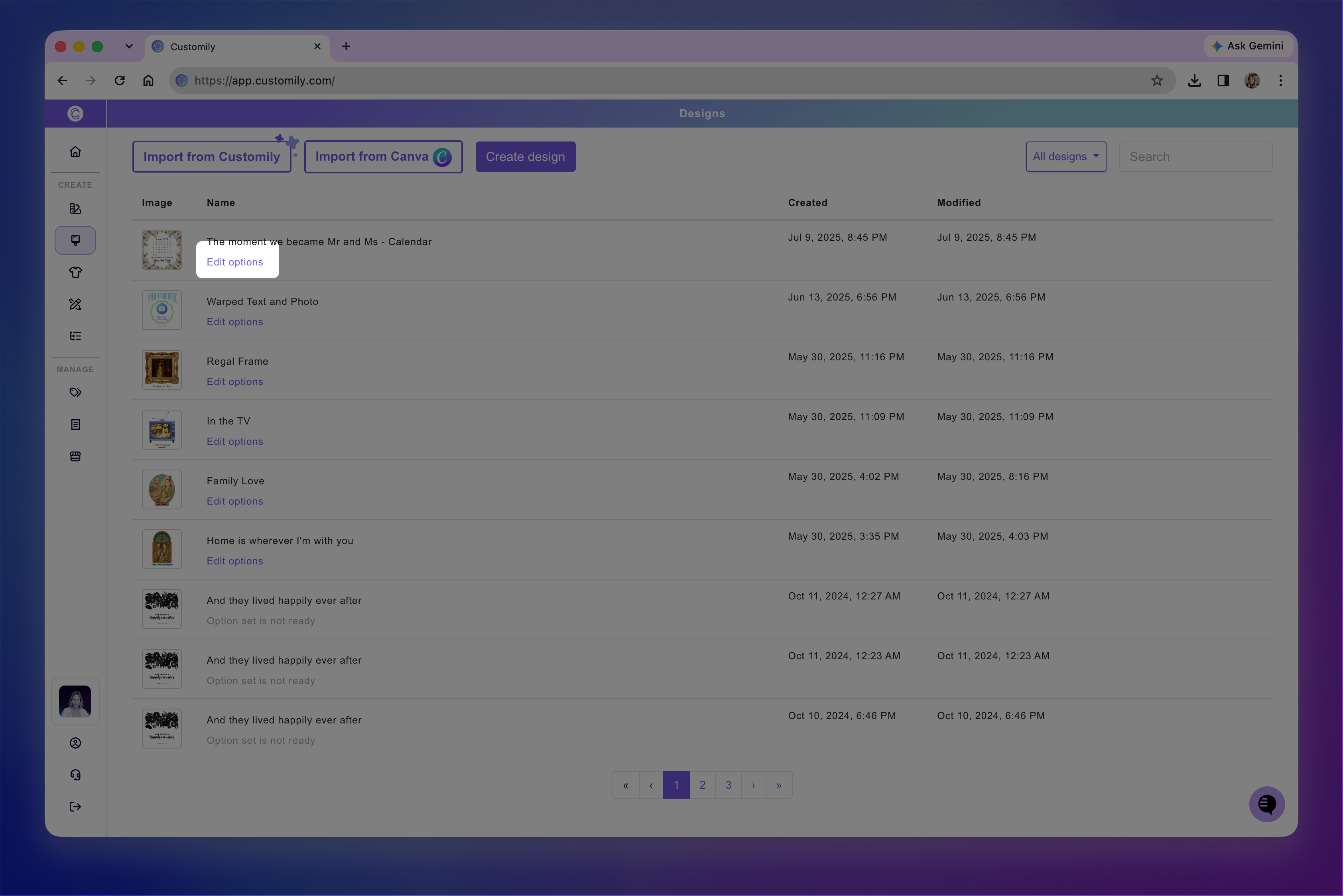
You can open the generated Option Set to customize the shopping experience. For example, you can:
Edit labels: Make option names clearer for shoppers.
Change option styles: Switch between formats such as swatches and dropdowns.
Configure text inputs: Set character limits or restrict entries to numbers or letters.
Set default selections: Choose which options are selected when the product loads.
Add placeholder text: Show examples or instructions inside input fields.
Add help text: Display additional guidance below an option.
Use conditional logic: Show or hide options based on previous selections.
Remove options: Keep elements visible in the Design without allowing shoppers to edit them.
You can also edit the Option Set later from My Designs.
See 📄 How to Edit an Option Setfor more information.
Note
If you see “Option set is not ready” under your Design, it means Customily is still generating its Option Set. This is more common with imported Designs, but can also happen with Designs that have a large number of personalization options.
Wait for the Option Set to finish generating before trying to edit it.