Change Option Styles in Magento
Last updated: April 28, 2026
The way Customily Options are displayed depends on the type of option if it's a text field, a swatch, a dropdown, etc.
Styles are usually picked up from your store's styles automatically, however, if you want to change styles you can do that through simple CSS.
To change Customily Options styles through CSS
1. Go to Store on the tab on the left and then to Configuration

2. Pick Customily and you'll see the panel labeled additional styles where you can modify Customily's CSS
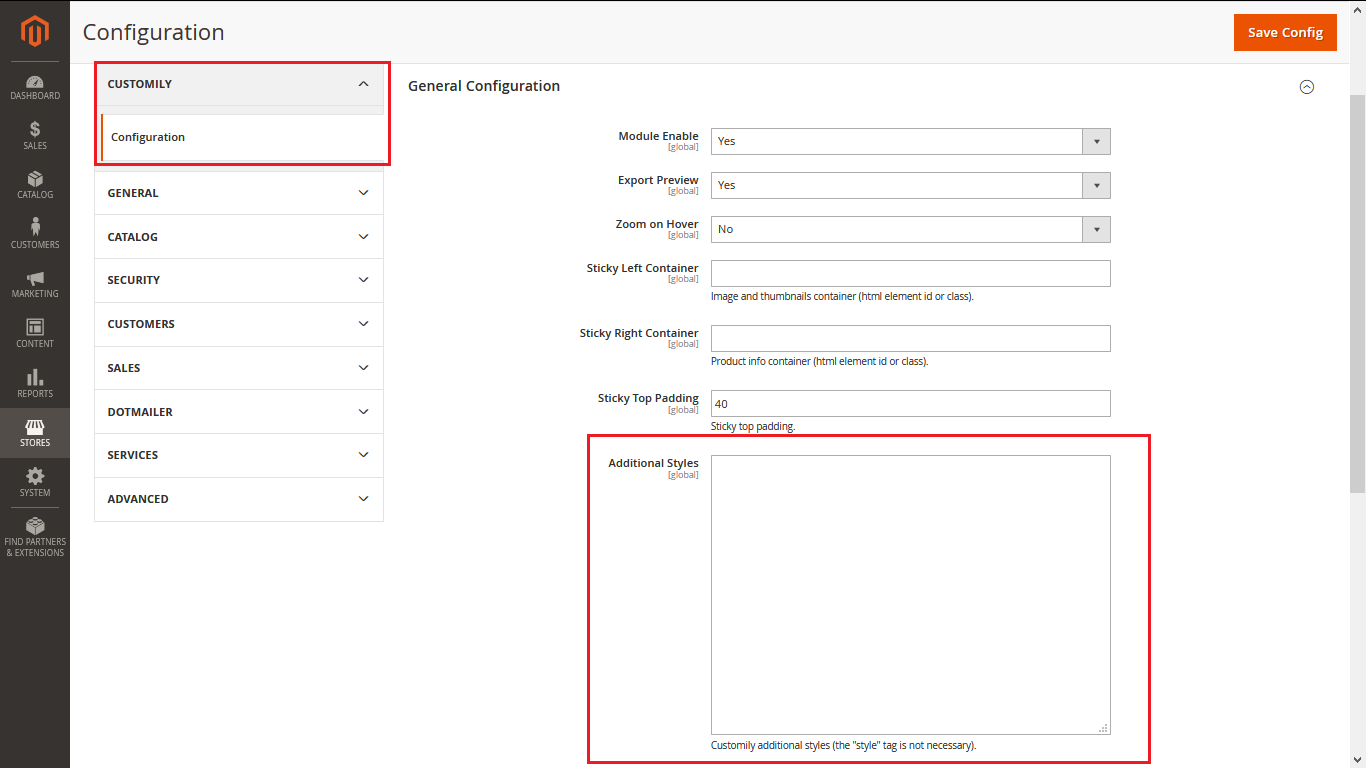
3. Remember to flush the caché for the changes that you made to take place, use php bin\magento cache:flush.
Be careful
If you are not familiar with CSS, we recommend you find someone to help you adjust the styles of your options. Changing styles without knowing how can result in breaking the layout of your product page.
CSS Classes for Customily Options
Element | Class Selectors |
|---|---|
Text Input | ._cl_field_group input |
Drodpown | ._cl_field_group select |
Swatch | .cl_options .swatch-container .swatch .cl_options .swatch-container label .cl_options .swatch-container label img |
Image upload button | .cl_upload-button |
Remove uploaded photo button | .cl_remove-image |
Option Labels | .customily_option label |
Help Text | .help-text |
Photo size limit text | .cl_image-invalid-size |