Image placeholders with multiple Color options
Last updated: April 28, 2026
You can add multiple color options to image placeholders so customers can colorize their uploaded images and choose from a range of colors while personalizing. You can assign multiple colors in two ways:
by manually assigning all the color options you'd like to have
by using a color library (which is the easiest way)
Tip
If you want customers to choose any image color freely you can configure it by using the color picker option. There is no need to set multiple color options.
To add multiple color options to a user-uploaded image manually
Select the text element
Expand the Color toolbox
Click + Add Color Option
Pick a color and click Apply
Repeat 3 and 4 to add as many color options as you'd like

You will see all the color options the text has displayed in the color toolbox. To see how they look, just click through them.
To delete a color option, click the 🗑 next to the color value.
To edit the color option, click the ✏ next to the color value, and pick a new color.
Tip
You can change the color options order by clicking the dots to the left of the font option. Simply click and drag to rearrange them.
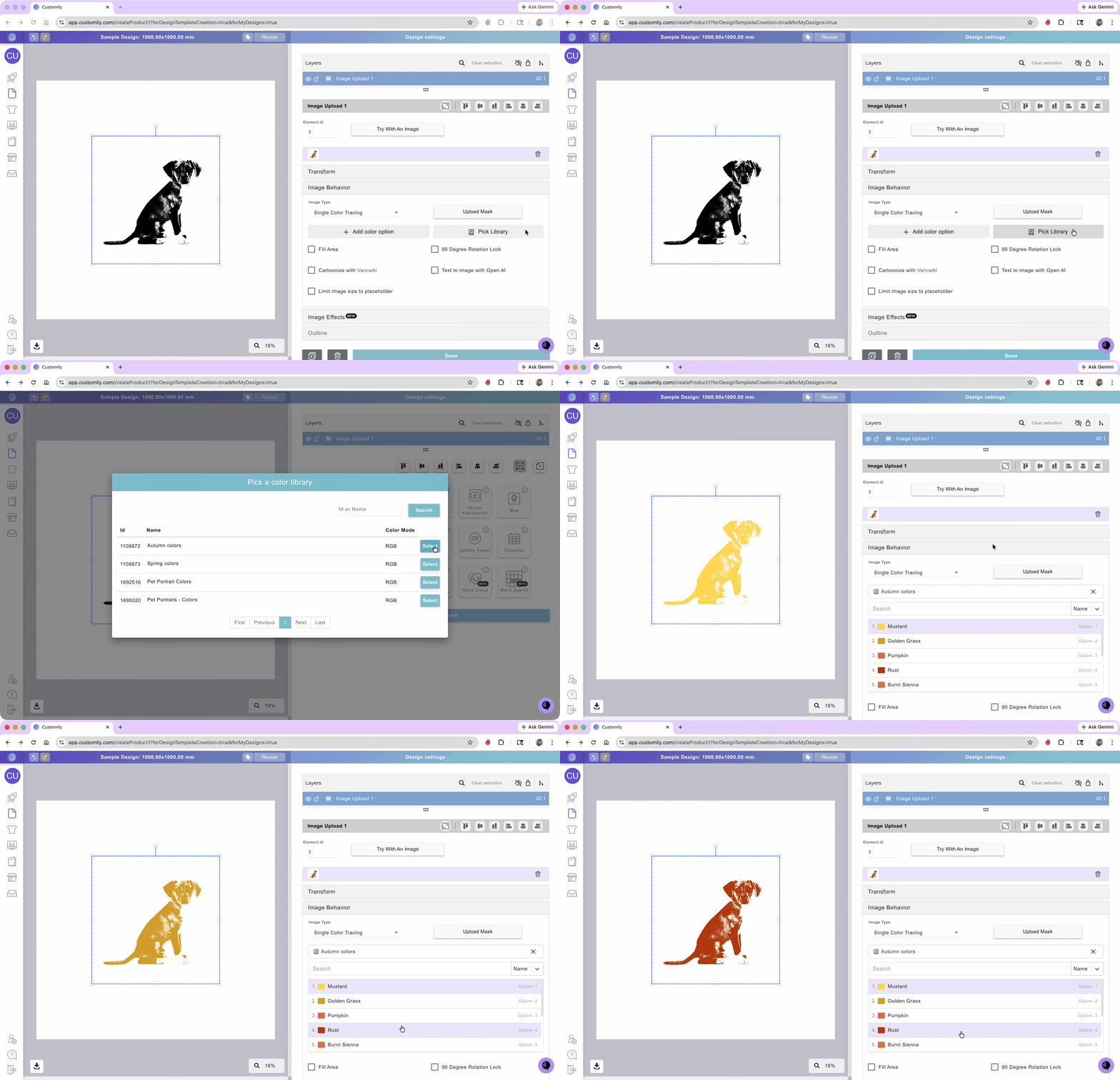
To add multiple color options to a user-uploaded image using libraries
First, you have to create a color library. You can learn how to create a color library here.
Select the text element
Expand the Color toolbox
Click Pick Library
Choose the color library you'd like to use
Tip
If you want to change the order of the color options, you can do so by editing the library. Learn how to edit a library here.