The Template Homepage
Last updated: April 30, 2026
On the template homepage, you'll see a list of all the templates on your account. There you can:
By default, the homepage will show "all templates" and they will appear ordered by date of creation, from oldest to newest. You can rearrange the order to see your newest templates first or rearrange them by last modified by clicking on the sorting titles.
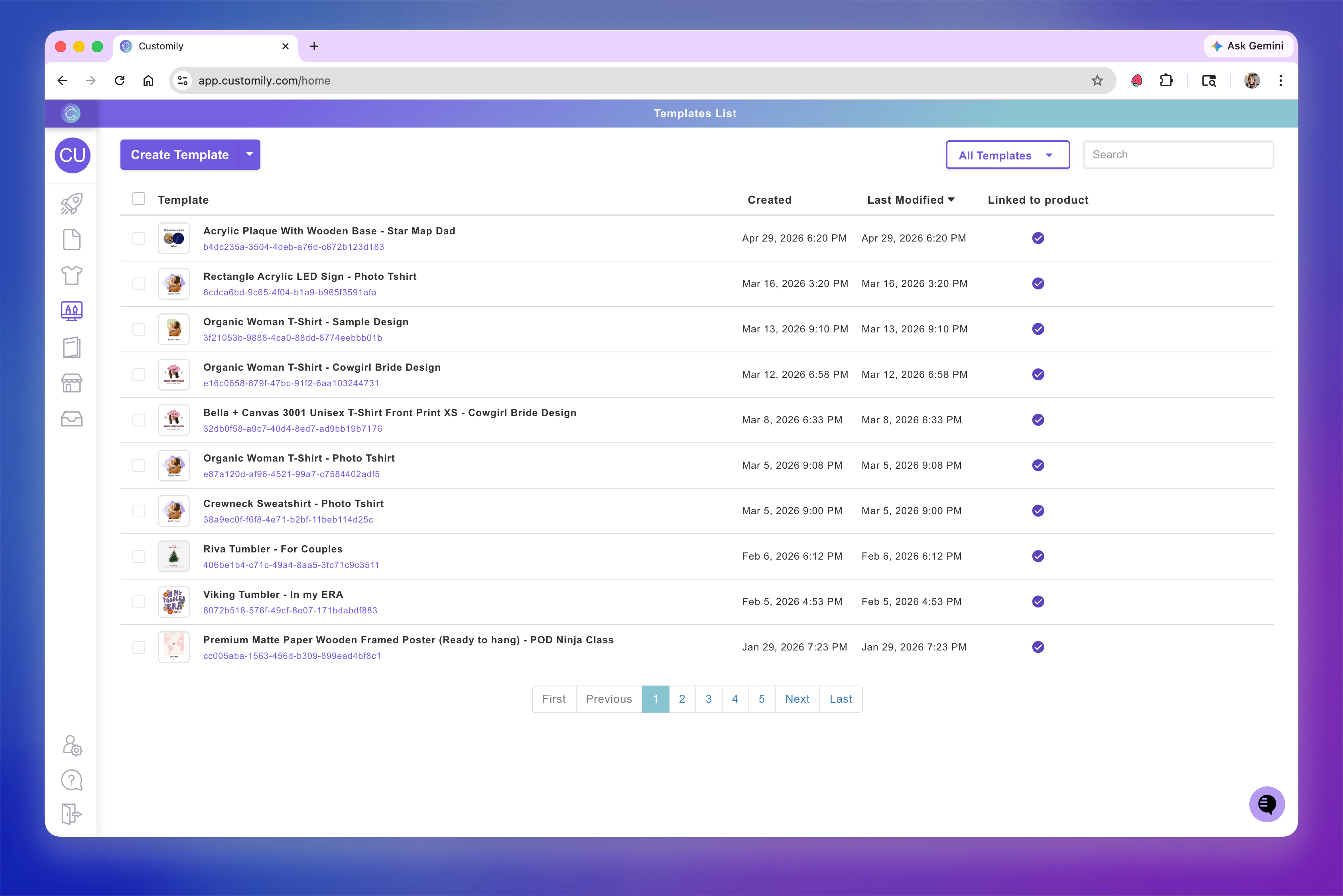
Create a new template
Click the Create Template button on the top left corner of the homepage
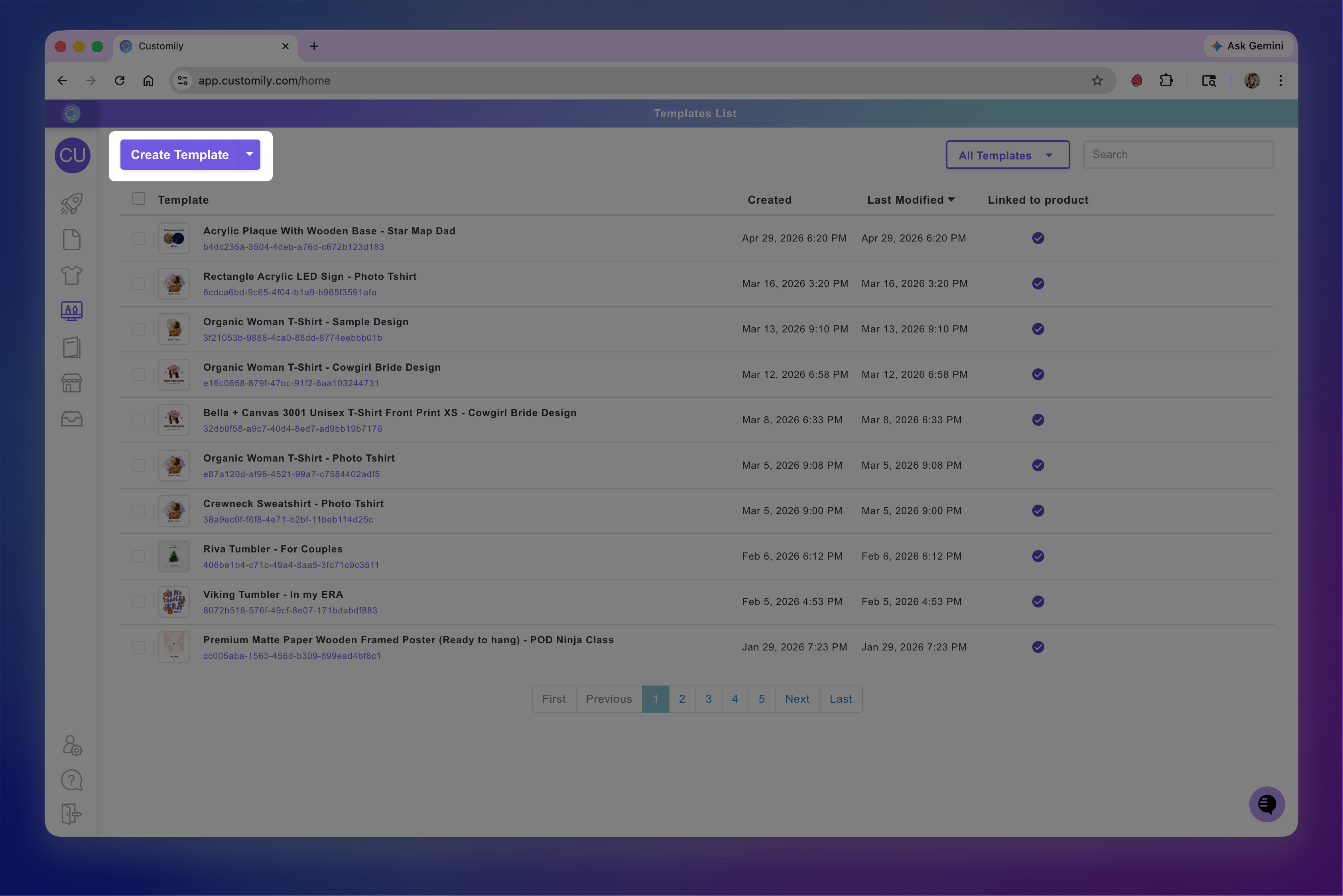
You can also create a template starting with a Customily design. This is a great way to bring artwork into your template.
To create a new template from a Customily design
Hit the arrow next to create template
Choose from Customily Design Gallery
Browse and select a design to get started
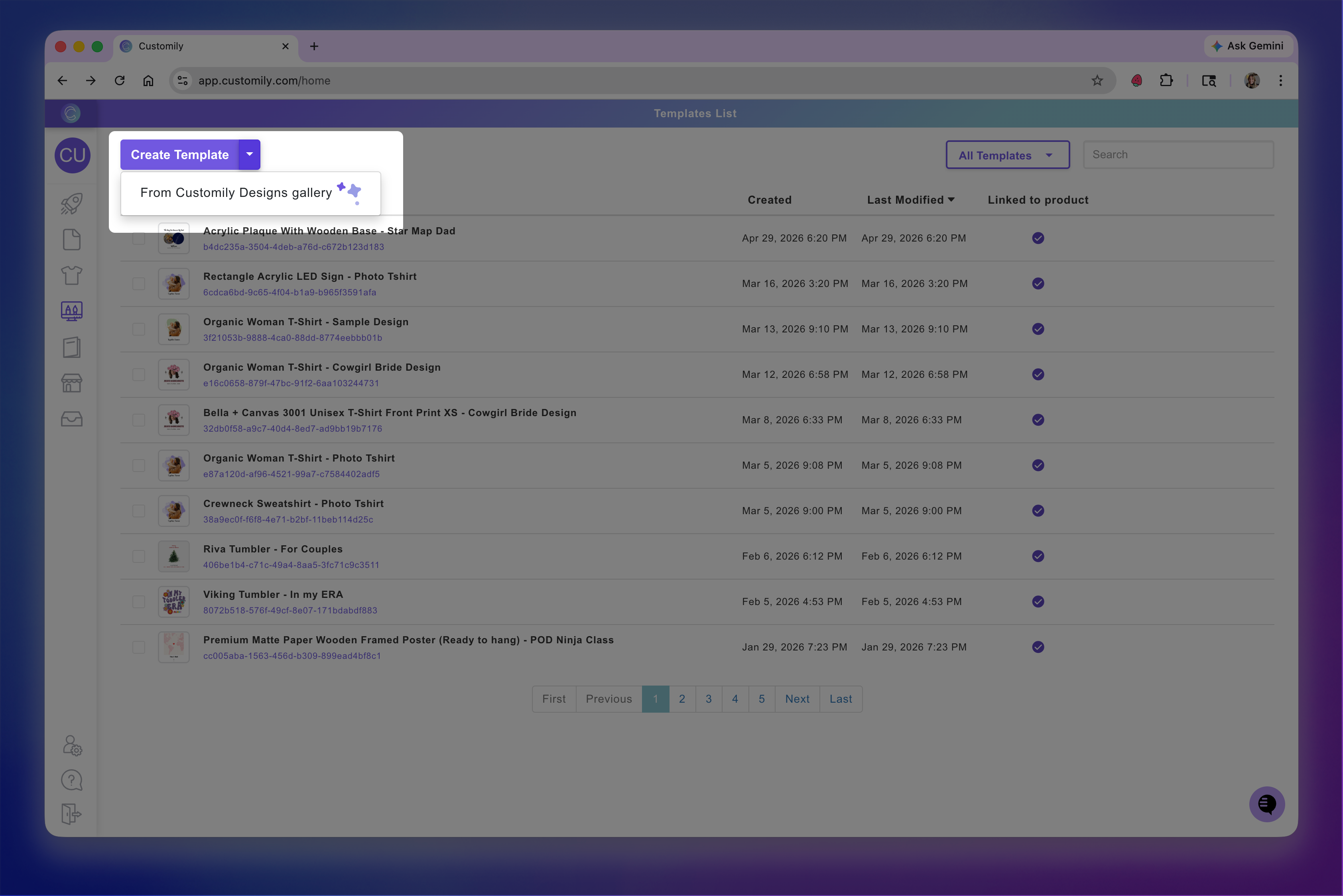
Search
Type on the search bar in the top left corner
You can search templates by their name, or their ID.
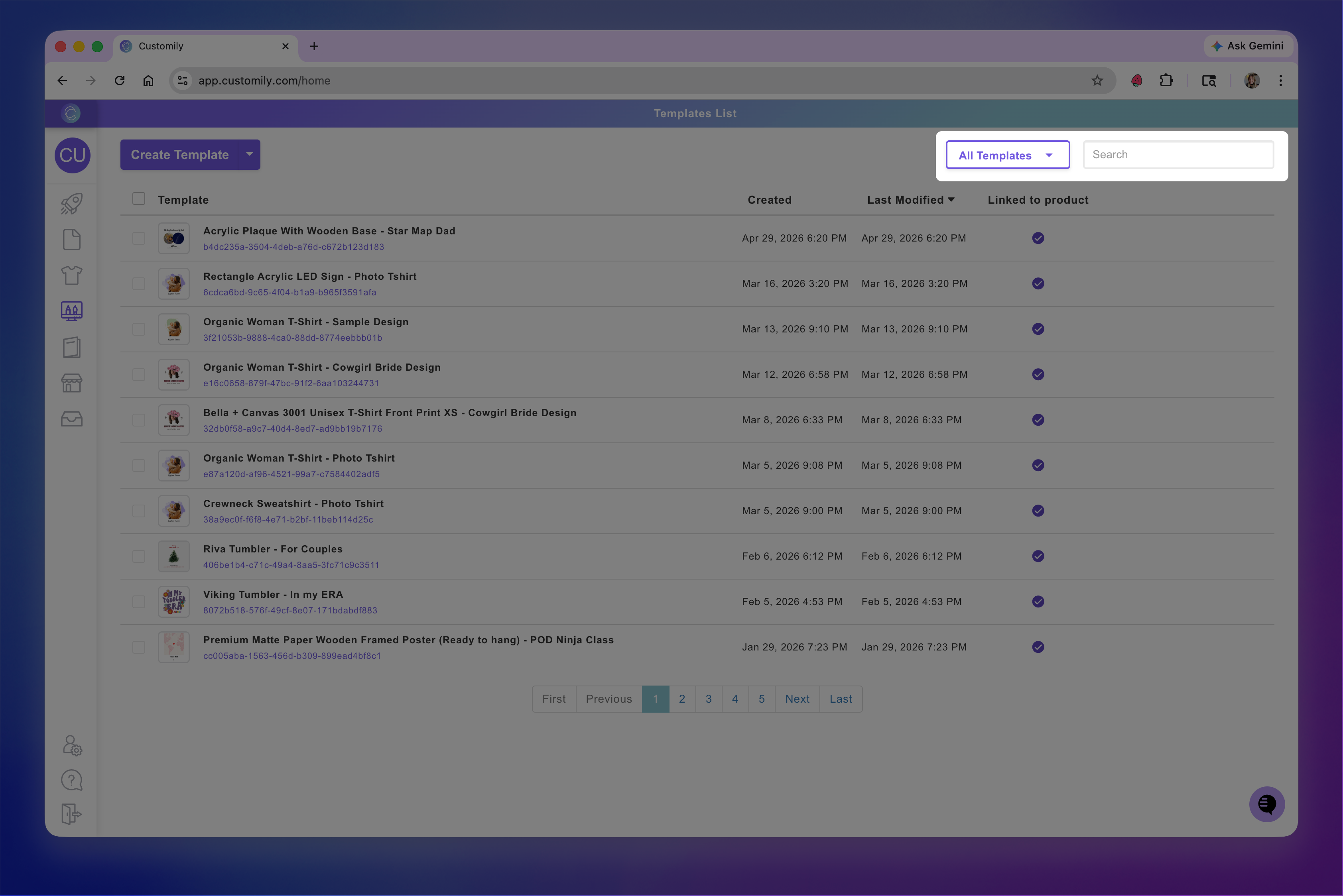
You can also use the filters on the left to filter the template list by their status. Wether they are:
Linked to products on your store
Not linked to products
Deleted
Rename
Click on the Template's name or on the ✏ next to it
This will activate the name so you can type in the new one
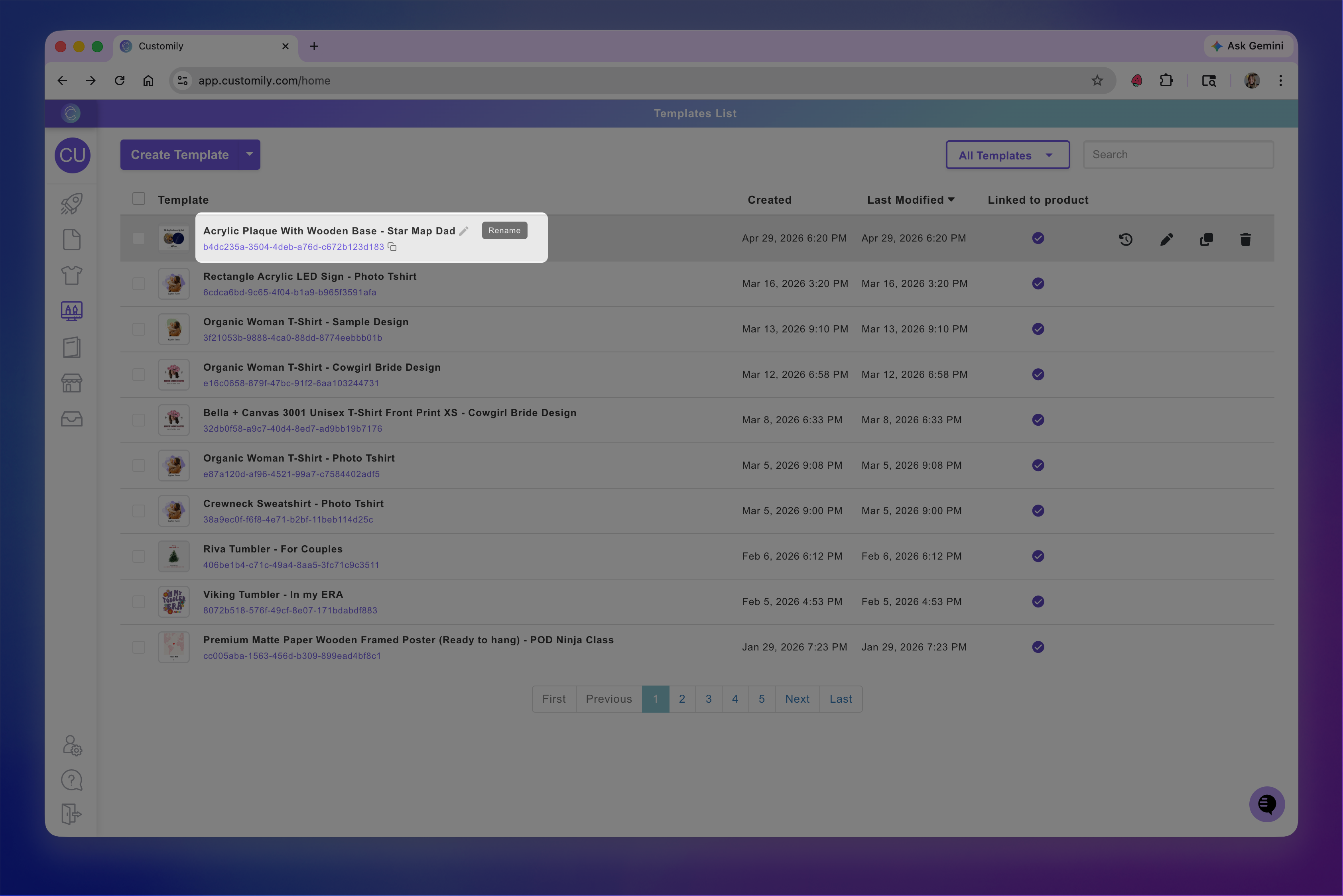
To exit renaming mode, press Enter/Return or click anywhere outside the name.
Edit
Stand on top of the template so it is highlighted
Click anywhere to open it and edit it. You can also click the edit button on the right

Clone
Stand on top of the template so it is highlighted
Click the clone button on the right
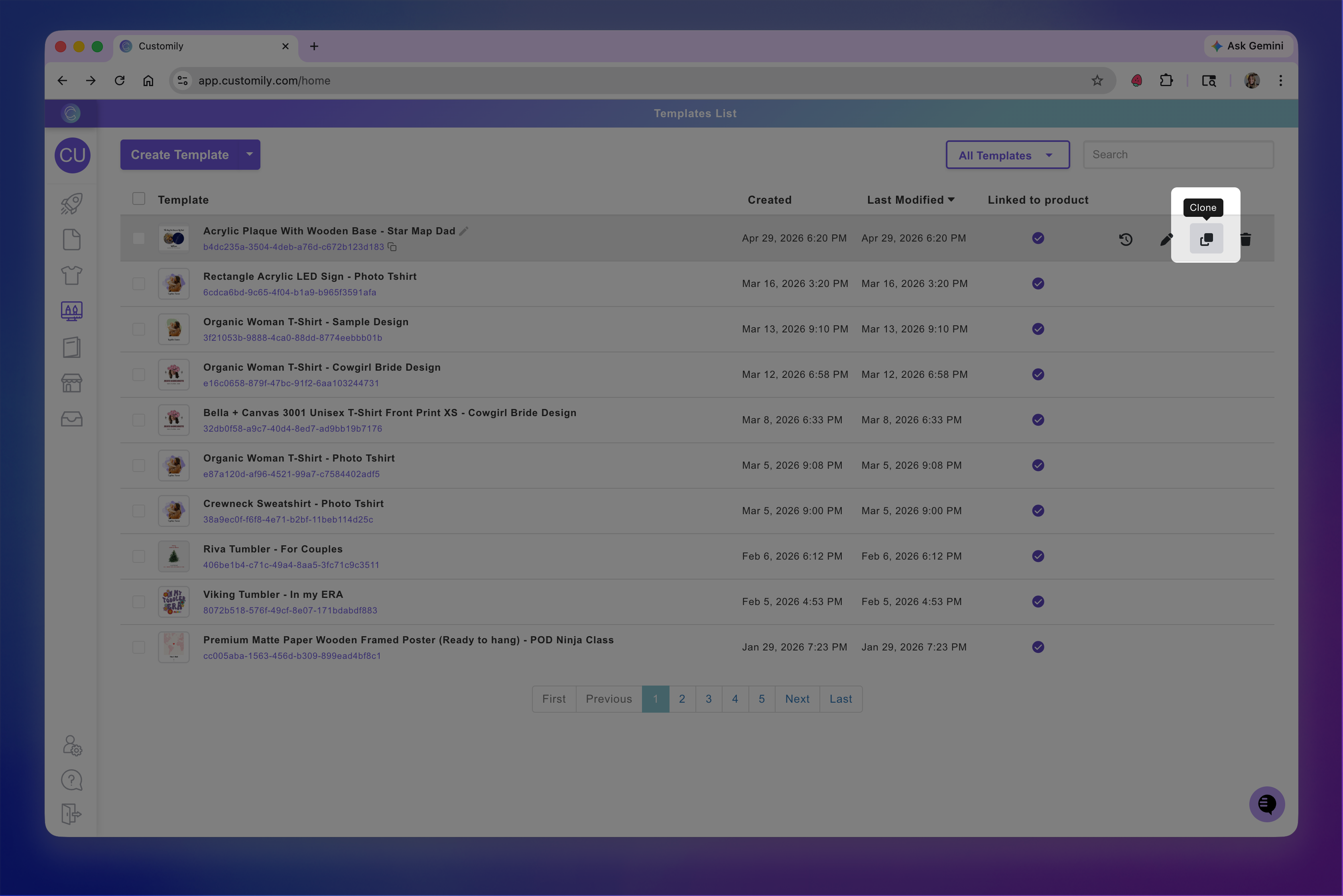
Cloned templates are added at the end of the list. You will identify it since "cloned" is added at the end of its name.
Check template status
To understand if a template is being used on a product on your store, you can check the template status
If the template is being used, you'll see a check ☑ on the Linked to Product column.
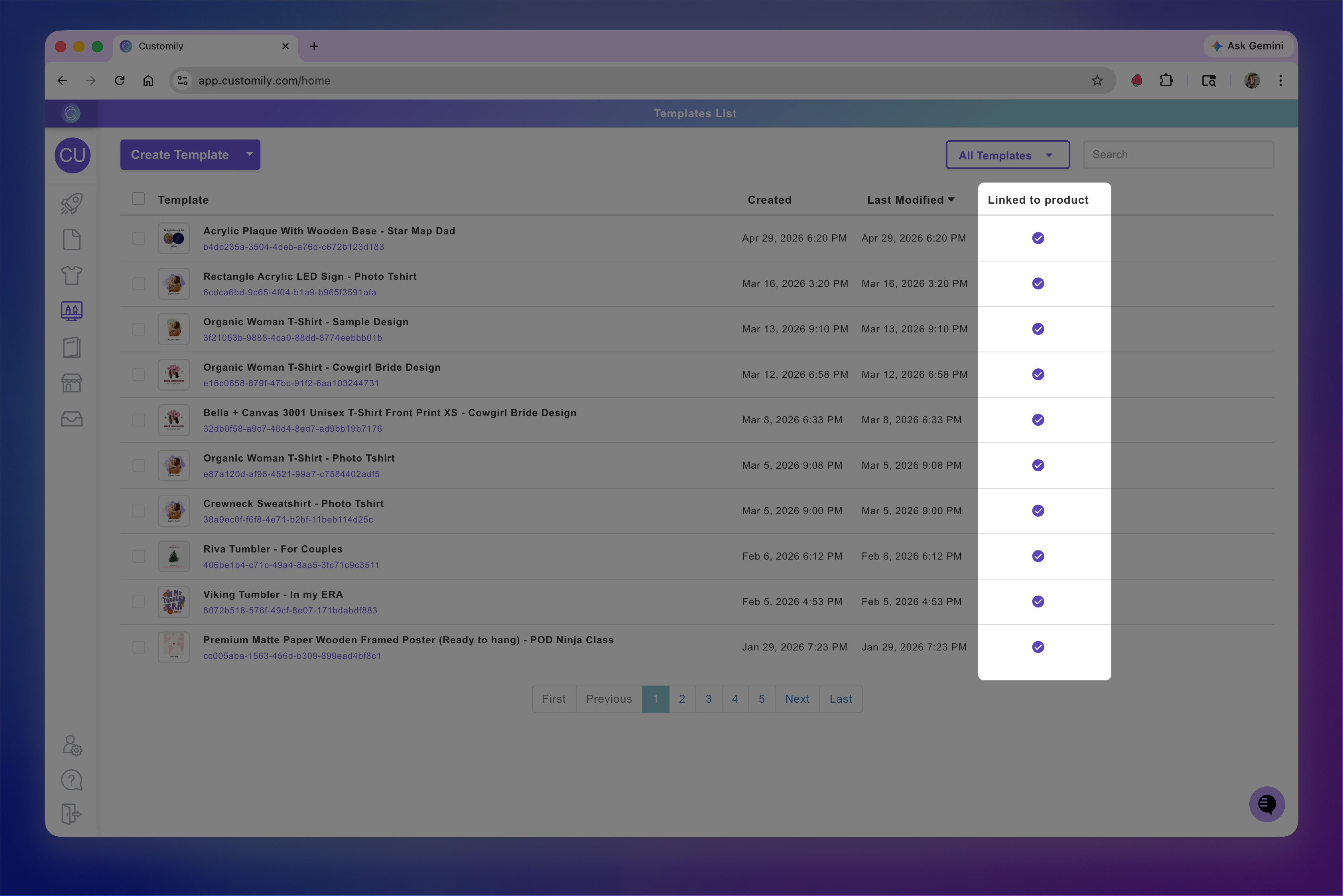
To learn more about the template stats:
Click the check to view detail
A dialog will appear showing on which products the tempalte is being used, and wether the products are live or drafts.
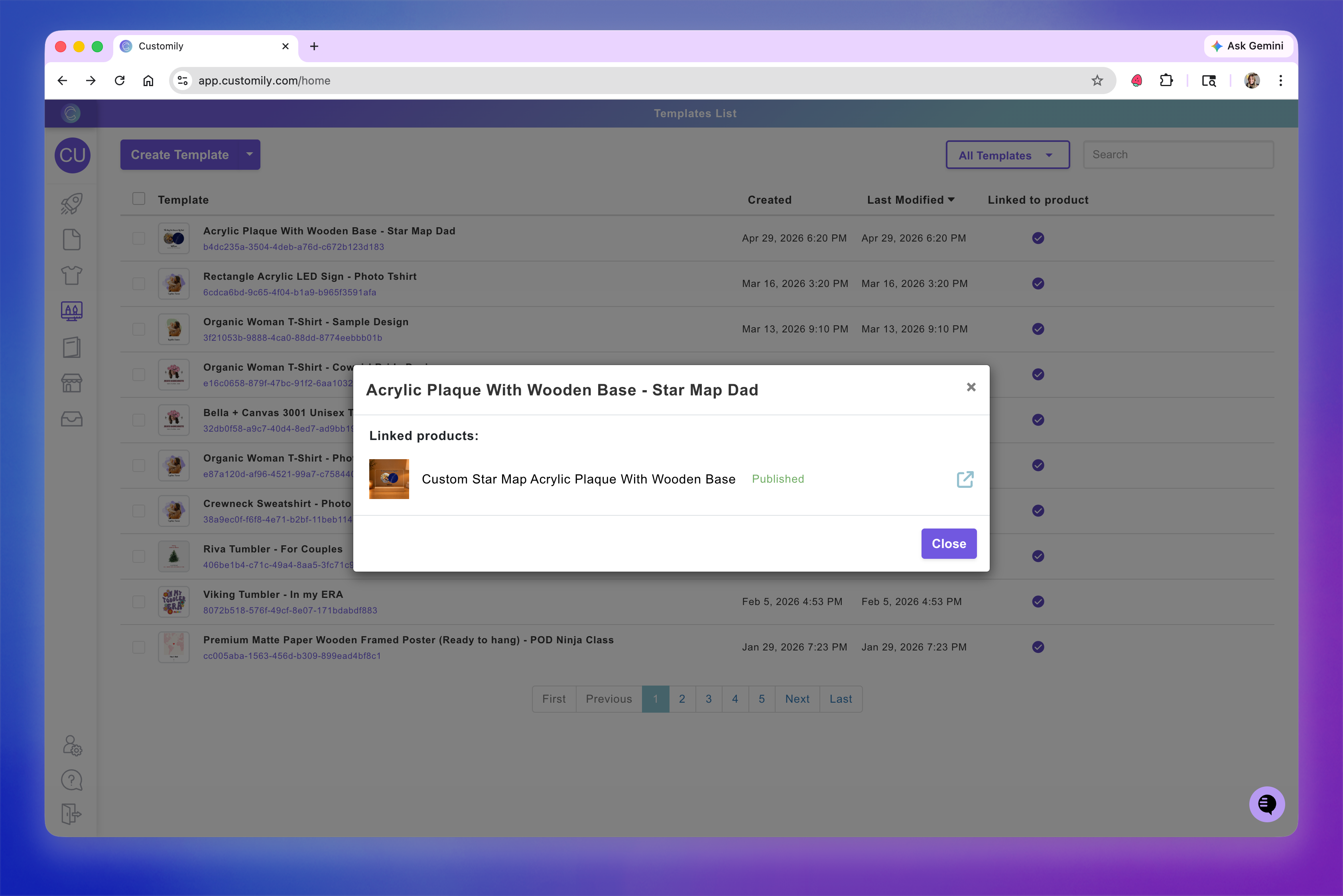
Tip
Click on the light blue arrow to the right of the product to open the listing on your store.
Check template history
The template history lets you see all the edits done to a template, when they were done, and by who (especially useful if you have multiple users linked to your account).
To checkt he template history:
Stand on top of the template so it is highlighted
Click the clock button on the right

A dialog will appear showing when the template was created, and all the edits that were made since then.

Restore previous version
Once you open the template history, you'll be able to restore previous versions of it.
Open template history
Select restore previous version
Choose the version you want to restore to and click restore
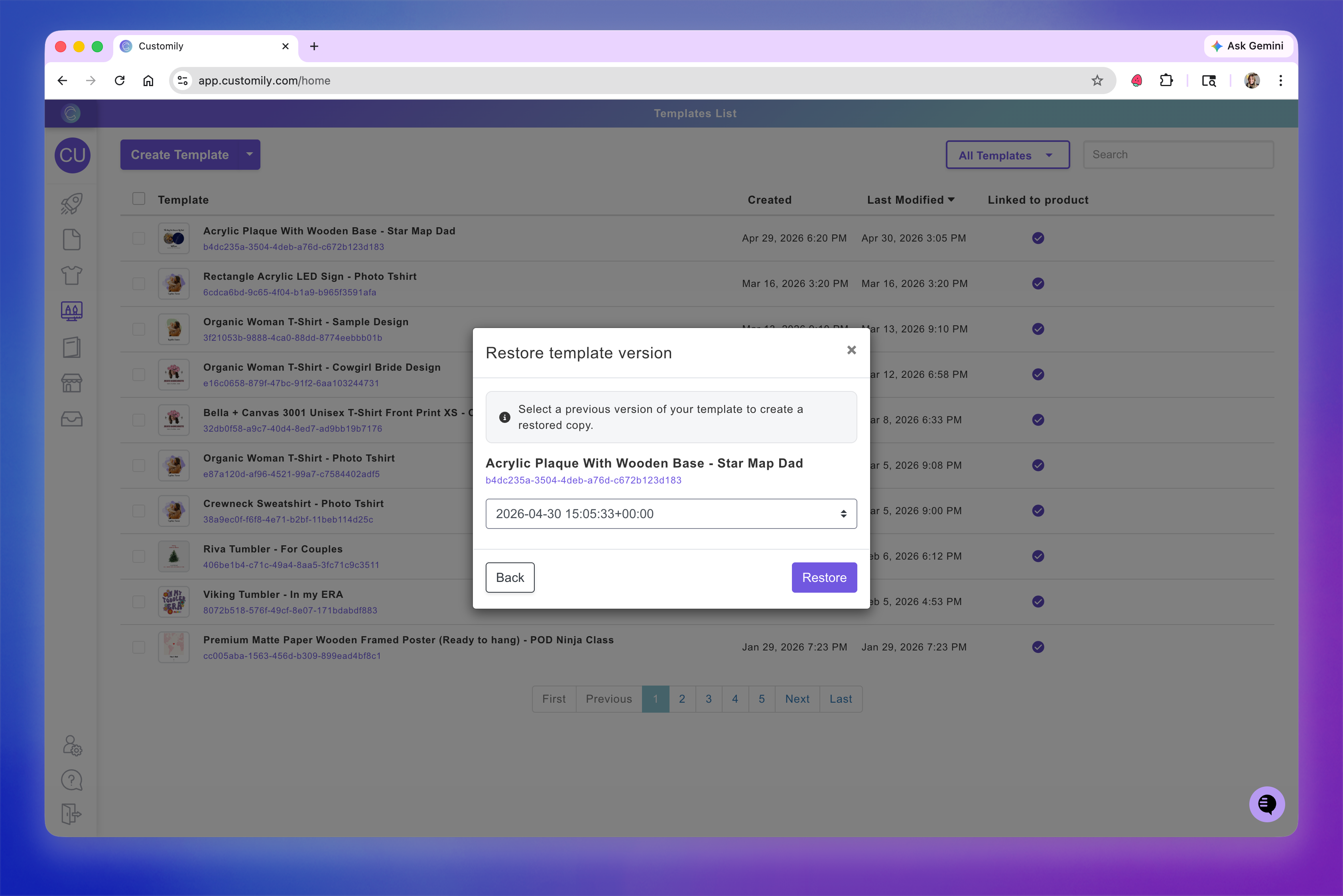
A restored copy for that template will be created on your account.
Delete
Stand on top of the template so it is highlighted
Click the trash button on the right
A confirmation to delete will be shown, click yes to delete

Deleted templates go to the recently deleted folder, and will be kept there for 90 days in case you need to recover them.
Recover recently deleted templates
Select Deleted from the template filters on the top right of the homepage (by default it shows all templates) to see the recently deleted templates
Stand on top of the template so it is highlighted
Click the restore button
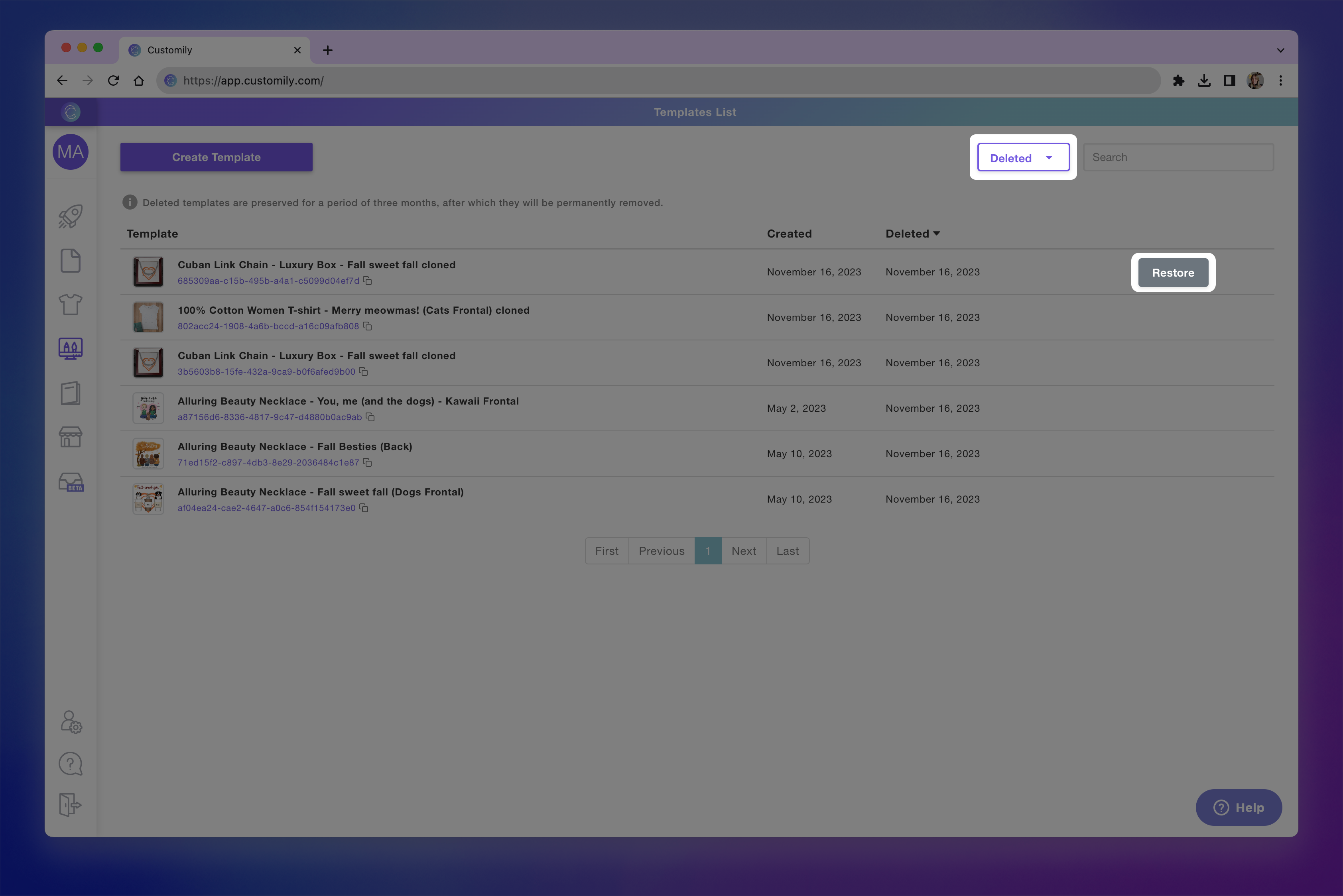
You can access your recently deleted folder to recover templates that have been deleted. After 90 days, templates will be deleted permanently, and you won't be able to recover them.