How does shipping and order tracking work for Printify on Shopify
Last updated: April 28, 2026
To ensure proper shipping information is shown during checkout and order tracking works correctly, products published via Customily will be created with the following settings:
- Vendor: Products will have Printify as the vendor. If you rather have your store appear as the vendor, you can change this on your product settings on Shopify.
- SKU: Products will be assigned an automatic SKU on Shopify. You can change this SKU whenever you want, as it won't affect the connection of the product with Printify or order tracking.
-
Location: The location of your product will be set to Customily. You can check this by going to your Shopify product and opening the product variants to see their stock information.
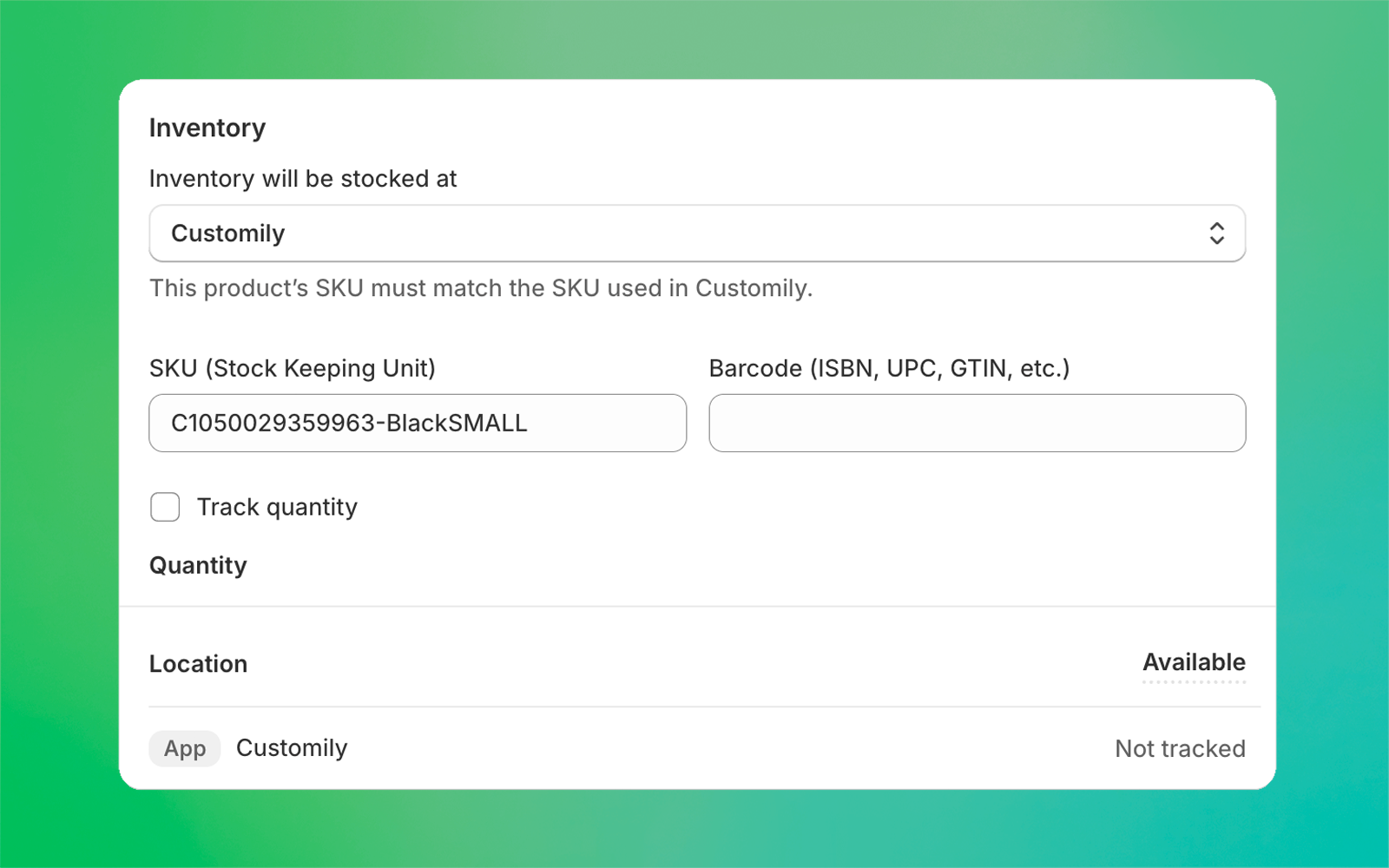
This setting is required for order tracking to work properly. Customily does not fulfill or hold any products in this location—your POD provider will still handle fulfillment and shipping. The Customily location exists so that we can update your orders with tracking information when Printify starts shipping.
Important
Please don't change the location of the product. If you remove Customily as the location, tracking for orders of that product won't work.
Shipping Rates for Customily Products
All products published with Customily will be assigned to the Customily location in Shopify. For orders to be submitted, this location must have valid shipping rates assigned.
By default, Customily location will be added to the General Shipping Rates from your store (if any exist). If not, you’ll need to set up rates manually.
When working with Printify and Shopify, there are three kinds of shipping rates: custom rates, Printify flat rates, and the Printify shipping calculator. Out of these, only custom rates and flat rates work with Customily products.
Custom Shipping Rates (Recommended & Simplest)
Custom rates are rates you define directly in Shopify. They let you decide how much to charge shoppers—whether that’s free shipping, a single flat fee, or rules by region.
Most stores choose this option, as it provides a simple way to cover all customizable products at once.
How to set up custom rates:
- Go to Settings → Shipping and Delivery in Shopify.
- Open your General Shipping Rates.
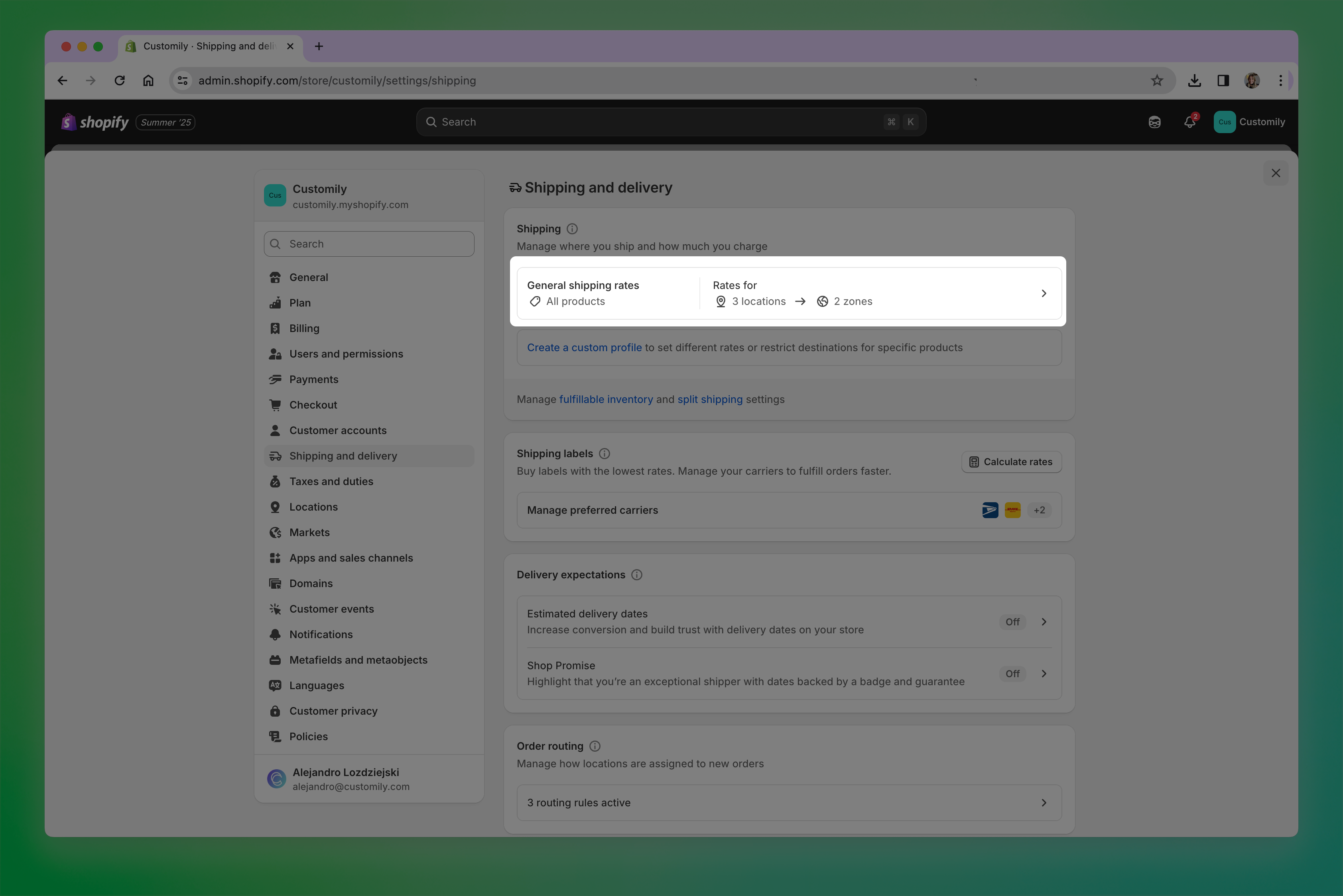
- Find the Fulfillment Location for Customily and add a shipping zone (e.g., United States, Europe).
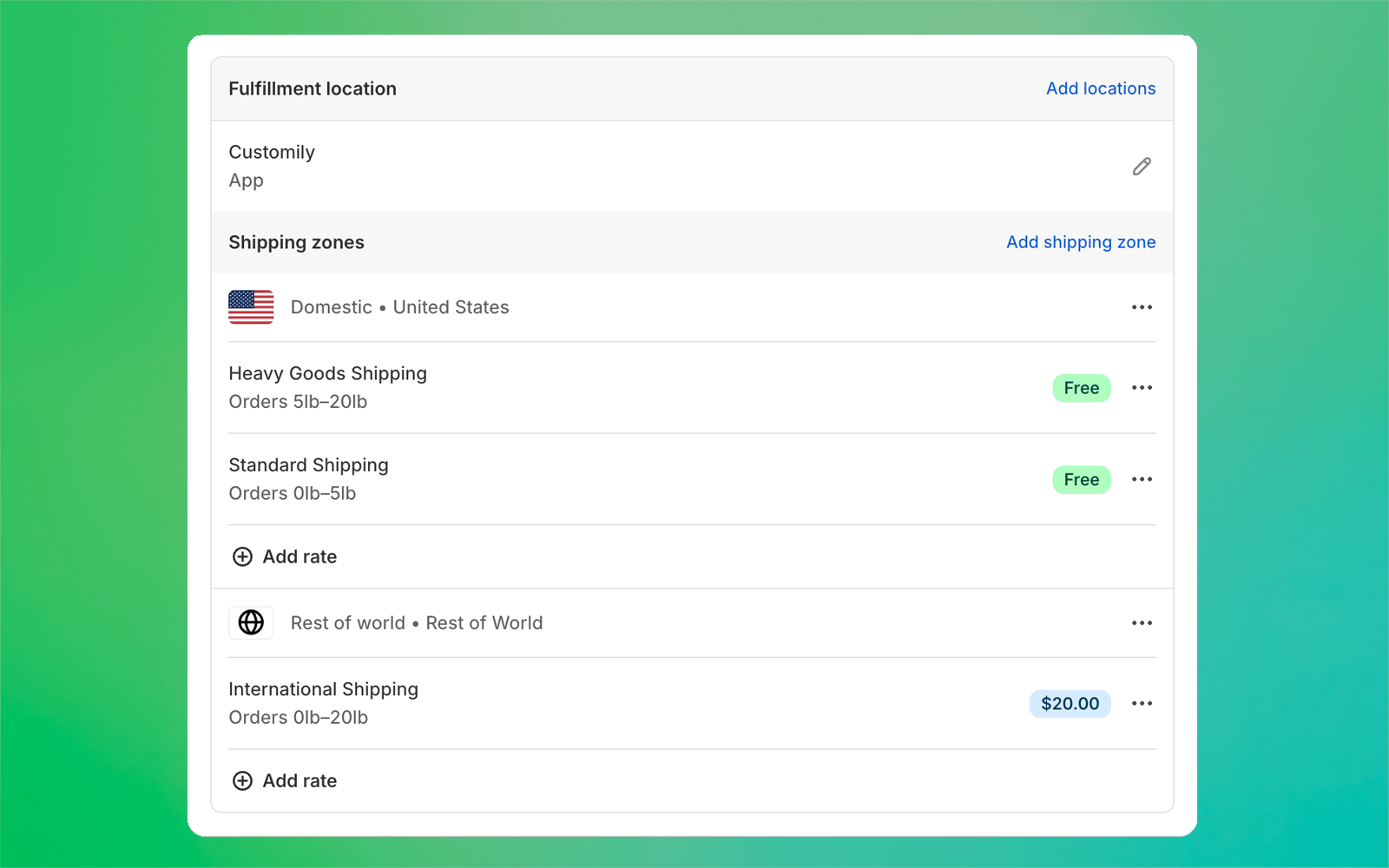
- Click Add rate, and enter your shipping rules (for example, Free, $4.99 Flat Rate, etc.).
Tip
If you already have zones created, you can simply assign the Customily location to those existing zones. Just remember if the location is already in use elsewhere, remove it from there first and then add it to the zones and rates you want.
You can also add the Customily location to other shipping profiles if you want more flexibility.
Printify Flat Rates
Printify provides predefined flat rates for each product type (e.g., t-shirts, mugs, posters). These rates match what Printify charges you for fulfillment, so you don’t need to calculate or guess costs.
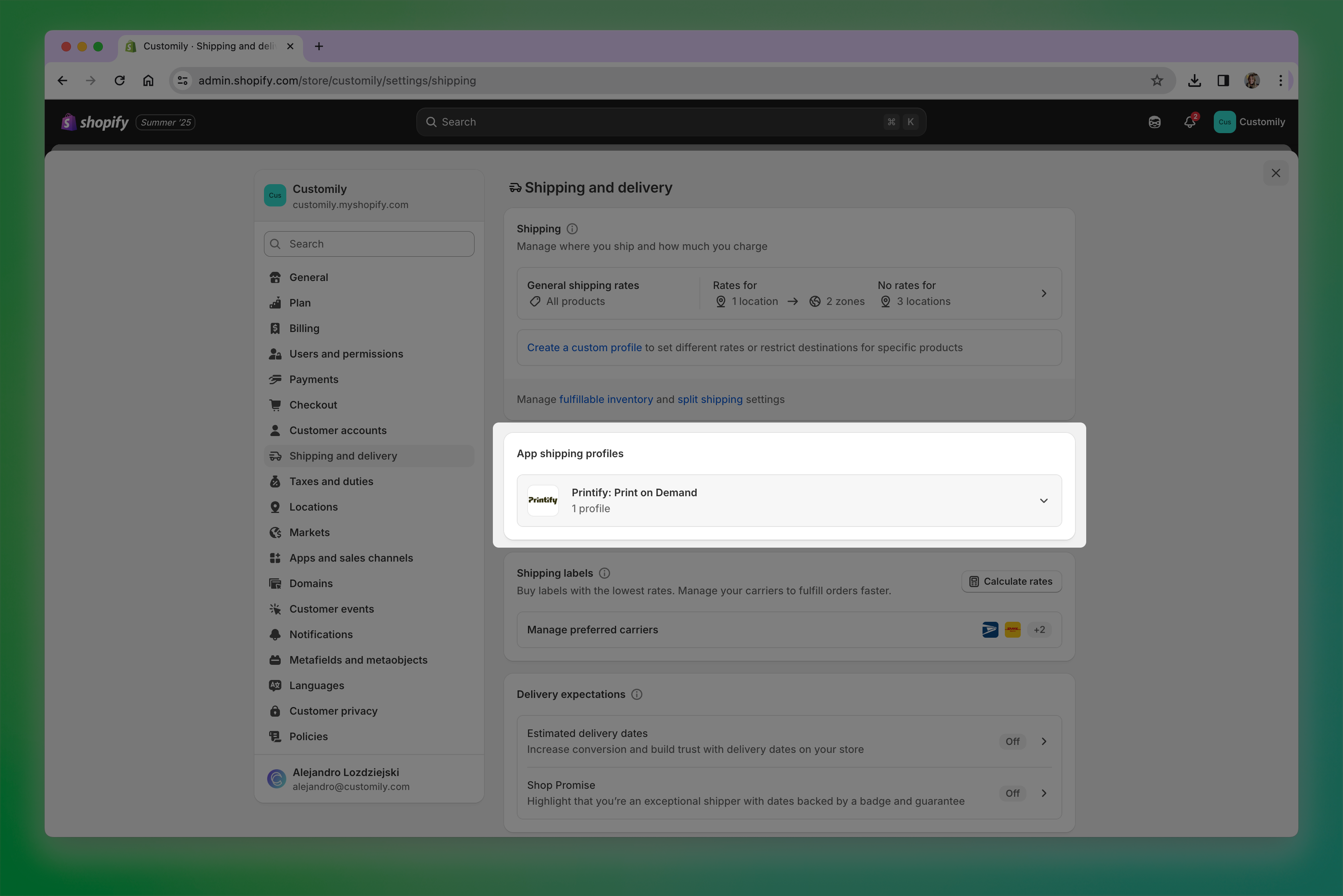
To use these, you’ll first need to publish at least one product directly from the Printify app. That action creates Printify’s shipping profiles in your Shopify settings, and then you can assign them to the Customily location.
How to set up Printify flat rates:
-
In the Printify app, publish at least one product using the option Automatically assign and update profile if needed.
- In Shopify, go to Settings → Shipping and Delivery and find the Printify App Shipping profile.
-
Click to edit the rates. Under Fulfillment Location, select Add Location
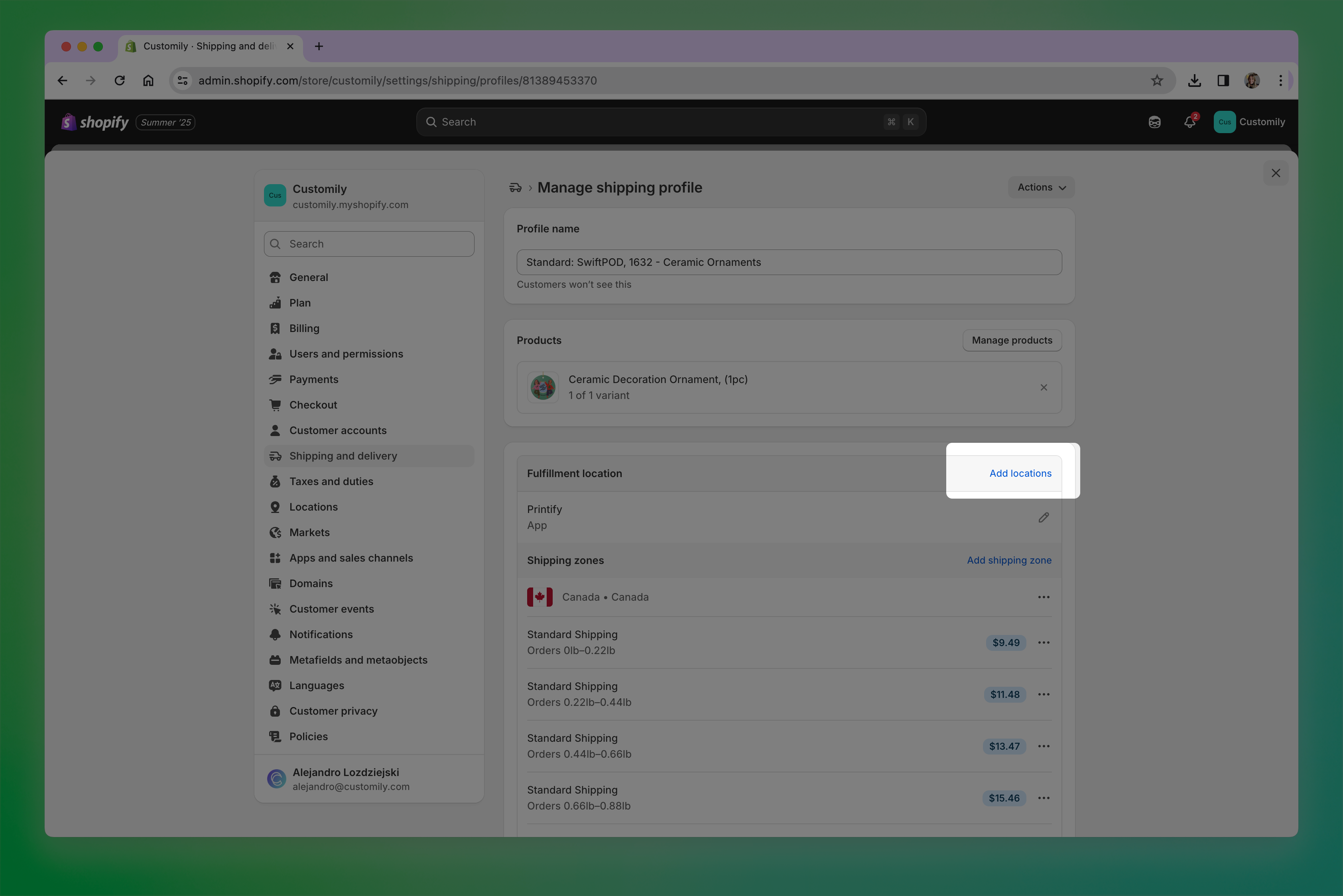
- Select the Customily location
-
Under Manage products, add your Customily products to this profile so the rates apply to them.
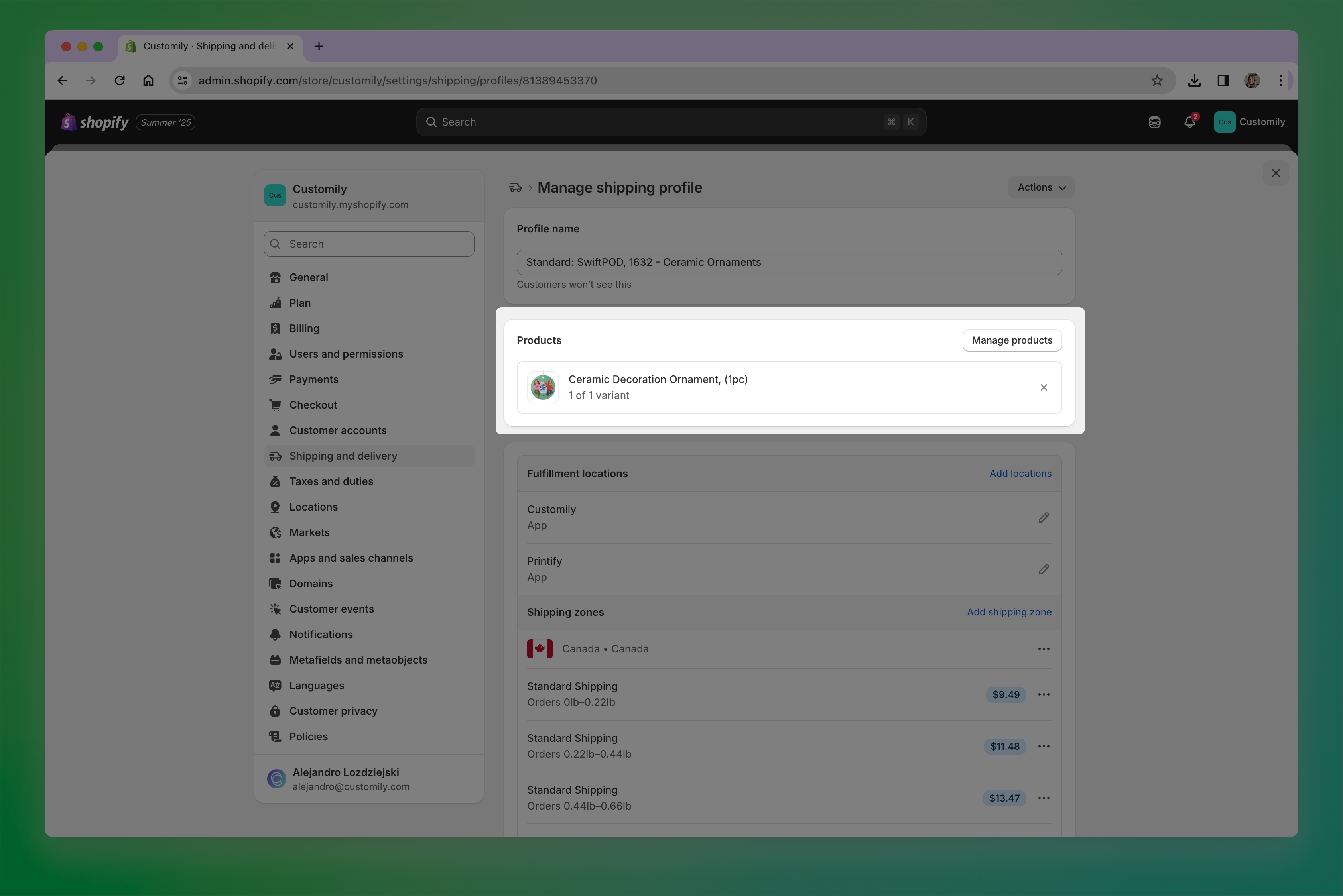
Remember, these rates only appear on your store when you have published a product directly from Printify. If you don't have them but would like to use them, you can publish a dummy product and then delete it, just to get the rates.
Important
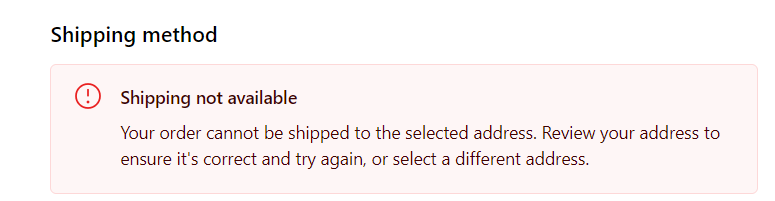
If you see the message “Shipping not available” when checking out, it means your Customily location does not have valid shipping rates assigned for that shipping zone. Double-check your General Shipping Rates or Printify flat rates to make sure they cover the address.
Printify Shipping Calculator (Not Supported with Customily)
Printify's Shipping Calculator is not available with Customily. If you have it enabled on your Printify, make sure you disable it to avoid issues with shipping during checkout.
How can I offer express shipping?
To offer express shipping, all you need to do is create a shipping profile on your general shipping rates that contains the word "express".
Customily will recognize the word express on the order's shipping information and will send the order via API to printify with with express shipping enabled.
How does tracking work?
When Printify starts shipping the order, a notification will be sent via webhook to your Shopify Order. Orders on Shopify will be marked as Fulfilled, and the tracking number will be added to it.
If you have your Shopify configured to send shipping updates to your customers, this will trigger that communication, so your customers can be aware of their shipping updates.
For tracking to work, products must have Customily set as their location. This is something Customily applies by default to all products, so please don't change it!