Show the same content across multiple elements
Last updated: April 29, 2026
You can link multiple elements so they all display the same content.
This means that when a shopper updates one element, all linked elements update automatically.
This is especially useful when creating designs with repeated elements or patterns, where the same content needs to appear in multiple places.
How it works
Elements are linked by their ID.
If two or more elements have the same ID:
They behave as a single input
The shopper’s input (like typed text or uploaded images) is shared across all of them
For example: If a shopper types a name, every text element with the same ID will show that same name.
Keep in mind
Linked elements must be of the same type, but they don’t have to look the same.
For example:
You can link multiple text elements with different fonts, sizes, colors, or styles
Even though they look different, they will all display the same text entered by the shopper
The same applies to other element types, like image placeholders.
How to link elements
Add the elements you want to use in your design
Select the elements you'd like to have the same content
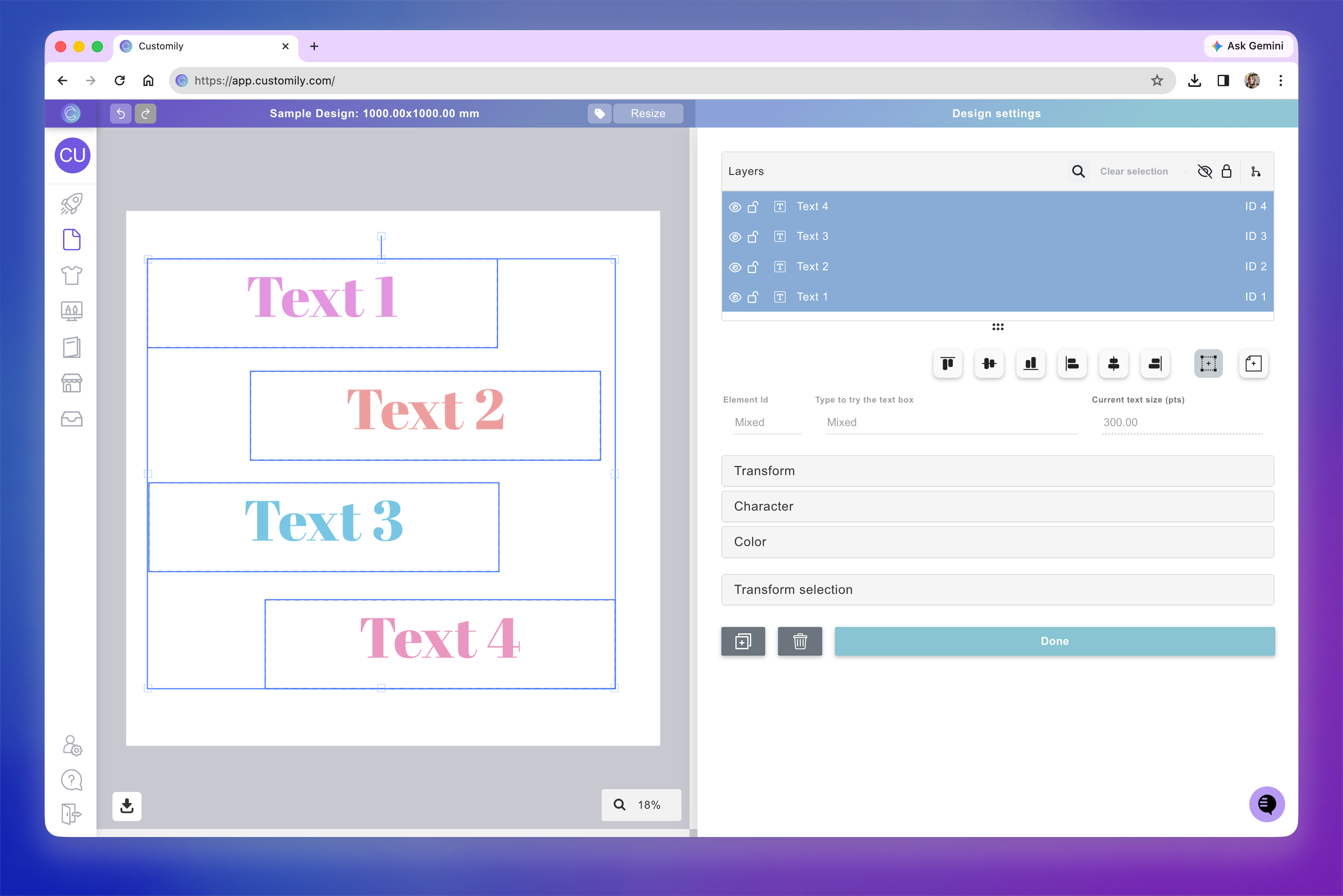
Assign the same ID to all of them
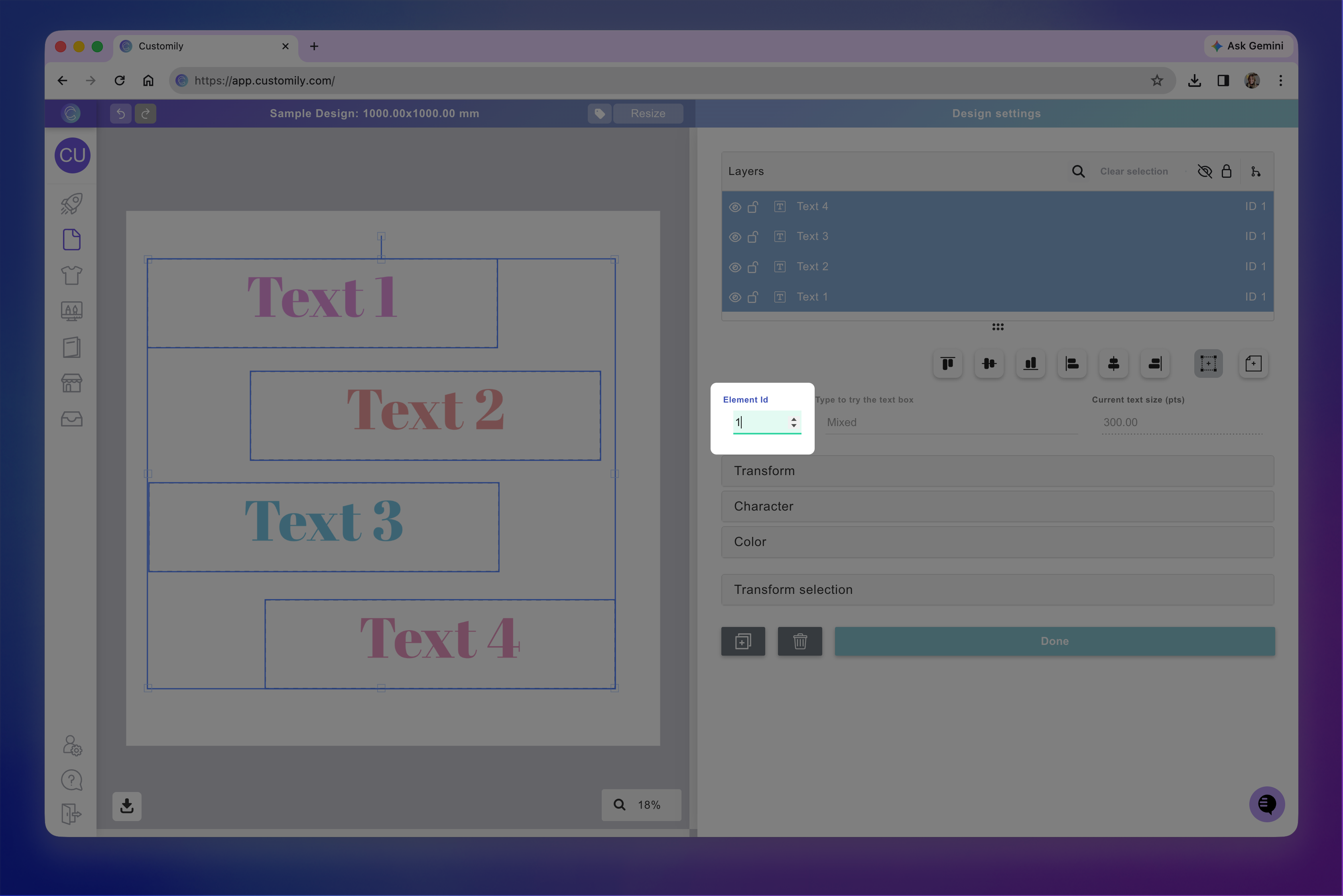
Save your design
You'll notice on the layer panel, that all the elements now have the same ID. If elements share the same ID, they share the same conent. In this example, when the shopper types the text, it will change all 4 text boxes at the same time.
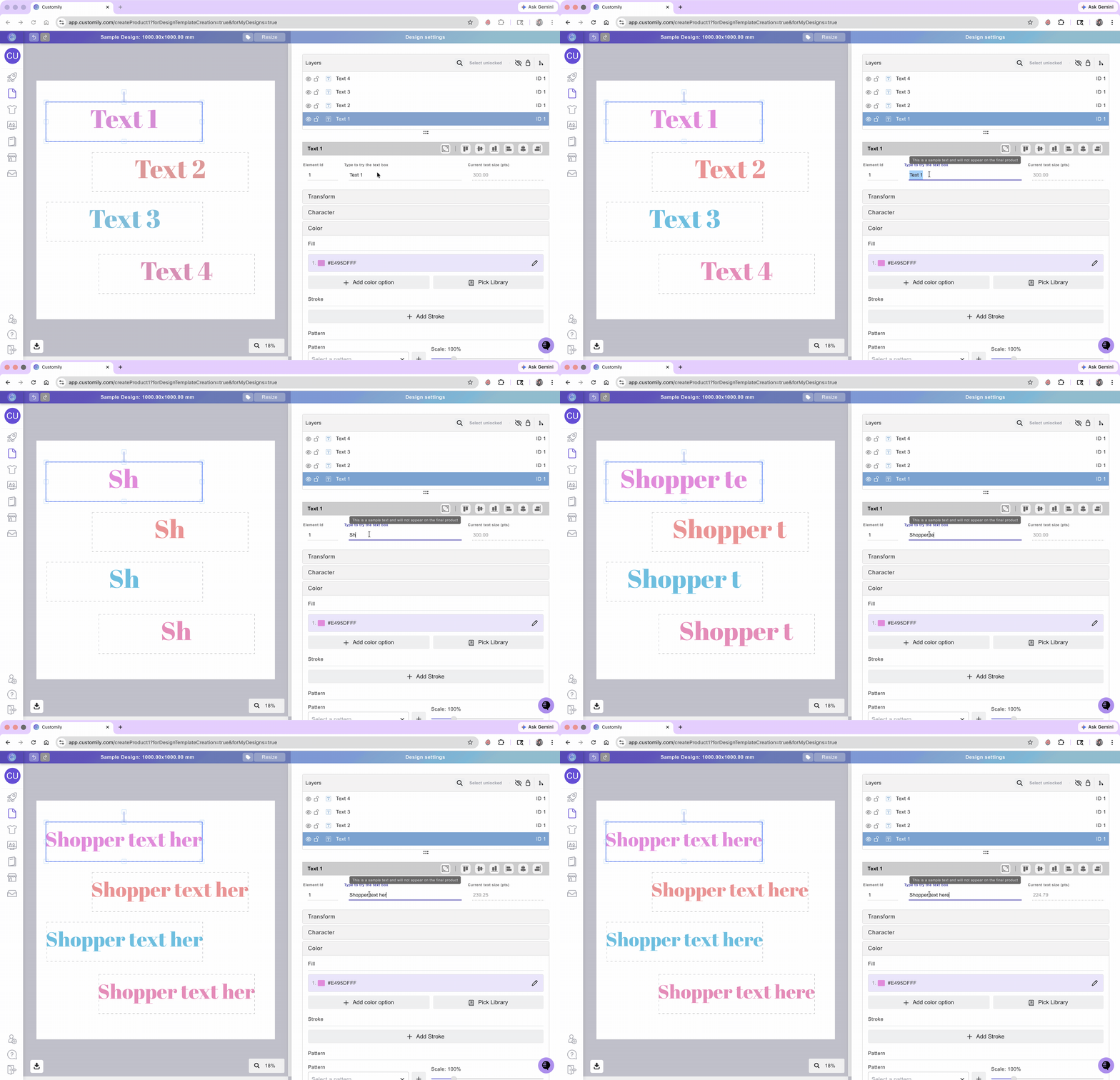
Tip: use cloning
The easiest way to create linked elements is by cloning.
When you clone an element:
The new element keeps the same ID
Both elements will stay linked automatically
This is useful when repeating the same content across a design (for example, patterns or mirrored layouts).