Text input
Last updated: April 28, 2026
Text Inputs let shoppers type in their own personalized content, like names, messages, quotes, or whatever text you can think of. You can use them to collect anything from short names to long dedications.
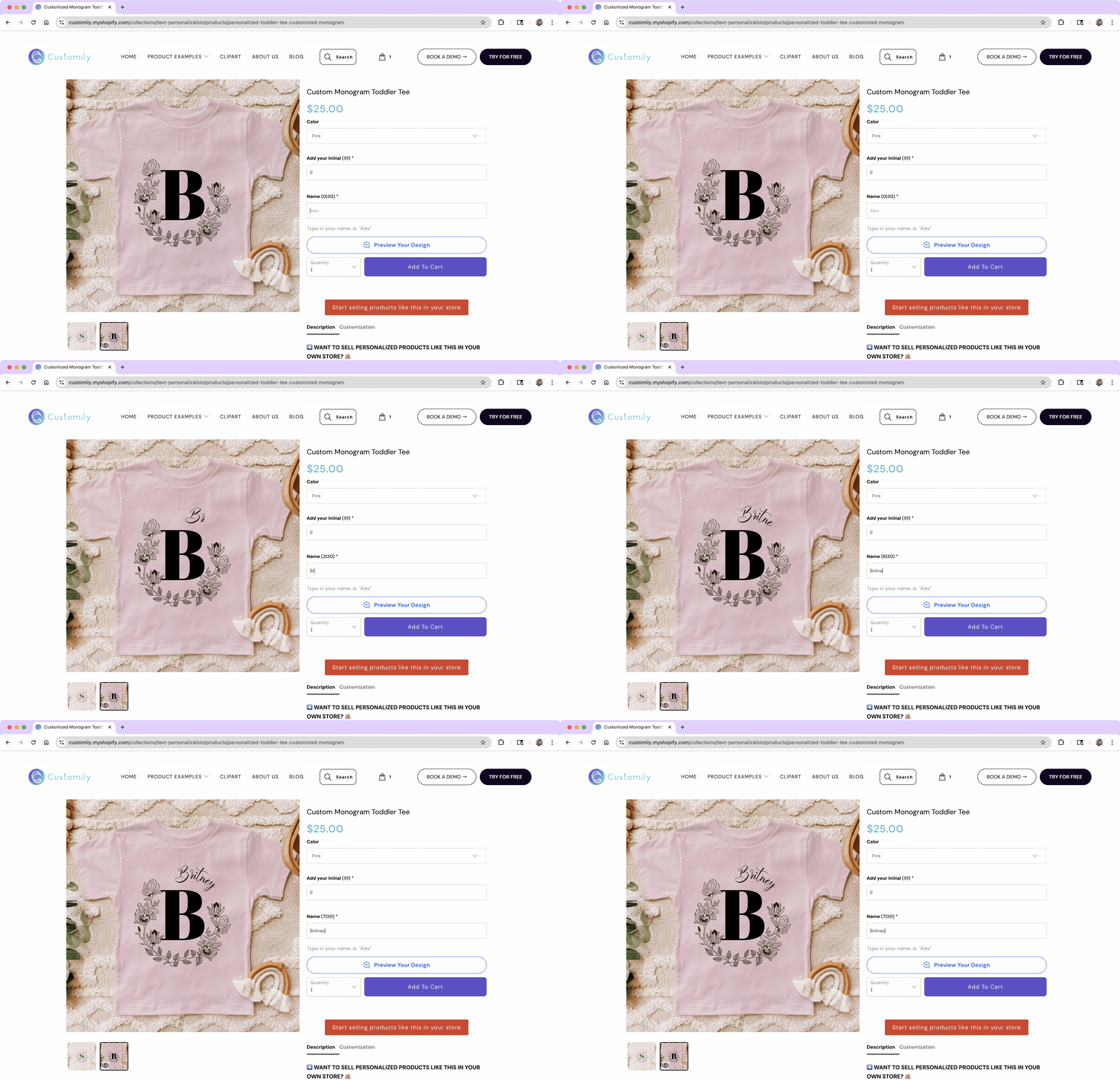
You can configure how the text input behaves, and decide how that input will be used to personalize.
In this article:
Settings you can configure on a Text Input
When you select Text Input as the option type, you’ll be able to configure how the input behaves and appears in your store.
To configure these, expand the option in your Option Set and scroll through the available settings.
Text inputs come with a wide range of settings. Click any item below to jump directly to it:
🛠 Basic Settings
⚙️ Advanced Settings
Label
Text that appears above the input field on your product page (e.g., “Enter your name”)
Required
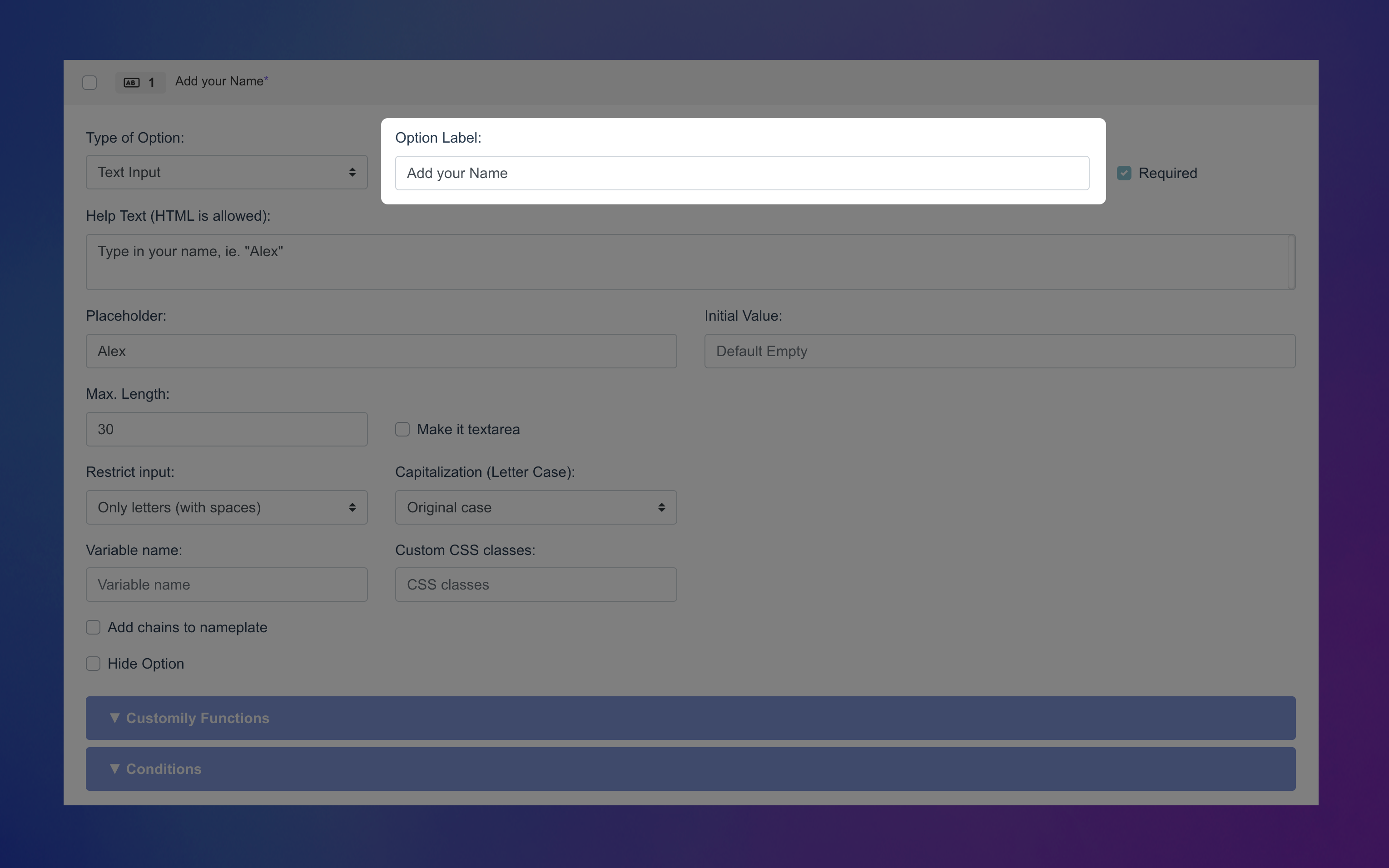
Make this field mandatory by enabling this toggle. If it's required, shoppers won't be able to complete their purchase without filling it out. An * next to the option label will indicate it is required on the storefront.
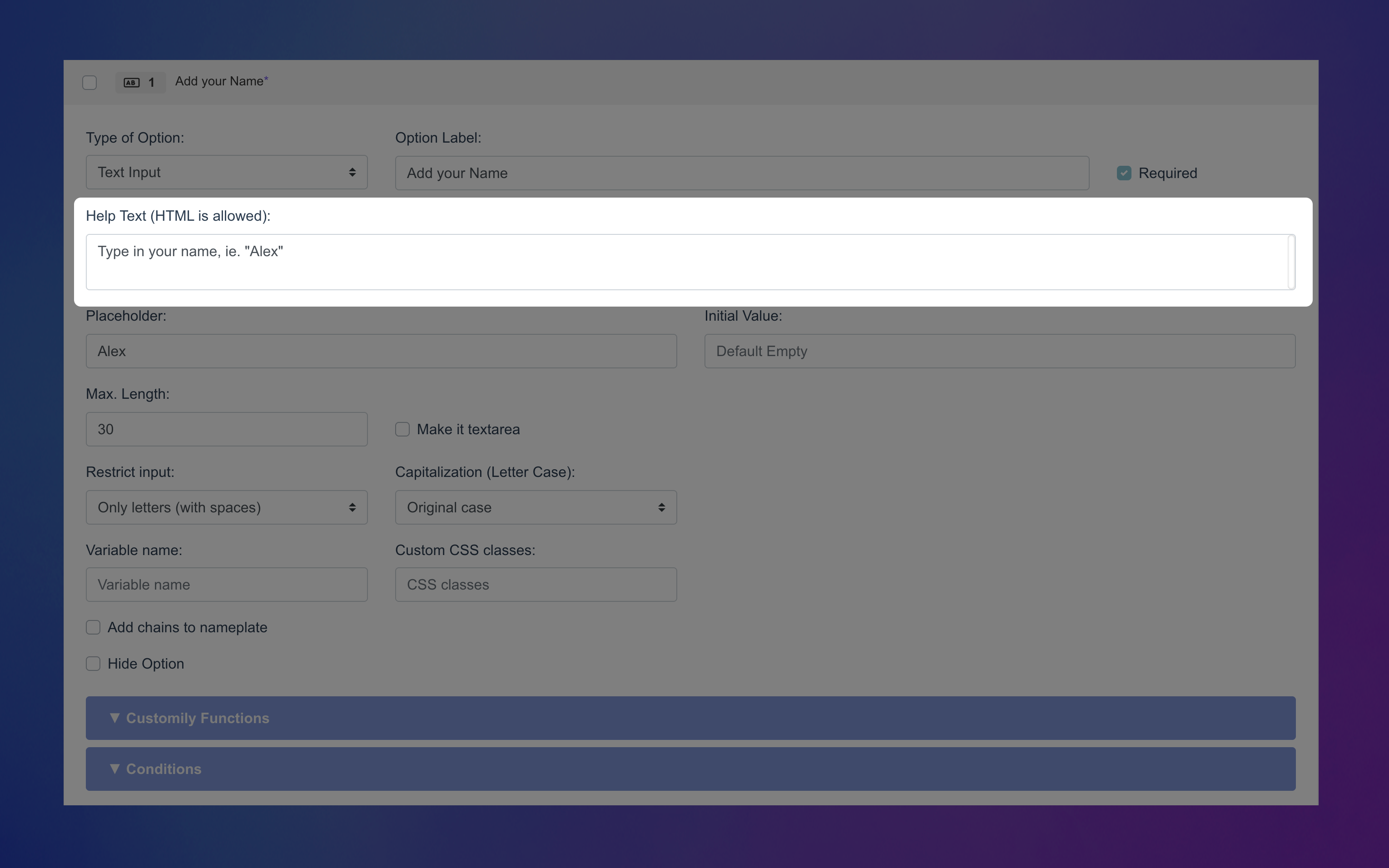
Help Text
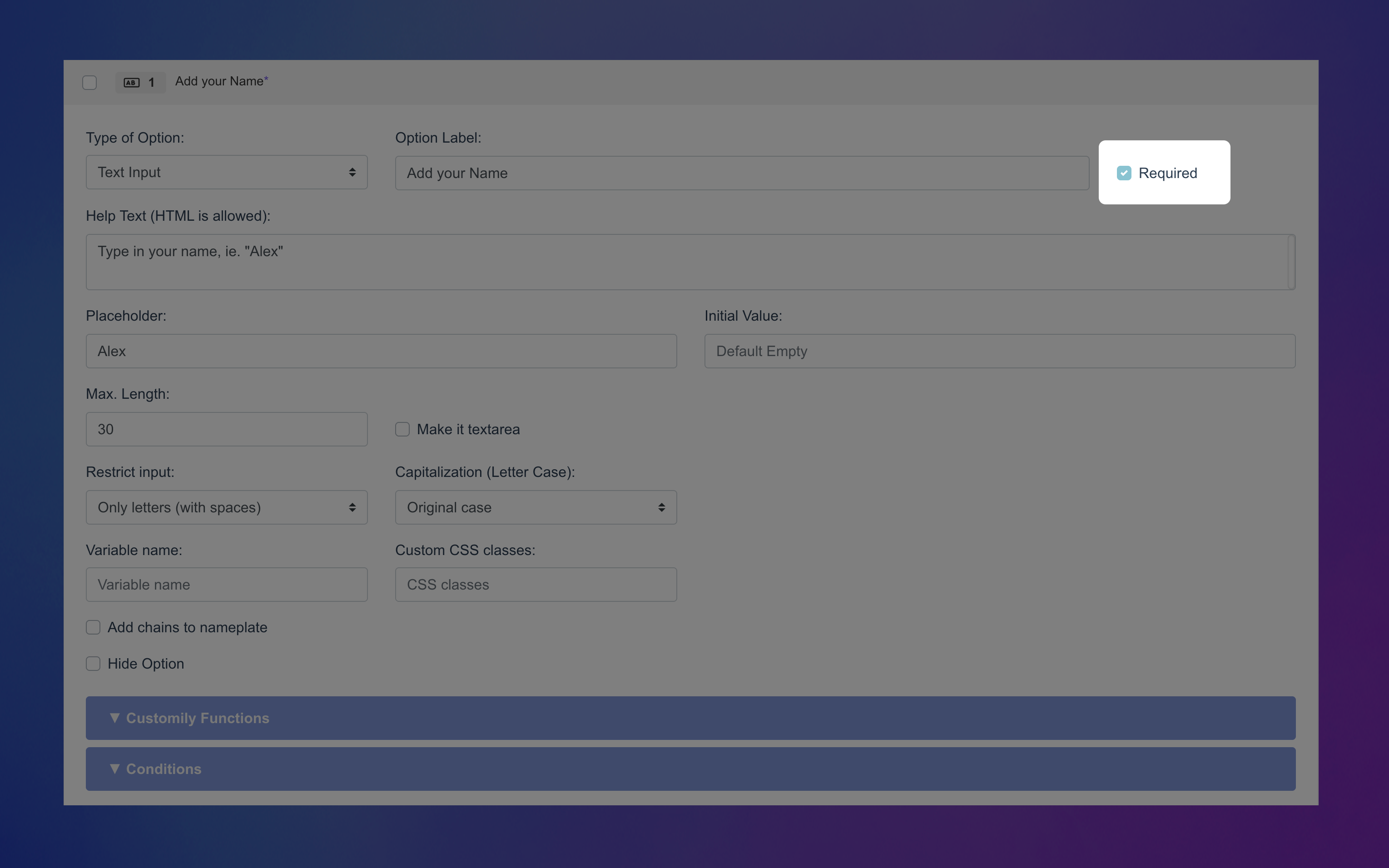
Add a short description below the input to guide your shoppers (e.g. “Enter a name or short message”).
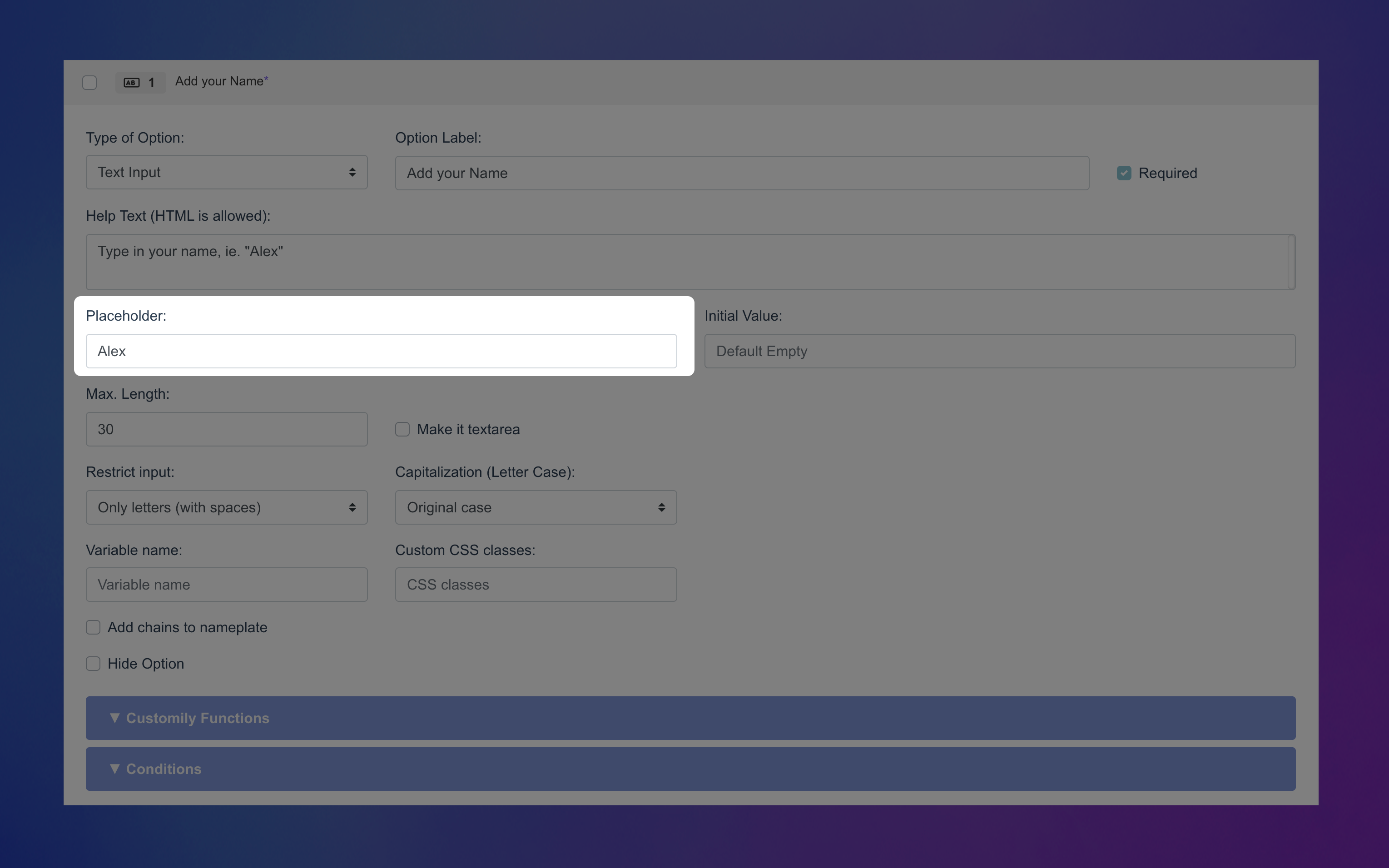
Placeholder
A sample text that appears in the input field before shoppers type. This disappears when they start writing.
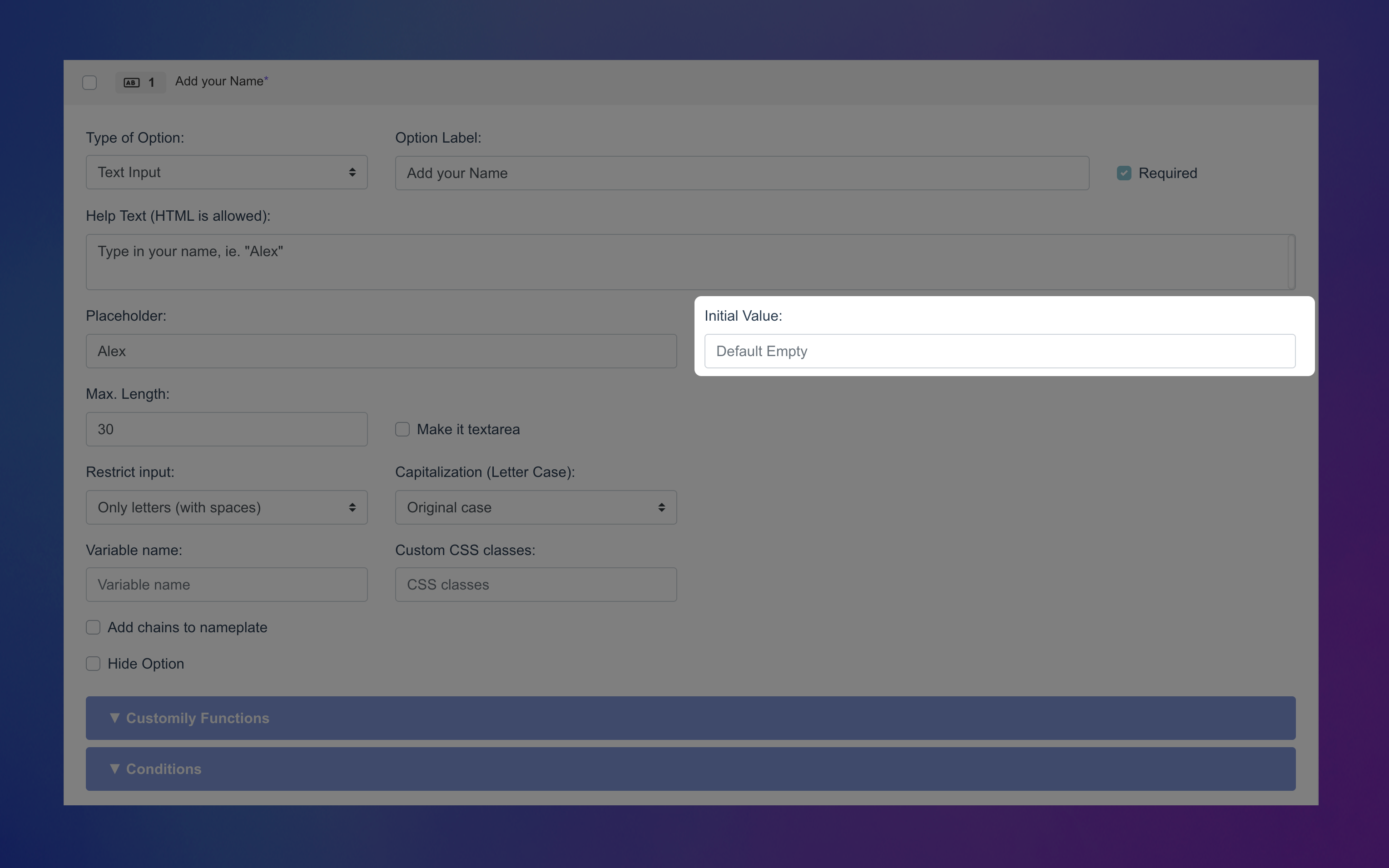
Initial Value
Pre-fill the input with a specific value that will show in the preview right away (unlike a placeholder, this text is submitted unless edited).
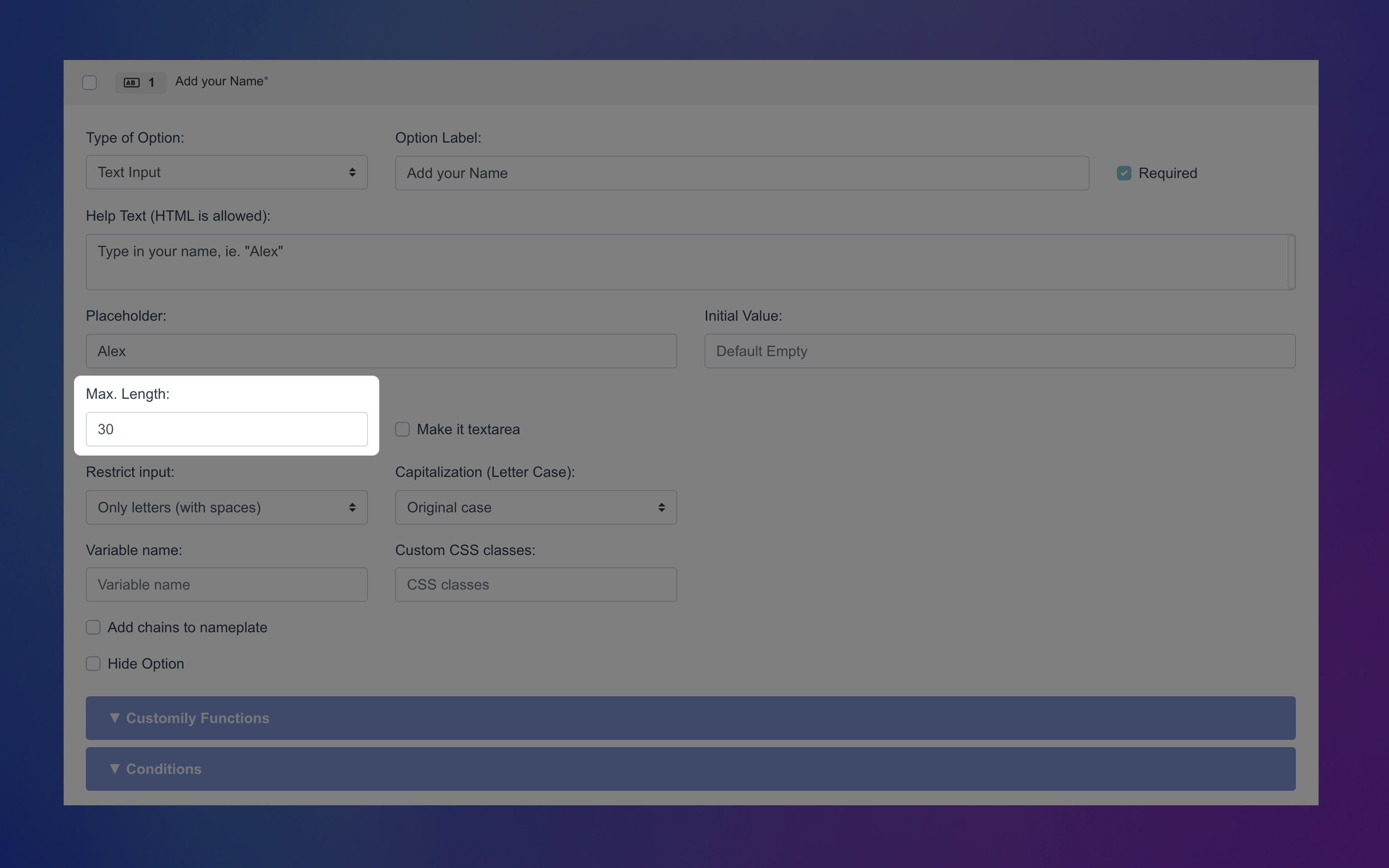
Max Length
Set a limit on how many characters shoppers can type.
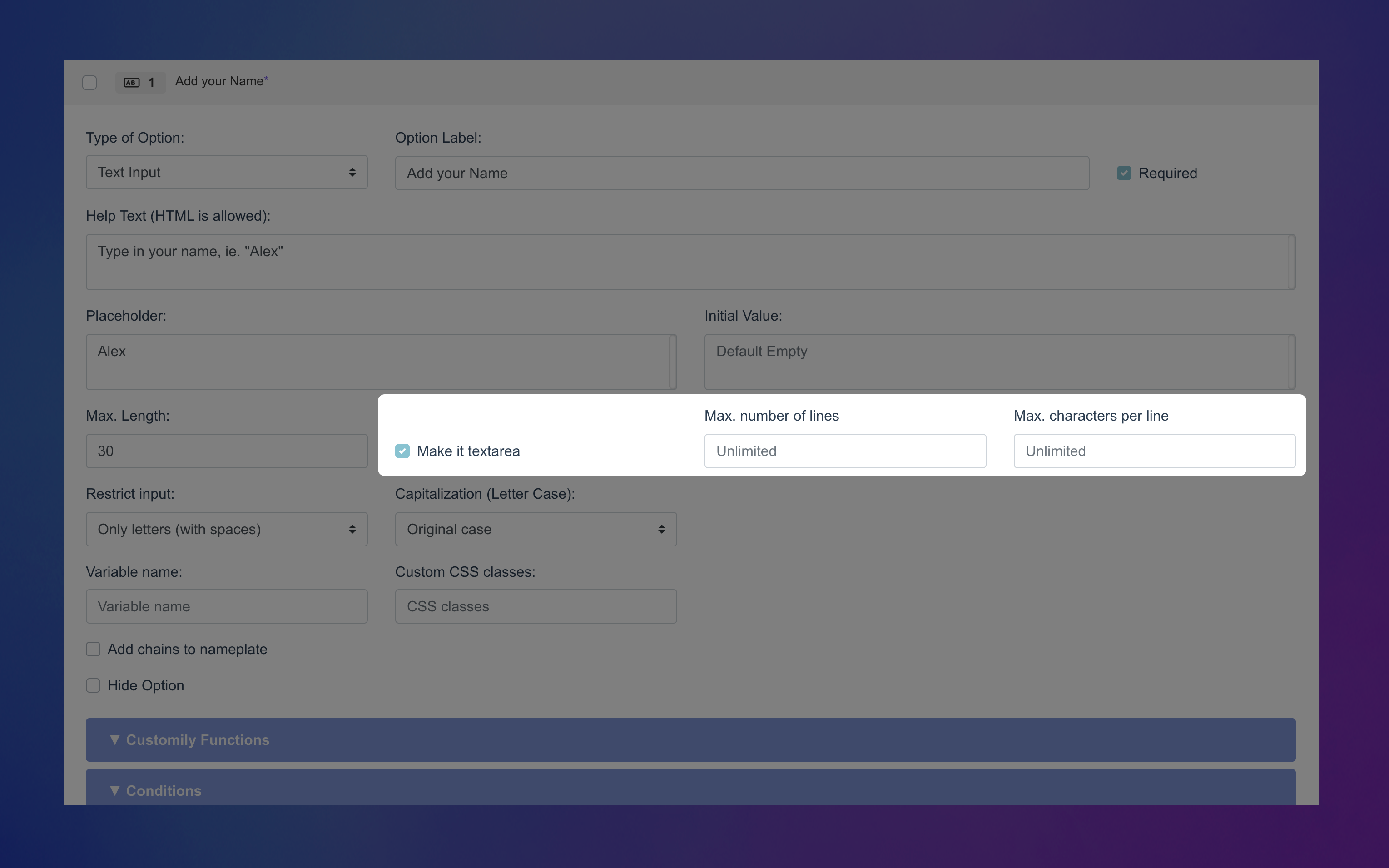
Make it textarea
Turn the input into a multi-line field. When enabled, you can set:
Max number of lines
Max characters per line
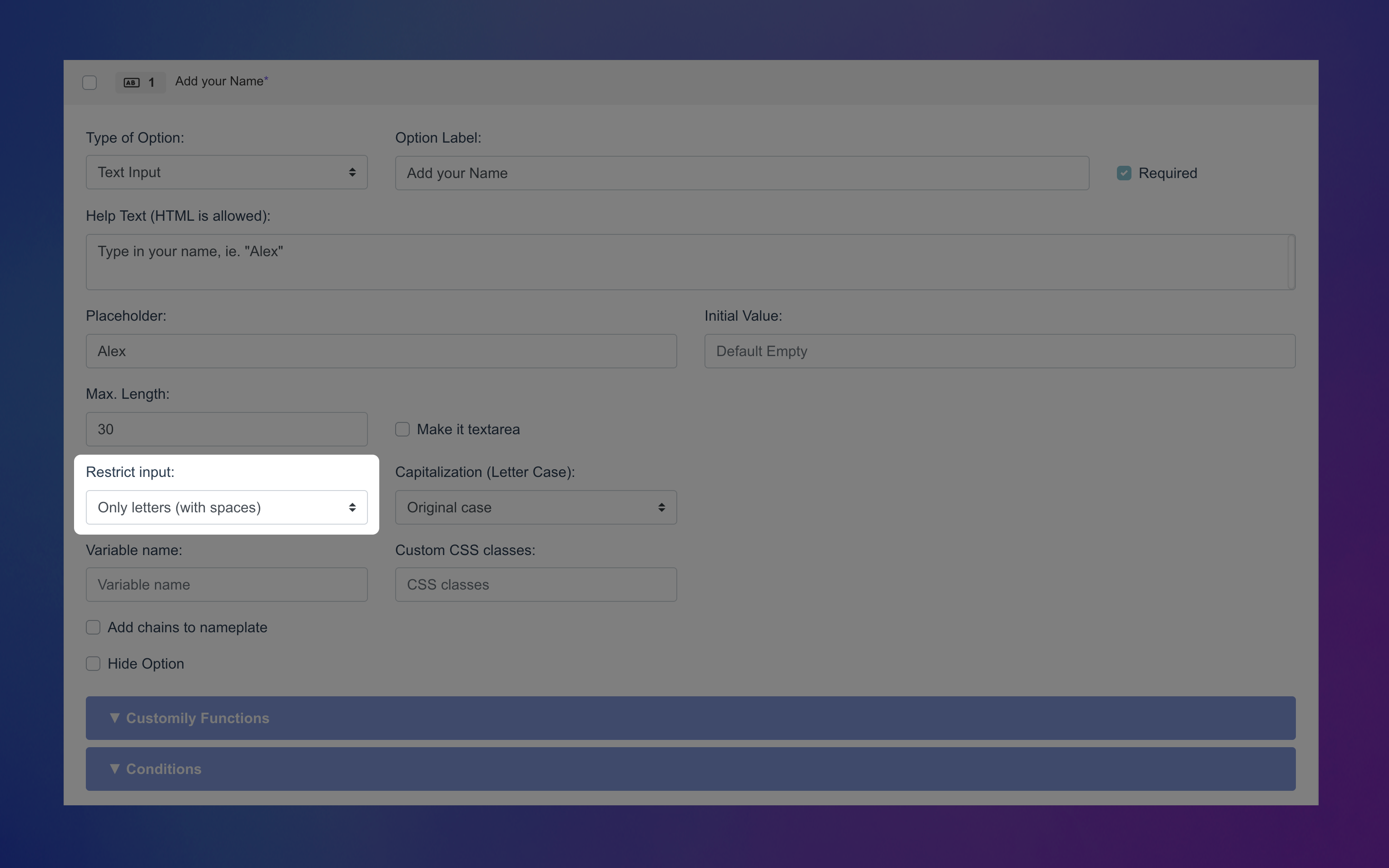
Restrict Input
Control what shoppers can enter:
No restriction
Only numbers (no spaces)
Only numbers (with spaces)
Only letters (no spaces)
Only letters (with spaces)
Custom restriction (use a regex pattern to filter specific content — e.g. block curse words)
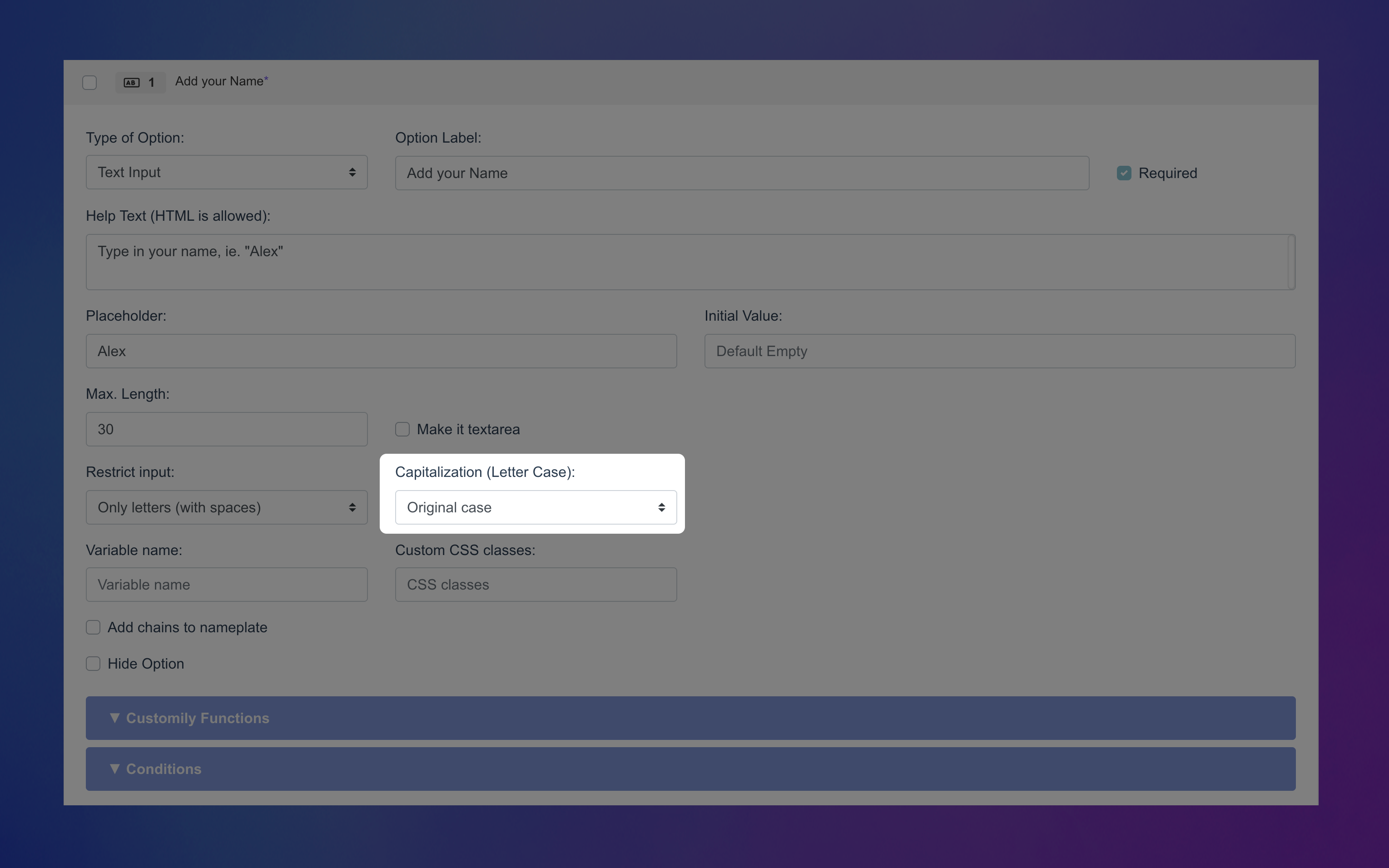
Capitalization
Automatically format the input as:
All UPPERCASE
all lowercase
Capitalize Each Word
Original case (default)
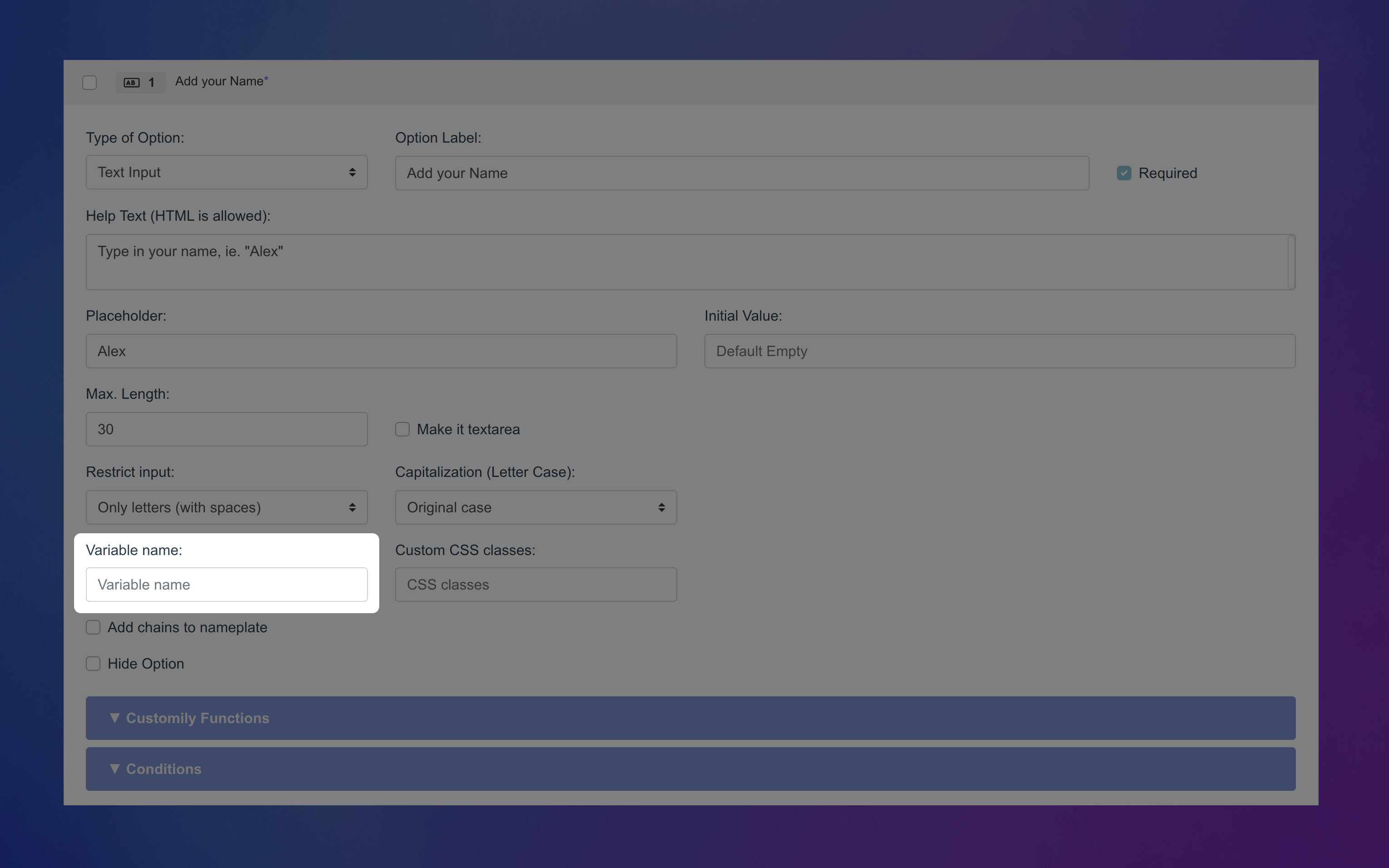
Variable Name (Advanced)
Assign a hidden variable to this option (not visible to shoppers). This allows you to pre-fill it via a URL, useful for marketing campaigns or sharing pre-configured links.
Custom CSS Class (Advanced)
Add a custom class name to target and style this option through CSS in your store’s developer settings.
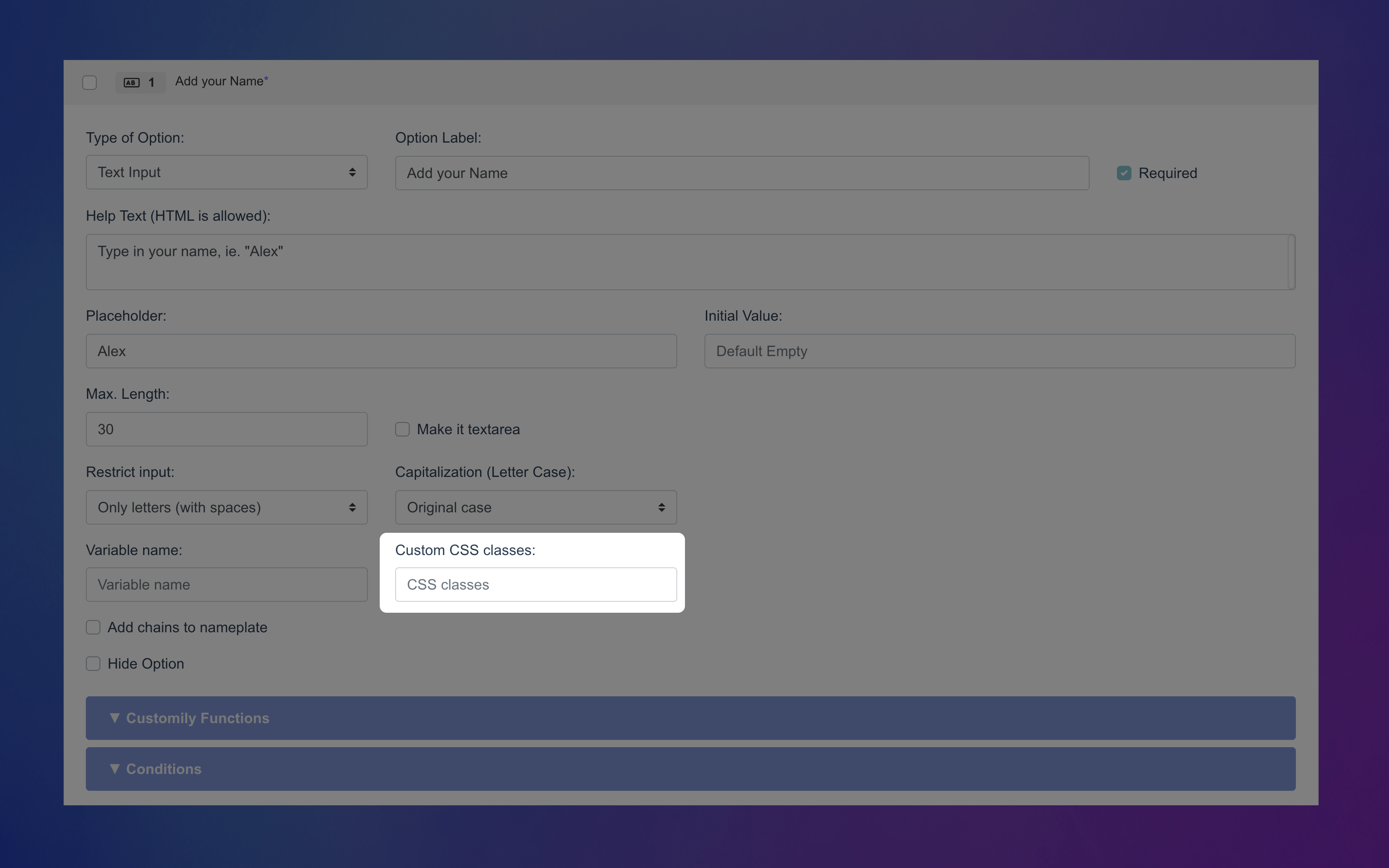
Add chains to nameplate (Advanced)
Adds curly brackets {} before and after the input text. Only used for products with fonts made for engraving nameplates (where the chain character is mapped to {}).
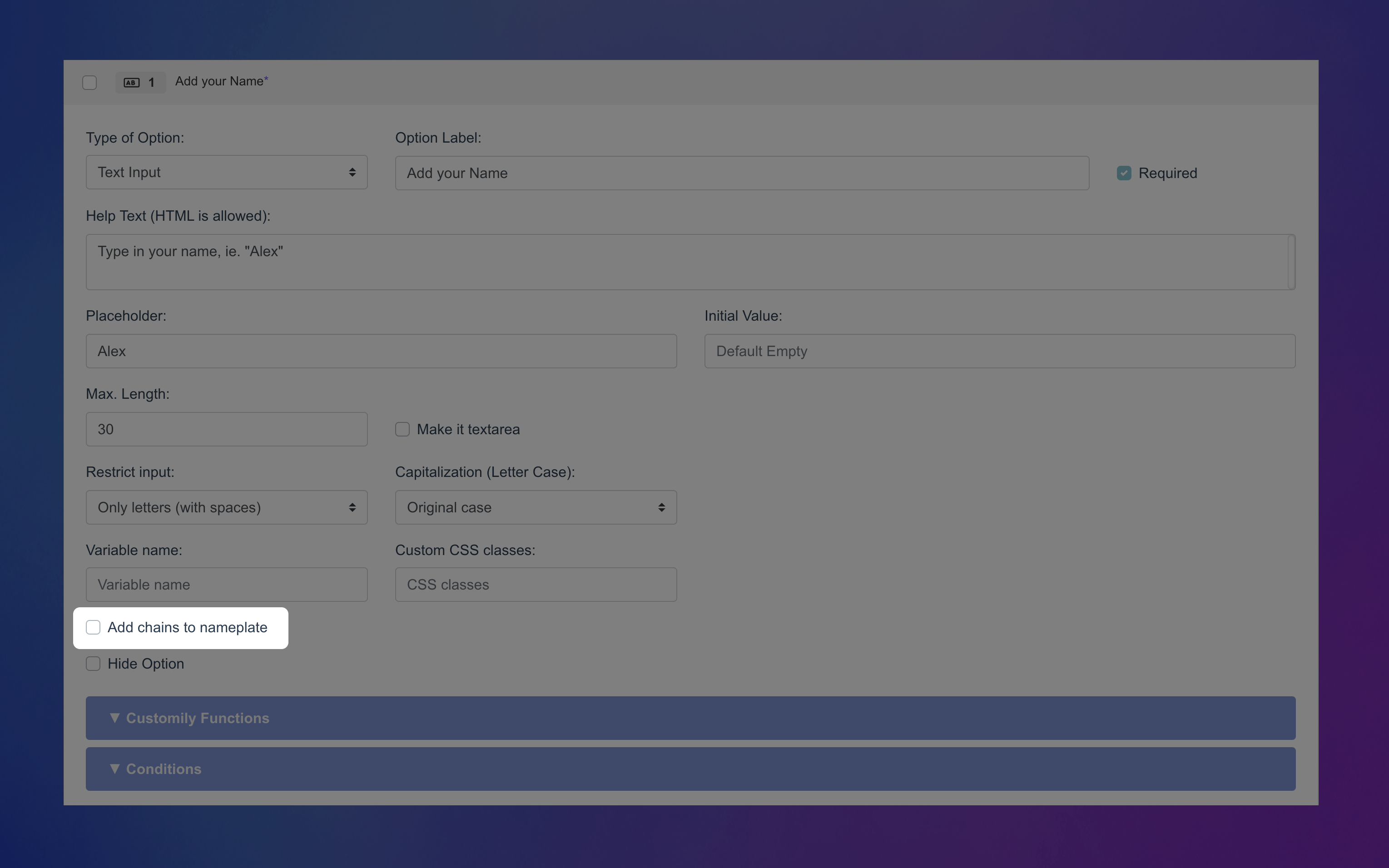
Hide Option (Advanced)
Hide this option completely from shoppers — helpful when you want to include fixed text in the preview without letting customers change it.
How Text Inputs Can Be Used to Personalize
Text inputs let shoppers type their own text — but what that text does depends on the function you assign to the option.
You can learn more about functions and how they work here.
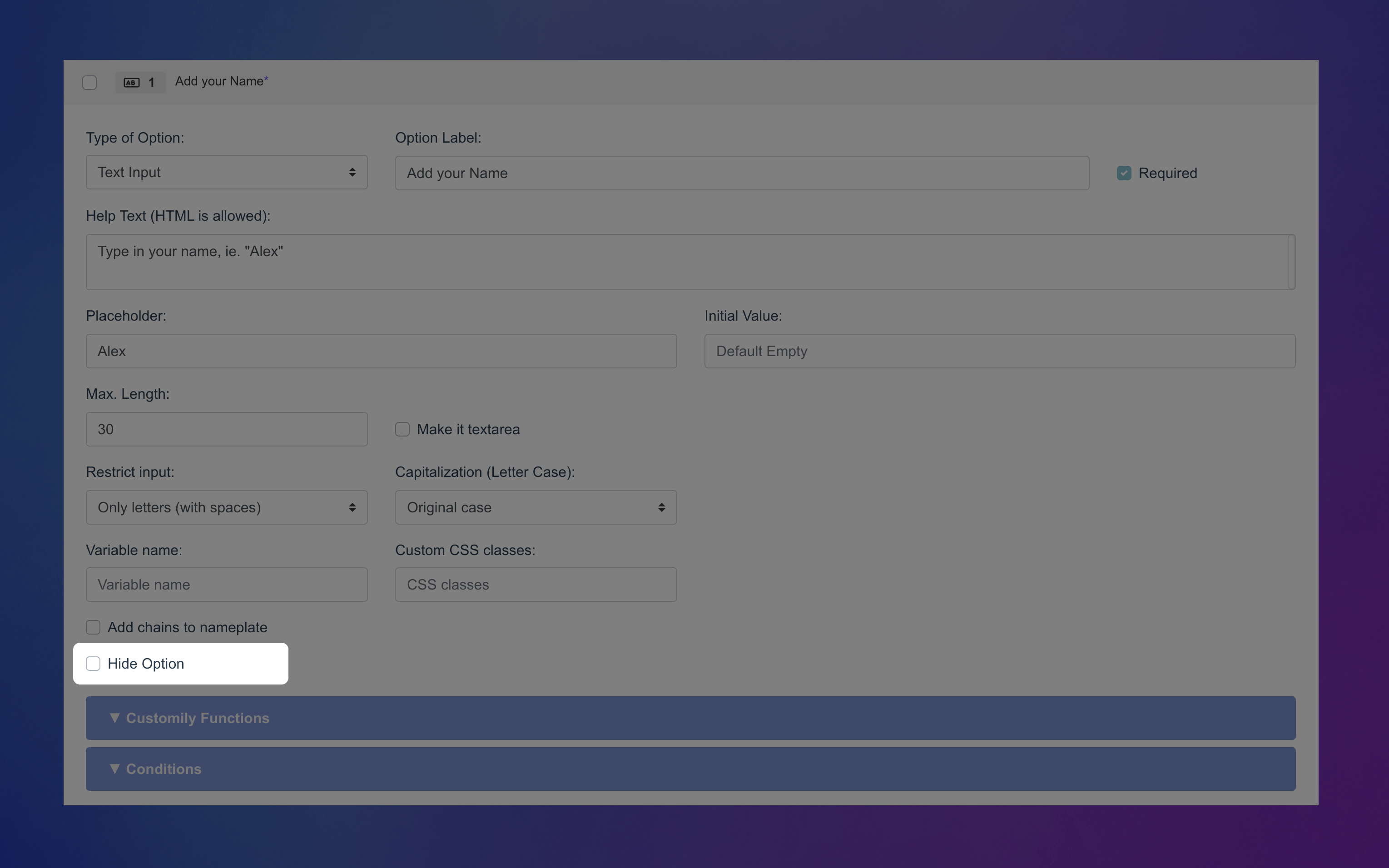
To assign a function to a Text Input, expand the Function tab of your option and choose how it should interact with your template.
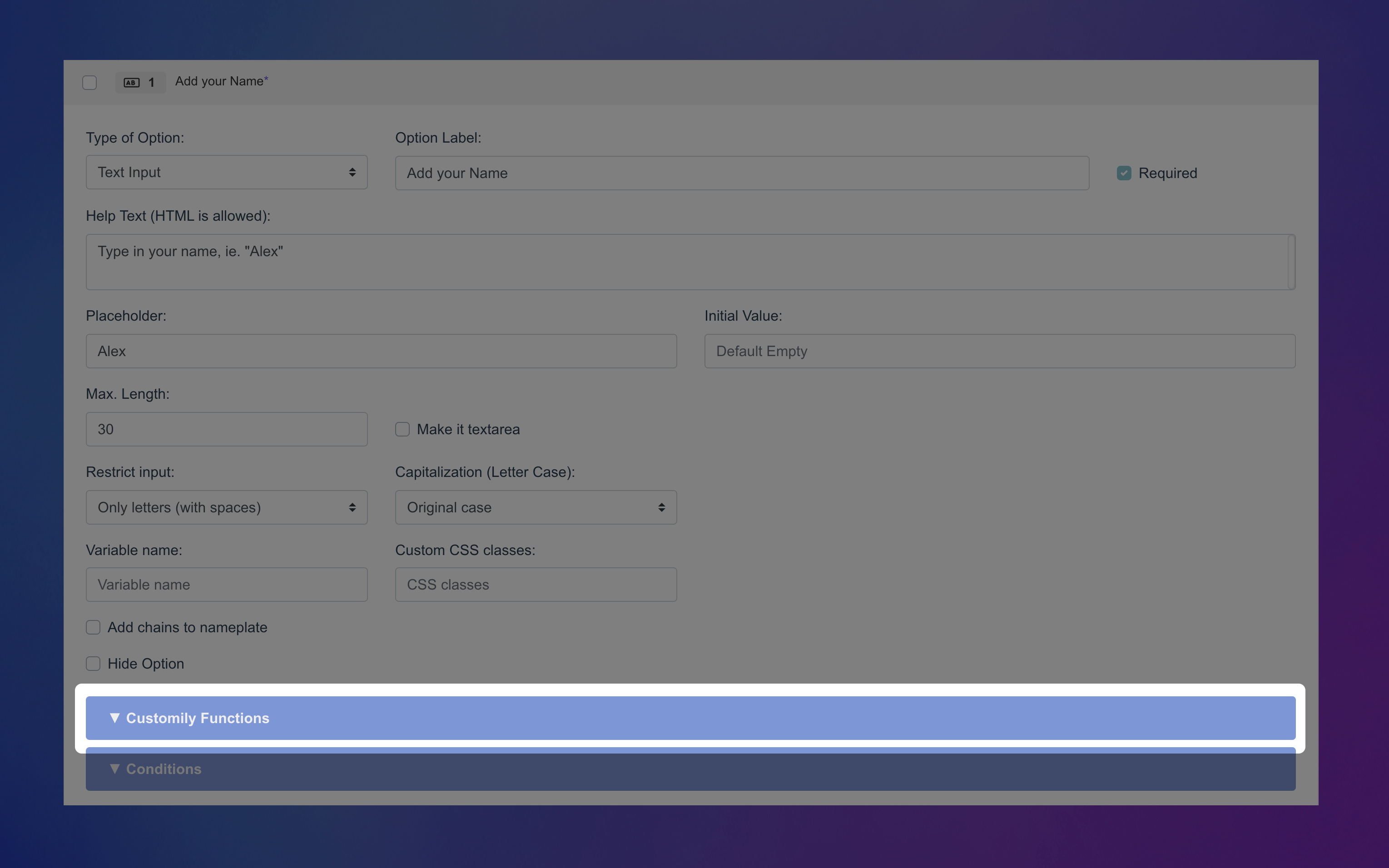
Text Inputs can power a variety of personalization types by assigning functions to them. Here are the functions that work with text inputs, click on each one to learn how they can personalize your product:
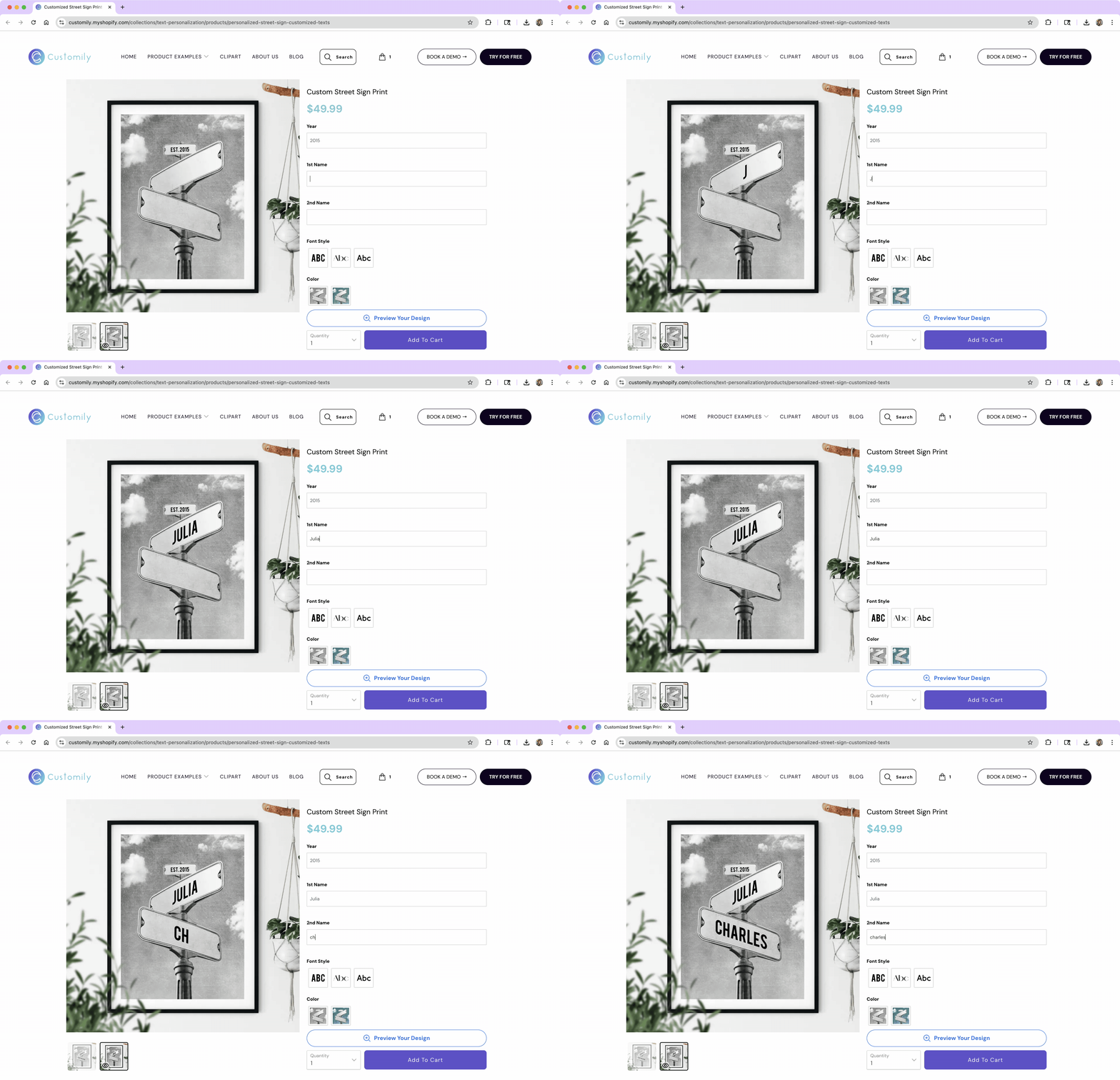
Text
Displays the shopper’s text on a text element in your template. Perfect for names, messages, dates, and more, and the most common function for the text input.
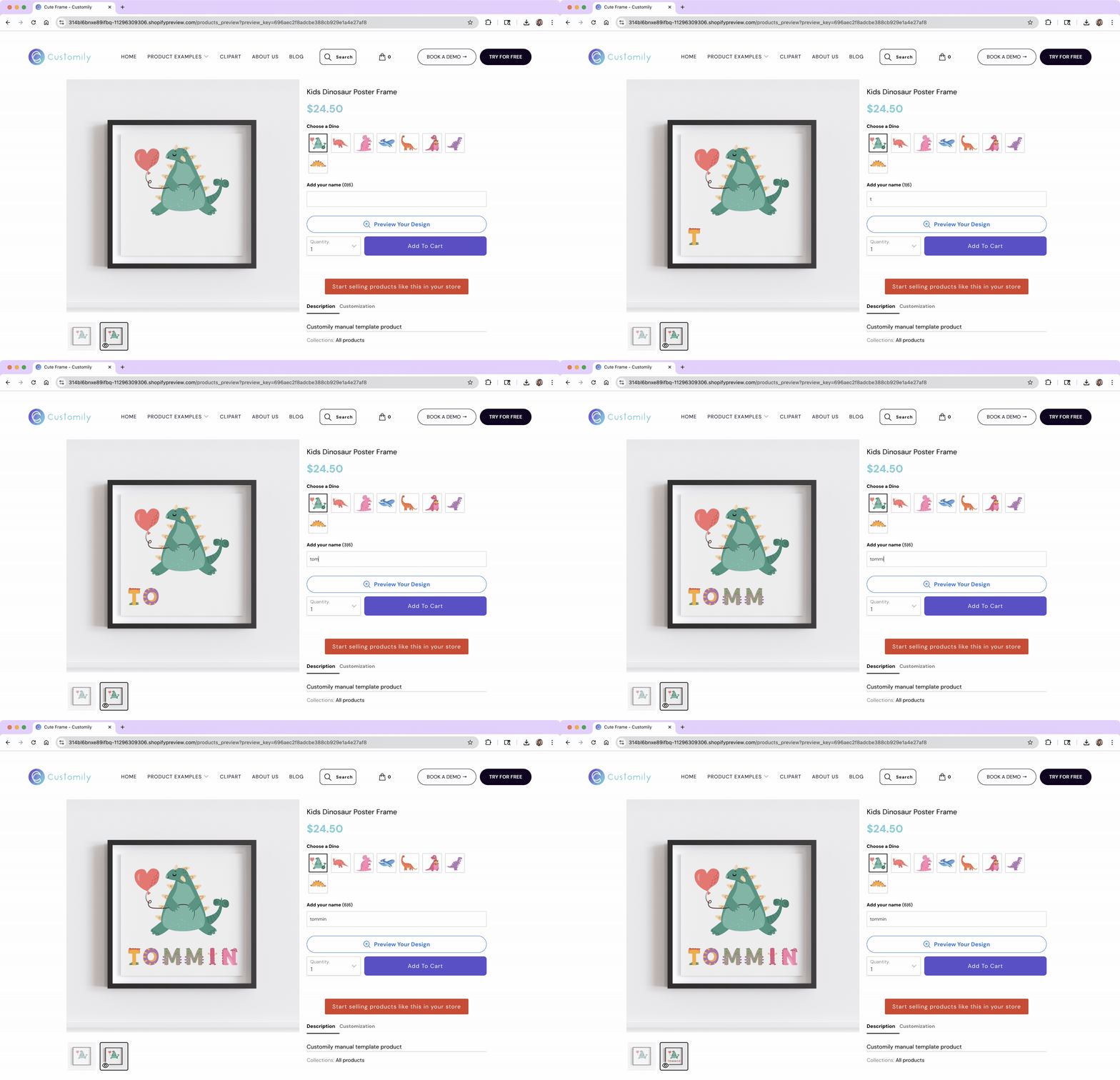
Dynamic Image / Dynamic Vector
Use the text input to spell out a message using images or vectors instead of fonts — like alphabet clipart or illustrated letters. Each character entered by the shopper is matched to an image from your Dynamic Image or Dynamic Vector element.
Learn how to use dynamic elements as text →
Add Shopify Product
Use the text input to charge per letter — ideal for products like engraved charms or name bracelets.
You can define when an add-on product should be added based on the number of characters the shopper types.
Learn how to charge extra for your personalization →
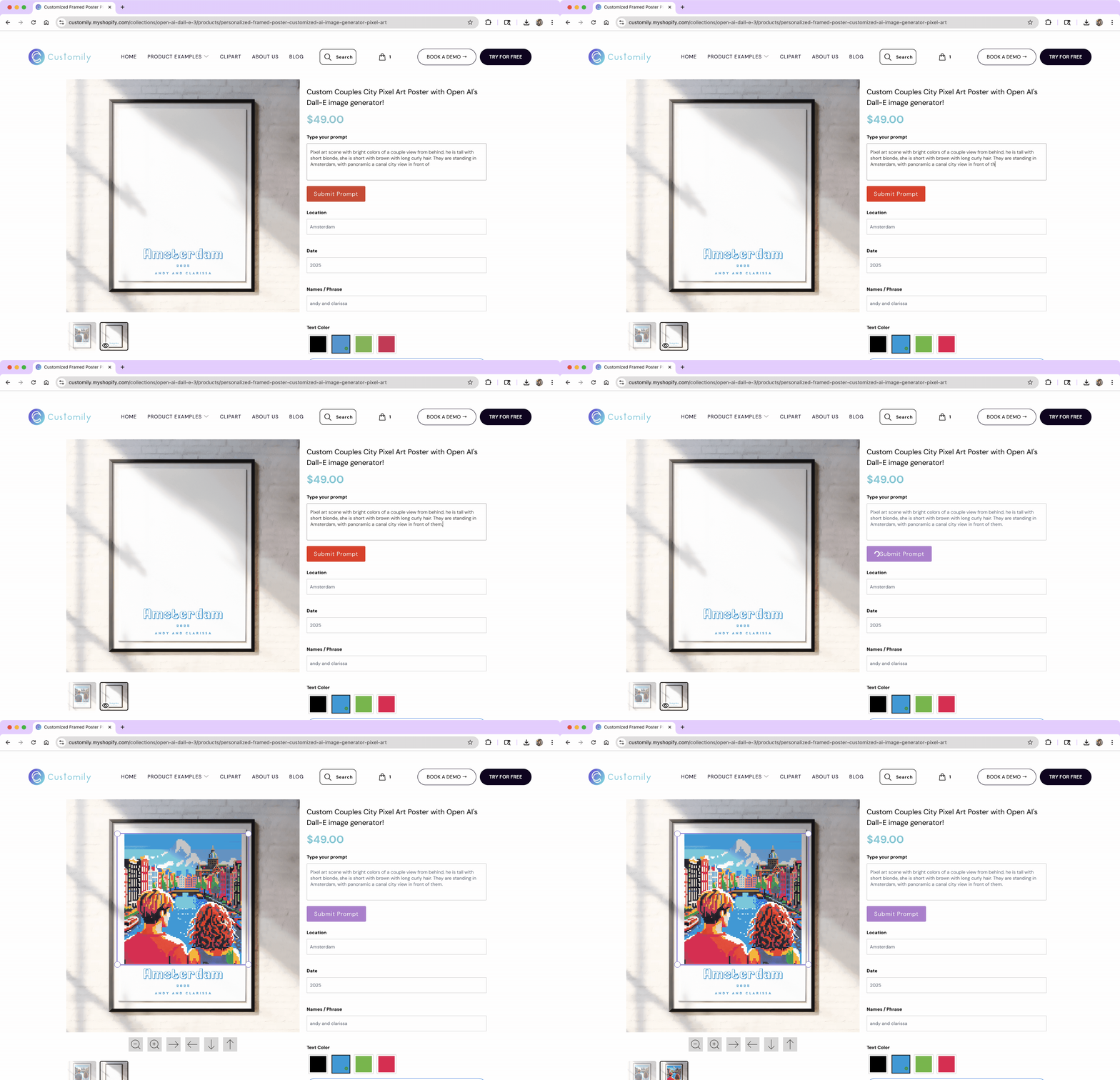
Prompt
Sends the shopper’s text to generate AI-powered content, like transforming a message into a unique illustration, avatar, or design.
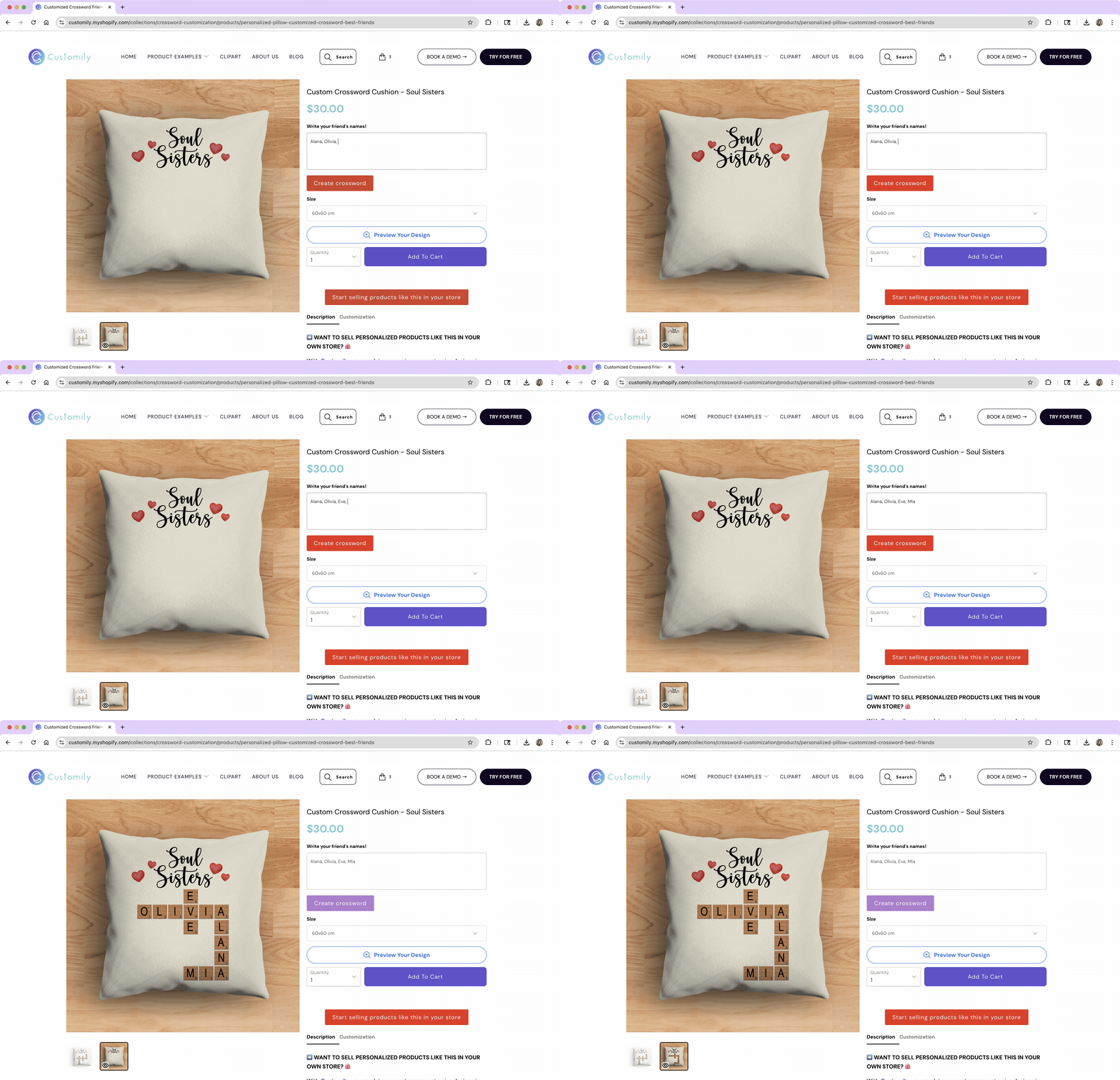
Crossword
Takes the shopper’s text and places each letter into a crossword-style layout — most often used with single names or words.
Spotify Player
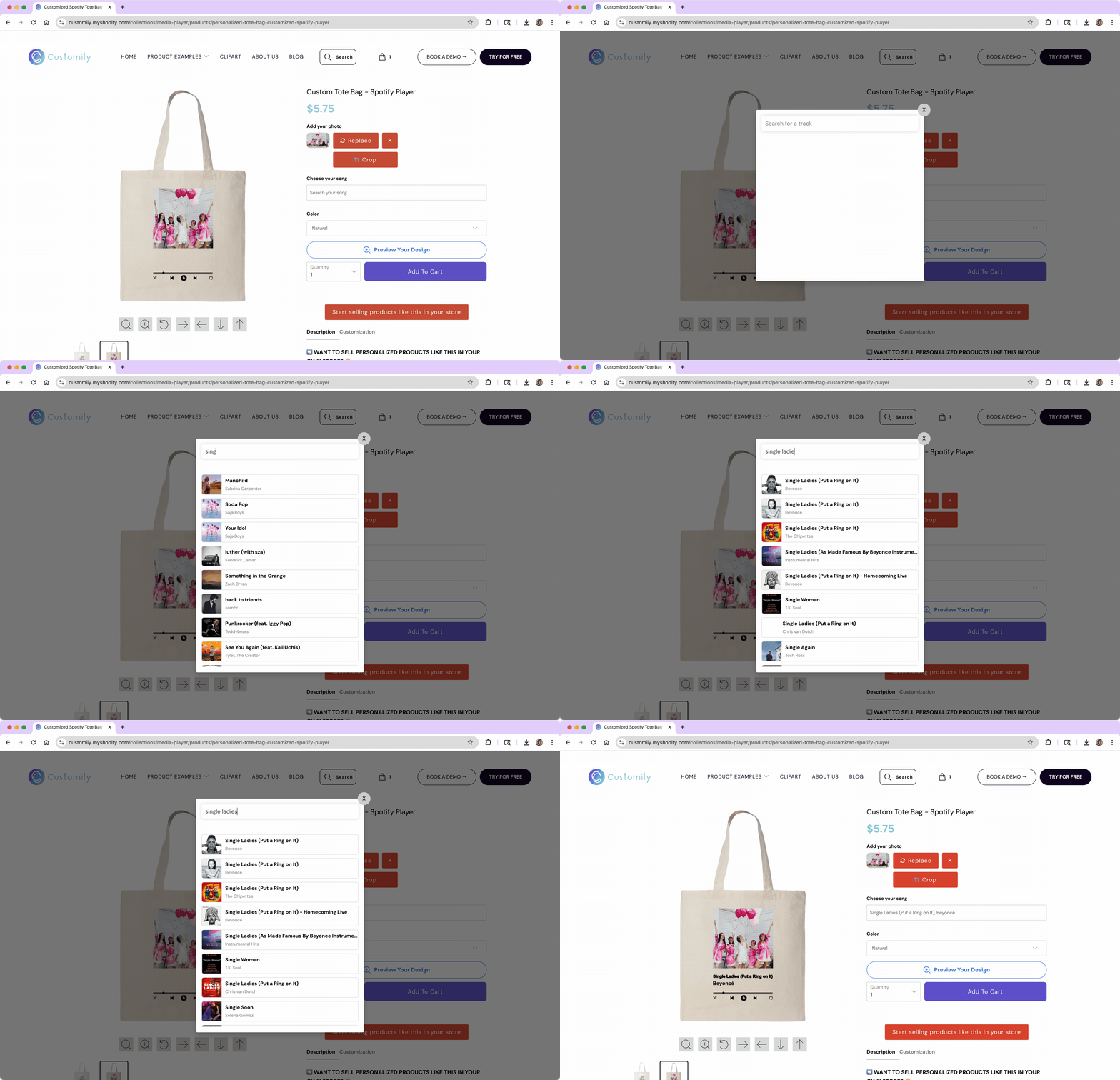
Takes the shopper’s text and uses it as a search input for a Spotify track. The result appears as a Spotify player in the preview.
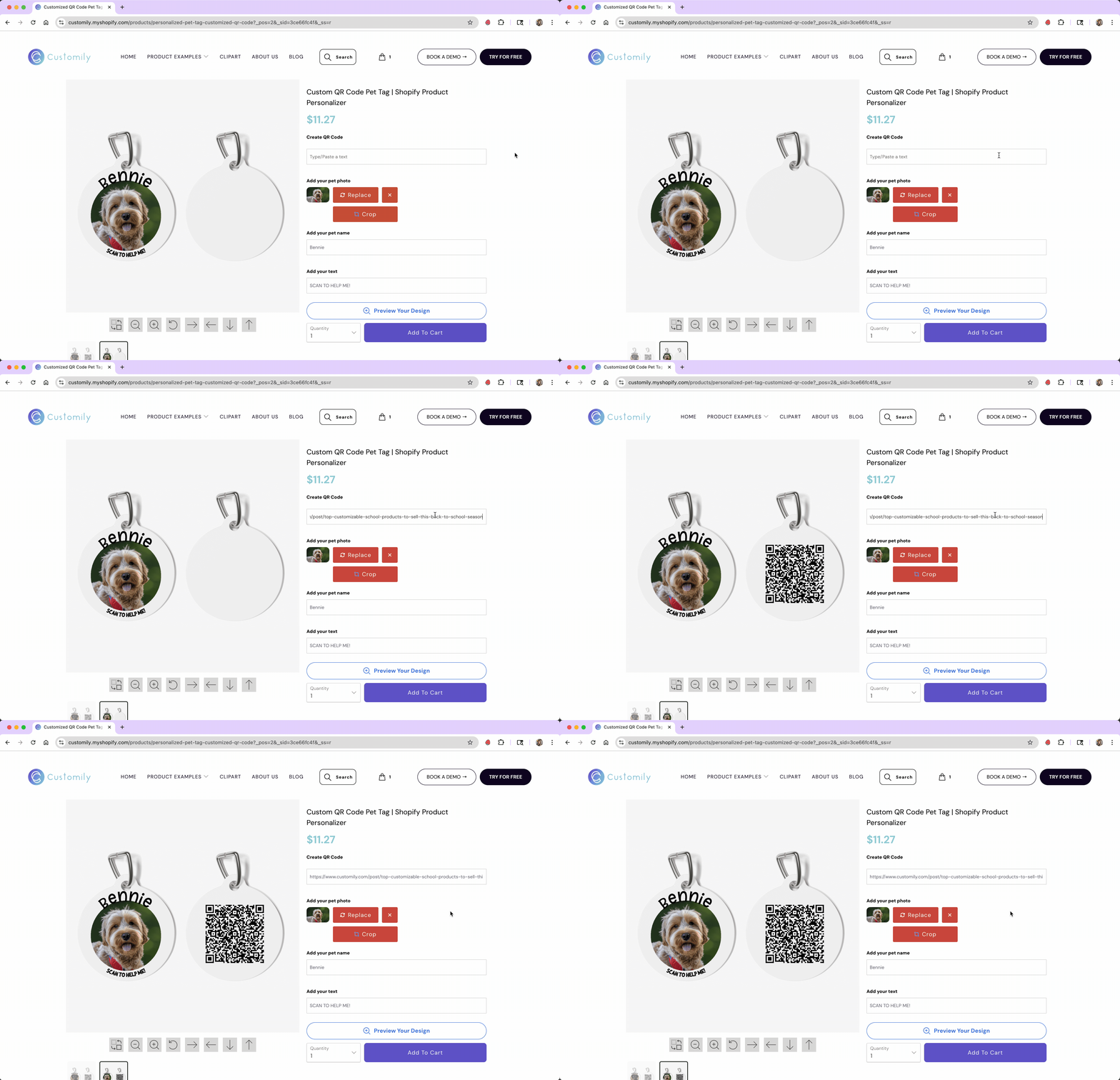
QR Code
Lets shoppers enter a link, which is automatically converted into a scannable QR code and placed in your design.