How to Add Help Text or Placeholder Text
Last updated: April 28, 2026
Adding help text or a placeholder is a great way to guide shoppers and make personalization easier.
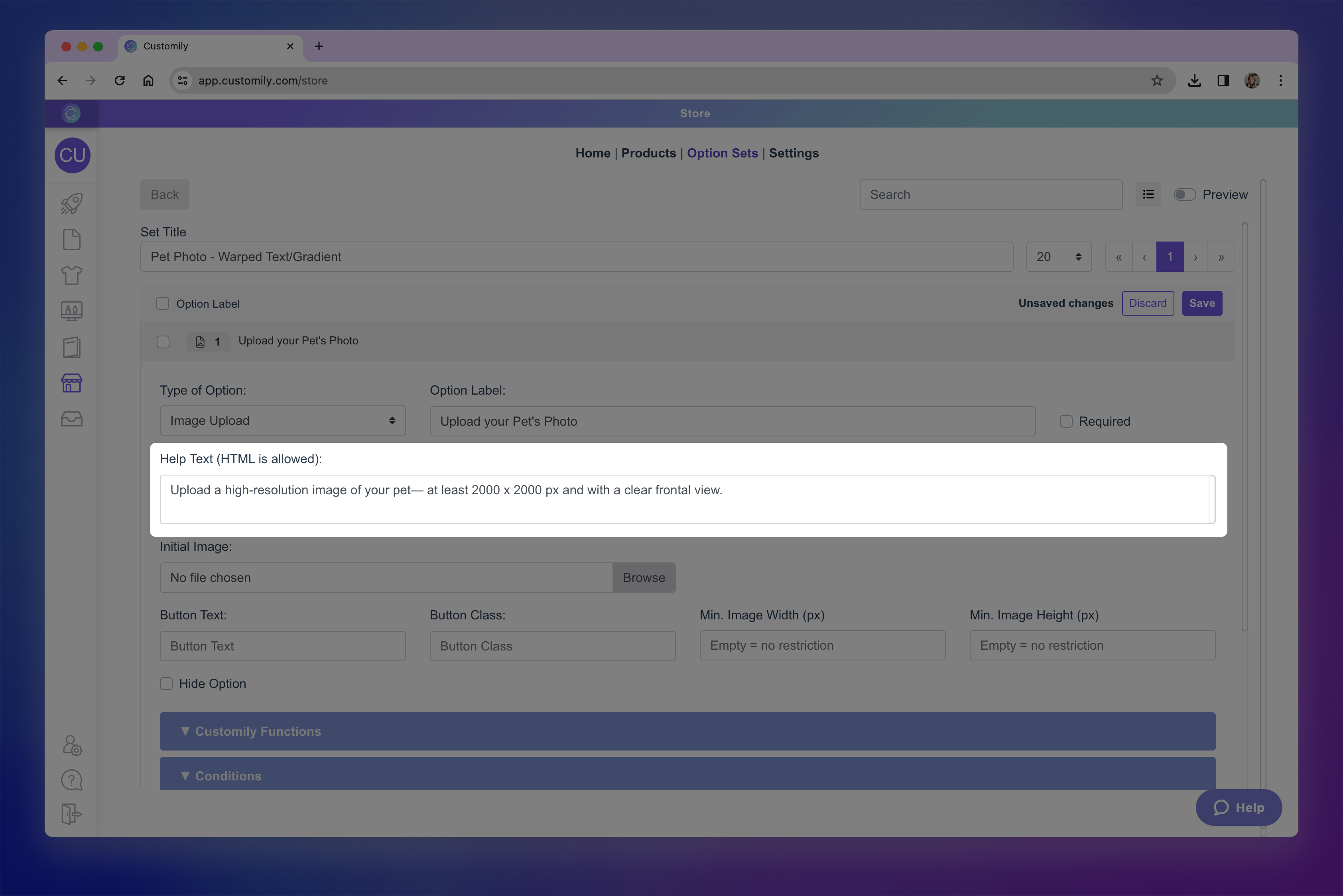
Help text: Help text appears below the option label and is available for every type of option. Use it to explain what the option does, give examples, or add extra instructions.
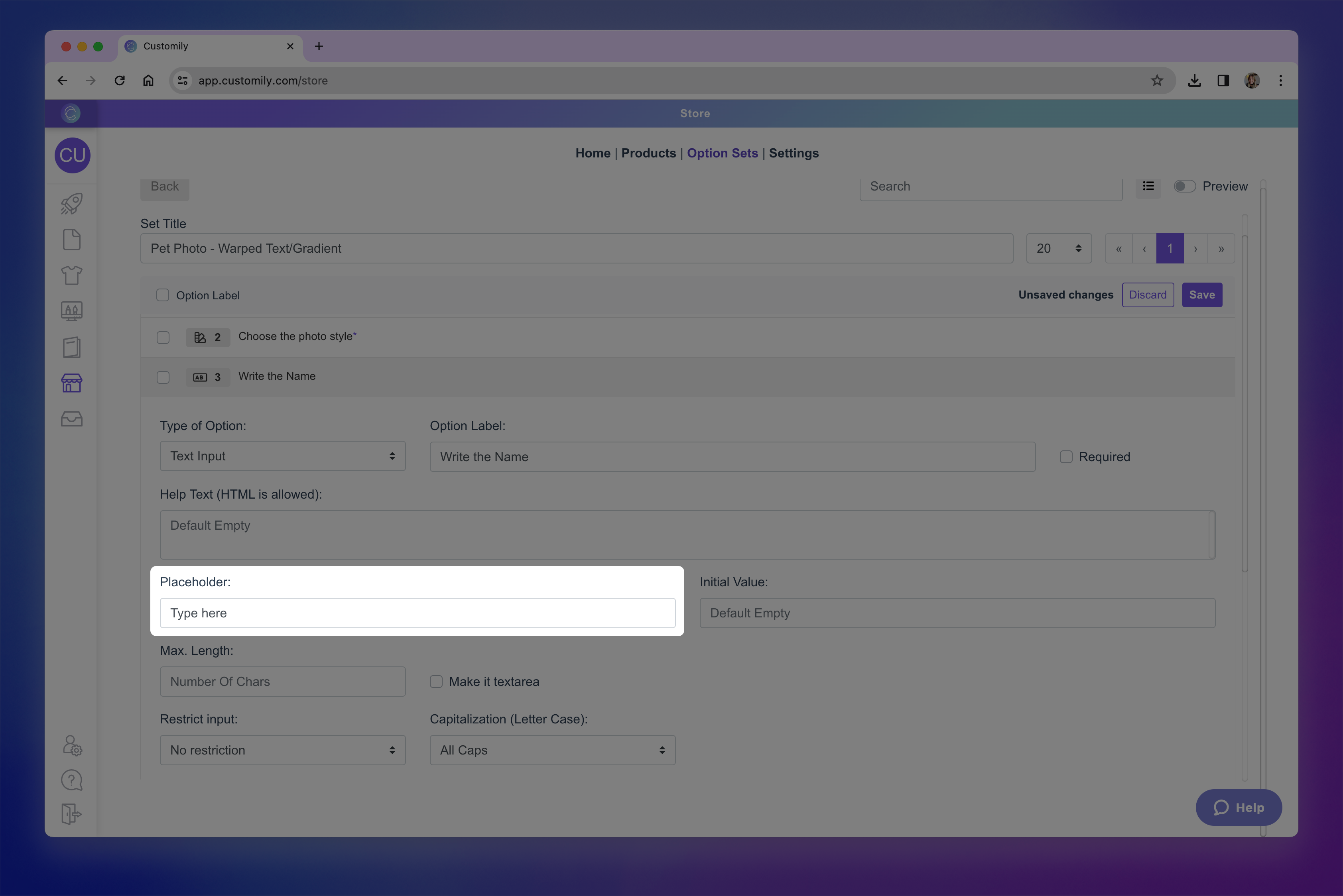
Placeholder text: Appears inside text input fields before shoppers type anything, or on dropdown selectors before they pick something. Use it to suggest what kind of text they can enter (e.g., “Enter your name here”) or to prompt an action (e.g., "Select a hair color").
Adding Help Text
Go to your Option Sets panel and select the set you want to edit.
Click on the Option you want to edit to expand its settings.

-
Locate the Help Text field and type your text. Keep it short and clear.
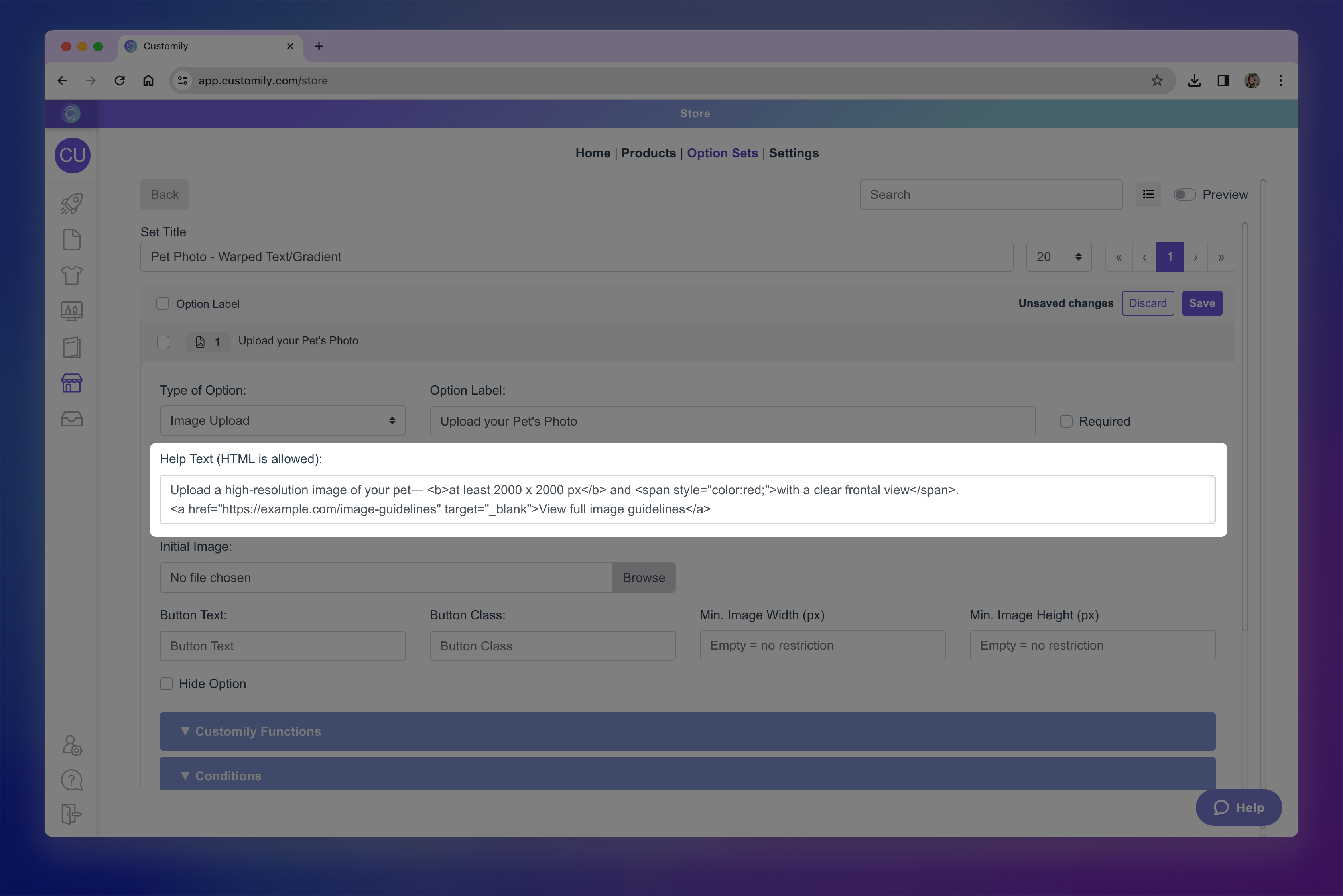
Tip
Help text supports HTML styling, so you can make words bold, change colors, add clickable links, and more — all directly in the Help Text field using inline HTML.
Save your changes.
Adding Placeholder Text
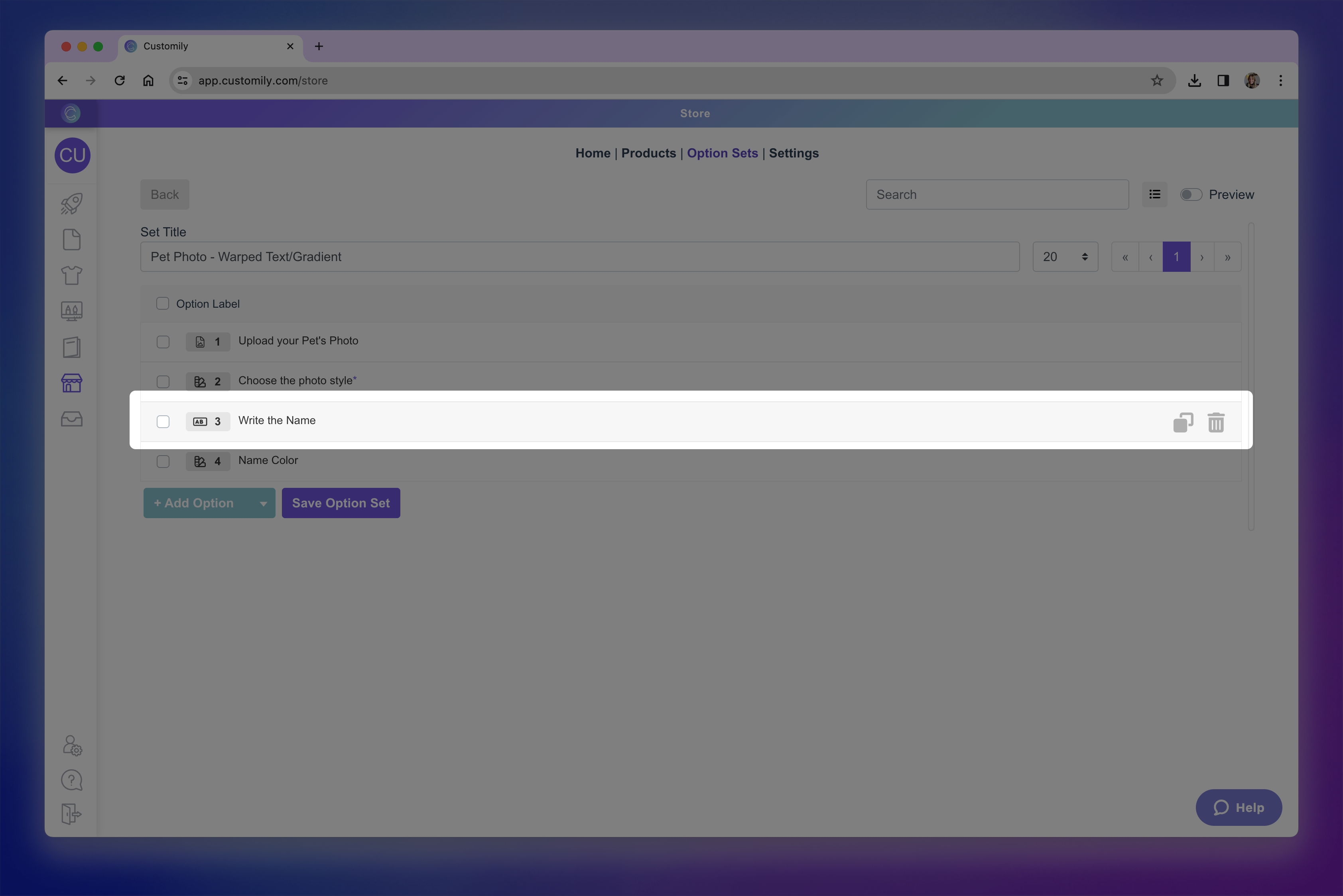
Go to your Option Sets panel and select the set you want to edit.
Click on the Option you want to edit to expand its settings.
Locate the Placeholder field and type your text. Keep it short, clear, and action-oriented.
Keep in mind
Placeholder text only appears when no value has been entered or selected, and it will never appear on the product preview. Once the shopper starts typing or picks a value, the placeholder disappears automatically.
If you want text to appear on the preview by default, use an Initial Value (for text inputs) or Selected Value (for dropdowns/swatches) instead — see how to Pre-fill or Pre-select an Option by Default.