Create multiple previews in a Product Base
Last updated: October 20, 2026
You can add multiple previews to a Product Base to show different views of the same product, such as the front and back of a t-shirt or different angles of a mug.
Each preview can have its own background and print area, allowing you to set up different product views before adding personalization.
How multiple previews work
You can add multiple previews to show different views of the same product. Each preview can have its own product images and print area configuration.
There are two ways to configure them:
Same print area across multiple previews
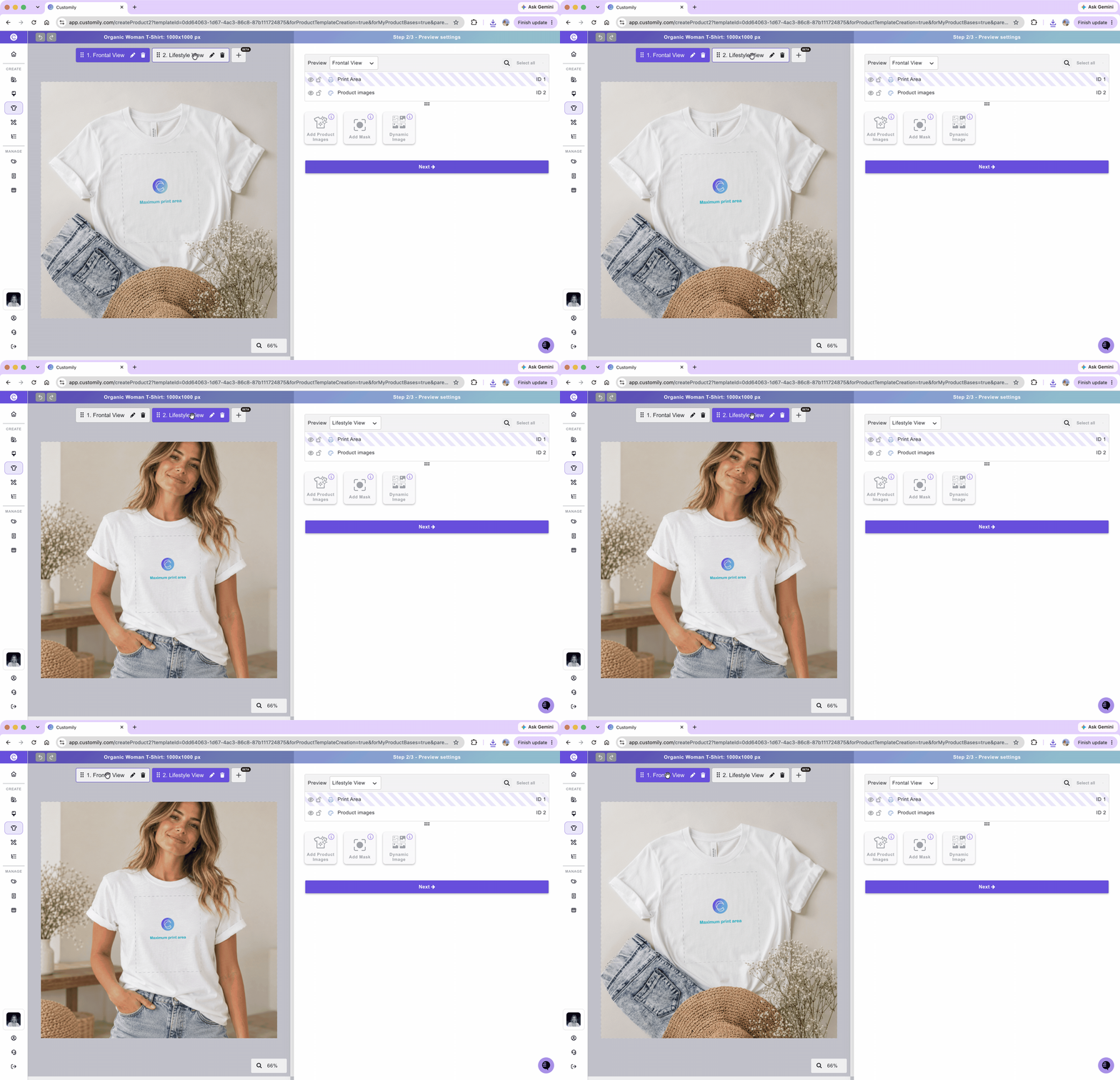
Use the same print area to show a personalized design in different product images.
For example, you can show a t-shirt in a flat-lay image and in a lifestyle image. Both previews will display the same personalized design, with the print area positioned and sized to fit each image.
Different print areas across multiple previews
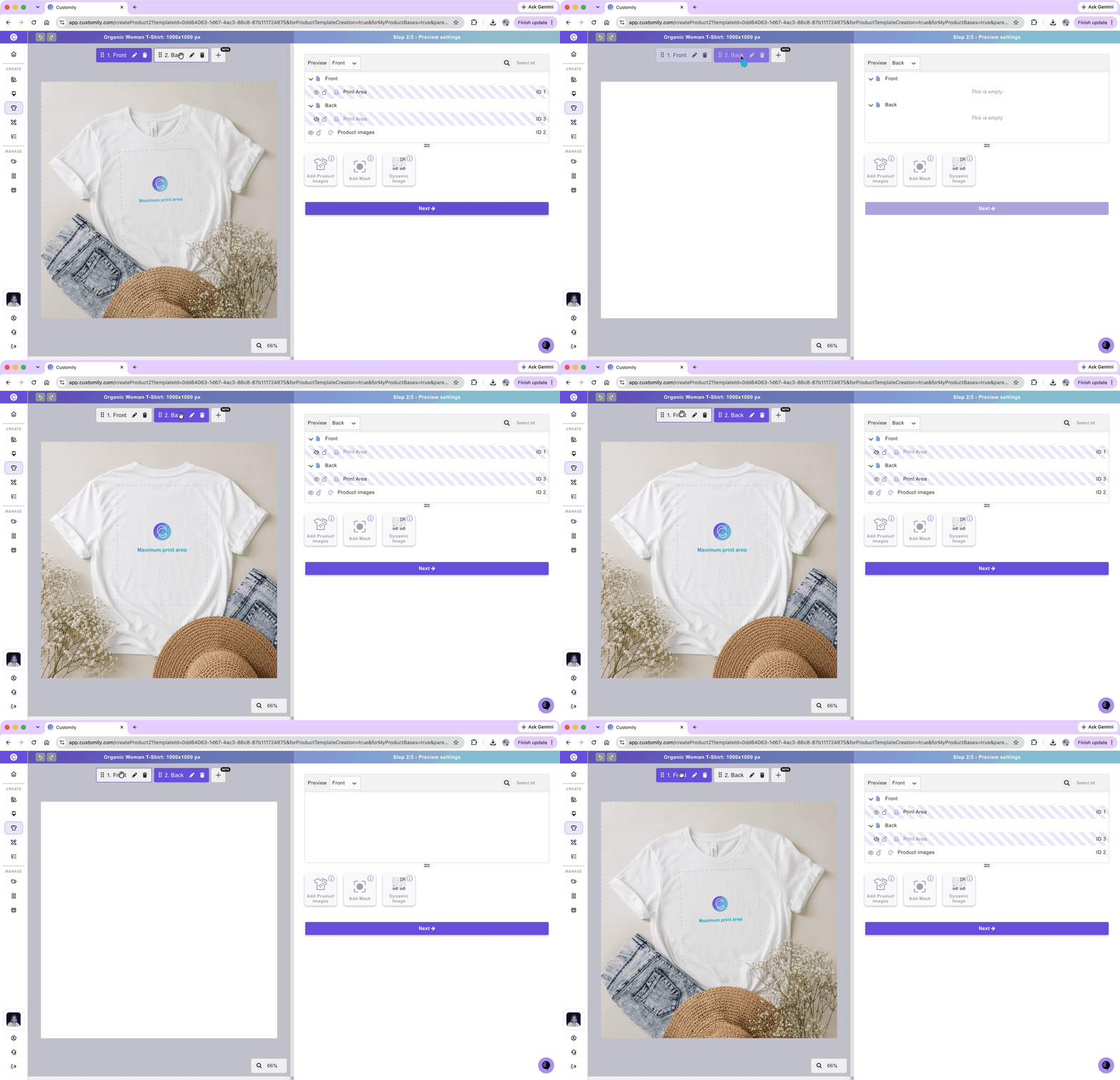
Use different print areas when a product needs separate designs for different parts.
For example, you can create a Front preview and a Back preview of the same t-shirt, each showing its corresponding print area.
How to create multiple previews
Open your Product Base in the editor.
Go to Preview Setup.
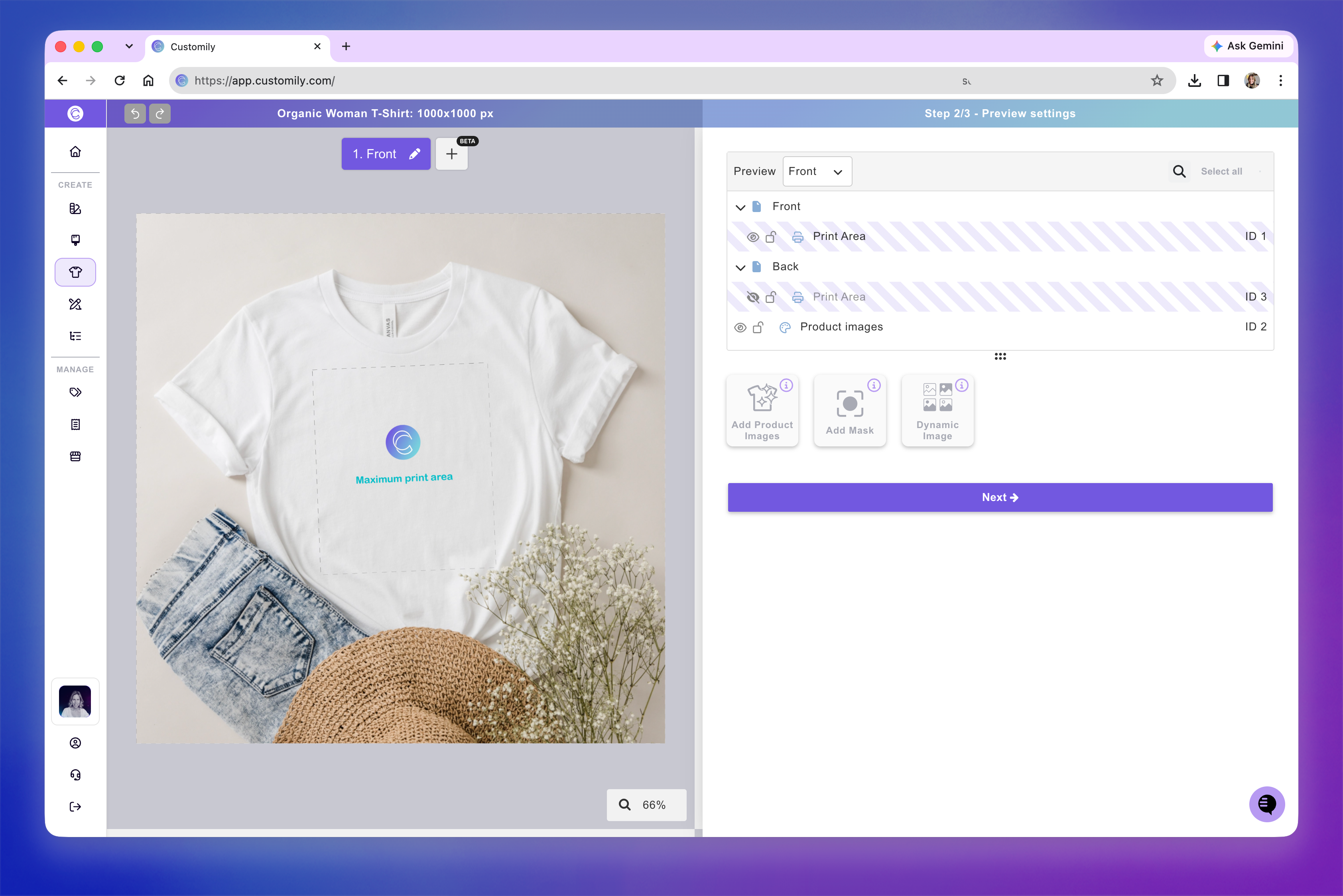
At the top of the canvas, you'll see Default Preview. You can rename it to identify the view, such as Front. If using multiple print areas, hide those you don't want to show on this preview.
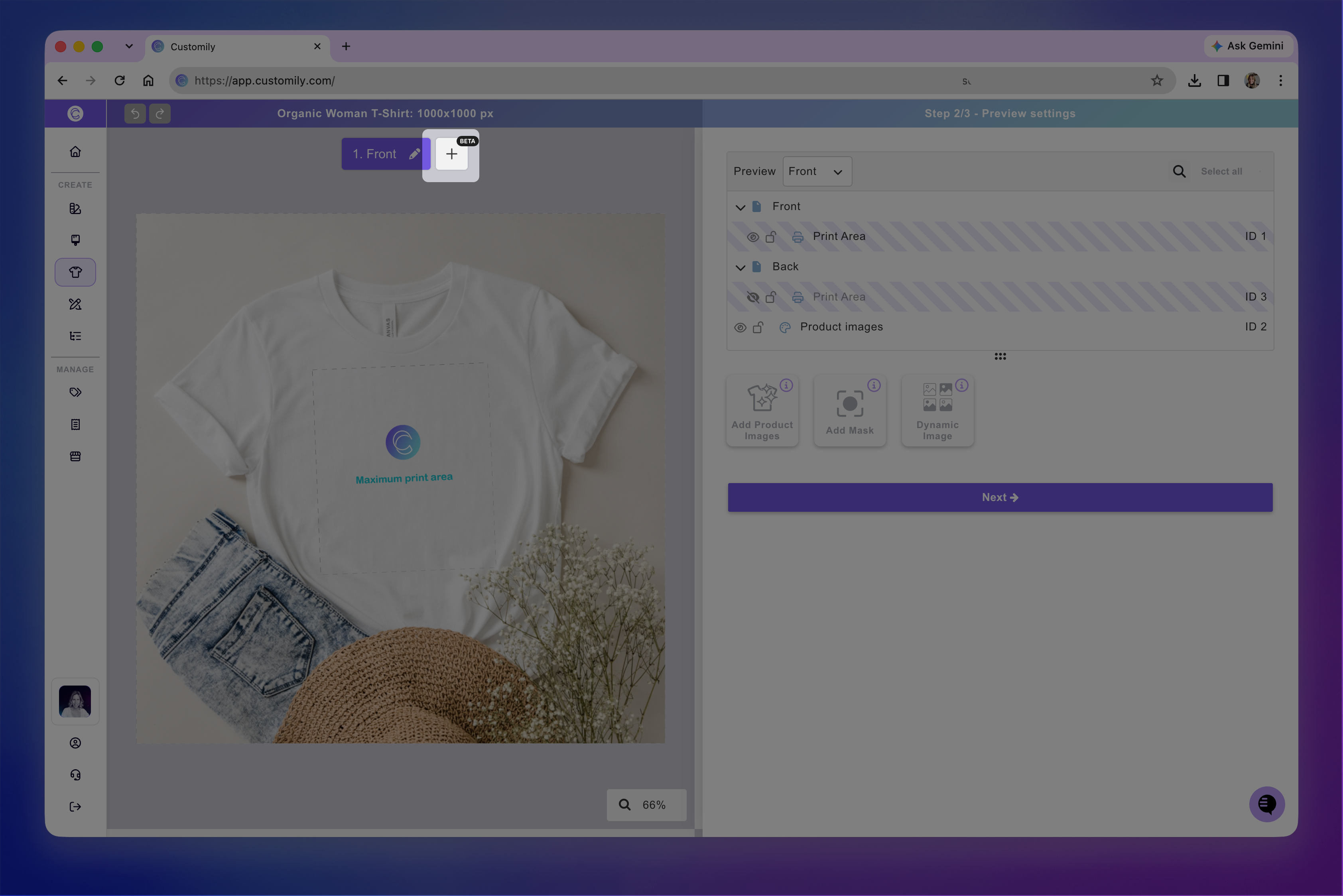
Click the + button next to the preview name to add another preview, and click to rename it.
Configure the new preview:
Change the product images: Select Product images and replace the existing images with the ones you want to use for this preview. If your product comes in multiple colors, make sure to replace the images for all colors.
Choose which print areas to show: If your Product Base has multiple print areas, hide the ones you don't want visible in this preview.
Adjust the visible print areas: Resize and reposition them to fit the new product images.
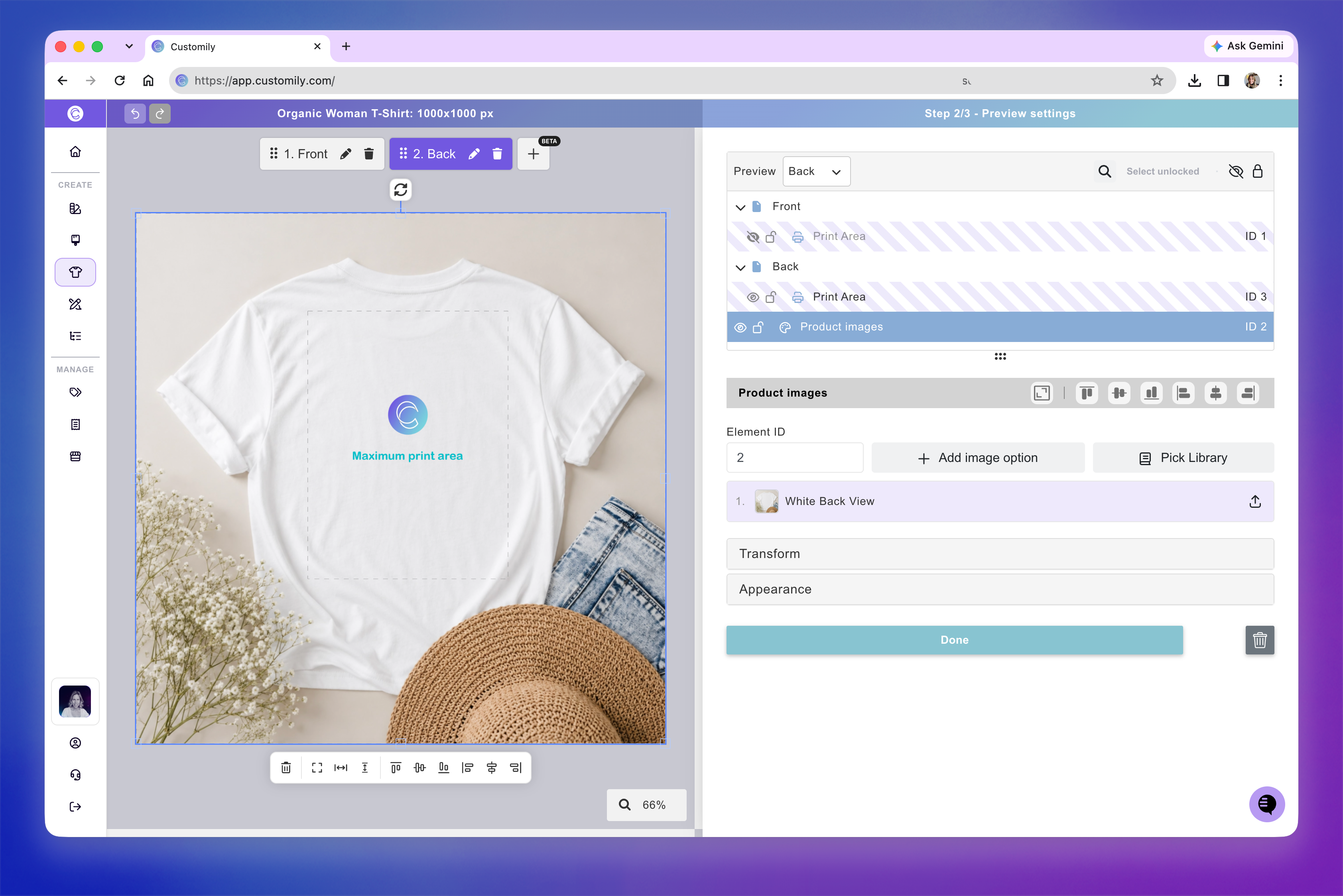
Repeat to add more previews as needed, then save your Product Base.
Using a Product Base with multiple previews
When you use a Product Base with multiple previews to publish a new product or add personalization to an existing product, Customily automatically creates a Template with those previews already configured.
The resulting Template reflects how the Product Base was set up:
Same print area across previews: The previews show the same personalized design from different views or angles.
Different print areas across previews: Each preview shows its corresponding print area, with separate pages in the Template for the different designs.
For more information on customizing multiple previews and configuring how shoppers switch between them, see 📄 Create templates with multiple previews