Customize the Modal Preview experience
Last updated: September 22, 2026
When using Modal Preview, shoppers personalize their product inside a modal that displays the live preview and personalization options together.
On mobile devices, you can customize this experience with additional settings that control how shoppers navigate through their options and move through the personalization flow.
Note
The settings in this article are available when Modal Preview is selected as the Preview Style for mobile devices. They don't affect the desktop Modal Preview experience.
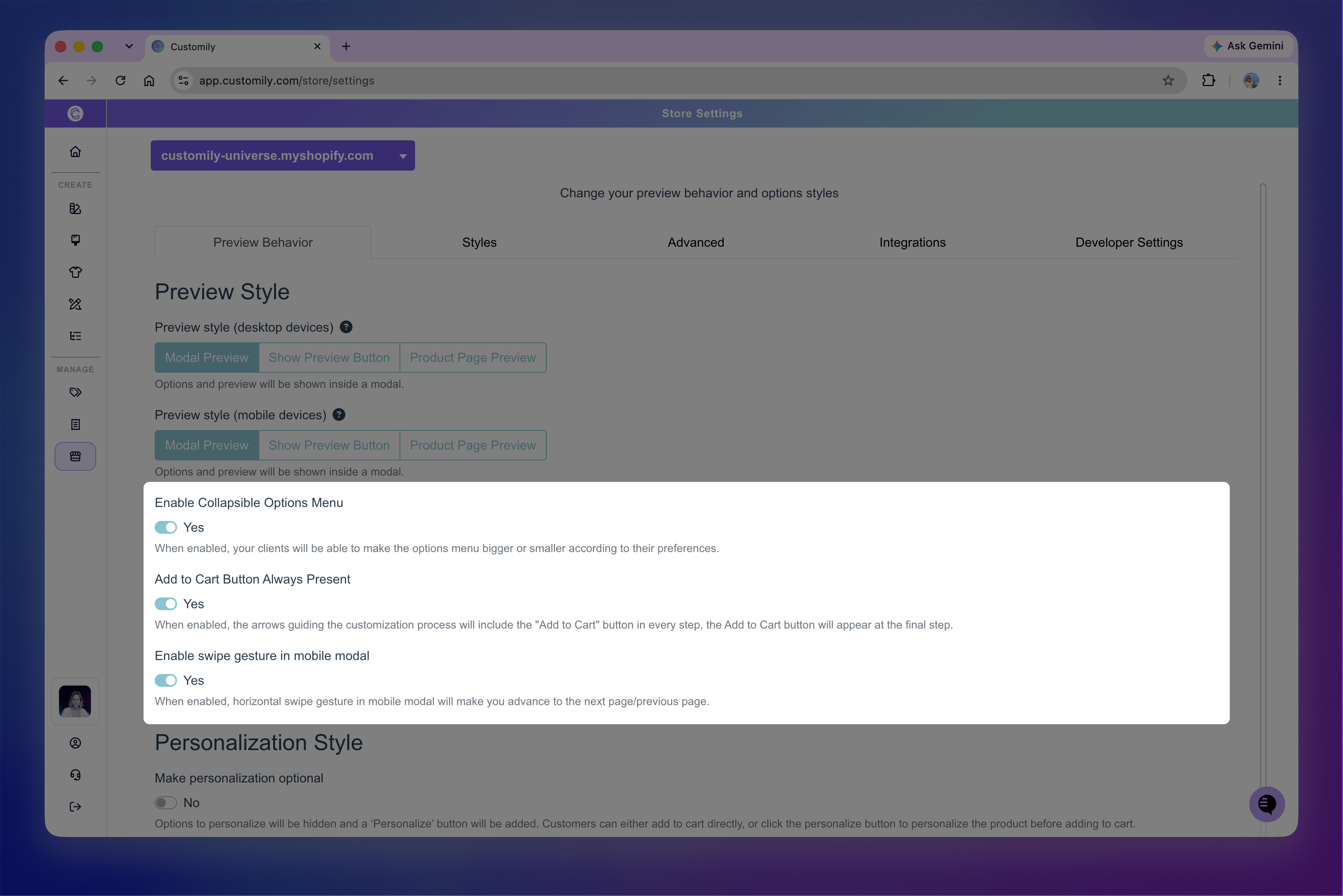
Enable Collapsible Options Menu
The Enable Collapsible Options Menu setting changes how the preview and personalization options are organized inside the Modal Preview on mobile.
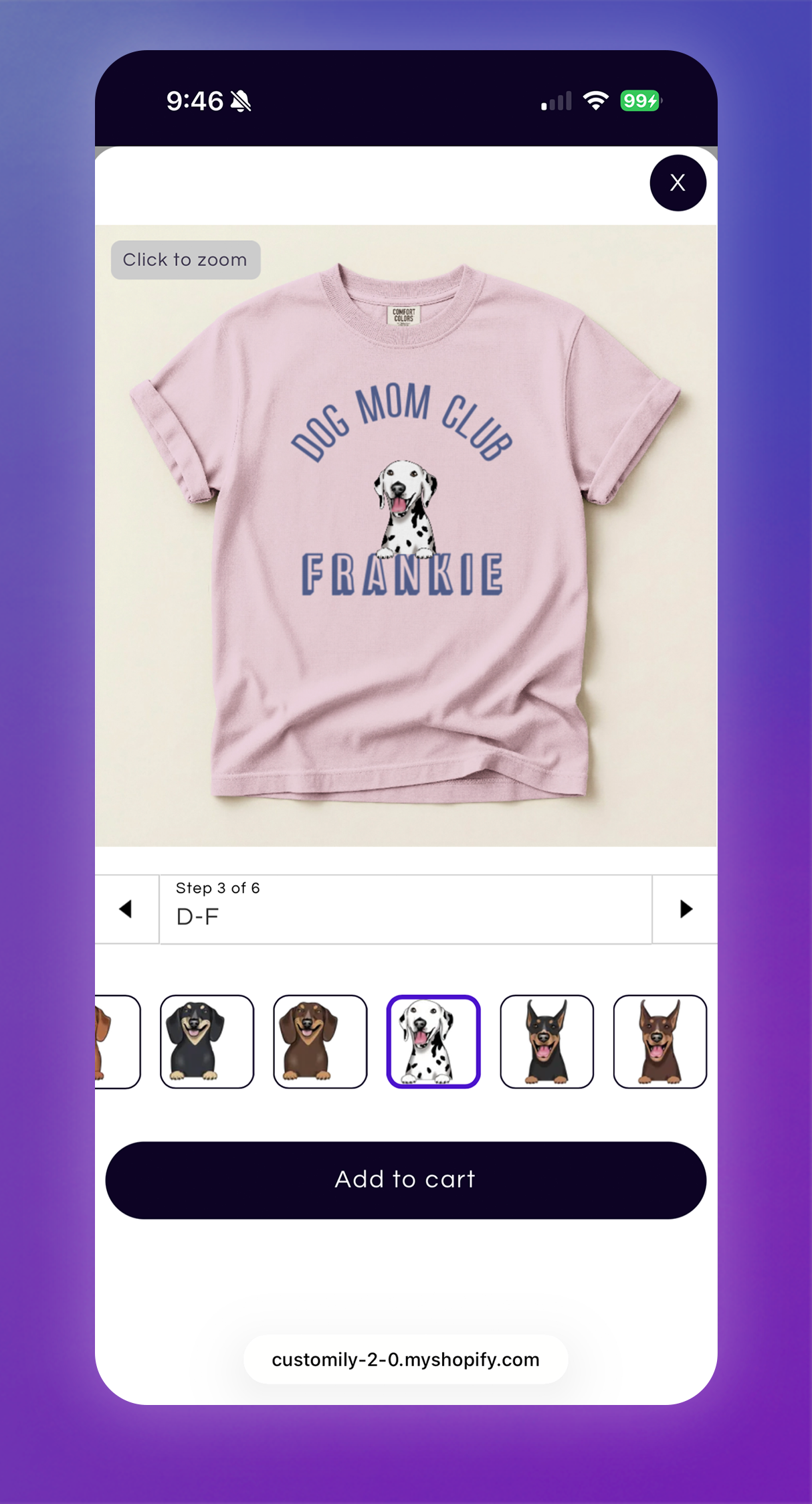
When Collapsible Options Menu is disabled
The preview and personalization options each occupy a fixed area of the screen. Shoppers personalize the product one option at a time.
They can move between personalization options using the navigation arrows or by swiping horizontally. For options with multiple choices, such as swatches, shoppers scroll horizontally to see additional choices.
The Add to Cart button remains available throughout the personalization process.
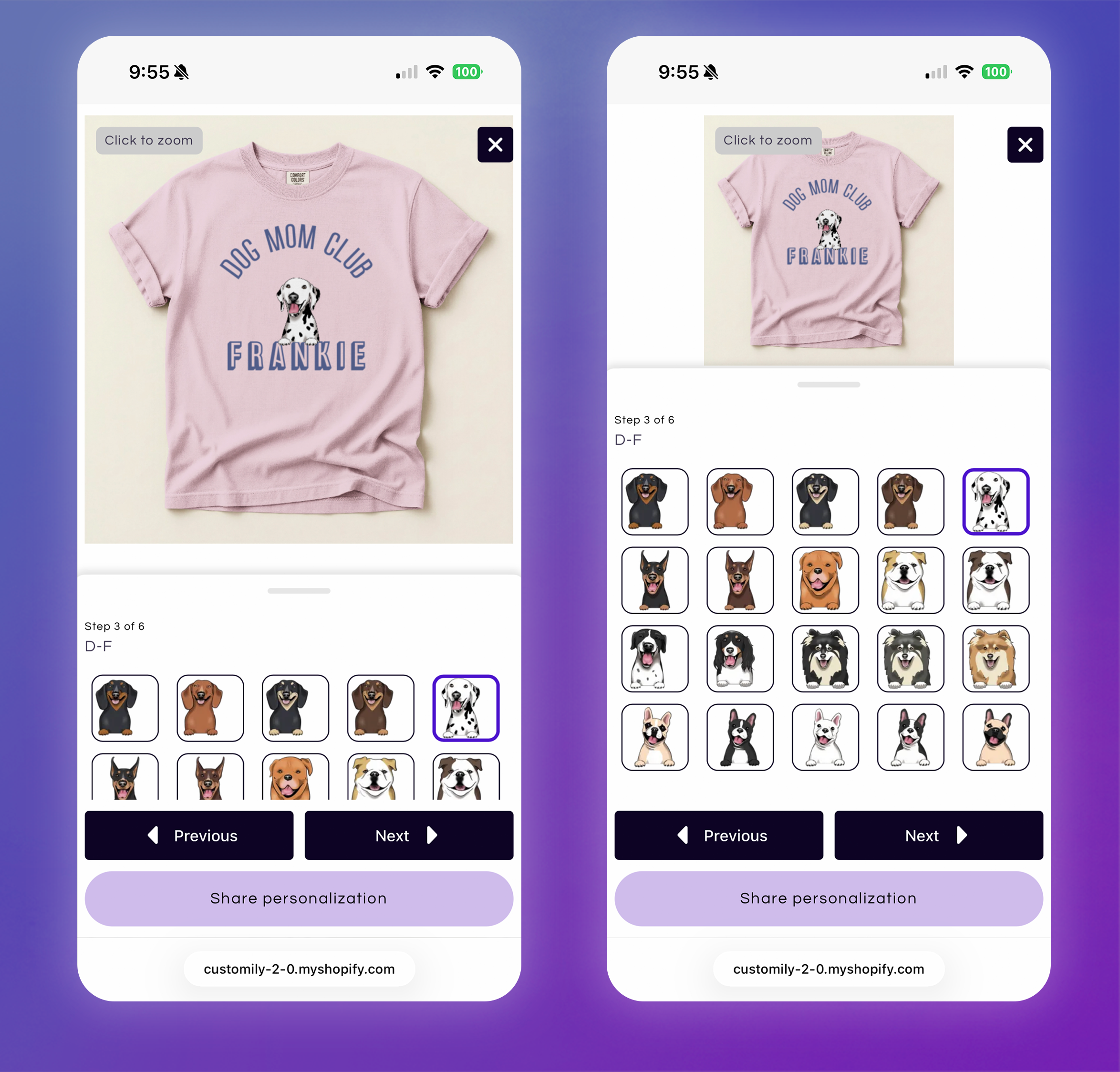
When Collapsible Options Menu is enabled
The preview and options are displayed in a more flexible layout, with larger Previous and Next buttons to move through the personalization steps.
A draggable handle is added between the preview and the options area. Shoppers can drag it up or down to expand or contract the options area, giving them more space for the personalization options or a larger view of the preview.
For options with multiple choices, such as swatches, choices wrap onto additional rows and shoppers can scroll vertically to see more. Expanding the options area lets them see more choices at once without having to scroll as much.
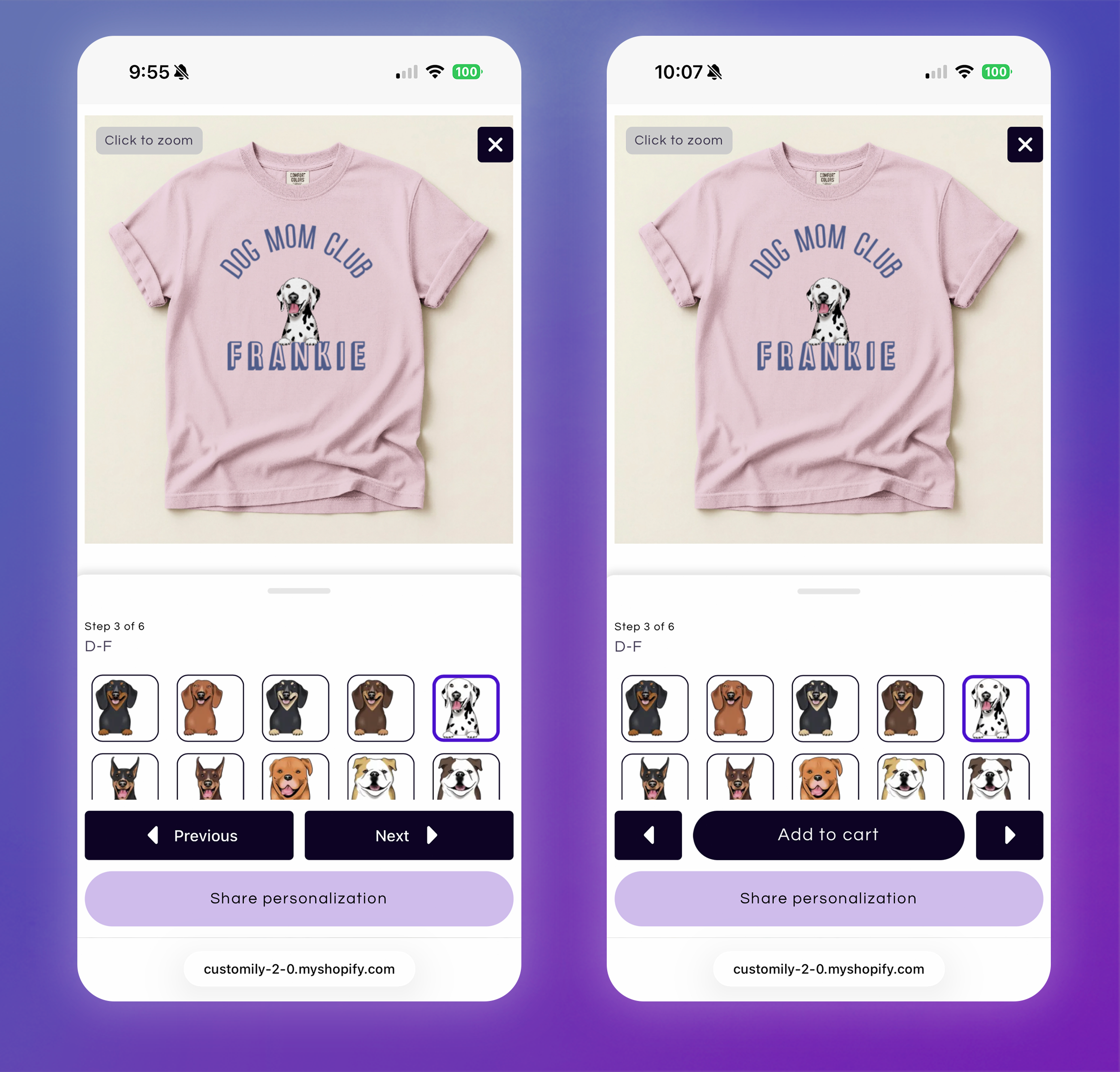
By default, the Add to Cart button appears after the shopper reaches the end of the personalization options.
Enabling Collapsible Options Menu also gives you two additional settings:
Add to Cart Button Always Present — keeps the Add to Cart button available throughout the personalization process.
Enable swipe gesture in mobile modal — lets shoppers swipe between personalization steps in addition to using the Previous and Next buttons.
Add to Cart Button Always Present
By default, when Collapsible Options Menu is enabled, shoppers move through the personalization options using the Previous and Next buttons, and the Add to Cart button appears once they reach the final step.
Enable Add to Cart Button Always Present to display the Add to Cart button throughout the personalization process, so shoppers can add the product to their cart from any step.
Enable swipe gesture in mobile modal
By default, shoppers navigate between personalization steps using the Previous and Next buttons.
Enable swipe gesture in mobile modal to also let shoppers swipe horizontally between steps. They can swipe left to move forward or right to return to the previous personalization option.