Customize the Product Page Preview experience
Last updated: September 23, 2026
Customize the Product Page Preview
When using Product Page Preview, the live personalization preview appears directly in your product image gallery and updates as shoppers personalize the product.
You can customize this experience with additional settings that control how shoppers access the preview, whether it stays visible as they scroll, and when the preview loads.
Note
The settings in this article are available when Product Page Preview is selected as the Preview Style.
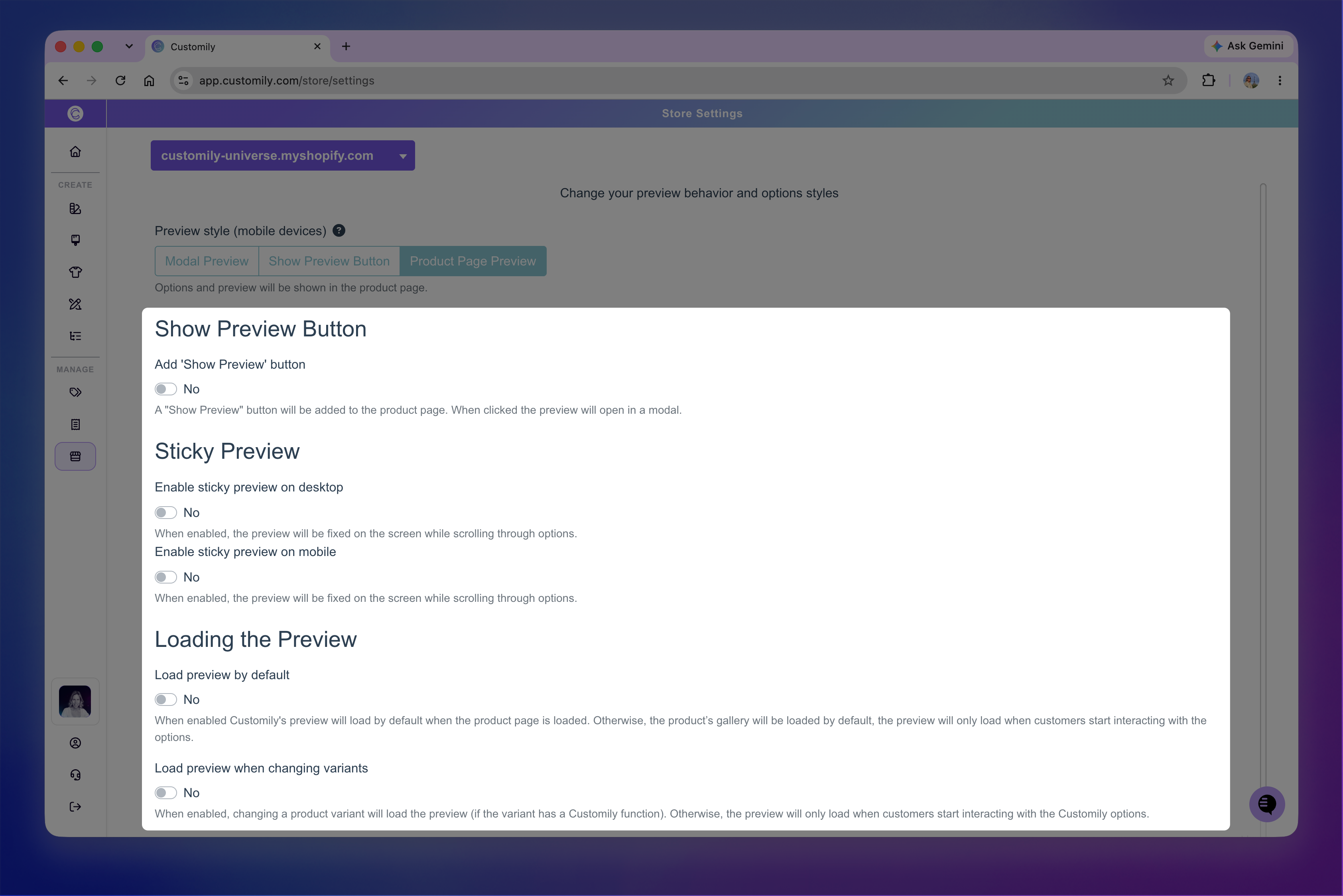
Add a Show Preview button
Enable Add “Show Preview” button to add a button shoppers can use to open their personalized design in a larger preview dialog.
The live preview will still appear on the product page as usual, while the Show Preview button gives shoppers an additional way to view their finished personalization.
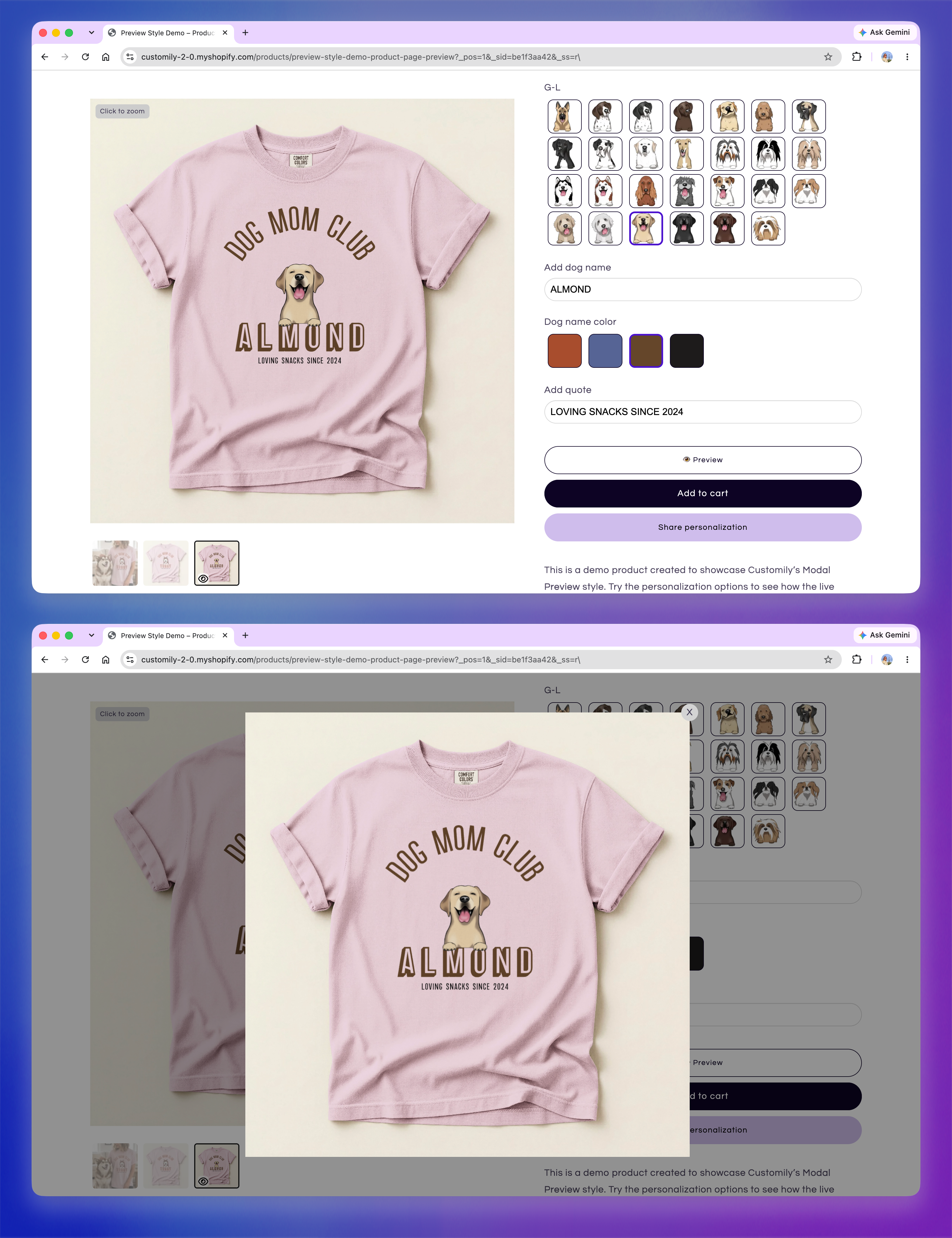
When you enable the Show Preview button, three additional settings become available.
Require all options before showing the preview
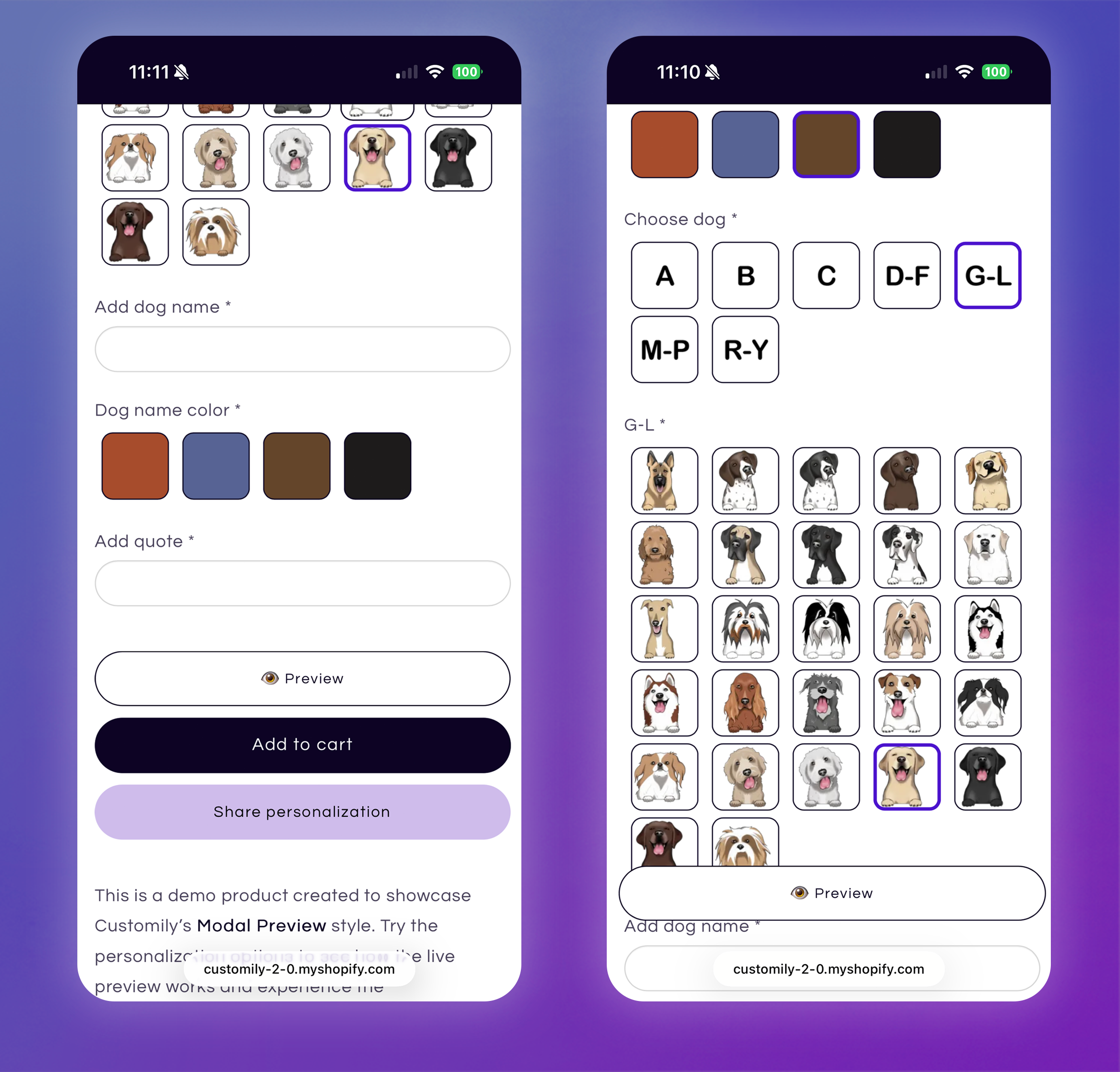
Make the Show Preview button sticky on mobile
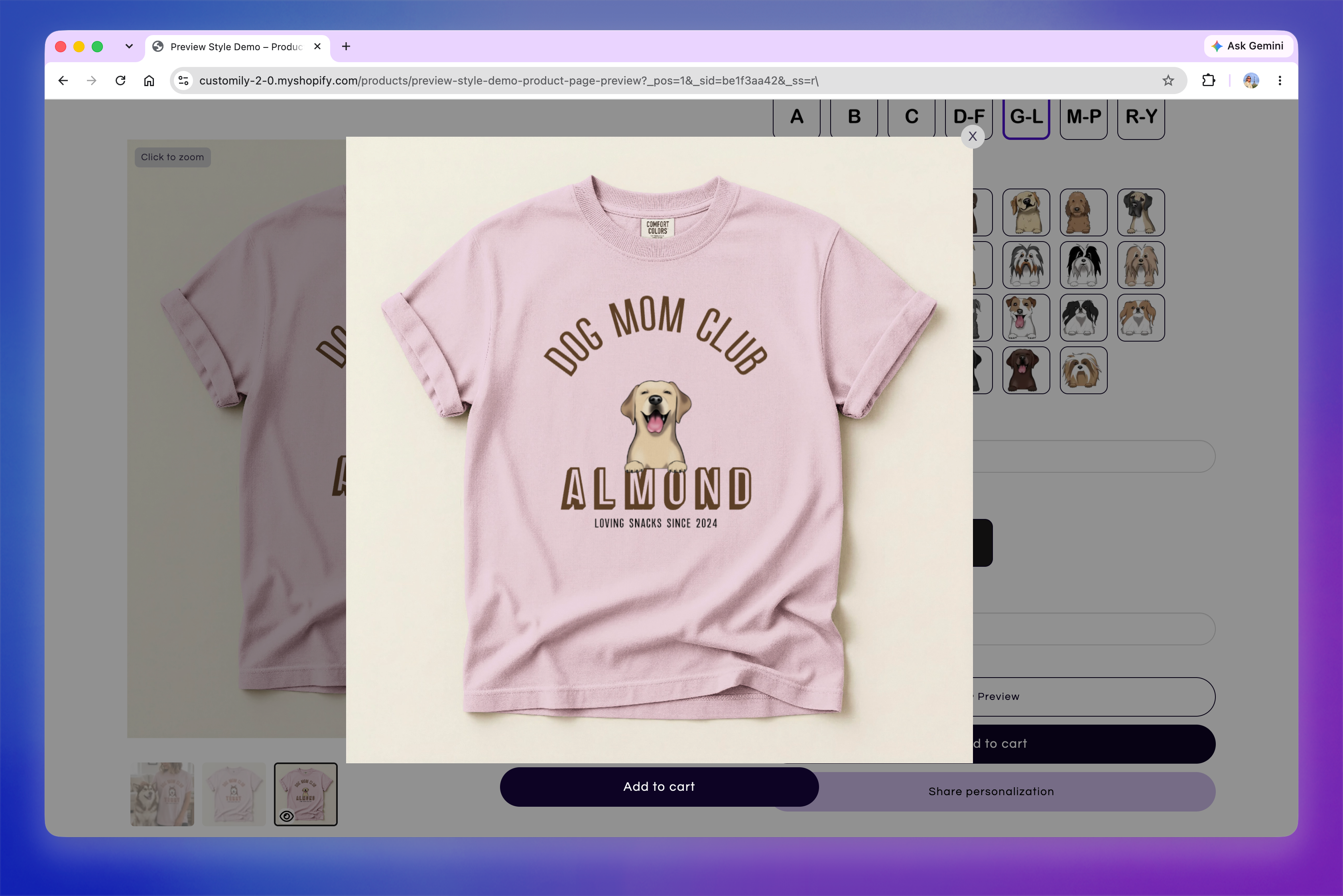
Add an Add to Cart button to the preview dialog
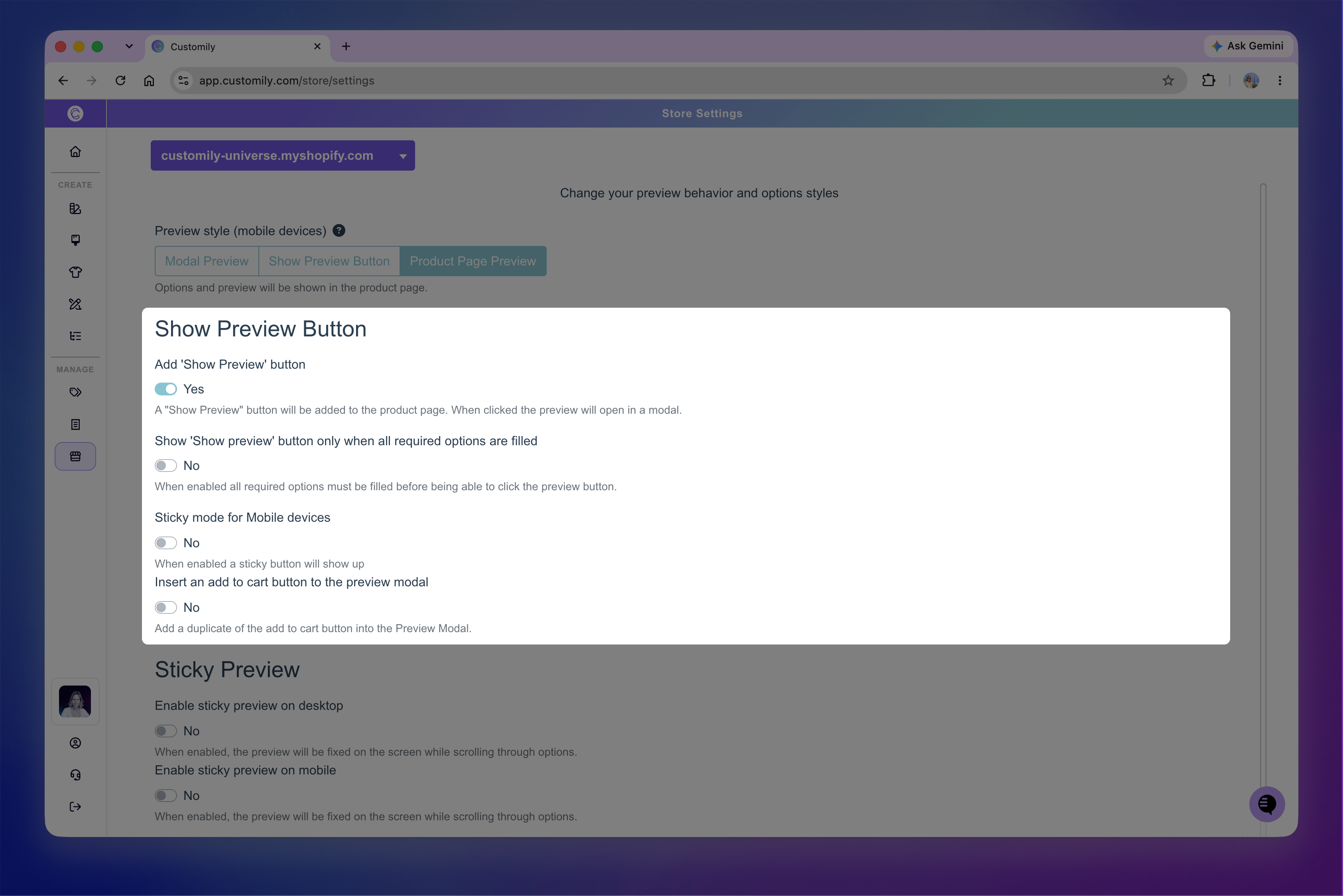
Require all options before showing the preview
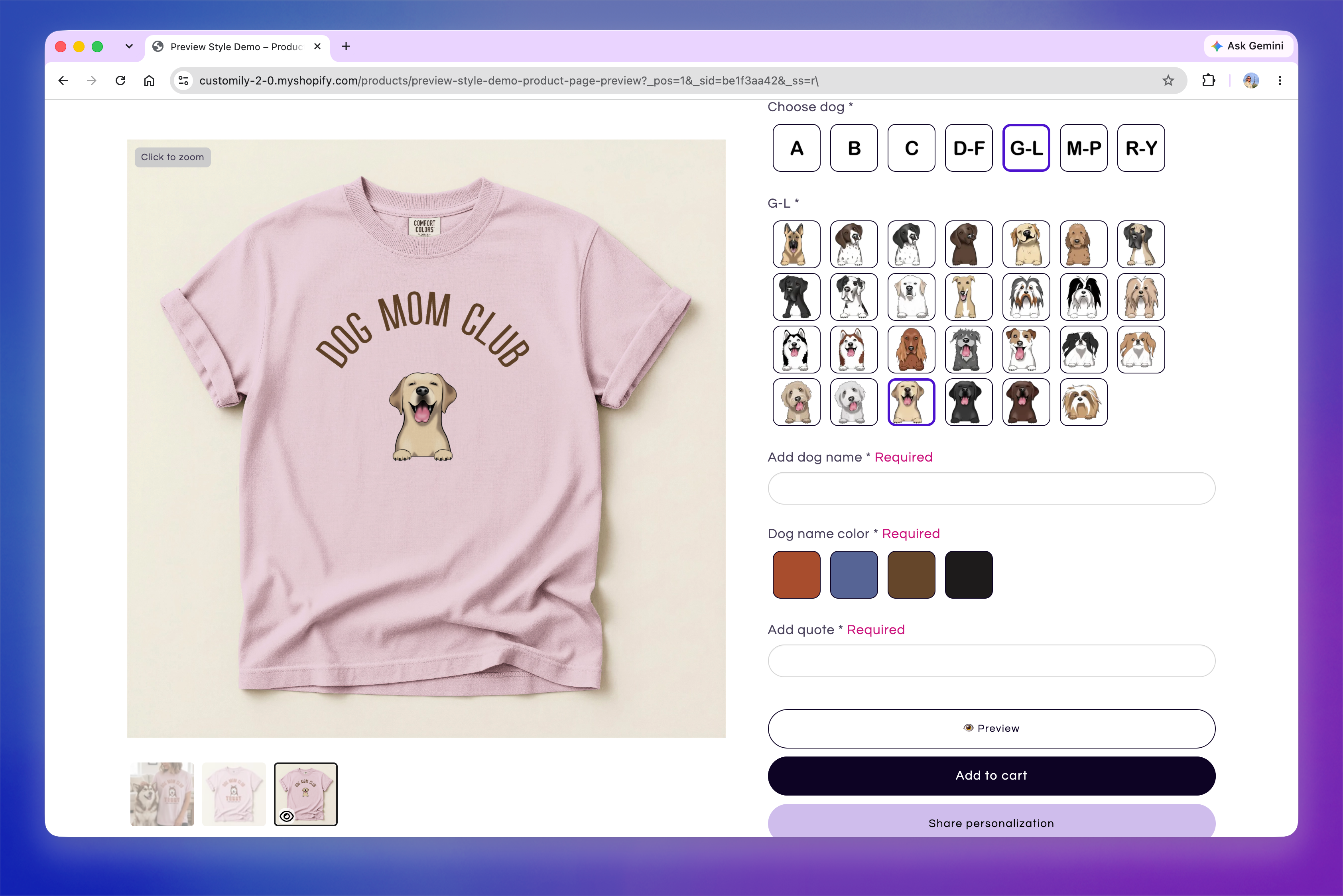
Enable Show “Show Preview” button only when all required options are filled to prevent shoppers from opening the preview dialog until they've completed all required personalization options.
If they click Show Preview before completing them, they'll be prompted to fill in the required fields first. Once all required options are complete, the preview dialog can be opened.
Note
Despite the setting name, the Show Preview button remains visible. This setting controls when shoppers can open the preview.
Make the Show Preview button sticky on mobile
Enable Sticky mode for Mobile devices to keep the Show Preview button accessible as shoppers scroll through the personalization options on mobile.
Normally, the button appears at the end of the personalization form. With Sticky mode enabled, it floats at the bottom of the screen as shoppers scroll. Once they reach the end of the form, the button stays in its natural position.
Add an Add to Cart button to the preview dialog
Enable Insert an add to cart button to the preview modal to display an Add to Cart button inside the preview dialog.
This lets shoppers review their personalized design and add the product to their cart directly from the preview.
Keep the preview visible while scrolling
Enable Sticky Preview to keep the live preview visible as shoppers scroll through their personalization options. You can configure it independently for desktop and mobile devices.
Sticky Preview is particularly useful on desktop for products with longer personalization forms. On mobile, keep in mind that the fixed preview takes up some of the available screen space.
Learn more: 📄 Enable Sticky Preview
Control when the preview loads
The Loading the Preview settings control when the live preview appears in the product image gallery.
Load preview by default
Enable Load preview by default to load the Customily preview as soon as the product page loads.
When disabled, shoppers initially see your regular product images. The live preview loads once they begin interacting with the personalization options.
Tip
We generally recommend leaving this setting disabled so shoppers see your regular product images when they first open the product page.
Load preview when changing variants
Enable Load preview when changing variants to load the live preview when a shopper selects a product variant that has a Customily function assigned to it.
This is useful when variant selection affects the personalized design, helping shoppers immediately see the updated preview after changing their selection.
When disabled, changing variants won't load the preview on its own. The preview will appear once the shopper starts interacting with the personalization options.
Tip
If your variants visually change the product, such as its color, we recommend keeping this setting enabled. This ensures the live preview loads as soon as a shopper selects a variant. Otherwise, the preview won't appear until they interact with a personalization option.