Import elements from Canva
Last updated: April 29, 2026
You can import elements from a Canva design to quickly turn an existing layout into editable elements inside Customily.
This is useful when you already have a design created in Canva and want to reuse it without rebuilding everything from scratch.
How it works
When you import a Canva design, Customily converts it into elements you can edit inside the Design Studio.
Text layers are imported as text boxes
Images and graphics are imported as image elements, either dynamic images or image placeholders
Frames are imported as image placeholders (shopper upload) with masks
Grids are imported as multiple image elements, either dynamic images or image placeholders
Shapes are imported as dynamic vectors
Backgrounds are imported as a solid background element
Each layer becomes a separate element that you can move, edit, and customize.
How to import from Canva
Create a new design or open an existing one
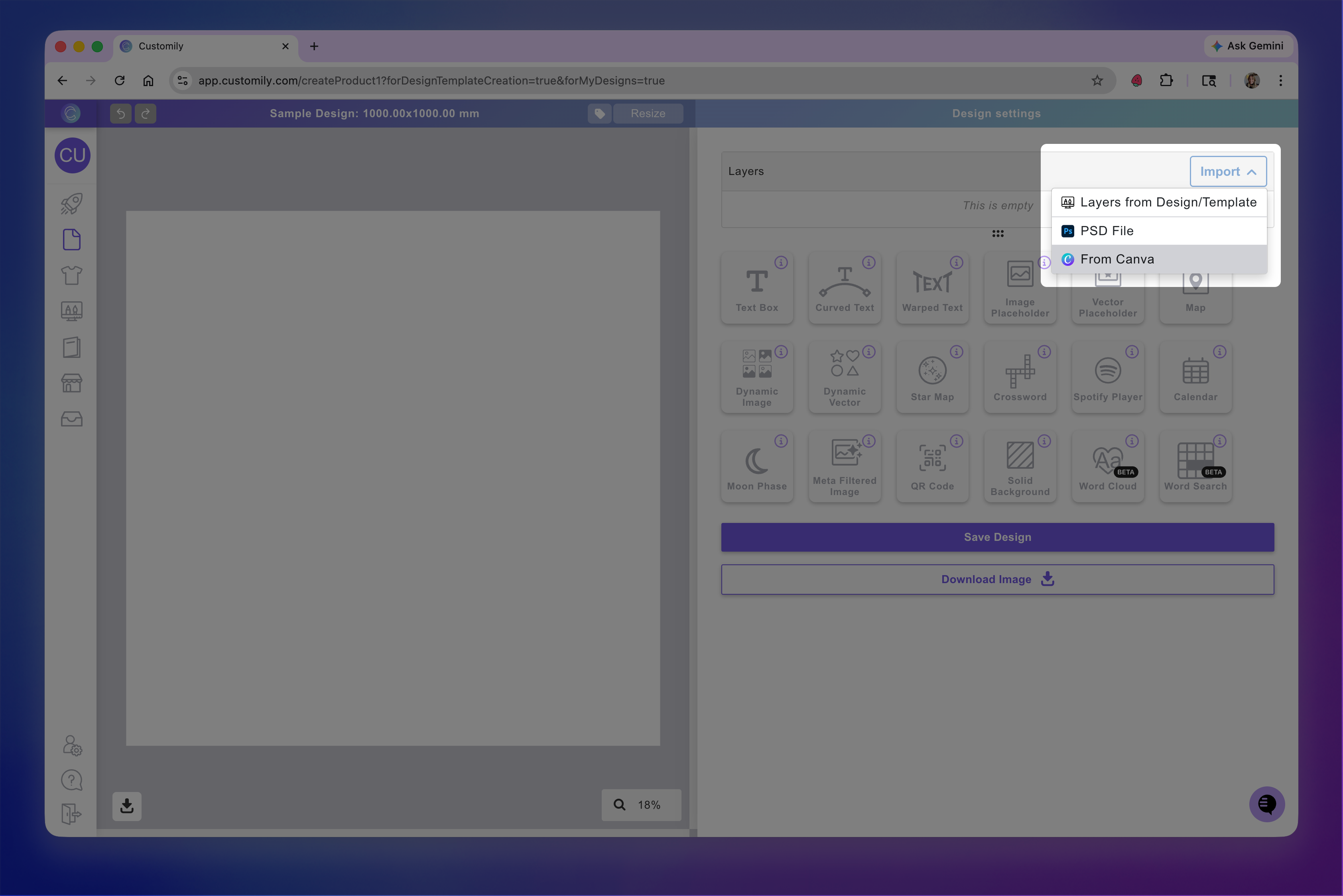
In the Layers panel, click Import
Select Canva as the source
Tip
You can also start the import from the My Designs panel by clicking Import from Canva at the top.
If this is your first time, you’ll be prompted to connect your Canva account. Follow the steps to authorize access.
Browse or search for the design you want to use and click on it to start importing.
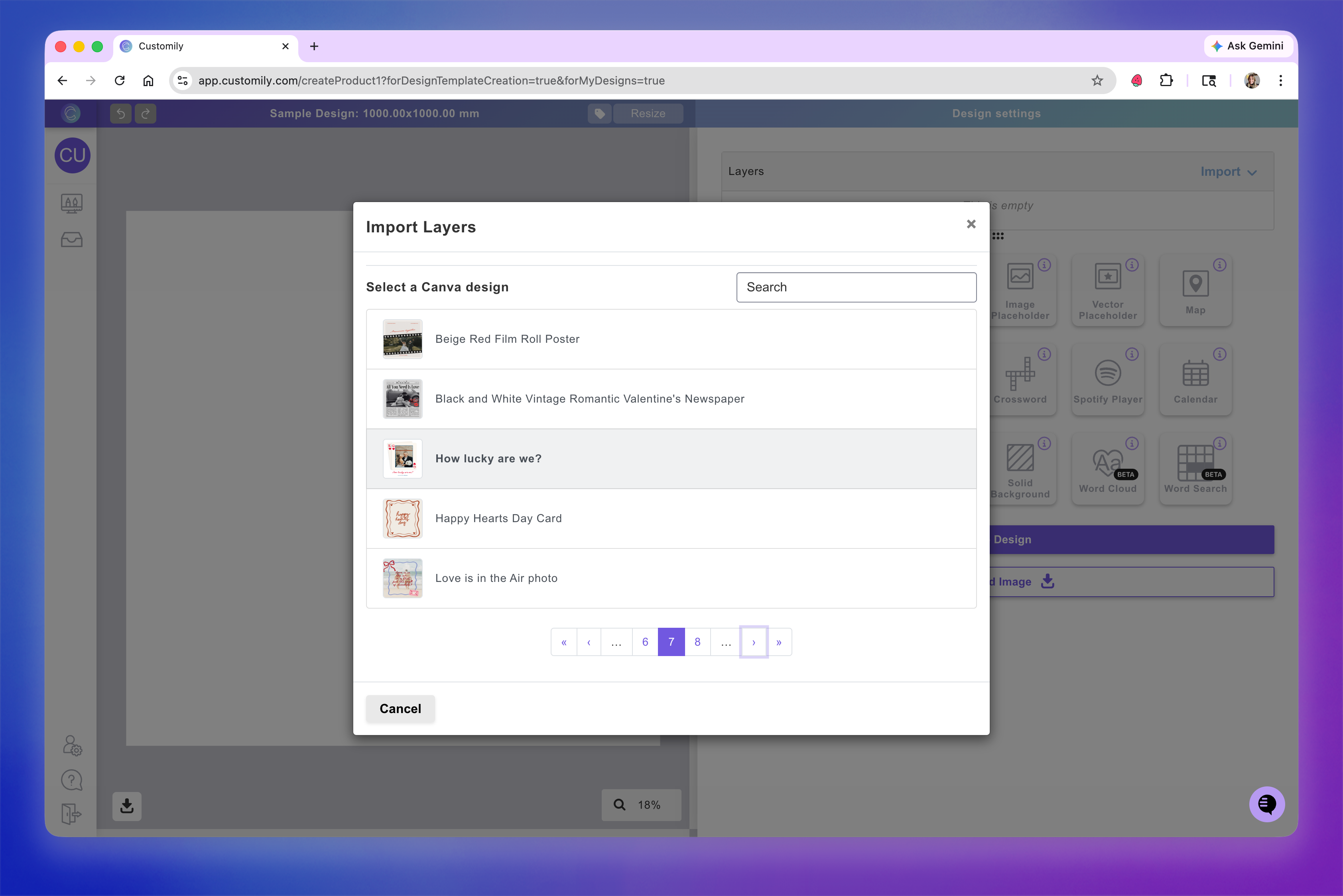
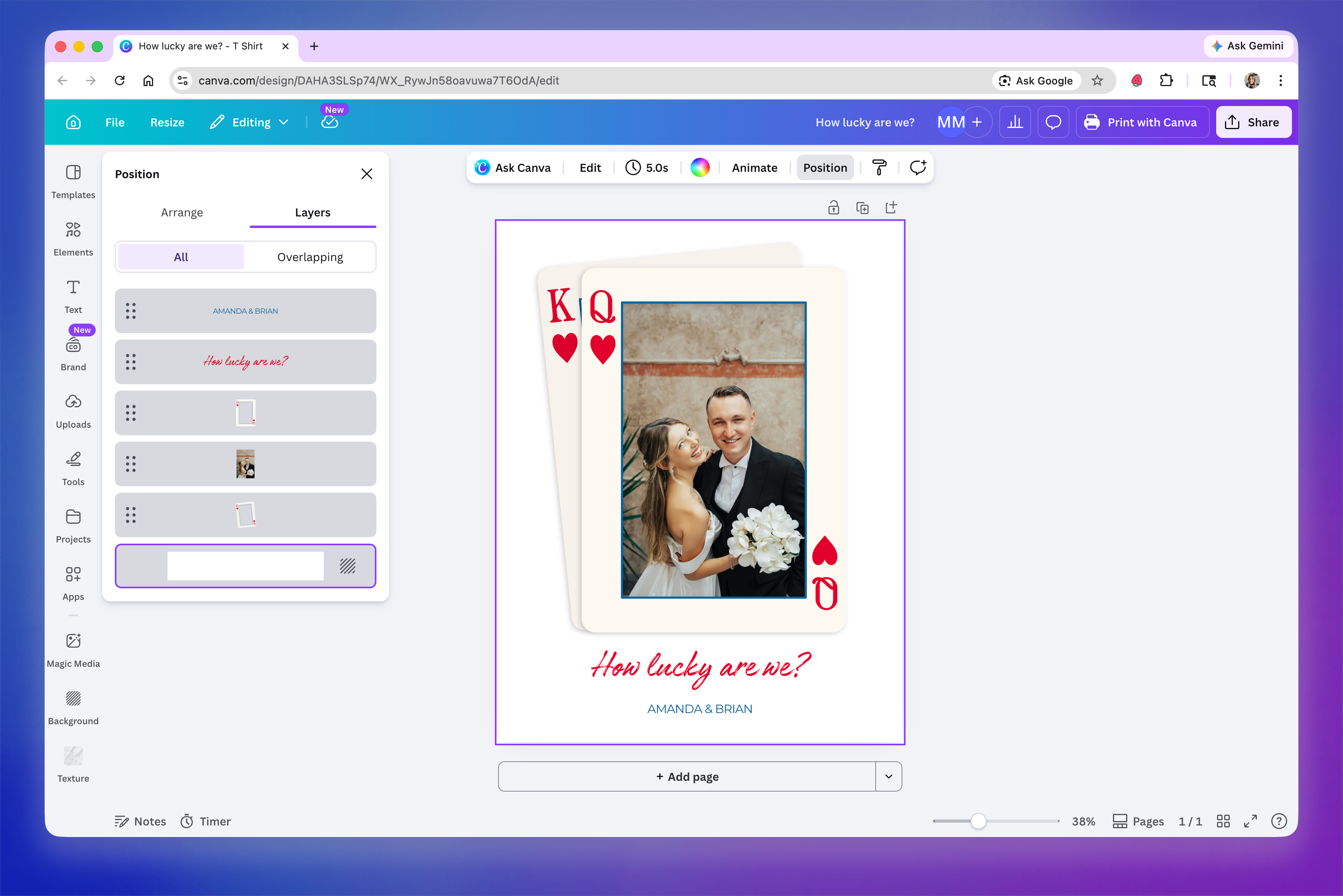
Here's the Canva design we'll be using in this guide.
A dialog will open showing your design and import options. Configure how you want to import the design:
Import as Layers or PNG
Choose Layers to bring each element separately (recommended for personalization)
Choose PNG to import the design as a flat image
Select the page to import
If your design has multiple pages, choose which one to bring
Import design dimensions
Enable this to match your canvas size to the Canva design
This will resize your current canvas
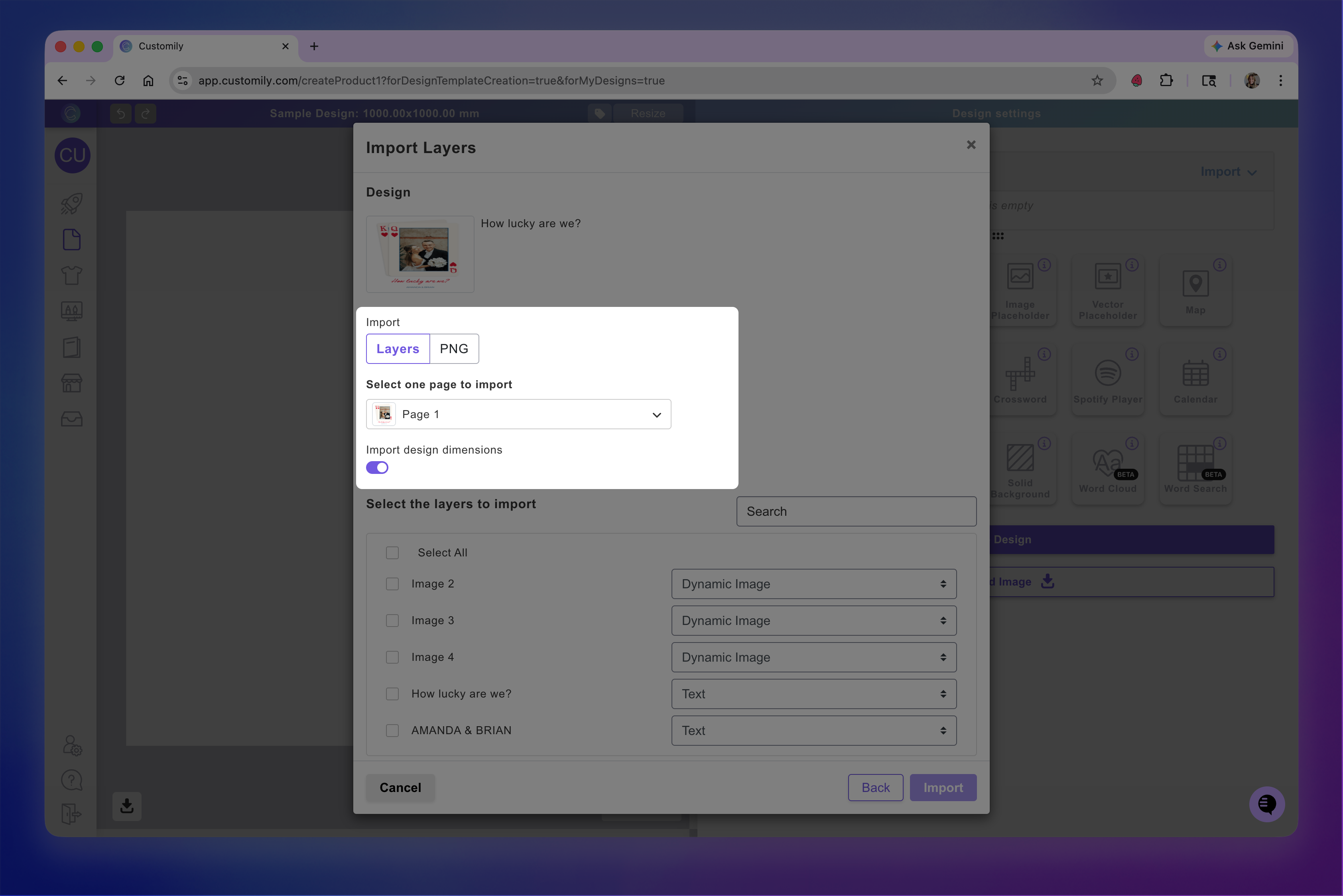
Select the layers you want to import
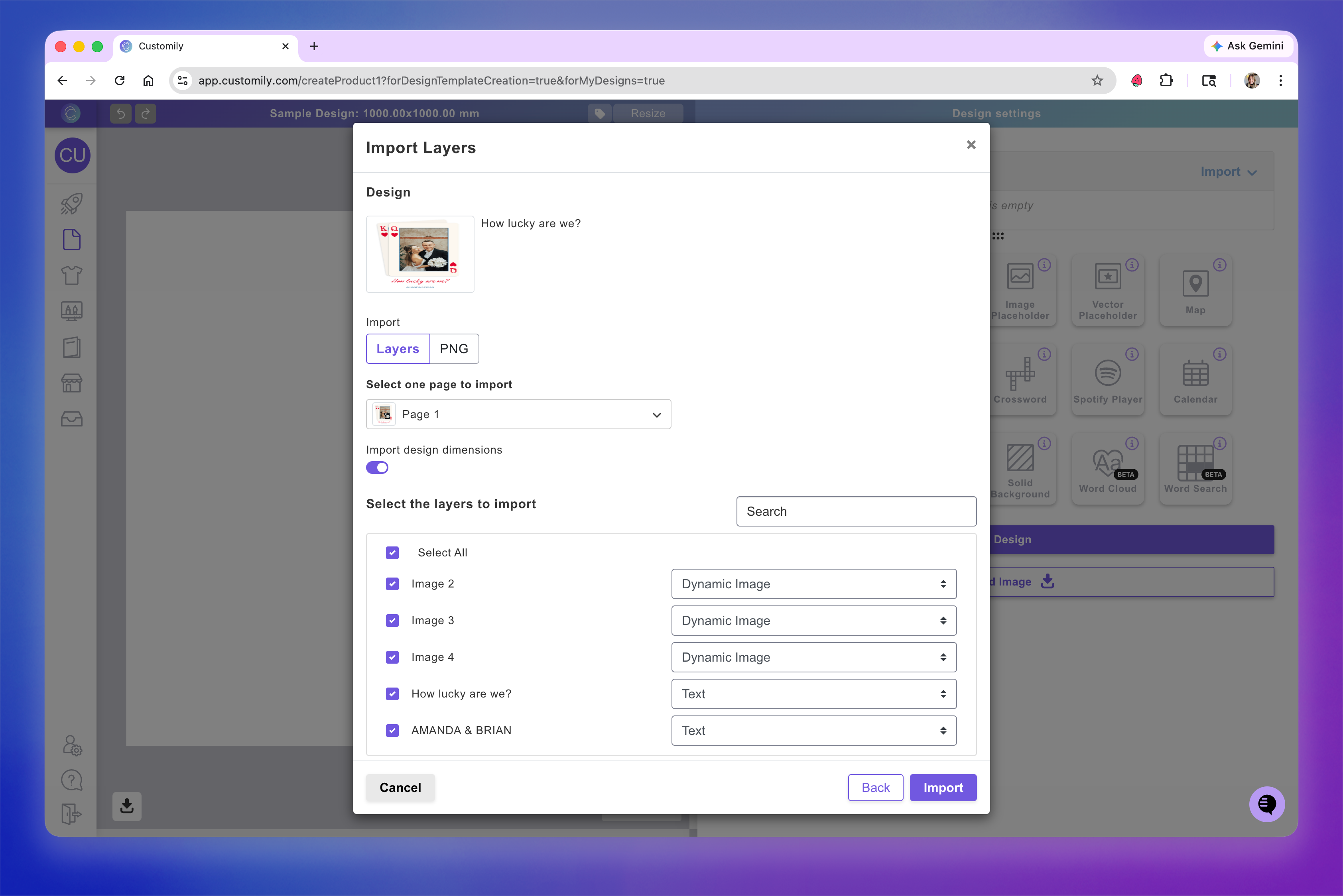
Keep in mind
Only image (raster) and text layers are supported when importing from PSD.
Choose what type of element each layer should become
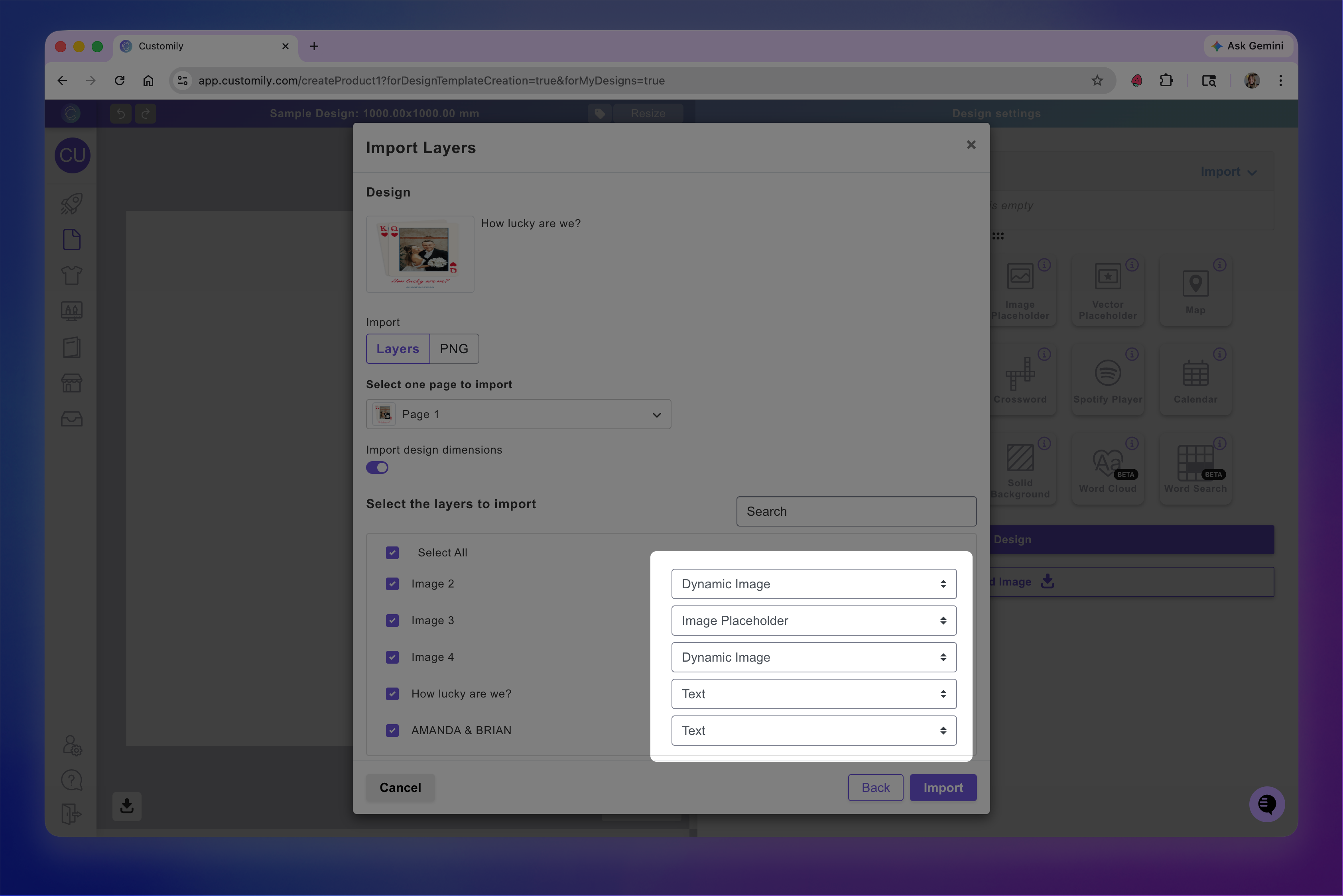
Keep in mind
Canva layers don’t have names like in Photoshop, so identifying them can be tricky.
You can use your original Canva layout as a reference, the bottom layer in Canva appears at the top of the list here.Confirm the import
If any fonts used in your Canva design are not available in your Customily account, a dialog will appear asking you to choose replacement fonts. Select the closest match for each font to preserve the look of your design.
If none of the fonts match your style, don’t worry—you can choose any font for now and update it after importing.
After confirming, your selected layers will appear on the canvas as elements.
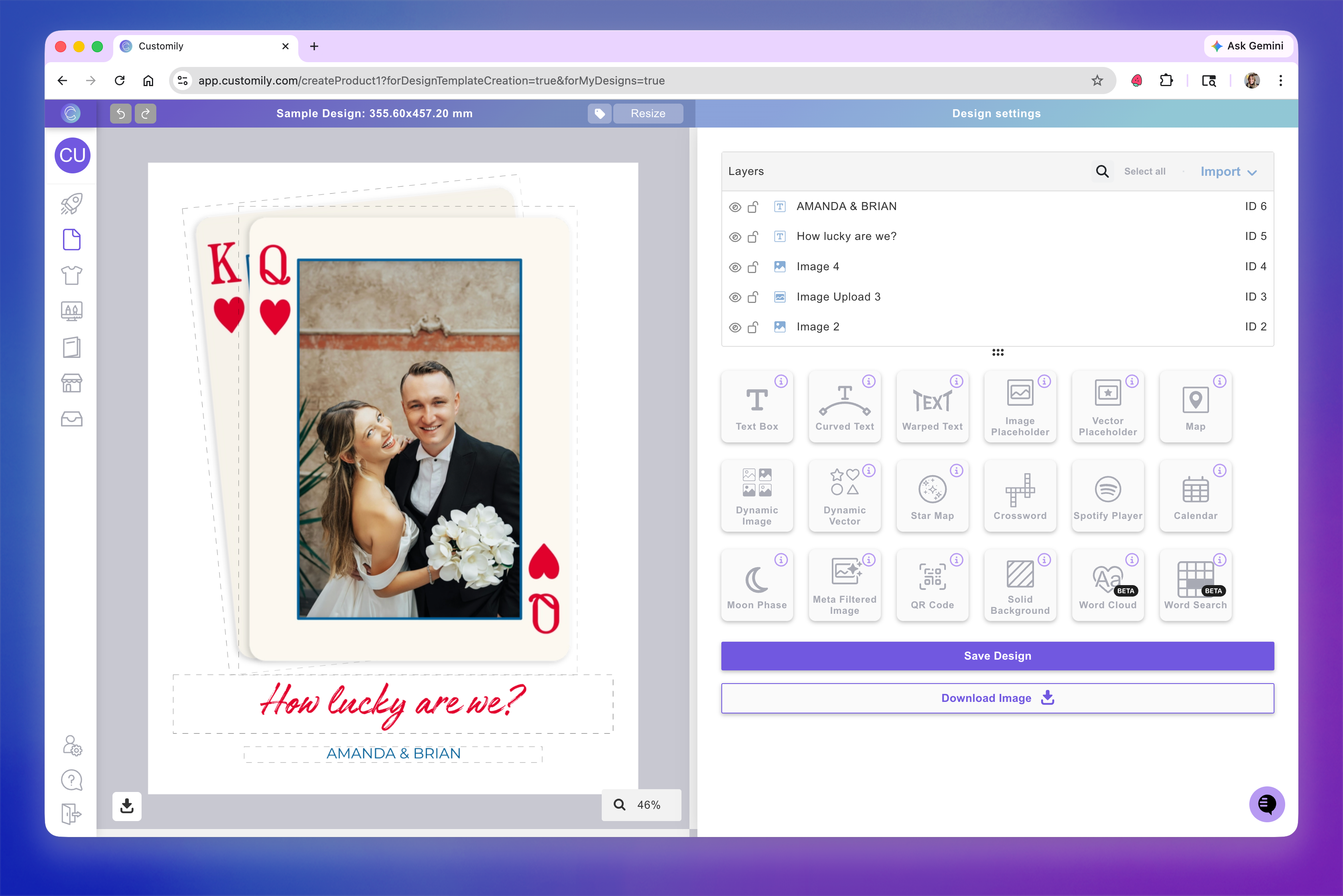
You can select each element to adjust its styling.
Choosing element types during import
Canva elements are automatically mapped to the appropriate element types in Customily.
By default:
Image layers are imported as dynamic images (clipart)
Text layers are imported as text boxes
You can change this before importing.
For example:
Switch an image layer to an image placeholder if you want shoppers to upload their own image
Keep it as a dynamic image if it should be part of a selectable set (clipart)
This lets you define the shopper experience directly during import.
Before importing: recommended setup
To get the best results, on Canva:
Keep your design clean and well organized
Use text layers for any content that will be personalized
On Customily,
Make sure the fonts used in your Canva design are available in your Customily account