Import elements from a PSD file
Last updated: April 29, 2026
You can import elements from a PSD file to quickly turn an existing design into editable elements inside Customily.
This is useful when you already have a design created in Photoshop and want to reuse it without rebuilding everything from scratch.
How it works
When you import a PSD, Customily reads your file and converts supported layers into personalizable elements.
Text layers are imported as text boxes
Image (raster) layers are imported as image elements, either dynamic images or image placeholders
Each layer becomes a separate element that you can move, edit, and customize.
Important
Text styling is not preserved during import.
Font resets to a default (Arial)
Color resets (usually to black)
Font size may not match the original
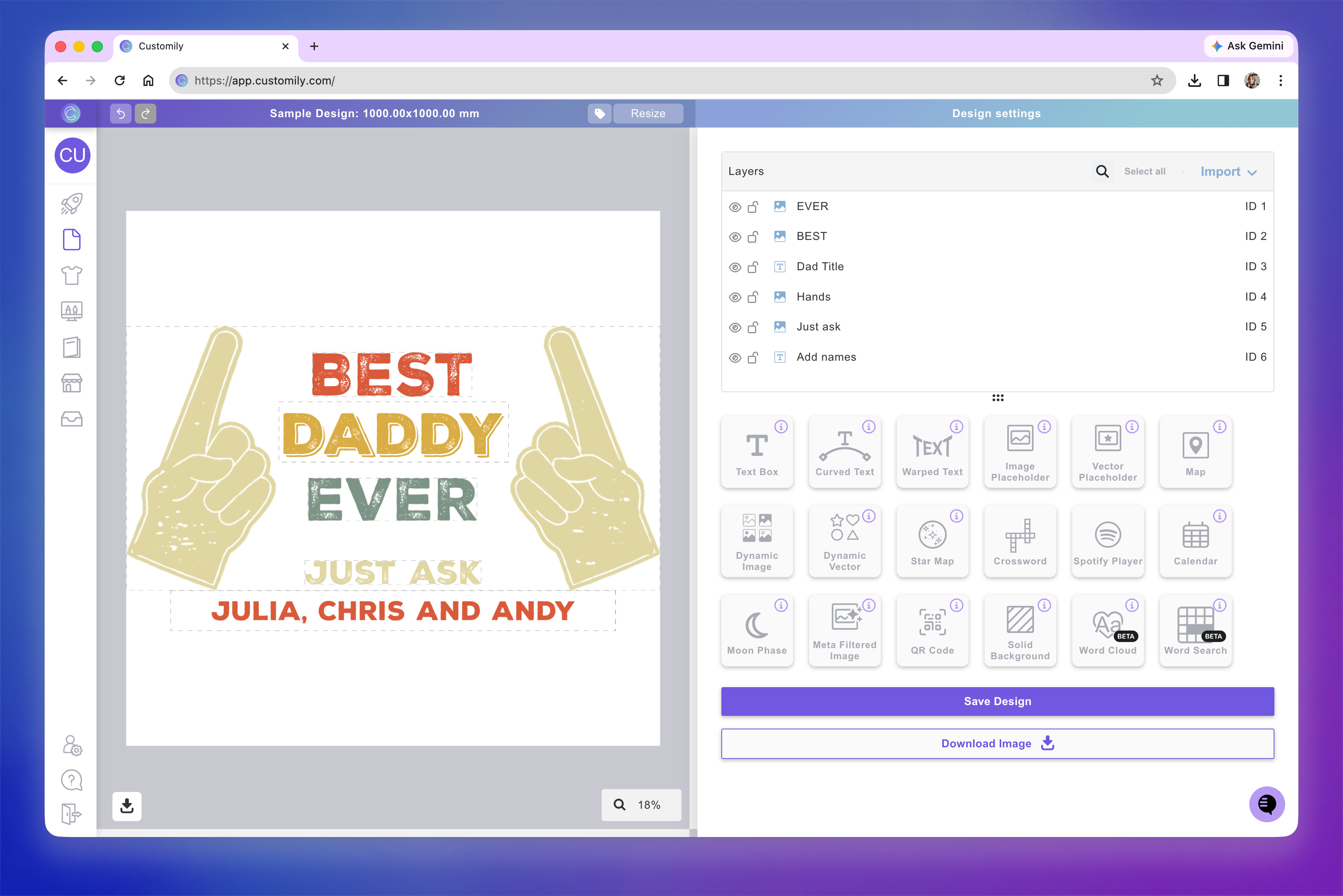
The text position and bounding area are preserved, but you’ll need to restyle the text after importing.
How to import from a PSD file
Create a new design or open an existing one
In the Layers panel, click Import
Select PSD file as the source

Upload your PSD file
Here's the example PSD we'll be using in this guide.

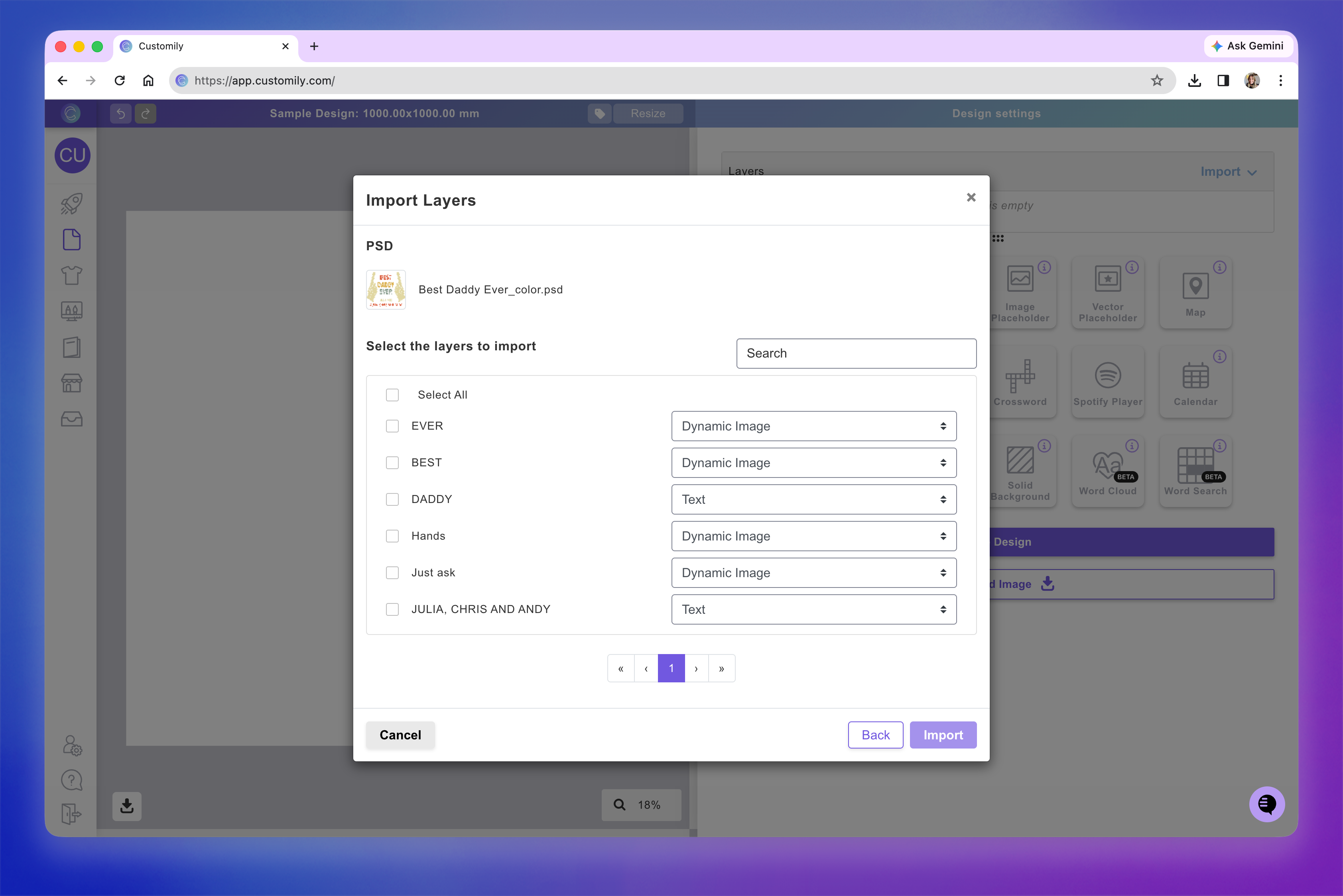
Once your file is uploaded, a dialog will open showing all the layers in your PSD
Keep in mind
Only image (raster) and text layers are supported when importing from PSD.
Select the layers you want to import
Choose what type of element each layer should become
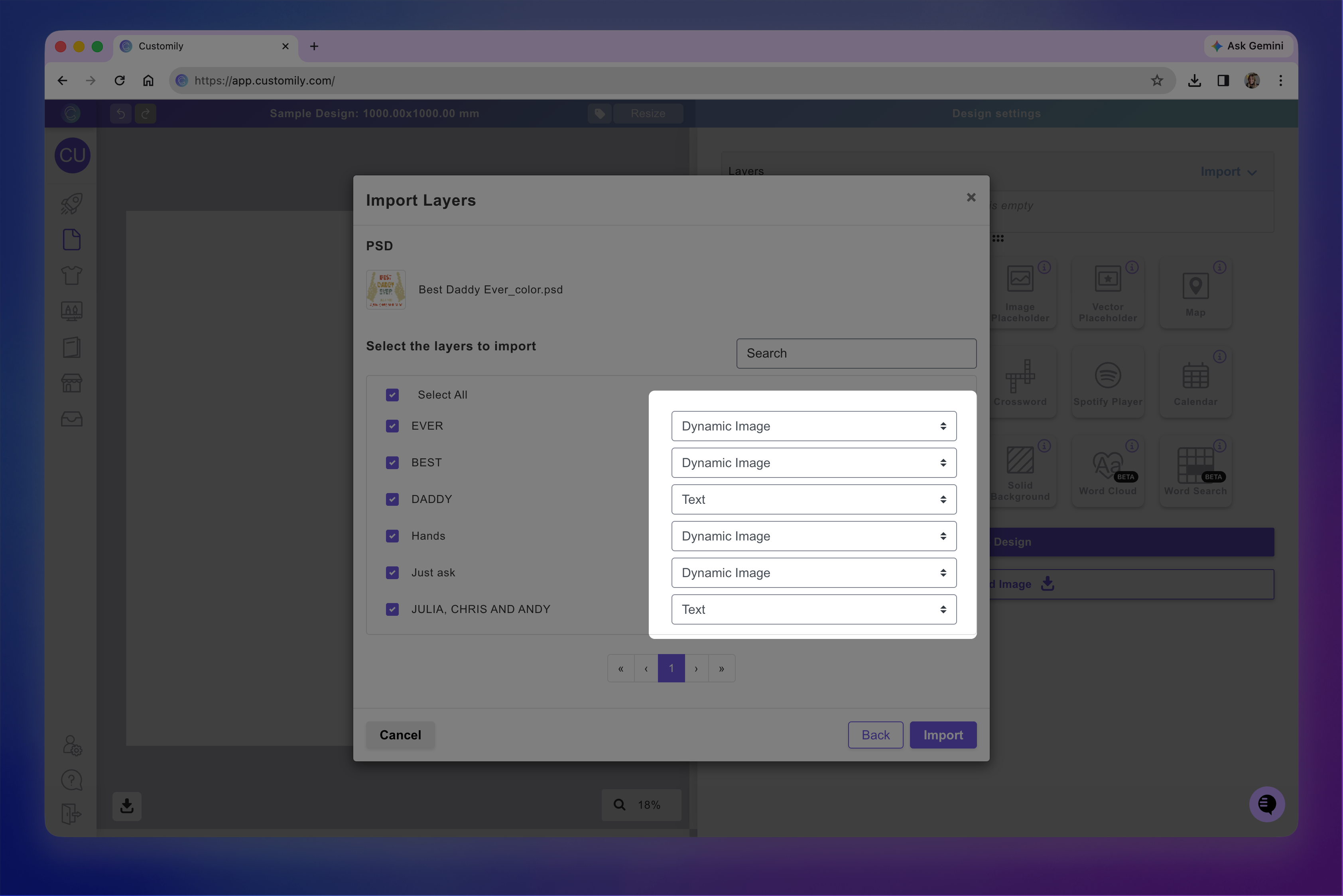
Confirm the import
After confirming, your selected layers will appear on the canvas as elements.
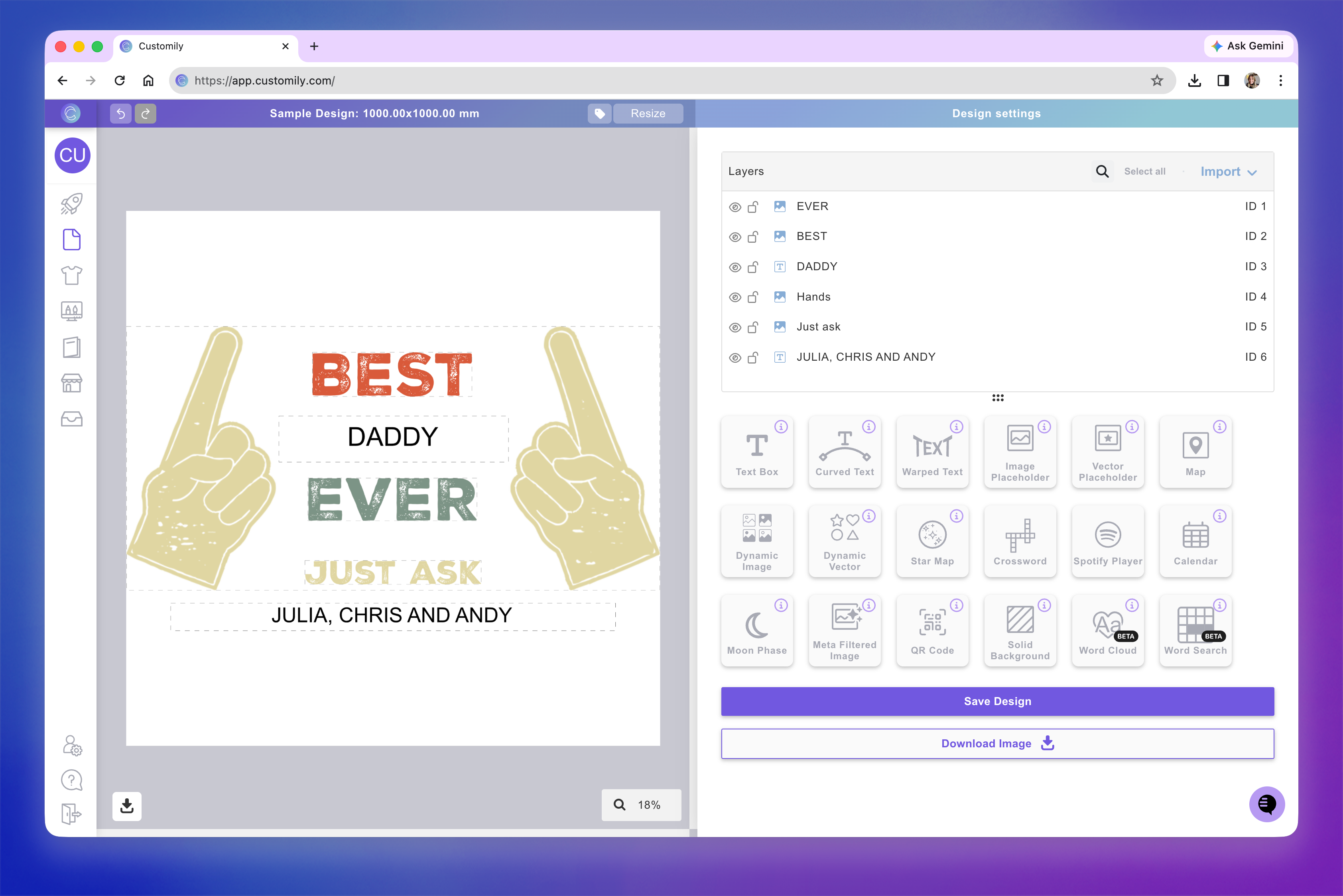
You can select each element to adjust its styling. This is especially important for text elements, as you’ll need to reapply fonts, sizes, and colors after importing.
Choosing element types during import
For each layer, you can decide how it should behave in your design.
By default:
Raster layers are imported as dynamic images (clipart)
Text layers are imported as text boxes
You can change this before importing.
For example:
Switch a raster layer to an image placeholder if you want shoppers to upload their own image
Keep it as a dynamic image if it should be part of a selectable set (clipart)
This lets you define the shopper experience directly during import.
Before importing: recommended setup
To get the best results, prepare your PSD file:
Keep layers separate and well organized
Use text layers (avoid rasterizing text) for any content that will be personalized
Rasterize text that should remain fixed (like titles or decorative text)
Use clear layer names to identify elements