Dynamic vector (clipart)
Last updated: October 21, 2026
Dynamic vectors let you add predefined vector graphics to your designs, whether it's a fixed graphic or a collection of clipart options shoppers can choose from.
You can use dynamic vectors for illustrations, logos, frames, decorative elements, or personalized choices such as characters and monograms.
A dynamic vector can contain one or multiple vectors, but only one is displayed at a time. On the canvas, it's represented by a dashed boundary around the selected vector.
Dynamic vectors support EPS, PDF, and SVG files. You can use these formats to upload vector artwork while preserving its scalability and quality.
Tip
If you don't need vector-specific features, consider using Dynamic images instead, as they generally load faster in product previews. See 📄 Dynamic image (clipart)
How It Works
When you add a dynamic vector to your design:
If it contains a single fixed vector, that graphic appears in the design without requiring shoppers to make a selection.
If it contains multiple vectors, shoppers can choose between them using personalization options such as swatches or dropdowns.
As shoppers select different options, the corresponding vector appears live in the product preview.
You can control the size, position, rotation, colors, and appearance of the vectors.
You can also make the vector movable so shoppers can reposition or resize it within the area you define.
How to add a dynamic vector
Open your Design or Template in the Design Studio.
Click Dynamic Vector to add a new element.
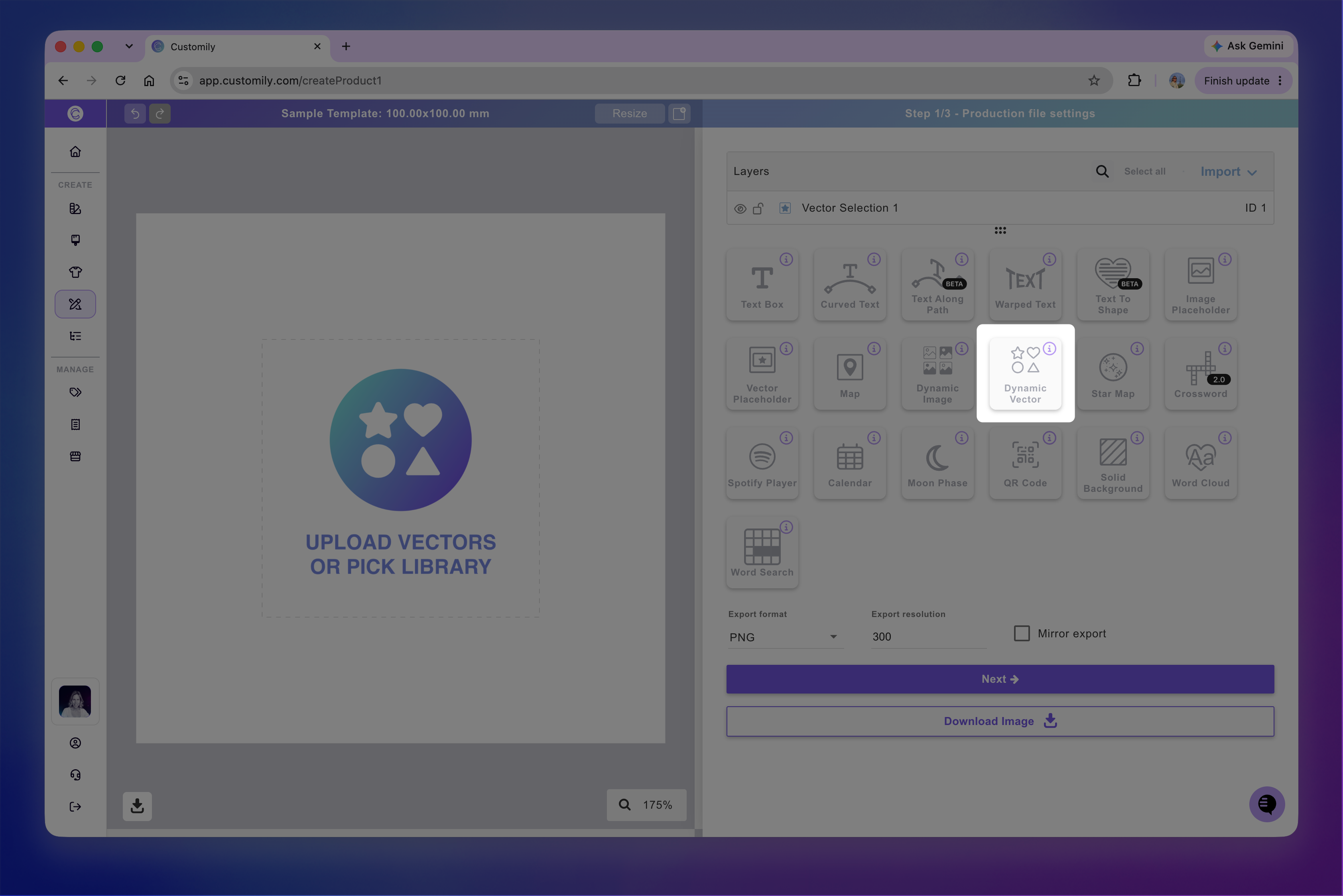
Each dynamic vector has a name you can edit and a unique ID to help you identify it.
How to add vector options
Dynamic vectors support EPS, PDF, and SVG files. You can upload vectors manually or select an existing Vector Library.
Tip
For best results, make sure your files contain vector artwork rather than embedded raster images. If your artwork includes text, convert it to outlines before uploading to avoid font compatibility issues.
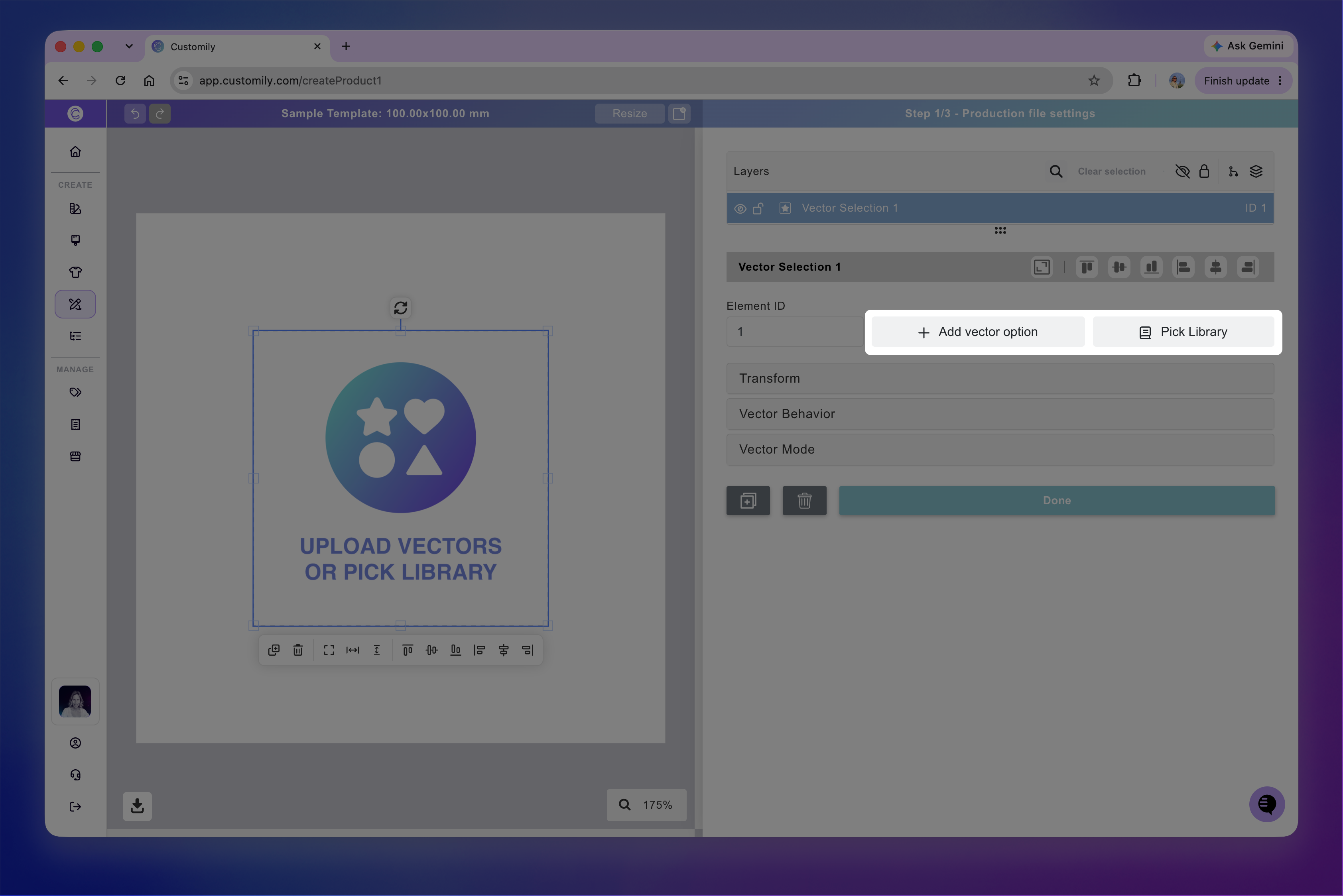
Add vectors manually
Select the dynamic vector element.
Click + Add Vector Option.
Select the EPS, PDF, or SVG files you want to upload.
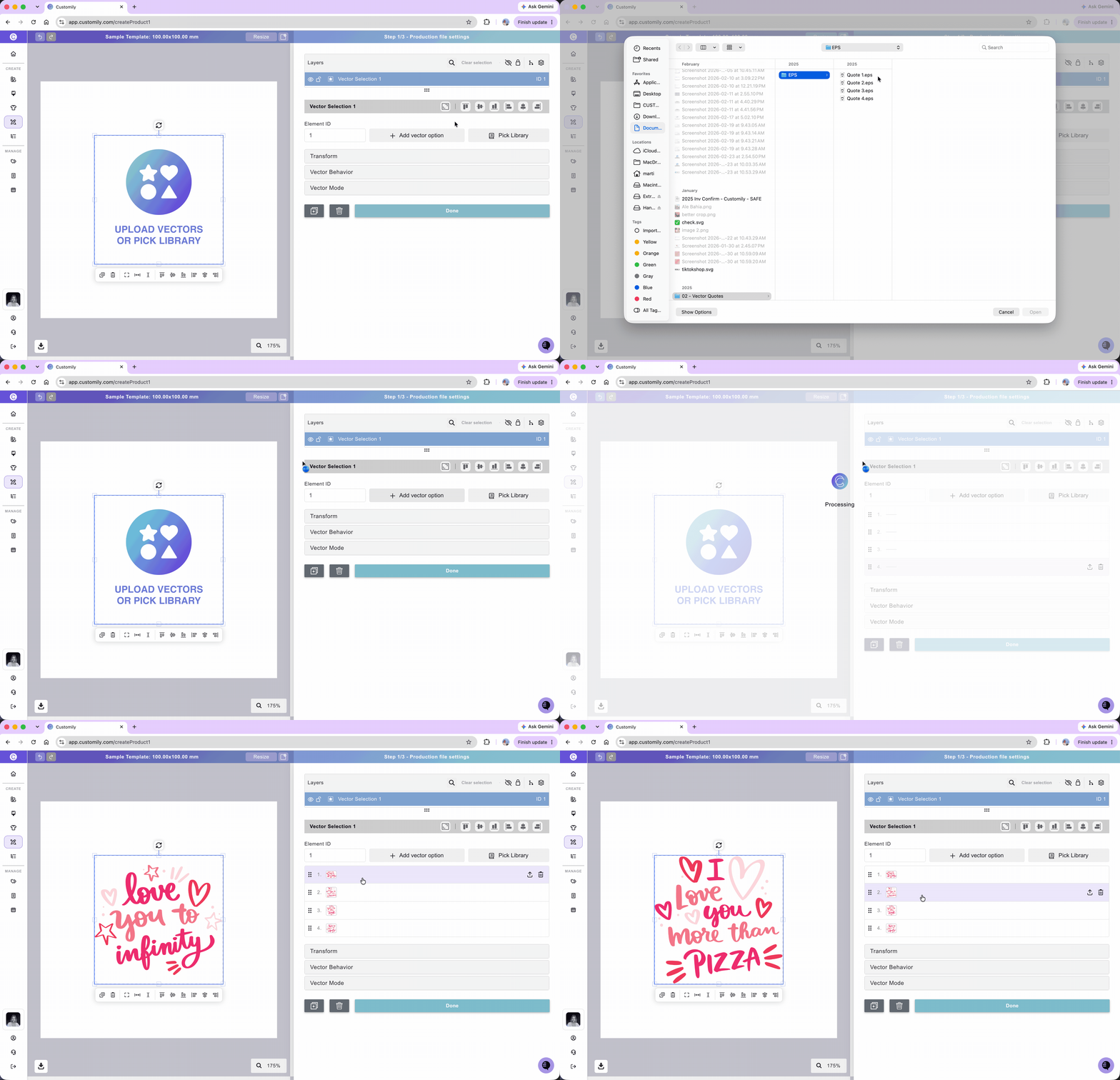
Each uploaded vector becomes an option. Click an option to preview how it looks in your design.
You can also:
Replace a vector: Click the upload icon next to the vector option and upload a new file.
Delete a vector: Click the trash icon next to the option.
Reorder vectors: Click and drag an option to change its position.
Add vectors with a Vector Library
If you've already created a Vector Library, you can use it to add multiple vector options at once.
Select the dynamic vector element.
Click Pick Library.
Choose the Vector Library you want to use.
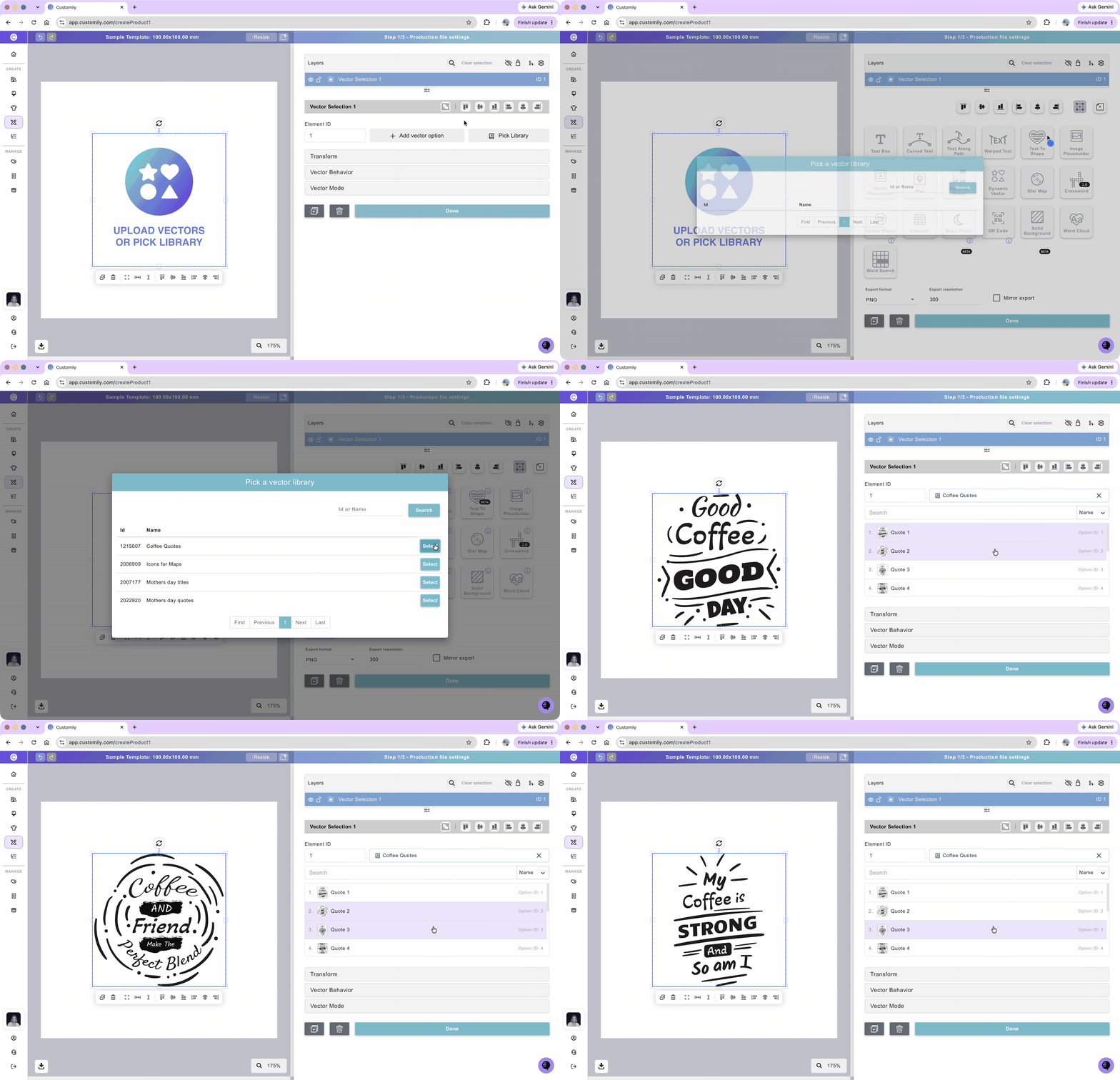
The vectors from your Library will appear as options in the dynamic vector. Click any option to preview it.
To change the order of vectors from a Library, edit the Library itself.
Tip
For the best results, prepare all your vector options with consistent dimensions and artwork placement. Dynamic vectors fit each uploaded vector into the same element area, so inconsistent sizes or proportions can cause unwanted changes when shoppers switch between options. See 📄 Prepare your clipart images for consistent sizing
How to move, resize, and transform the dynamic vector
You can move, resize, and rotate a dynamic vector directly on the canvas.
When you select a dynamic vector, a quick-action toolbar appears below it, with shortcuts to duplicate, delete, align, and distribute elements.
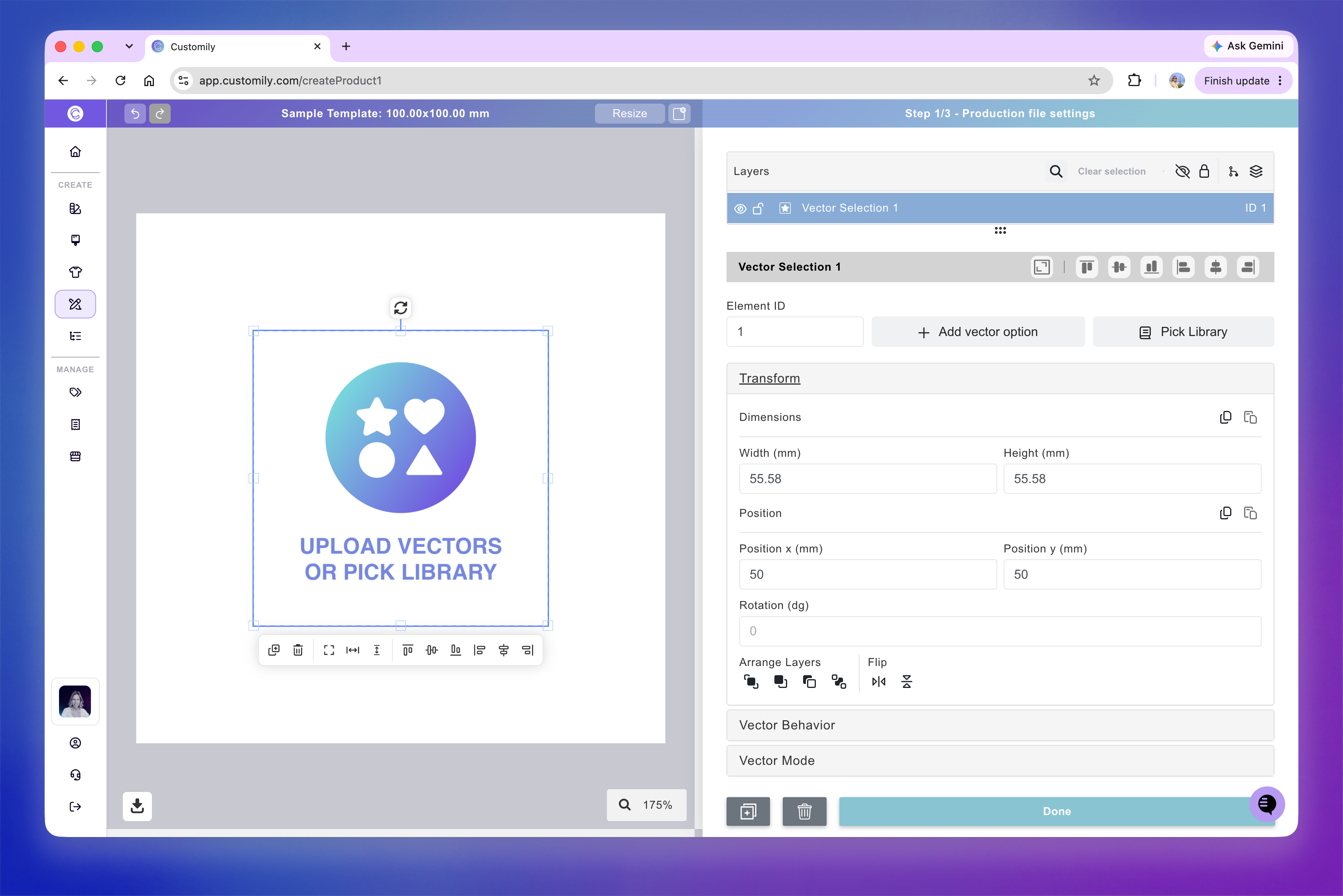
For more precise adjustments, expand the Transform toolbox. Use these controls to adjust the placeholder's position, rotation, size, skew, flip, and layer order.
Note
Transformations apply to every vector option within the dynamic vector. For example, rotating the element rotates all its vector options. If you need to adjust only one vector, edit that vector before uploading it.
Allow shoppers to move and resize the vector
You can let shoppers move and resize a dynamic vector during personalization, within an area you define.
This is useful when shoppers need to position clipart, arrange decorative elements, or adjust the placement of a graphic.
Enable movable vectors
Select the dynamic vector element.
Expand the Vector Behavior toolbox.
Enable the movable-vector setting.
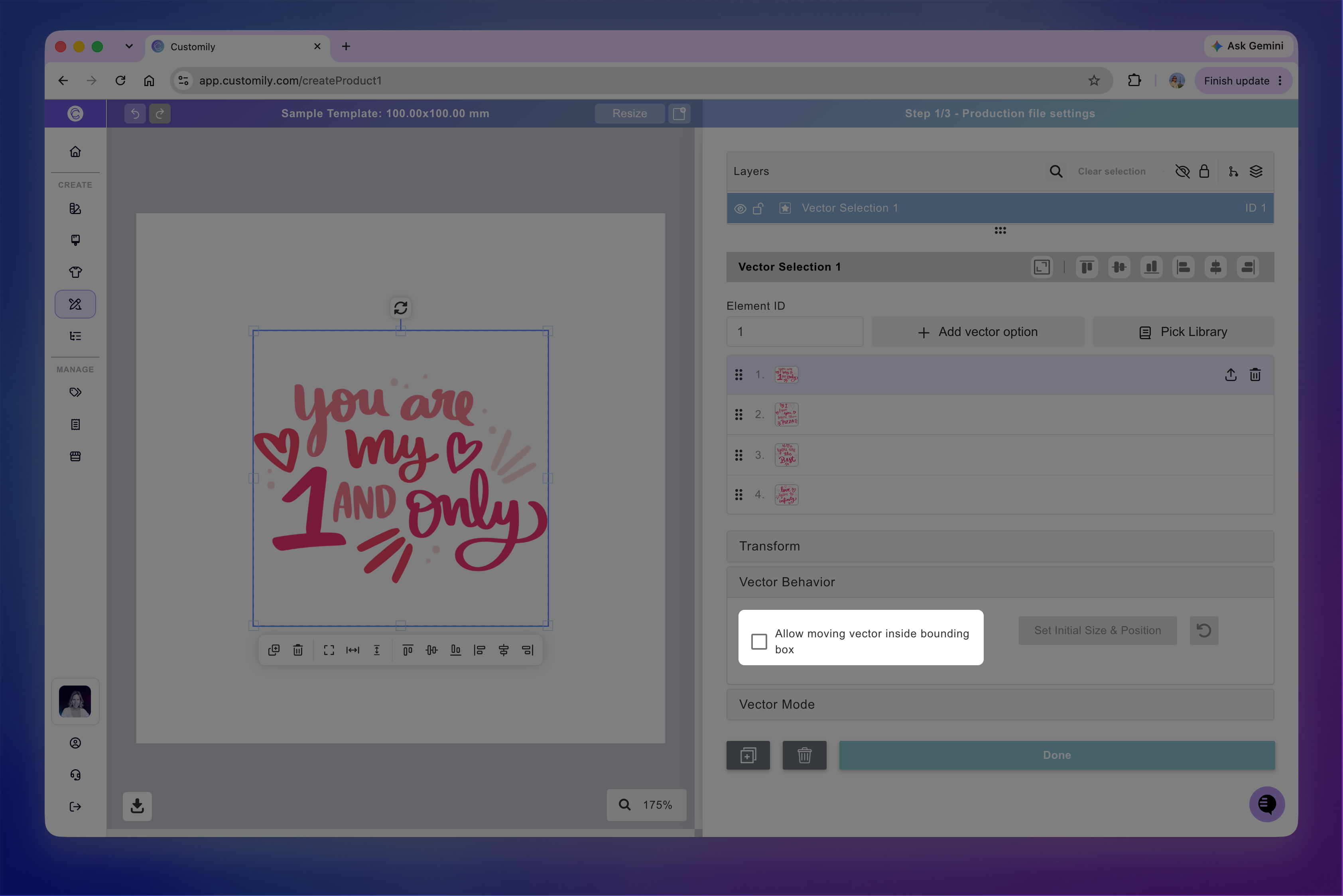
By default, the vector's bounding box defines the area where shoppers can move it. You can adjust these boundaries directly on the canvas or using the Transform toolbox.
You can also configure:
Limit Placement to Placeholder: Enabled by default. Keeps the vector within its bounding box. Uncheck it to allow shoppers to move the vector outside those boundaries.
Lock scaling: Prevents shoppers from resizing the vector while still allowing them to move it.
Set the initial size and position
When a vector is movable, you can define where it will appear and how large it will be before shoppers make any adjustments.
Select the dynamic vector element in your Template.
Expand the Vector Behavior toolbox.
Enable the movable-vector setting, if it isn't already enabled.
Click Set Initial Size & Position, if available.
Adjust the vector's starting size and position within the bounding box.
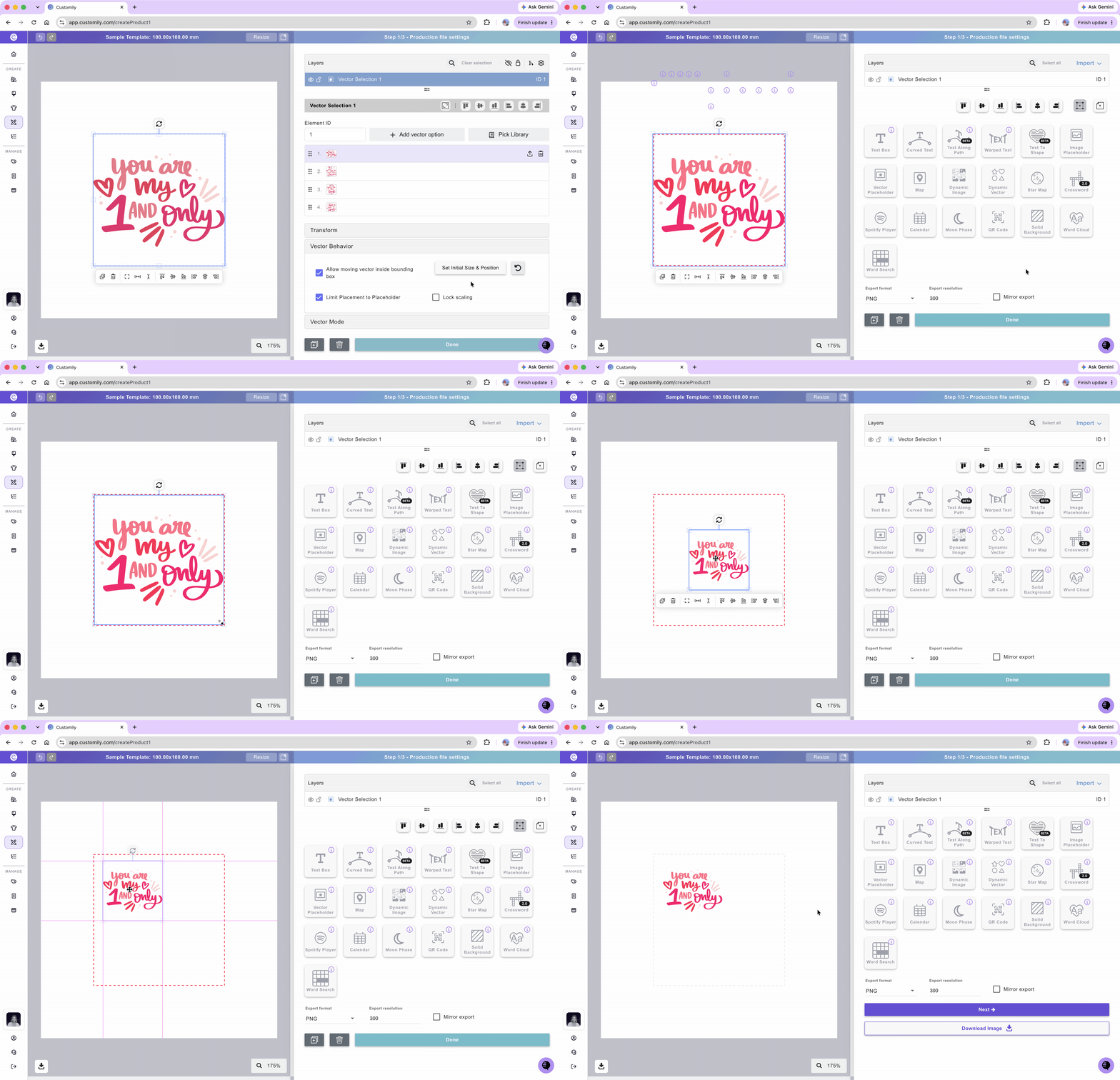
The bounding box defines the area shoppers can work within, while the initial size and position determine how the vector appears when personalization begins.
Note
Set Initial Size & Position is only available when editing a Template. You can enable movable vectors in both Designs and Templates, but the initial placement can only be configured in Templates.
How to change vector colors
Expand the Vector Mode toolbox to control how colors are applied to your dynamic vector.
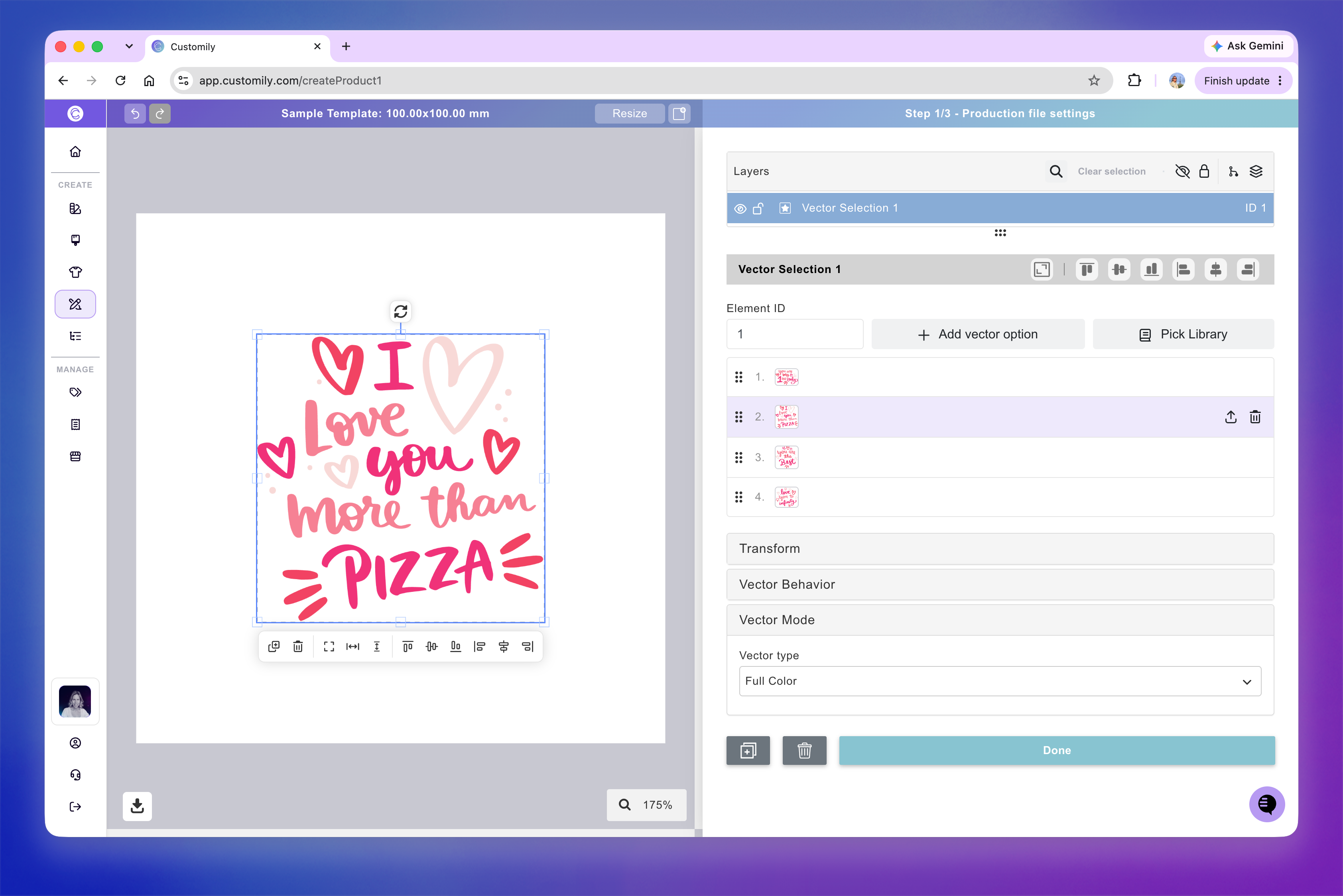
Full Color
In Full Color mode, vectors retain their original colors.
Single Color
In Single Color mode, vectors are converted into solid-color shapes. This is useful for monograms, silhouettes, engraving, or designs where shoppers can choose the artwork color.
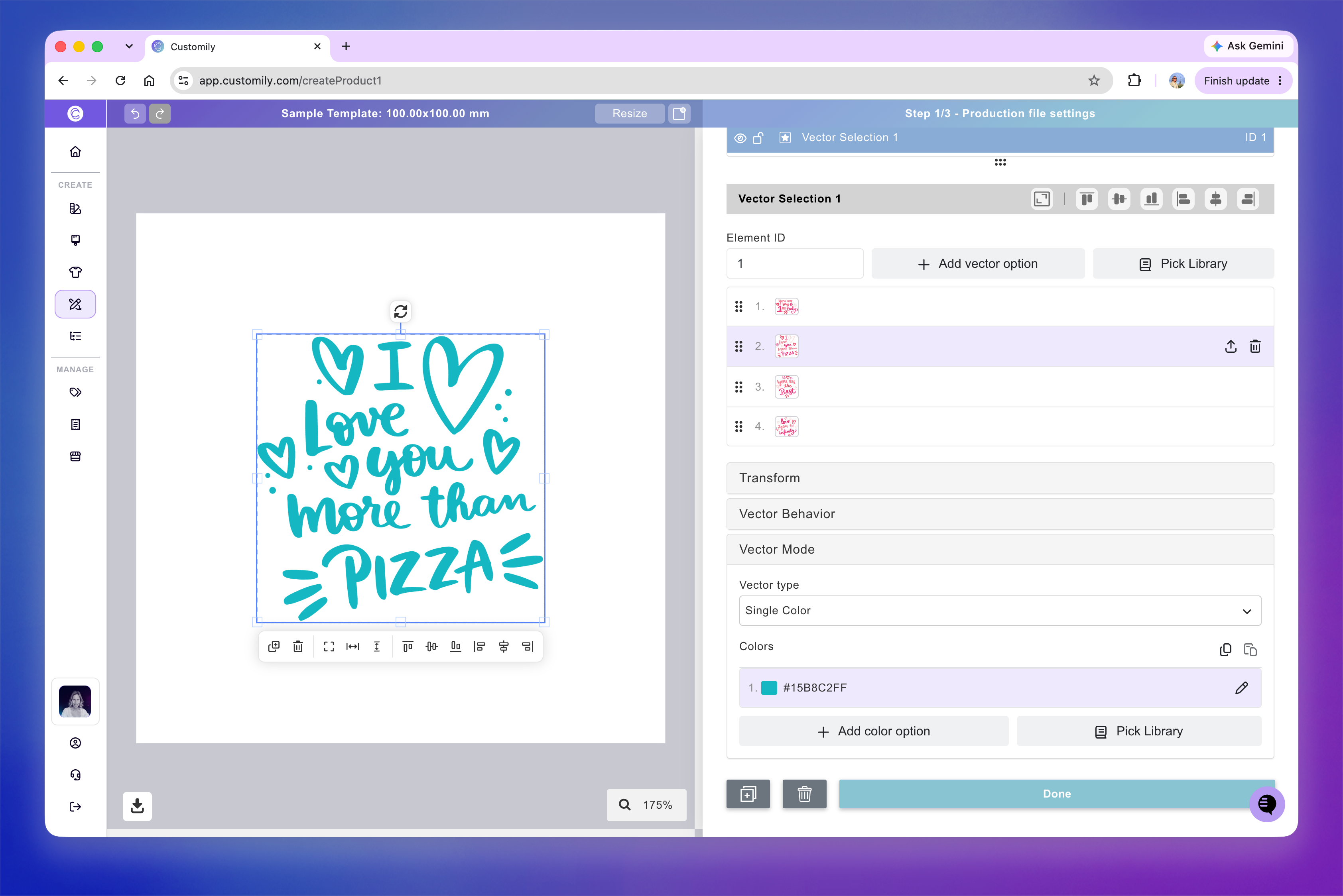
To apply a single color:
Select the dynamic vector element.
Expand the Vector Mode toolbox.
Select Single Color from the Vector Type dropdown.
Click the color swatch to choose a color.
Select a color using the color picker, or enter a HEX, RGB-A, or CMYK-A value (depending on your design's color mode).
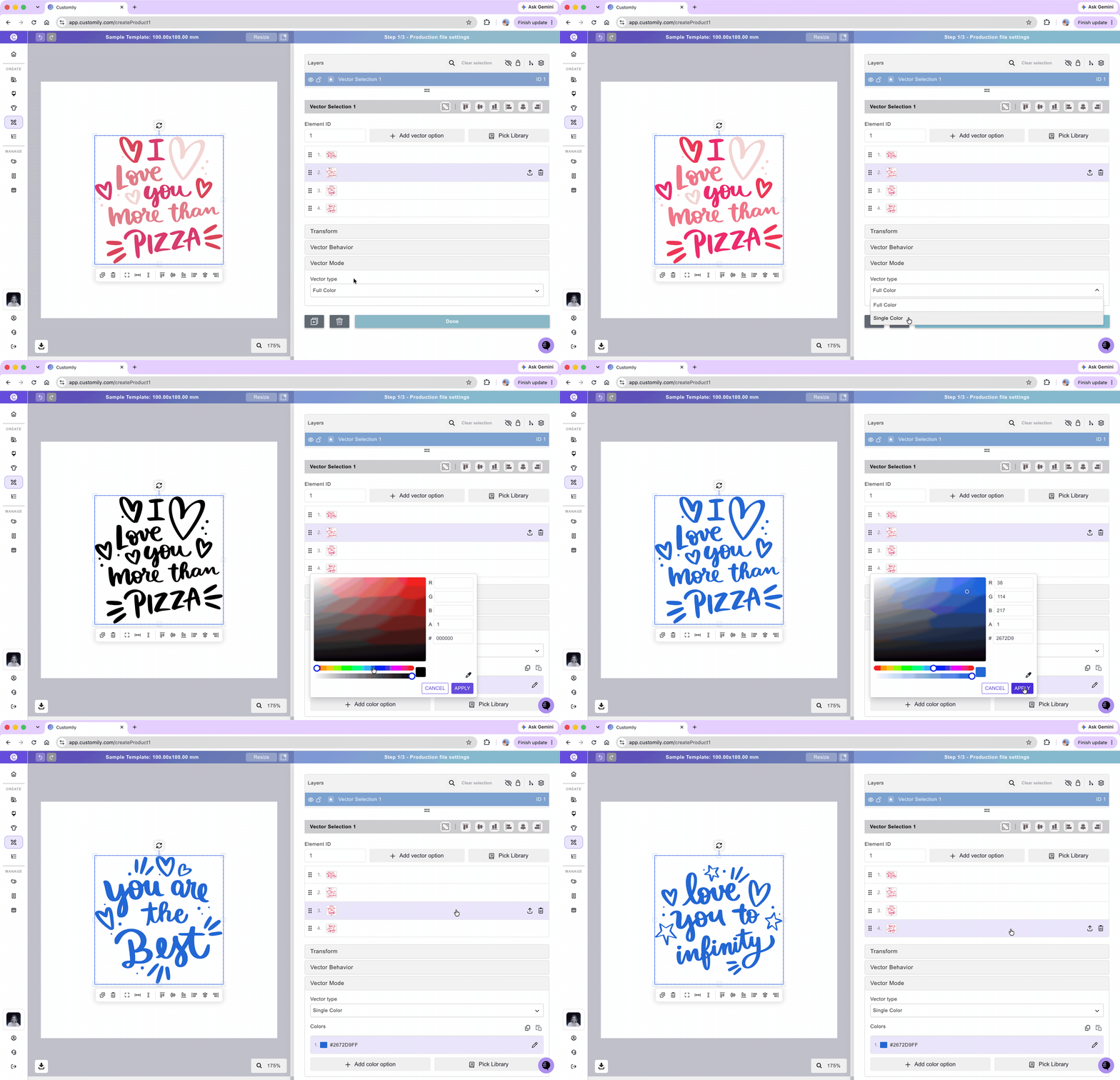
The selected color applies to all vector options within the dynamic vector.
Add multiple color options
You can offer shoppers different colors for your vector artwork.
Click Add color option to add colors manually.
Click Pick Library to use an existing Color Library.
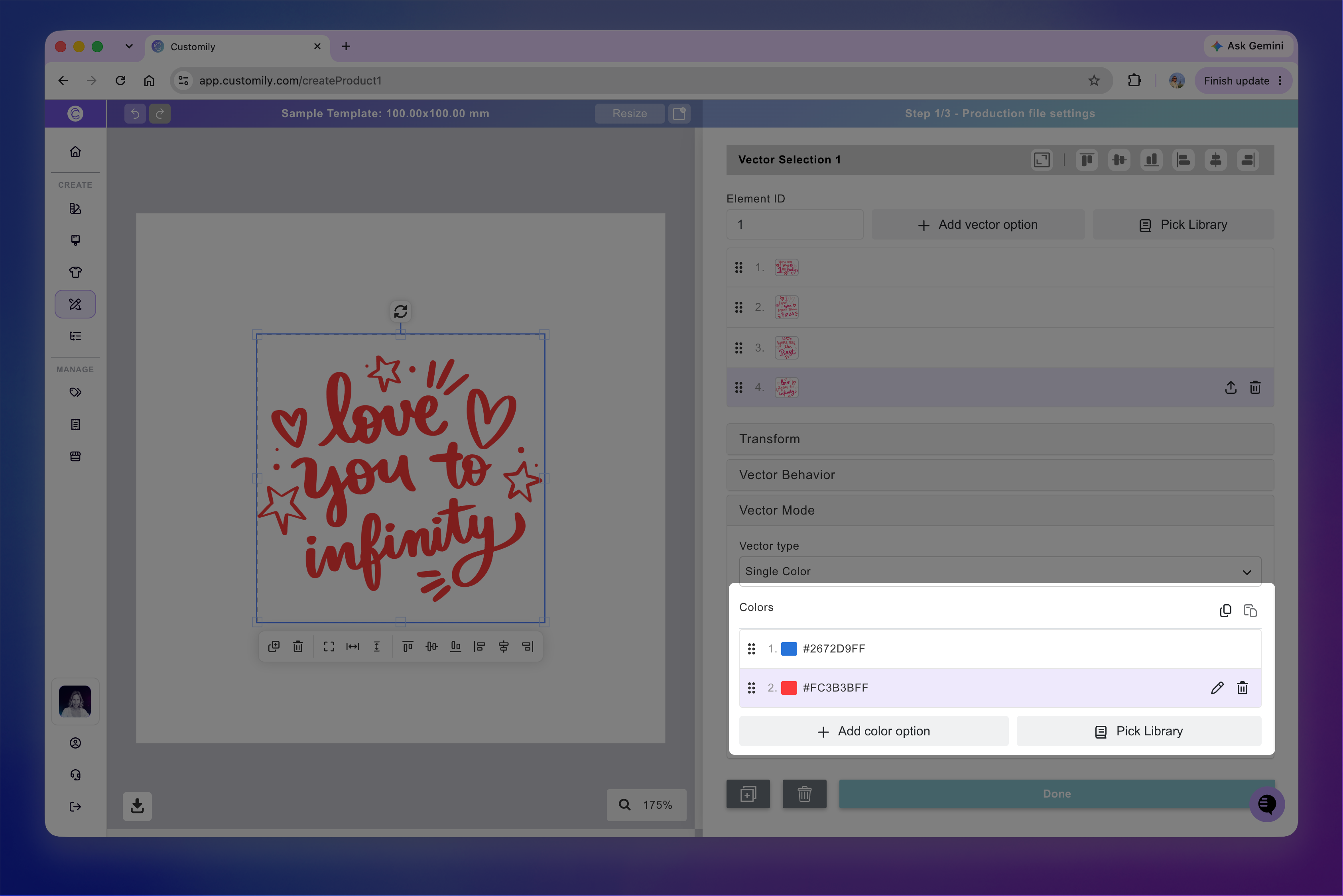
For detailed instructions, see 📄 Add multiple color options to vectors
Allow swapping choices with other vectors
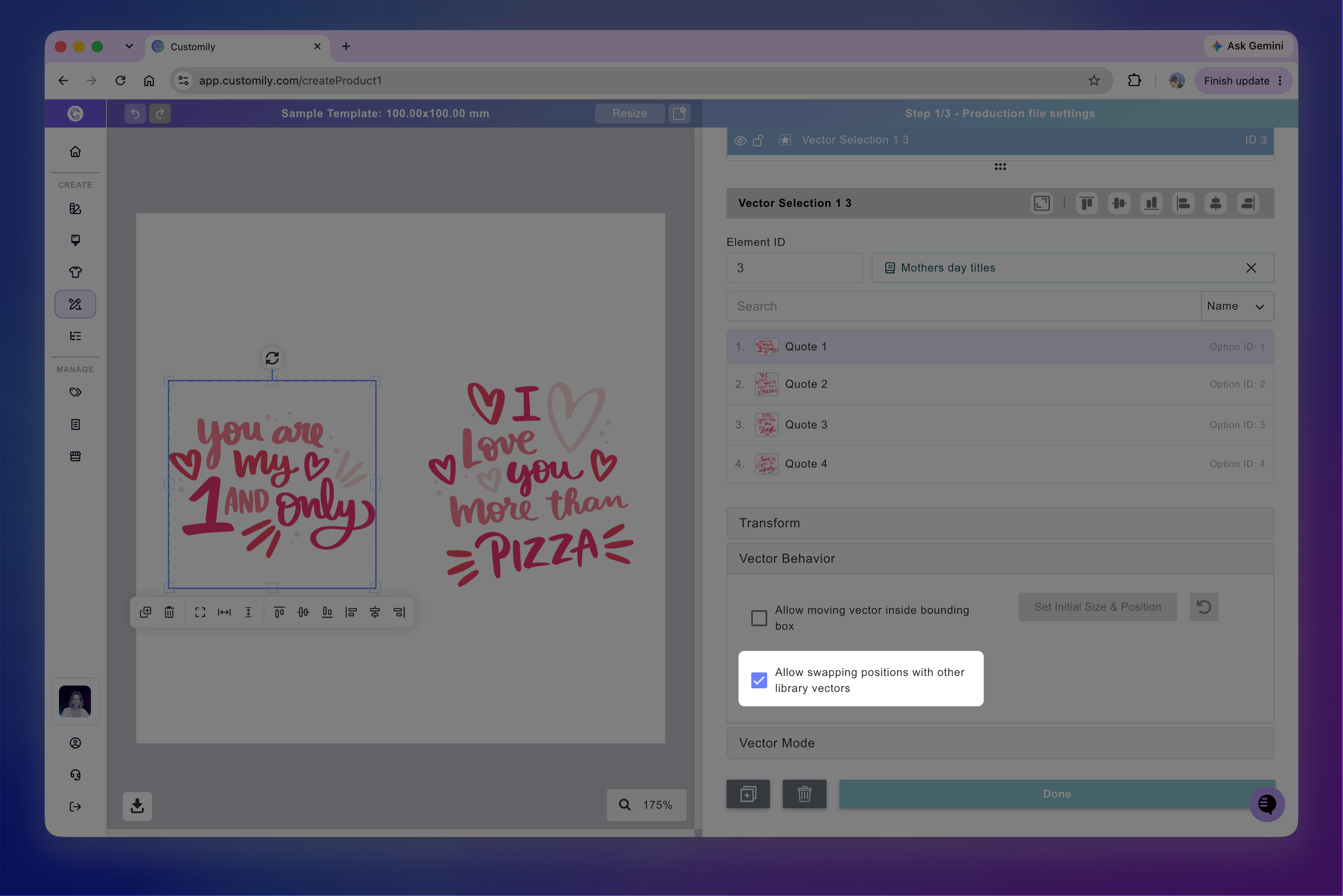
When two or more dynamic vectors use the same Vector Library, you can let shoppers swap their selected choices by dragging one vector onto another in the product preview.
For example, if a shopper selects a dog for one element and a cat for another, they can drag the dog onto the cat to swap their choices quickly on the preview.
To enable this:
Select a dynamic vector connected to a Vector Library.
Expand the Vector Behavior toolbox.
Enable Allow swapping positions with other library vectors.
Select another dynamic vector using the same Vector Library and repeat the steps.
Note
You must enable this feature on at least two dynamic vectors using the same Vector Library for swapping to work.