Make personalization optional
Last updated: September 24, 2026
Enable Make personalization optional when you want shoppers to choose whether or not to personalize a product.
Instead of showing the personalization experience by default, shoppers first choose between Personalize and Add to Cart. The personalization options only appear if they choose Personalize.
Important
If you sell products connected to Customily both personalized and as-is, use Make personalization optional to avoid Customily transaction fees on orders that aren't personalized. Shoppers who choose Add to Cart without personalizing don't interact with Customily, so no transaction fee is charged.
Why use Make personalization optional?
You could offer a personalized/non-personalized choice in other ways, such as using a variant or a Customily option. However, with those methods, shoppers interact with Customily even when they choose the non-personalized version, so the transaction fee still applies.
Make personalization optional keeps Customily out of the shopping flow unless the shopper chooses Personalize. For products you sell both personalized and as-is, this is the recommended way to offer both choices.
Enable optional personalization
Go to Store Settings.
Open Preview Behavior.
Select Modal Preview or Product Page Preview as your Preview Style.
Under Personalization Style enable Make personalization optional.
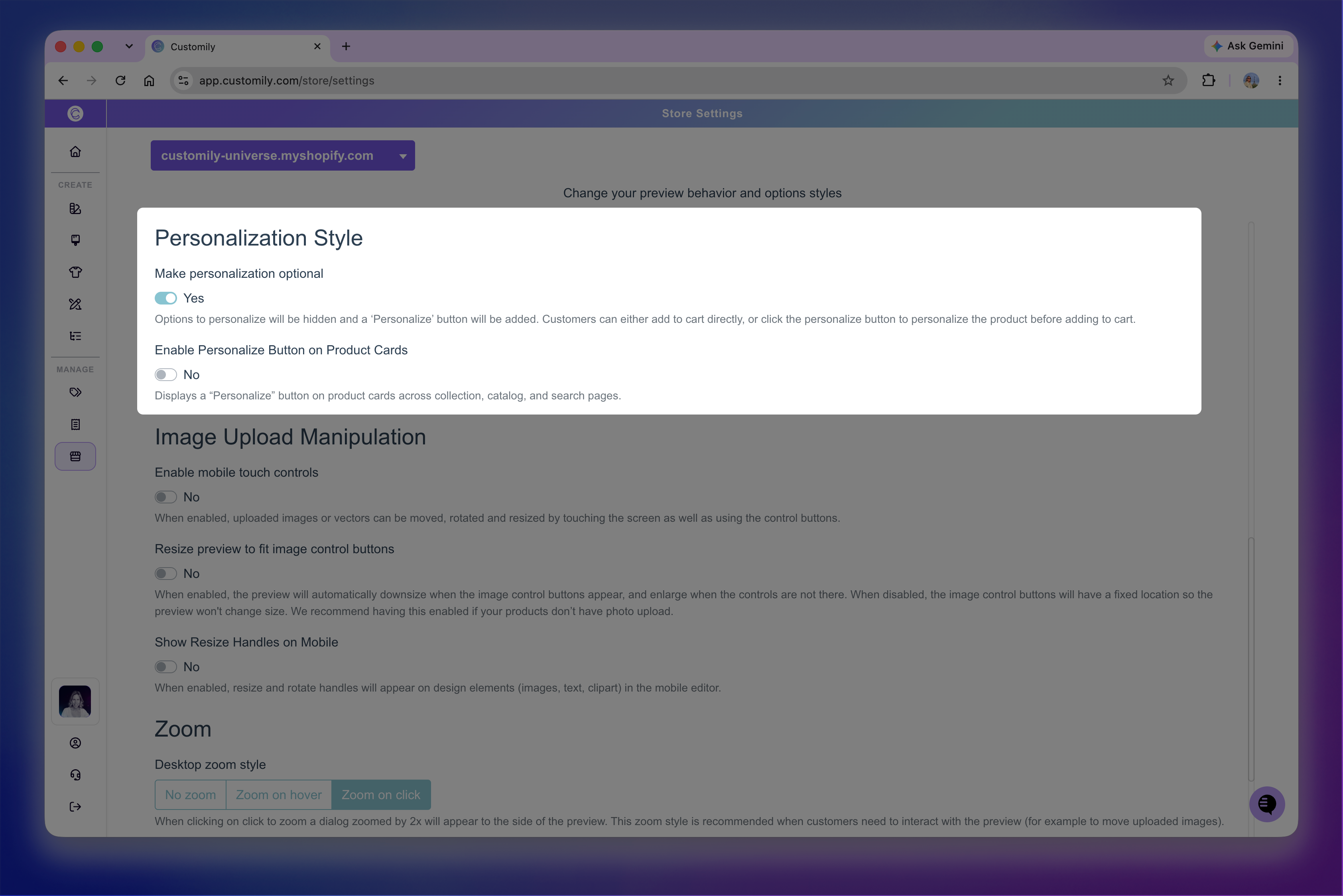
Note
Make personalization optional isn't available when using Show Preview Button as your Preview Style.
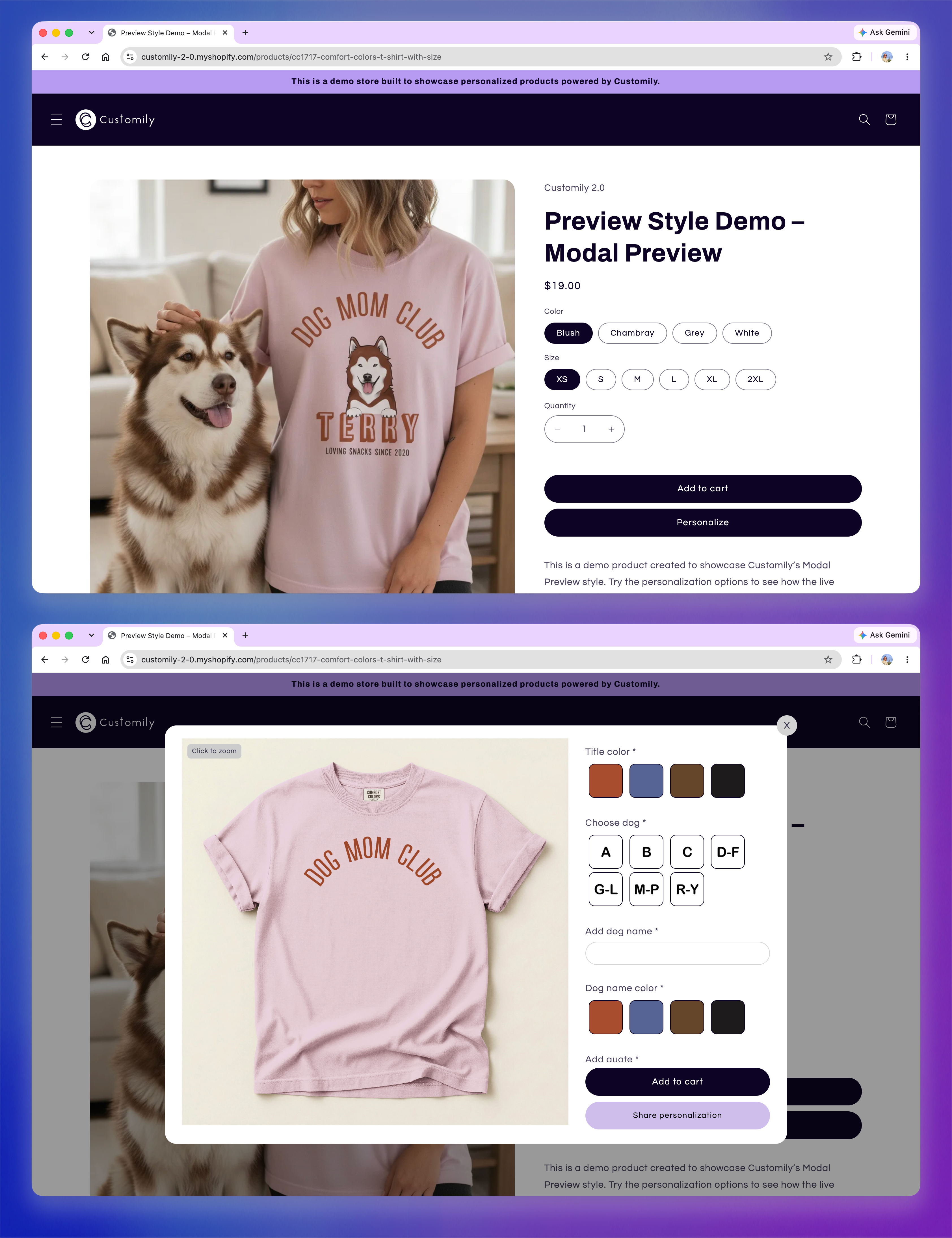
With Modal Preview
Normally, Modal Preview displays only a Personalize button on the product page. Shoppers need to select it to open the personalization modal, where they'll find the personalization options and Add to Cart button.
When Make personalization optional is enabled, an Add to Cart button is also displayed directly on the product page.
Shoppers can then choose to:
Select Personalize to open the modal and customize the product. To purchase the personalized product, they must use the Add to Cart button inside the modal.
Select Add to Cart directly from the product page to skip personalization and add the product as-is.
Keep in mind
If a shopper personalizes the product, closes the modal, and then selects Add to Cart from the product page, the product will be added without personalization. To add the personalized version, they must use Add to Cart inside the modal.
With Product Page Preview
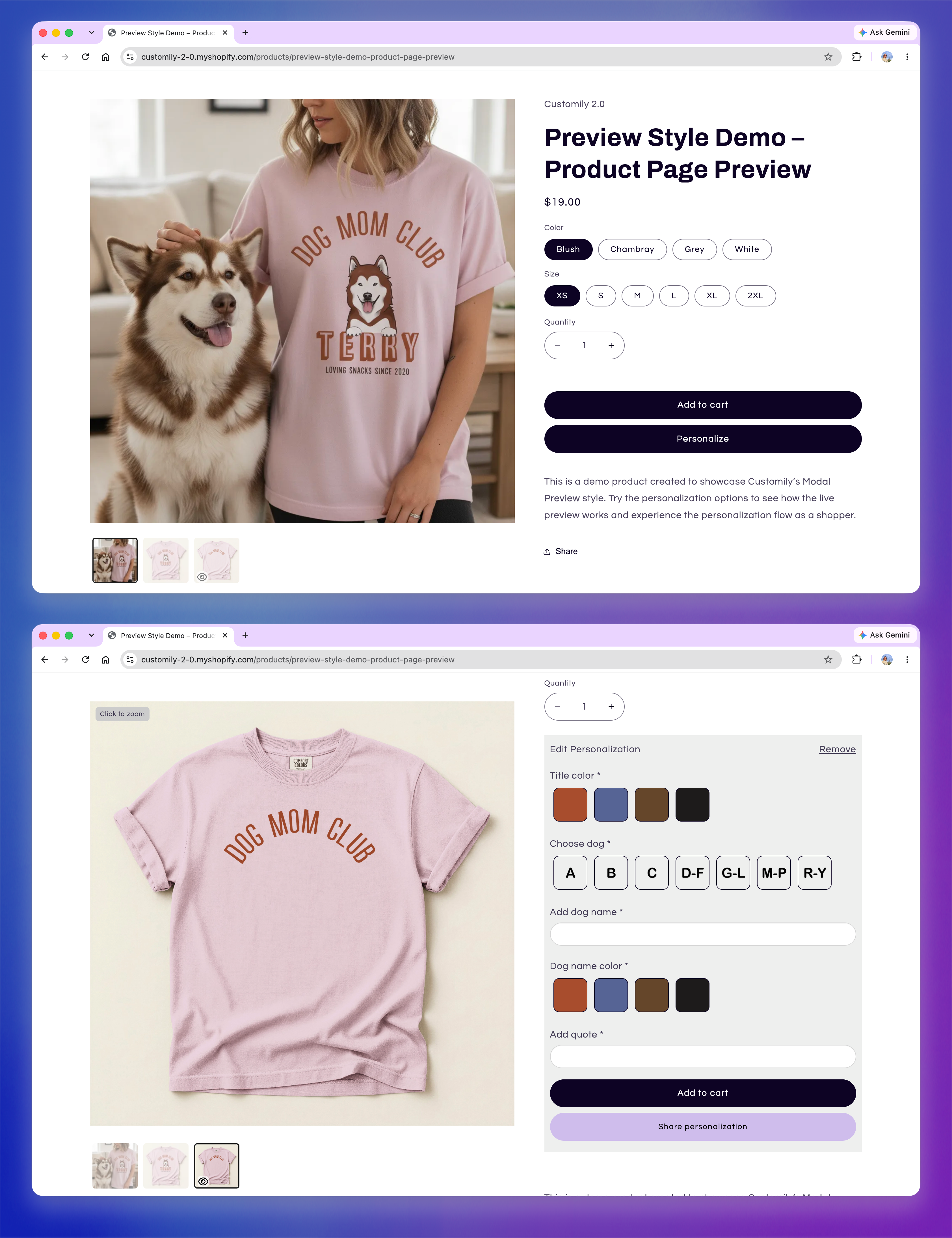
Normally, Product Page Preview displays the personalization options directly on the product page alongside the live preview and Add to Cart button.
When Make personalization optional is enabled, the personalization options are hidden initially. Instead, shoppers see Personalize and Add to Cart.
If they select Personalize, the personalization form appears directly on the product page and the live preview is displayed in the product gallery.
Tip
You can customize the background color, header text, and Remove text displayed with optional personalization from Store Settings → Styles.
Show a Personalize button on product cards
When Make personalization optional is turned on, an additional setting, Enable Personalize Button on Product Cards, becomes available.
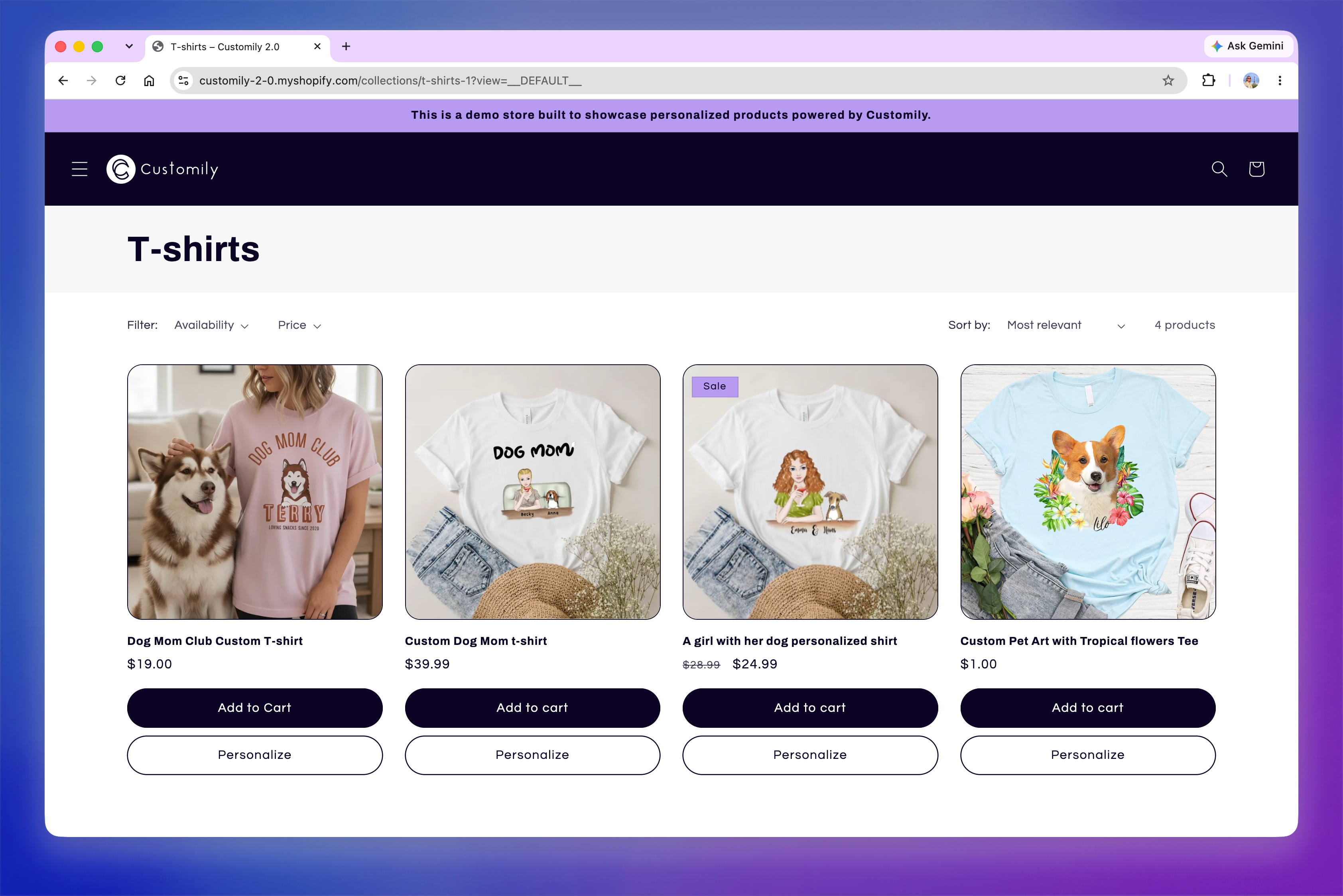
Turn on Enable Personalize Button on Product Cards to display a Personalize button on product cards across collection, catalog, and search pages.
When shoppers select Personalize, they're taken directly to the product page with personalization already started:
With Modal Preview, the personalization modal opens automatically.
With Product Page Preview, the personalization options are already expanded.
This skips the initial Personalize or Add to Cart choice on the product page, letting shoppers go directly from the product card into the personalization experience.
Tip
You can customize the appearance of the Personalize button using Edit Button Styles under Store Settings → Styles.
Set up the Personalize button
To display the button on your product cards:
Go to Store Settings > Preview Behavior and make sure Make personalization optional is enabled
Turn on Enable Personalize Button on Product Cards
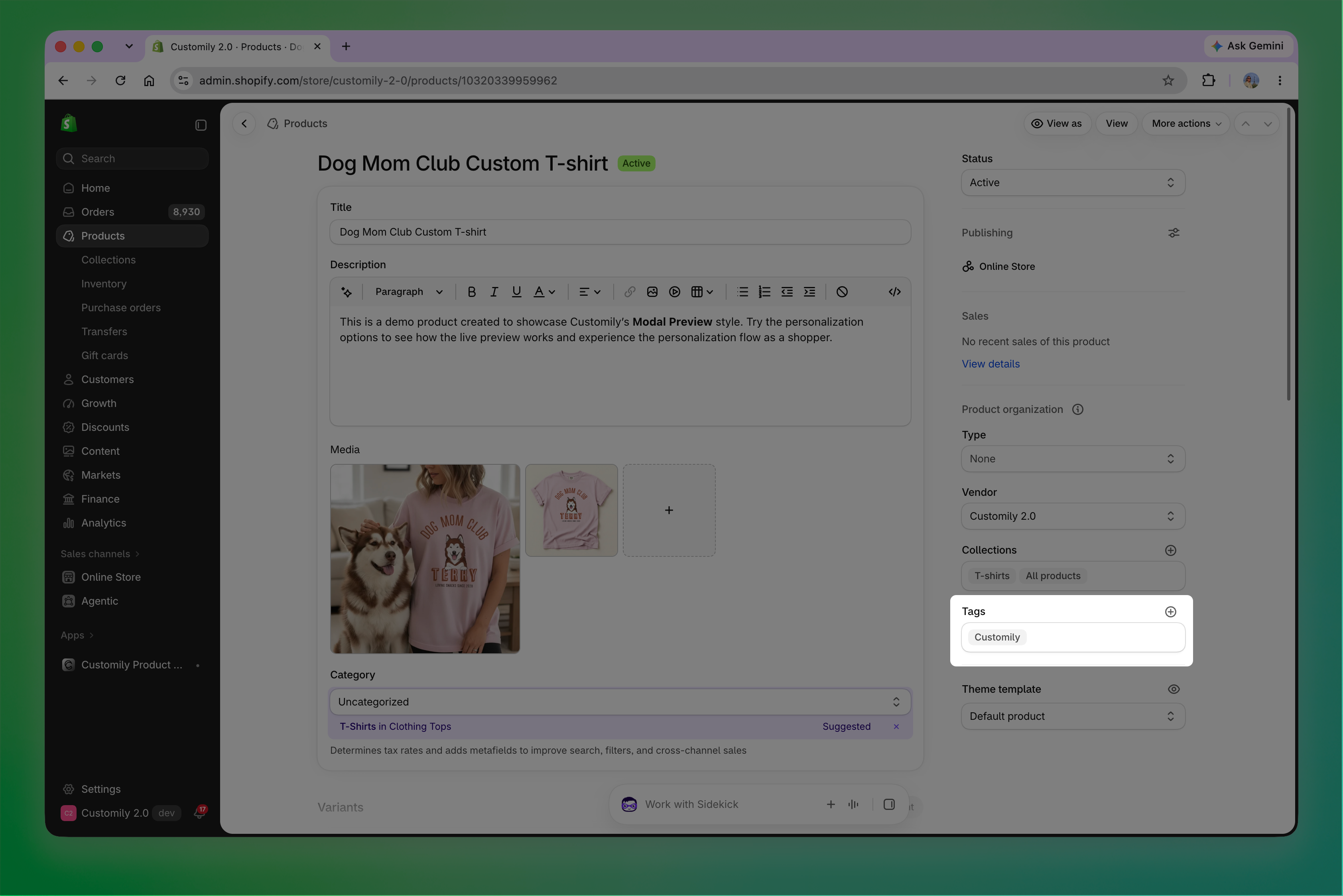
On Shopify, add Customily as a tag to each product where you want the Personalize button to appear.
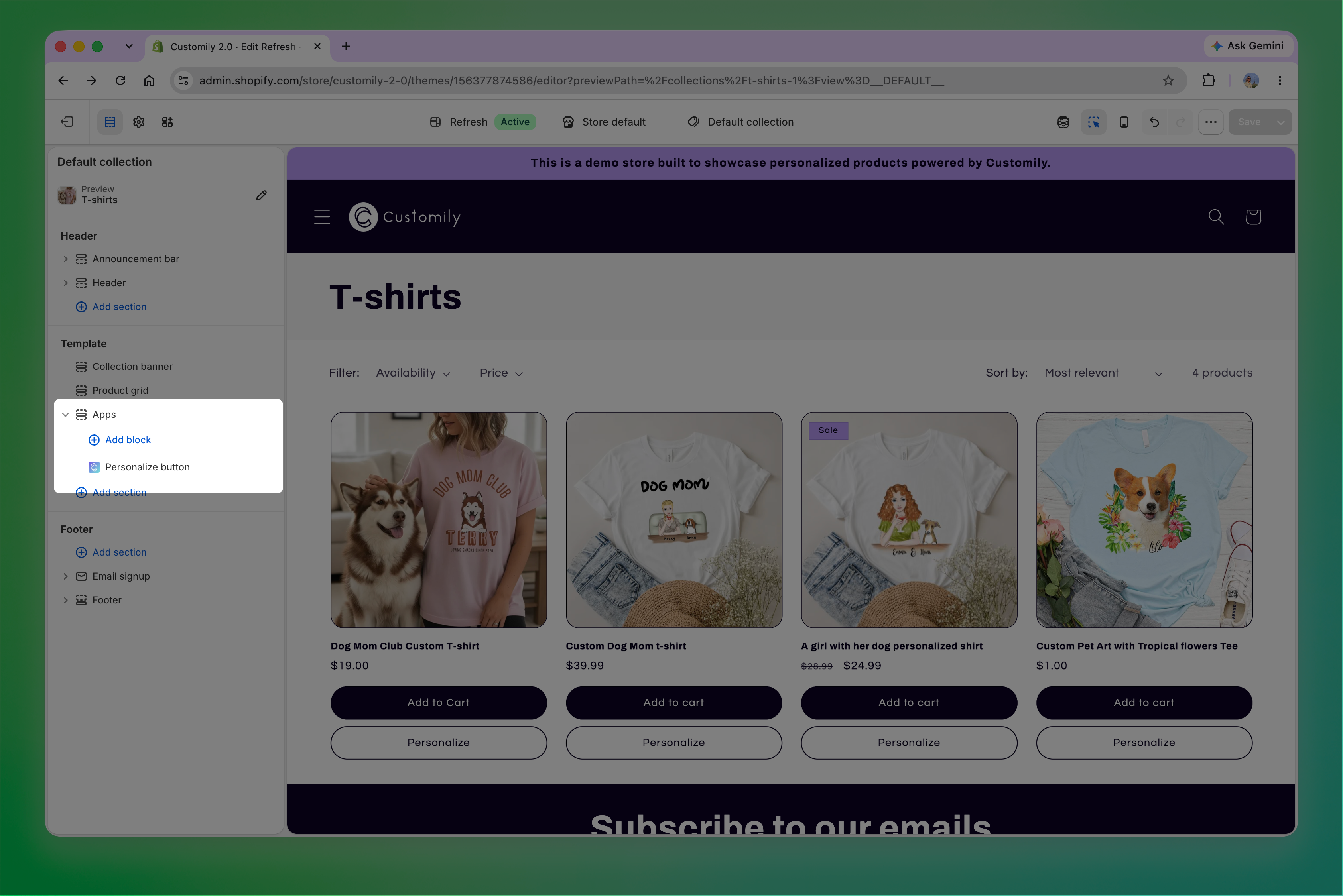
Open the Shopify theme editor, navigate to the page where you want to add the button, such as collections, and add the Personalize Button app block.
Tip
If your Shopify theme doesn't support app blocks on collection pages, you'll need to add the required code to your theme. Contact our team for instructions.