Standalone modal iframe integration
Last updated: October 16, 2026
Integrate Customily into any ecommerce platform using a modal iframe. In this approach, the entire personalization experience, including the live preview and option set form, runs inside a single iframe hosted by Customily. This is the recommended integration method for most custom ecommerce platforms.
Important: API integrations require a compatible plan
Our standard $49/month plan does not support API integrations. You'll need to upgrade to an API-compatible plan to use this integration.
Contact our support team for more information at support@customily.com.
How it works
This integration consists of three steps:
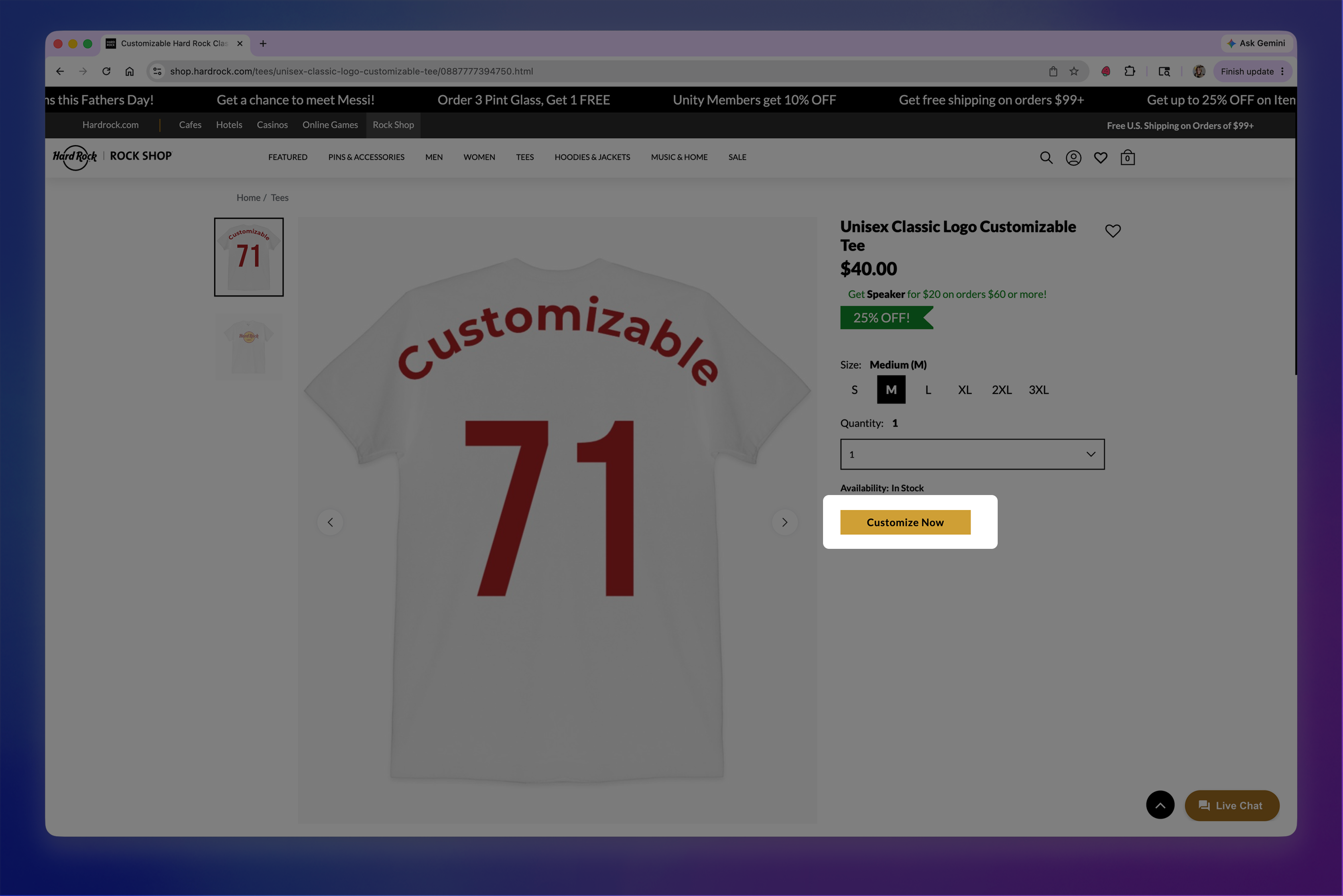
The shopper clicks a Customize button on your product page.
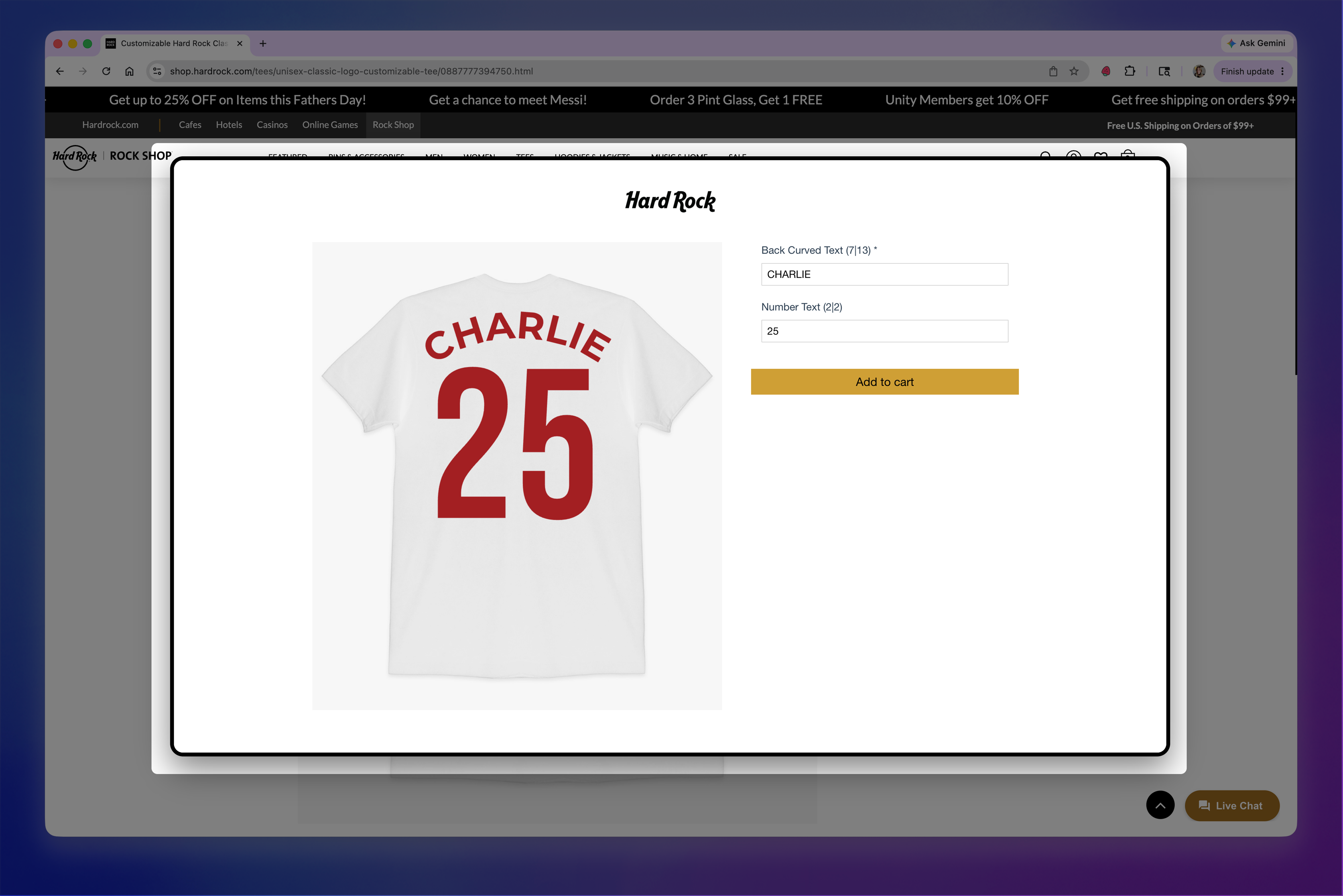
A modal opens displaying the full Customily personalization experience inside an iframe.
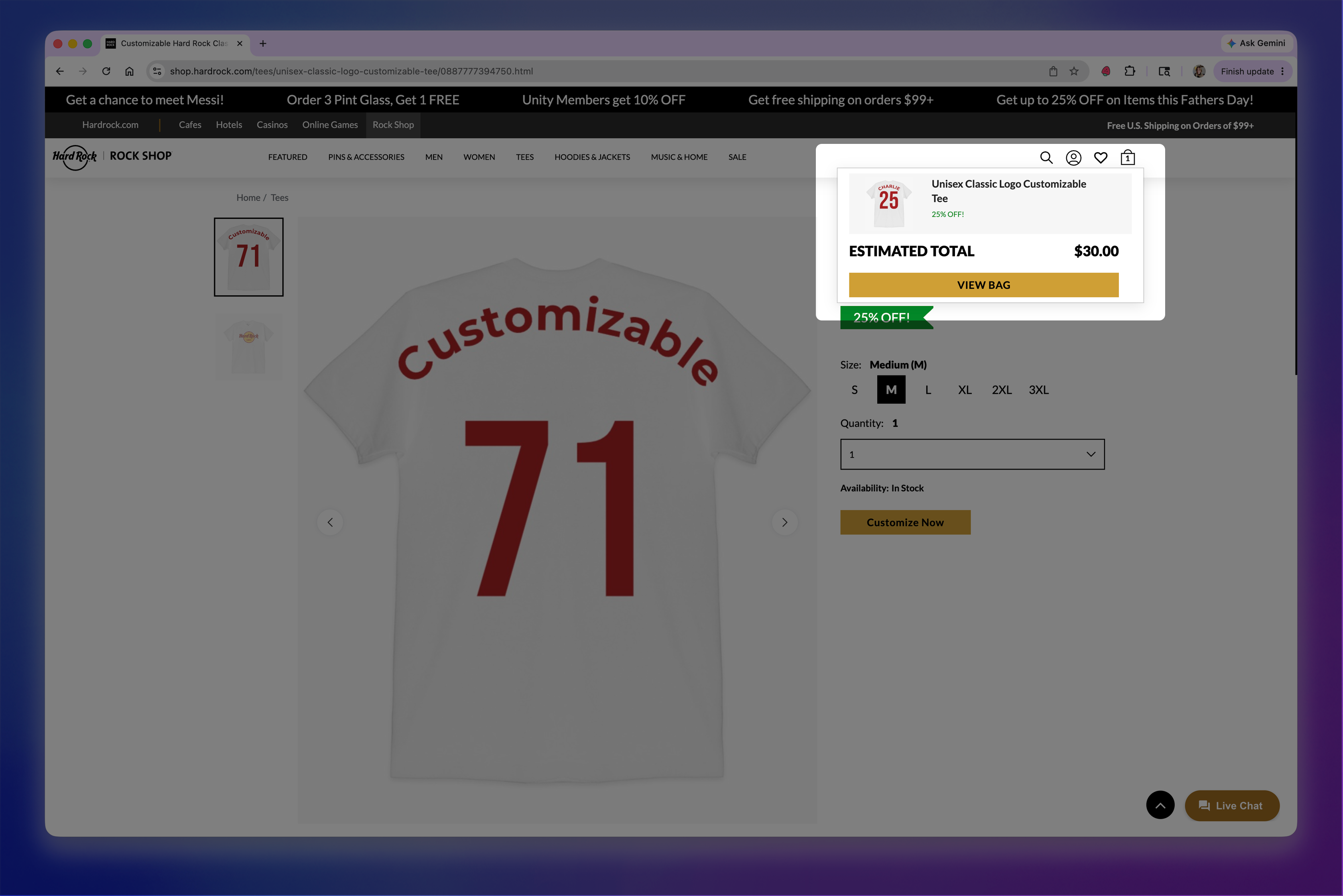
When the shopper clicks Add to Cart, the personalization data is sent back to your platform.
Step 1: Product Page with a Customize Button
The merchant's product page includes a Customize button. This is a regular HTML button — Customily does not inject anything into the page automatically.
Step 2: Shopper Clicks "Customize" — Modal Opens with Customily Iframe
When the shopper clicks the button, a modal opens containing the full Customily personalization experience inside an iframe. The iframe renders both the live product preview (canvas) and the option set form (text inputs, dropdowns, image uploads, etc.) — no additional scripts or setup required on the host page. The shopper interacts with the Customily UI — typing text, choosing fonts, uploading images, etc. The live preview updates in real time.
Step 3: Shopper Clicks "Add to Cart" — Personalization Data Sent to Parent Page
When the shopper clicks "Add to Cart", Customily sends the personalization details to the parent page via postMessage, including a CDN-hosted thumbnail of the personalized product. The parent page can store this data along with the rest of the order details in their platform's cart.
Implementation
Now that you've seen how the integration works, the next step is to implement it on your storefront. This involves creating a personalization link for each product, capturing the personalization data when the shopper adds the item to the cart, and generating the production files after checkout.
Create the Customily Personalization Link
The Customily personalization link is used as the src of the iframe. It has the following format:
https://preview-2.customily.com/productViewer?template={TEMPLATE_ID}&set={OPTION_SET_ID}&shop={STORE_URL}Parameter | Description |
|---|---|
| The template GUID from Customily |
| The option set GUID from Customily |
| Your store identifier (e.g. |
For example:
https://preview-2.customily.com/productViewer?template=0313370a-e3d1-4b88-8640-f1027a78235d&set=53b7ddcc-880d-4303-a495-0338e1388ca2&shop=standalone.customily.comYou can create this URL in the Customily dashboard as shown here
Pro tip
Add a "Customily Link" field to your admin product details page. This is the way to connect a product from your e-commerce platform to a personalization link on Customily — non-technical team members can simply copy-paste the link from the Customily dashboard without touching code.
Capture Personalization Data
When the shopper clicks "Add to Cart" inside the iframe, Customily sends a postMessage to the parent window with the personalization payload. Listen for this message and use the data to add the item to your platform's cart:
window.addEventListener('message', (event) => {
    const data = event.data;

    // Check that this is a Customily add-to-cart event
    if (data?.action !== 'add-to-cart') return;

    // data contains:
    // - personalizationGUID: unique ID for this personalization
    // - previewUrl:          CDN URL of the personalized preview image
    // - exportedFiles:       array of production file URLs
    // - options:             array of { name, value, type } objects — the options selected by the shopper
    // - quantity:            number of items

    console.log('Personalization GUID:', data.personalizationGUID);
    console.log('Preview image:', data.previewUrl);
    console.log('Options:', data.options);

    // Add the item to your platform's cart. You'll need to pass at least the personalizationGUID
    addItemToYourCart({
        productId: 'your-platform-product-id',
        personalizationId: data.personalizationGUID,
    });

    // Close the modal
    document.getElementById('customily-modal').style.display = 'none';});
Note
You can add more attributes to your cart item such as exportedFiles, options, etc. This may save you an API call later. But make sure you hide them from the shopper as it may be confusing for them to see all that info in their cart.
Pro tip
Use the previewUrl as the cart item thumbnail. This helps shoppers confirm that the personalized product they created is the one they added to the cart.
Generate Production Files After Checkout
The URLs in the exportedFiles array from the postMessage payload are placeholders — the actual production file won't be available at those URLs until you explicitly trigger generation. If you try to open the URL before calling the generate endpoint, you'll see this:
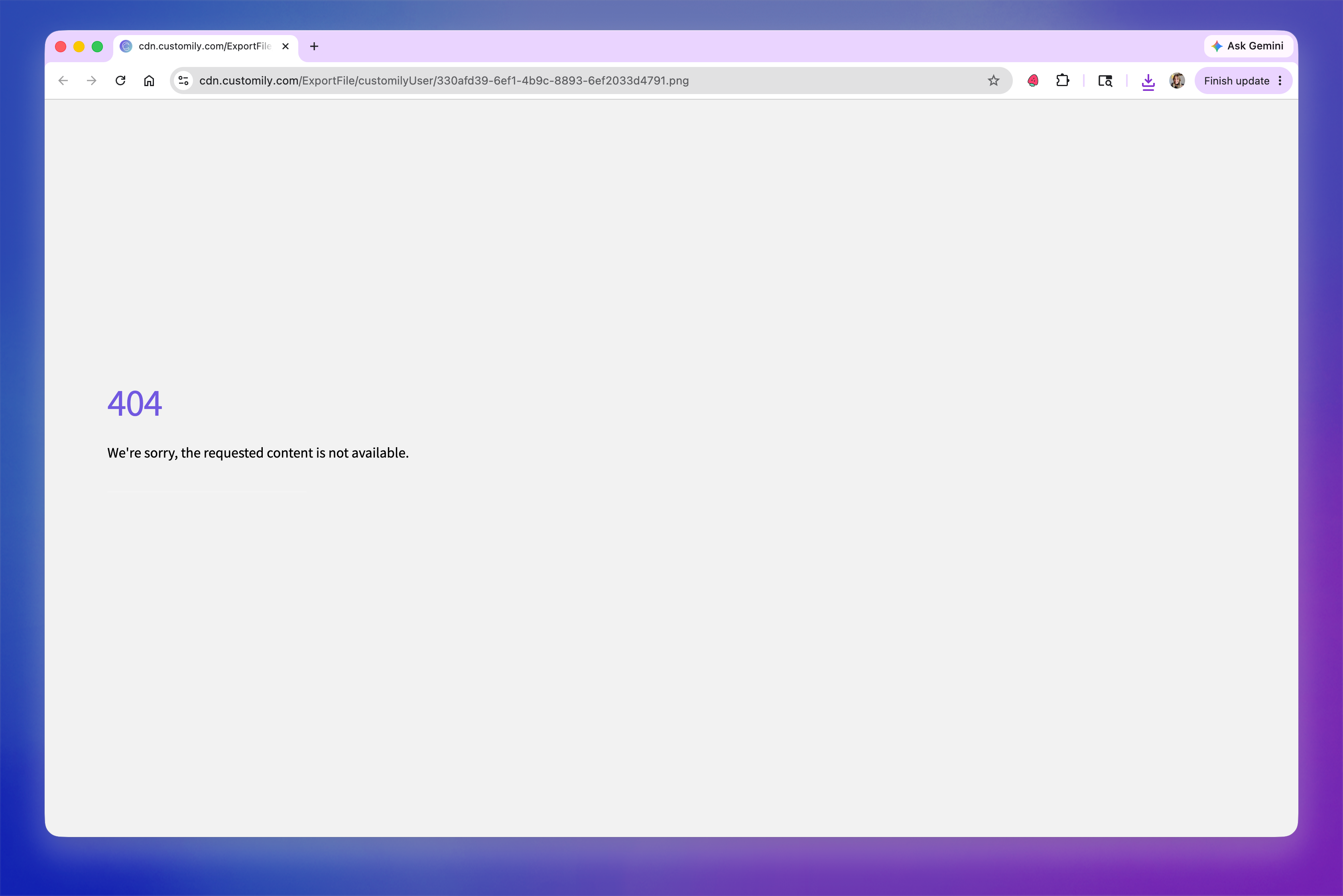
This is by design: since Customily charges per production file generated and there's no way to know whether a shopper will actually complete checkout, production files are only created on demand to avoid unnecessary costs for items that are added to the cart but never purchased.
You should call this endpoint after the shopper has checked out (i.e., after payment is confirmed), not when the item is added to the cart.
Call the /standalone/item/generate endpoint with the production file URL and a JWT token for authentication:
POST https://sh.customily.com/api/standalone/item/generate
Authorization: Bearer <JWT_TOKEN>
Request body:
{
    "url": "https://cdn.customily.com/ExportFile/customilyUser/330afd39-6ef1-4b9c-8893-6ef2033d4791.png",
    "shop": "standalone.customily.com"
}
Field | Type | Required | Description |
|---|---|---|---|
| string | Yes | The production file URL from |
| string | Yes | Your store identifier |
| string | No | Optional order reference from your platform |
Response: 200 OK — "File generated successfully"
Important
The url must be hosted on a *.customily.com domain.
See Authentication for how to obtain the JWT token.
Complete example
<!DOCTYPE html><html lang="en"><head>
    <title>Product Page</title>
    <style>
        .modal {
            display: none;
            position: fixed;
            top: 0; left: 0;
            width: 100%; height: 100%;
            background: rgba(0, 0, 0, 0.7);
            z-index: 9999;
            justify-content: center;
            align-items: center;
        }
        .modal.active { display: flex; }
        .modal-content {
            position: relative;
            background: #fff;
            border-radius: 8px;
            width: 90%;
            max-width: 1200px;
            height: 85vh;
            overflow: hidden;
        }
        #customily-iframe {
            width: 100%;
            height: 100%;
            border: none;
        }
        .modal-close {
            position: absolute;
            top: 10px;
            right: 10px;
            z-index: 10;
            background: #fff;
            border: 1px solid #ccc;
            border-radius: 50%;
            width: 32px;
            height: 32px;
            cursor: pointer;
            font-size: 16px;
        }
        #customize-btn {
            background-color: #4CAF50;
            color: #fff;
            border: none;
            padding: 12px 24px;
            font-size: 16px;
            cursor: pointer;
            border-radius: 4px;
        }
        #customize-btn:hover {
            background-color: #45a049;
        }
    </style></head><body>

    <!-- Product Page -->
    <h1>Personalized Heart Map Canvas</h1>
    <p>Celebrate a special place with a custom heart-shaped map canvas. Choose your location, add your names and a meaningful date — the perfect gift for anniversaries, weddings, or any occasion worth remembering.</p>
    <img src="https://raw.githubusercontent.com/Customily/Documentation/main/standalone/images/product-image.png" id="product-image" style="display: block; margin-bottom: 16px;" />
    <button id="customize-btn">Customize</button>

    <!-- Customily Modal -->
    <div id="customily-modal" class="modal">
        <div class="modal-content">
            <button class="modal-close" id="modal-close">X</button>
            <iframe id="customily-iframe"></iframe>
        </div>
    </div>

    <script>
        // --- Configuration ---
        // Paste the Customily personalization link for this product
        const CUSTOMILY_LINK = 'https://preview-2.customily.com/productViewer?template=0313370a-e3d1-4b88-8640-f1027a78235d&set=53b7ddcc-880d-4303-a495-0338e1388ca2&shop=standalone.customily.com';

        // Open modal on click
        document.getElementById('customize-btn').addEventListener('click', () => {
            document.getElementById('customily-iframe').src = CUSTOMILY_LINK;
            document.getElementById('customily-modal').classList.add('active');
        });

        // Close modal
        document.getElementById('modal-close').addEventListener('click', () => {
            document.getElementById('customily-modal').classList.remove('active');
            document.getElementById('customily-iframe').src = '';
        });

        // Listen for personalization data from the Customily iframe
        window.addEventListener('message', (event) => {
            const data = event.data;
            if (data?.action !== 'add-to-cart') return;

            console.log('Personalization complete:', data);

            // data.previewUrl          → use as the cart thumbnail image
            // data.personalizationGUID → store to retrieve details later
            // data.options             → array of options selected by the shopper
            // data.quantity            → number of items

            // Close modal
            document.getElementById('customily-modal').classList.remove('active');
            document.getElementById('customily-iframe').src = '';

            // Add to your platform's cart here...
        });
    </script>

</body></html>
Accessing Personalization Data After Checkout
When fulfilling an order, you'll need access to the shopper's personalization details, including their selected options, preview image, and production files.
If you stored the full
postMessagepayload (includingoptions,previewUrl, andexportedFiles), when the item was added to the cart, you'll already have everything you need and won't need to make additional API calls.If you only stored the
personalizationGUID, you can retrieve the complete personalization details later using the Customily API.See Retrieving Personalization Details & Production Files for details.
Advanced Integration Options
You may also want to explore these advanced integration options:
Using your own "Add to Cart" button: If you prefer to handle the add-to-cart flow yourself instead of using Customily's built-in button see Custom Add to Cart Integration for details.
Embedding just the option set form: If you want to integrate the live preview directly into your product page and use the iframe only for the option set form, see Options-Only Mode Integration for details.
Customizing the iframe appearance: If you want to match the look and feel of the Customily iframe to your store's branding, see Change Options Styles with CSS for how to change colors, fonts, layout, and button styles.