Customize image upload manipulation in the preview
Last updated: September 23, 2026
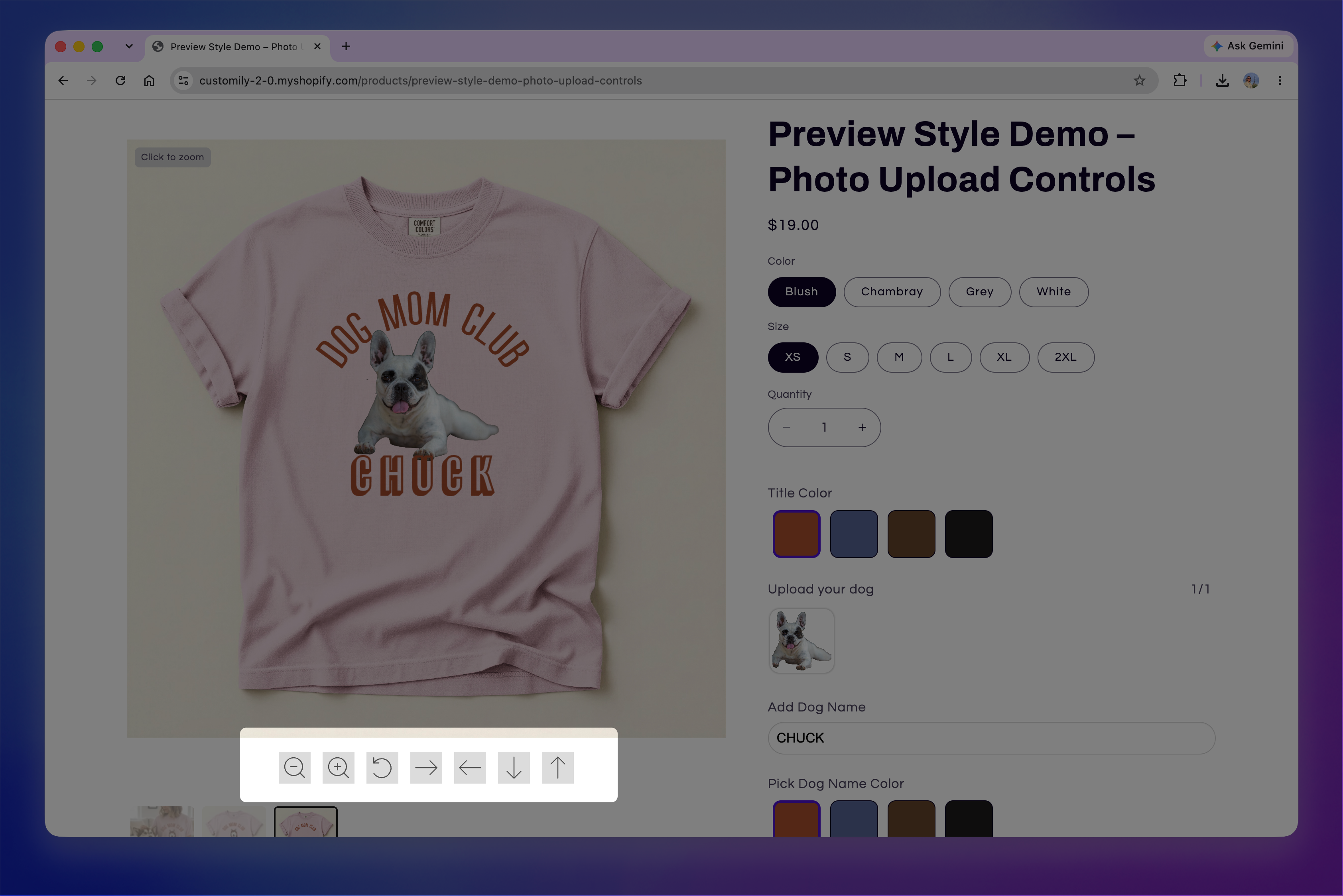
When shoppers upload an image to personalize a product, Customily adds controls below the live preview that let them adjust how the image appears within its placeholder.
Using these controls, shoppers can:
Zoom in or out
Rotate the image
Move the image in different directions
The Image Upload Manipulation settings let you customize how shoppers interact with uploaded images and how the preview uses the space needed for these controls.
How to configure Image Upload Manipulation
To customize how uploaded images can be manipulated in the preview:
Go to Store Settings.
Open Preview Behavior.
Scroll to Image Upload Manipulation.
Enable or disable the settings you want to use.
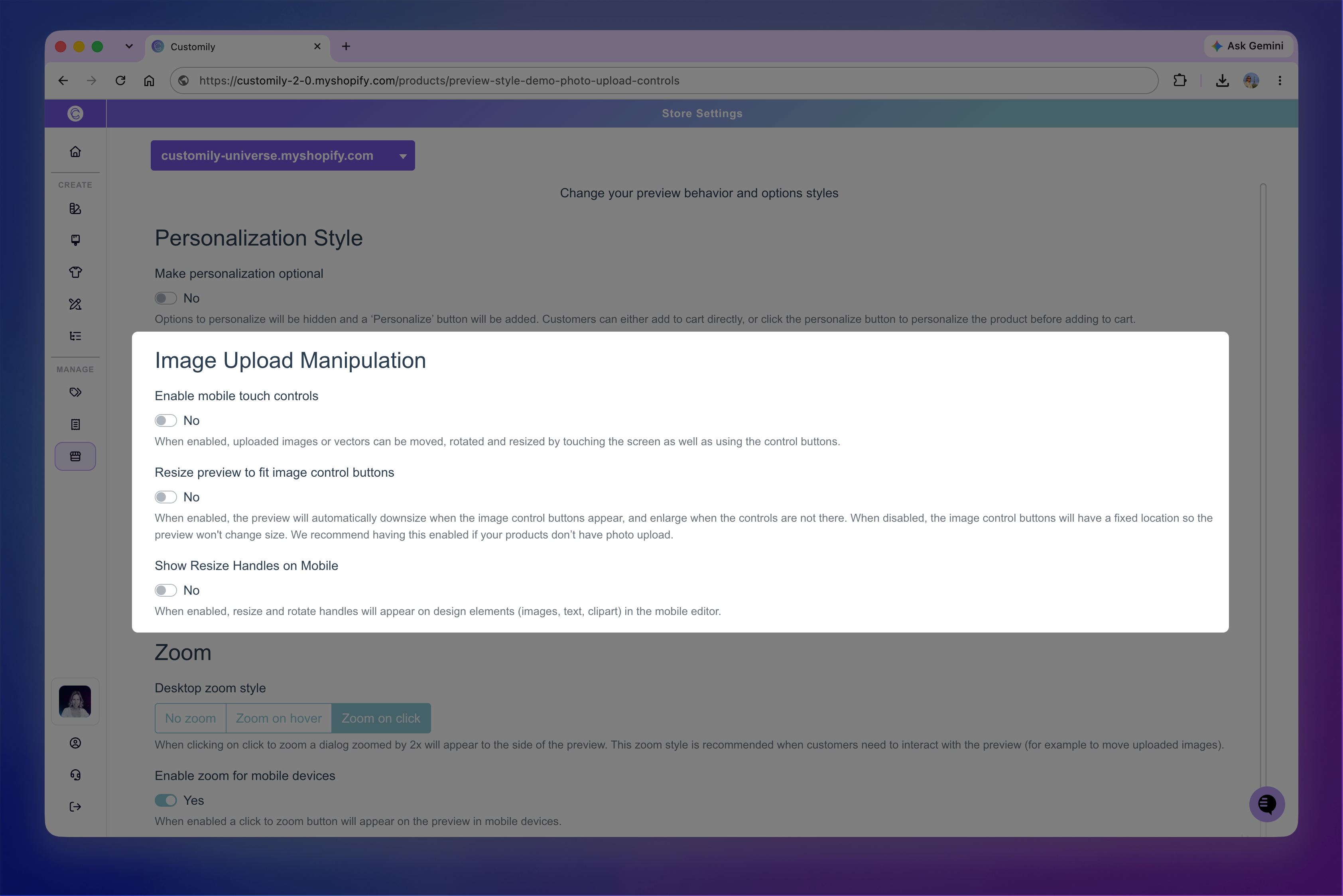
Enable mobile touch controls
On desktop, shoppers can manipulate an uploaded image directly within the preview using their mouse or trackpad, in addition to using the control buttons below the preview.
On mobile, turn on Enable mobile touch controls to allow shoppers to move, rotate, and resize uploaded images or vectors directly within the preview using touch gestures.
Without this setting enabled, shoppers can still use the image manipulation buttons below the preview.
Tip
We recommend enabling mobile touch controls for products with a single image upload or a simple design. For products with multiple uploaded images or more complex layouts, such as collages, touch controls can make it difficult for shoppers to select and adjust the right image. In those cases, the image manipulation buttons may provide a clearer experience.
Resize the preview to fit image control buttons
The image manipulation controls appear below the preview only when they're needed, such as after a shopper uploads an image.
Enable Resize preview to fit image control buttons to let the preview area adjust dynamically. When the controls aren't visible, the preview expands to use the available space. When the controls appear, Customily makes room for them by resizing the preview or adjusting the space around it, depending on your theme and product gallery.
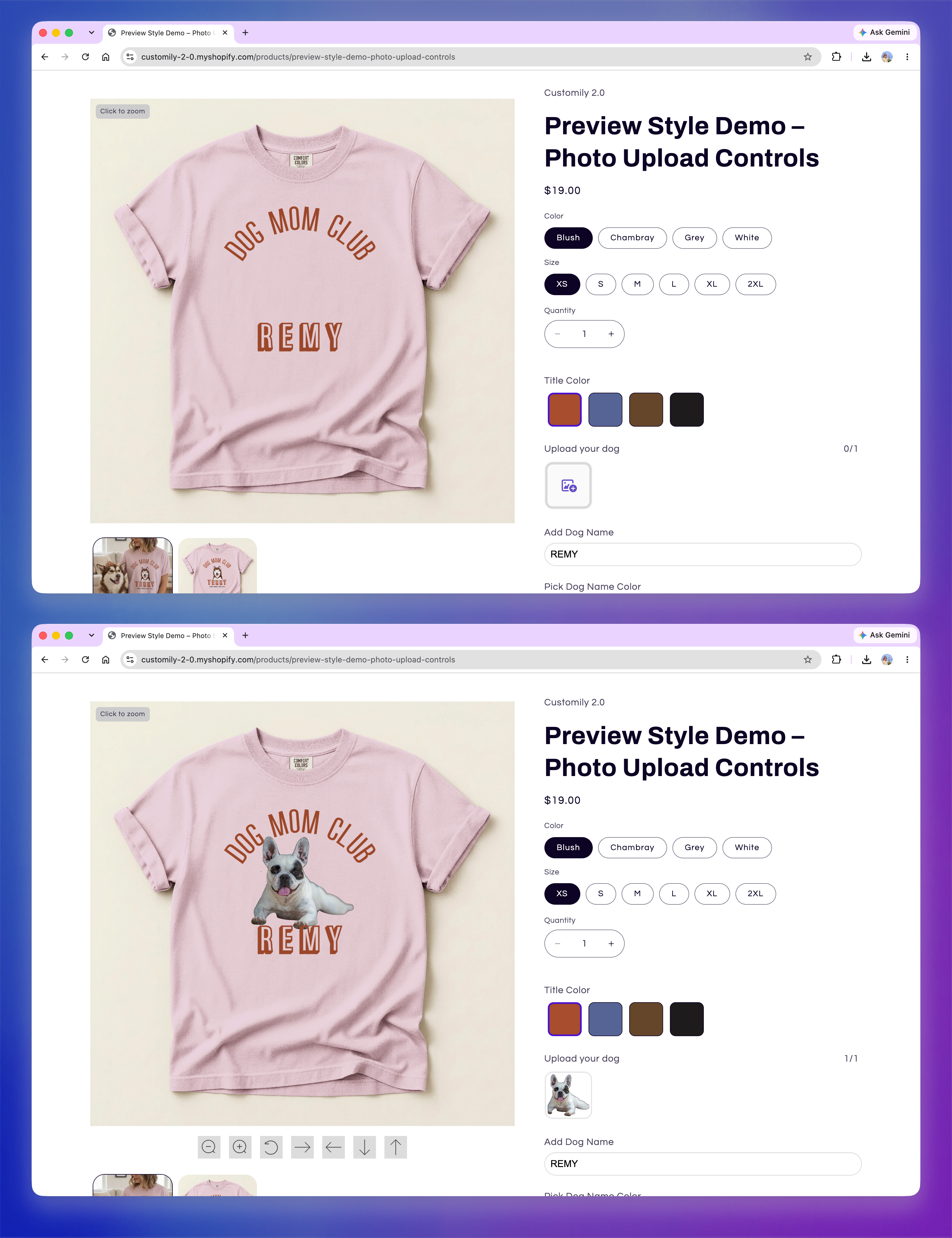
When this setting is disabled, the space for the image controls remains fixed and reserved at all times, even when the controls aren't visible. This can leave unnecessary white space or, depending on your gallery, interfere with the gallery thumbnails.
Tip
We recommend keeping Resize preview to fit image control buttons enabled in most cases. This lets Customily make the best use of the available space and only make room for the image controls when they're needed.
When using the Customily Gallery
If you're using the Customily Gallery, you generally don't need to enable Resize preview to fit image control buttons.
The Customily Gallery already manages the space for these controls, placing them between the live preview and the gallery thumbnails without needing to resize the preview.