Create a Product Base with AI
Last updated: October 12, 2026
Customily can automatically create a Product Base from a product already listed in your store. It uses your product's description and main image to generate a production file and a product preview, saving you the time of setting everything up manually.
Note
This feature is only available when you 📄 Add personalization to an existing product using your own Product Base
1. Generate a Product Base from your listing
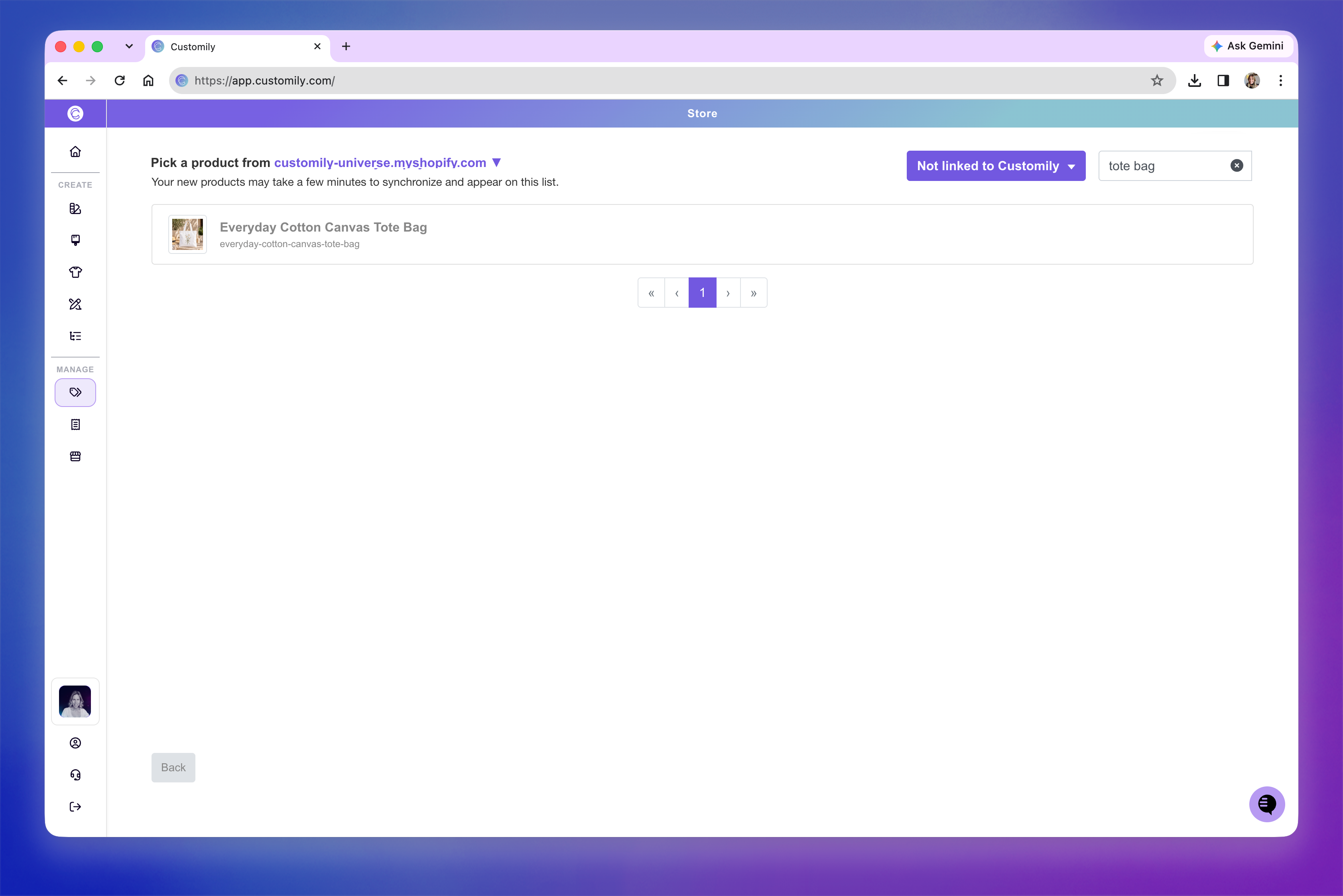
From Home, choose to add personalization to an existing product.
Select the product you want to personalize.
On the Product Base selection screen, click Create from Listing.
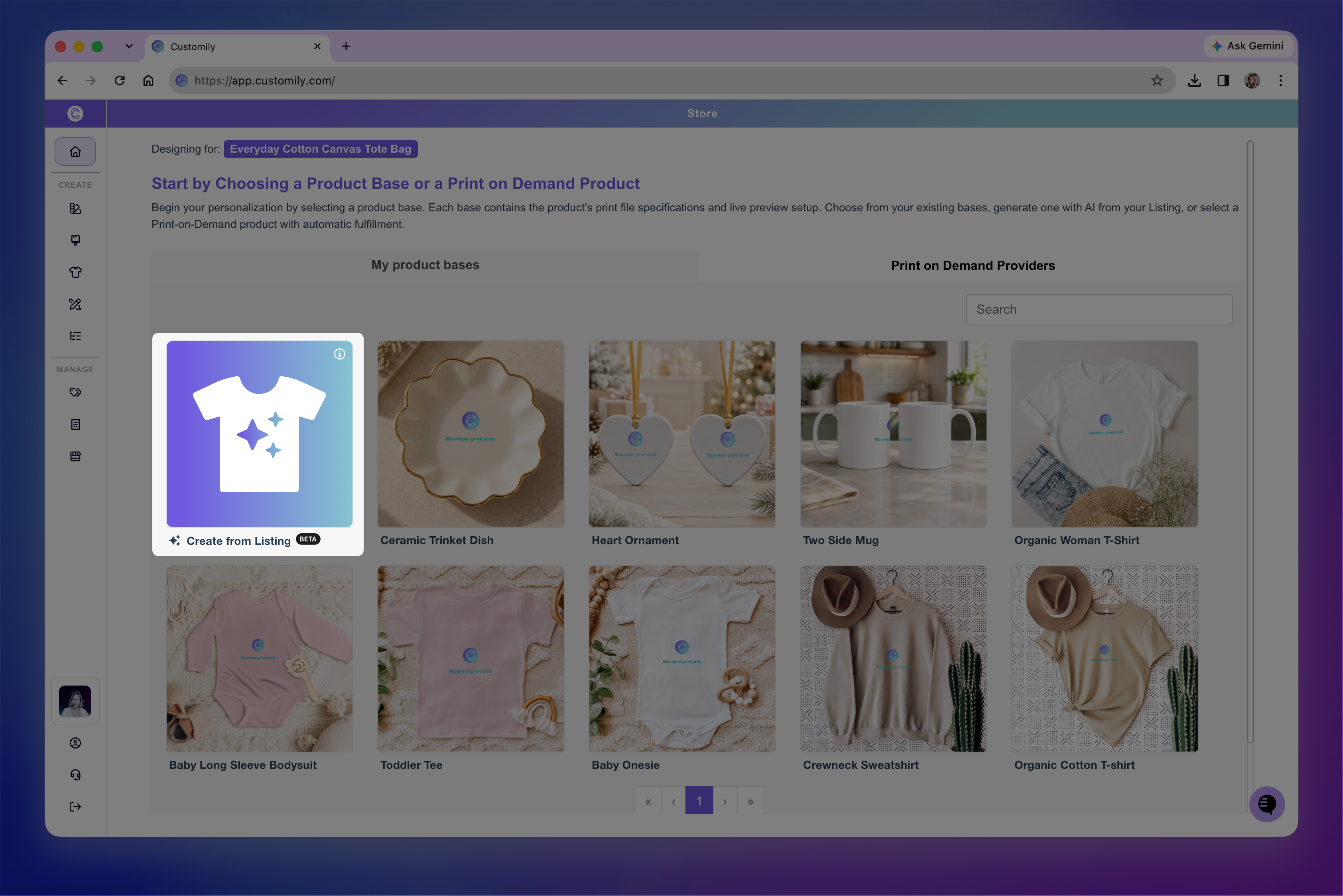
Customily will analyze your product listing to automatically:
Look for product dimensions in the description and gallery to determine the production file size.
Use your main product image to create a preview with a printable area.
Remove existing printed designs from the main image using AI, when needed.
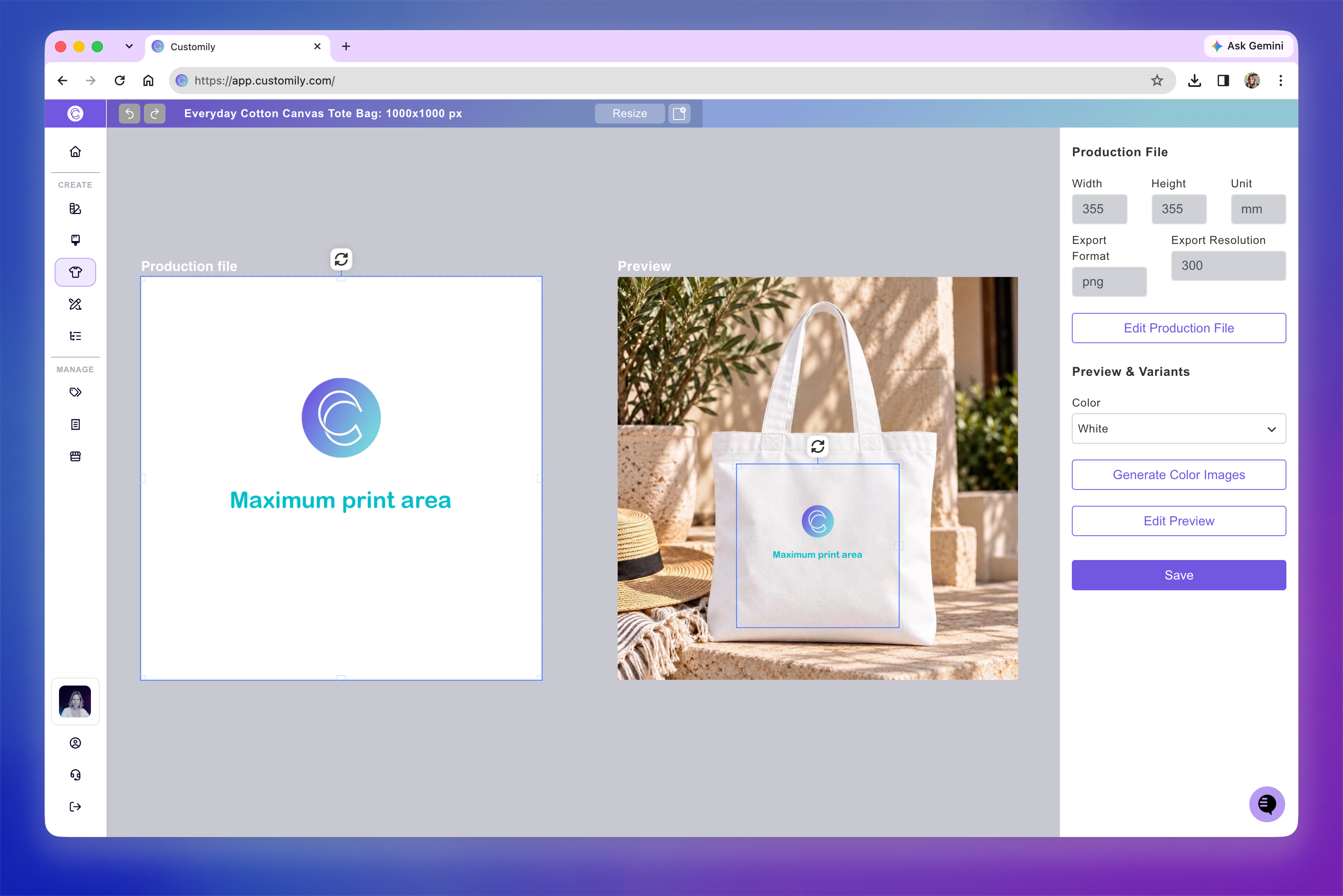
Once the process is complete, you'll see your generated Product Base in the editor, with the production file on the left, the product preview on the right, and their settings in the right sidebar.
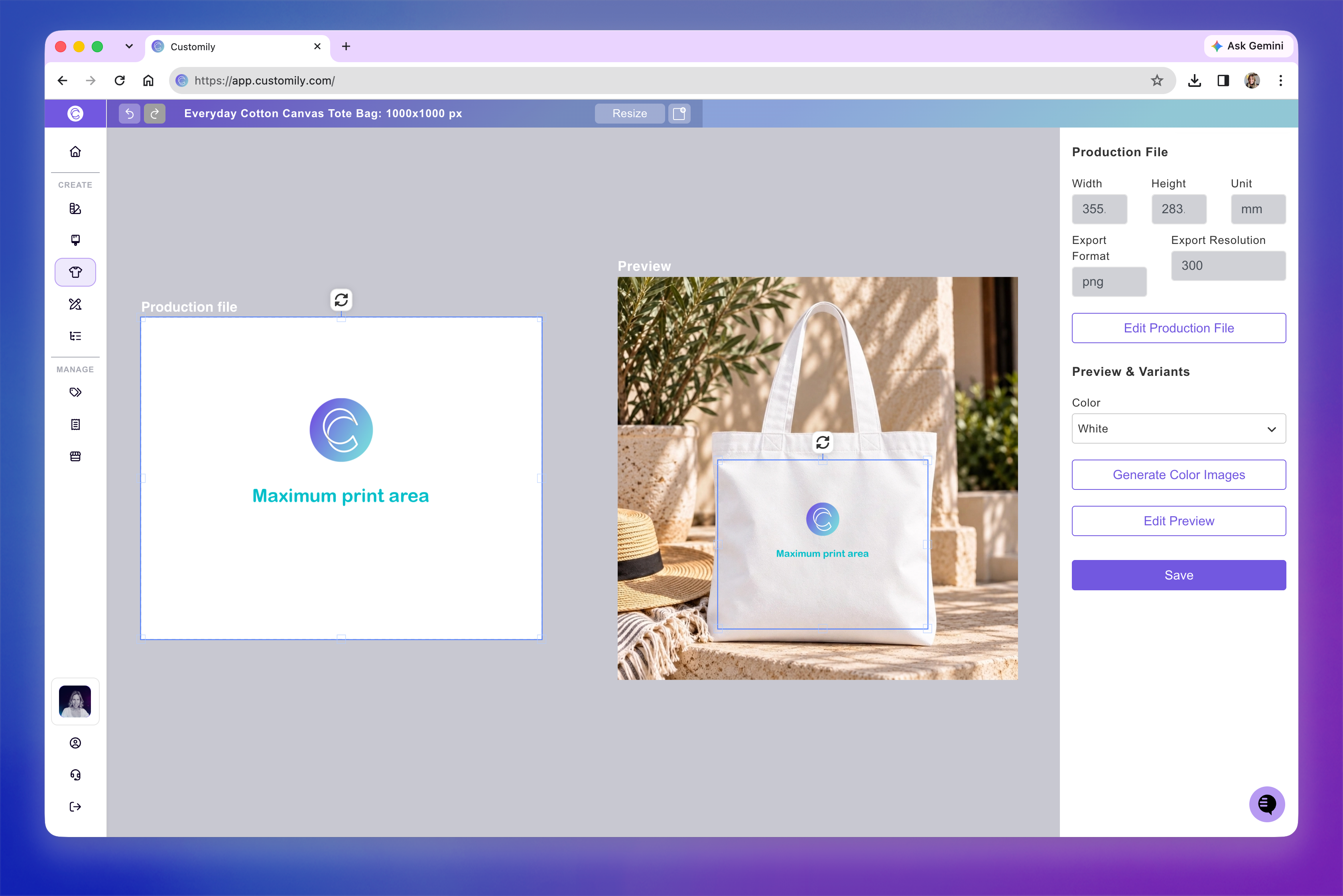
2. Review and adjust your Product Base
Before saving, review the production file and product preview to make sure they match your product.
Production file
Review the dimensions, export format, and resolution in the Production File section of the sidebar.
If you need to adjust the print area, click Edit Production File.
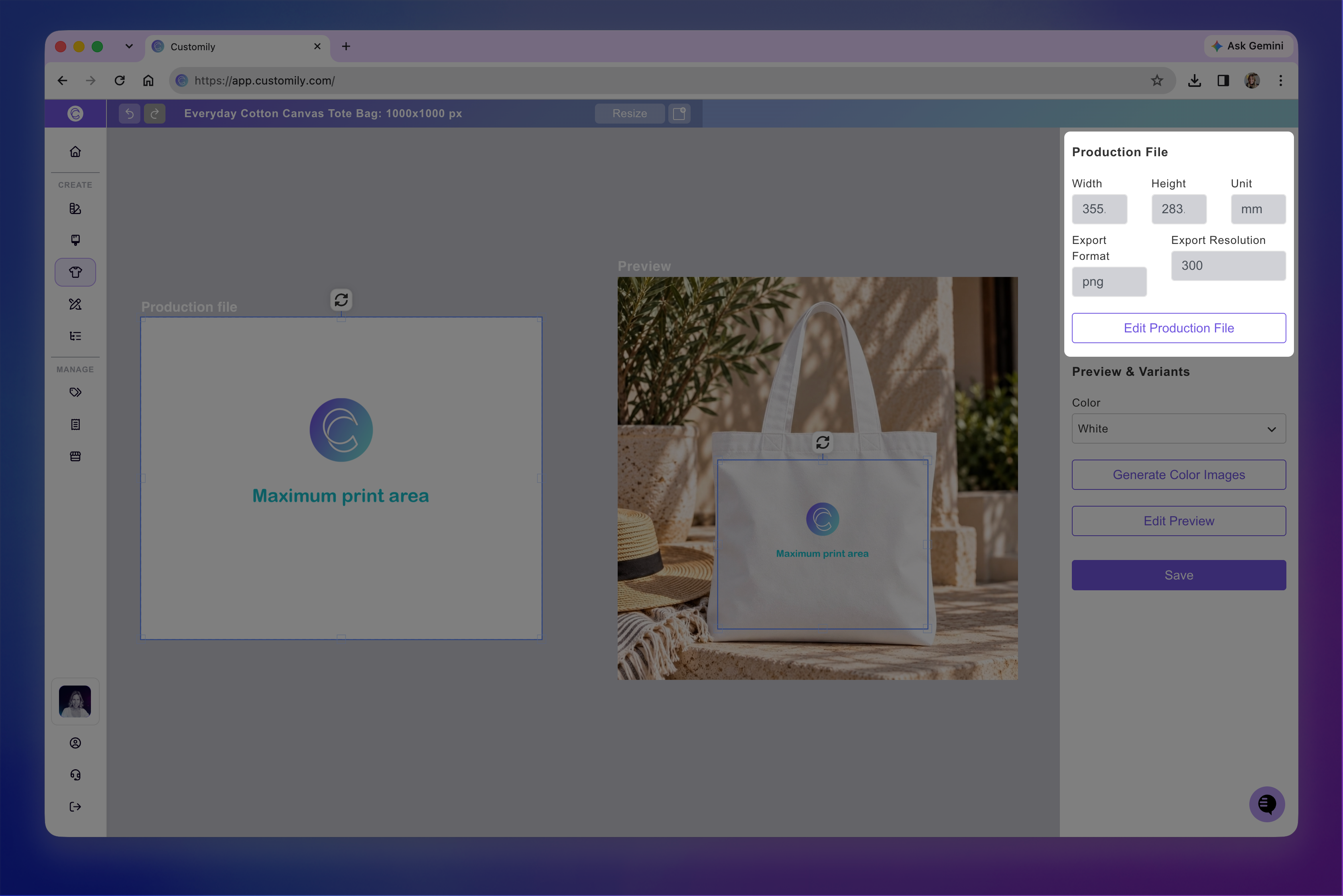
This will open the Product Base editor, where you can adjust the dimensions, print area, export format, and other settings, just as you would when creating a Product Base manually. You'll then continue to the preview editor to adjust the print area's placement on the product.
Product preview
You can move the print area directly on the preview to adjust its position.
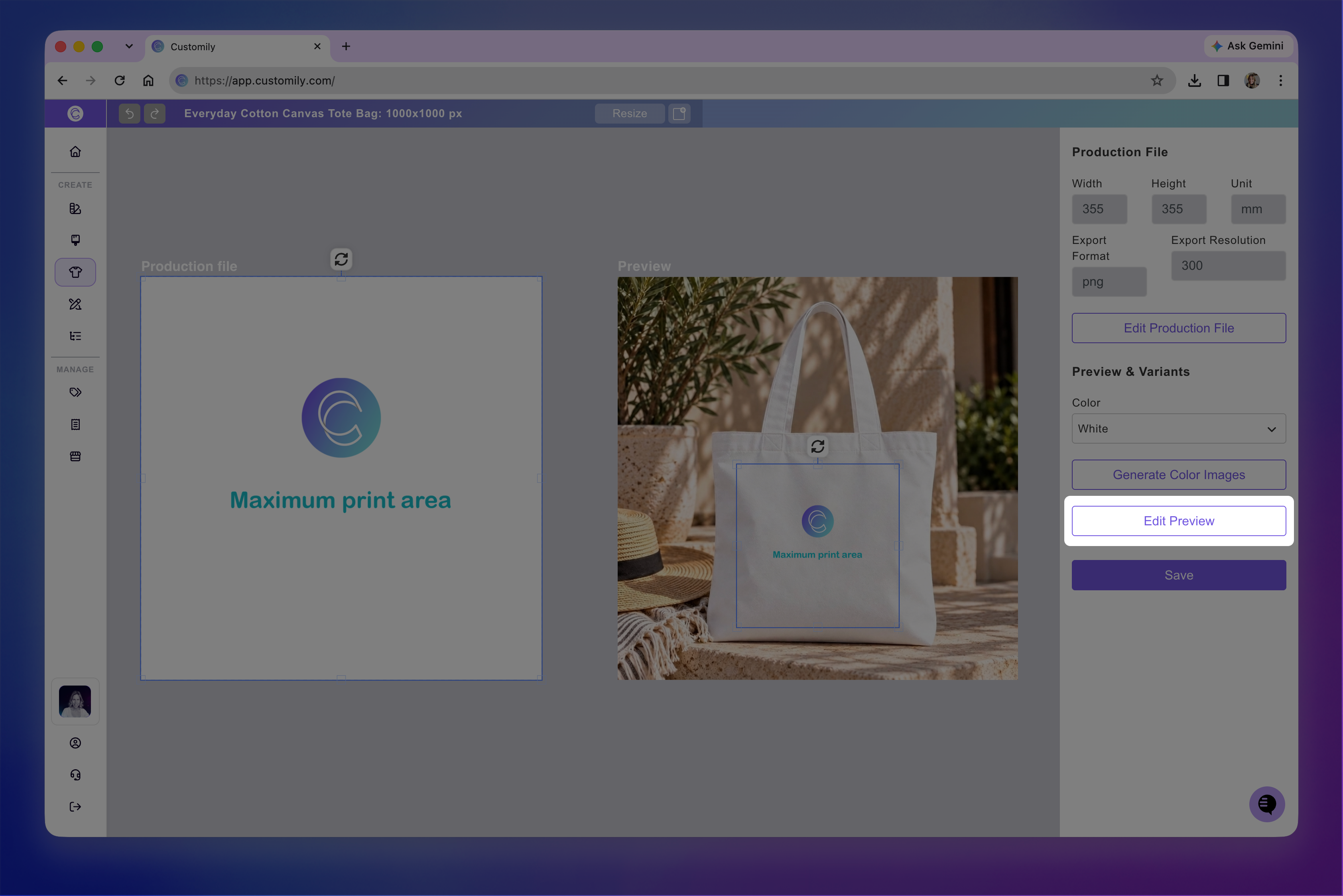
To make other adjustments, such as resizing or rotating the print area, or changing the preview image click Edit Preview.
Product colors
By default, Customily only generates a preview for the first color selection.
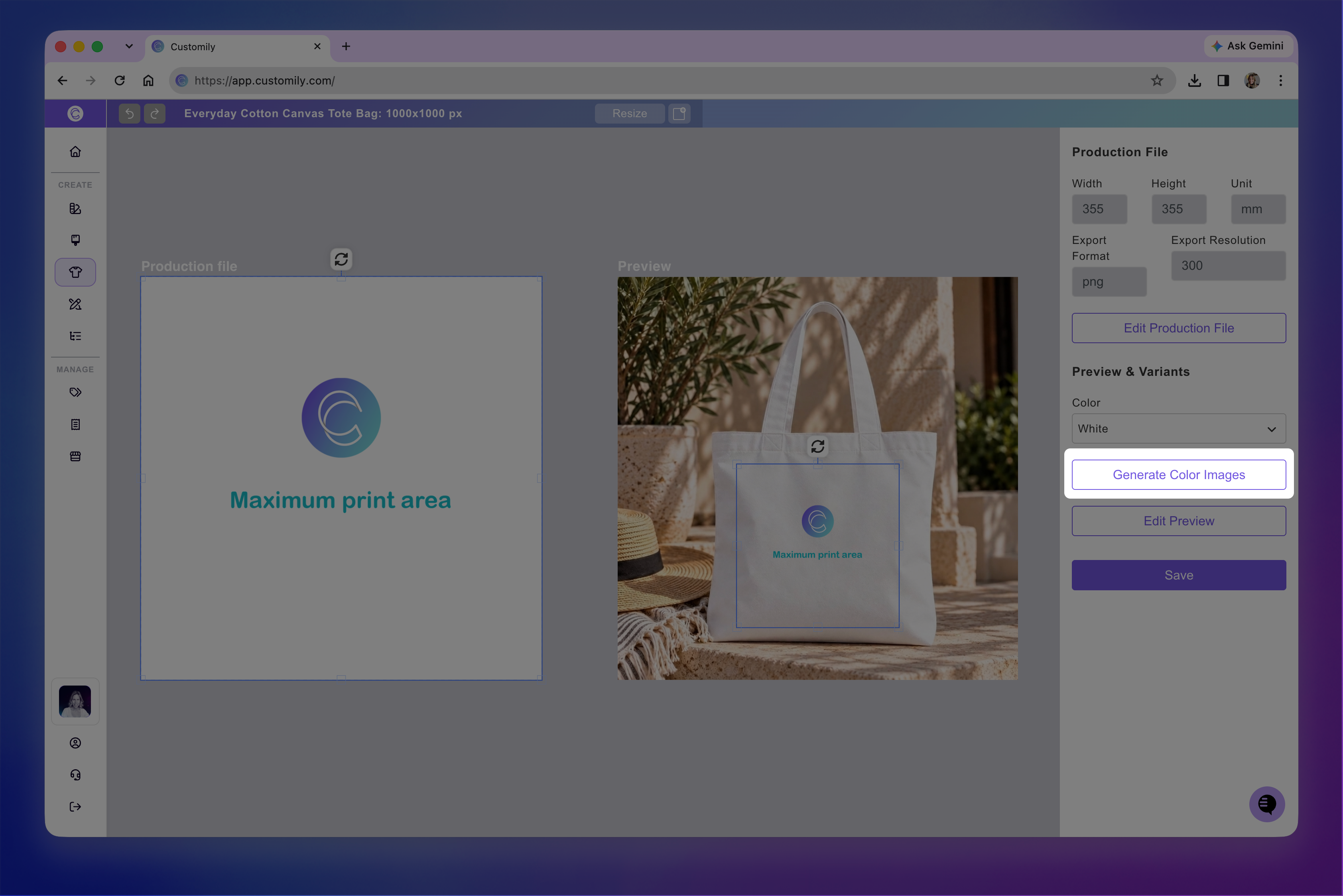
If your product comes in multiple colors, click Generate Color Images to create previews for the additional colors.
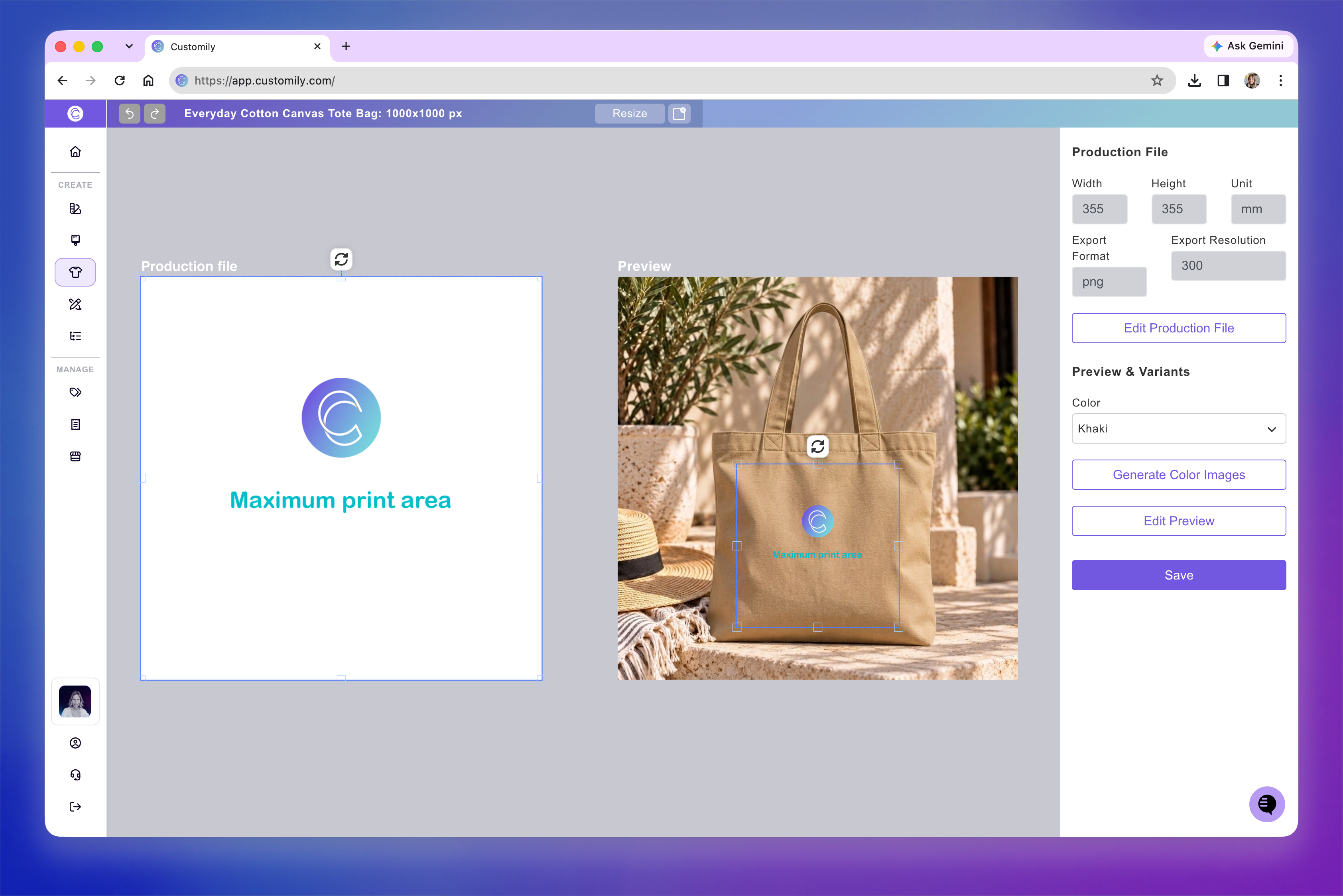
Once generated, use the Color dropdown to switch between colors and review each preview.
Note
If you switch to another color without generating its image first, the preview will be blank, with only the print area visible.
3. Save your Product Base
Once you're happy with the production file and previews, click Save.
Your Product Base will be saved to your library, ready to use for the product you're currently personalizing.
You can also reuse it anytime to create new personalized products or add personalization to other existing products, simply by applying a different Design. There's no need to create the Product Base again.