Integrating Merchize for Shopify or WooCommerce
Last updated: April 28, 2026
To use Merchize with Customily for Shopify or WooCommerce, the first thing you need to do is to create an account on Merchize. If you don't have an account with Merchize, you can create one here.
Once you have your Merchize account created, open your Customily app on Shopify and follow these steps.
- Head on to Start or Store on the left menu
- Go to Settings and open the Integrations tab.
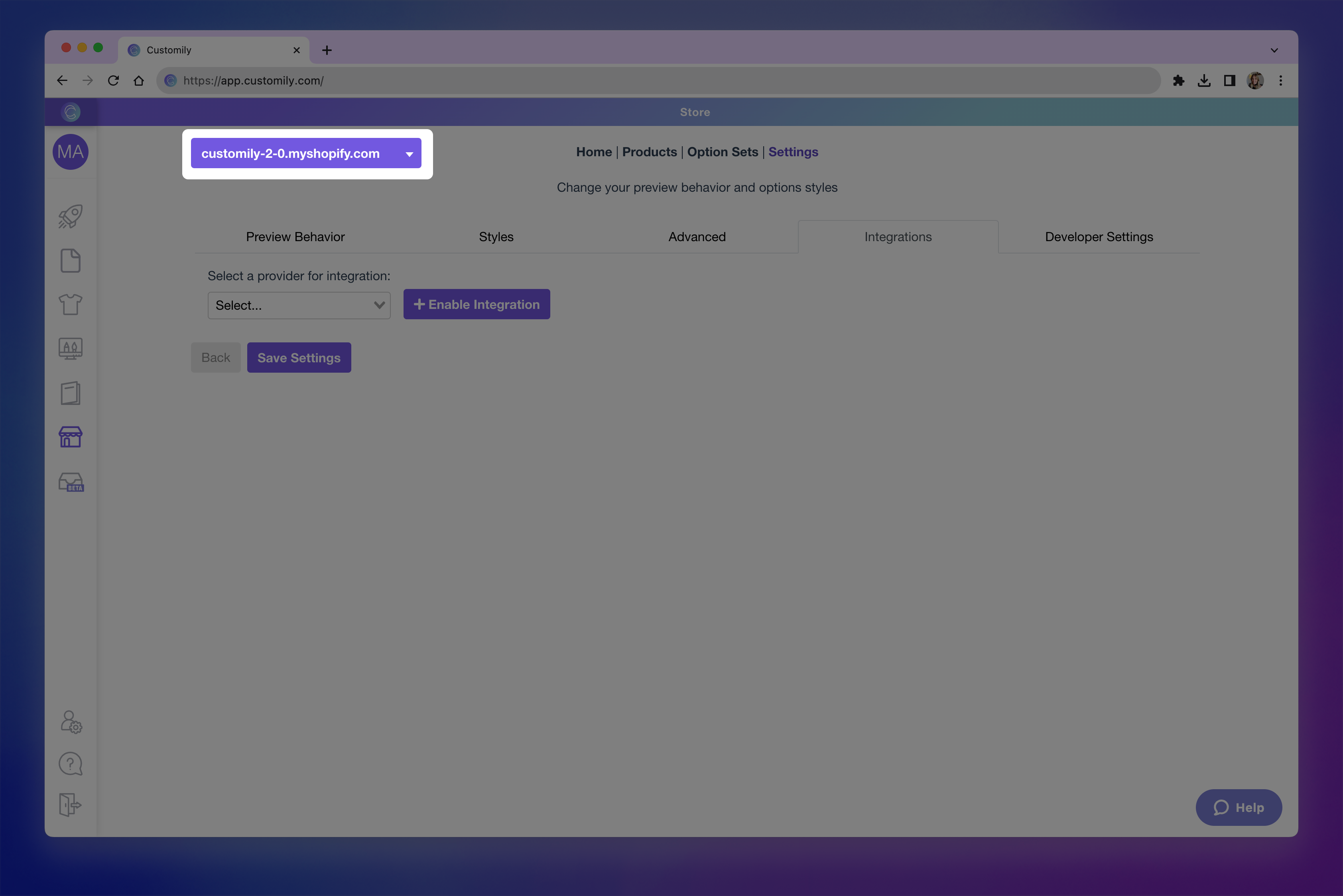
- If you have more than one store on your account, make sure you are changing the setting of the correct store by selecting it from the top left dropdown.
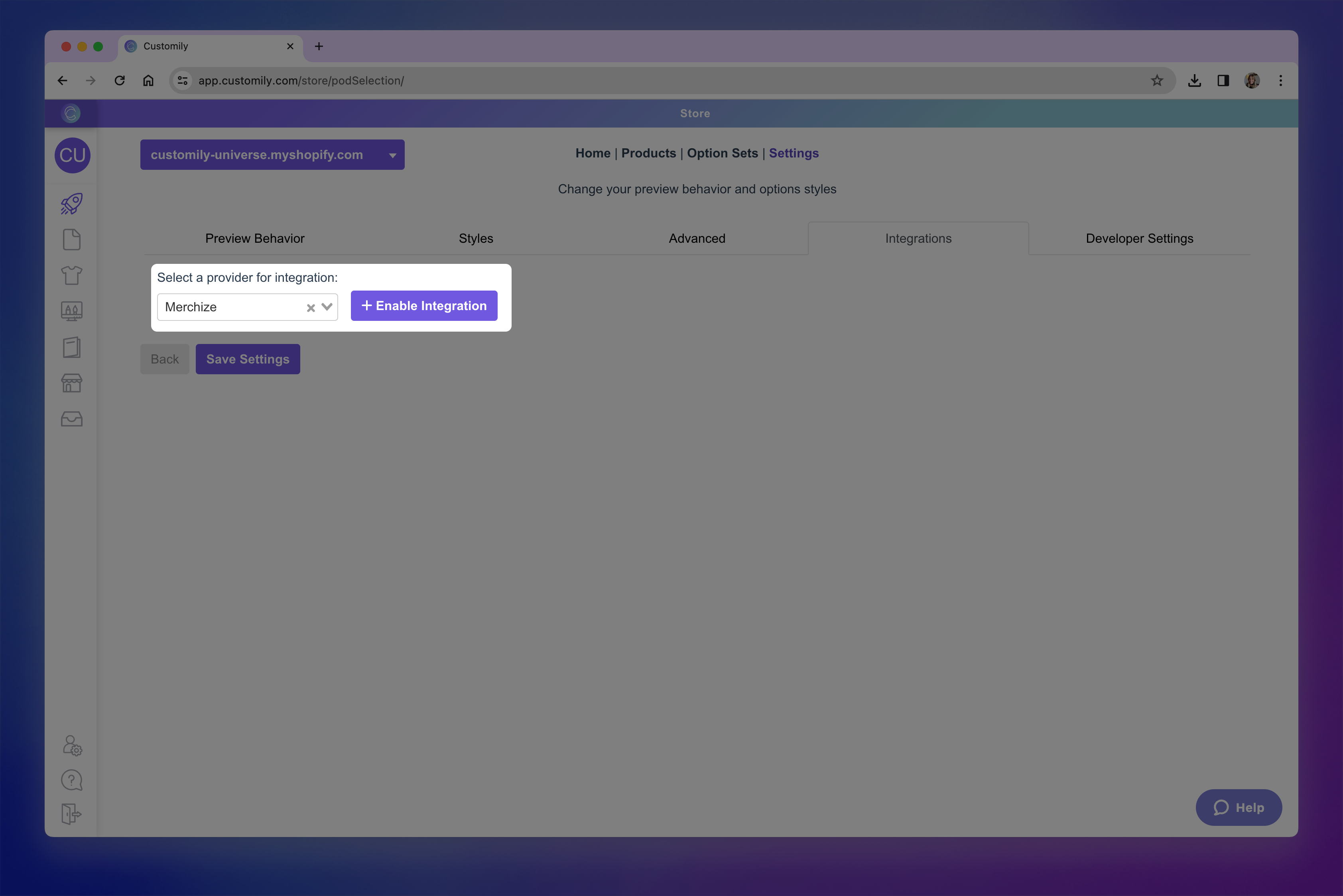
- Select Merchize from the Select a provider for integration dropdown
- Click enable integration
- Paste your Merchize API Key (also known as Access Token) and API Signature (also known as Base URL). Learn where you can find your Access Token and Base URL on Merchize here.
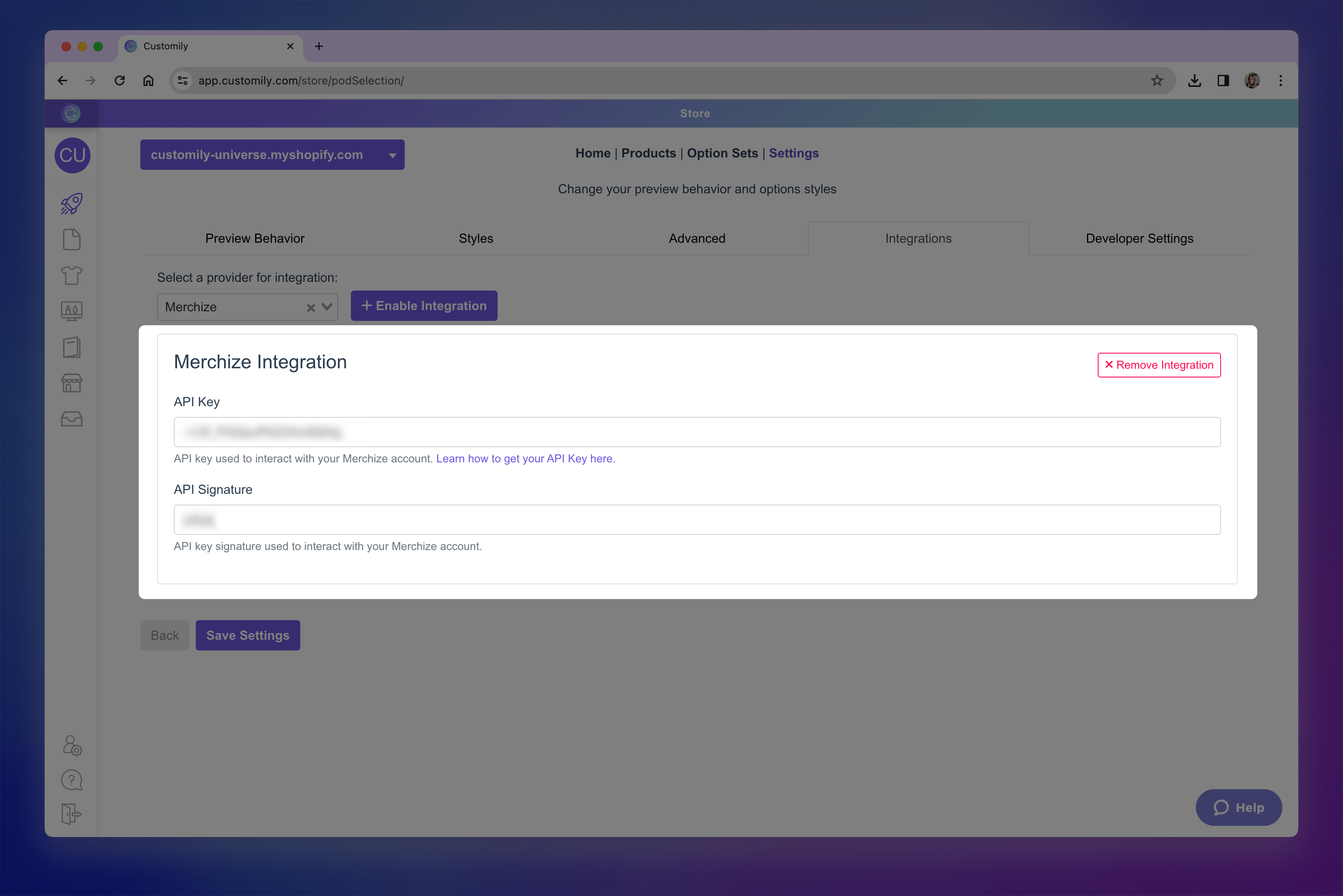
- Click Save Settings at the bottom of the page.
- To make sure order tracking is properly synched, you will need to add Customily's webhook to your Merchize account settings. To do that, open your Merchize account, go to "Integrations" on the left menu and click API. Scroll down to the webhook section, click Add webhook.
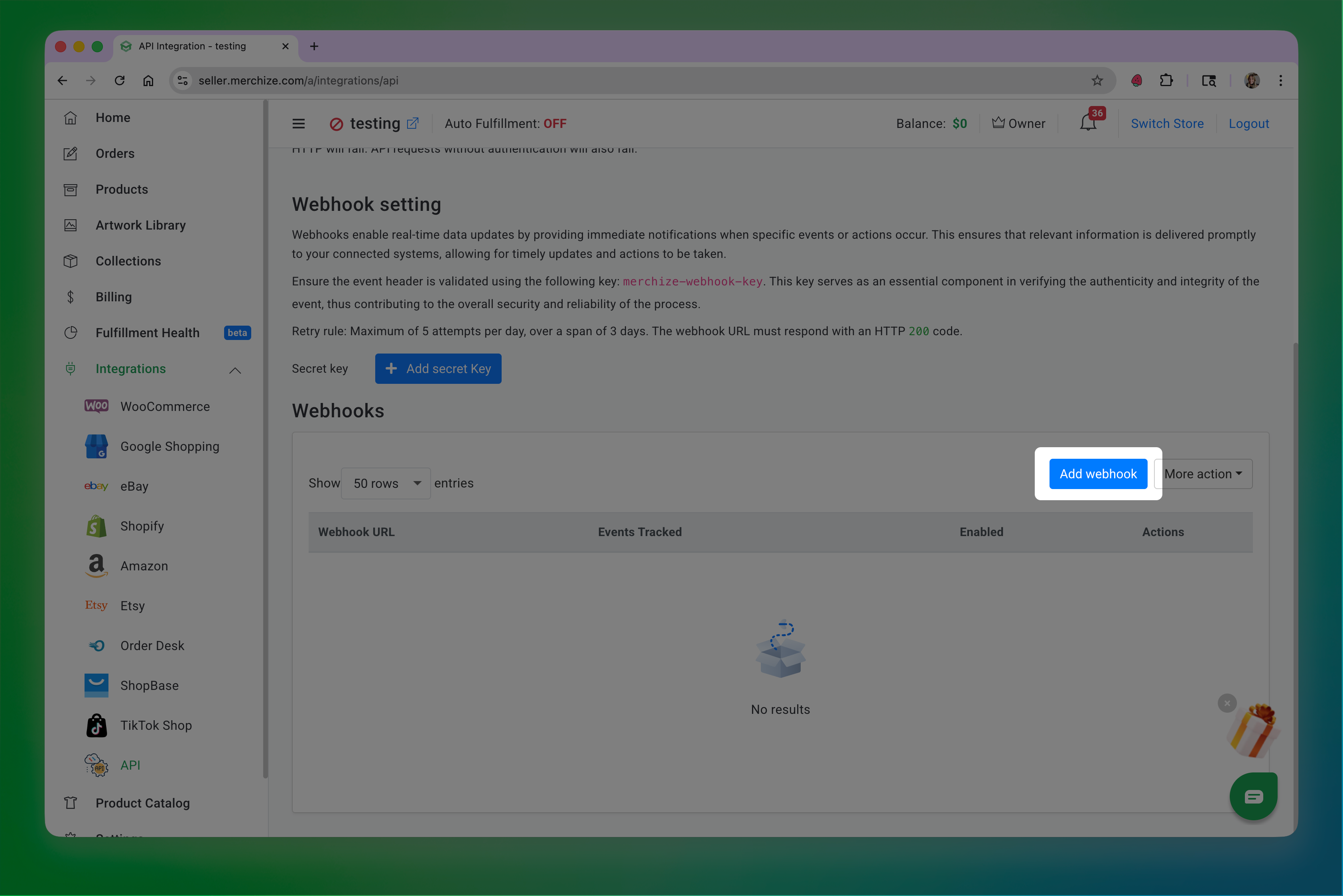
- Paste the following URL on the Webhook Endpoint
https://sh.customily.com/provider/hooks/orderShipped?provider=merchizeAnd select the event: Order changed tracking
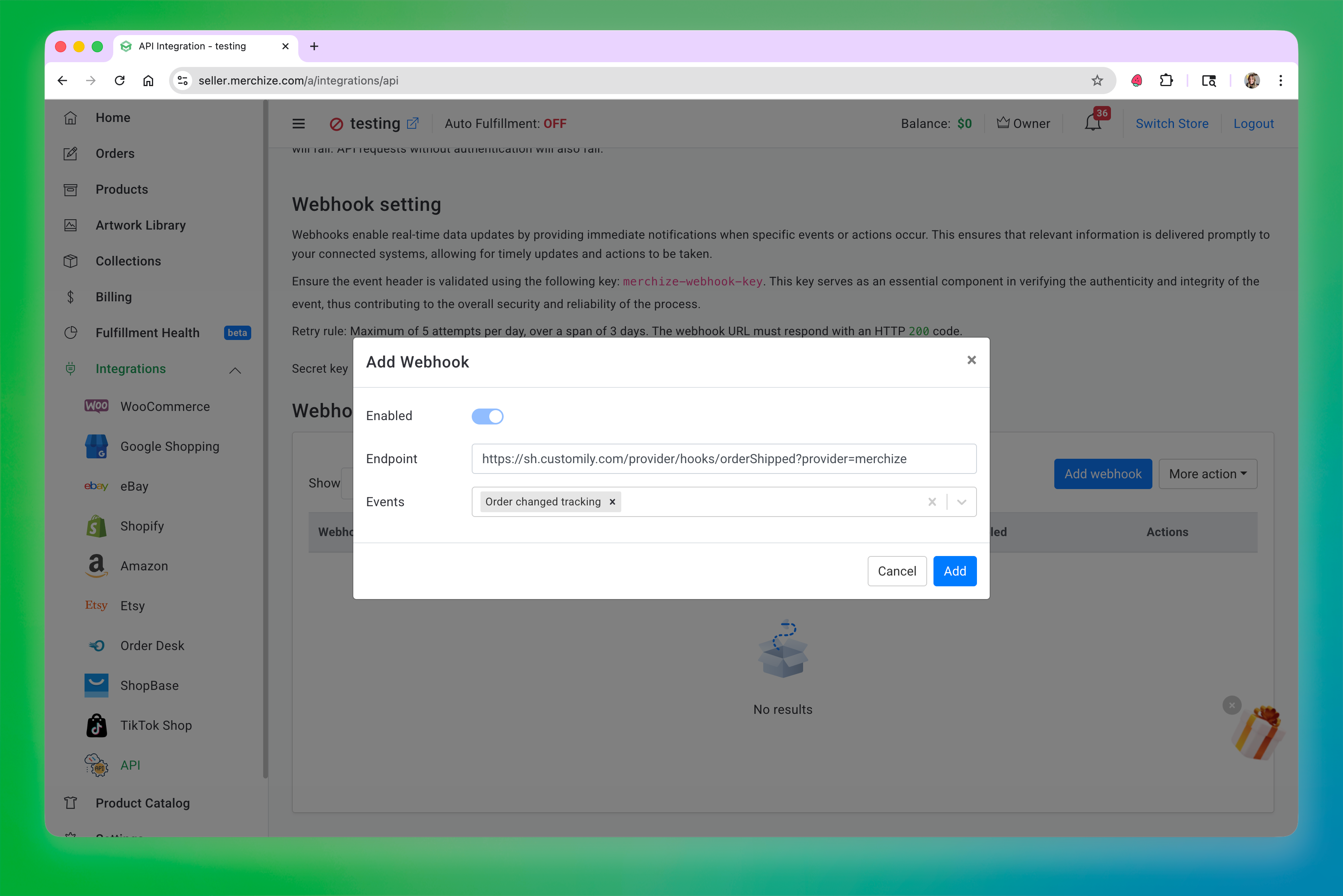
Click Add to save the webhook.