Import a Design from Canva
Last updated: October 20, 2026
If you already have artwork created in Canva, you can import it directly into Customily to create a new Design without rebuilding everything from scratch.
Customily can import your Canva artwork as separate, editable elements, allowing you to add personalization, adjust the layout, and prepare it for use on your products.
1. Start importing from Canva
Open Designs from the left-hand menu in Customily.
Click Import from Canva.
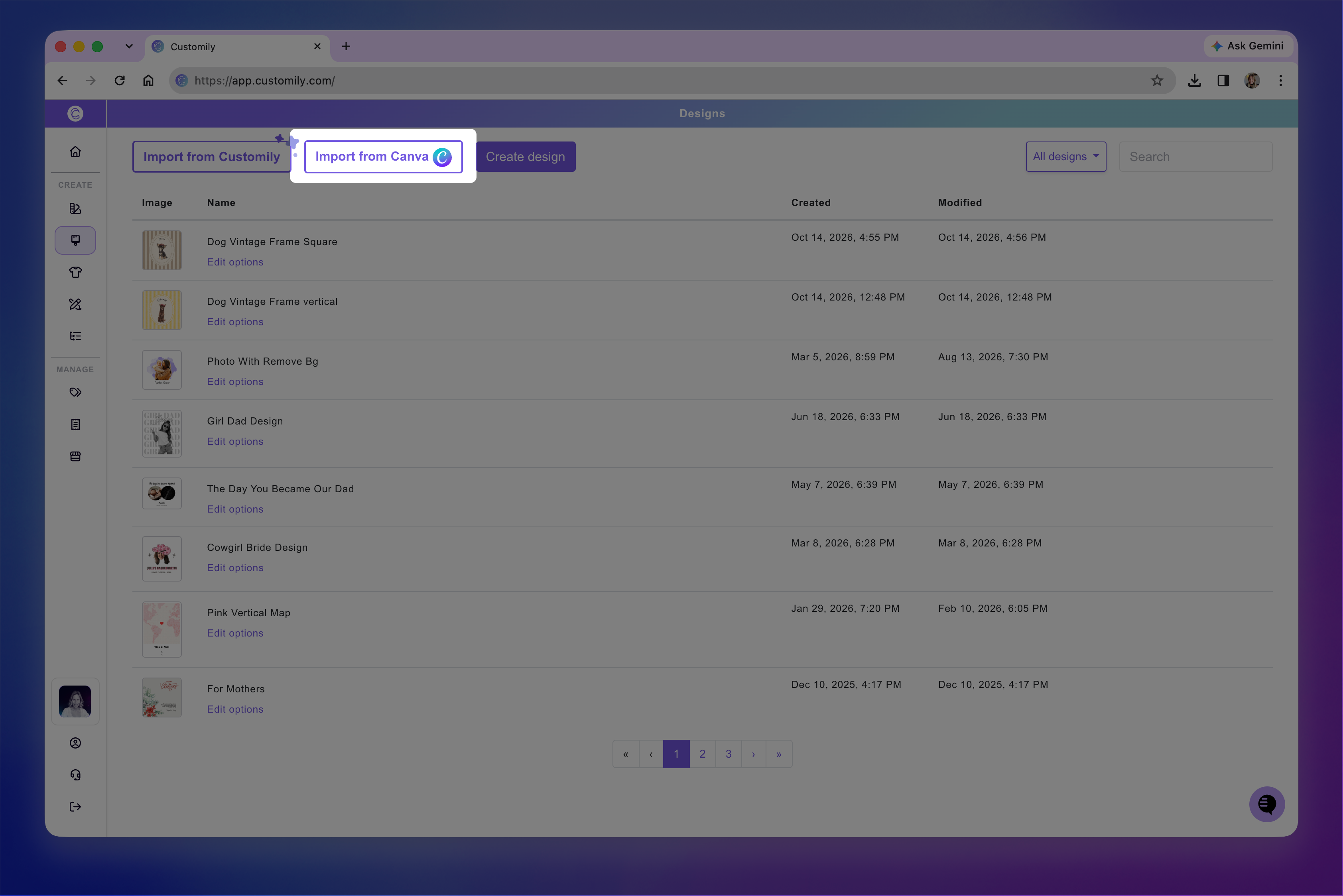
If this is your first time, follow the prompts to connect your Canva account and authorize access.
Browse or search for the Canva design you want to import and select it.
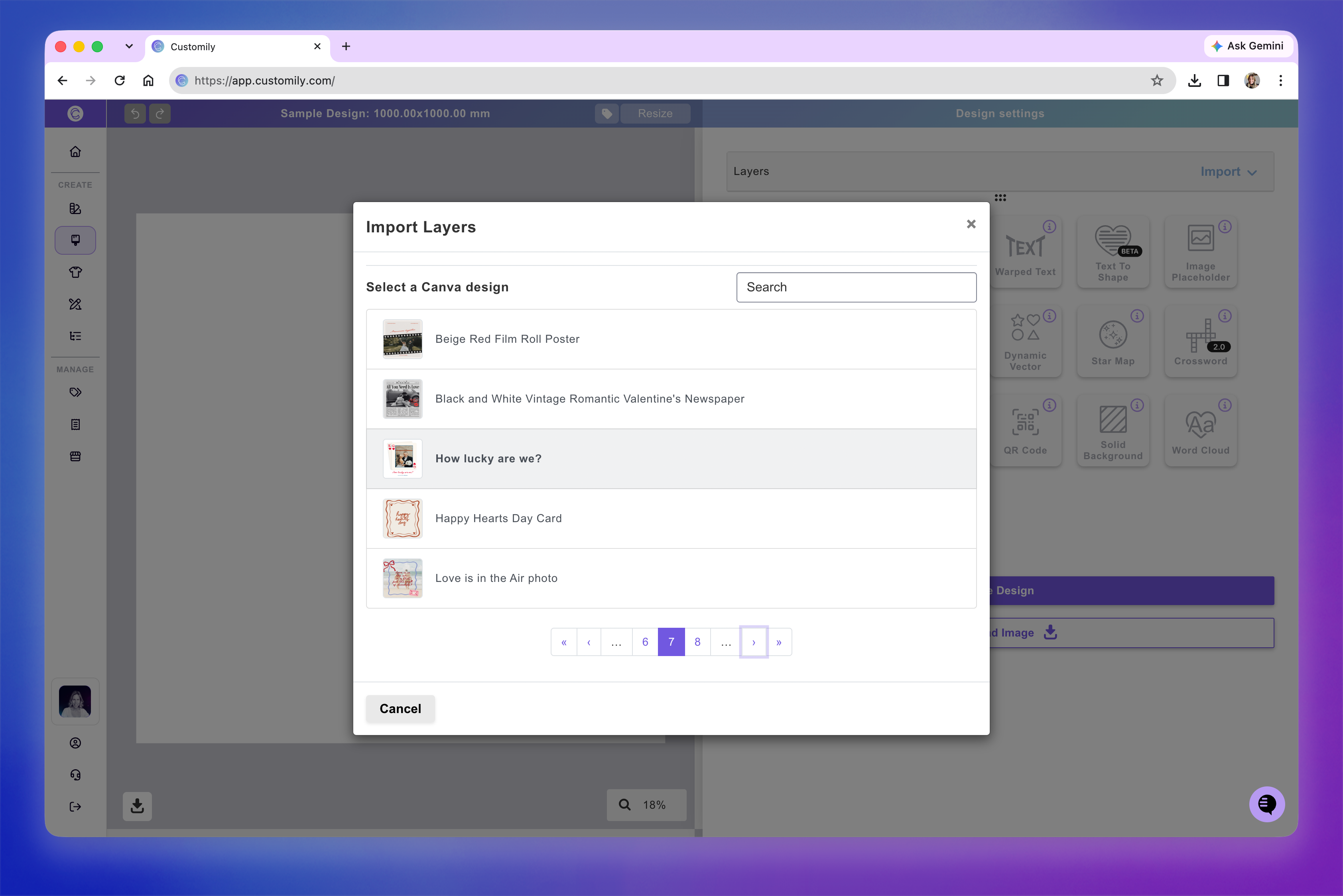
Note
If you're using Customily inside Shopify, open the full Customily app to access Import from Canva.
2. Choose your import settings
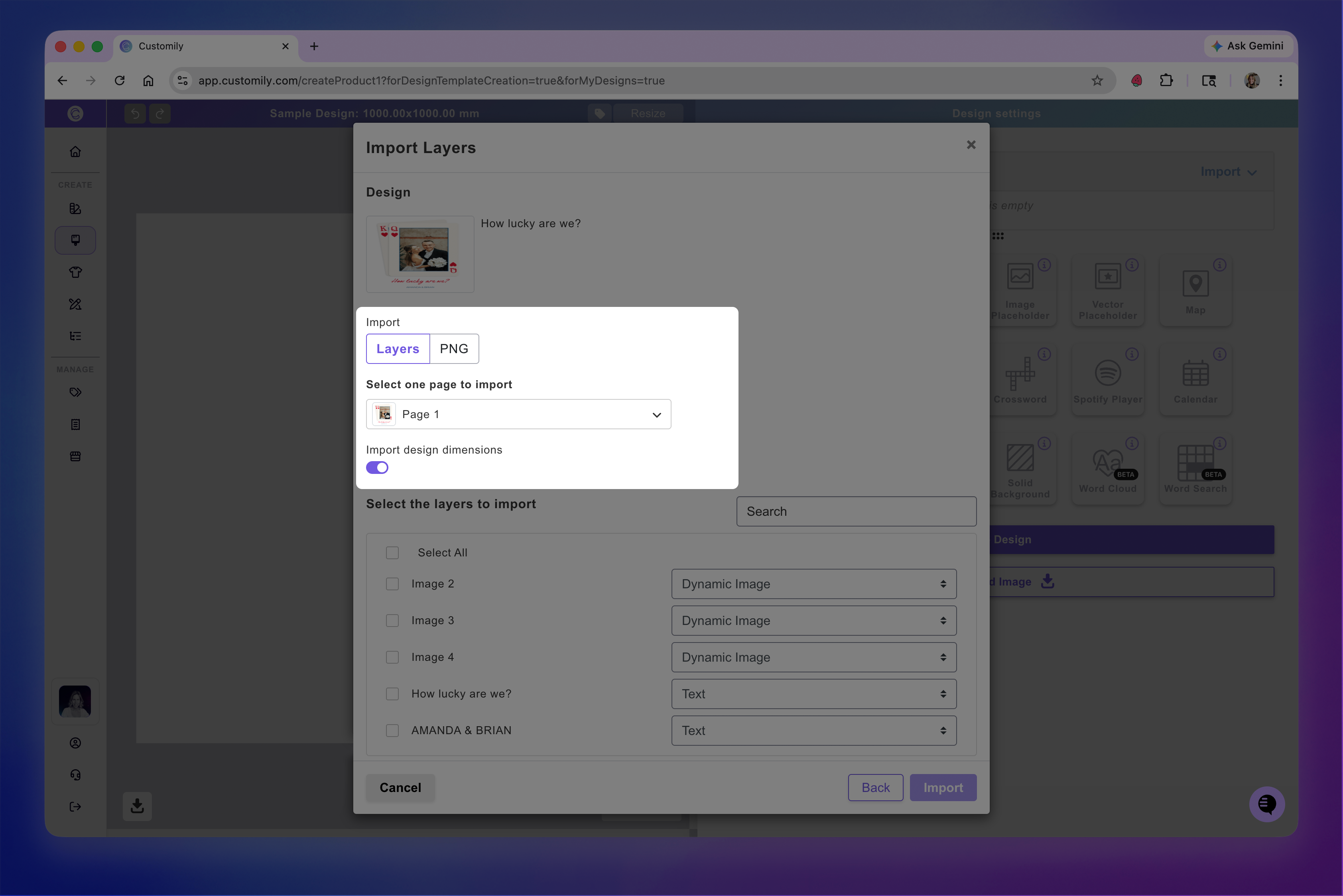
A dialog will display your Canva design and the available import options.
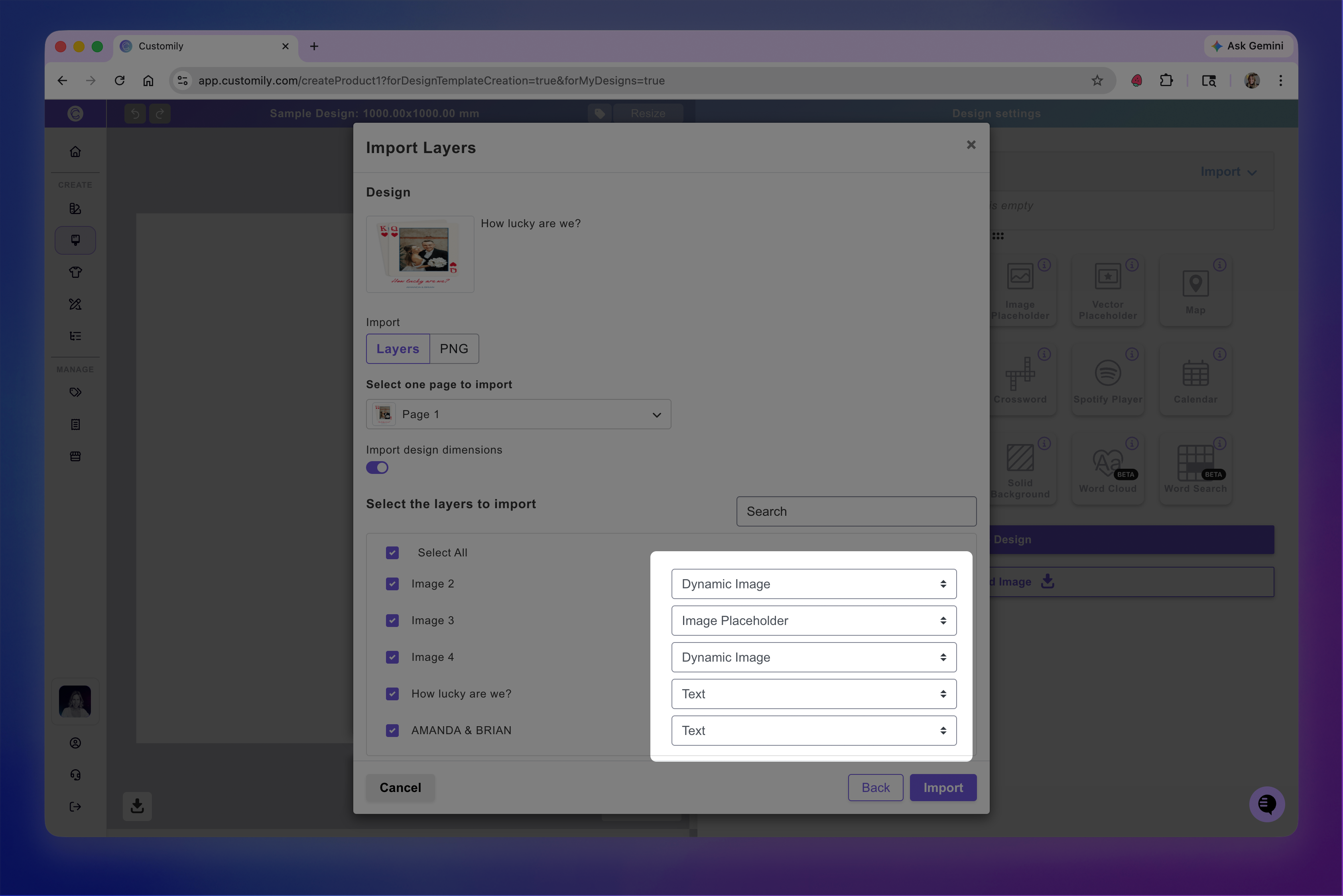
Import as Layers or PNG: Choose Layers to import individual editable elements (recommended for personalization), or PNG to import the artwork as a single, flat image.
Select the page: If your Canva design has multiple pages, choose which page to import.
Import design dimensions: Enable this option to match your new Design's canvas size to the original Canva artwork.
3. Select and configure your elements
If you're importing as Layers, select the layers you want to include.
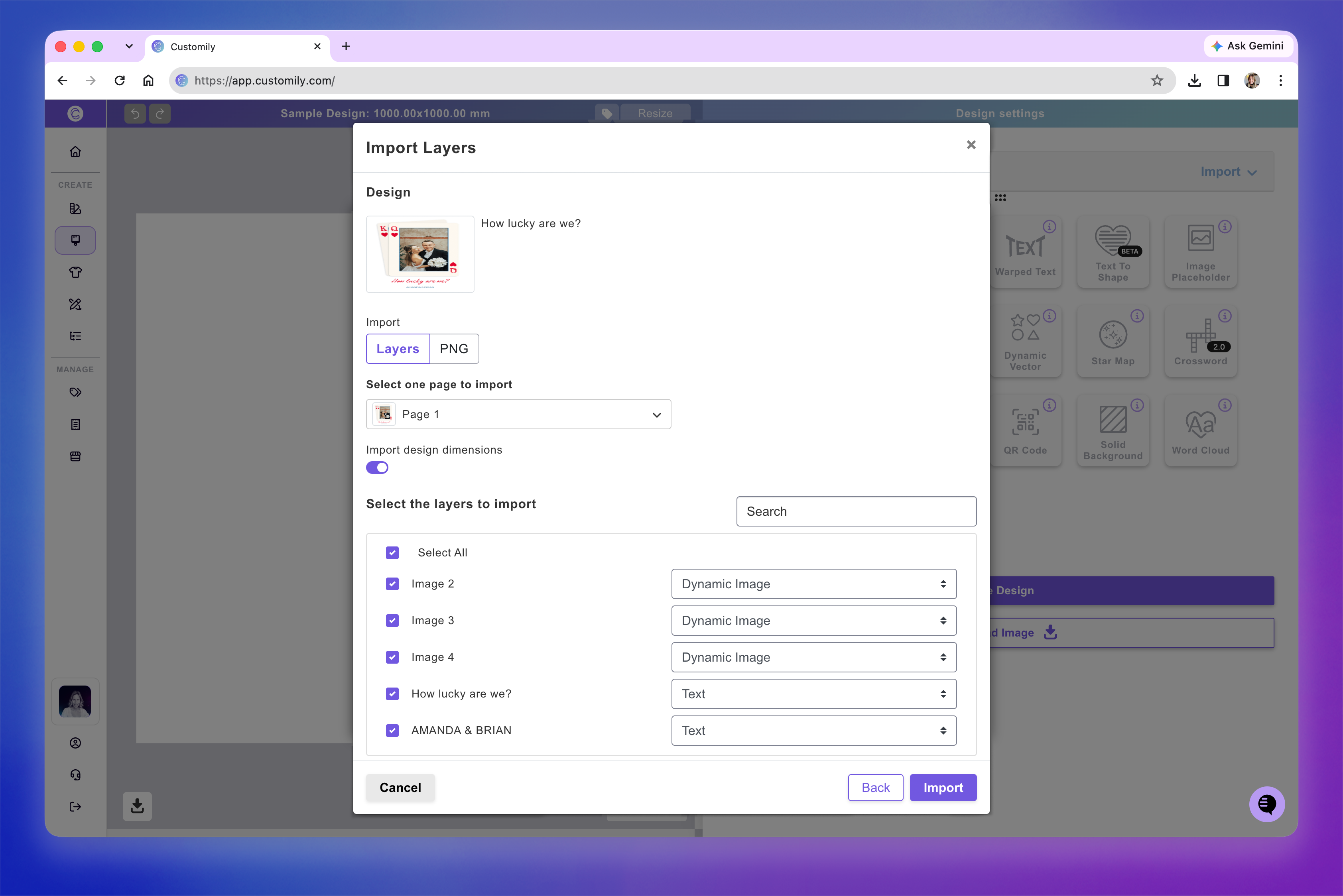
Customily automatically maps Canva layers to corresponding Design Studio elements.
For example, text becomes text boxes, images can become dynamic images or image placeholders, and shapes become dynamic vectors.
You can adjust the element type before importing. For example, choose an Image Placeholder if you want shoppers to upload their own photos, or a Dynamic Image if you want to offer selectable clipart.
Note
Canva layers don't have names like Photoshop layers, so identifying them can be tricky. Use your original Canva design as a reference. The bottom layer in Canva appears at the top of the import list.
4. Complete the import and customize your Design
Confirm the import to create your Design in Customily.
If your Canva artwork uses fonts that aren't available in your Customily account, you'll be prompted to choose replacements. You can change these fonts later in the Design Studio.
Once imported, review your artwork and customize the elements as needed. You can add personalization options, change element settings, and adjust the layout.
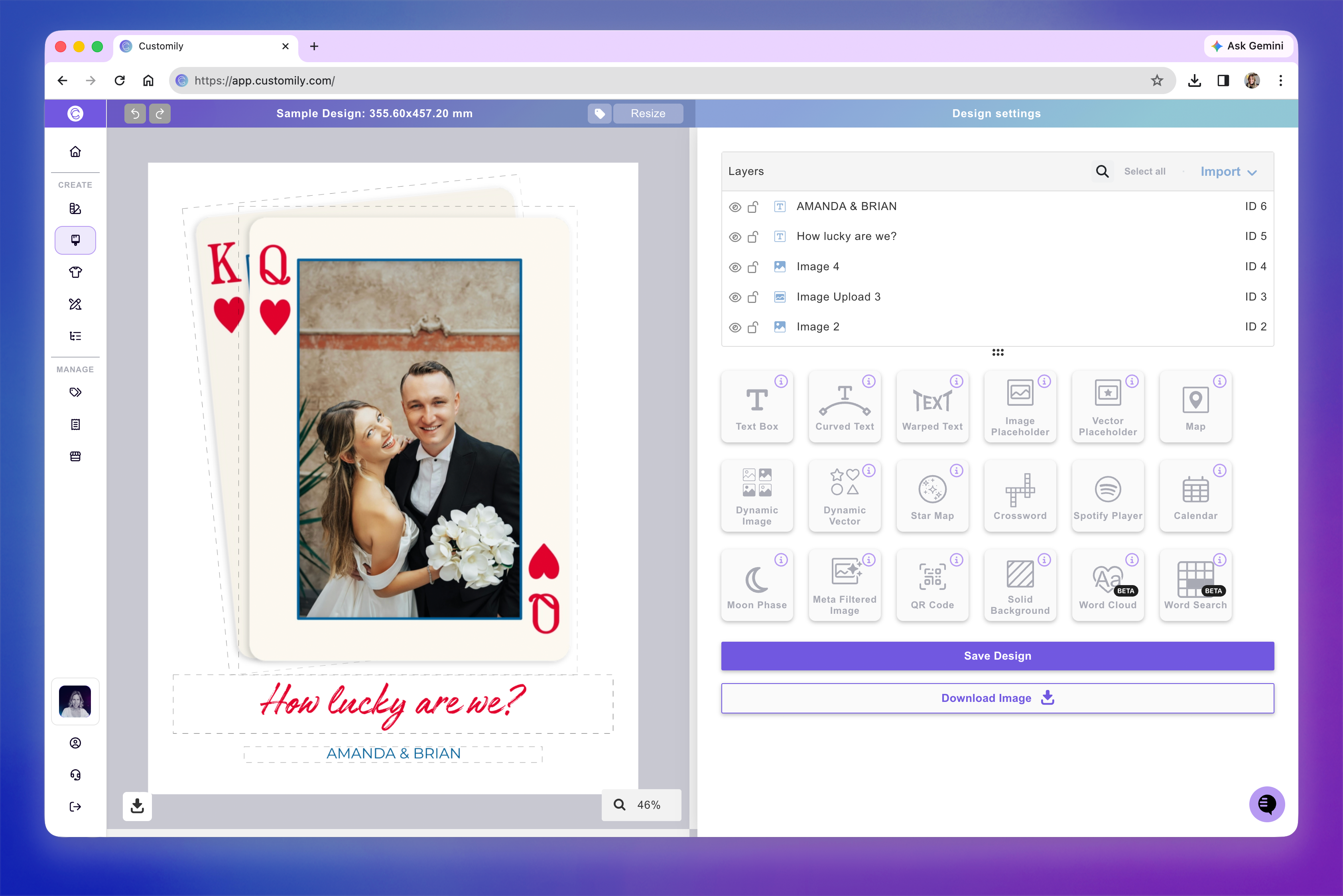
When you're happy with your Design, click Save. Your new Design will be available in Designs, where you can edit it or use it on your products.
Importing into an existing Design
If you want to add Canva elements to a Design you've already created, you don't need to start a new one.
See 📄 Import elements from Canvafor instructions on importing artwork directly from the Design Studio.