Import elements from Canva
Last updated: October 20, 2026
If you've created artwork in Canva, you can import its elements directly into Customily's Design Studio without having to recreate them manually.
Once imported, you can edit the elements and add personalization to your Design.
How it works
When importing from Canva, you can choose between two options:
Import as Layers: Customily converts the elements in your Canva design into editable elements in the Design Studio. You can then configure them to be personalizable, allowing shoppers to customize text, images, and other parts of your artwork.
Import as PNG: Your entire Canva design is imported as a single, flat image. This is useful when you want to use the artwork as-is, without editing its individual elements.
Before importing
For the best results:
Keep your Canva design clean and organized.
Use separate text layers for any text you want to personalize.
Make sure the fonts used in Canva are available in your Customily account. If they're not, you'll be able to choose replacements during import.
1. Start importing from Canva
Open the Design or Template you want to work on in Customily's Design Studio.
In the Layers panel, click Import.
Select Canva as the import source.
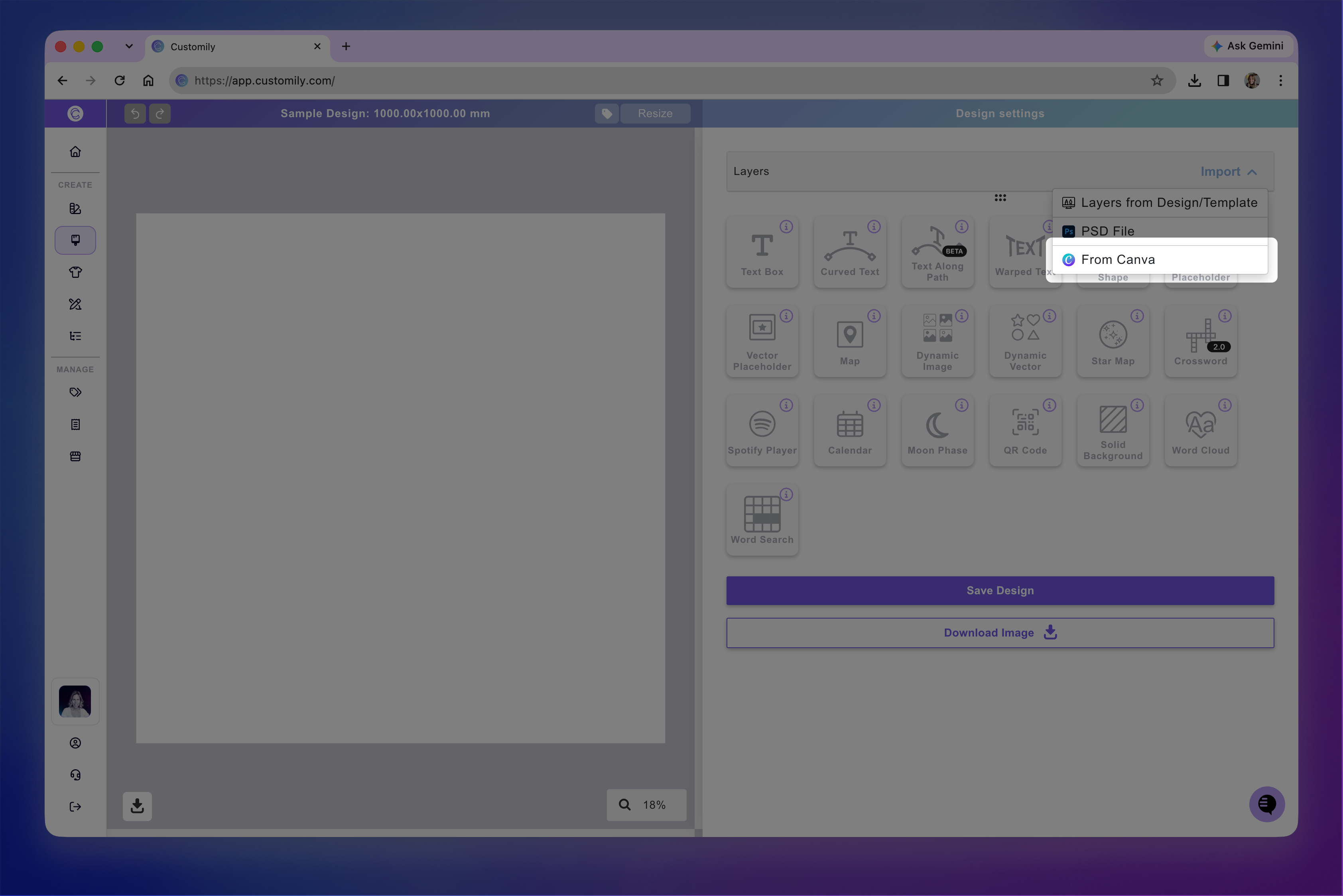
If this is your first time, follow the prompts to connect your Canva account and authorize access.
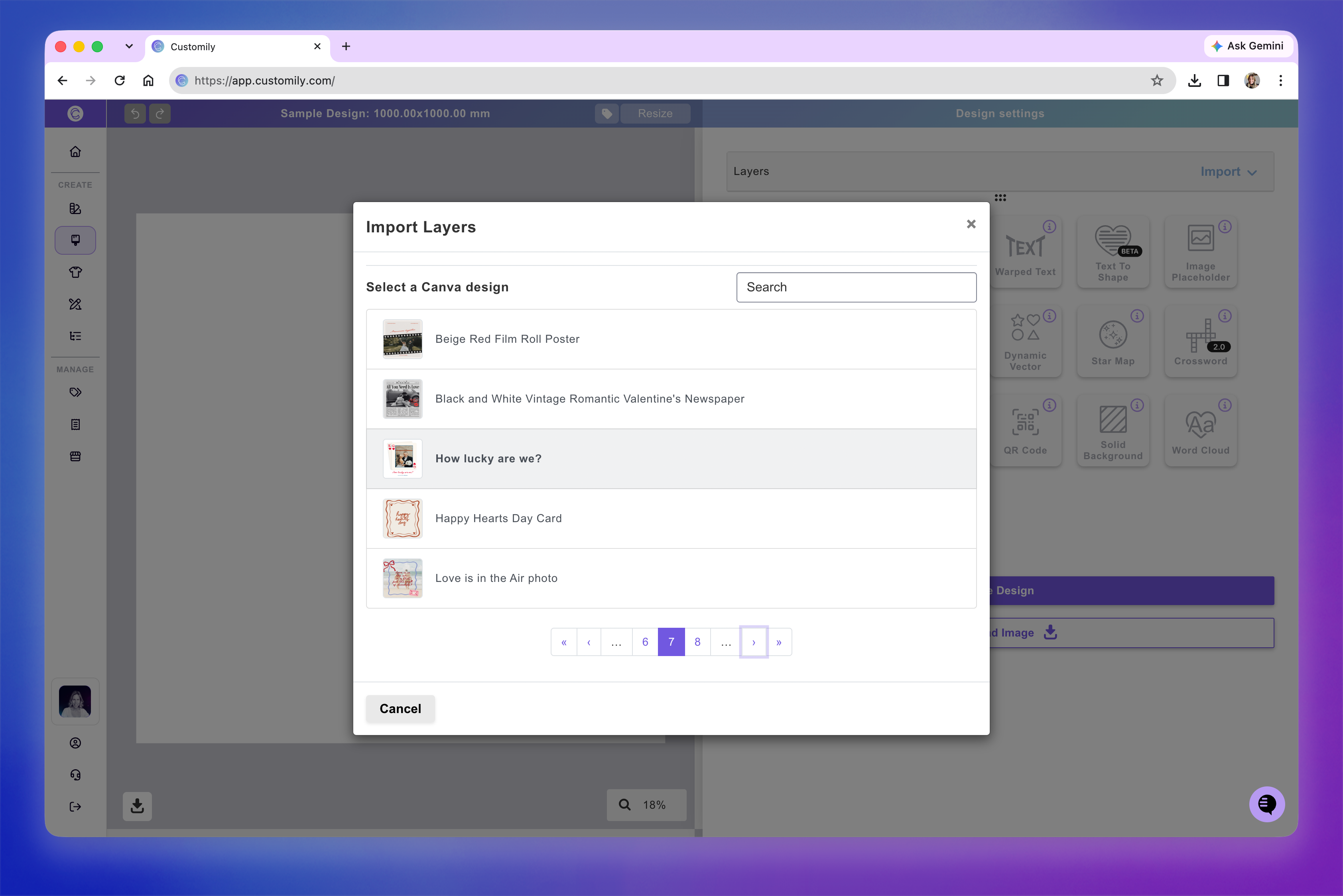
Browse or search for the Canva design you want to import and select it.
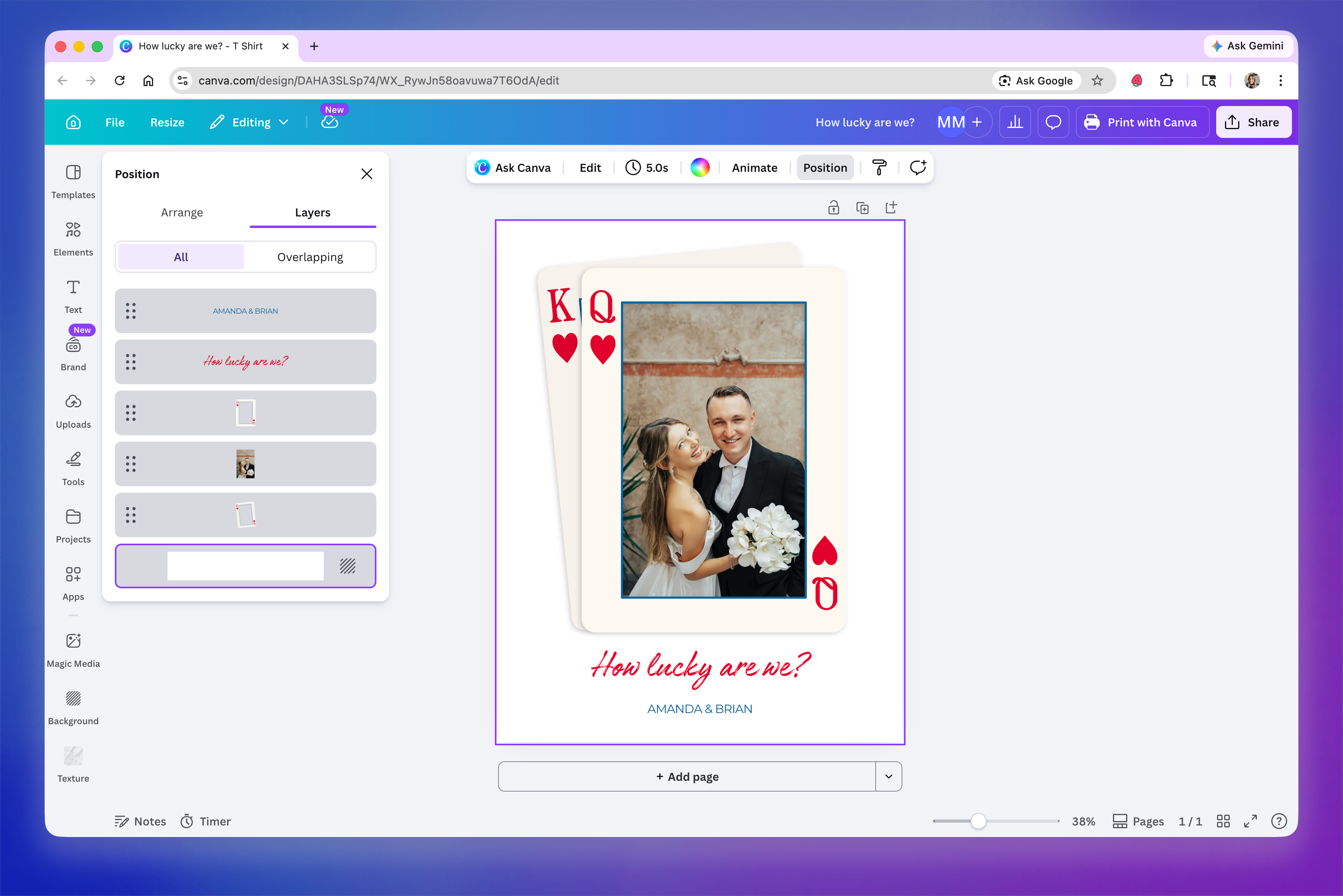
Here's the Canva design we'll be using in this guide.
2. Choose your import settings
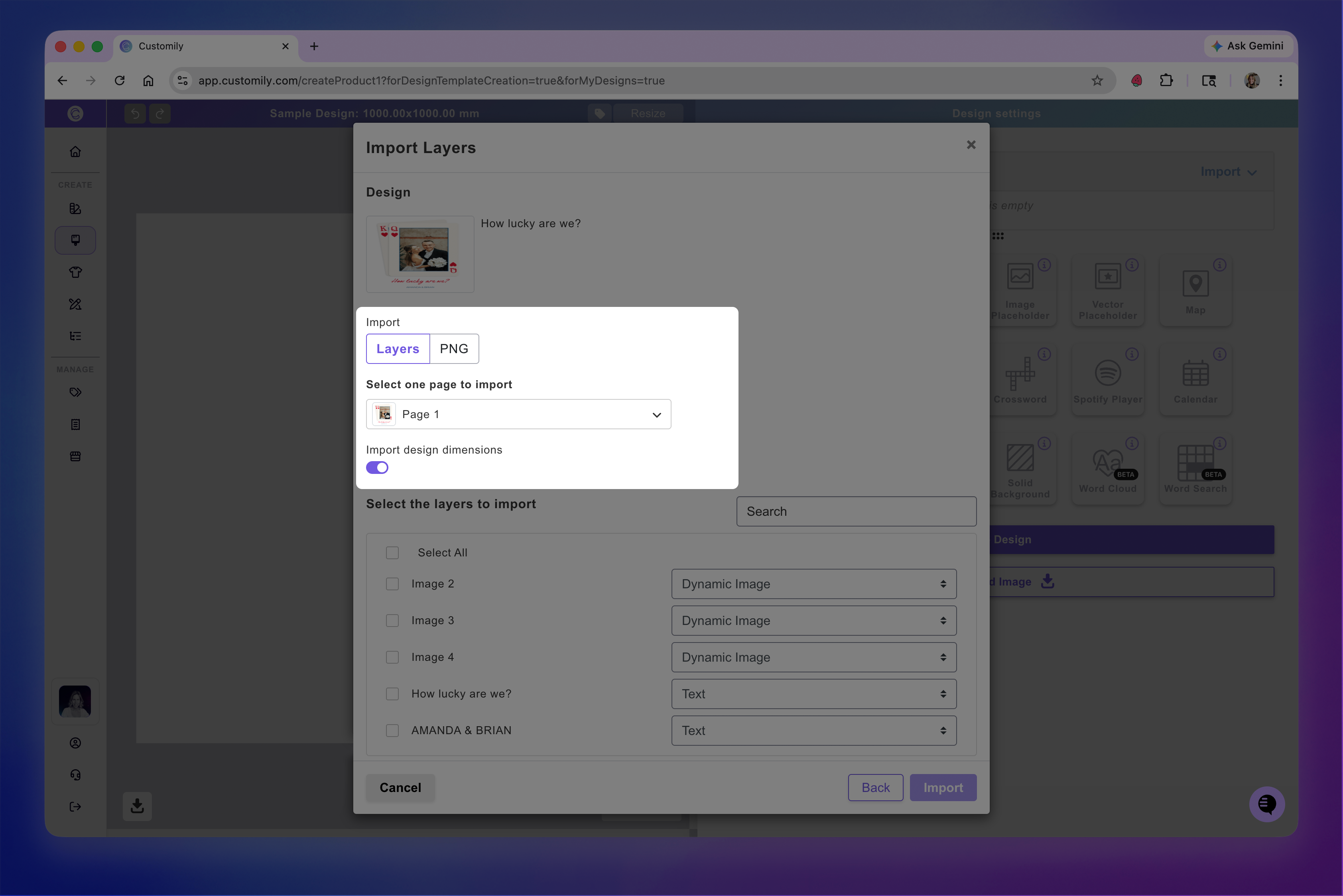
A dialog will open showing your Canva design and the available import options.
Import as Layers or PNG: Choose whether to import individual editable elements or the entire artwork as one image.
Select the page: If your Canva design has multiple pages, choose the page you want to import.
Import design dimensions: Enable this option to resize your current Design canvas to match the Canva design's dimensions.
3. Select and configure your elements
If you're importing as Layers, choose which elements you want to bring into Customily.
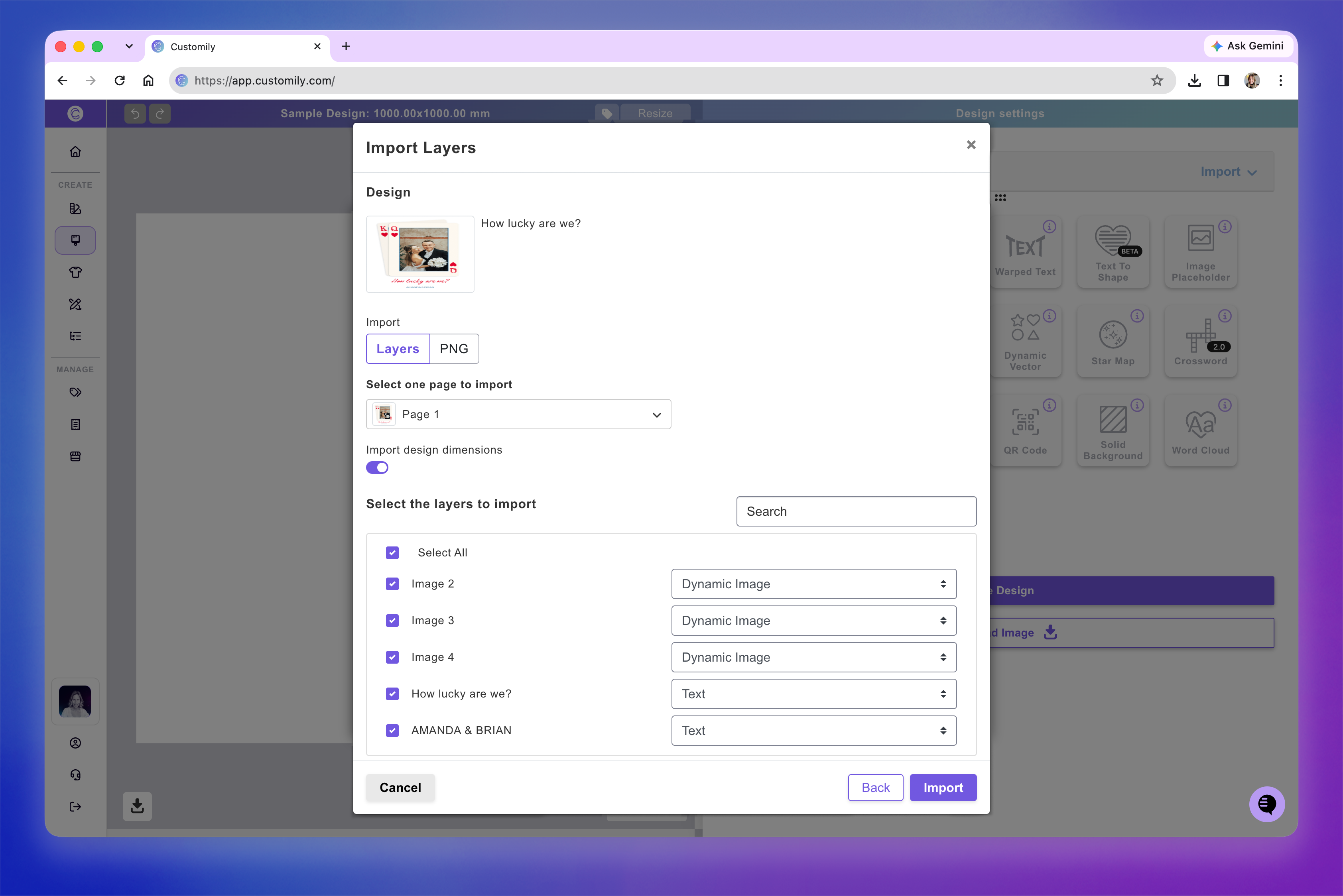
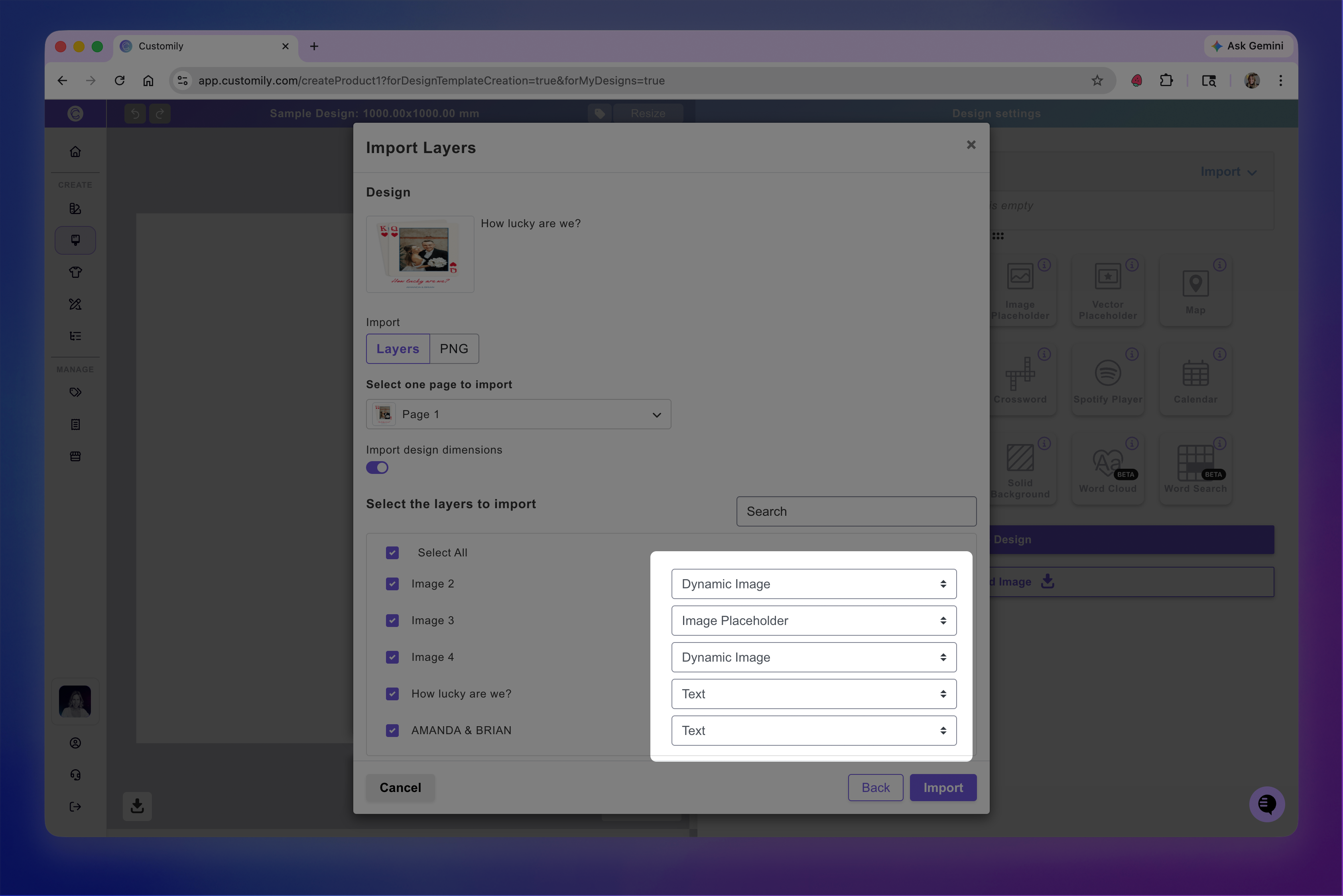
Customily automatically assigns an element type to each layer, but you can change it before importing.
Here's how Canva elements are typically imported into Customily:
Canva element | Customily element |
|---|---|
Text | Text Box |
Images and graphics | Dynamic Image or Image Placeholder |
Frames | Image Placeholder with a mask |
Grids | Multiple image elements |
Shapes | Dynamic Vector |
Backgrounds | Solid background element |
For example, you can choose an Image Placeholder for a photo shoppers should upload themselves, or a Dynamic Image for artwork they can select from a Library.
Note
Canva layers don't have names like Photoshop layers, so identifying them can be tricky. Use your original Canva design as a reference. The bottom layer in Canva appears at the top of the import list.
4. Complete the import
Confirm your selections to import the elements into the Design Studio.
If your Canva design uses fonts that aren't available in your Customily account, you'll be prompted to choose replacement fonts. If none of the fonts match your style, don’t worry, you can choose any font for now and update it after importing.
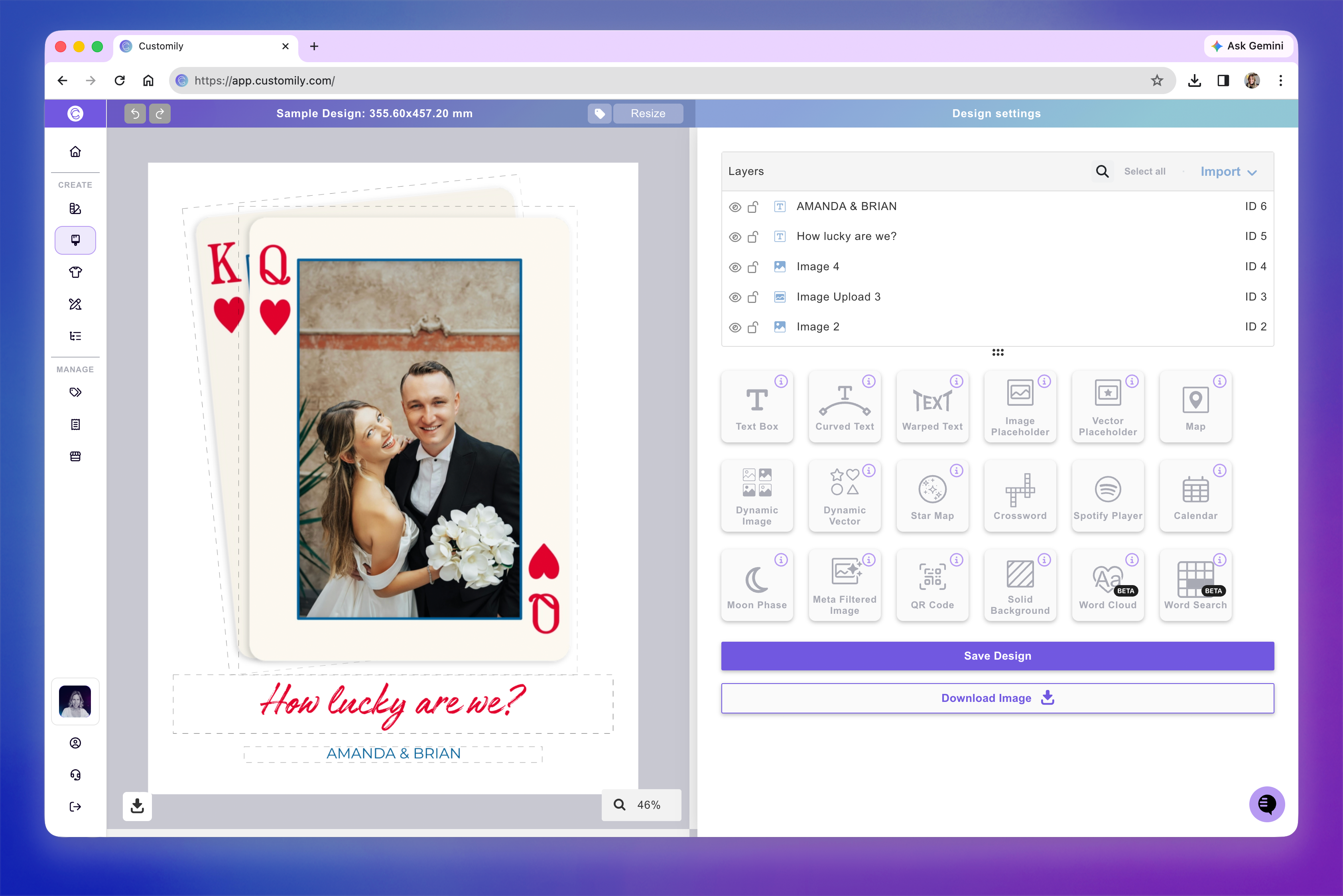
Once imported, you can adjust the elements, configure their personalization settings, and save your Design or continue to the next step on your Template.