Change options styles
Last updated: April 28, 2026
The way Customily Options are displayed depends on the type of option if it's a text field, a swatch, a dropdown, etc.
To change Customily Options styles
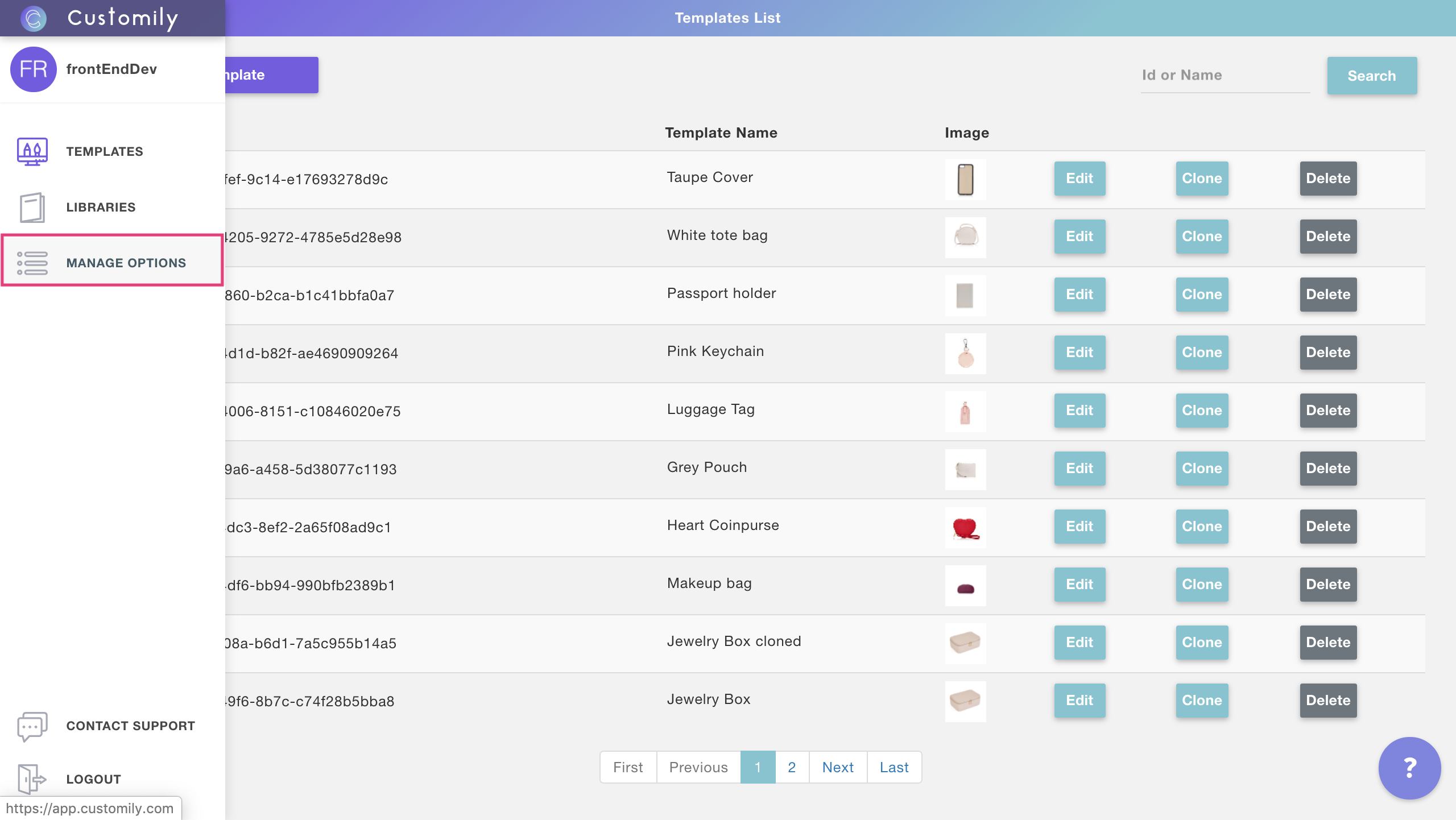
- From your Customily Admin Panel, select Manage Options from the sidebar menu
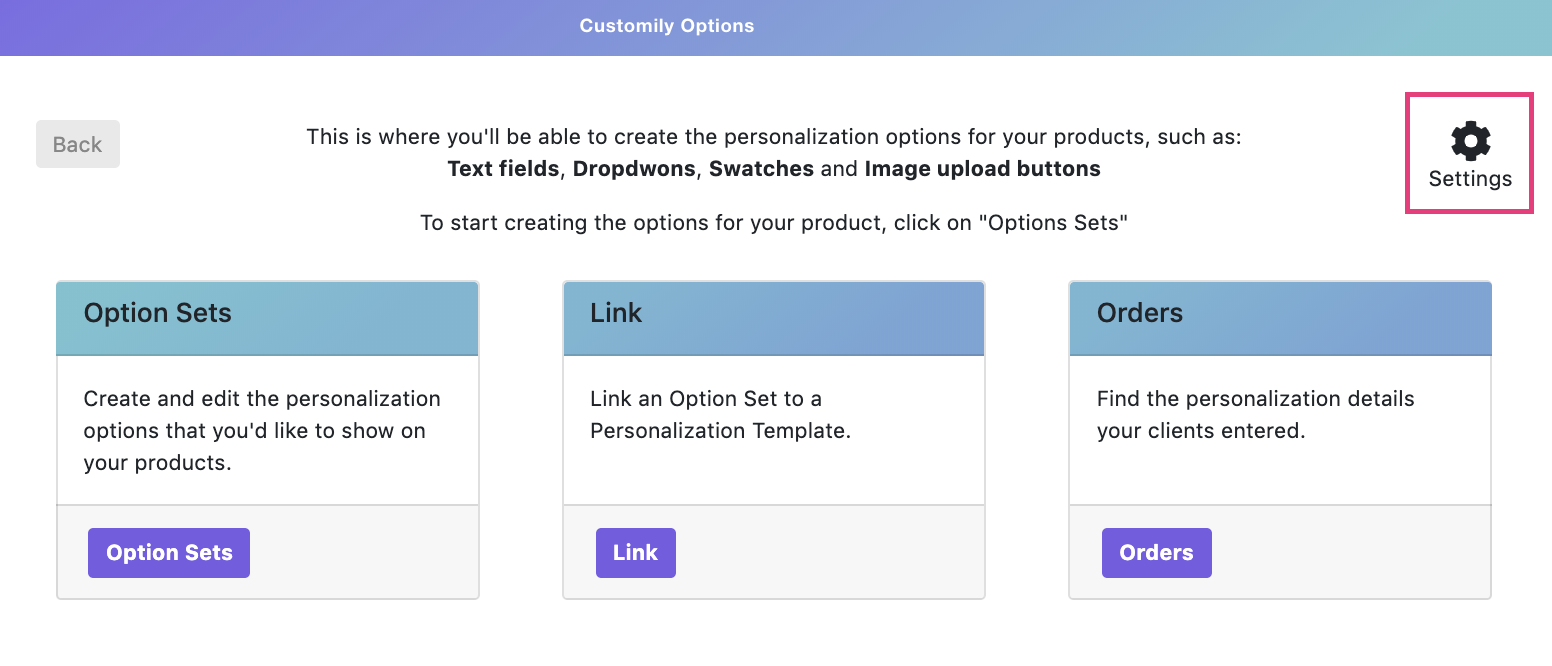
- Click on settings
- Click on the styles tab
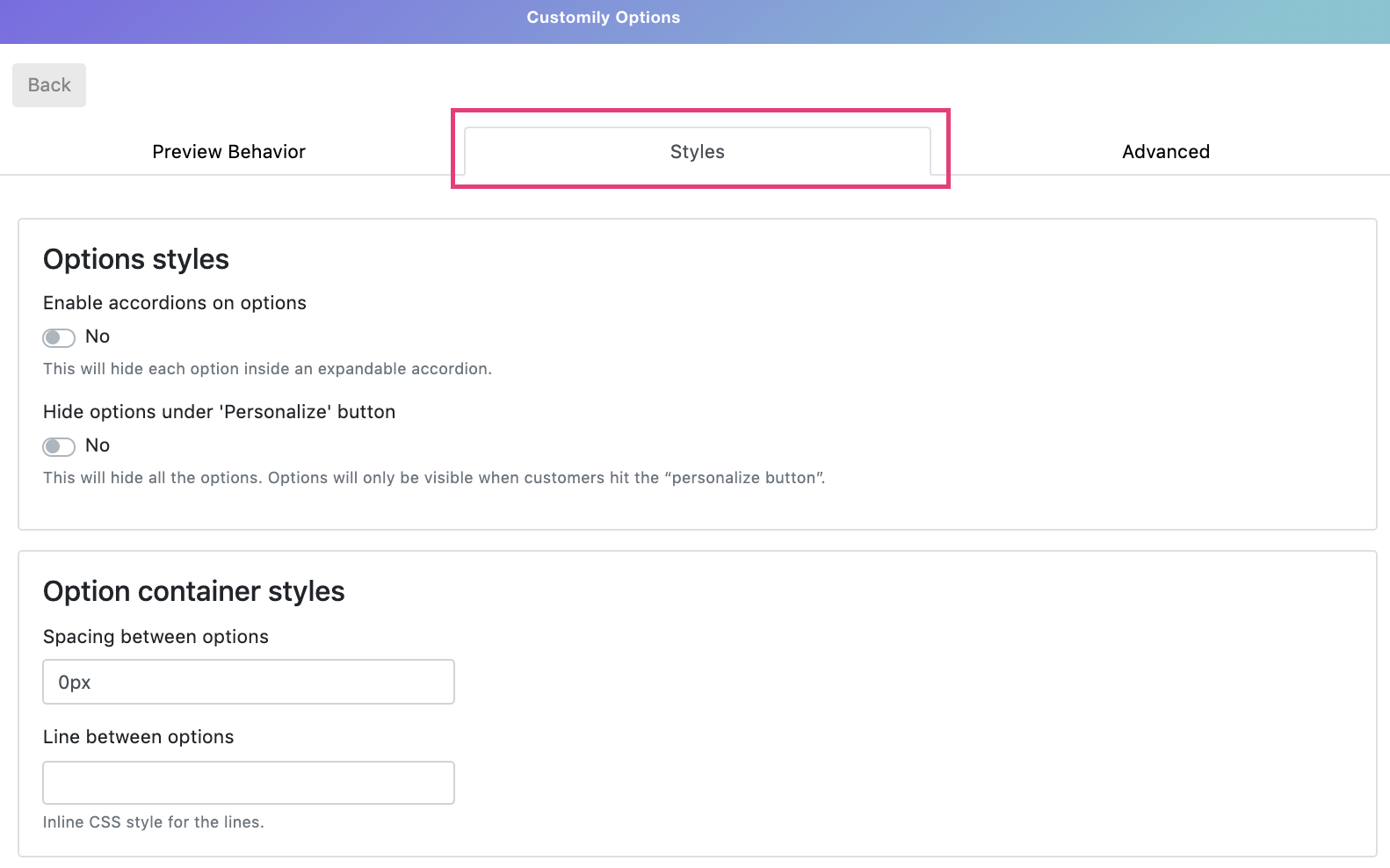
- There you'll find all the different styles you can edit for the different Customily Options. The styles you can edit are:
Style |
What does it change? |
|---|---|
Enable accordions on options |
This will hide each option inside an expandable accordion. |
Hide options under 'Personalize' button |
This will hide all the options. Options will only be visible when customers hit the “personalize button”. |
Spacing between options |
Determine how many space there is between options |
Line between options |
Add a line between each option |
Change swatch shape |
Choose from square, round or rounded square swatches |
Change swatch size |
Choose from small, medium and big swatches |
Required message styles |
Change the wording from the required text, and the text color |