Image placeholder
Last updated: October 15, 2026
Image placeholders let shoppers upload their own photos or images to personalize a product. The placeholder defines the area where the uploaded image appears, not the size of the image itself. On the canvas, it's represented by a dashed line.
You can customize the placeholder's shape, size, and position, and control how uploaded images appear within it.
How It Works
When you add an image placeholder to your design:
Shoppers can upload their own image in JPG, PNG, BMP, or HEIC format.
Their uploaded image appears live in the product preview, inside the placeholder you defined.
You can control how the image fits or fills the placeholder, and apply custom shapes using masks.
Shoppers can move, resize, or rotate their uploaded image within the limits you configure.
You can automatically apply effects to uploaded images, such as background removal, face cutouts, or AI filters.
Each image placeholder accepts one uploaded image. For other file formats, such as PDFs or vector files, use a 📄 Vector Placeholder.
To add an image placeholder
You can add image placeholders on Designs and on Templates, by clicking the Image Placeholder button.
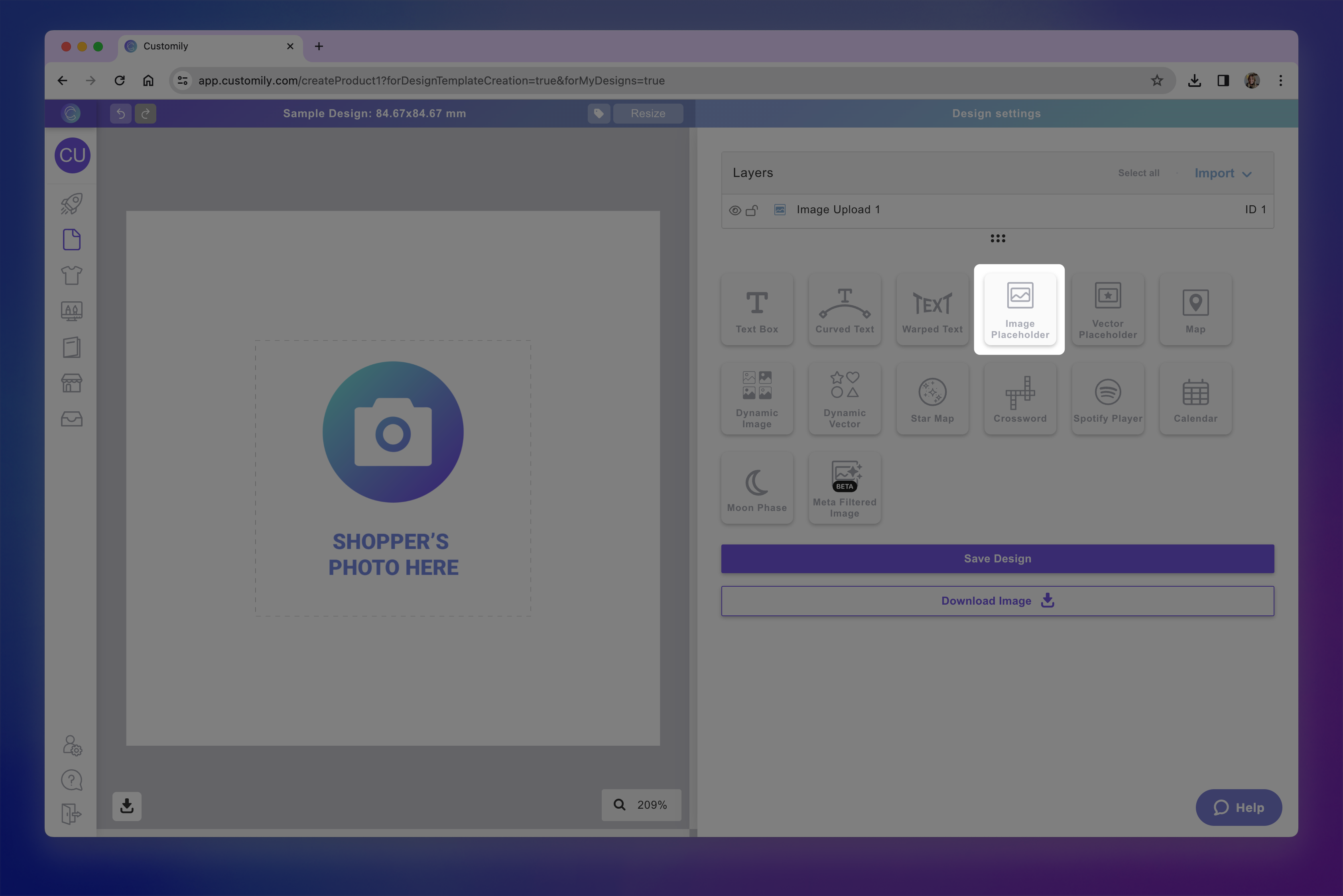
Each image placeholder you add will have a Name that you can edit, and a Unique Id for you to easily identify it.
How to move, resize and transform the image placeholder
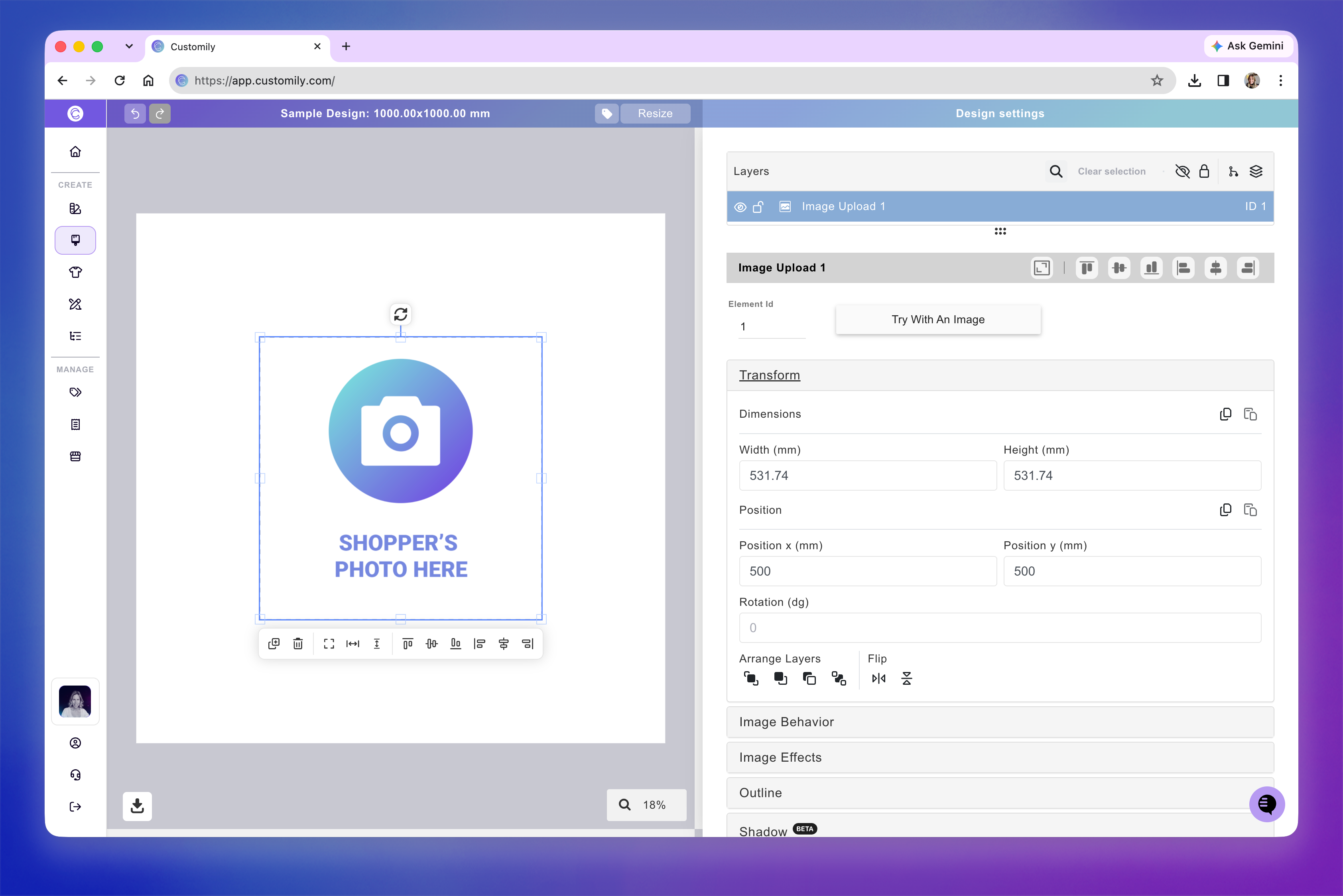
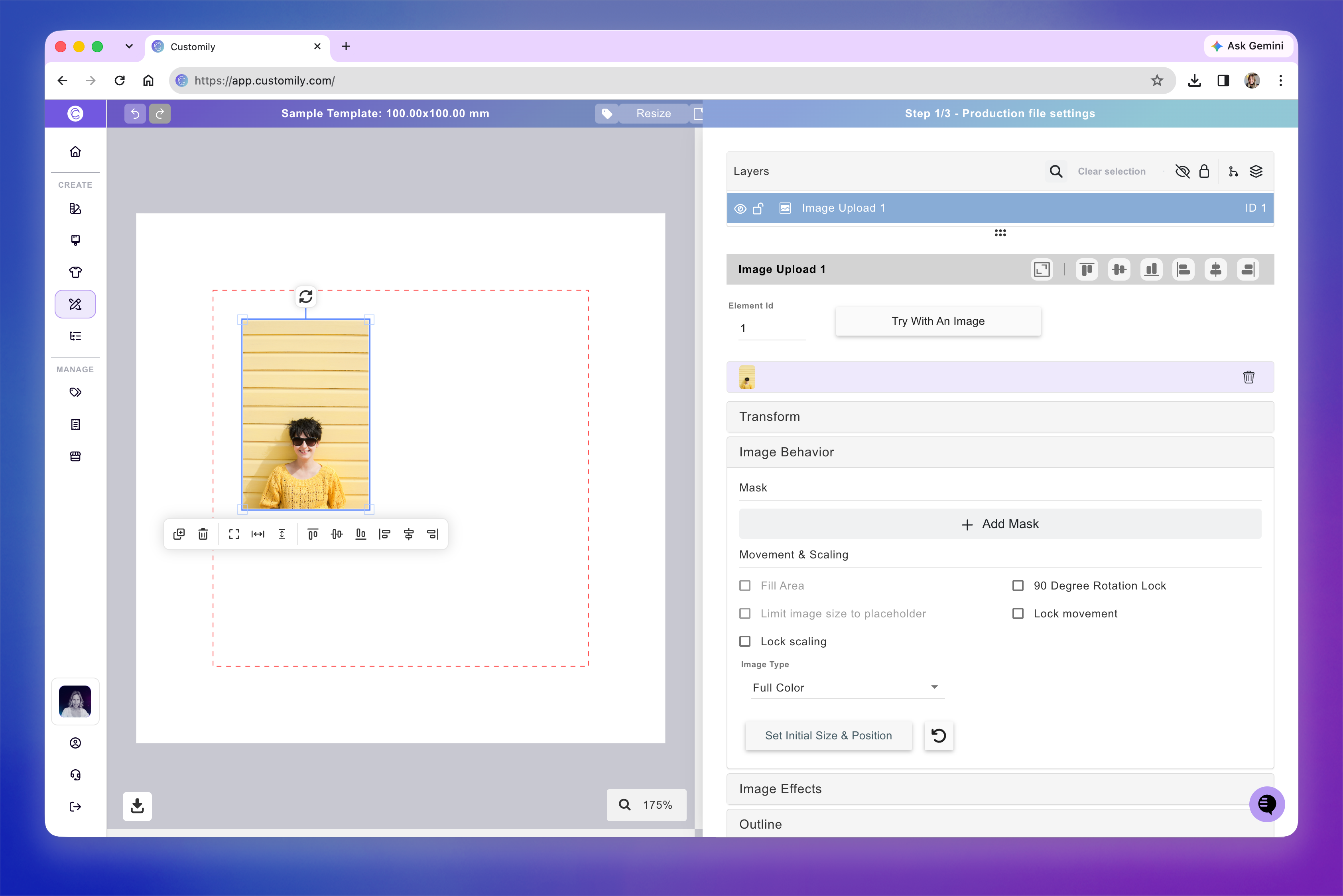
You can move, resize, and rotate an image placeholder directly on the canvas.
When you select an image placeholder, a quick-action toolbar appears below it, with shortcuts to duplicate, delete, align, and distribute elements.
For more precise adjustments, expand the Transform toolbox. Use these controls to adjust the placeholder's position, rotation, size, skew, flip, and layer order.
For detailed instructions on each transformation, see 📄 Transforming an element
How to control uploaded image behavior
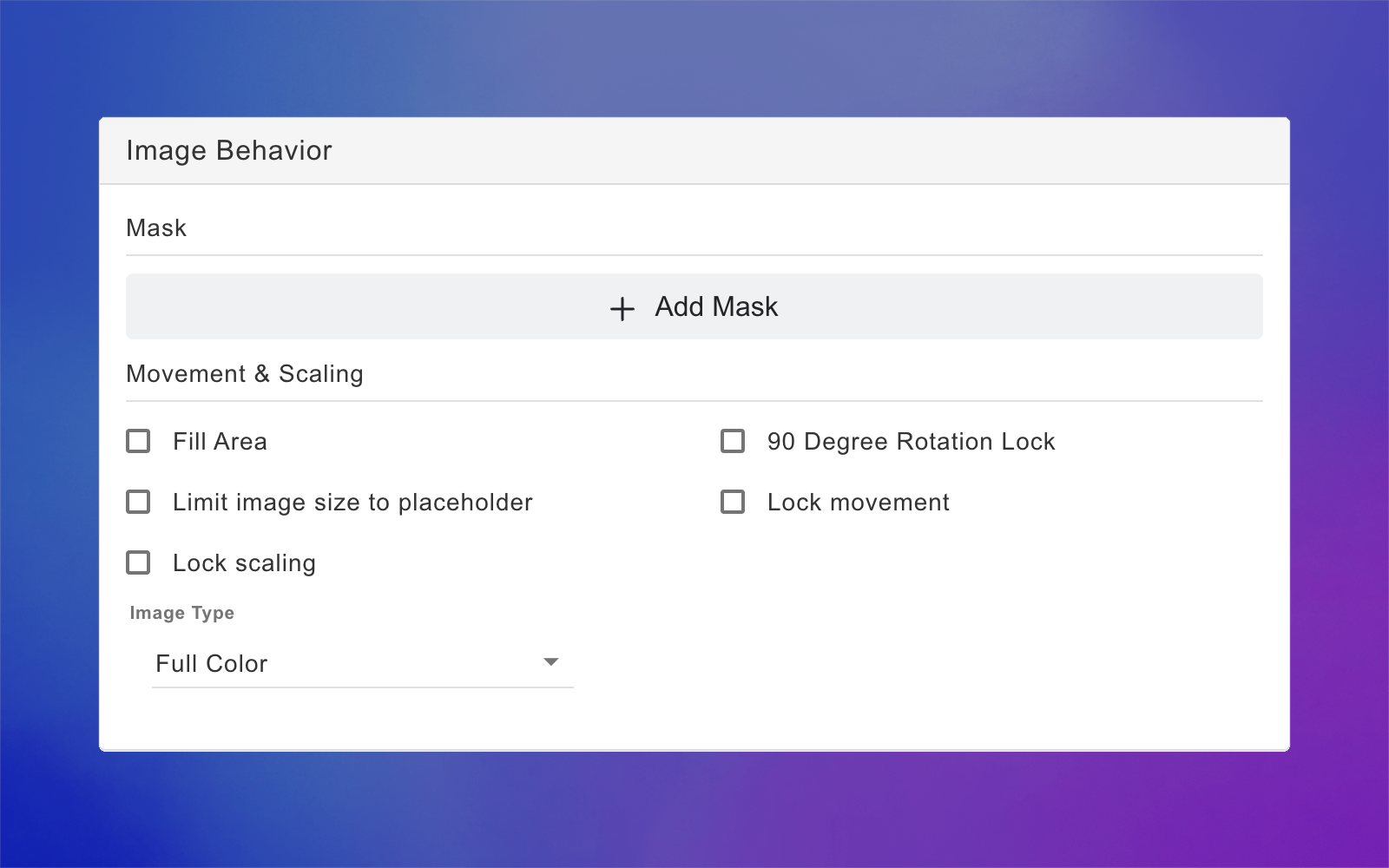
The Image Behavior toolbox lets you control how shoppers' uploaded images appear and how they can adjust them during personalization.
You can apply a mask to define the image's shape, control how it fits within the placeholder, restrict movement or resizing, and choose how its colors are displayed.
Add a mask
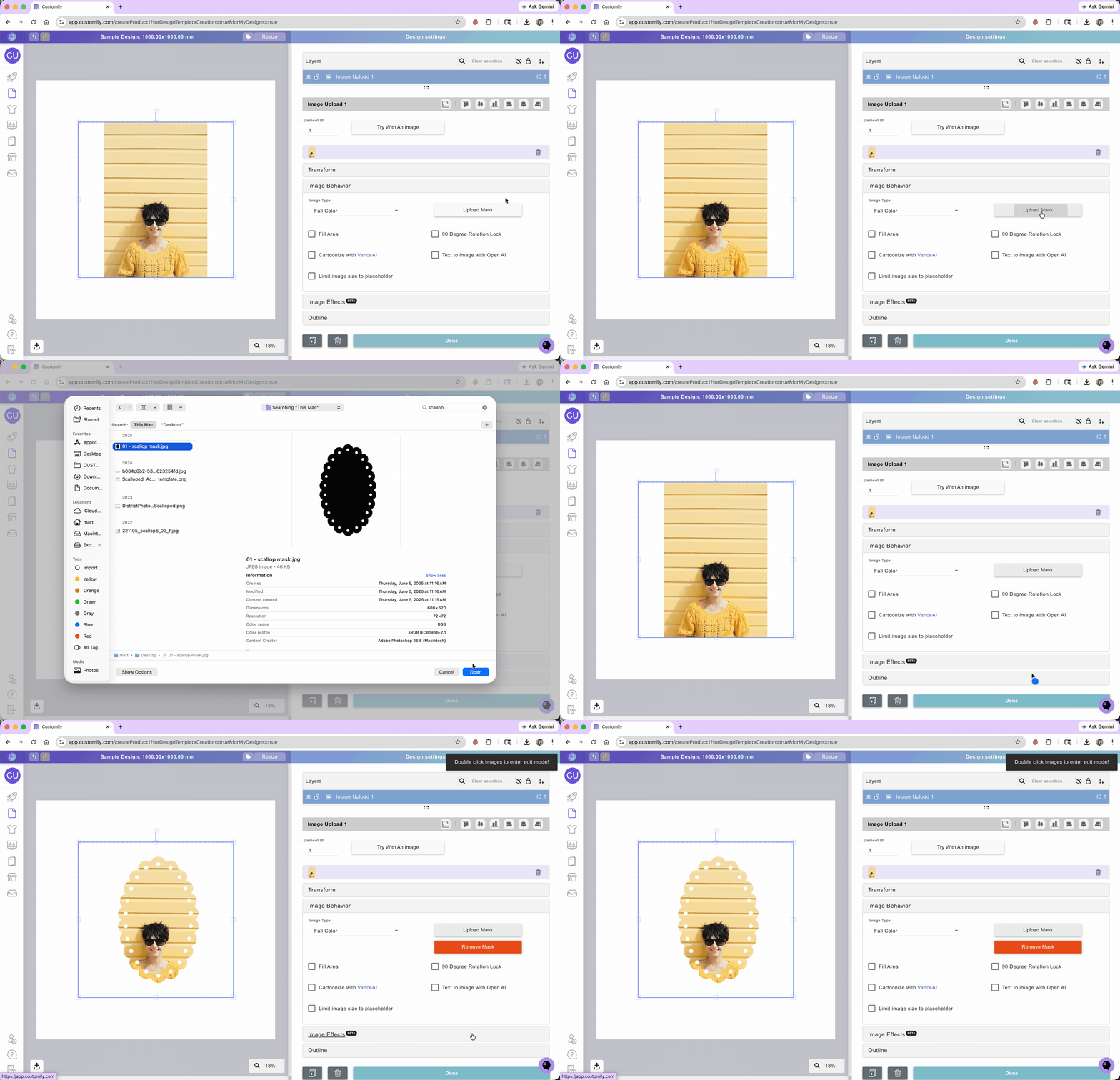
Masks let you display shoppers' uploaded images inside a specific shape, such as a circle, heart, or custom outline.
To add a mask:
Select the image placeholder.
Expand the Image Behavior toolbox.
Click Add Mask.
In the Select or Upload a Shape window, choose how to add your mask:
Customily: Select one of the predefined shapes.
Uploaded: Choose a mask you've previously uploaded.
Upload: Upload your own mask file.
Select the shape you want to use.
Uploading your own mask
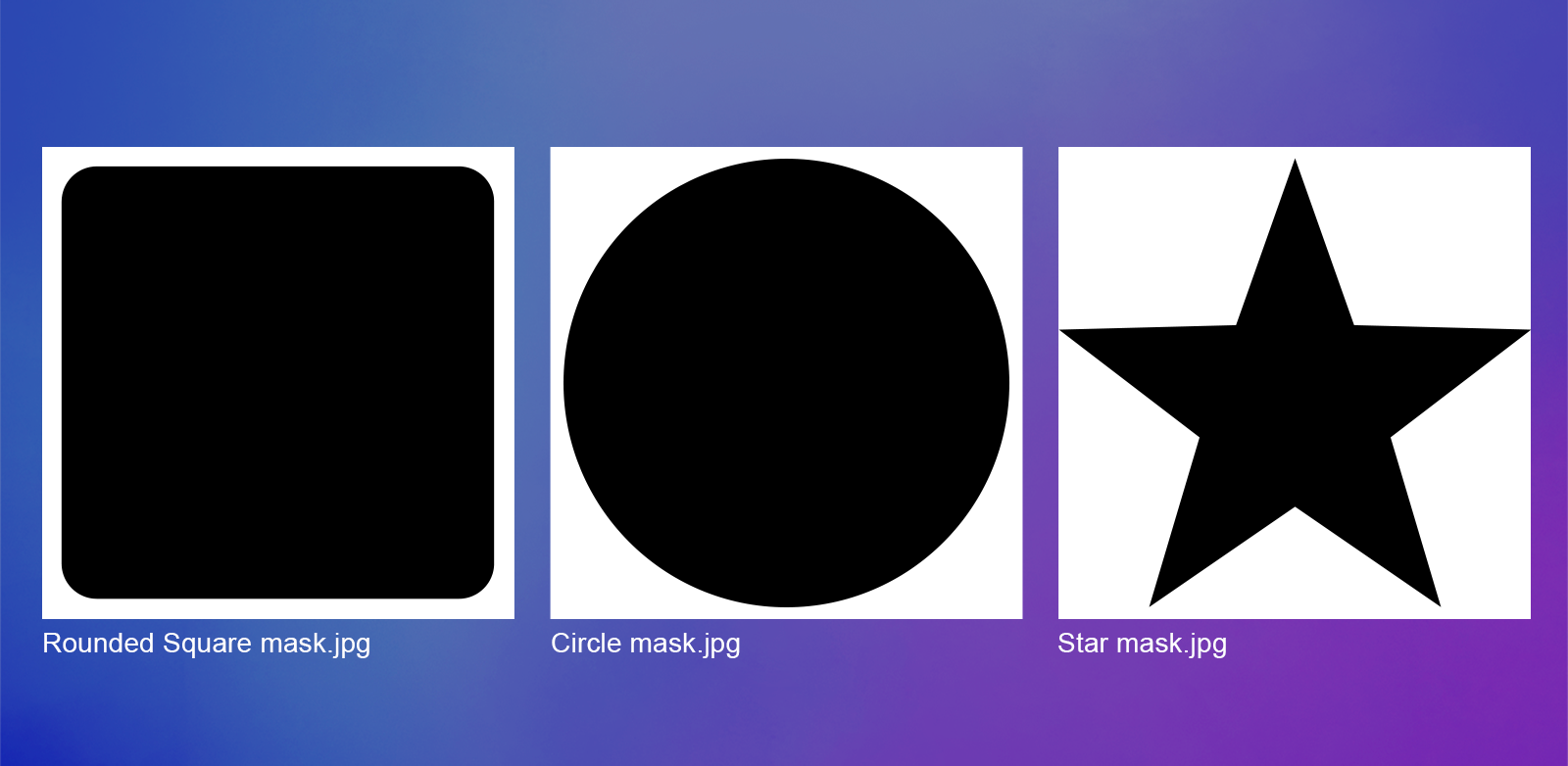
If you're uploading a custom mask, use a black-and-white image where:
Black represents the shape you want the uploaded image to fill.
White represents the area outside the shape.
Use a high-quality image, preferably at least 1000 × 1000 px, to ensure smooth edges.
Here are some examples of custom masks:
Tip
You can also create a masking effect by layering elements over the uploaded image. For example, place a PNG using a Dynamic Image or a vector using a Dynamic Vector above the image placeholder to hide parts of the uploaded image.
For more information, see 📄 Using dynamic images or vectors as masks
Control image movement and scaling
Use these settings to control how shoppers can move, resize, and rotate their uploaded images within the placeholder.
To configure movement and scaling:
Select the image placeholder.
Expand the Image Behavior toolbox.
Under Movement & Scaling, enable the settings you want to apply.
Available settings:
Fill Area: Automatically scales the uploaded image to fill the entire placeholder, cropping any parts that extend beyond its boundaries.
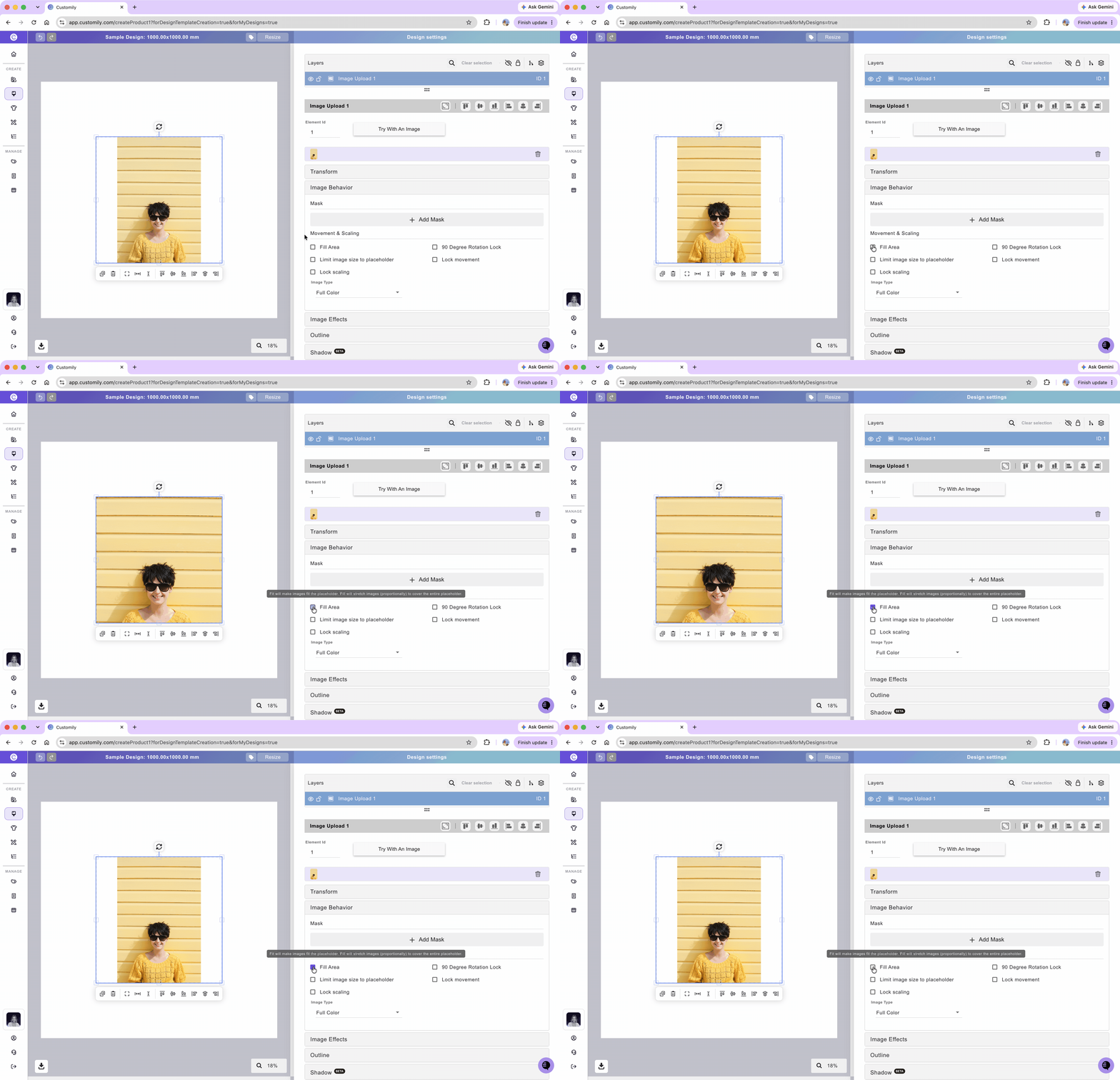
Limit image size to placeholder: Controls how shoppers can move and resize their uploaded images.
With Fill Area enabled: The image must continue covering the entire placeholder, preventing empty areas from appearing.
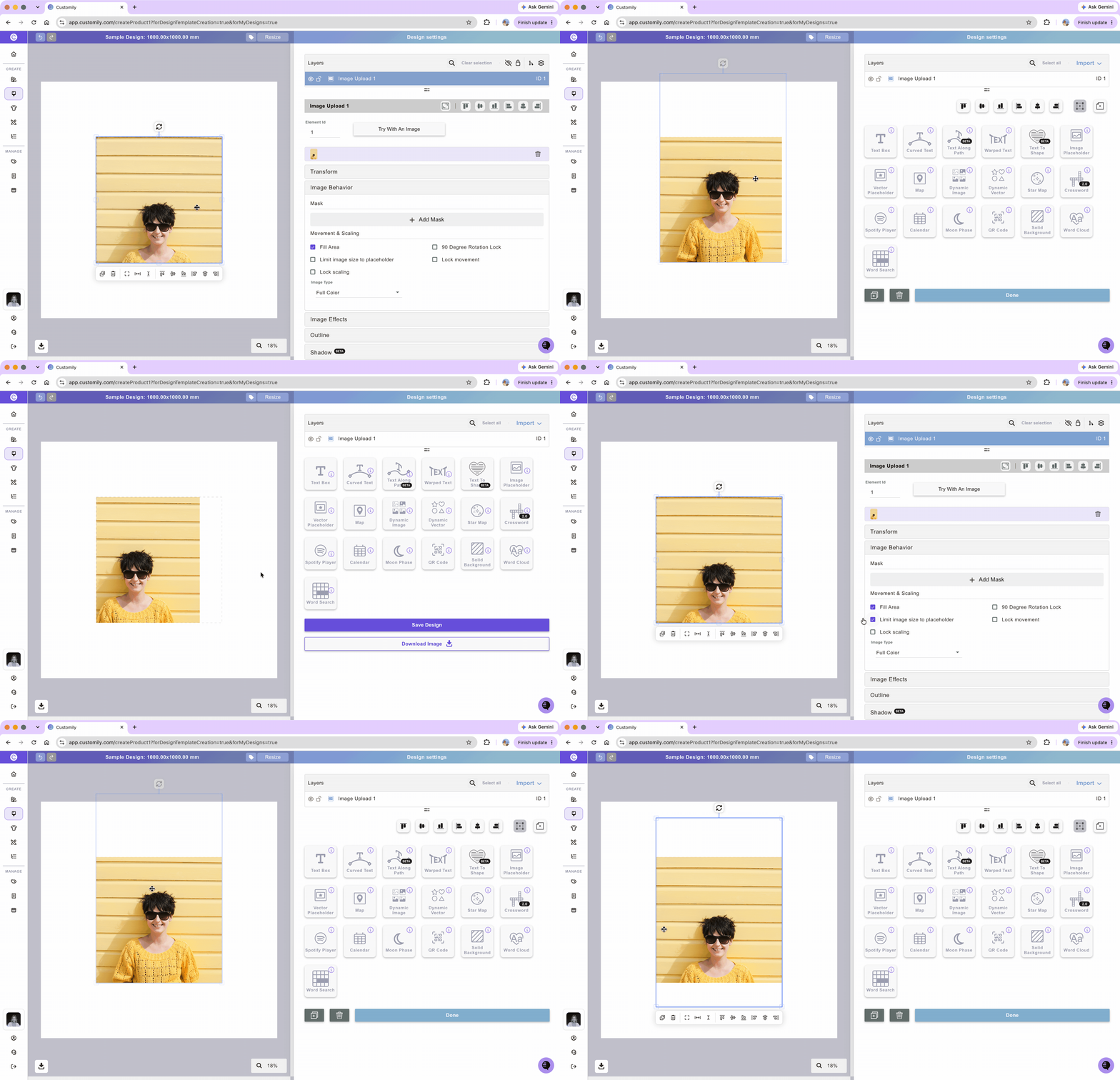
Without Fill Area: Shoppers can move and resize the image, but the entire image must remain inside the placeholder's boundaries. No part of the image can extend outside the placeholder, even if that leaves empty space within it.
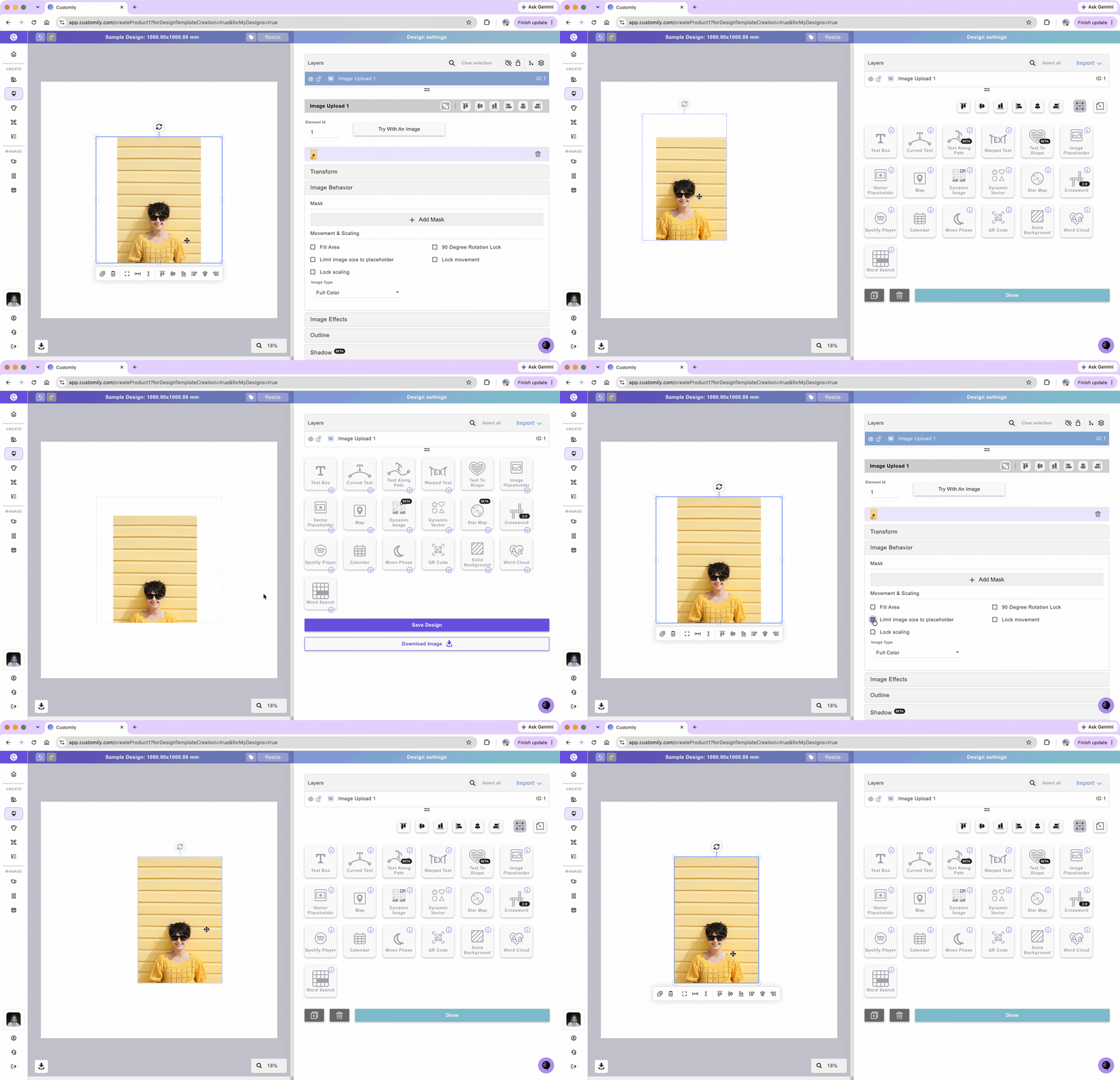
Lock scaling: Prevents shoppers from resizing their uploaded image.
90 Degree Rotation Lock: Restricts image rotation to 90-degree increments.
Lock movement: Prevents shoppers from moving their uploaded image.
Customize the coloring of uploaded images
Use the Image Type setting to control the coloring of shoppers' uploaded images. You can keep their original colors, convert them to grayscale, or apply a single color using image tracing.
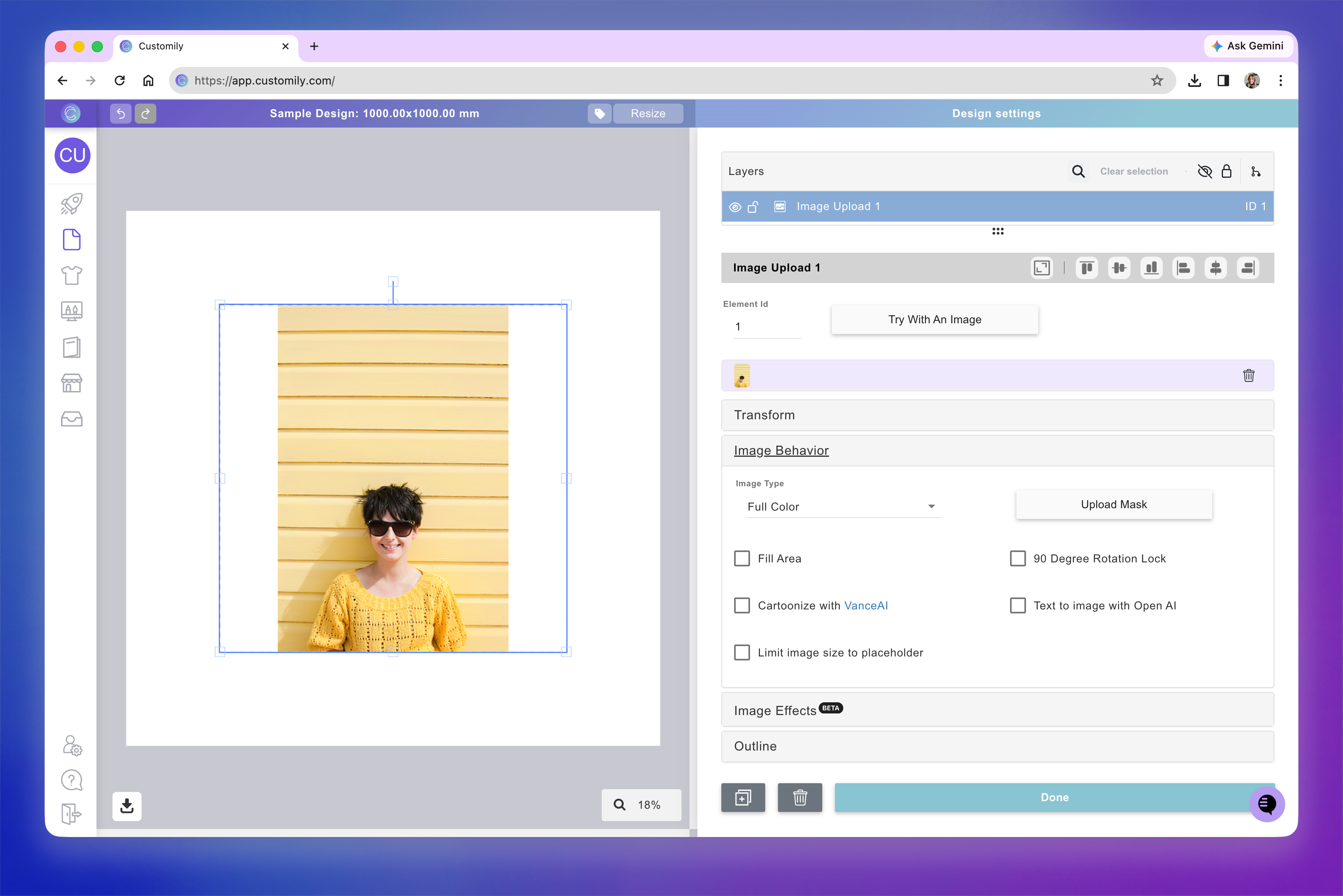
Full Color
Images in full color mode will remain exactly as the customer uploaded them. This is the standard mode for images.
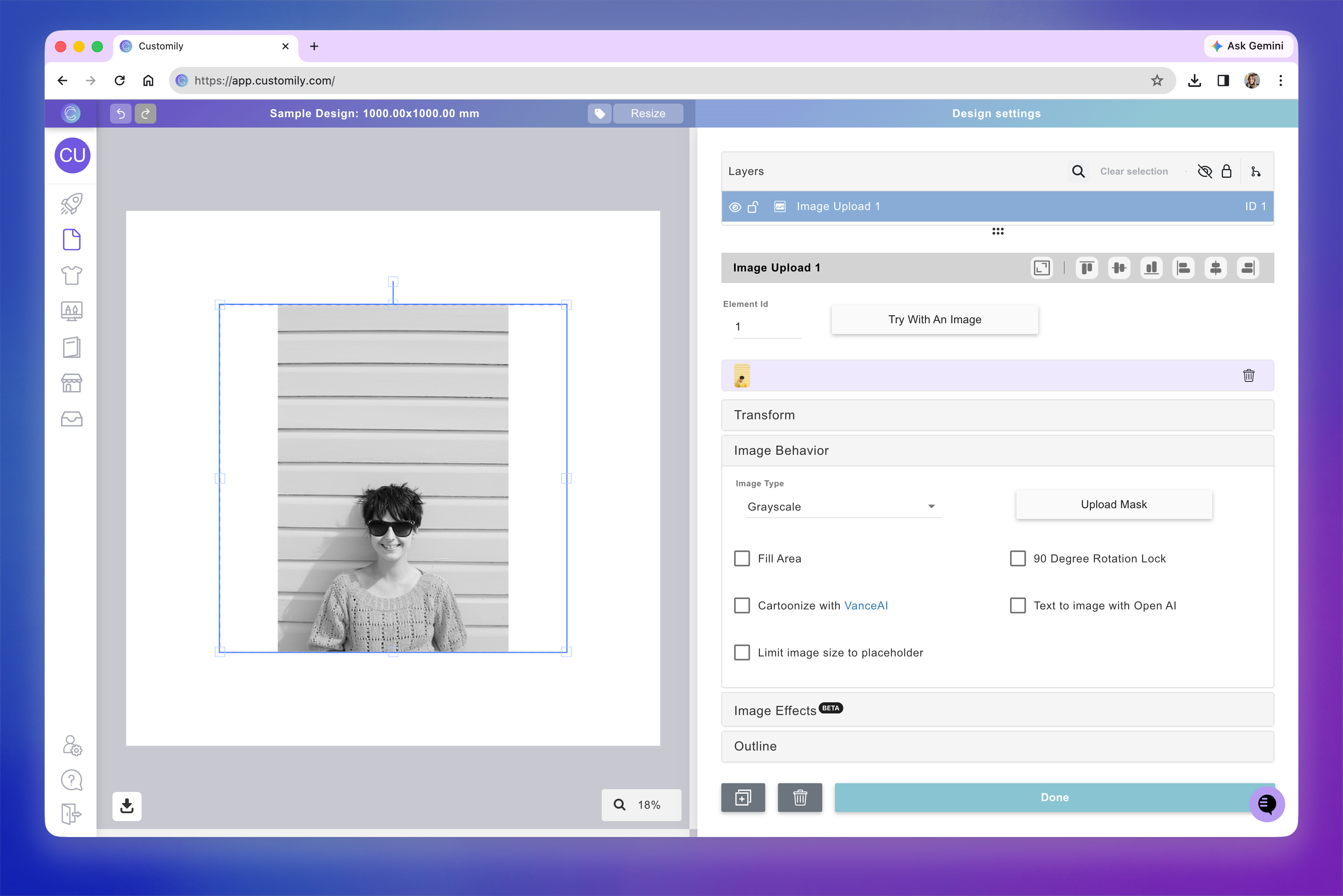
Grayscale
Images in grayscale mode will be converted to grayscale (black and white)
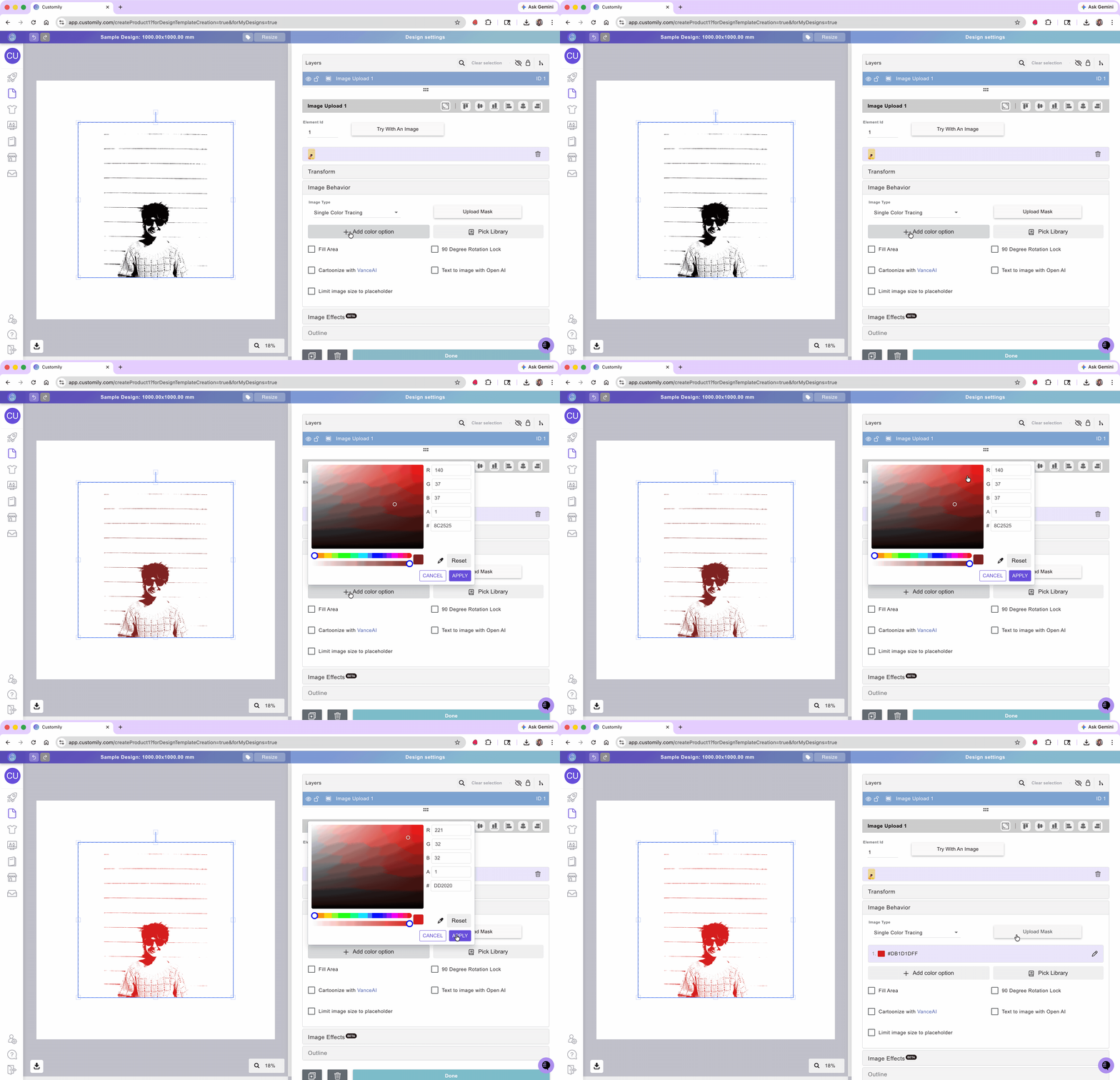
Single Color (Image Tracing)
Images in single color mode will be traced and converted to vectors with a single color. You can pick what color to use for the vector, and even give multiple color options for customers to choose from.

To change the image type:
Select the image placeholder.
Expand the Image Behavior toolbox.
Choose an option from the Image Type dropdown.
If you select Single Color (Image Tracing), click Add color option to choose a color. You can enter a HEX, RGBA, or CMYKA value, depending on your design's color mode, and adjust transparency using the Alpha slider.
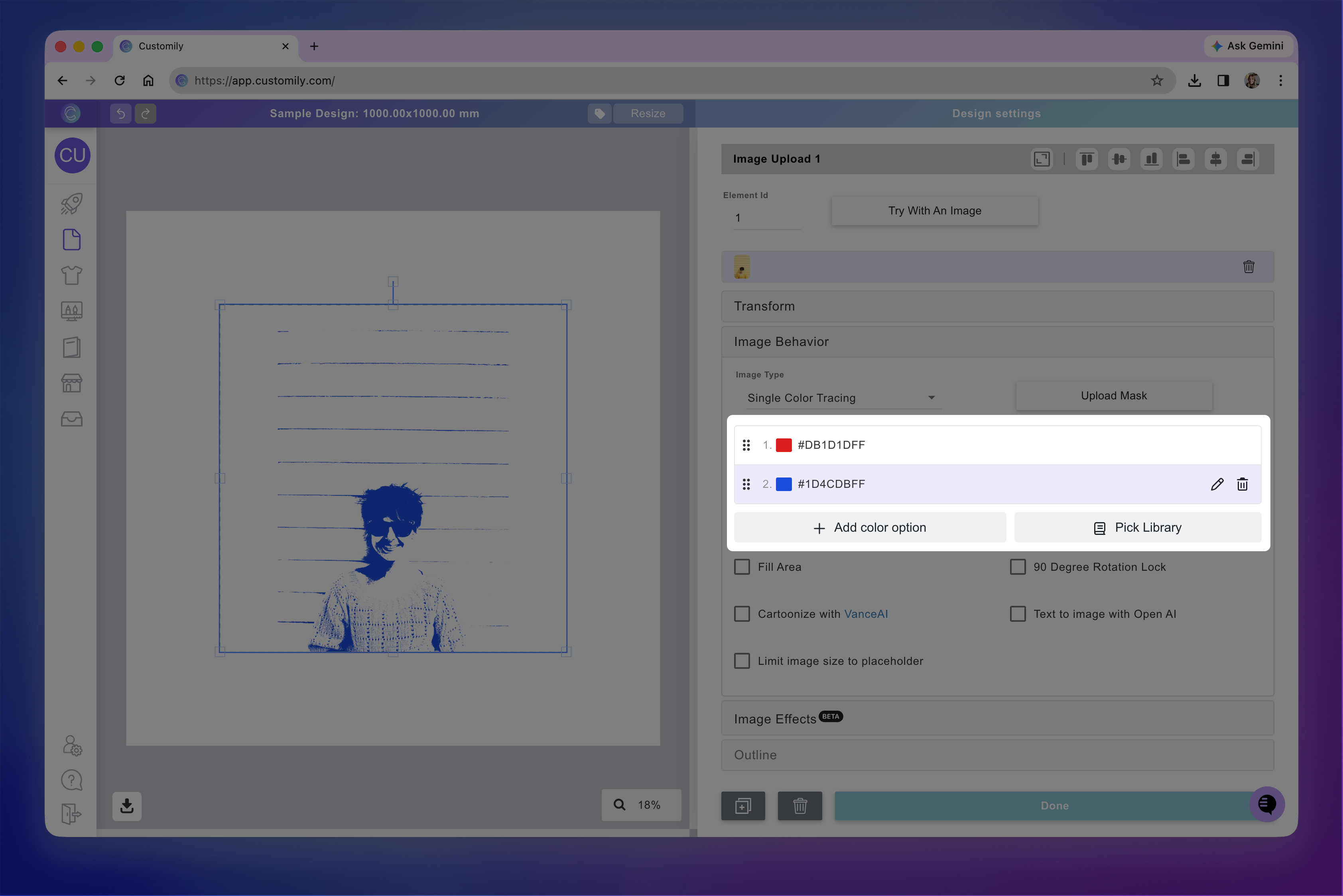
Tip
If you select single image mode, you can add multiple color options to the user-uploaded image. To add more than one color option you can either use a color library or assign multiple color options by clicking +Add color option.
Set the initial size and position of uploaded images
When working with an Image placeholder in a Template, you can define the initial size and position of shoppers' uploaded images.
This controls where an uploaded image appears and how large it is when first loaded, before the shopper makes any adjustments.
It's particularly useful when:
Working with large placeholders: Start with a smaller image inside the placeholder, giving shoppers room to move and resize it.
Using image effects: Position images correctly for effects such as Face Cut Out.
Creating collage-style designs: Arrange images in their starting positions while allowing shoppers to move and resize them.
To set the initial size and position:
Select the Image placeholder.
Expand the Image Behavior toolbox.
Click Set Initial Size and Position.
The placeholder will turn red. Move and resize the image to the desired starting position.
The position you set will be used when shoppers first upload an image. To restore the default, click Reset.
Note
This setting is only available when creating or editing Templates manually, not when creating Designs.
How to apply AI filters and image effects
The Image Effects toolbox lets you enhance shopper-uploaded photos using powerful AI filters and effects.
These effects can clean up, restyle, or completely transform uploaded images with just a few clicks — from background removal and face cutouts to AI-generated artistic styles like cartoon, watercolor, 3D, or Renaissance painting.
All AI effects are applied automatically when shoppers upload an image.
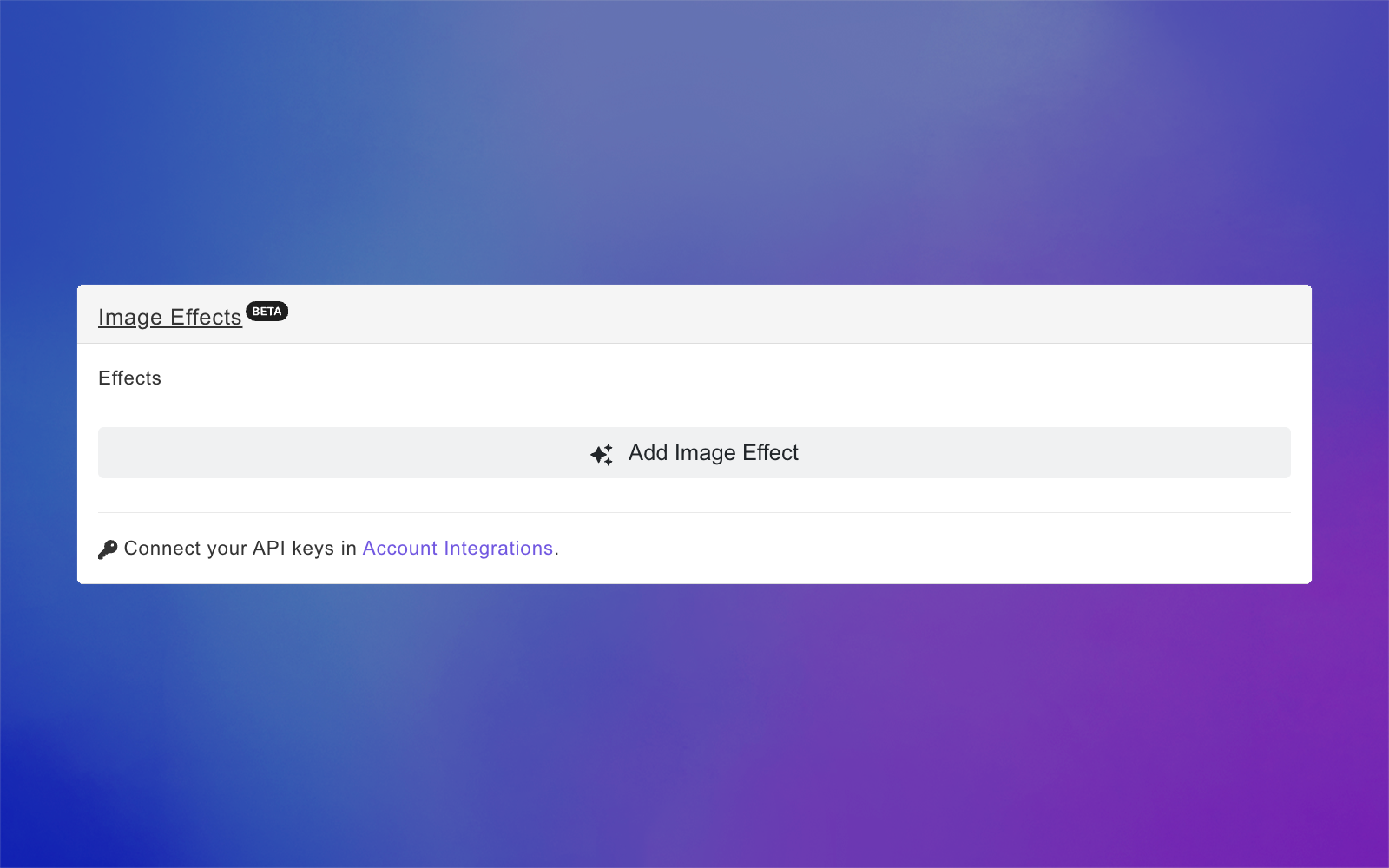
To add an image effect:
Select the image placeholder
Expand the Image Effects toolbox
Click Add Image Effect
Browse or search for an effect
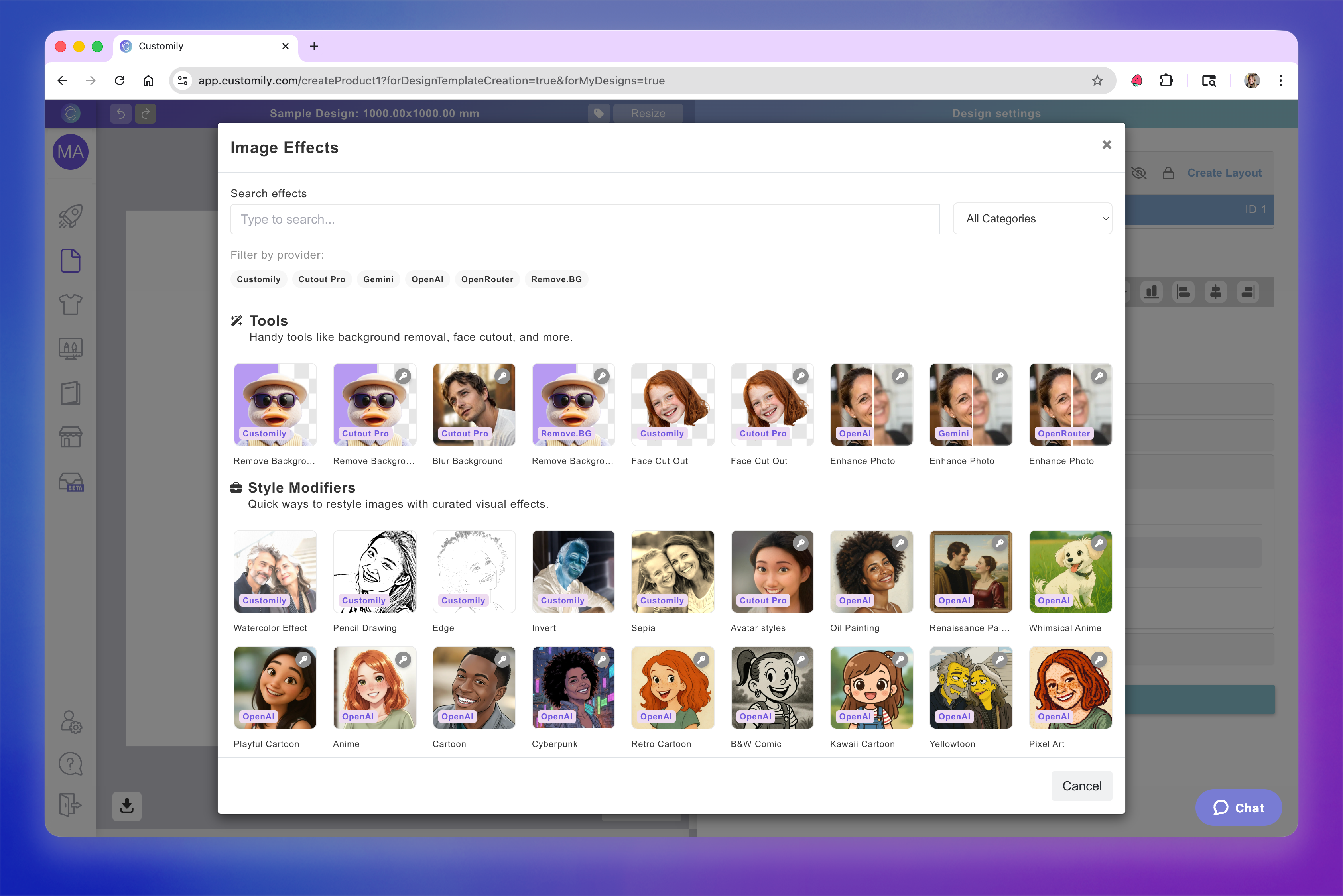
Click an effect to apply
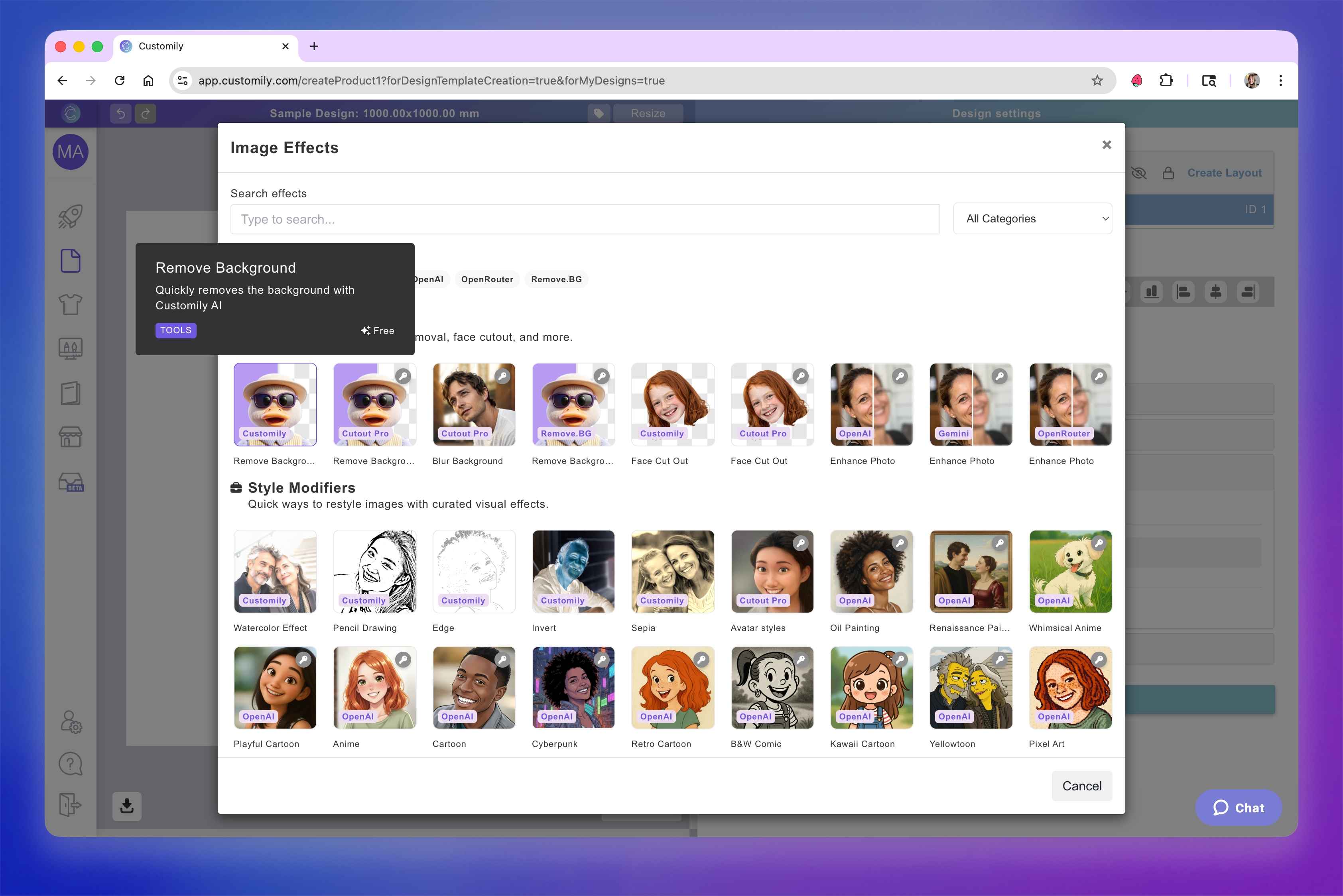
The applied effect will be displayed in the effects toolbox. You can apply more than one effect, stack and reorder them for layered results.
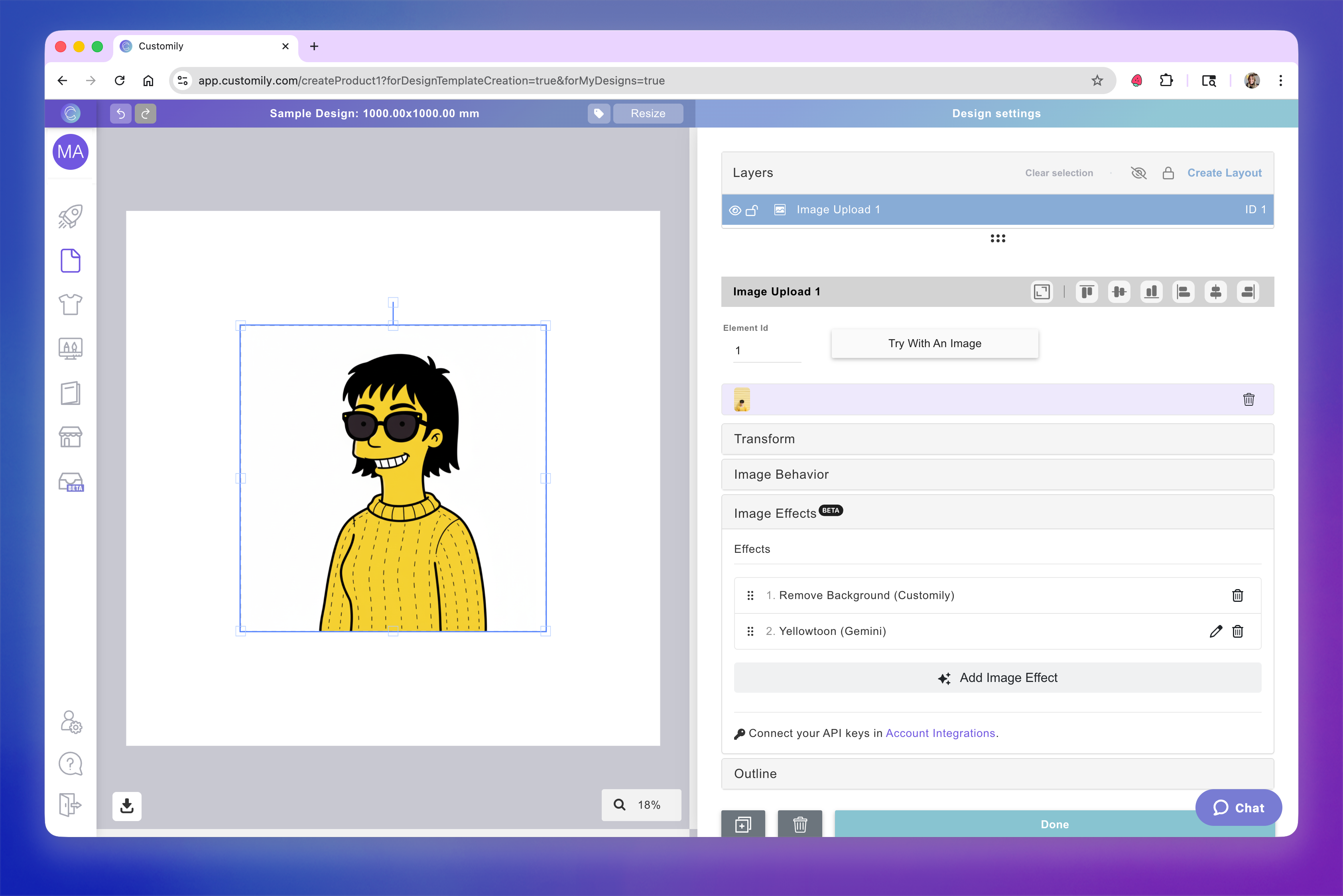
Depending on the effect you chose, there are different parameters you can configure. Click on the pencil to fine tune the effect if needed.
You can also stack multiple effects on the same image. For example, a common combination is to apply an AI filter to transform the image's style, then use Remove Background or Face Cut Out to isolate the subject.
Types of image effects
Customily offers a wide variety of image effects, from quick image adjustments to advanced AI-powered filters. Effects are organized into three categories:
Tools: Make specific adjustments to uploaded images, such as removing backgrounds, cutting out faces, or enhancing image quality.
Style Modifiers: Transform uploaded photos into different artistic styles, such as watercolor, pencil drawings, cartoons, or anime.
Custom Prompts: Create your own AI-powered effects using custom instructions with prompts and image references, or let shoppers generate entirely new images from text descriptions with Text to Image.
You can search for effects or filter them by provider (Customily, Gemini, OpenAI, or OpenRouter), and see which effects are free or require a third-party API connection.
For more information about available effects and how to configure them, see 📄 AI filters for image placeholders
How to add an outline to the uploaded image
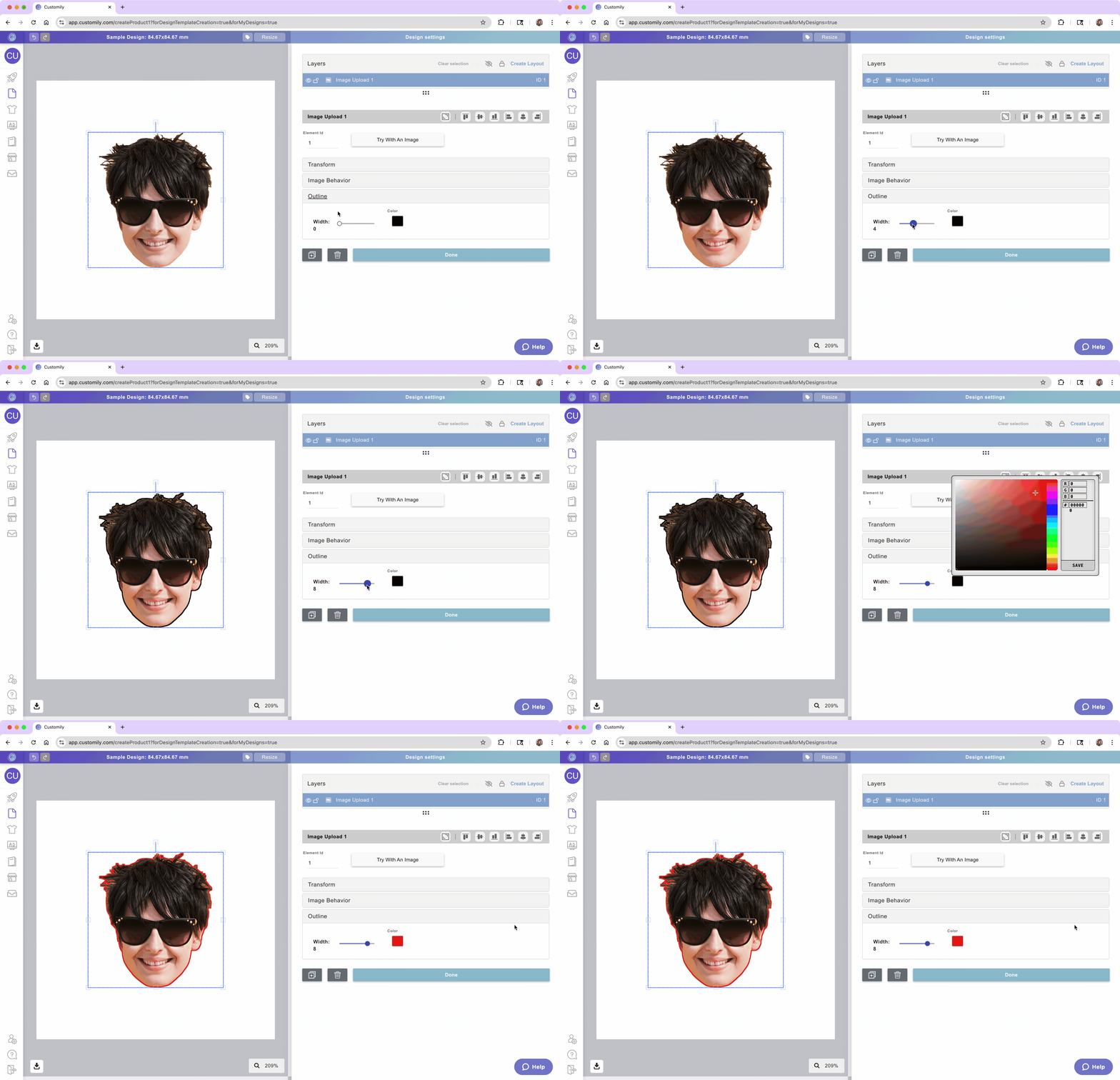
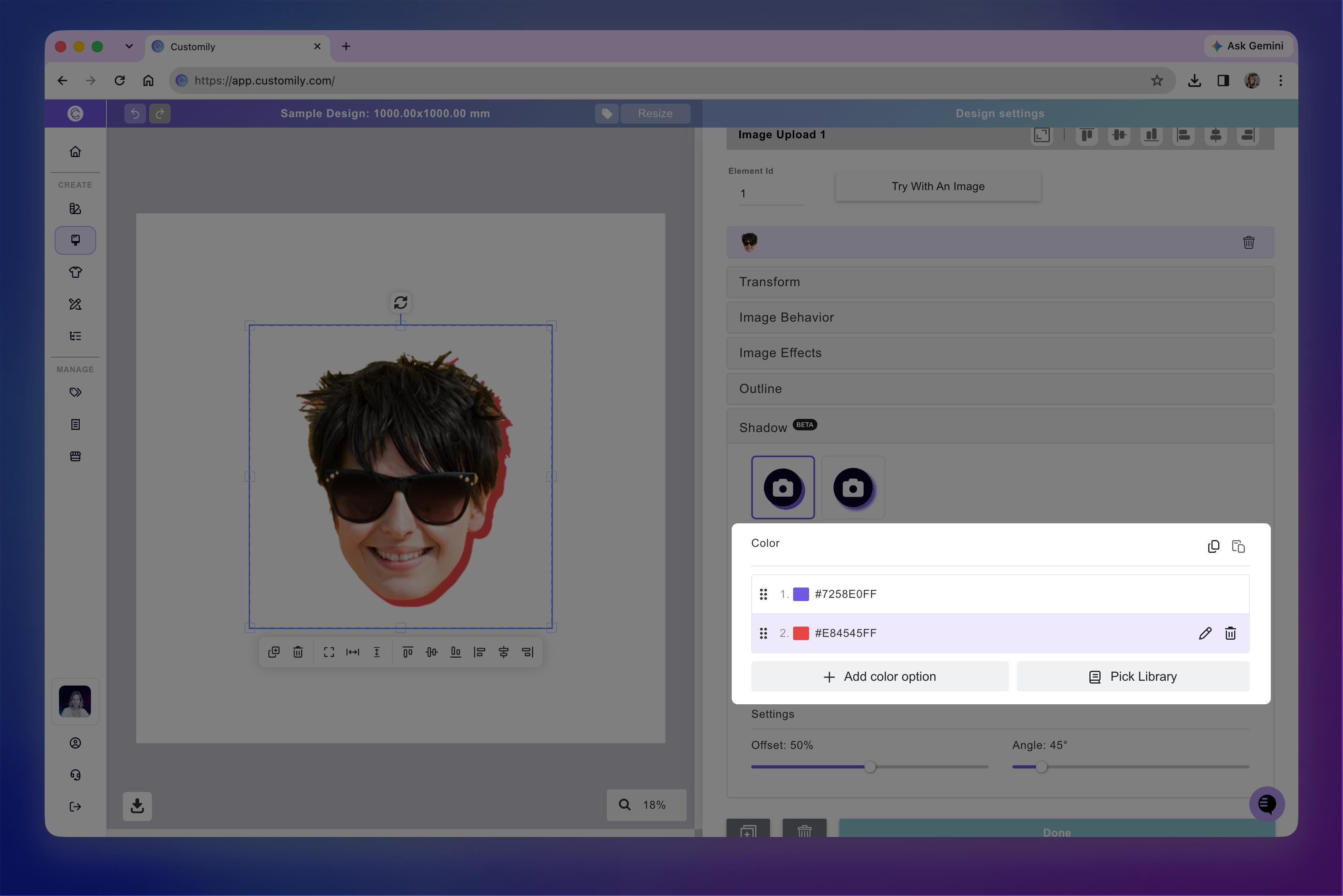
You can add an outline (stroke) around the shopper’s uploaded image for extra definition and visual impact. This is especially useful when paired with features like background removal or face cutout, since the outline will follow the shape of whatever remains—creating clean, eye-catching effects.
Select the image placeholder
Expand the Advanced toolbox
Define:
Outline Width
Outline Color
How to apply a shadow
You can add a shadow to an image placeholder to create depth or a soft glow around the uploaded image.
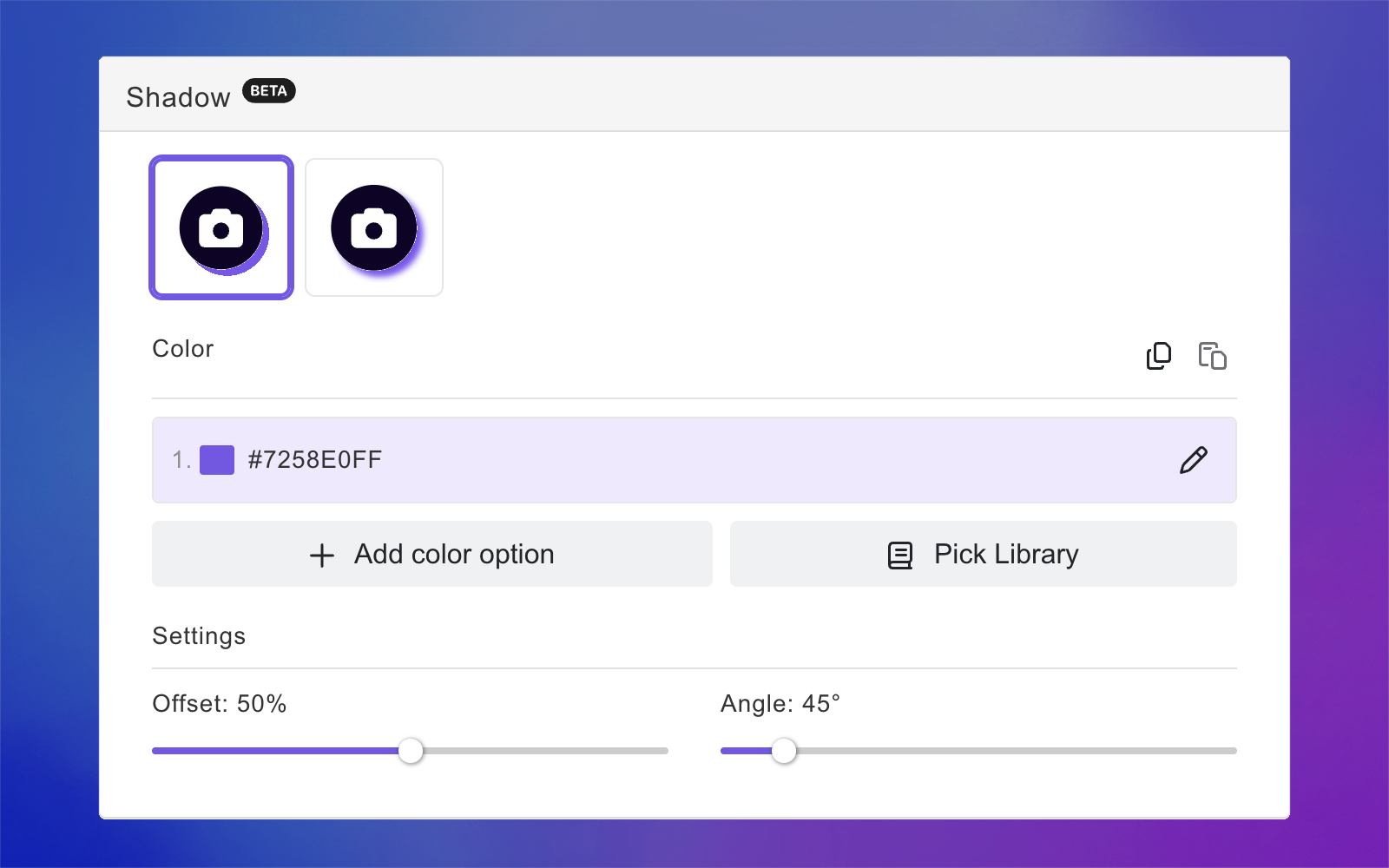
Choose between two shadow styles:
Solid shadow: Creates a sharp, defined shadow.
Blurred shadow: Creates a softer shadow with adjustable blur.
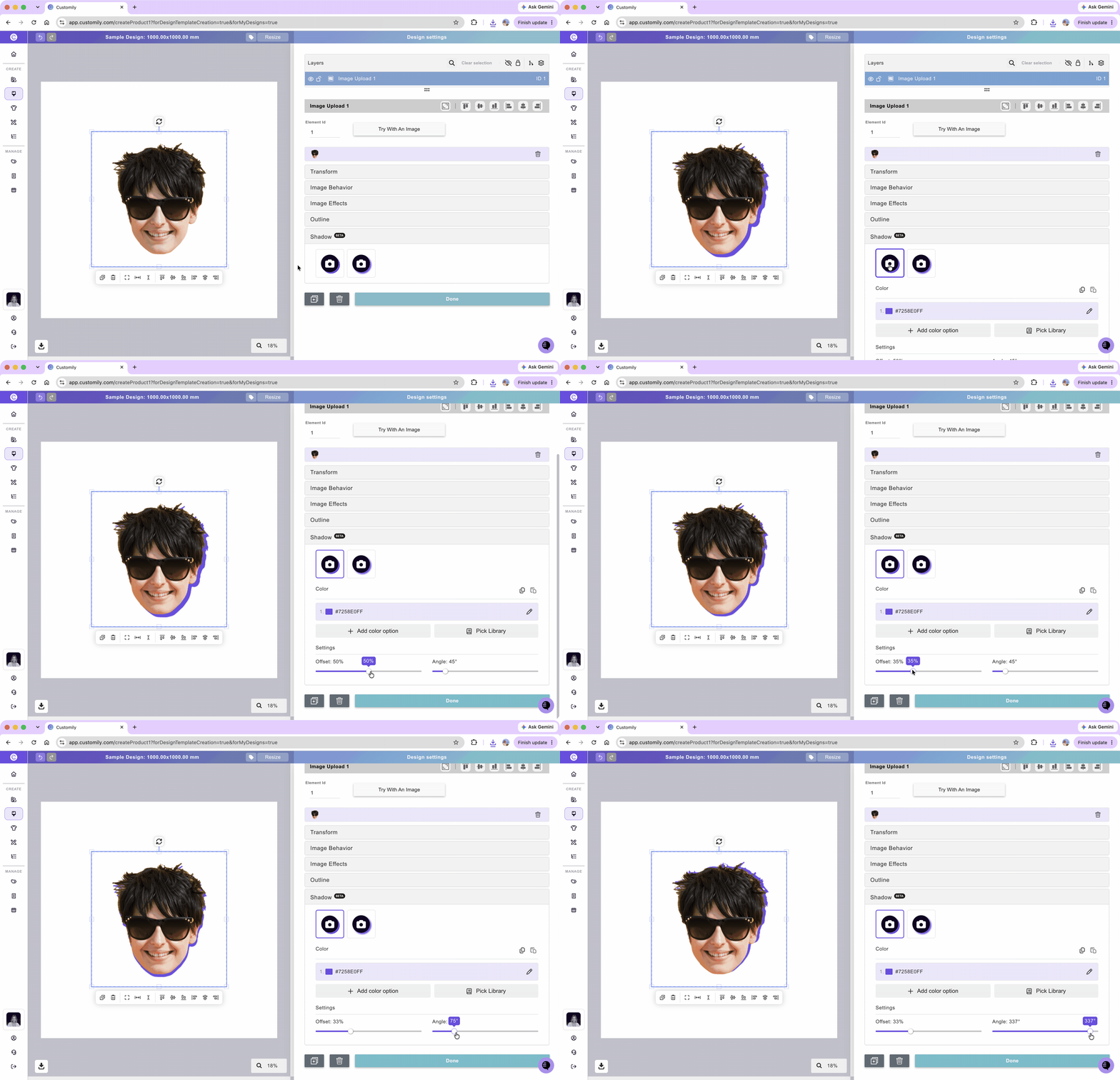
To apply a shadow:
Select the image placeholder.
Expand the Shadow toolbox.
Choose between a solid or blurred shadow.
Select the shadow color.
Adjust the Offset and Angle to position the shadow.
If using a blurred shadow, adjust the Blur slider to control its softness.
To remove a shadow, click the selected shadow style again to deselect it.
Tip
You can add multiple color options to the shadow by using a Color Library or clicking +Add color option to select additional colors.
Test how the shopper-uploaded image will look
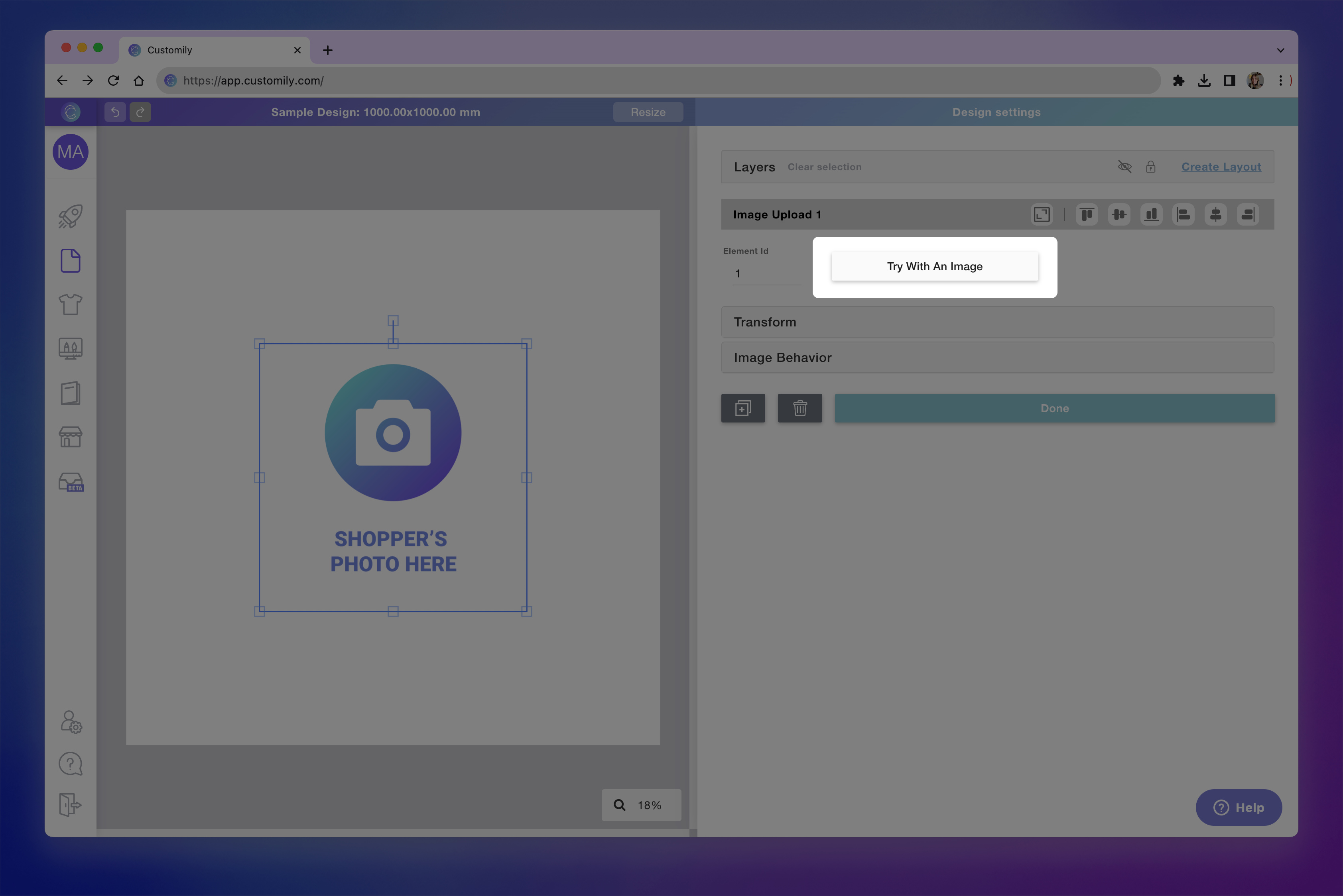
At any moment while configuring your image placeholder, you can test how it will look on your design, by clicking Try with an image button.
This is just for you to test, whatever image you upload there won't be saved, and won't be visible to your customers ever.
Tip
Once you upload an image, you can also move it around and resize it as your customers would. To do that, double-click the image placeholder on the workspace until its boundaries turn red, and only the uploaded image is highlighted in blue. Then, you will be "acting as the shopper" who will be able to move the image around inside the placeholder. To exit this mode, click anywhere outside the placeholder.
