Change options styles
Last updated: April 28, 2026
The way Customily Options are displayed depends on the type of option if it's a text field, a swatch, a dropdown, etc.
Styles are usually picked up from your theme automatically, however, if you want to change styles you can do so through the settings
To change Customily Options styles
Open store
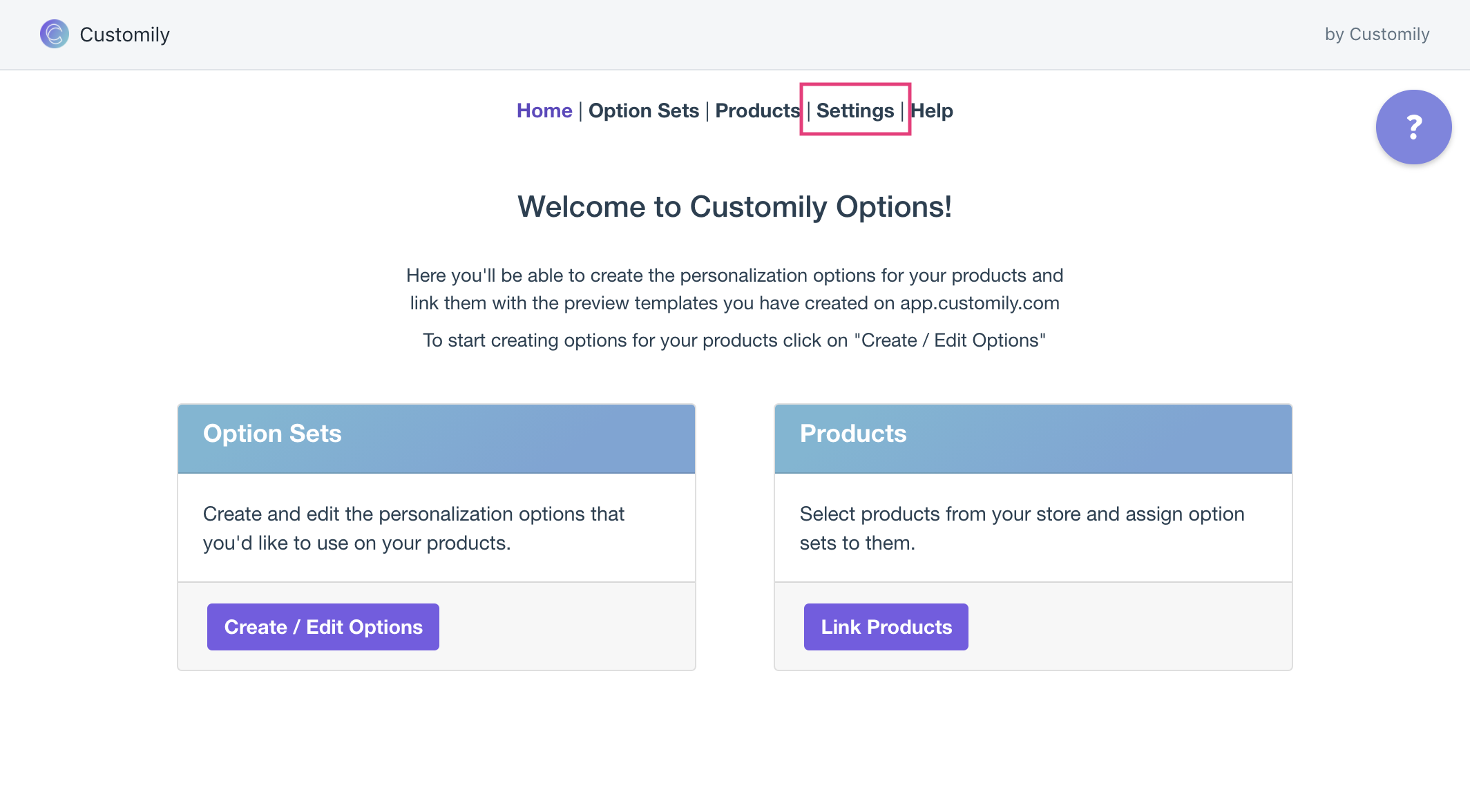
On the top menu go to Settings
Open the styles tab and change the styles settings as you please
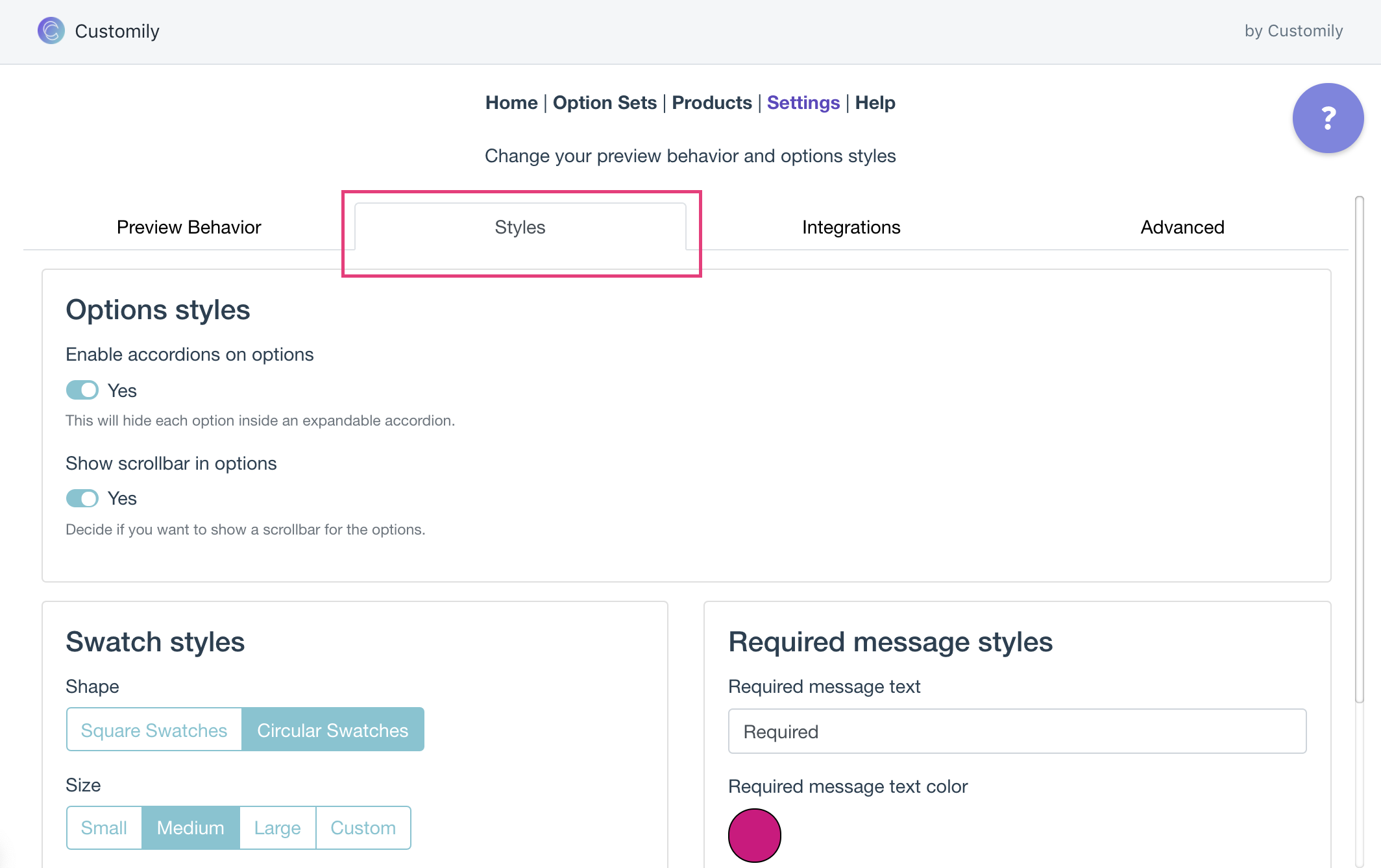
Styles you can change through settings
These are the styles you can change through settings
Style | What changes |
|---|---|
Enable accordions on options | It will hide each option inside an expandable accordion |
Show scrollbar in options | Shows or hides the scrollbar when options are too long. This is only visible on the Modal preview style |
Swatch styles | Change the size and shape of the swatches, and the color of the selected swatch. |
Required message styles | Change the wording and the color of the required message. This message is shown when a required option is left unselected. |