Find and manage your Product Bases
Last updated: October 20, 2026
Find and manage your Product Bases
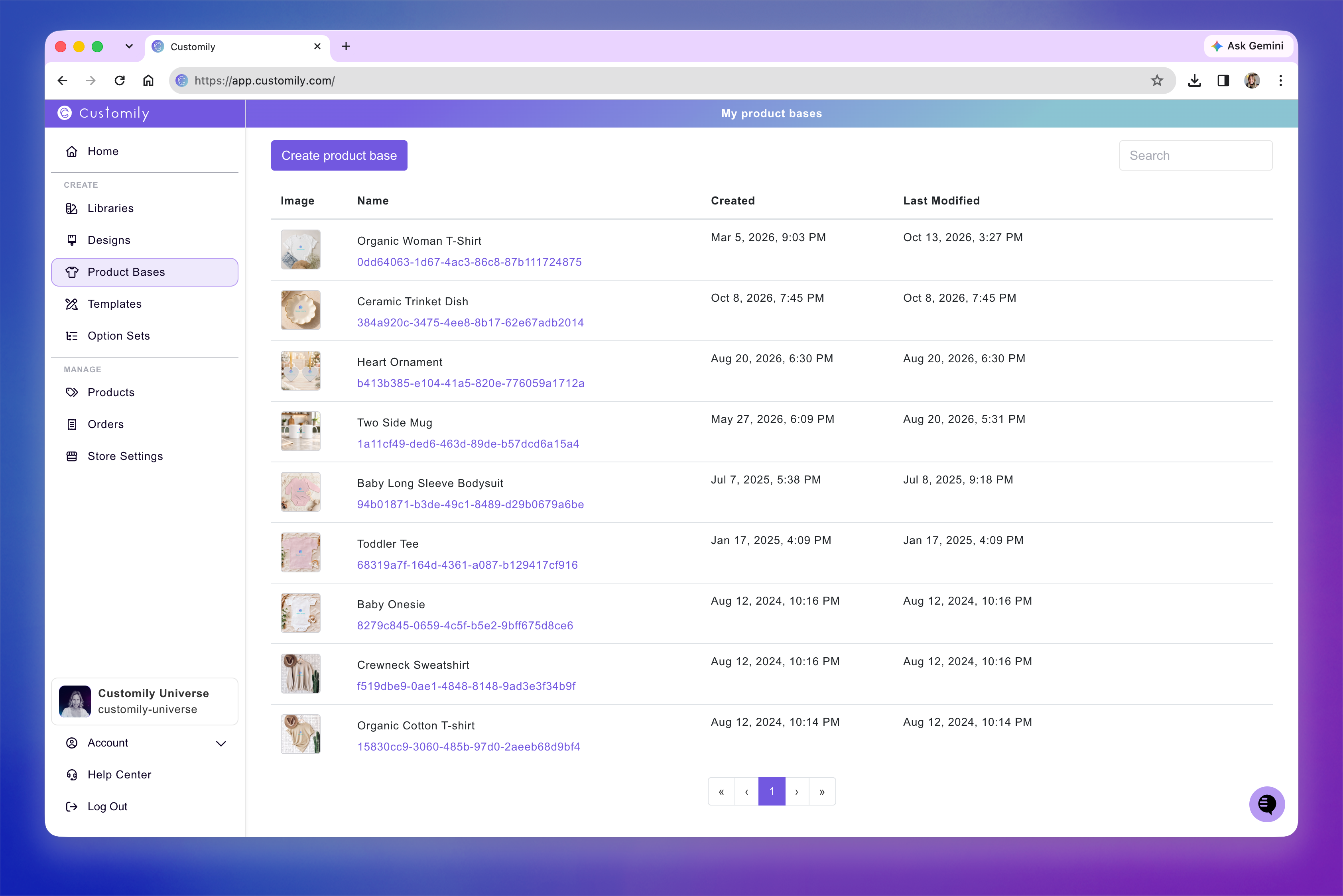
The Product Bases section is where you can find and manage the Product Bases you've created in Customily.
Access it by clicking Product Bases in the left-hand menu of your dashboard. From here, you can create new Product Bases, edit existing ones, and organize your saved products.
Product Bases are listed with the most recently created or edited ones first.
Search and browse your Product Bases
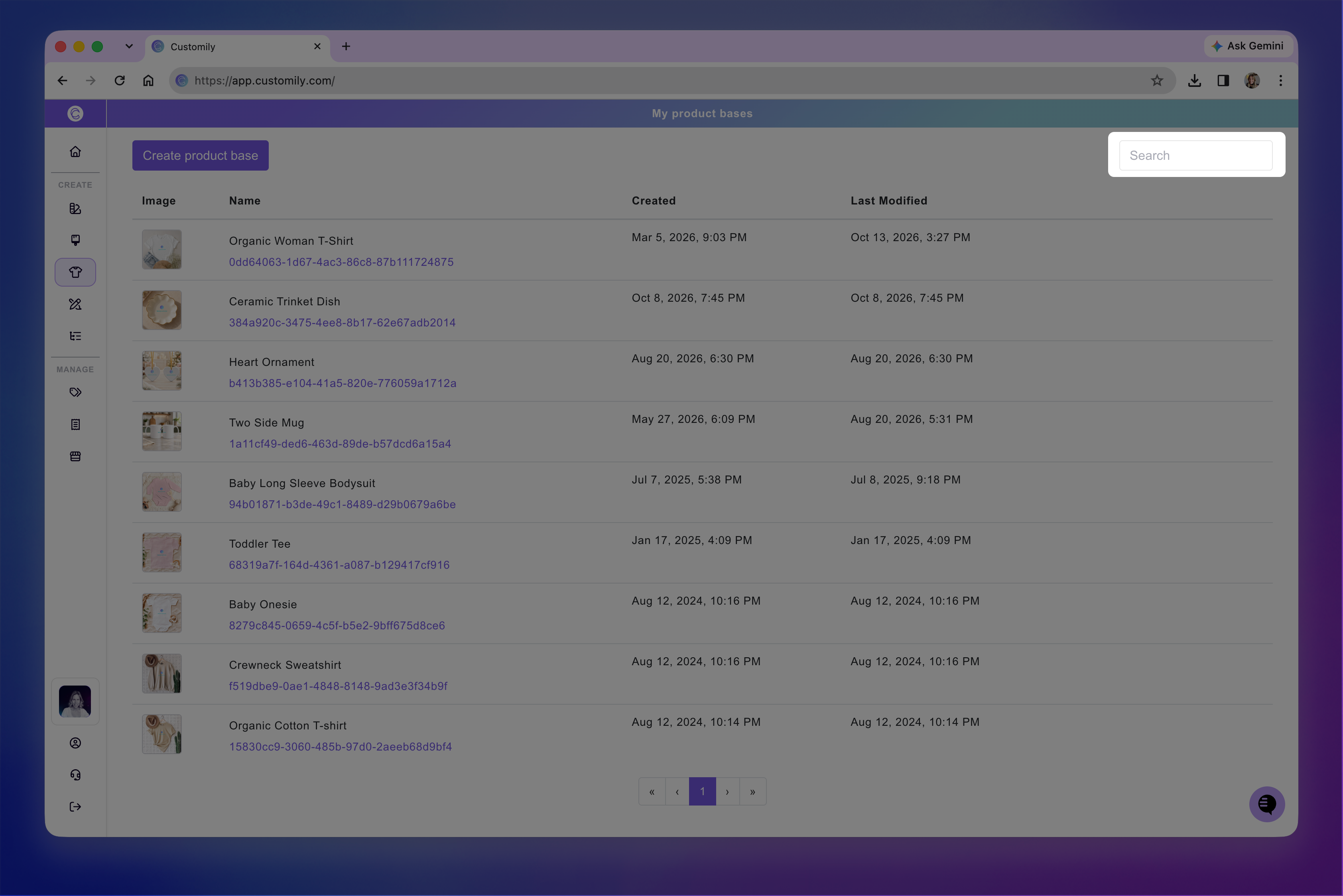
Use the search bar to find a Product Base by name, or navigate between pages using the pagination controls.
Each Product Base appears in a row showing its thumbnail, name, creation date, and last modified date.
Create a new Product Base
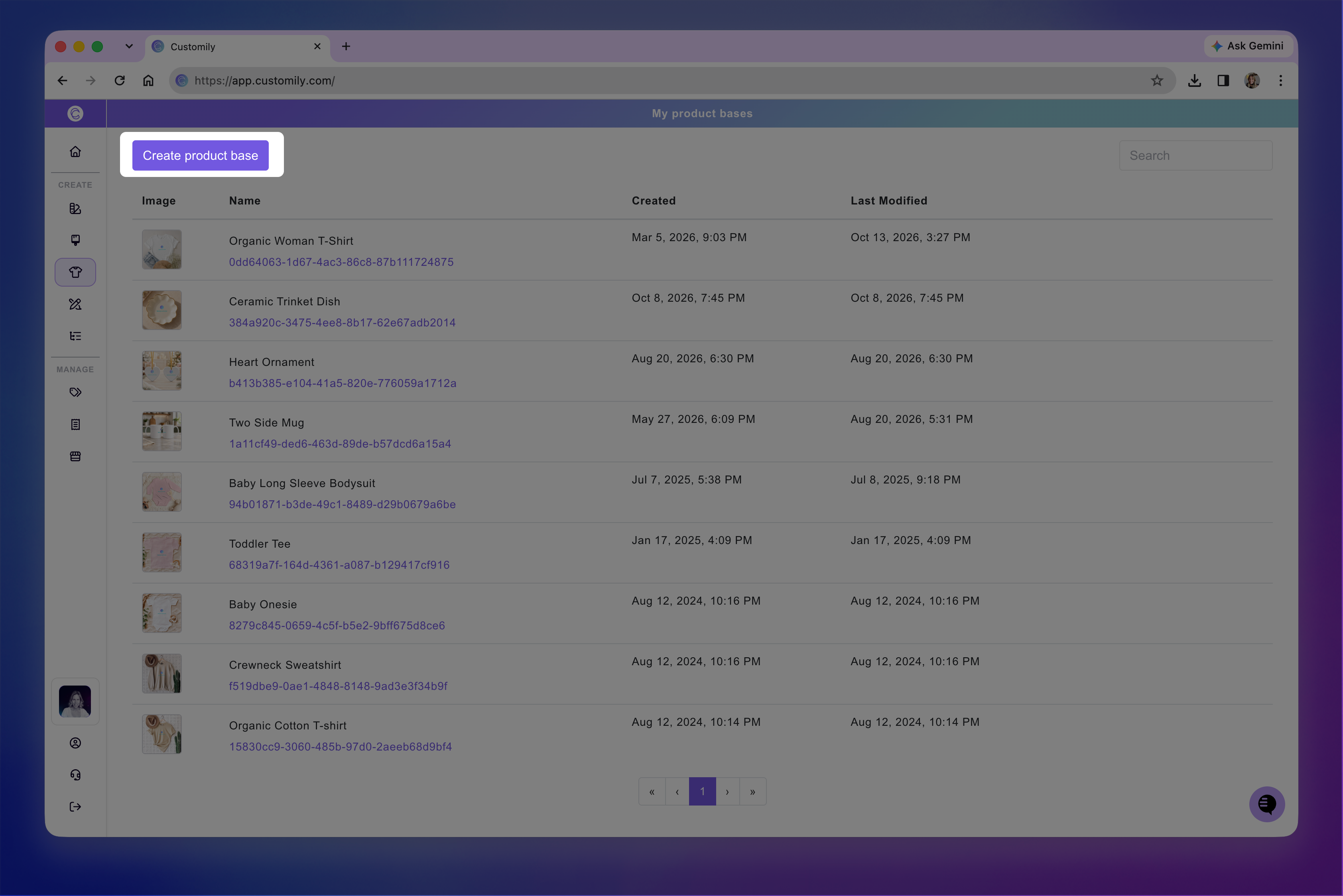
Click Create Product Base to open the Product Base Studio, where you can configure your product's mockups, print areas, and variants.
See Create a Product Base from scratch for the complete instructions.
Tip
If you're creating a product similar to one you already have, consider cloning an existing Product Base instead of starting from scratch.
Manage your Product Bases
Edit a Product Base
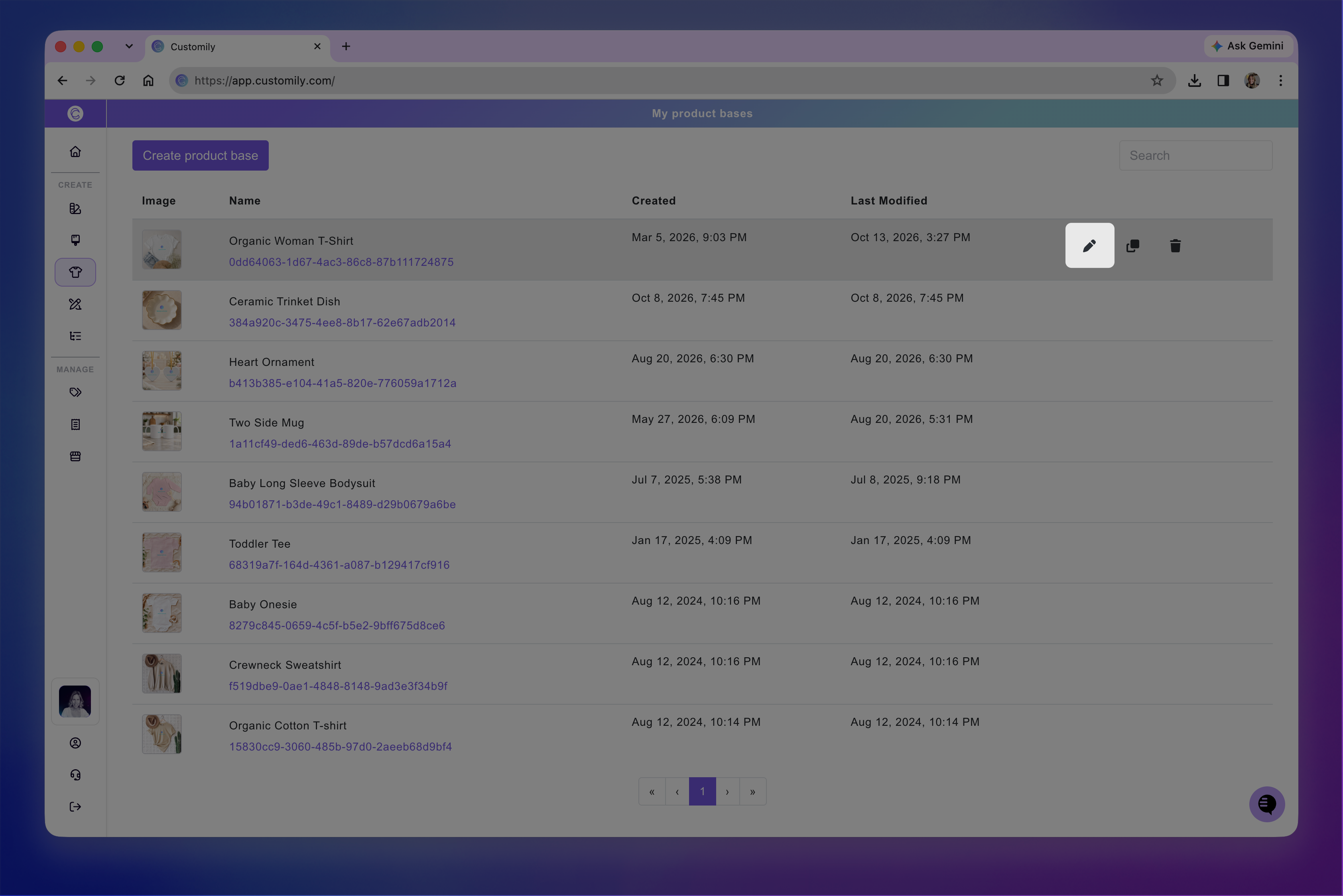
Find the Product Base you want to edit and click the pencil icon to open it in the Product Base Studio.
You can update its:
Print areas and dimensions.
Print file settings.
Mockups and variant images.
Product variants and options.
Save your changes when you're finished.
Note
Editing a Product Base won't affect products you've already published using it. Changes will only apply to products you create or connect afterward.
Rename a Product Base
To change a Product Base's name:
Hover over its name and click the pencil icon, or double-click the name.
Enter the new name.
Press Enter to save it.
Change a Product Base's thumbnail
Hover over the Product Base's thumbnail and click it to upload a replacement image.
The thumbnail helps you quickly recognize your Product Base when browsing or selecting it in Customily. It doesn't affect the product itself.
Thumbnails are automatically generated from your mockups, but you can replace them with your own images.
Clone a Product Base
If you want to create a Product Base similar to an existing one, you can clone it instead of starting from scratch.
Find the Product Base you want to duplicate.
Click the Clone icon.
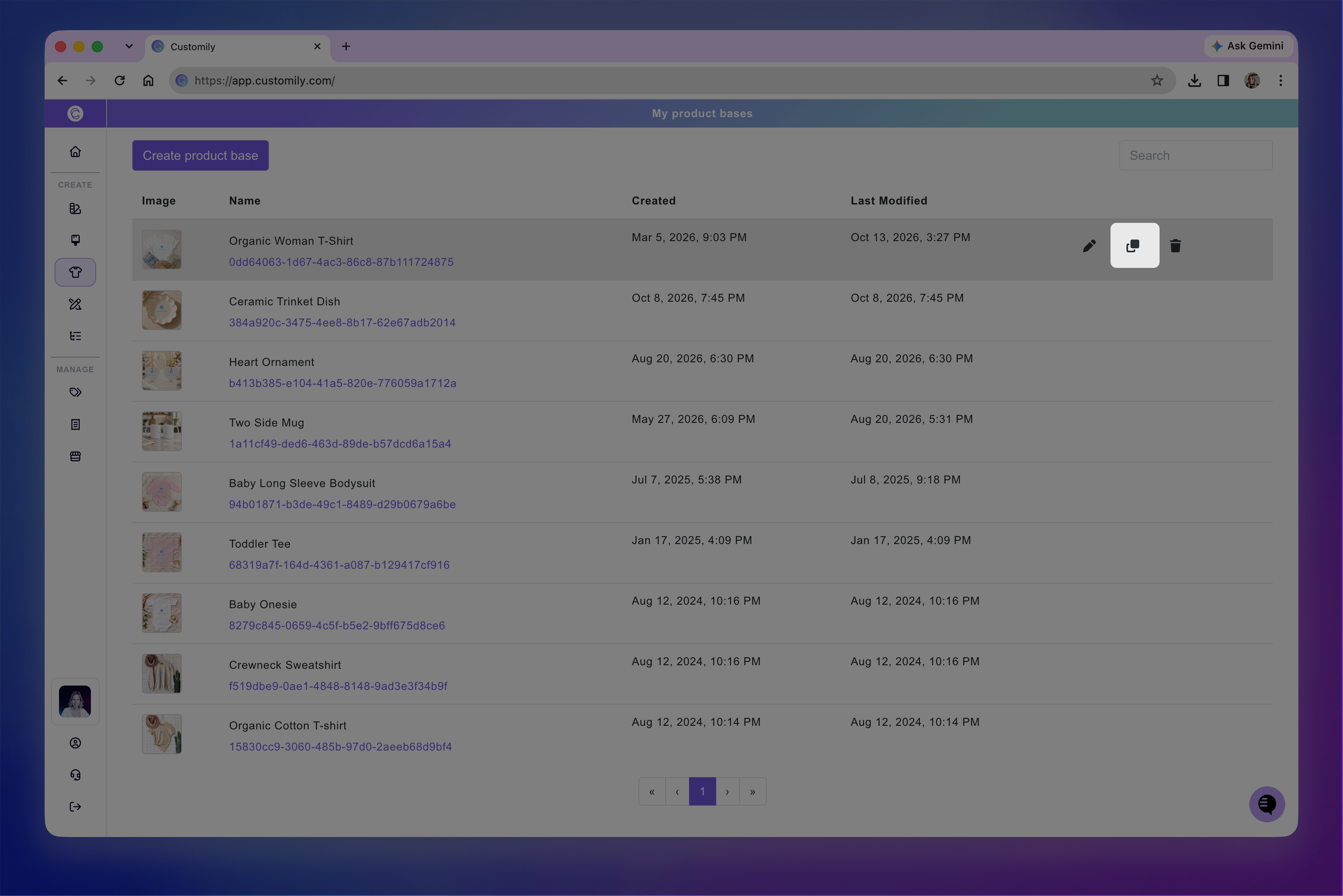
Customily creates a copy with “cloned” added to its name and opens it in the Product Base Studio so you can make changes.
Delete Product Bases
To delete a Product Base:
Find the Product Base you want to remove.
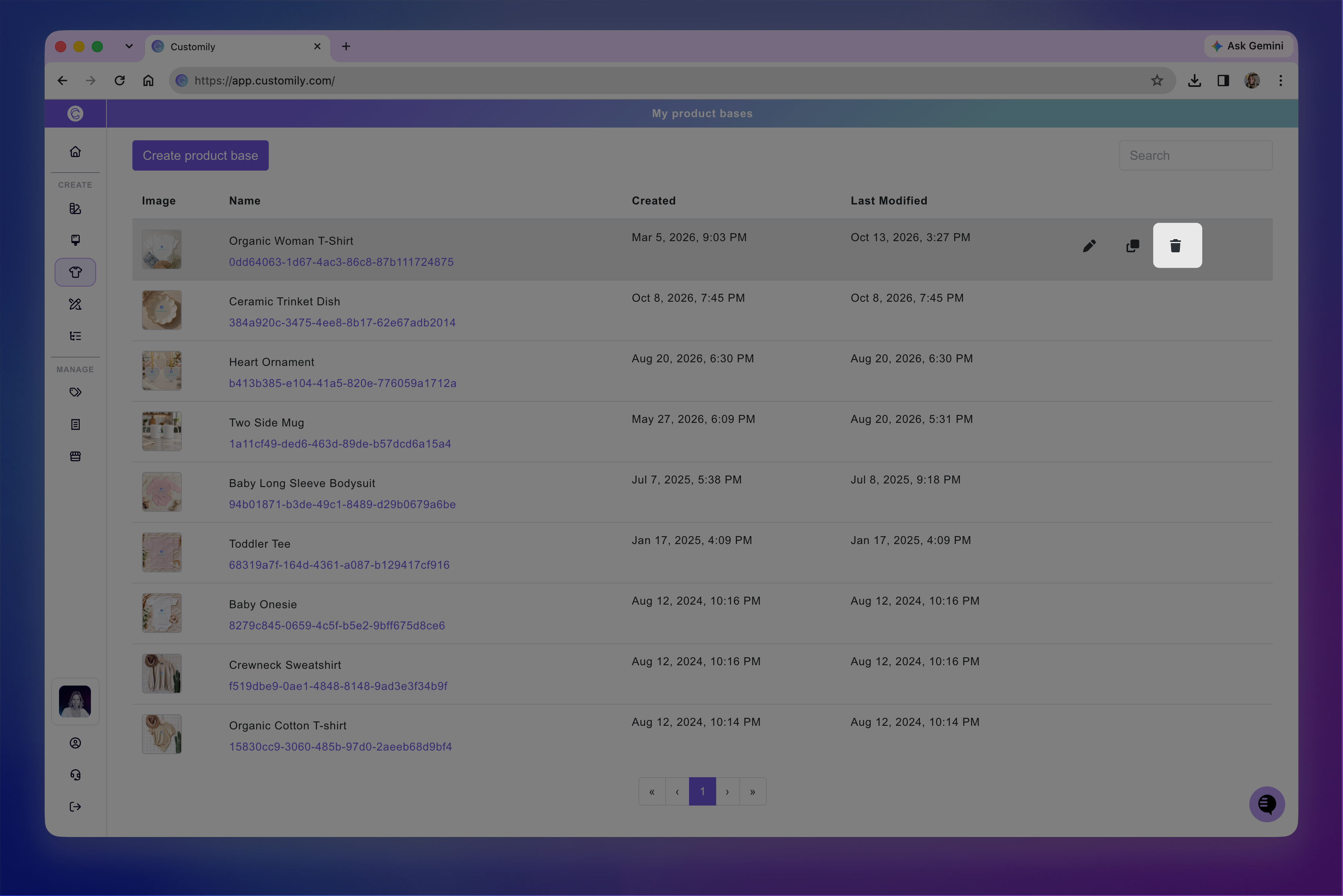
Click the trash icon.
Confirm the deletion.
Note
Deleting a Product Base won't affect products you've already published using it.