Choose your Preview Style
Last updated: September 22, 2026
The Preview Style determines how shoppers see and interact with personalization options and the live preview on your product page.
You can choose a different Preview Style for desktop and mobile devices, allowing you to create the experience that works best for each screen size.
Note
Preview Style settings are available for platforms where shoppers personalize directly on the product page, such as Shopify and WooCommerce.
Preview Style options
There are three Preview Styles to choose from:
Modal Preview
With Modal Preview, shoppers click Personalize on the product page to open the personalization experience in a modal.
The personalization options and live preview are displayed together inside the modal, keepThening the personalization experience separate from the rest of the product page.
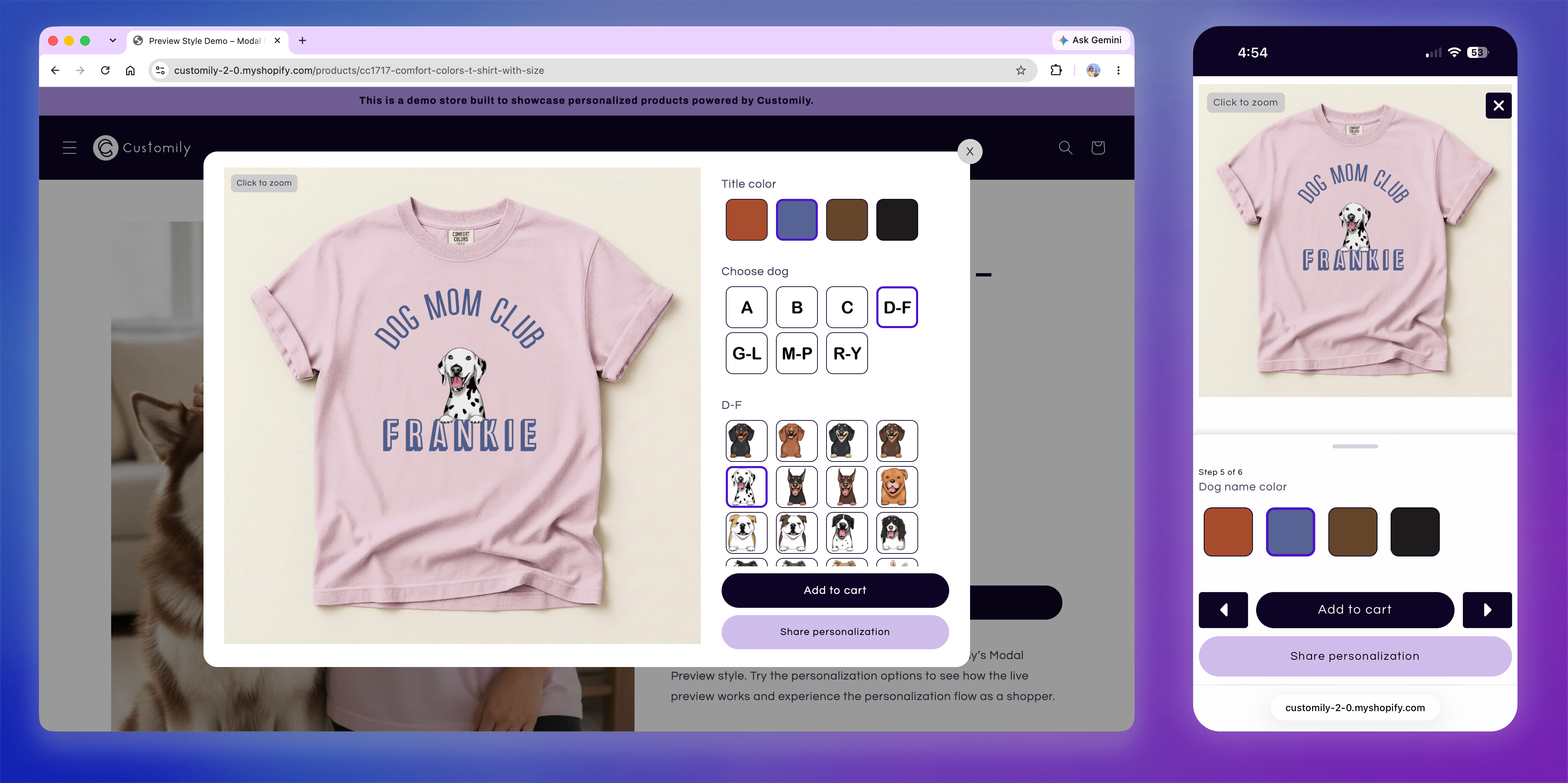
When using Modal Preview on mobile, you can also configure how shoppers navigate through the personalization options, including collapsible options, swipe gestures, and Add to Cart behavior.
See it in action
Try the Modal Preview on our demo store to see how it works for shoppers.
Show Preview Button
With Show Preview Button, personalization options are displayed directly on the product page, but the live preview remains hidden while shoppers make their selections.
Shoppers can click Show Preview whenever they want to see their personalized design. The preview opens in a dialog and can be closed to continue personalizing.
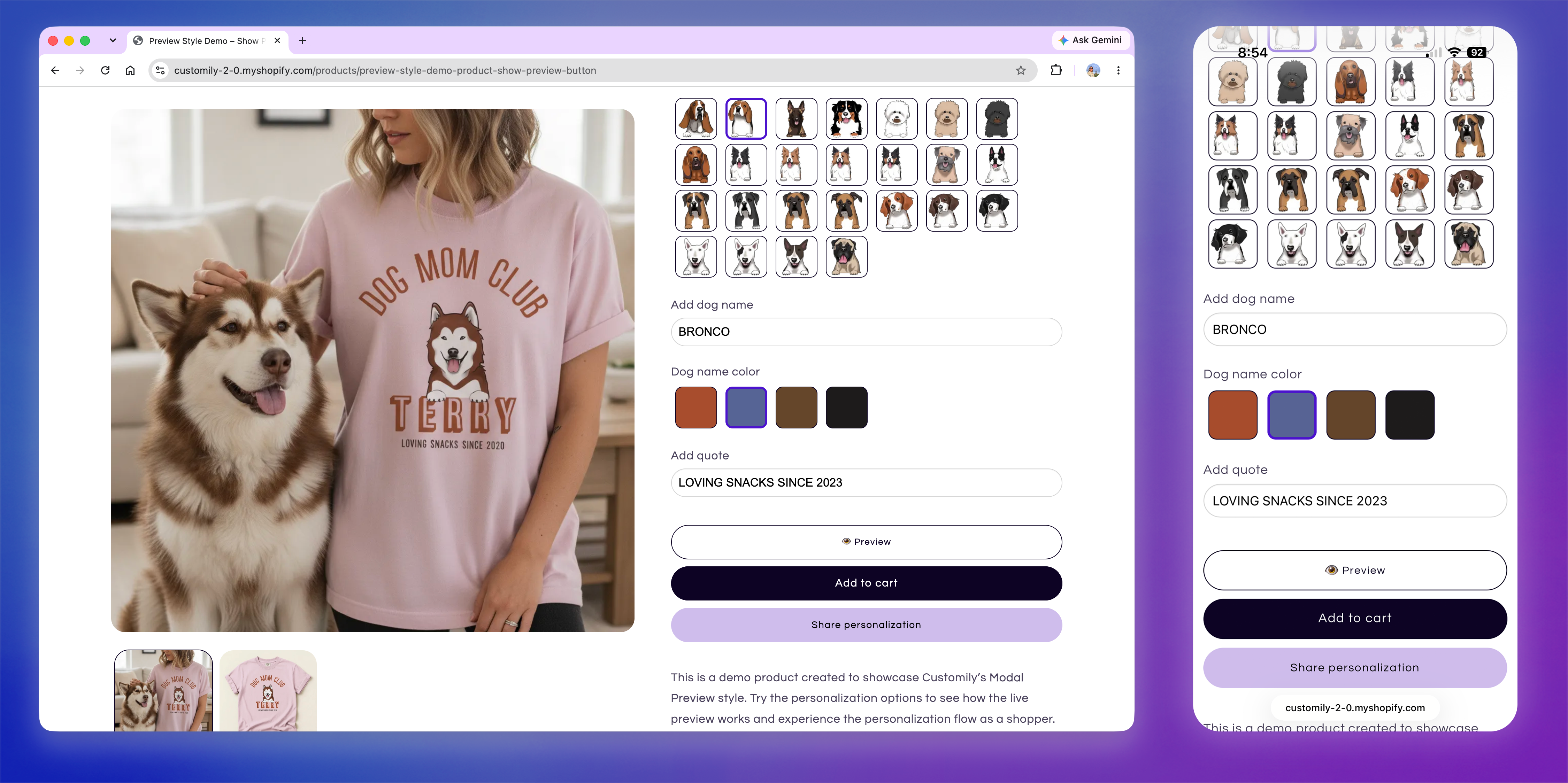
This is the simplest Preview Style and doesn't include additional Preview Style settings.
See it in action
Try the Show Preview Button on our demo store to see how it works for shoppers.
Product Page Preview
With Product Page Preview, both the personalization options and live preview are displayed directly on the product page.
As shoppers make their selections, they can see the personalized design update without leaving the page.
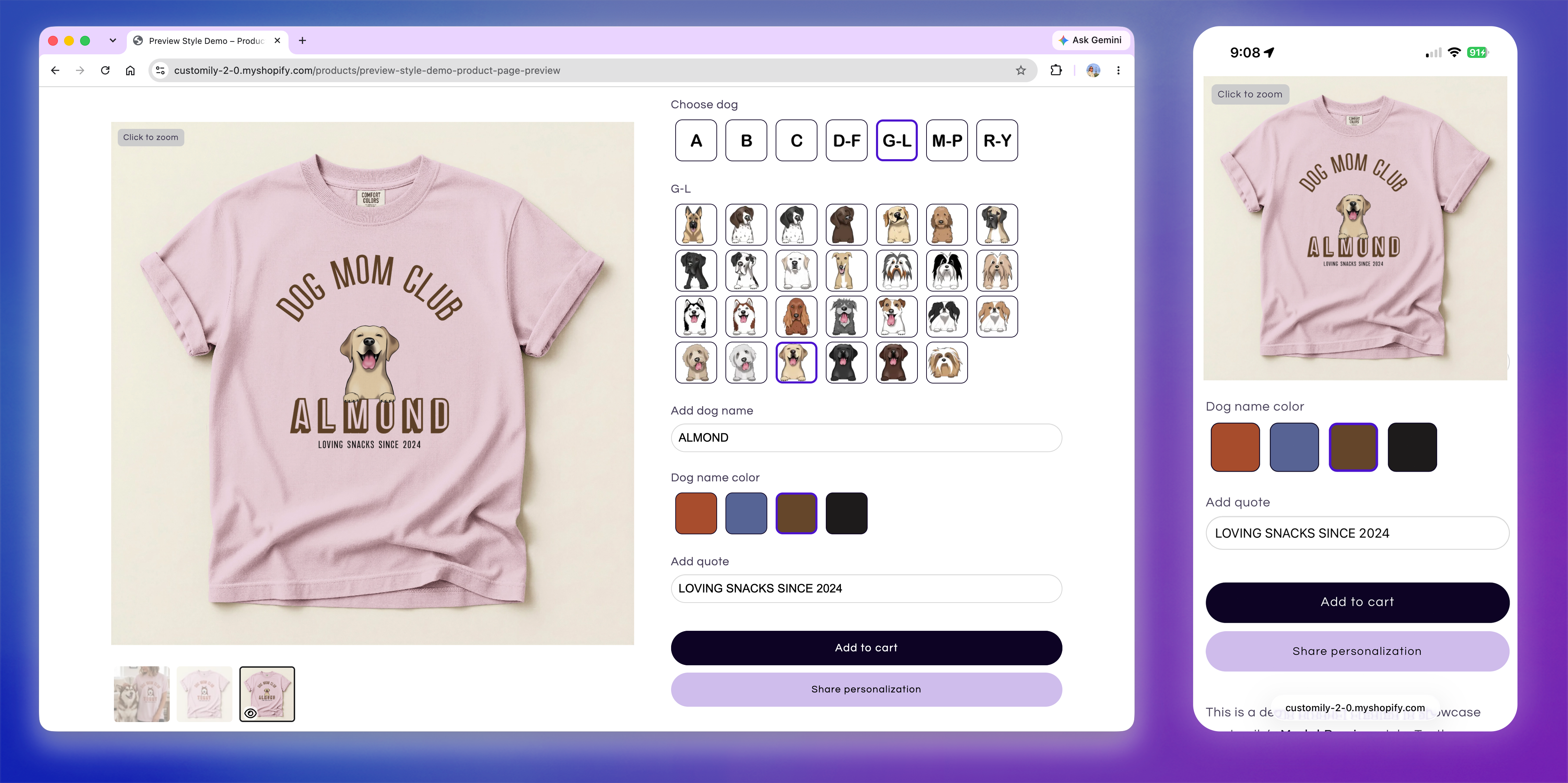
This style also gives you additional control over how the preview behaves, including when it loads, whether it stays visible while shoppers scroll, and the option to add a Show Preview button.
See it in action
Try the Product Page Preview on our demo store to see how it works for shoppers.
Choose a Preview Style for desktop and mobile
You can configure the Preview Style independently for desktop and mobile devices.
Go to Store Settings > Preview Behavior and select a Preview Style under:
Preview style (desktop devices)
Preview style (mobile devices)
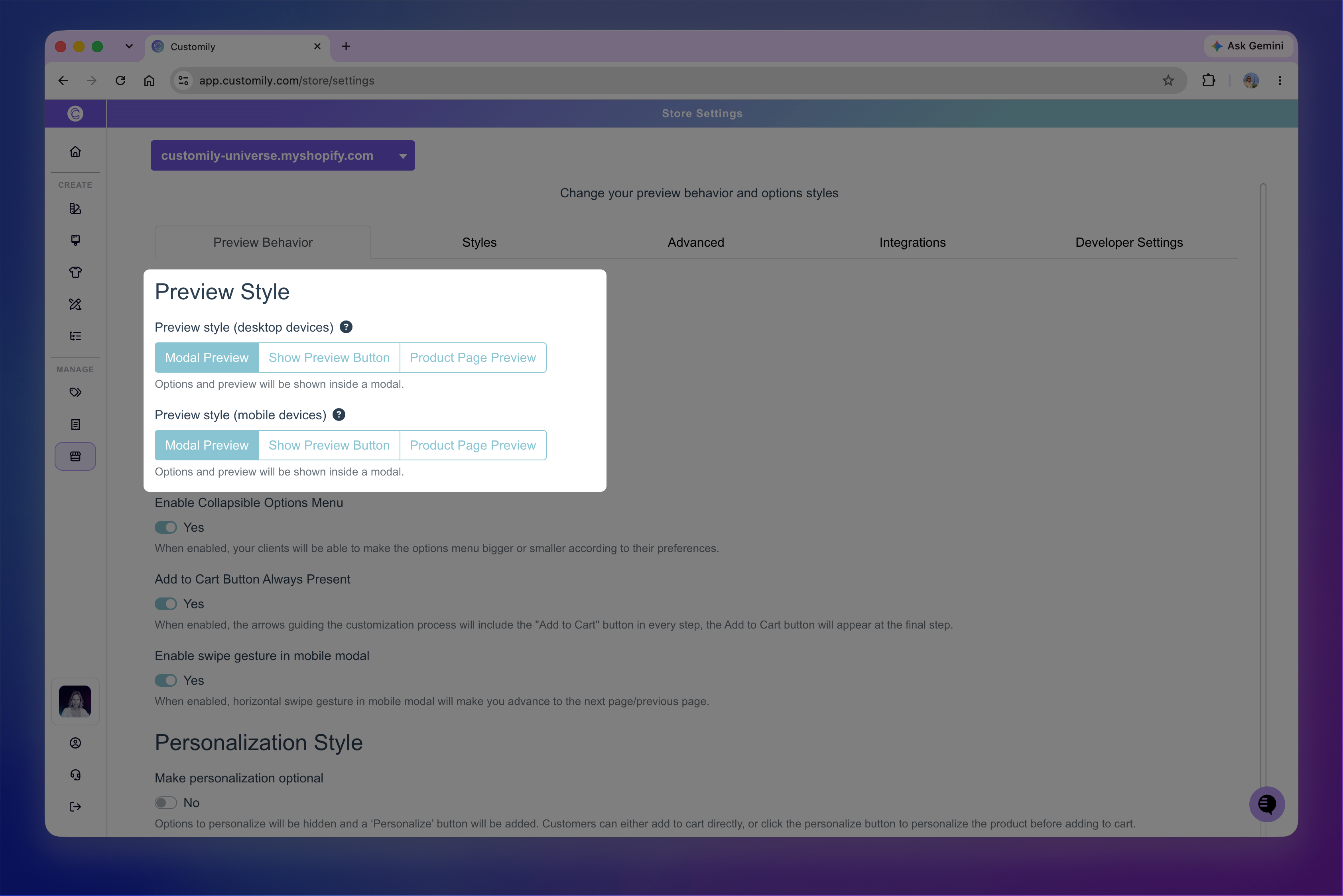
You don't need to use the same style on both devices. For example, you could display the preview directly on the product page on desktop while using Modal Preview on mobile.
The settings available below Preview Style will change depending on the styles you select.
Tip: Not sure which Preview Style to choose? Consider your product, the number of personalization options, and the experience you want to offer on each device. You can try different styles to see what works best for your store.
If a specific product needs a different Preview Style, you can override your Store Settings from that product’s Product Settings. The override will apply only to that product.