Amazon Custom print file generation
Last updated: August 6, 2026
Amazon Custom lets shoppers personalize products directly on Amazon with a live preview, but it doesn't generate production-ready print files.
Customily bridges that gap by importing the personalization data collected through Amazon Custom and automatically generating production-ready files for fulfillment.
How it works
This integration combines Amazon Custom's personalization experience with Customily's print file generation.
A shopper personalizes a product using Amazon Custom's options and live preview.
Amazon stores the personalization data as part of the order.
The merchant imports the Amazon Order Report into Customily.
Customily matches the imported personalization data to the corresponding template and automatically generates the production-ready print file.
Important
When orders are imported through Amazon Custom, Customily will not send a customization email to the shopper, since the personalization has already been completed on Amazon.
How to implement it
Setting up this integration requires configuring both your Amazon Custom personalization and your Customily template so they match each other.
The implementation consists of three steps:
Configure your Amazon Custom personalization and matching Customily template.
Connect the Amazon product to the Customily template.
Import Amazon orders to generate print files.
1. Configure your Amazon Custom personalization and Customily template
To ensure Customily can correctly match the personalization data received from Amazon Custom, both configurations must use the same personalization inputs.
When creating your Amazon Custom personalization and Customily template:
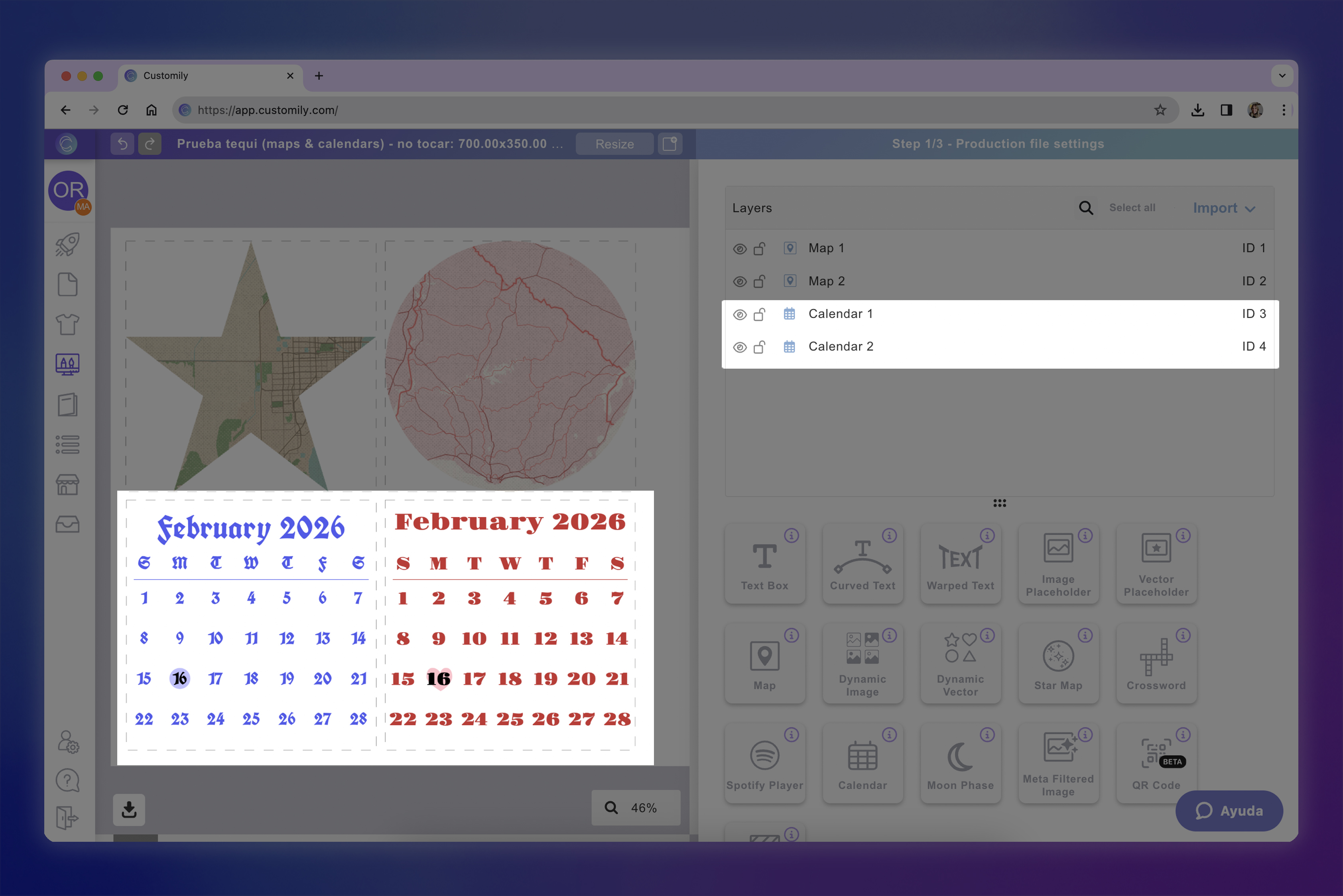
Layer names in Customily must exactly match the corresponding Option Labels in Amazon Custom.
Compatible elements must be configured according to the requirements described below.
Whenever Amazon provides selectable options (such as fonts, colors, or dropdowns), they must match the options configured in Customily and appear in the same order.
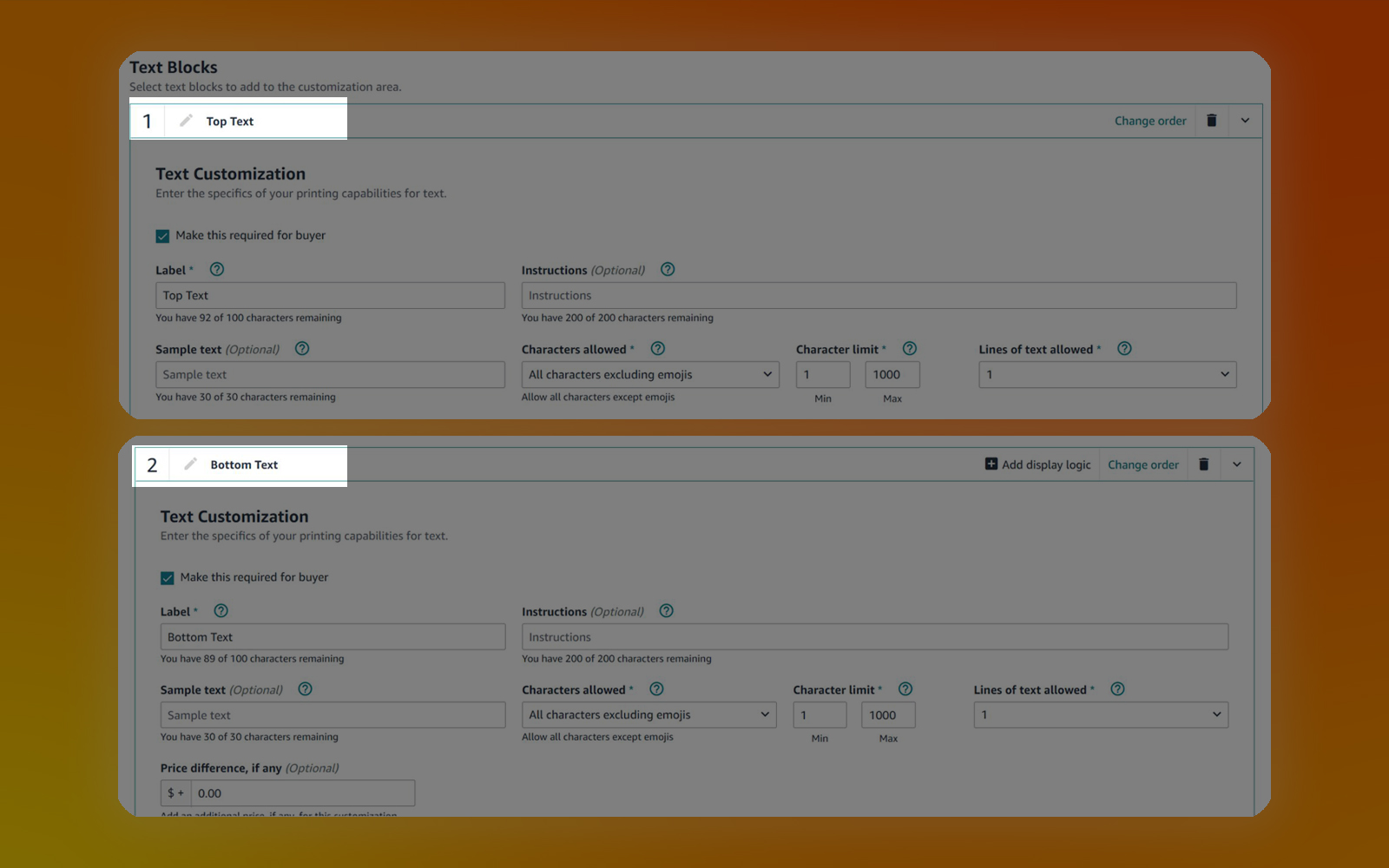

Compatible elements
Not every Customily element can receive personalization data from Amazon Custom. The elements below are currently supported and can automatically generate their final output using the information collected through Amazon Custom.
For each supported element, you'll find:
Compatible Amazon inputs: Which Amazon Custom input types can be connected to that Customily element.
Configuration: Any setup required for the connection to work correctly.
Behavior: How the element uses the shopper's personalization data.
Any Limitations or recommendations to ensure accurate results.
The table below provides a quick overview before the detailed configuration instructions.
Customily Element | Amazon Input | Requirements |
|---|---|---|
Calendar | Text / Data | Option name must contain Calendar |
Dynamic Image | Dropdown | Options must match exactly and remain in the same order |
Image Placeholder | Image Upload | Supports Amazon image editing |
Street Maps | Text / Data | Option name must contain Map |
Text Box | Text | Fonts and colors must match exactly |
Moon Phase | Text / Date | Option name must contain MoonPhase |
Layouts & Groups | Dropdown | Uses Amazon Display Logic |
Calendar
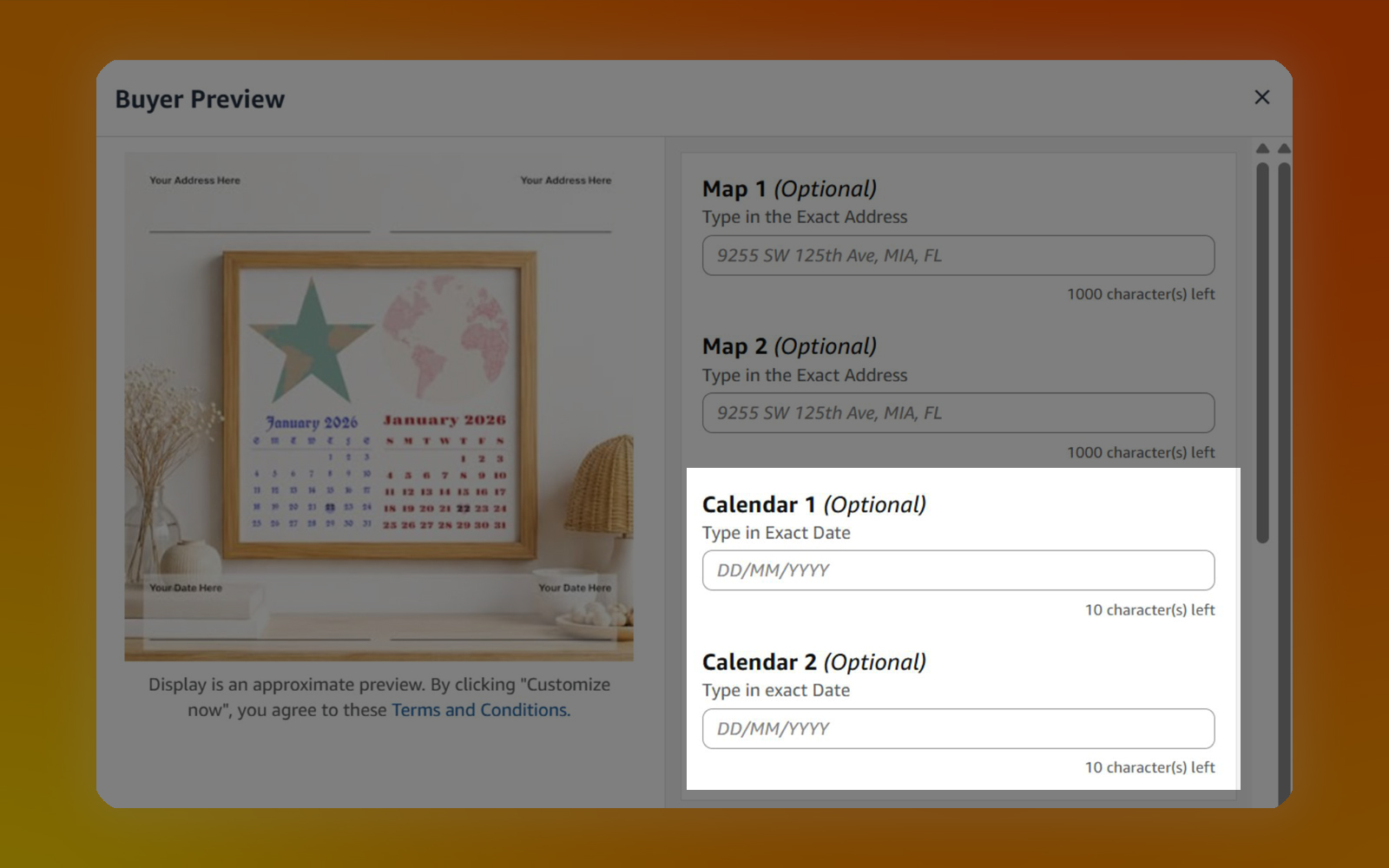
Compatible Amazon inputs
Text Input
Date Input
Configuration
The Amazon Option Name must include the word Calendar.
The corresponding layer in Customily must be a Calendar element.
Behavior
Customily converts the date provided by the shopper into a stylized calendar image for the selected date.
Important
Dates must follow the format DD/MM/YYYY (for example, 25/12/2026).
When configuring your Amazon input, we recommend adding placeholder text showing the expected format and configuring minimum and maximum character limits to help shoppers enter valid dates.
Dynamic Image
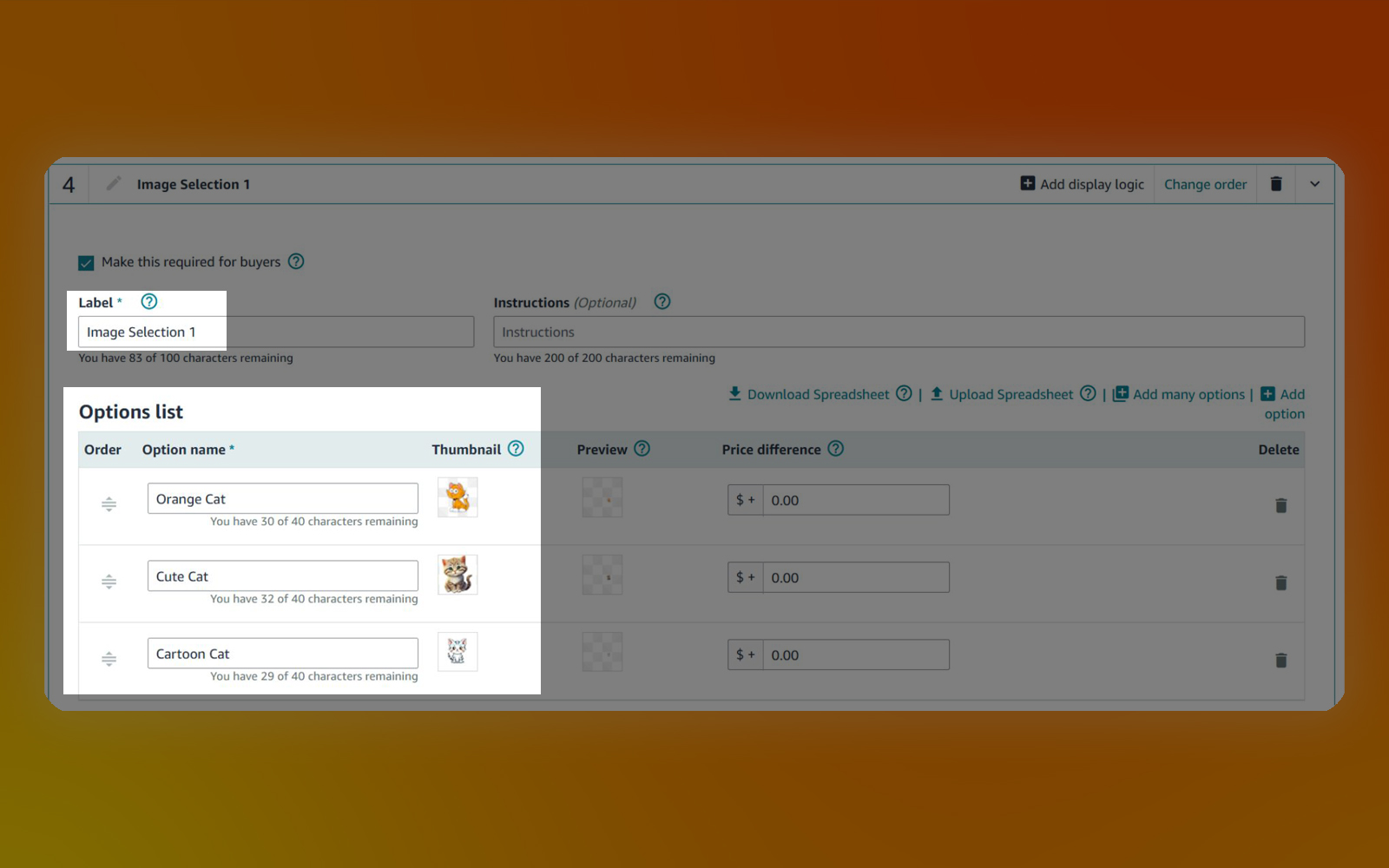
Compatible Amazon inputs
Dropdown
Configuration
Configure the Dynamic Image as an Image Library in Customily.
Image options must exactly match the dropdown values configured in Amazon Custom.
Options must appear in the same order on both platforms.
Behavior
The image selected by the shopper in Amazon Custom is matched to the corresponding image in the Customily Image Library.
Current limitations
Categories are not currently supported.
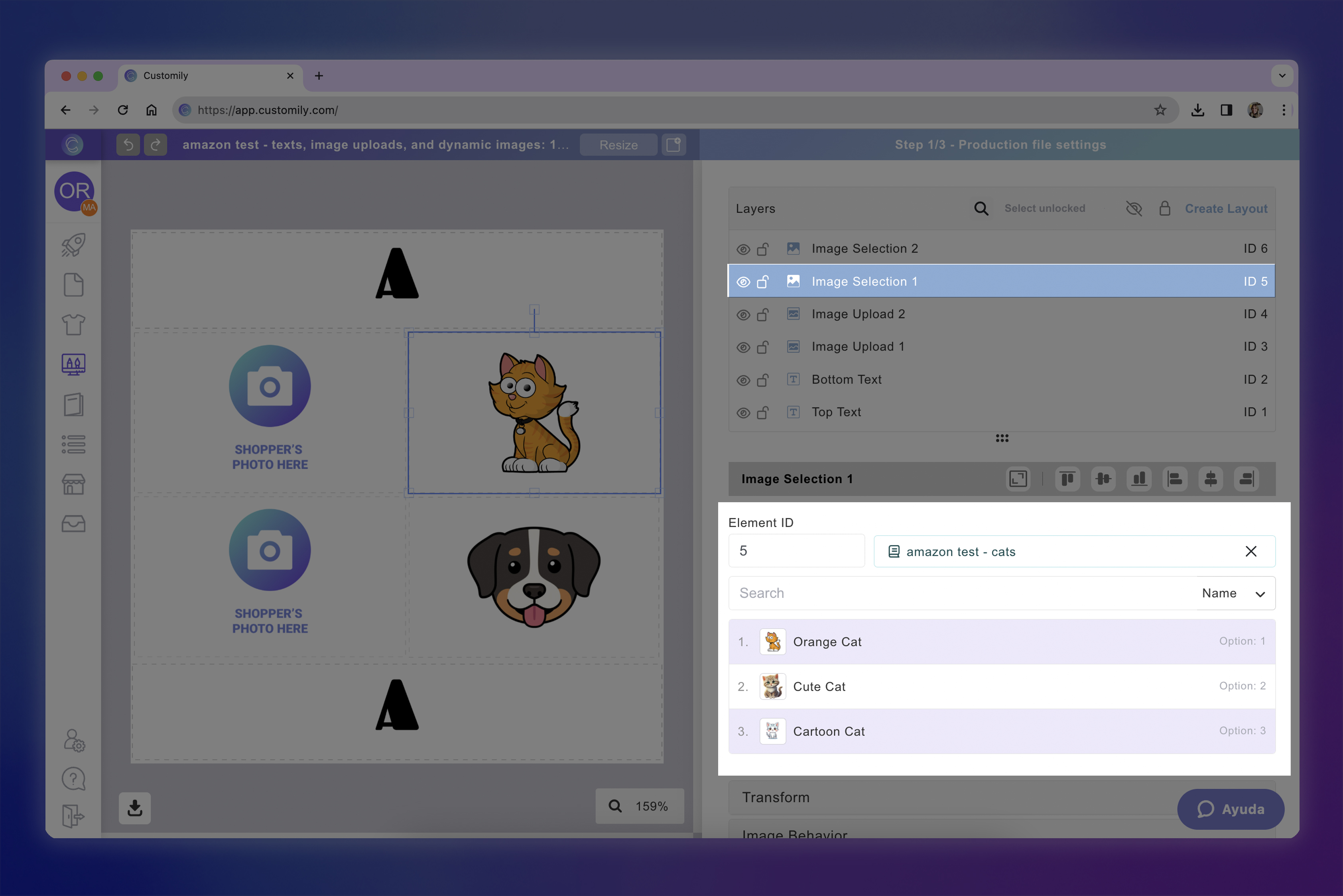
Image Placeholder

Compatible Amazon inputs
Image Upload
Configuration
Use an Image Placeholder in your Customily template.
Masks are fully supported.
Behavior
All image edits performed by the shopper in Amazon Custom are preserved when generating the production file, including:
Position, scale and rotation
Filters
Image adjustments
Focus settings
Text added to the image
Stickers
Tip
Since shoppers can completely edit their image in Amazon Custom, we recommend avoiding additional Image Behavior or Image Effects settings in Customily (except masks). This ensures the generated print file matches exactly what the shopper previewed on Amazon.
Street Maps
Compatible Amazon inputs
Text Input
Data Input
Configuration
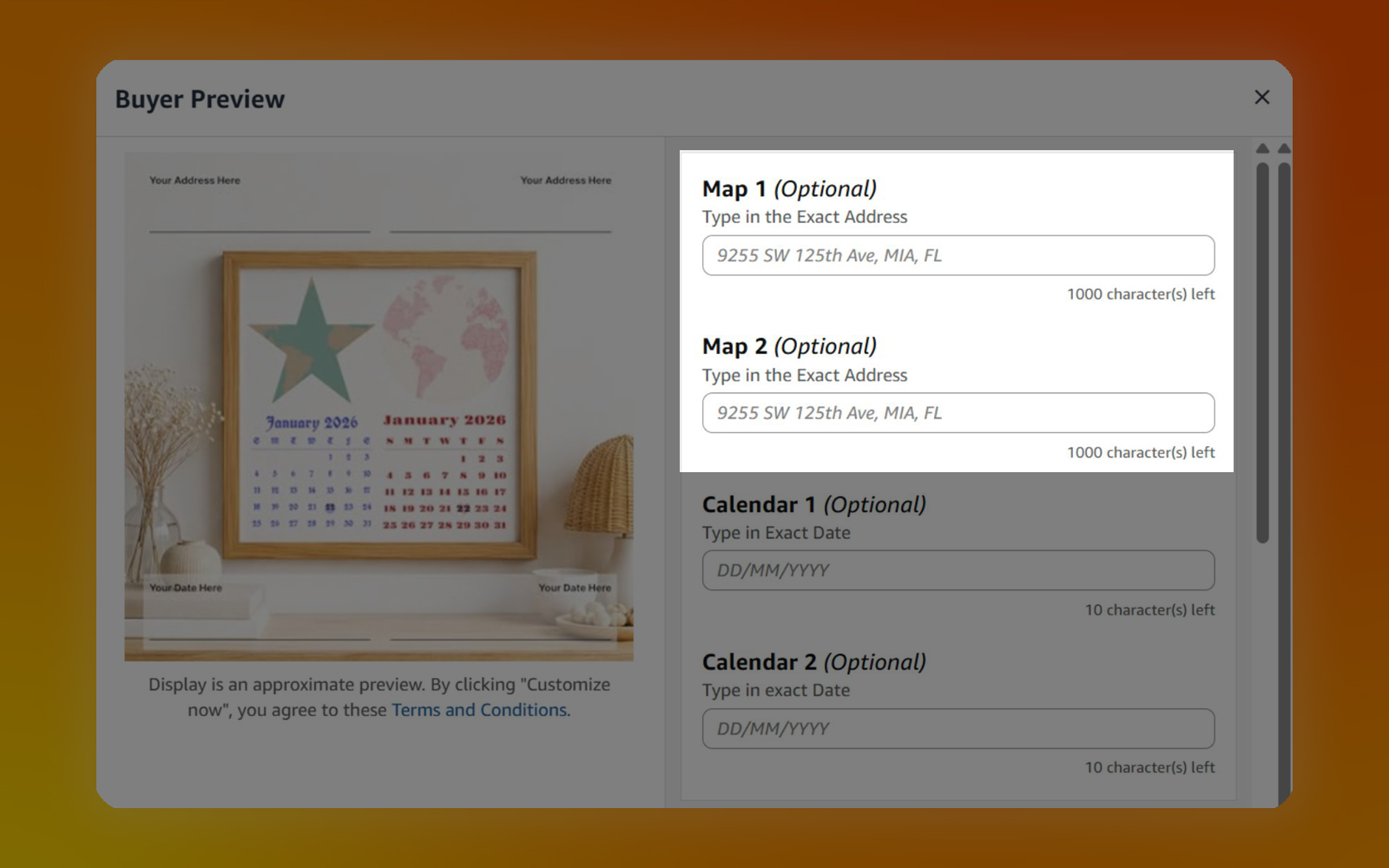
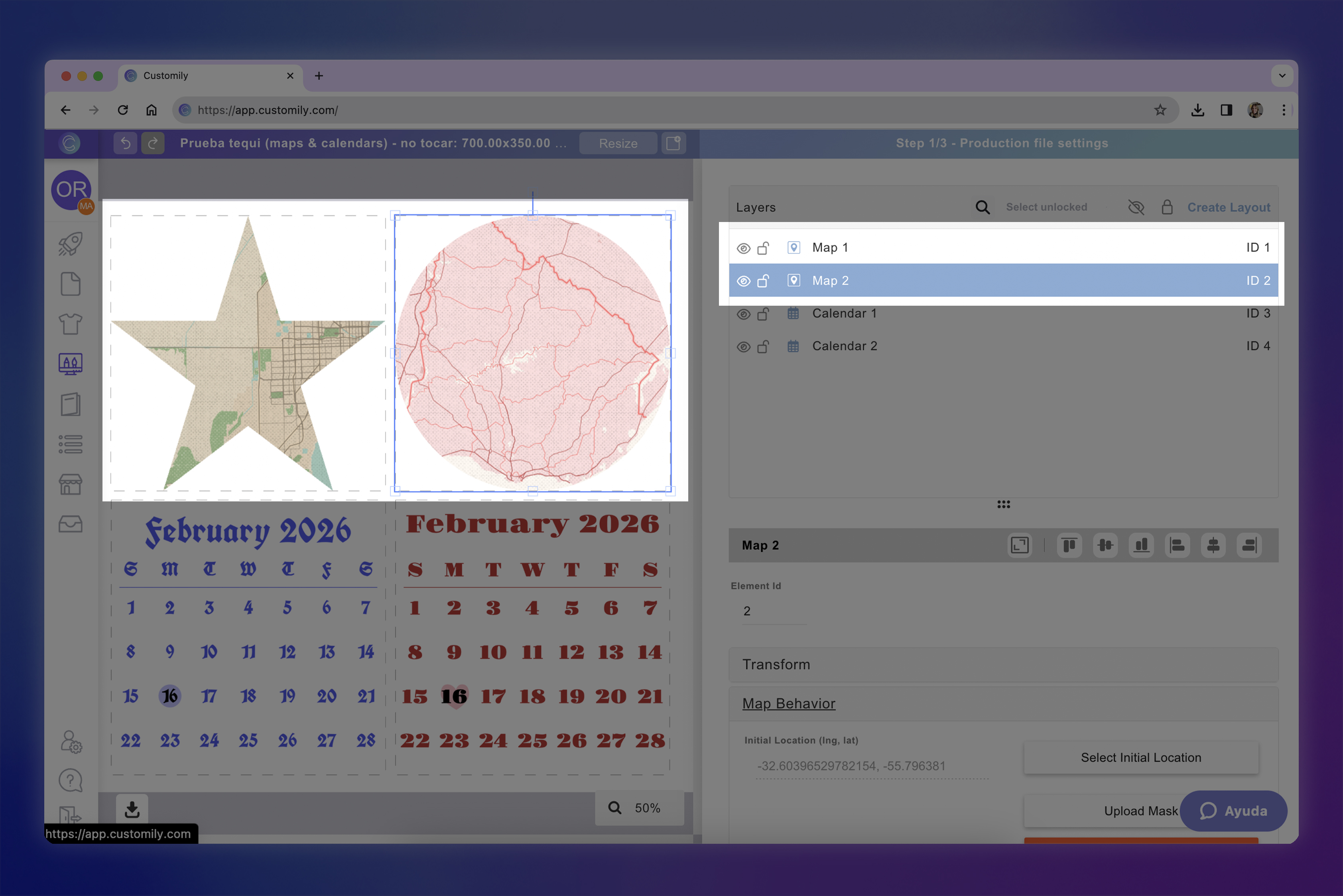
The Amazon Option Name must include the word Map.
The corresponding layer in Customily must be a Street Map element.
Behavior
The address entered by the shopper is sent to Mapbox.
Mapbox searches for the closest matching location and generates the map image using the first matching result.
Map settings
Map Style: Select one of Customily's built-in styles or use a custom Mapbox style.
Map Zoom: Configure the zoom level by setting an Initial Location. The zoom level configured there will be used for every generated print file.
Tip
For the most accurate results, ask shoppers to enter the complete address, including street, city, state, and country.
Text box
Compatible Amazon inputs
Text Input
Configuration
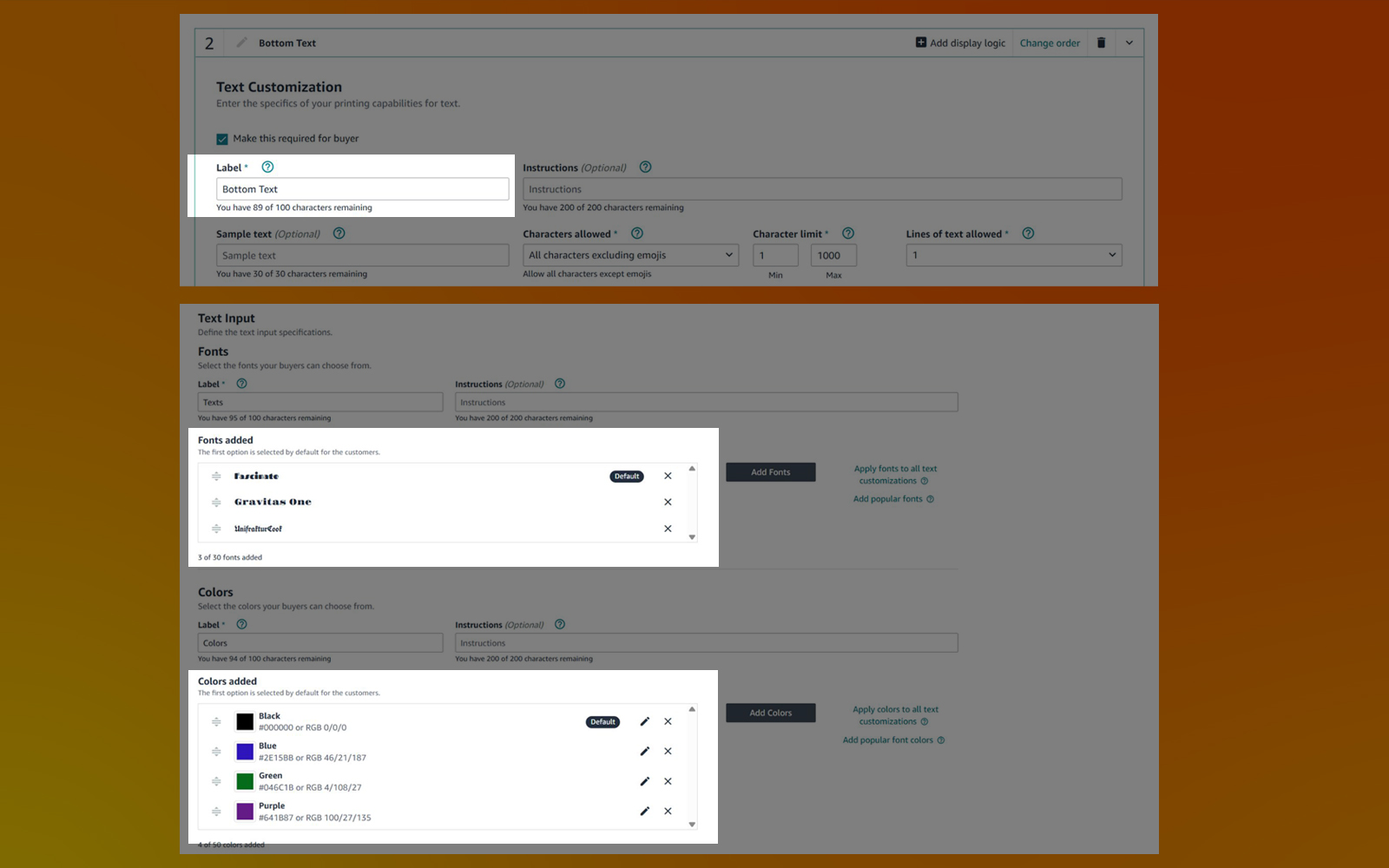
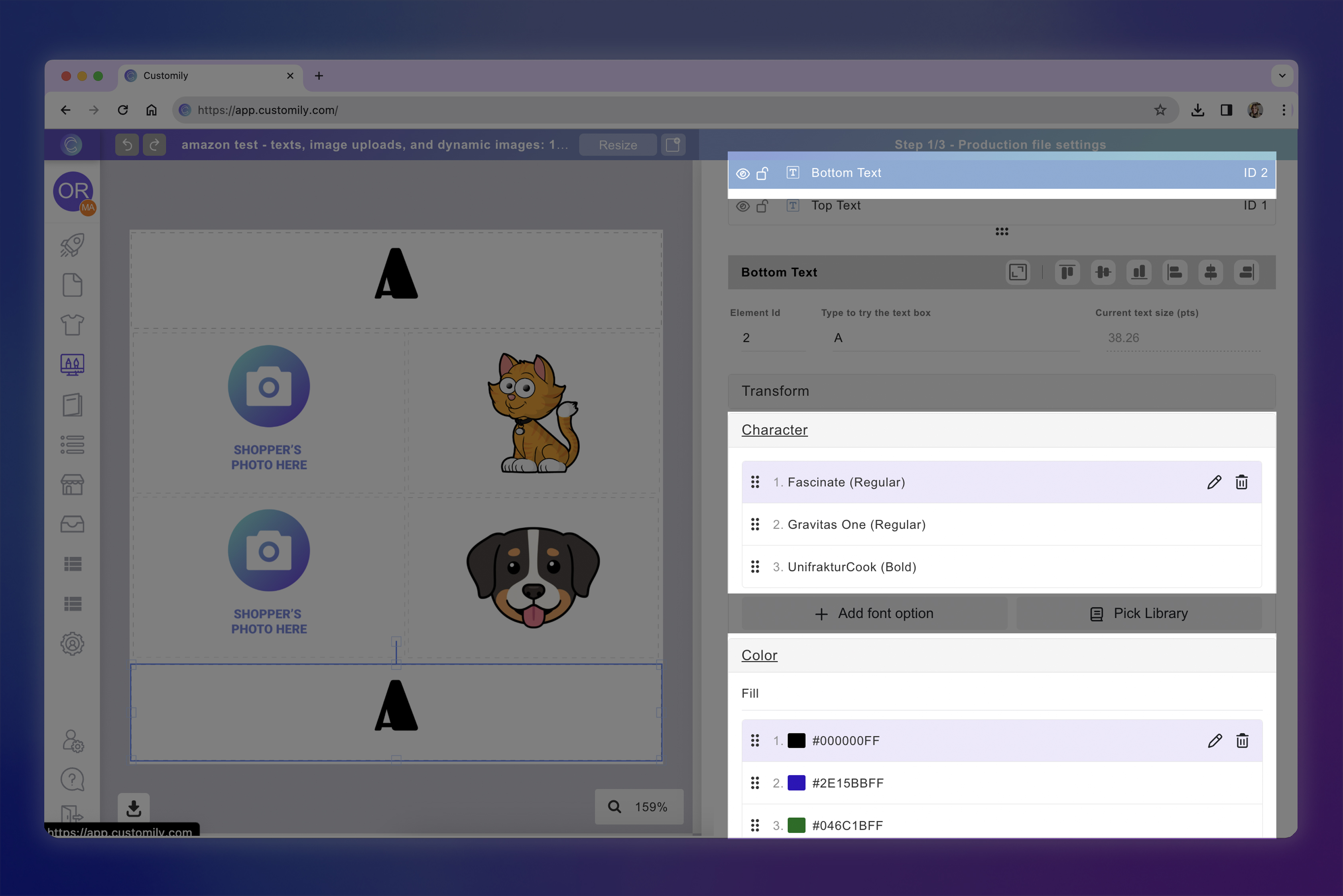
Layer names must match the Amazon Option Labels.
Font options must match exactly.
Color options must match exactly.
Fonts and colors must appear in the same order on both platforms.
Behavior
The shopper's text is inserted into the corresponding text layer using the selected font and color.
Moon Phase
Compatible Amazon inputs
Text Input
Data Input
Configuration
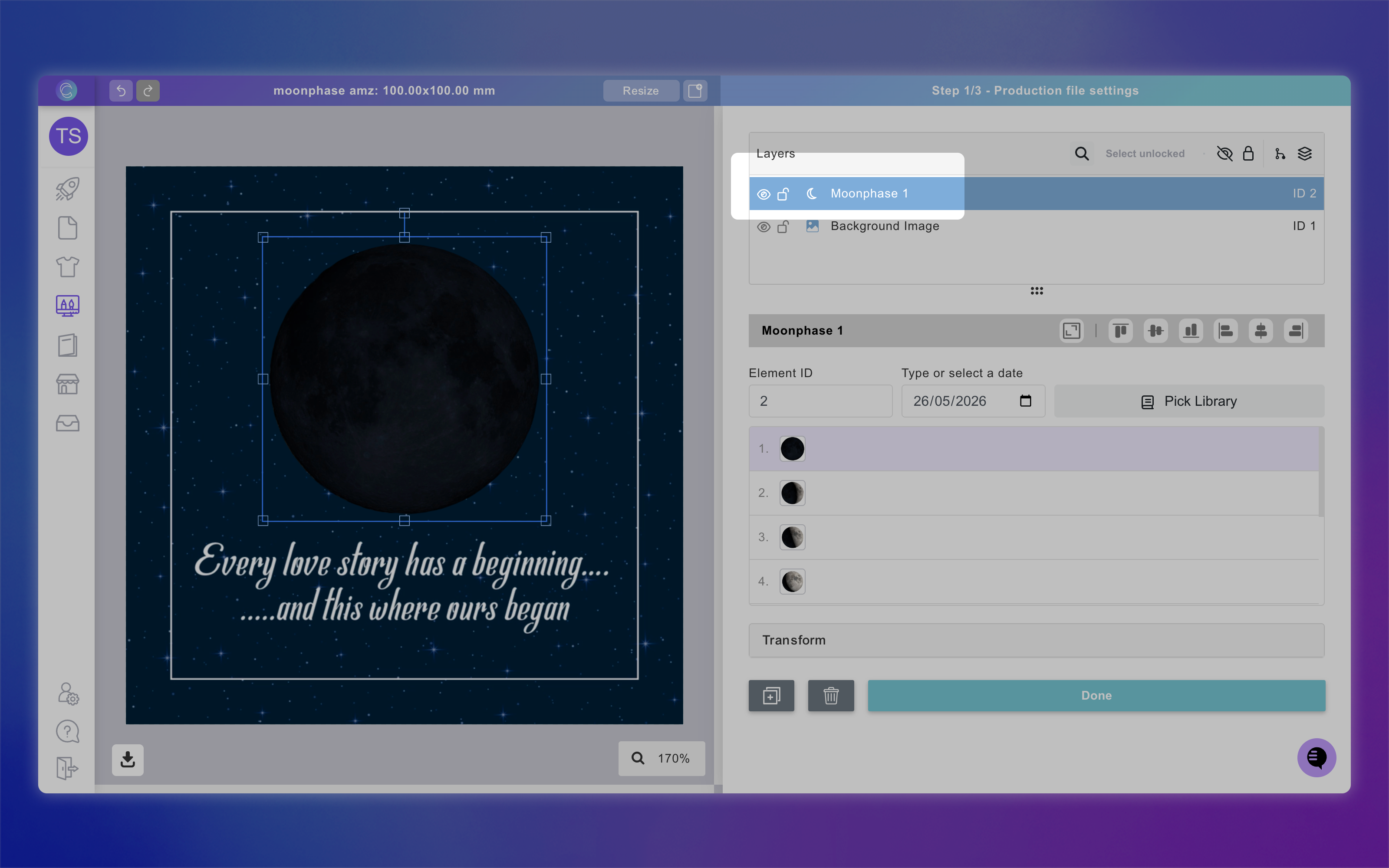
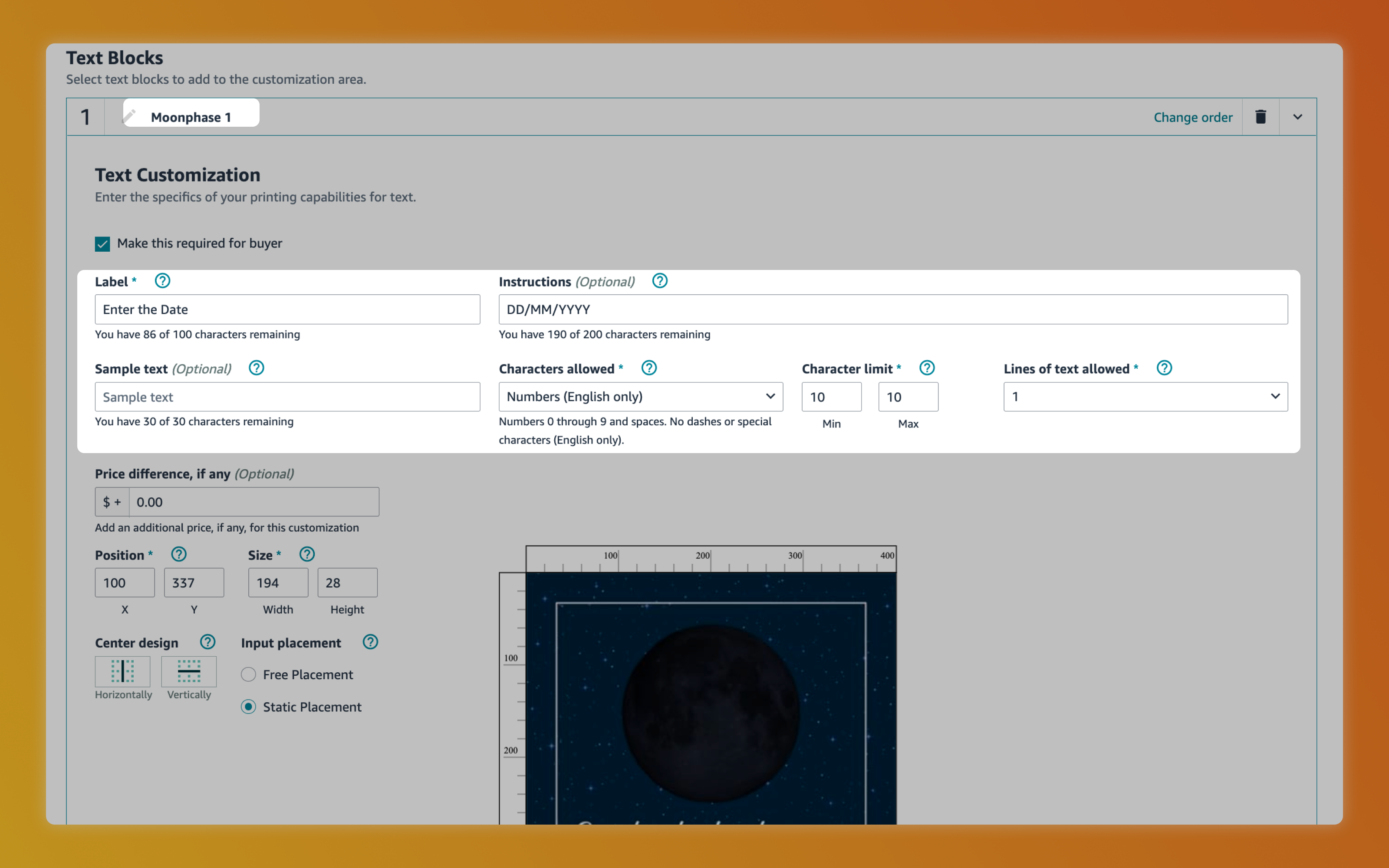
The Amazon Option Name must include the word Moonphase.
The corresponding layer in Customily must be a Moon Phase element.
Behavior
Customily converts the date entered by the shopper into the corresponding moon phase illustration.
Important
Dates must follow the format DD/MM/YYYY (for example, 25/12/2026).
When configuring your Amazon input, we recommend adding placeholder text showing the expected format and configuring minimum and maximum character limits to help shoppers enter valid dates.
Layouts and groups
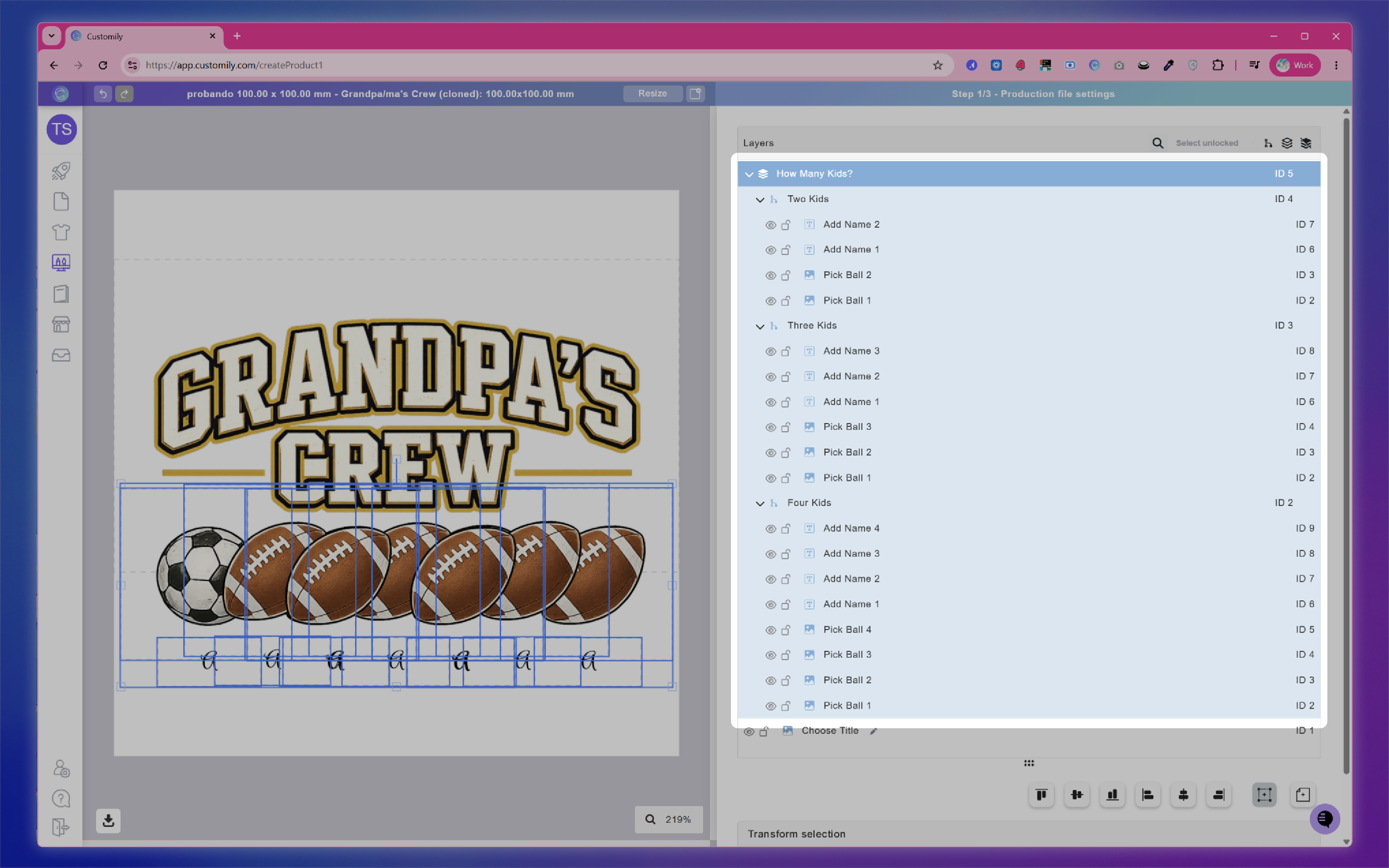
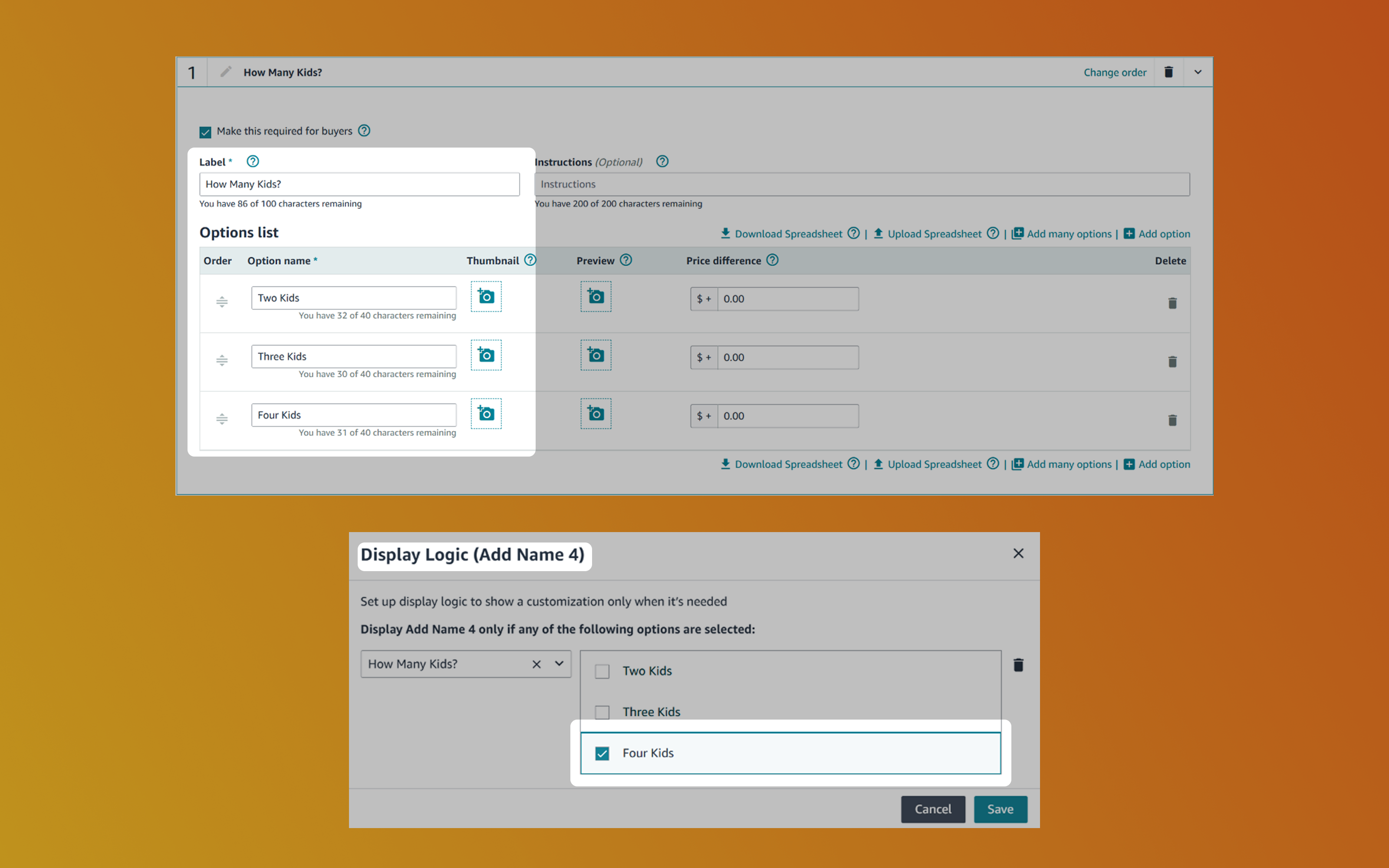
Layouts & Groups let you build templates with multiple personalization layouts while showing shoppers only the inputs relevant to their selection. This is achieved by using Customily's Grouped Layouts with Amazon Custom's Display Logic features.
Compatible Amazon inputs
Dropdowns with Display Logic
Configuration
Create a Dropdown Option in Amazon Custom whose label matches the Group Name in your Customily template.
Each dropdown value must exactly match one of the Layout names inside the group.
Configure Amazon Display Logic so that each personalization field inside each Layout is only shown when its corresponding option is selected.
Behavior
The shopper's selection determines which layout inside the group is used when generating the print file.
Important
Any text fields or image upload fields that belong to a specific layout must be conditionally displayed in Amazon Custom using Display Logic. This ensures only the inputs relevant to the selected layout are presented to the shopper.
2. Connect the Amazon product with Customily
Once your Amazon Custom personalization and Customily template are configured, connect the product in Customily.
Assign the Customily template to the product.
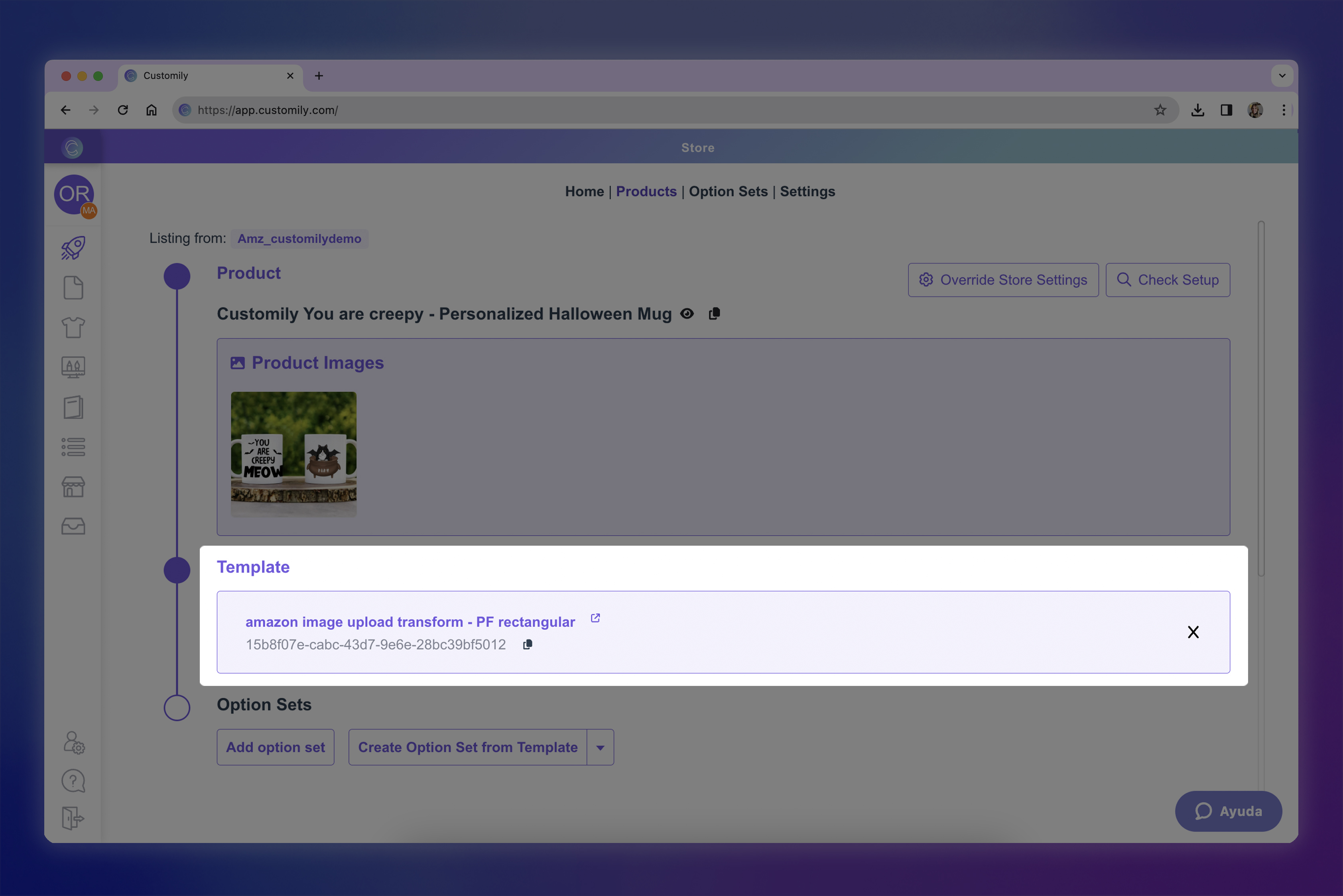
Leave the Option Set empty. Since personalization is handled by Amazon Custom, an Option Set is not required.
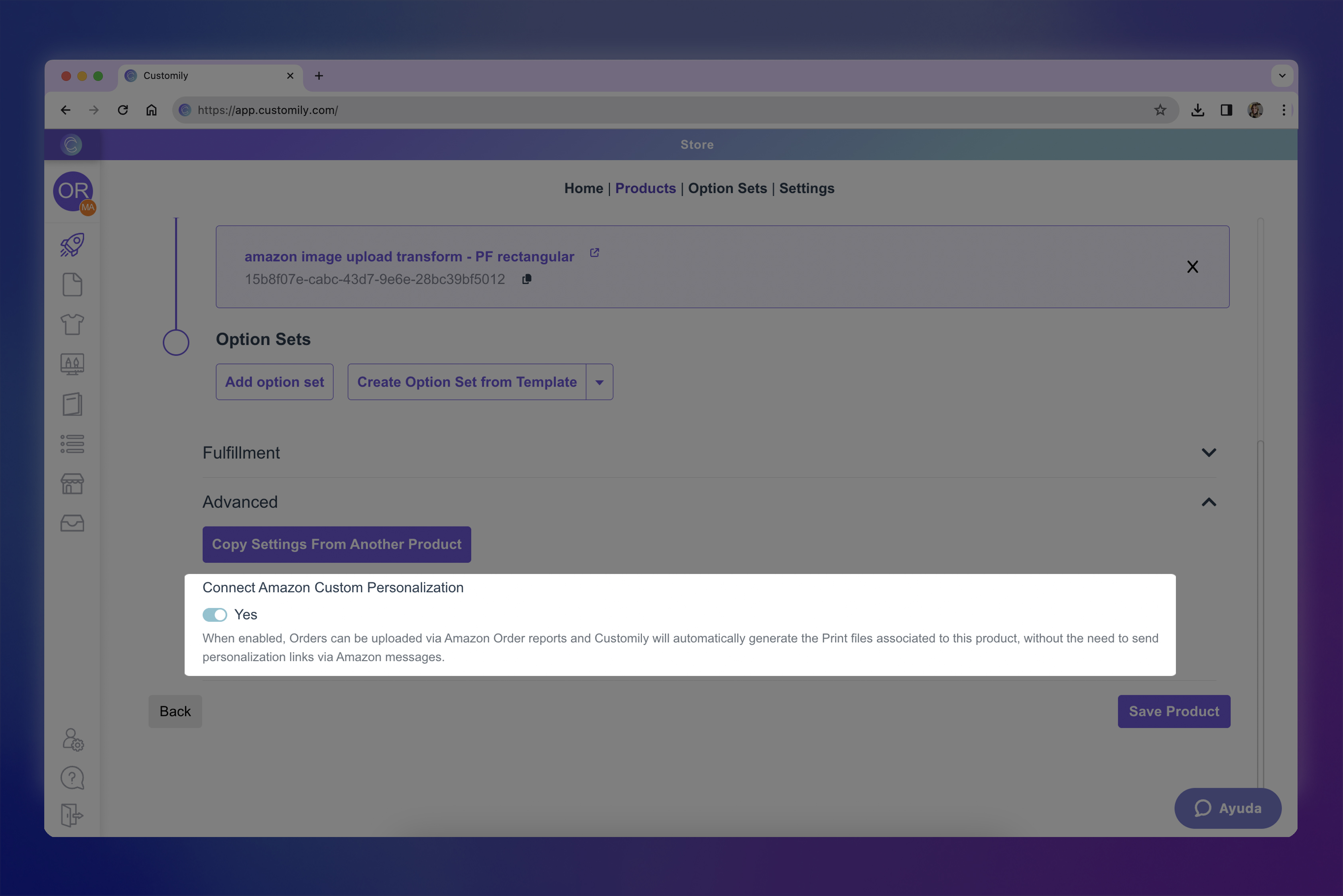
Enable the Connect Amazon Custom Personalization setting.
3. Generate print files
Once shoppers have placed orders on Amazon, download the Amazon Order Report and import it into Customily. Customily will automatically match each order to its corresponding template and generate the production-ready print files.
Download the Order Report from Amazon
In Amazon Seller Central, navigate to Order Reports.
Request a new report and ensure the required checkbox is selected.
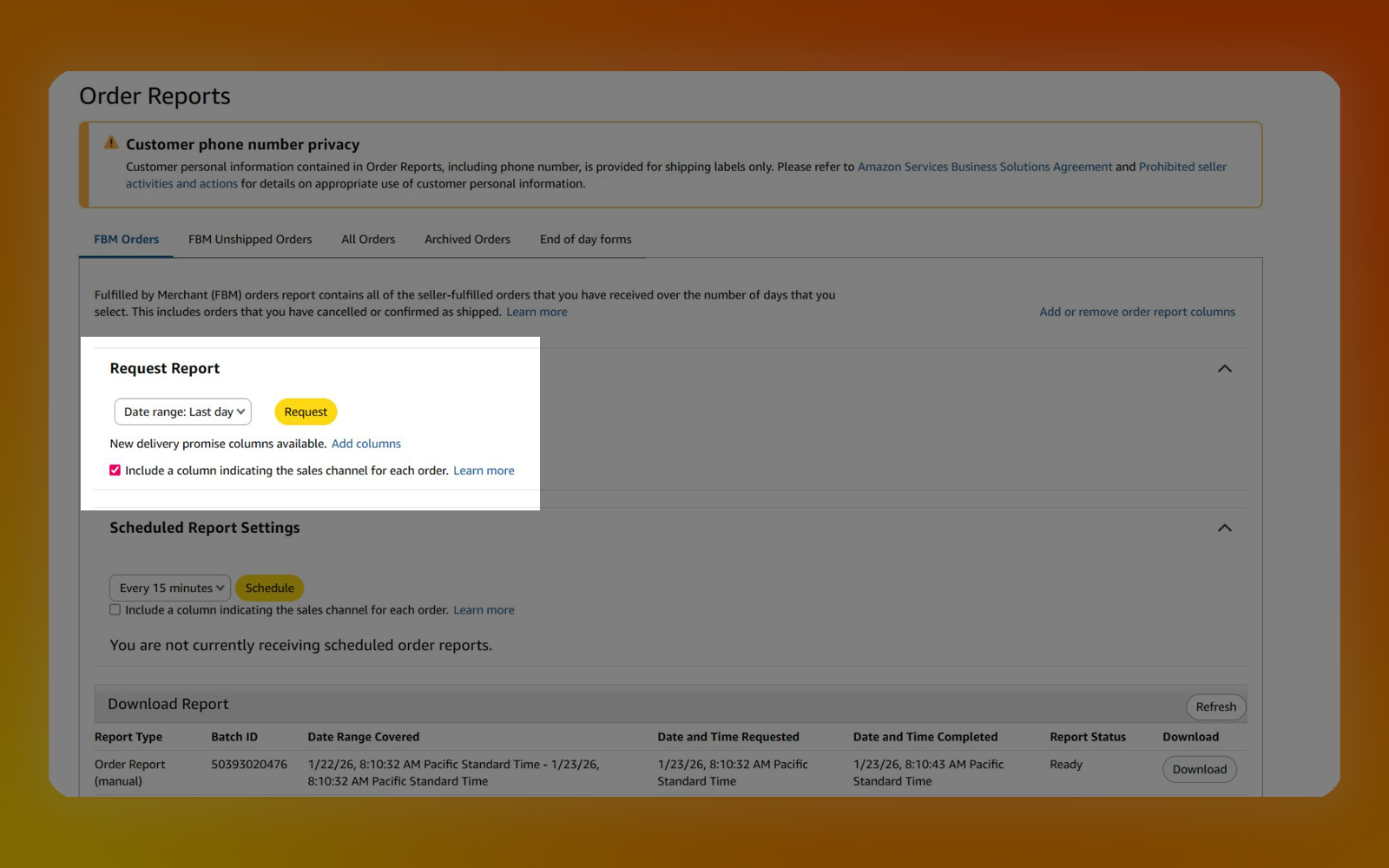
Once the report status shows as ready, download the generated file.
Import the Order Report into Customily
In your Customily Admin, navigate to the Orders page.
Click Import Customization and upload the previously downloaded Order Report file.
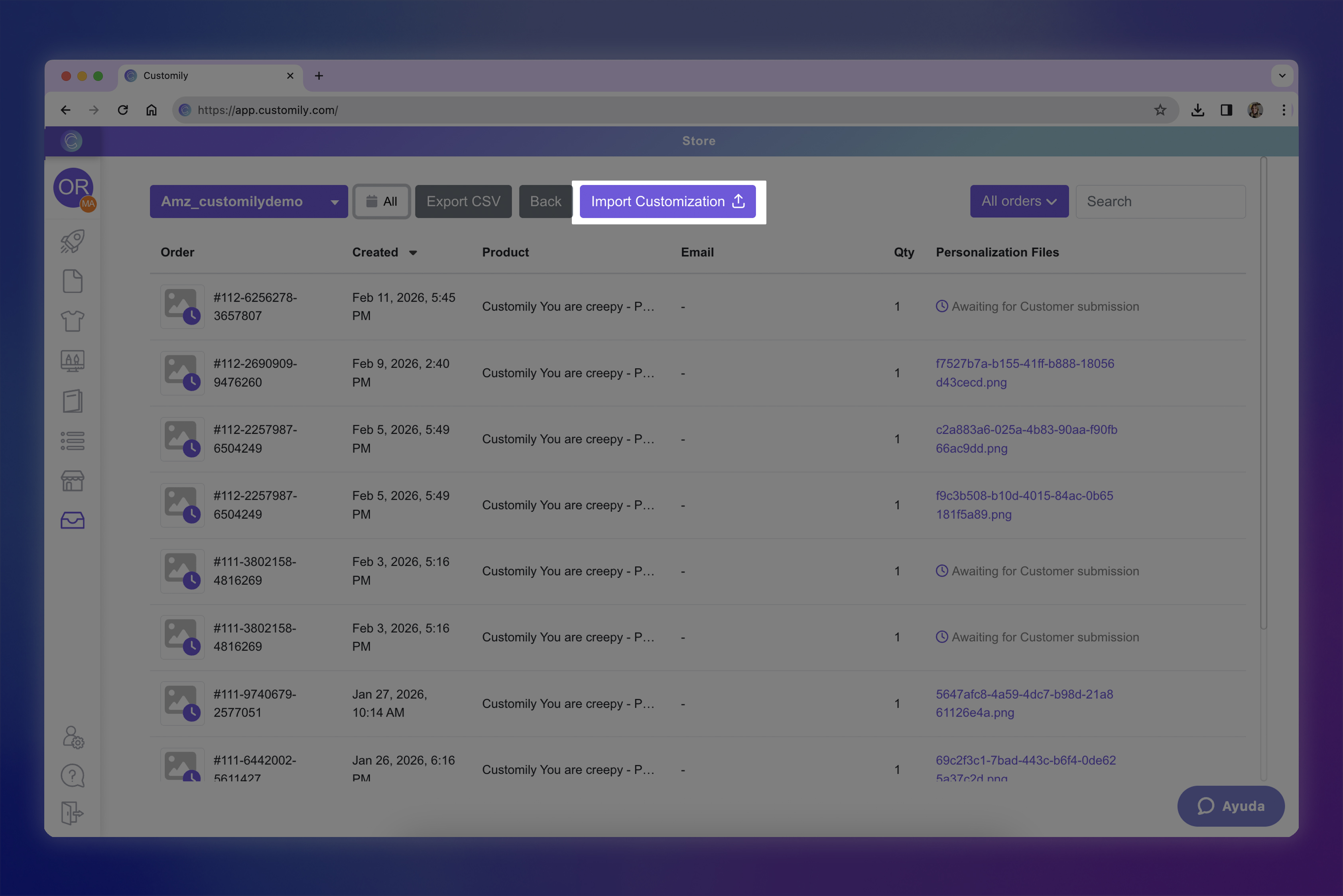
Imported orders will initially appear with the status Awaiting Customer Submission while Customily processes the imported personalization data.
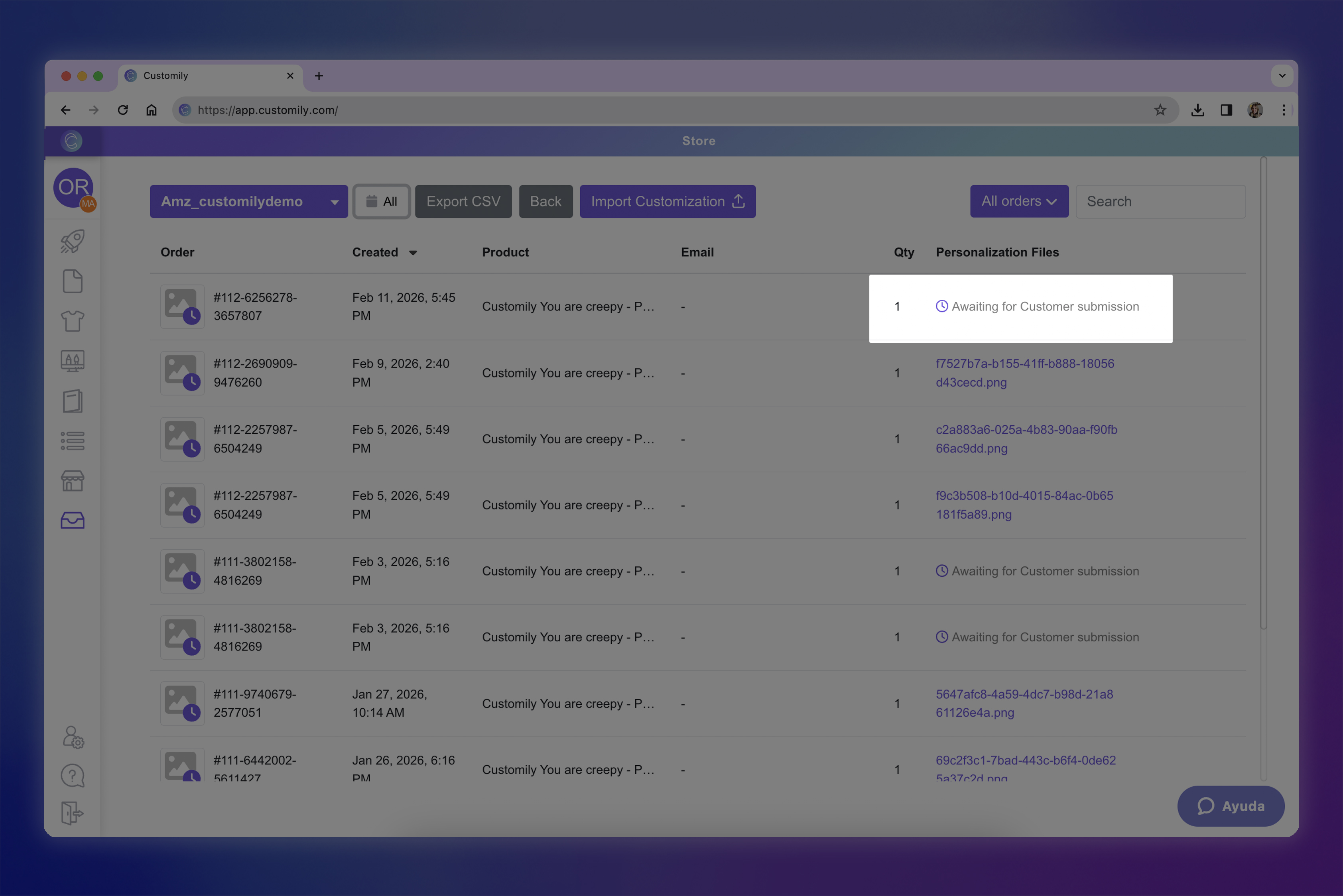
The system will automatically begin generating the corresponding print files.
Once processing is complete, the generated print files will be available within the order details.