Prepare your clipart images for consistent sizing
Last updated: October 19, 2026
When creating a Library of images, it's important to prepare them at consistent sizes before uploading them to Customily.
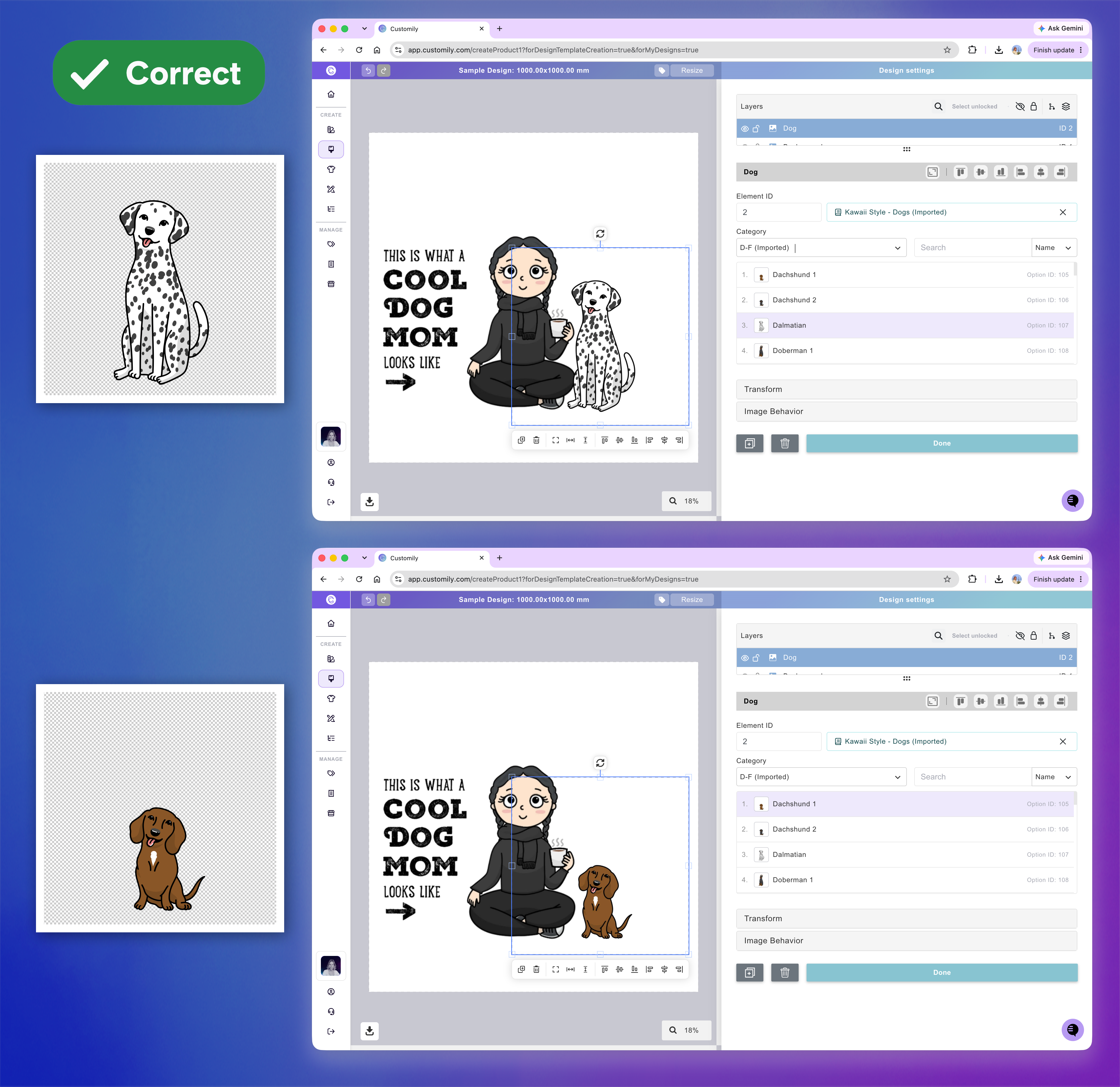
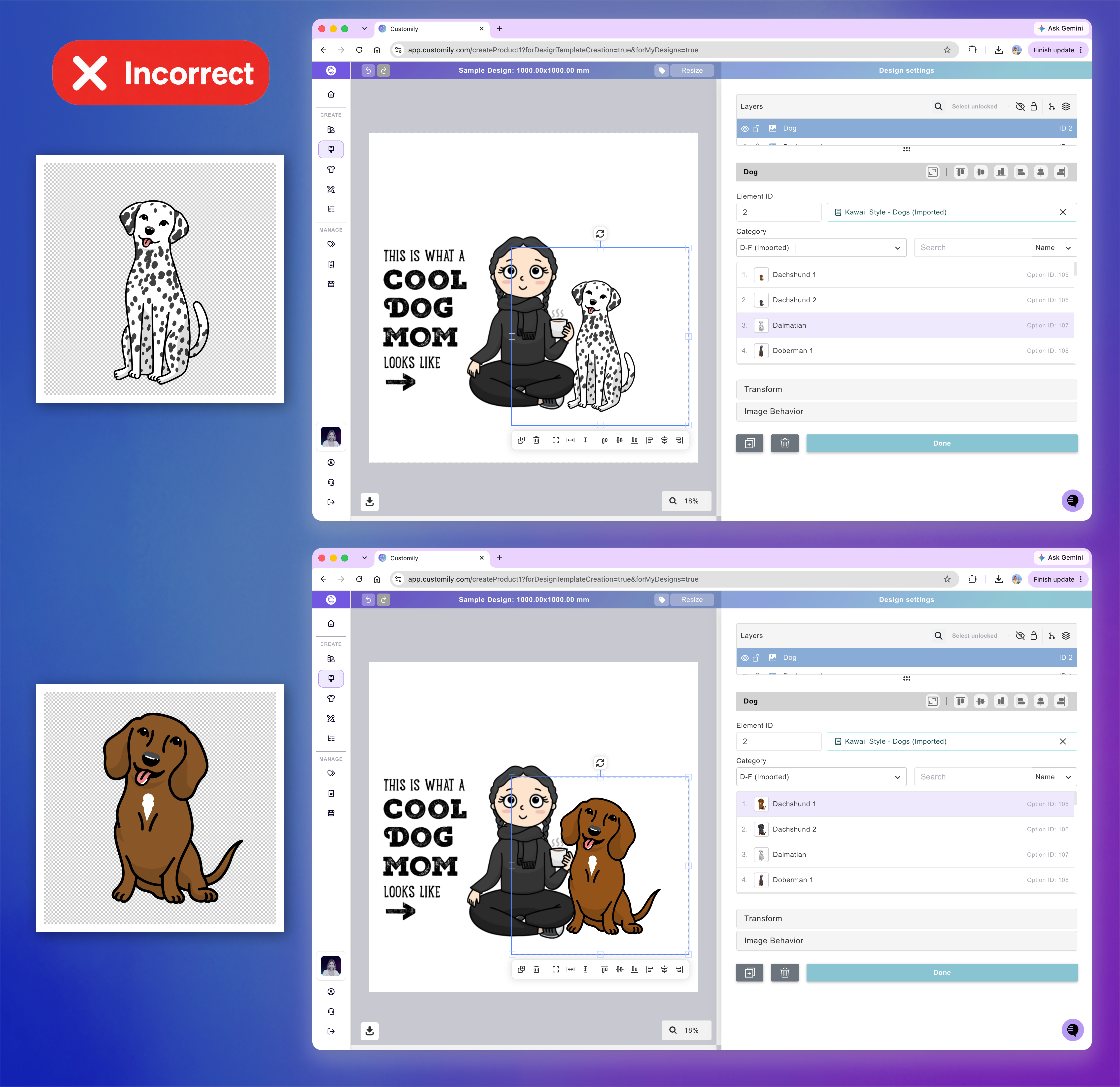
Dynamic Images automatically resize each image to fit the available area. If your clipart images aren't properly scaled, some may appear much larger or smaller than others when shoppers switch between options.
How to prepare your clipart
Before uploading your images to a Library:
Use the same canvas dimensions for all images in the Library.
Scale your artwork proportionally so the images make sense relative to one another. For example, a small dog should appear smaller than a large dog.
Position your artwork consistently, using transparent space around smaller images to preserve their intended size.
Export your images with transparent backgrounds and upload them to your Library.
The goal isn't to make every image the same size, but to make every image look correctly sized in relation to the others.
Resize multiple clipart images using Photoshop
If you have many images to prepare, you can use Photoshop to resize and export them more efficiently.
Watch the tutorial below to learn how to prepare multiple clipart images at their correct sizes before uploading them to your Library.