Vector Placeholder
Last updated: October 21, 2026
Image placeholders let shoppers upload their own vectors to personalize a product. The placeholder defines the area where the uploaded vector appears, not the size of the vector itself. On the canvas, it's represented by a dashed line.
You can customize the placeholder's size, and position, and control how uploaded vectors appear within it.
How It Works
When you add a Vector placeholder to your design:
Shoppers can upload their own vector in PDF, SVG, or EPS format.
Their uploaded vector appears live in the product preview, inside the placeholder you defined.
You can control how the vector fits or fills the placeholder
Shoppers can move, resize, or rotate their uploaded vector within the limits you configure.
You can automatically apply effects to uploaded vectors, such as background removal, face cutouts, or AI filters.
Each vector placeholder accepts one uploaded vetor. For other file formats, such as PNG or othr image files, use an 📄 Image placeholder.
How to add a vector placeholder
Open your Design or Template in the Design Studio.
Click Vector Placeholder to add a new element.
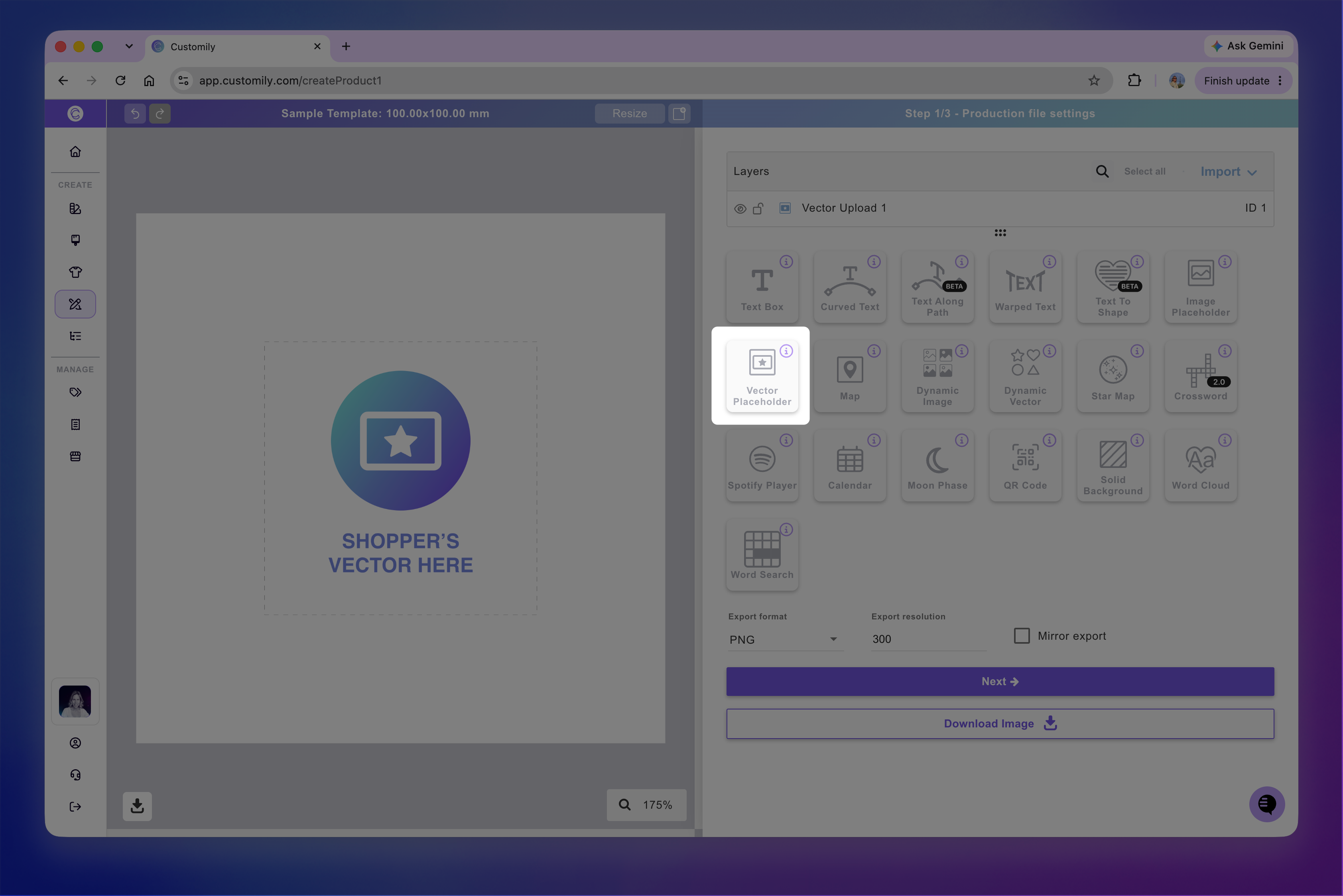
Each vector placeholder has a name you can edit and a unique ID to help you identify it.
How to move, resize, and transform the vector placeholder
You can move, resize, and rotate a vector placeholder directly on the canvas.
When you select a vector placeholder, a quick-action toolbar appears below it, with shortcuts to duplicate, delete, align, and distribute elements.
For more precise adjustments, expand the Transform toolbox. Use these controls to adjust the placeholder's position, rotation, size, flip, and layer order.
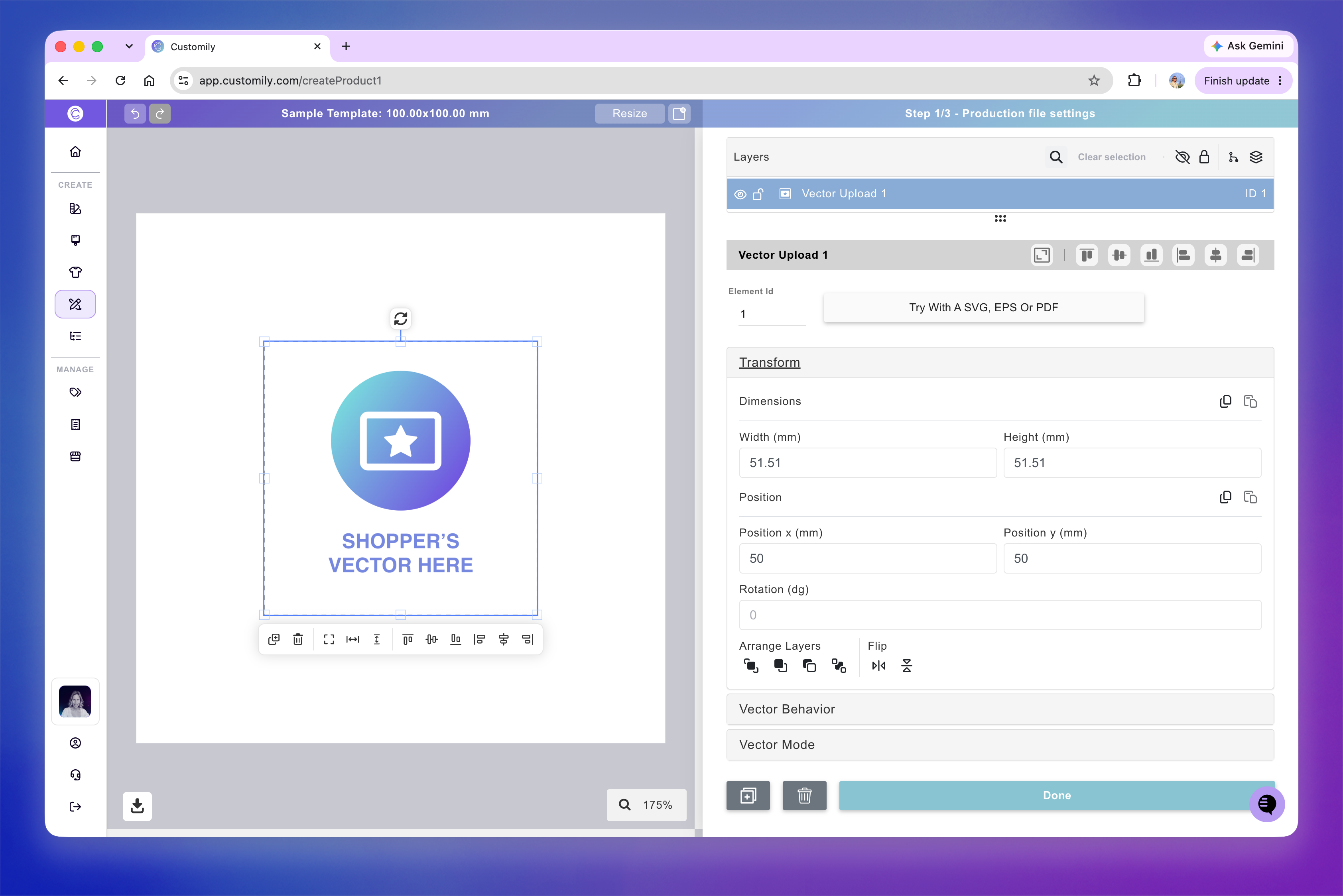
For detailed instructions on each transformation, see 📄 Transforming an element
How to control uploaded vector behavior
The Vector Behavior toolbox lets you control how shoppers' uploaded vectors appear and how they can adjust them during personalization.
You can control how it fits within the placeholder and restrict movement.
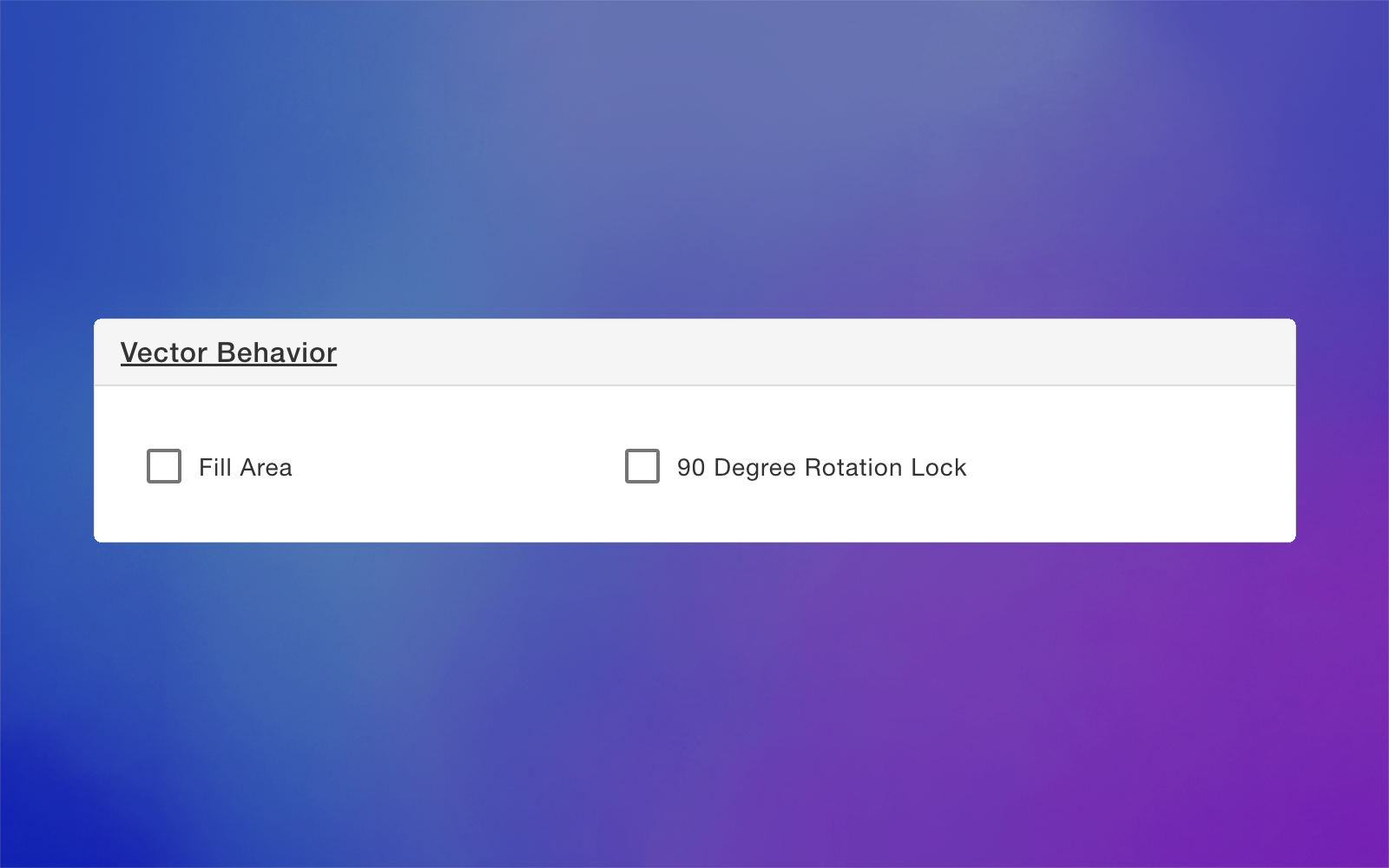
Control image movement and scaling
Use these settings to control how shoppers can move, resize, and rotate their uploaded vectors within the placeholder.
To configure movement and scaling:
Select the vector placeholder.
Expand the Vector Behavior toolbox.
Enable the settings you want to apply.
Available settings:
Fill Area: Automatically scales the uploaded vector to fill the entire placeholder, cropping any parts that extend beyond its boundaries.
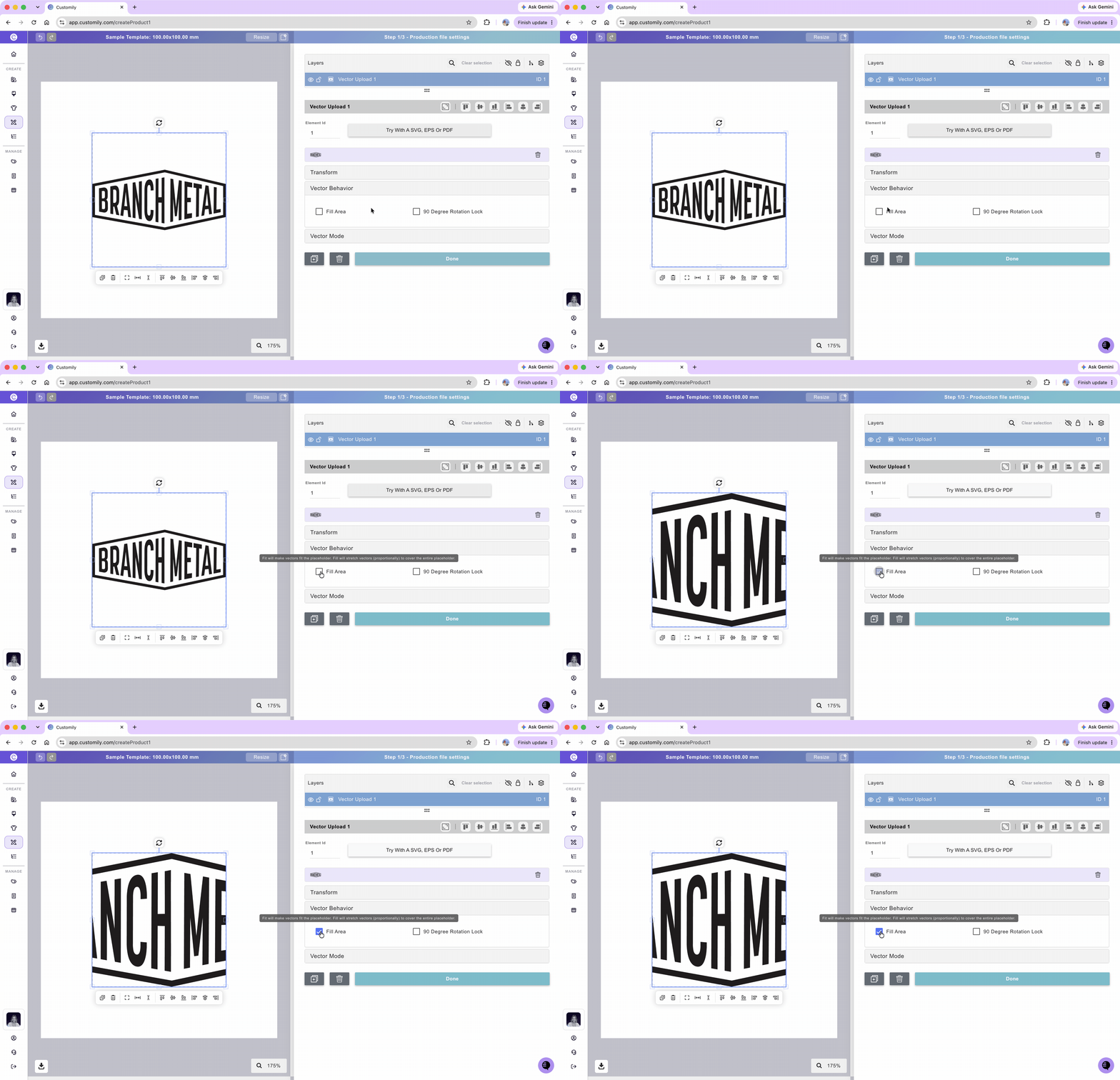
90 Degree Rotation Lock: Restricts vector rotation to 90-degree increments.
Customize the coloring of uploaded vectors
Use the Vector Type setting to control the coloring of shoppers' uploaded vectors. You can keep their original colors, or apply a single color.
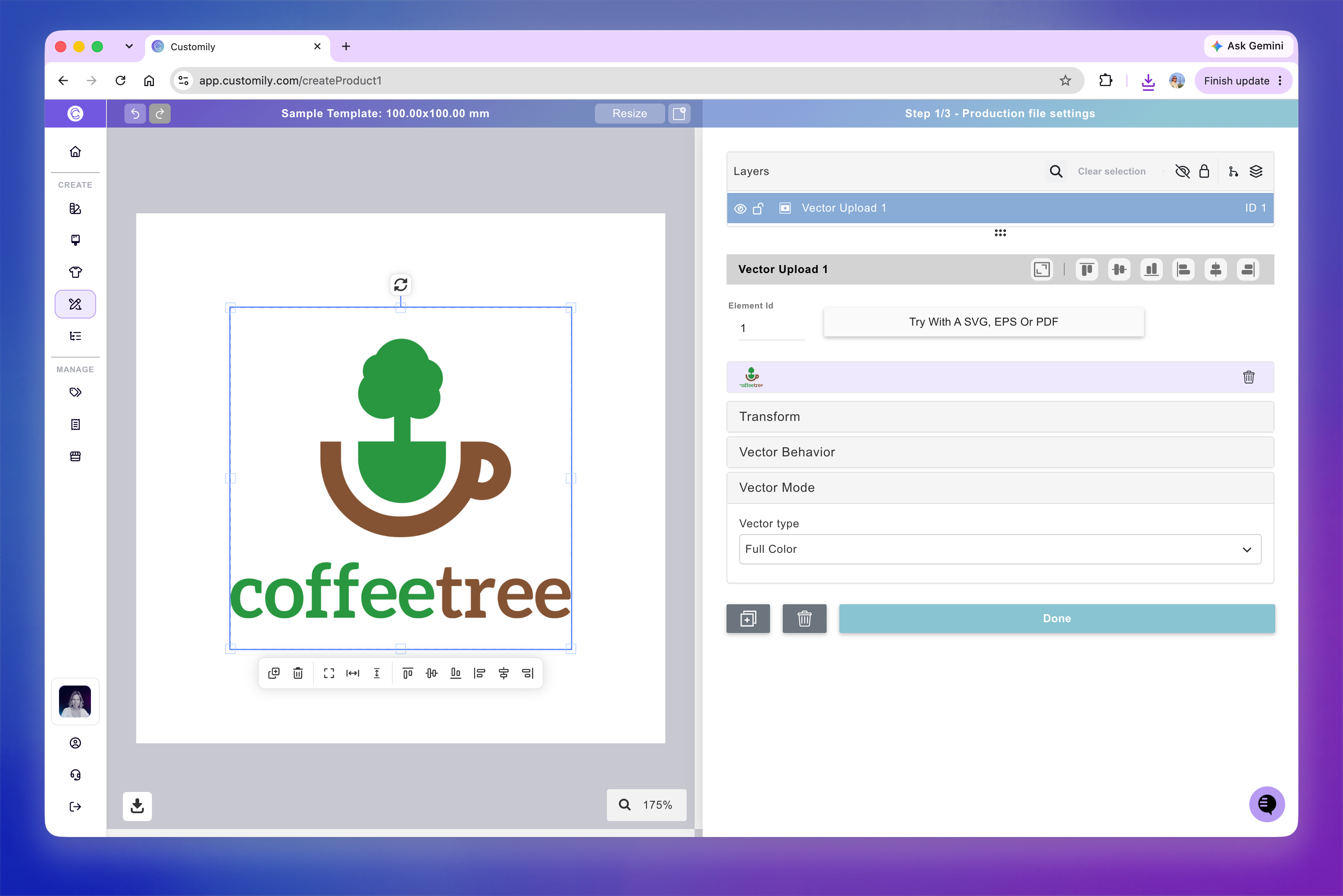
Full Color
Vectors in full color mode will remain exactly as the customer uploaded them. This is the standard mode for vectors.
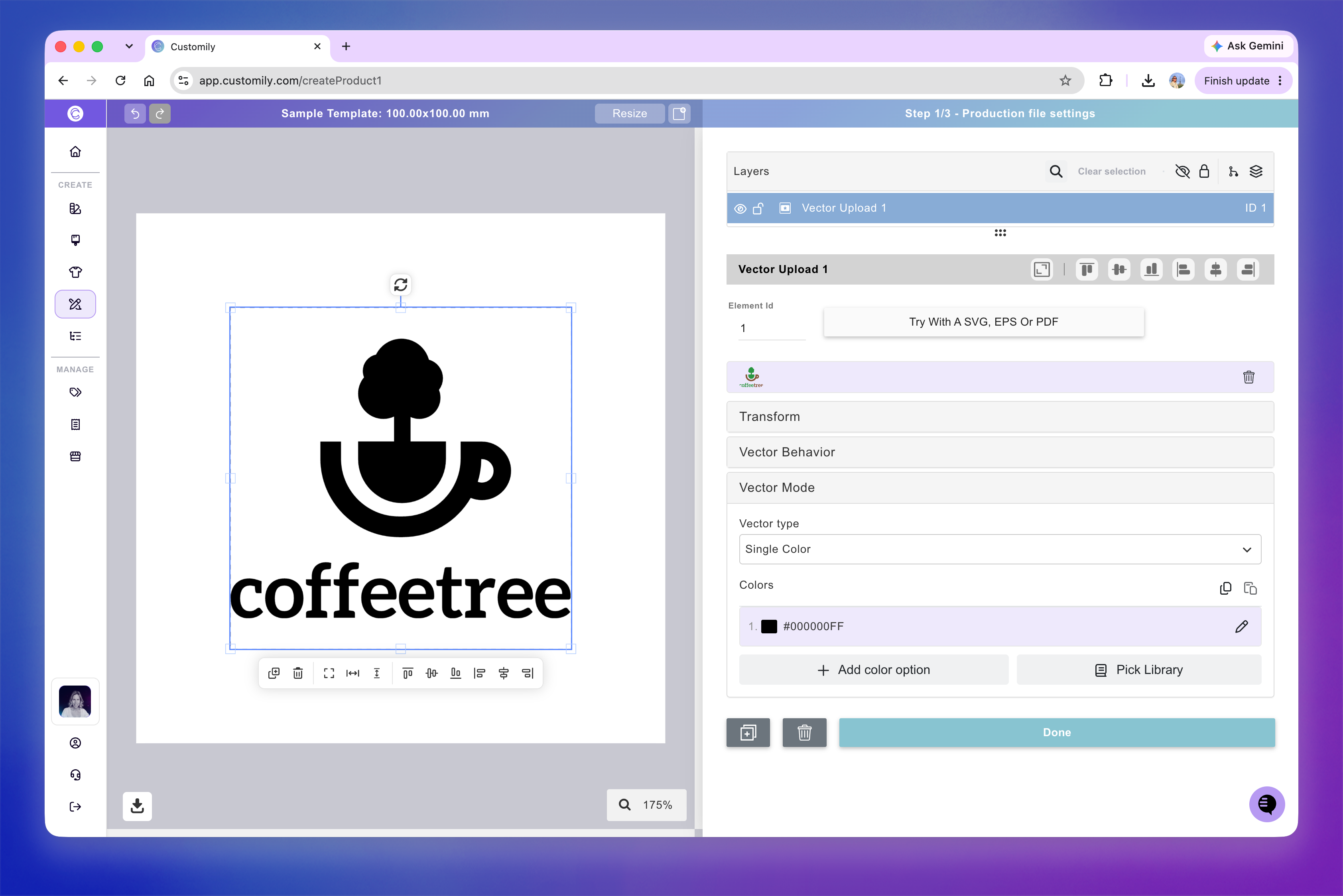
Single Color
Vectors are converted into solid-color shapes. This is useful for monograms, silhouettes, engraving, or designs where shoppers can choose the artwork color.
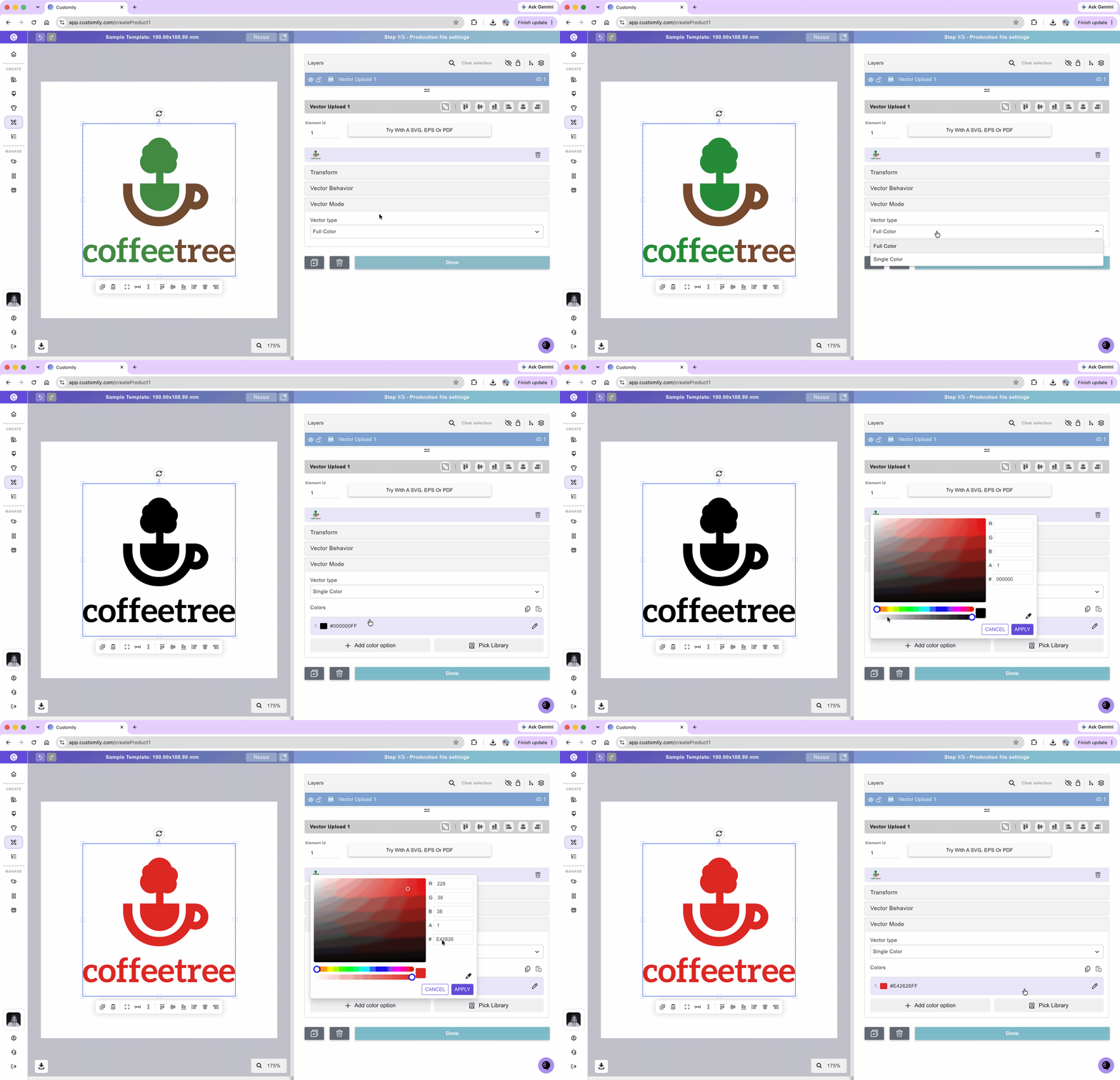
To change the vector type:
Select the vector placeholder.
Expand the Vector Mode toolbox.
Choose an option from the Vector Type dropdown.
If you select Single Color, click Add color option to choose a color. You can select a color using the color picker, or enter a HEX, RGB-A, or CMYK-A value (depending on your design's color mode).
Tip
You can add multiple color options to a Single Color Vector by using a Color Library or clicking +Add color option to select additional colors.
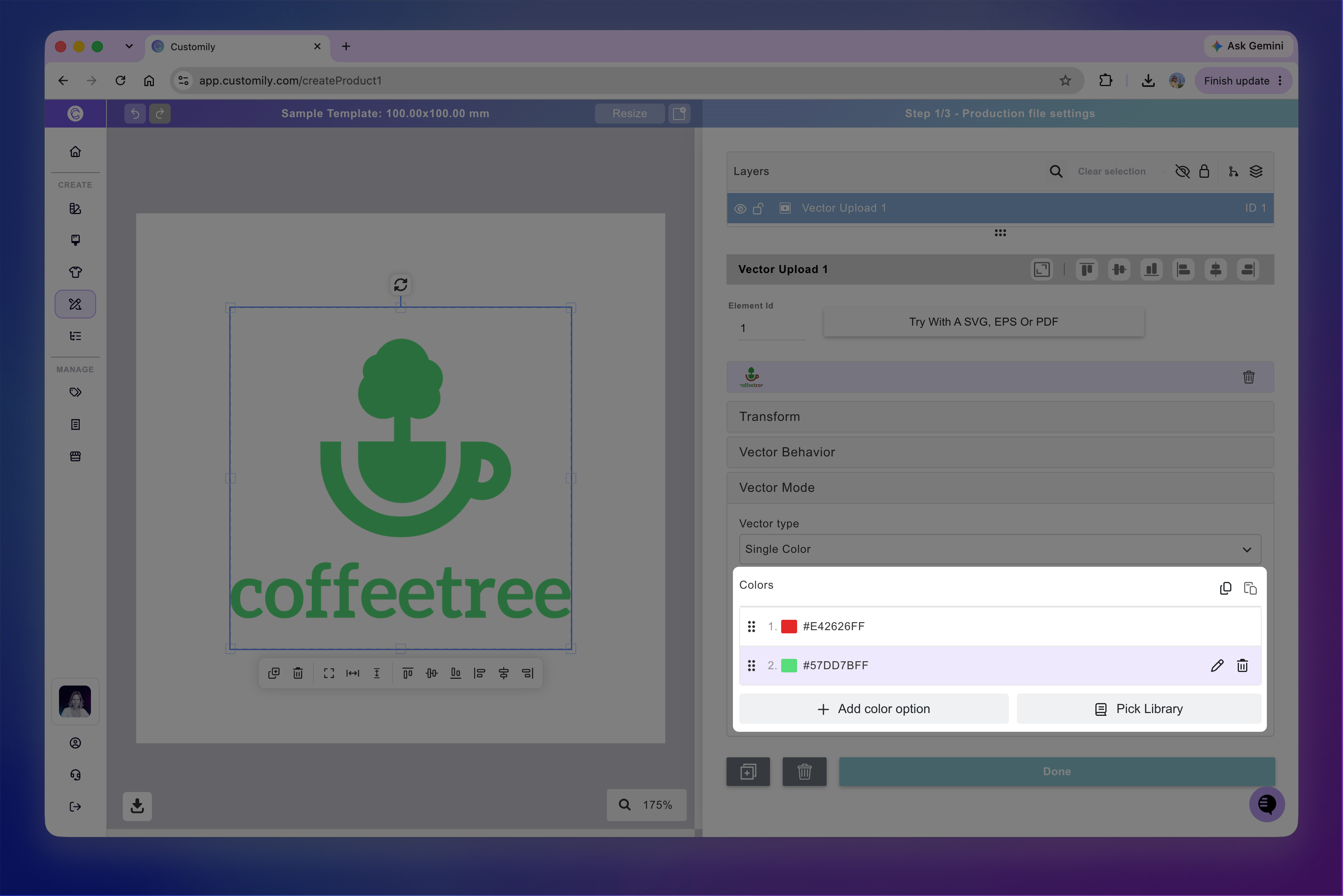
For detailed instructions, see 📄 Add multiple color options to vectors
Test how the user-uploaded vector will look
While configuring your image placeholder, click Try with an SVG, EPS, or PDF to upload a sample vector and see how it looks in your design.
This vector is only for testing. It won't be saved or visible to your shoppers.
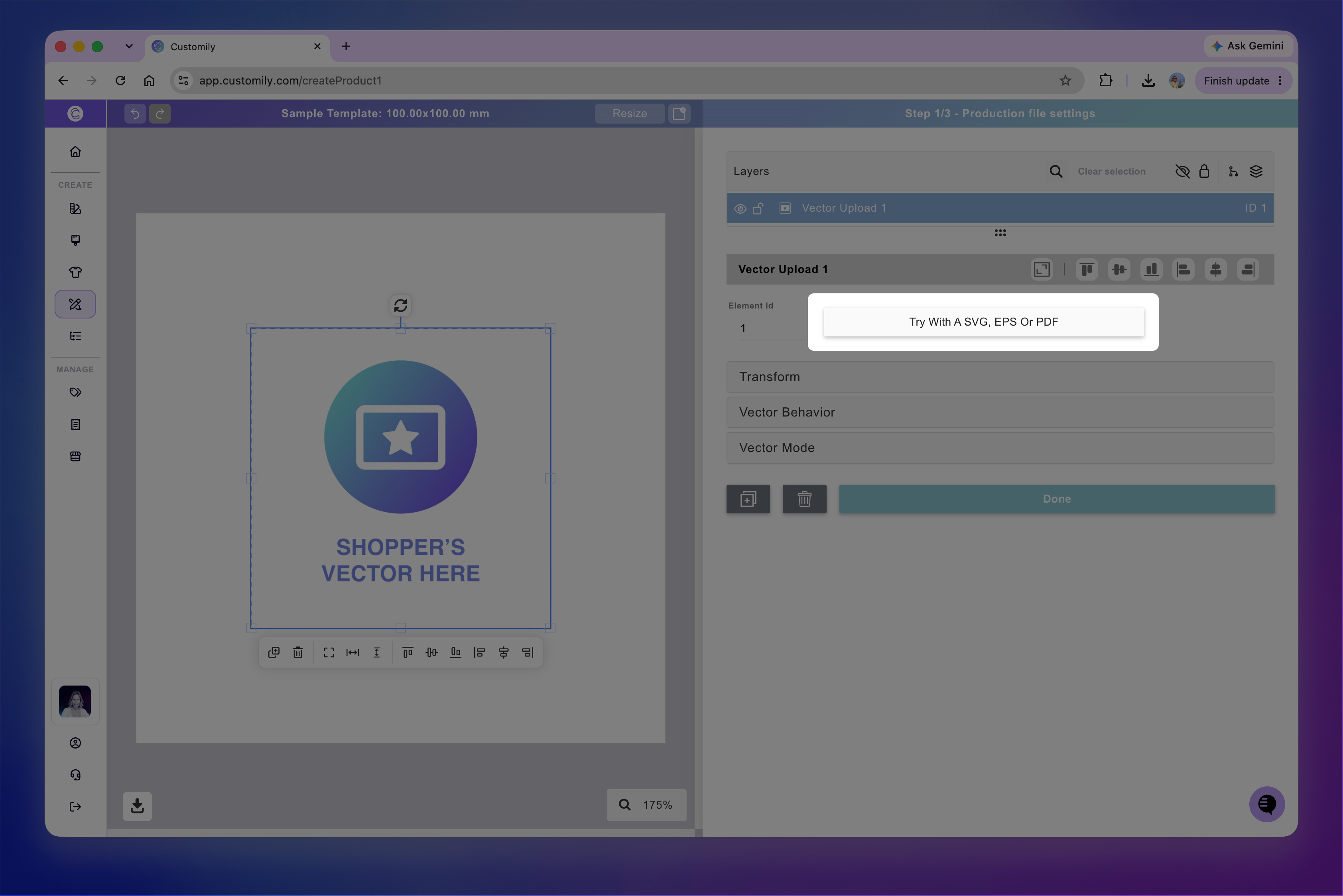
You can also test how shoppers will be able to move and resize their vector:
Double-click the vector placeholder on the canvas until its boundaries turn red and the uploaded vector is highlighted in blue.
Move or resize the vector to test how it behaves.
Click outside the placeholder to exit testing mode.