How to Create an Option Set Automatically
Last updated: April 28, 2026
The easiest way to create option sets in Customily is by letting the app do it for you! There are two ways option sets can be created automatically — no manual setup required:
Let’s break down both methods:
Automatic Option Sets for My Designs
Whenever you create a new My Design, Customily will automatically generate an option set for it based on the personalization elements you used in the design.
You don’t have to do anything — the option set is created for you in the background, and is ready to use when you connect this design to a product.
You can always edit these auto-generated sets if you want to customize the options, labels, logic or order.

Create Options Automatically when linking a Product to a Template
When adding personalization manually to an existing listing from your store in the Store section, you’ll be asked to select a template and an option set.
After you select the template, you’ll have two choices:
Use an existing option set
Create a new one from the template
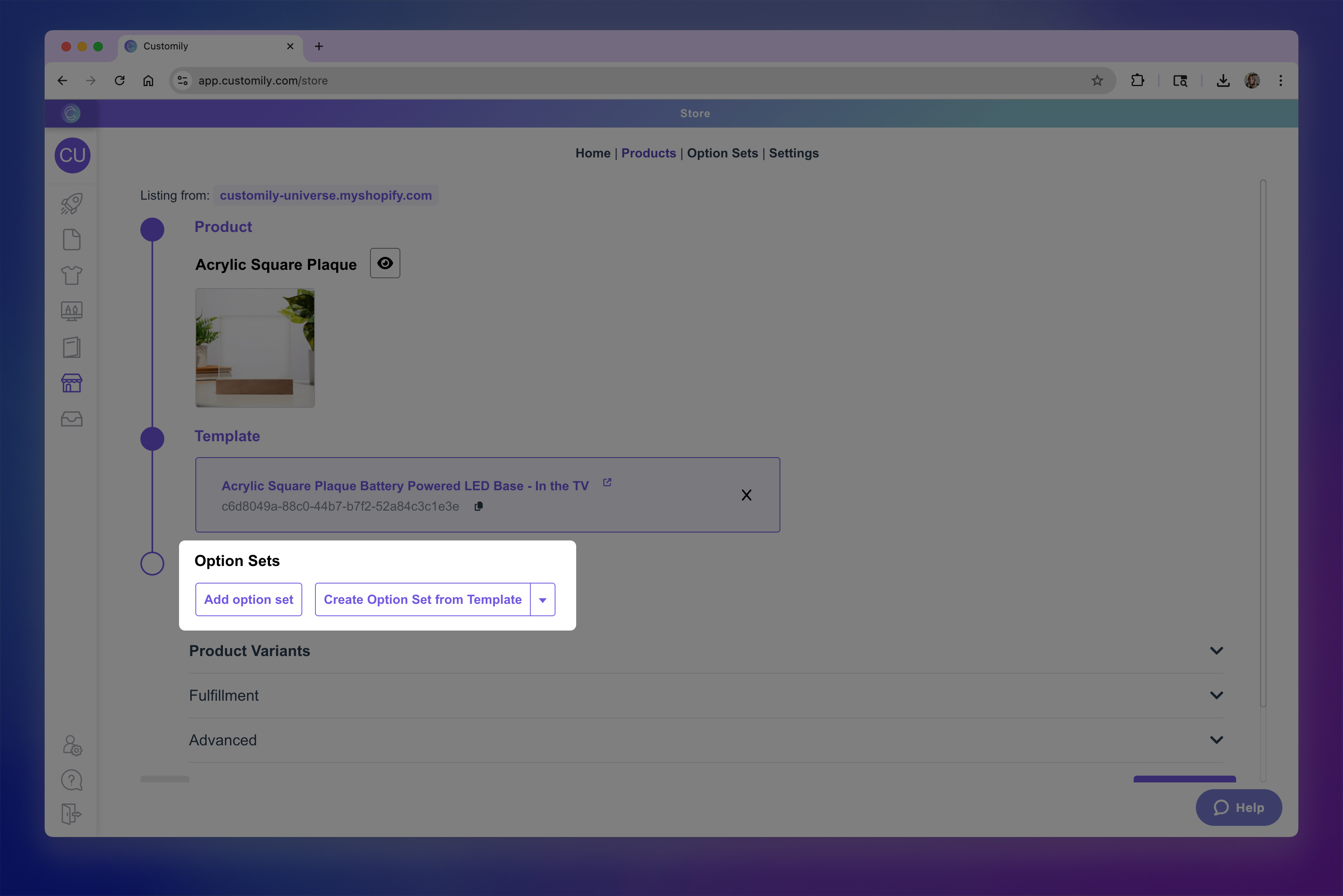
If you choose to Create Option set from Template, Customily will:
Scan your template’s personalization elements
Automatically generate the right options and link them to the appropriate template layers
This method saves you tons of setup time. And, same as with the option sets generated from designs, you can always edit these auto-generated sets if you want to customize the options, labels, logic or order. Learn how to edit option sets here.
What’s included in an automatic option set?
Automatically generated sets include:
All the personalization options needed to match your template or design
Pre-assigned functions, linked to the correct elements
Pre-filled values for swatches, dropdowns, or other selectable inputs
Everything is ready to go — but fully editable afterward.
Can I edit an automatic option set?
Yes! After it's created, your option set works just like any other in your account.
You can:
Edit existing options
Add or remove options
Change labels, types, functions, and values
Apply conditional logic
Reorder options
Want to learn more? See how to edit an option set →