Find and manage your Designs
Last updated: October 20, 2026
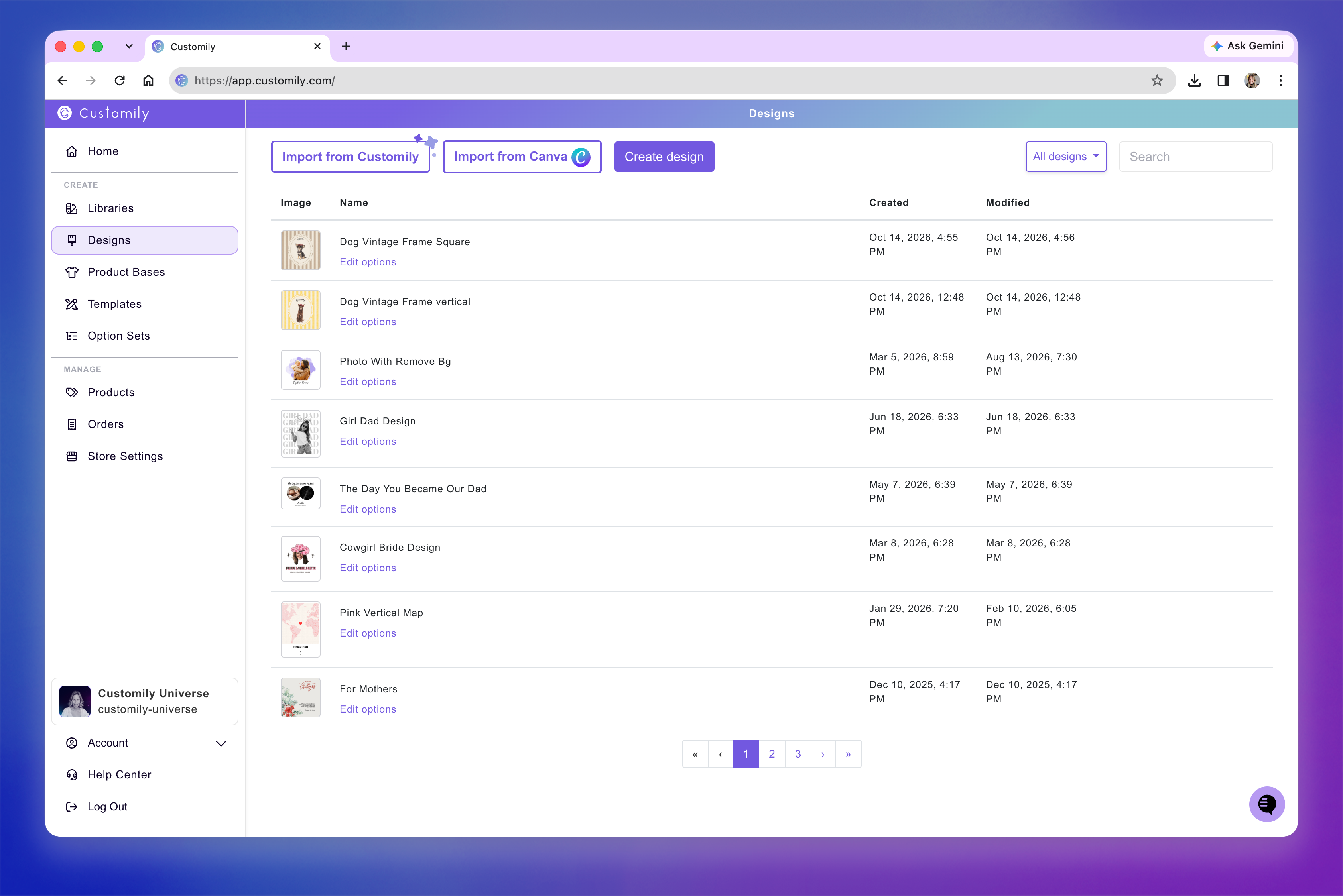
The Designs section is where you can find and manage all the Designs you've created or customized in Customily.
Access it by clicking Designs in the left-hand menu of your dashboard. From here, you can create new Designs, edit existing ones, manage their Option Sets, and organize your saved artwork.
Designs are listed with the most recently created or edited ones first.
Create a new Design
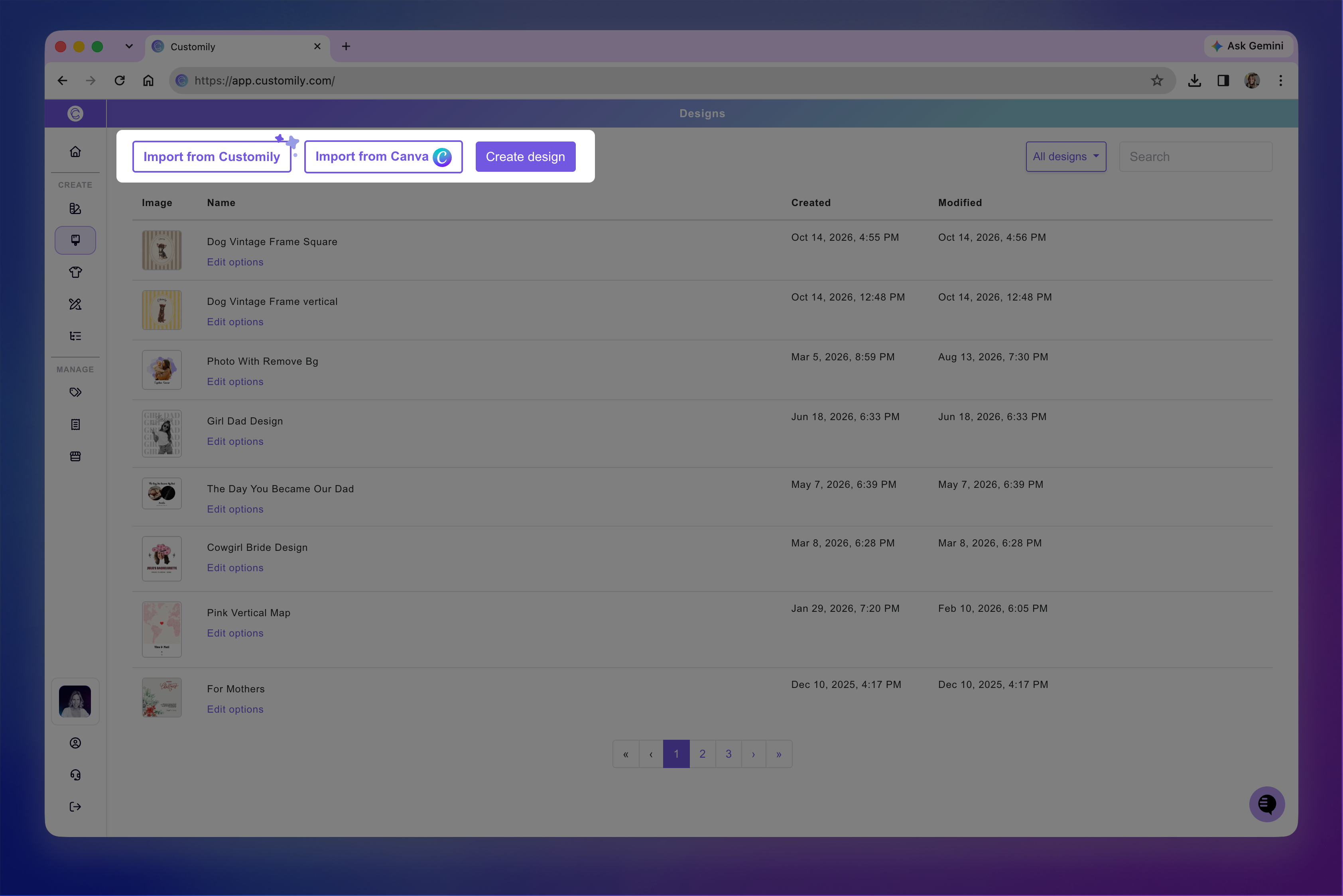
You can create a Design from scratch or start with an existing Design from Customily's gallery.
Create design: Start a new Design in the Design Studio. See 📄 How to create a new Design.
Import from Customily: Choose a ready-made Design from Customily's gallery and customize it to create your own version. See 📄 How to Modify a Customily Design to Create Your Own
Import from Canva: Import artwork from Canva to work with it in Customily.
Once saved, your Design will appear in the Designs list.
Search and browse your Designs
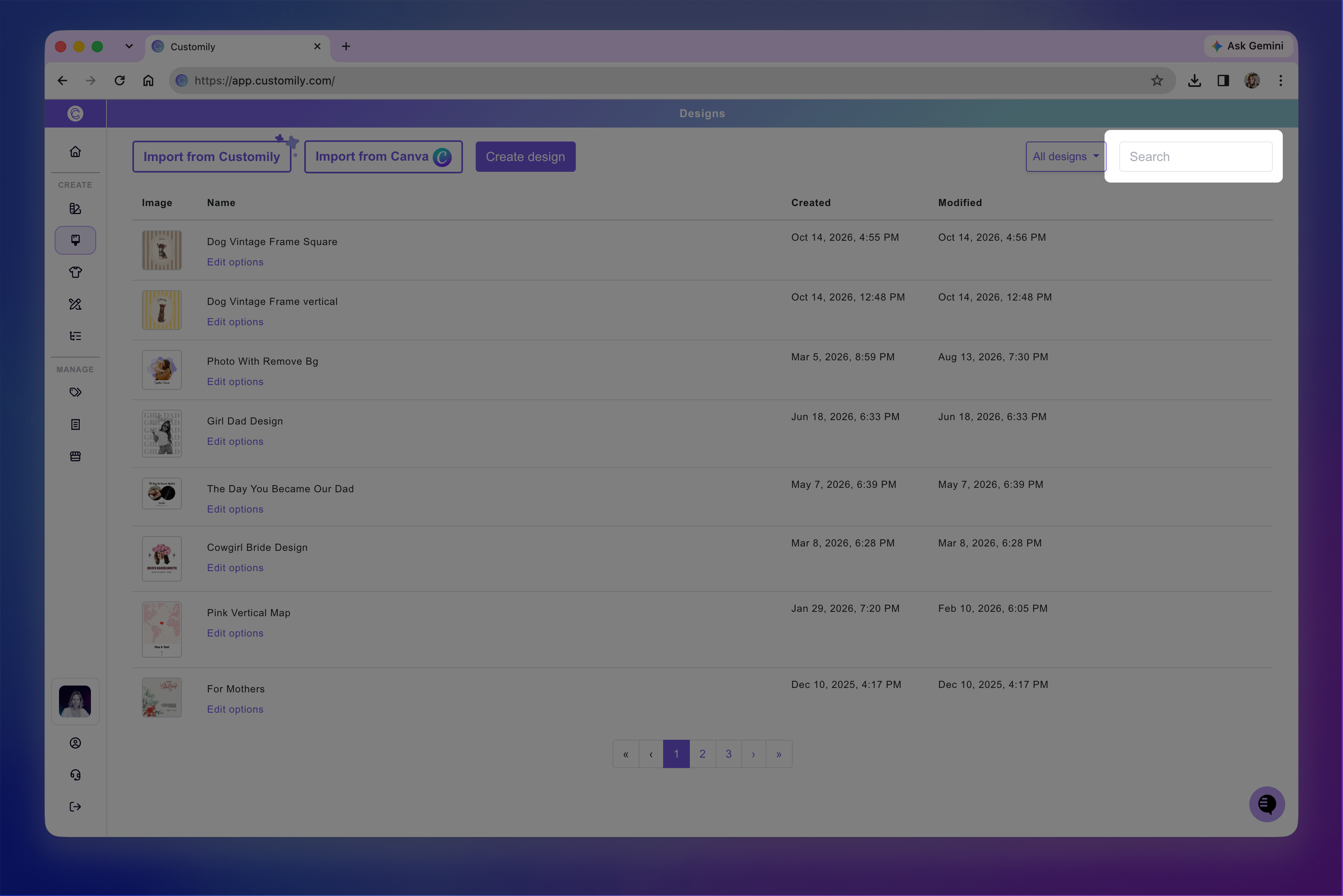
Use the search bar at the top to find a Design by name, or navigate between pages using the pagination controls at the bottom.
Each Design appears in a row showing its thumbnail, name, creation date, and last modified date.
Manage your Designs
Edit a Design
Hover over a Design and click the pencil icon to open it in the Design Studio.
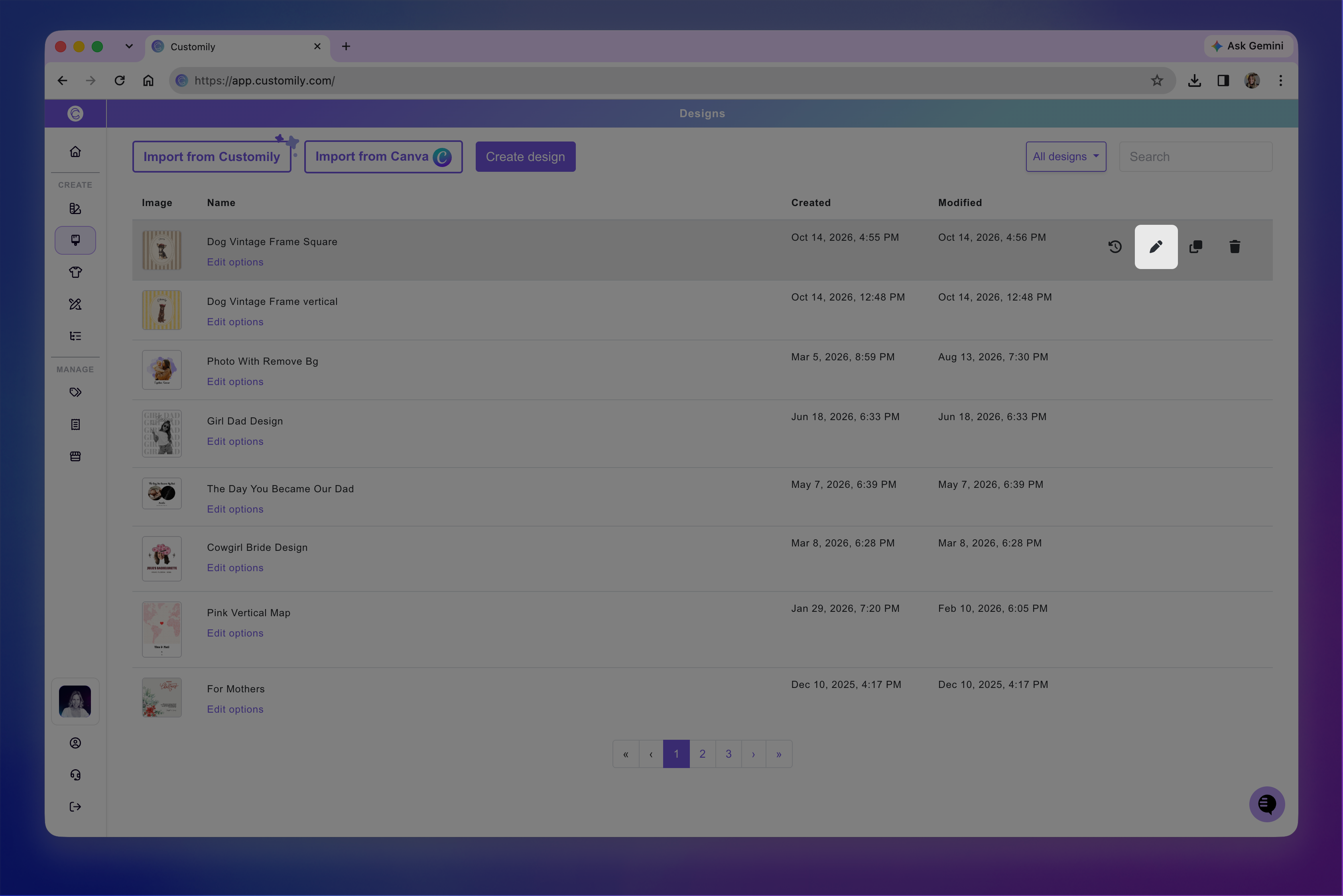
You can modify its artwork, add or remove elements, and adjust its personalization settings.
When you save changes to a Design, Customily will ask whether you want to update its linked Option Set. If you've changed the personalizable elements, you may need to update the Option Set to reflect those changes.
Note
Editing a Design won't affect products you've already published using it. Changes to the Design will only apply to products you create or connect afterward.
Edit the Option Set
Click Edit options below a Design's name to open its connected Option Set.
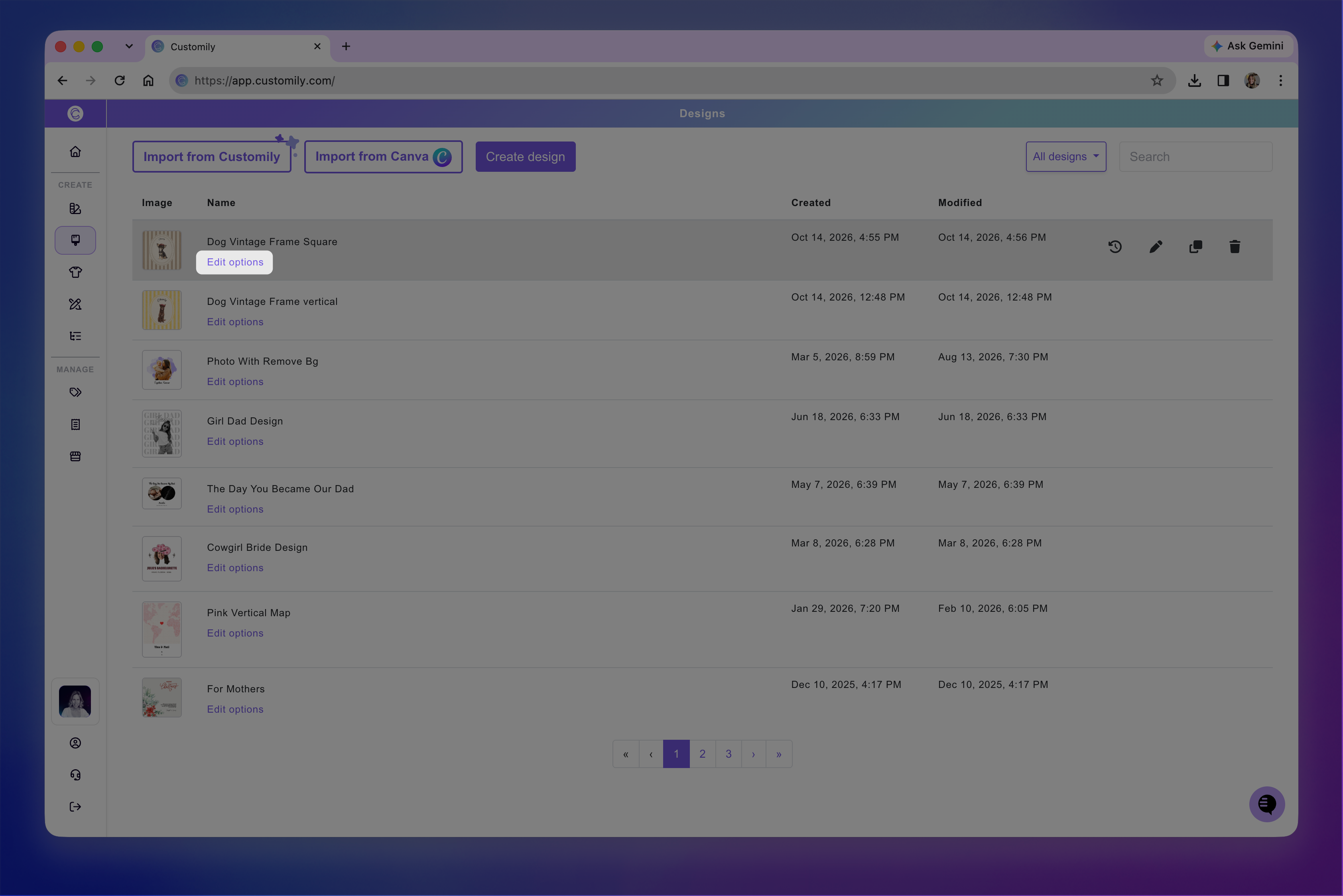
You can customize the personalization fields shoppers see on your product page, including labels, help text, option order, and conditional logic.
Rename a Design
To change a Design's name:
Hover over its name and click the pencil icon, or double-click the name.
Enter the new name.
Press Enter to save it.
Change a Design's thumbnail
Hover over the Design's thumbnail and click it to upload a replacement image. The thumbnail helps you quickly recognize your Design when browsing or selecting it in Customily. It doesn't affect the Design itself.
Thumbnails are generated automatically from your Design, but you can replace them to make your Designs easier to identify.
Clone a Design
If you want to create a Design similar to an existing one, you can clone it instead of starting from scratch.
Hover over the Design.
Click the Clone icon.
Customily creates a copy with “cloned” added to its name and opens it in the Design Studio so you can make changes.
View Design history
You can view the history of a Design to see the changes made to it over time.
Find the Design you want to review.
Click the History icon.
Review the recorded changes.
History is for reviewing changes only. You cannot restore previous versions of a Design from here.
Delete and restore Designs
Delete a Design
Hover over the Design you want to remove.
Click the trash icon.
Confirm the deletion.
Deleted Designs are moved to the Trash, where they're kept for 90 days before being permanently deleted.
Note
Deleting a Design won't affect products you've already published using it.
Restore a deleted Design
Open the All designs dropdown next to the search bar and select Deleted.
Find the Design you want to recover.
Click Restore.
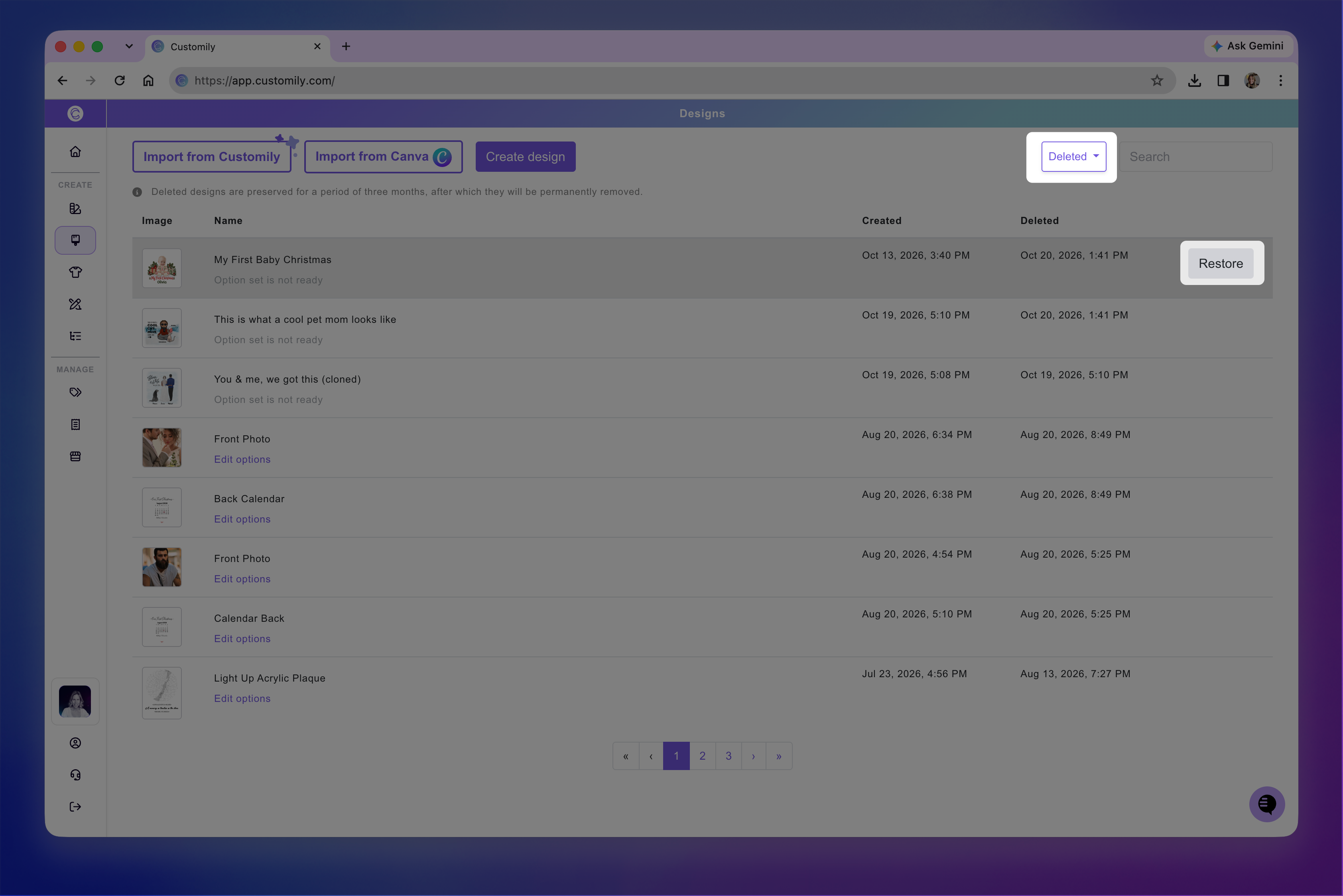
The restored Design will appear in your Designs list again.