How to apply and configure image effects and ai filters
Last updated: October 15, 2026
Use image effects to automatically enhance, restyle, or transform shoppers' uploaded photos. You can remove backgrounds, cut out faces, turn photos into illustrations, or create custom AI-powered effects for your personalized products.
Customily includes free built-in effects and integrations with third-party AI providers for more advanced image transformations.
How It Works
Image effects are applied to Image placeholders in your design.
When shoppers upload a photo, Customily automatically processes it using the effects you've configured. Depending on the effect and provider, processing may take a few seconds, so shoppers may need to wait briefly before seeing the result in the product preview.
You can also stack multiple effects on the same image and change their order to control the final result. For example, you could transform a photo into a watercolor illustration and then remove its background to isolate the subject.
Effects can also be combined with other Image placeholder settings, such as masks, outlines, and image tracing.
How to apply image effects
Select the Image placeholder in your design.
Expand the Image Effects toolbox.
Click Add Image Effect.
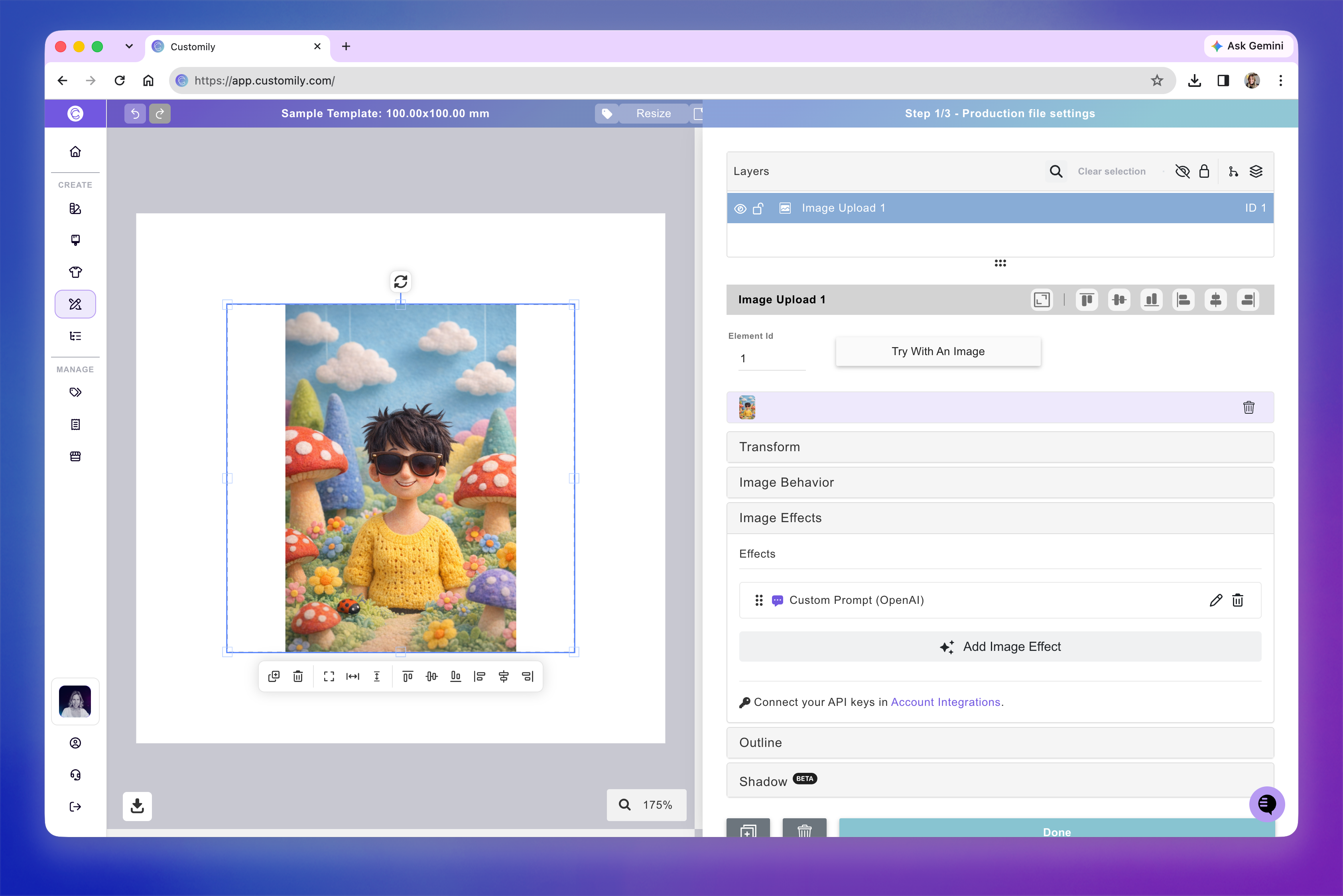
Browse the available effects, search for a specific effect, or filter by category or provider.
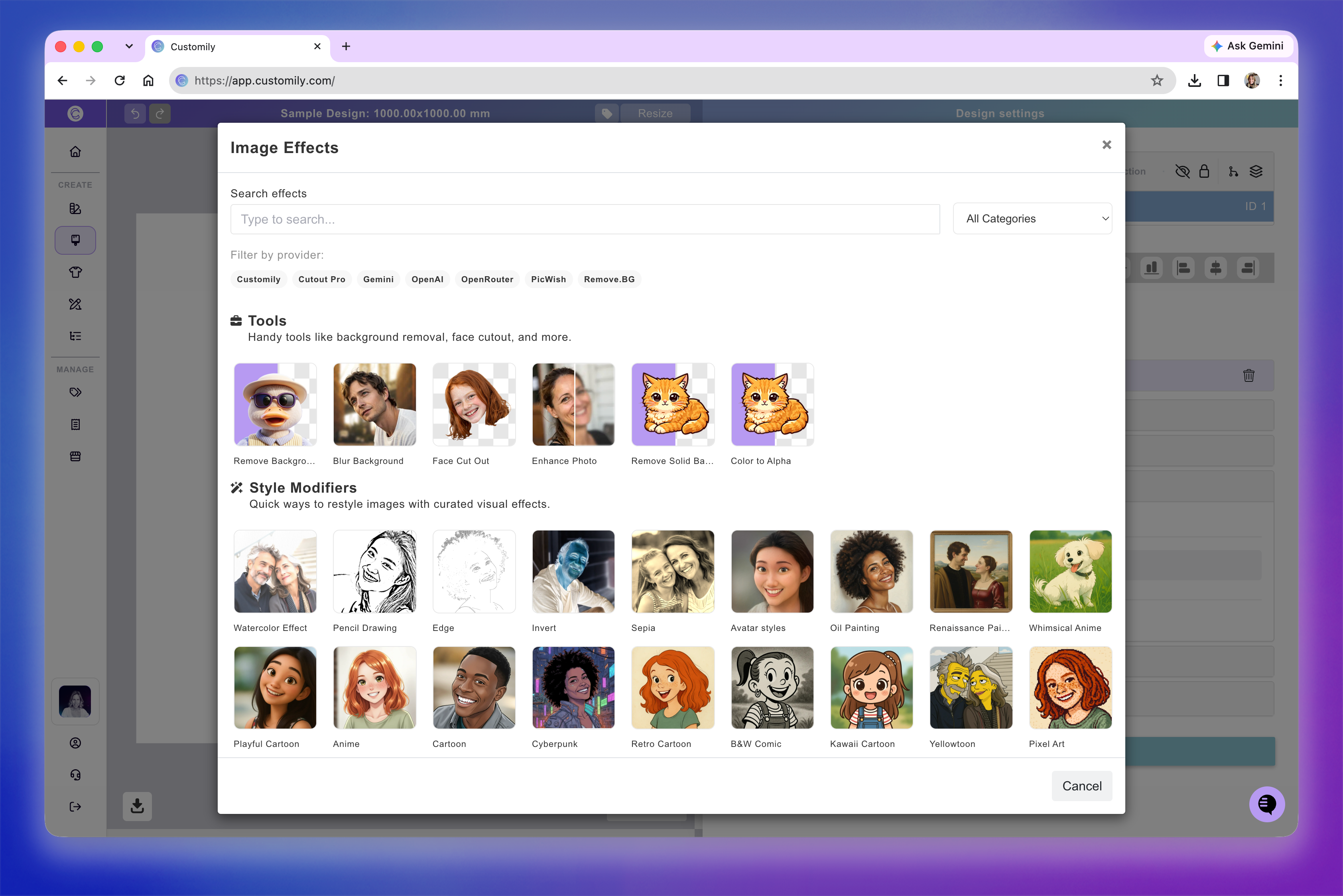
Click the effect you want to apply.
Configure any additional settings available for that effect.
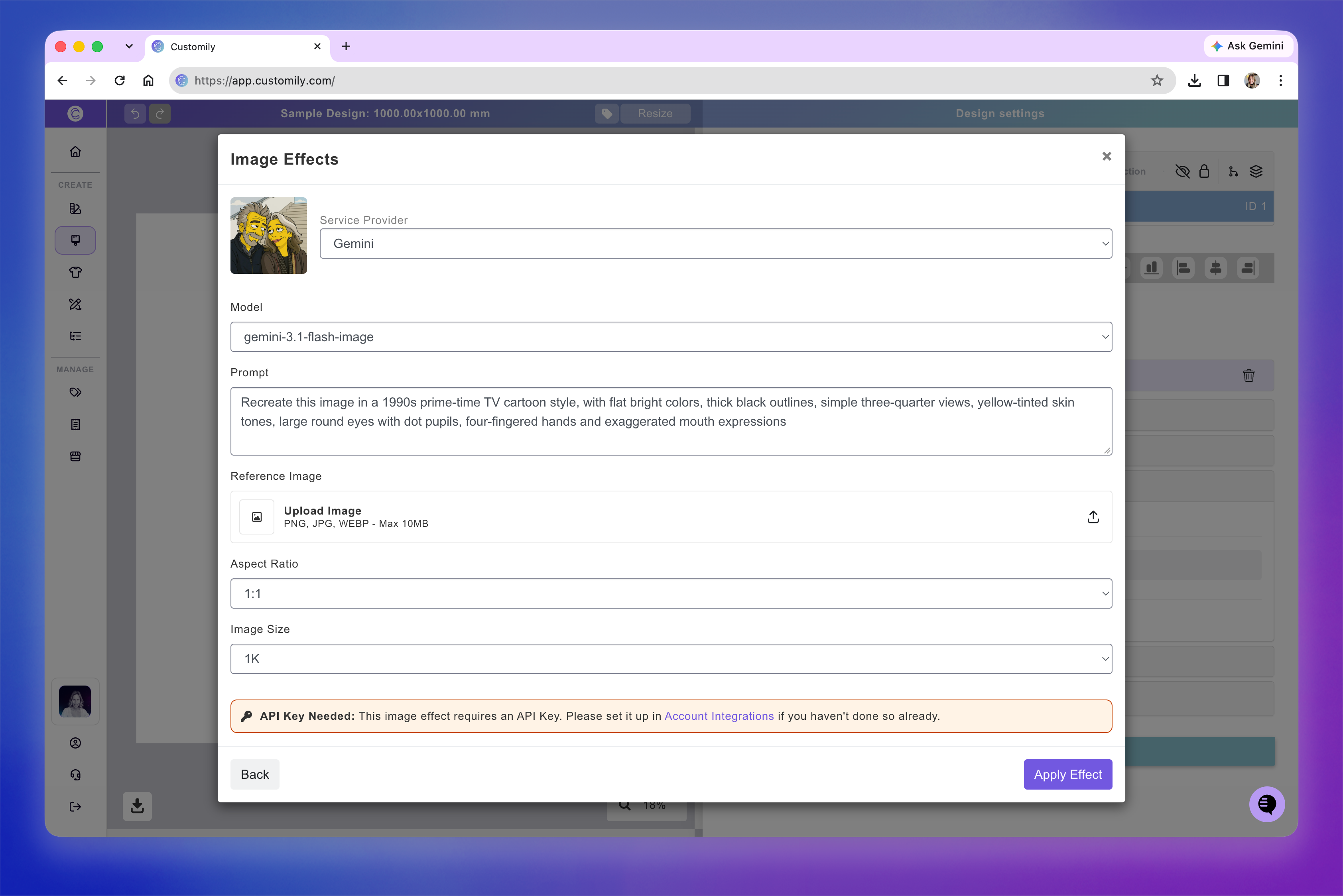
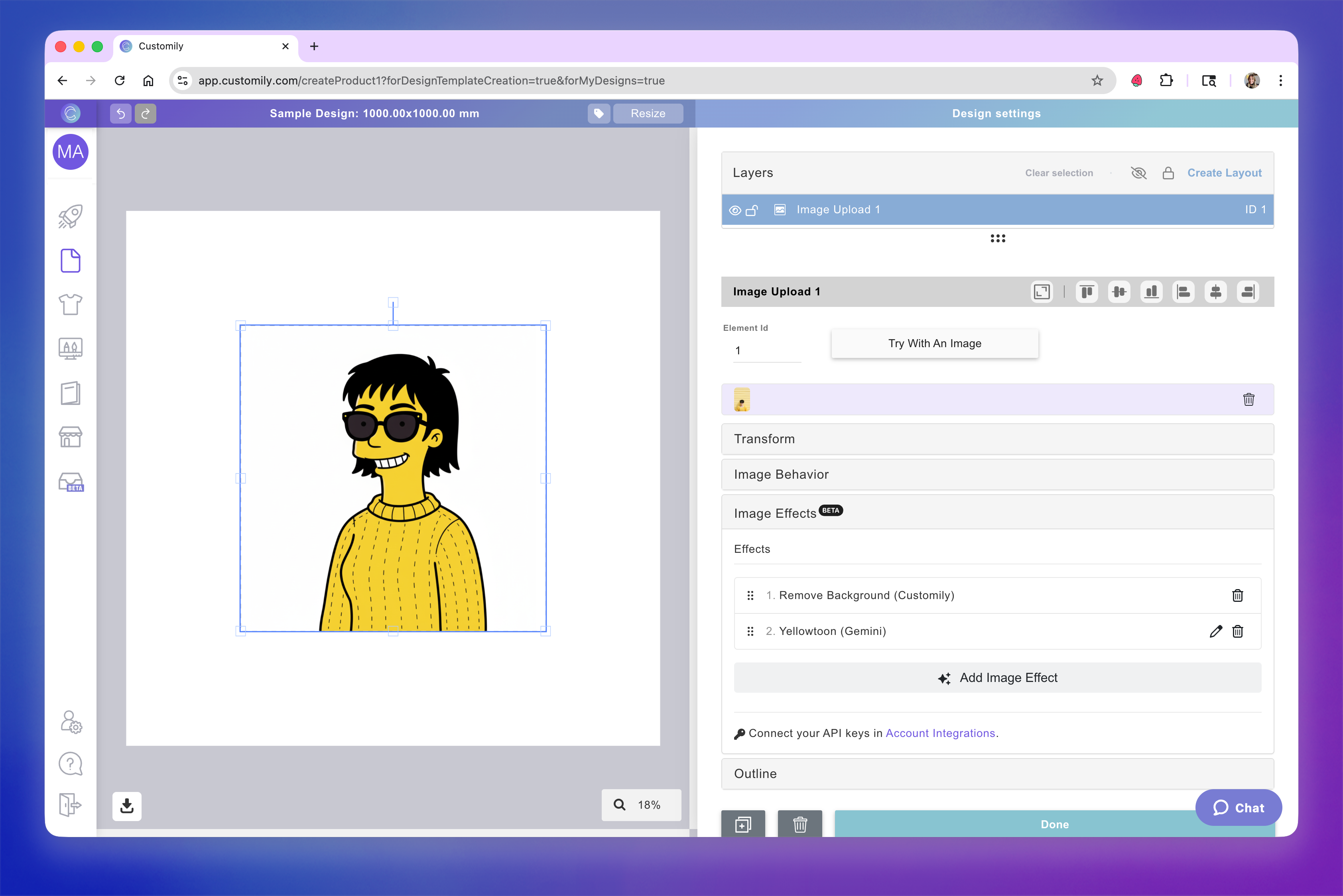
The applied effect will be displayed in the effects toolbox. Effects are stackable — you can add several and reorder them at any time.
For example, remove a background first, then apply a cartoon or painting style.
Tip
You can mix image effects with other placeholder settings such as:
Pencil Effect + Single Color tracing (for engraving-style designs)
Watercolor + Masks (to create shaped portraits)
Face cutouts + Outline strokes (for stickers and cutouts)
Image editing tools
Tools let you make specific adjustments to shoppers' uploaded images, such as removing backgrounds, cutting out faces, or improving image quality.
Some tools are free and provided by Customily, while others use third-party services and require an API connection. Depending on the tool, you may be able to choose a provider and configure additional settings.
Remove Background
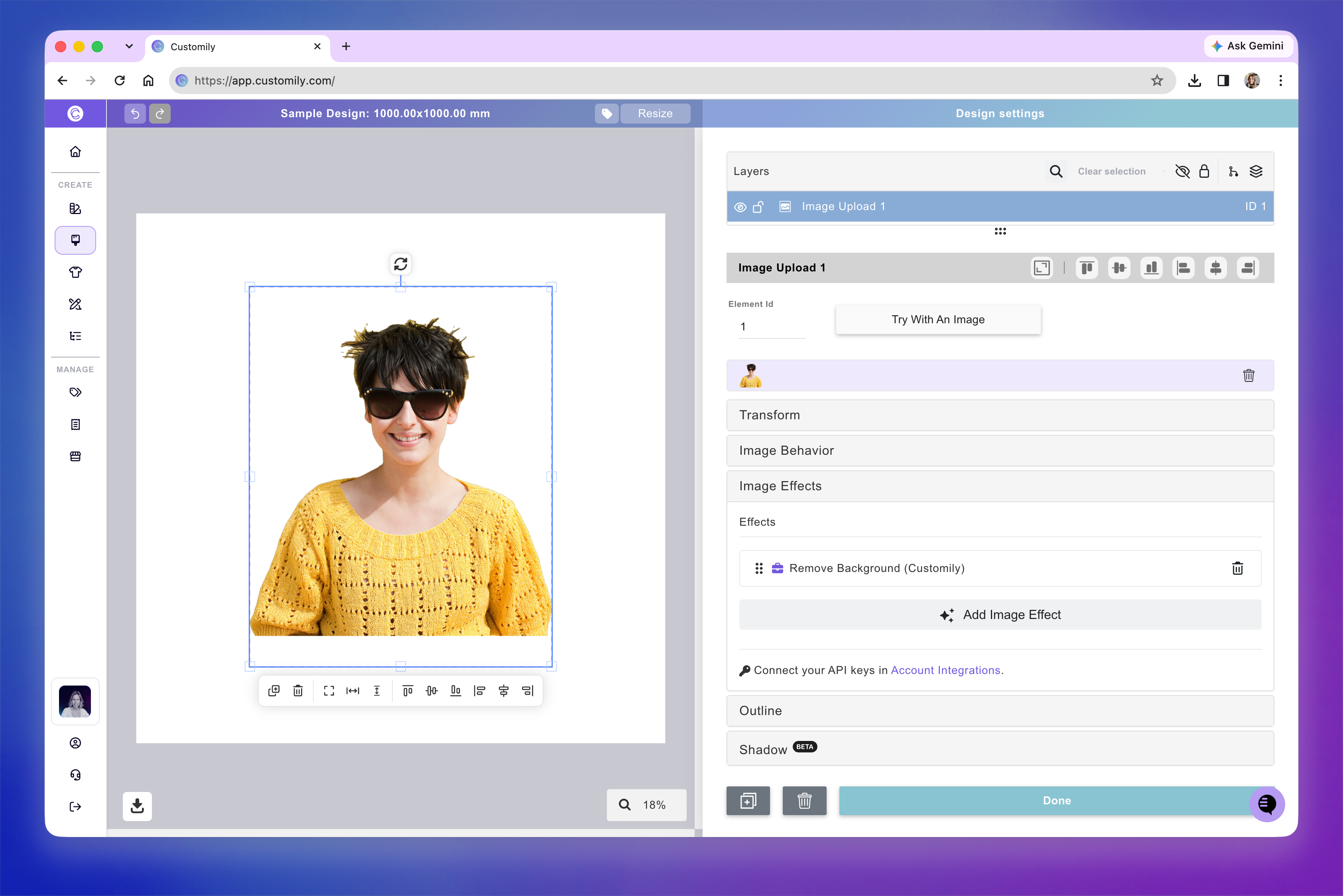
Remove the background from an uploaded photo while keeping the main subject.
You can choose between three providers from the Service Provider dropdown:
Customily: Free, AI-powered background removal with no third-party API connection required.
Cutout Pro: Third-party background removal that requires an API connection.
Remove.BG: Third-party background removal that requires an API connection.
Blur Background
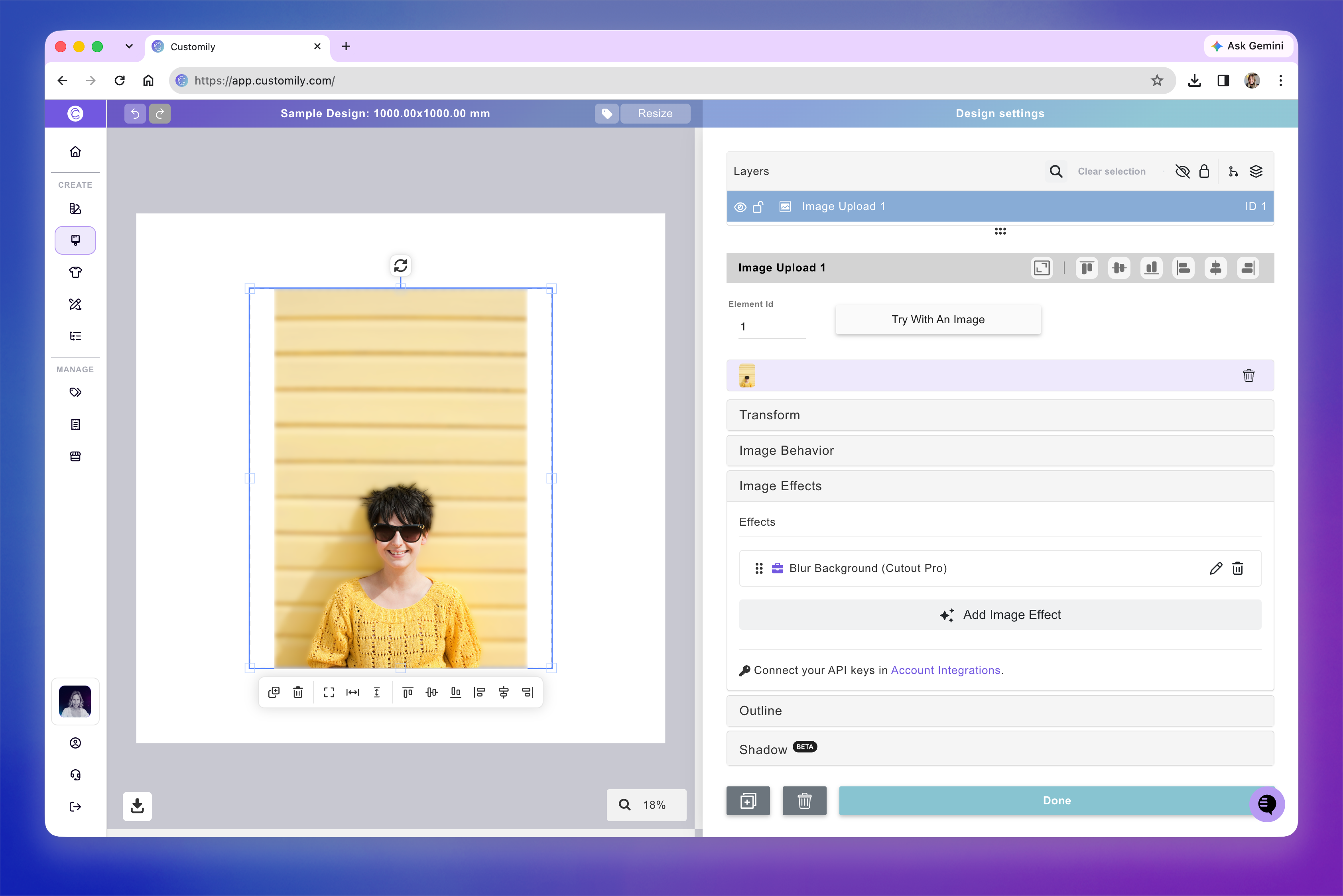
Blur the background of shoppers' uploaded photos while keeping the main subject in focus.
This effect uses Cutout Pro and requires a third-party API connection.
You can customize the following settings:
Background color: Enter
blurto apply the background blur.Crop empty areas: Automatically crop empty areas from the processed image.
Crop Margin: Adjust the amount of space around the cropped image.
Quality: Select the processing quality, or leave it set to Auto.
Face Cut Out
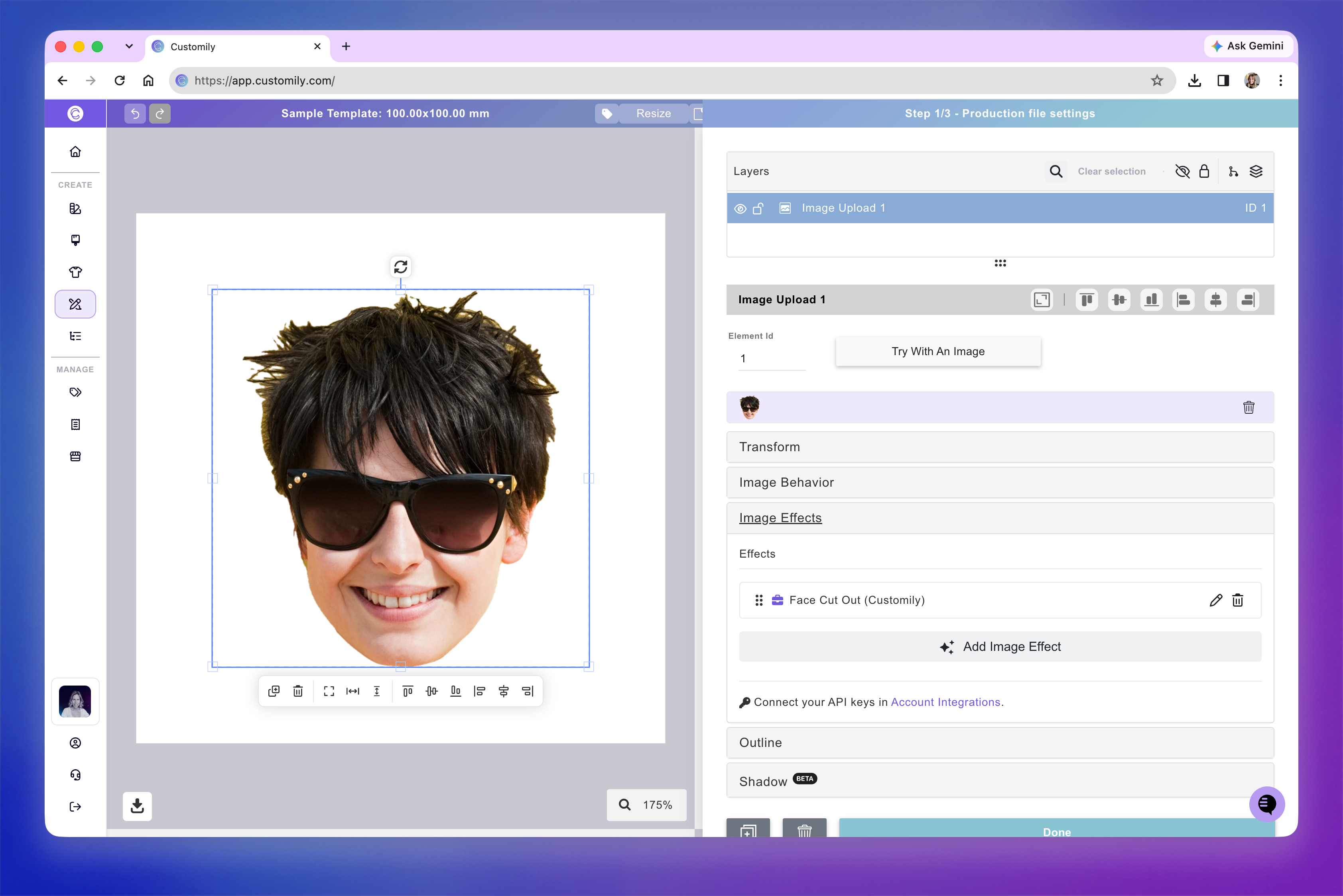
Automatically extract a person's face from an uploaded photo. This is especially useful for personalized products where shoppers' faces are added to characters, illustrations, or predefined designs.
You can choose between two providers:
Customily: Free, AI-powered face cutout with no third-party API connection required.
Cutout Pro: Third-party face cutout that requires an API connection.
Smart Face Placement
Enable Smart Face Placement to automatically detect, scale, and position the face within your design.
Without this setting, Customily positions the entire cutout image according to the initial size and position you've configured. This can cause inconsistent results: for example, a photo with long hair may produce a much smaller face than a photo with short hair.
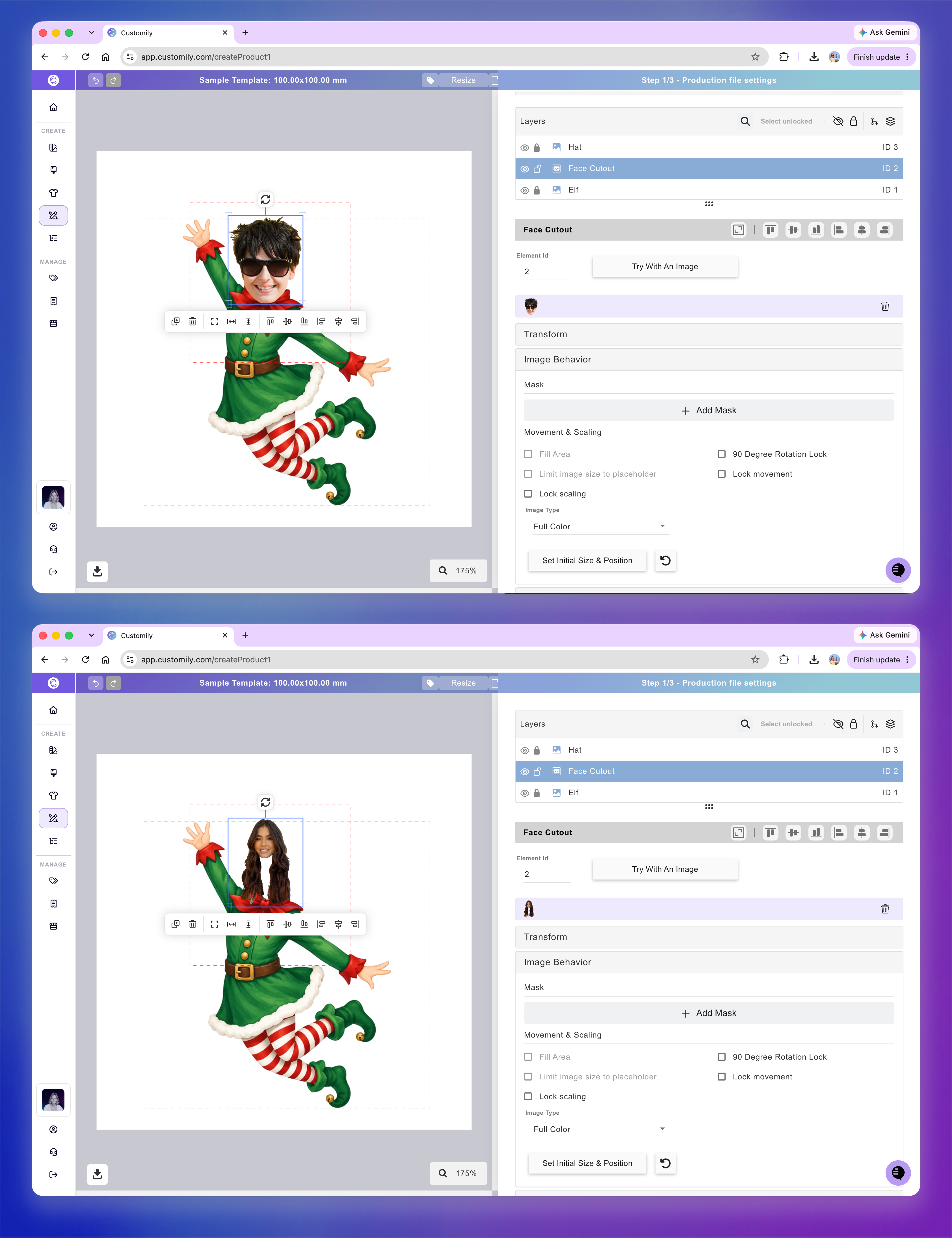
With Smart Face Placement, Customily detects the face itself and uses it for alignment, so faces appear at a more consistent size and position regardless of hairstyle.
To use Smart Face Placement:
In your Template, select the Image placeholder.
Under Image Effects add the Face Cut Out effect. You can use either Customily or Cutout Pro)
Enable Smart Face Placement and click Apply Effect.
Under Image Behavior, click Set Initial Size & Position.
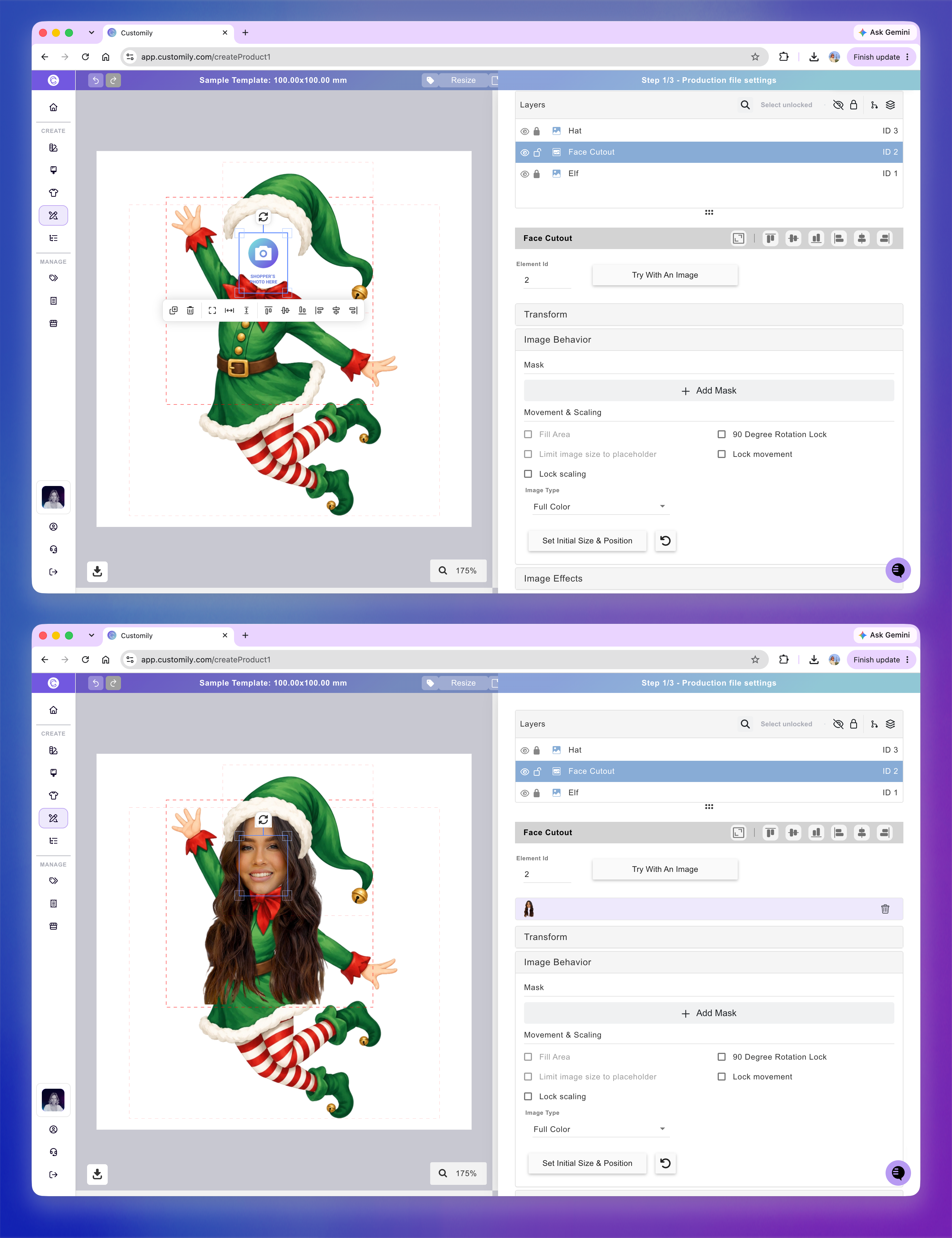
Adjust the initial area to cover the face from the eyebrows to the chin, rather than the entire head or hair. This defines where the facial features should appear in your design.
Note
The initial size and position can only be configured in Templates, not Designs.
For more information about configuring the initial placement of uploaded images, see 📄 Image placeholder
Enhance Photo Quality
Improve the quality and resolution of shoppers' uploaded photos. This is particularly useful when shoppers upload low-resolution, blurry, or older images.
You can choose between four providers:
Gemini, OpenAI, and OpenRouter: Use AI models to enhance images. You can customize the prompt, select a model, and adjust the available generation settings.
PicWish: Offers dedicated image enhancement controls:
Scale Factor: Choose how much to upscale the image, or leave it set to Auto.
Enhancement Type: Select the type of enhancement, such as general image enhancement or portrait enhancement.
All four providers require a third-party API connection.
For more information about configuring AI models and their generation settings, see Configure AI generation settings below.
Remove Solid Background
Automatically remove a solid-colored background from an image, making it transparent.
This free Customily effect has no additional settings.
It's particularly useful when combined with AI effects that don't generate transparent backgrounds, such as OpenAI image generation. You can first apply the AI effect, then use Remove Solid Background to isolate the subject.
Color to Alpha
Make a specific color in an uploaded image transparent.
This free Customily effect lets you choose exactly which color to remove and how closely other colors must match it.
You can configure:
Target color: Select the color you want to make transparent using the color picker or a HEX value.
Tolerance: Adjust how many similar shades become transparent. Higher values remove a wider range of colors.
This is particularly useful for removing a specific background color from illustrations or graphics.
Apply artistic styles with Style Modifiers
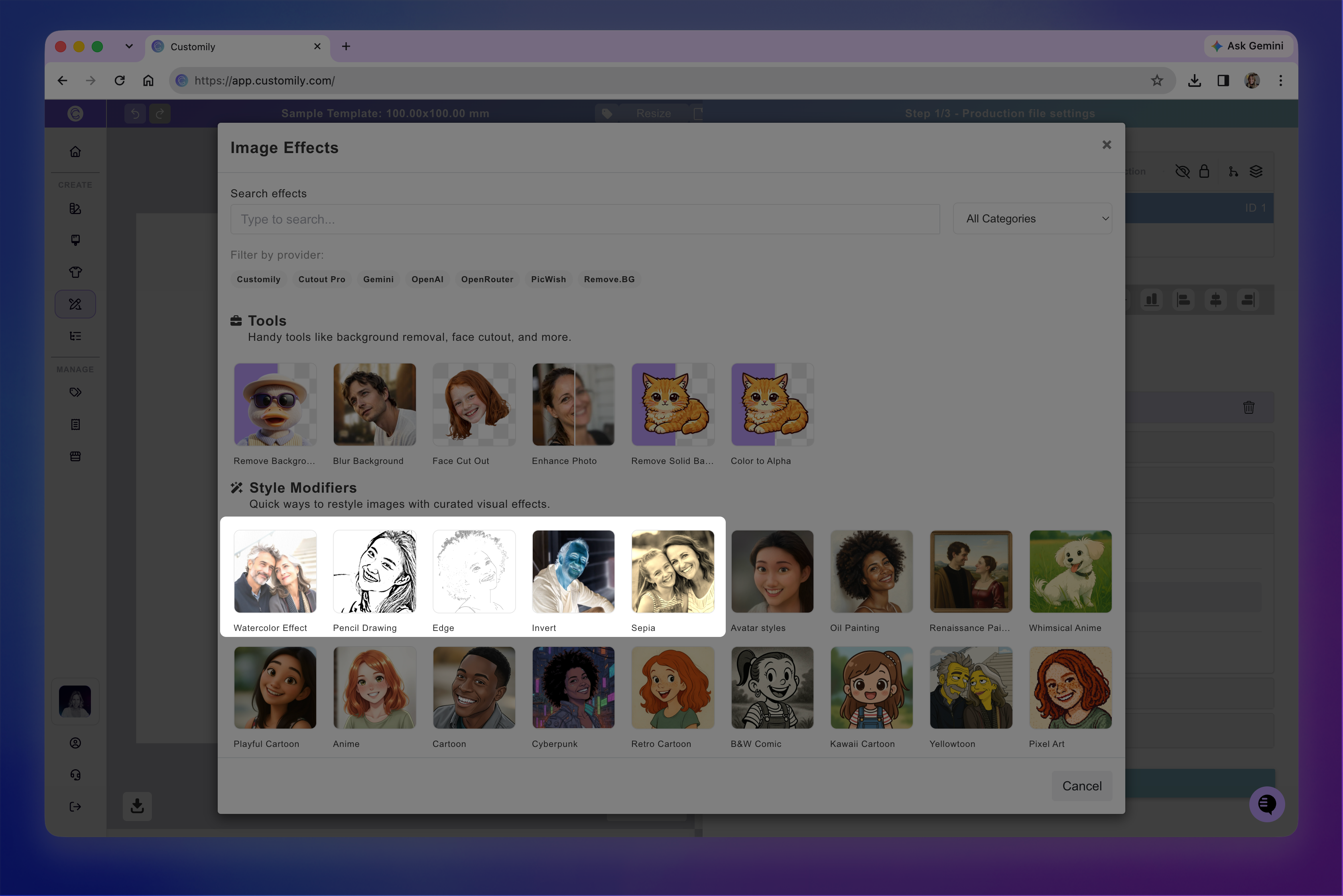
Style Modifiers let you transform shoppers' uploaded photos into different artistic styles, from pencil drawings and watercolor effects to cartoons and illustrations.
You can choose from a collection of ready-to-use effects without having to write your own prompts.
Free Customily Style Modifiers
The first five Style Modifiers are provided by Customily for free. Some use AI, but none require a third-party API connection or incur additional generation costs:
Watercolor Effect
Pencil Drawing
Edge
Invert
Sepia
These effects have no additional settings. Simply select the effect and click Apply Effect.
AI-powered Style Modifiers
The remaining Style Modifiers use predefined AI prompts to transform uploaded photos into different artistic styles.
Each modifier comes with a ready-to-use prompt that you can customize to achieve a different result.
You can configure the following settings:
Service Provider: Choose between Gemini, OpenAI, and OpenRouter.
Model: Select the AI model used to generate the image.
Prompt: Edit the predefined instructions to customize the style.
Reference Image: Upload an image to guide the generation.
Additional generation settings: Adjust options such as aspect ratio, image size, resolution, quality, or background.
The available settings depend on the provider and model you select.
AI-powered Style Modifiers require a third-party API connection, and generation costs depend on the provider and model selected.
For detailed instructions on choosing providers, editing prompts, using reference images, and adjusting generation settings, see Configure AI generation settings below.
Create AI effects with Custom Prompts
Custom Prompts let you create your own AI-powered image effects by writing instructions that describe how an image should look.
Unlike Style Modifiers, which come with predefined prompts, Custom Prompts give you control over the transformation you want to achieve.
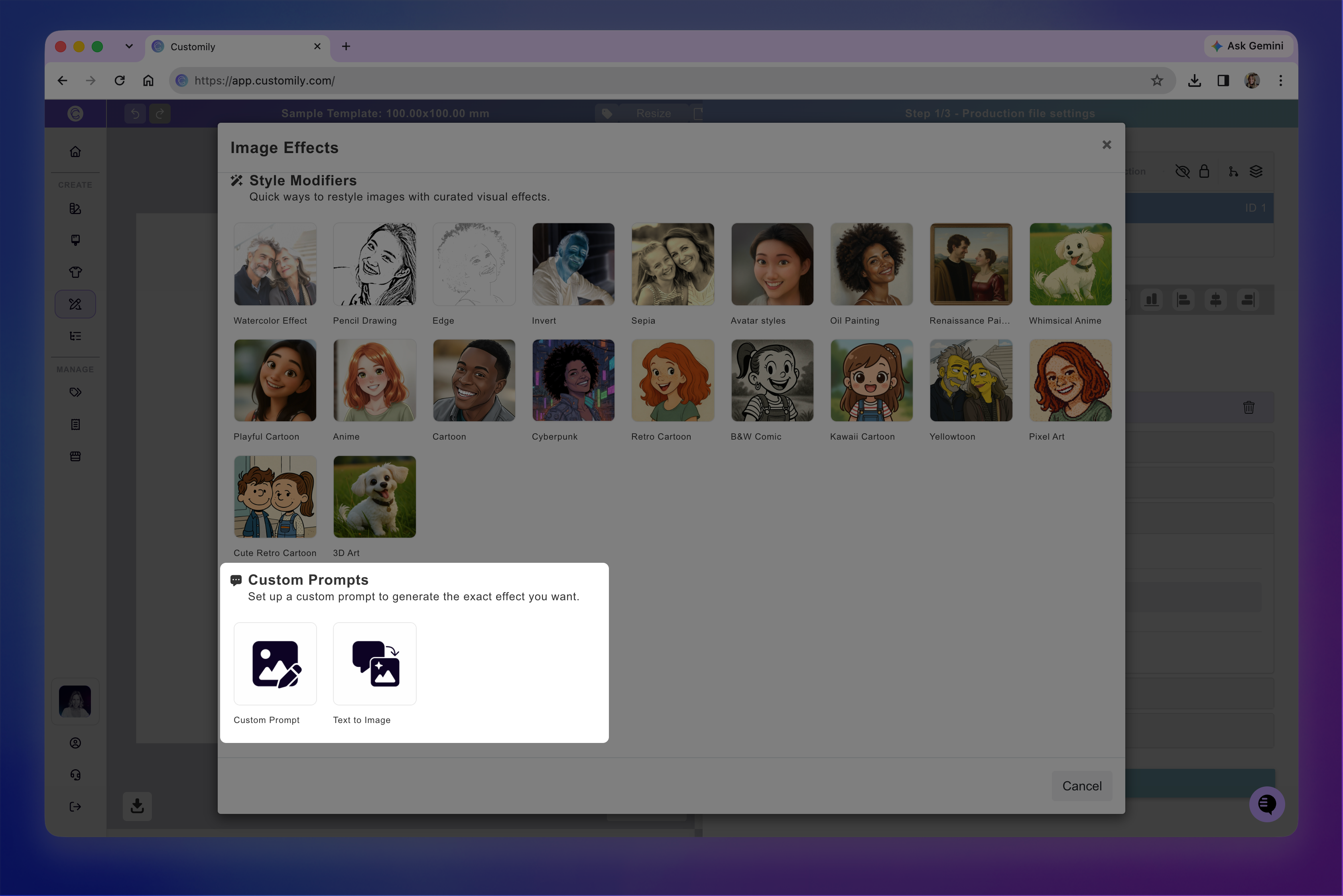
Custom Prompt
Use Custom Prompt to transform shoppers' uploaded photos using your own instructions.
For example, you can turn a photo into a cartoon character, create a hand-painted illustration, or apply a specific artistic style.
Enter a prompt describing the result you want. You can also choose an AI provider and model, upload a reference image, and adjust the available generation settings.
Text to Image
Text to Image lets shoppers generate an image from a text description instead of uploading a photo.
When this effect is selected, shoppers won't see an image upload field. Instead, a text input will appear where they can type a prompt describing the image they want to generate.
For example, shoppers could describe a fantasy character, an animal, or a scene, and AI will generate an image based on their instructions.
Configure AI generation settings
When using AI-powered Style Modifiers or Custom Prompts, you can choose which AI provider and model will process the image and customize how the result is generated.

Choose a provider and model
Use the Service Provider dropdown to select an AI provider:
Gemini: Google's AI image generation models.
OpenAI: OpenAI's image generation models.
OpenRouter: Access to image generation models from different AI developers.
Once you've selected a provider, use the Model dropdown to choose the model you want to use.
The available settings depend on the provider and model you select.
These providers require an API connection and may charge for image generation.
Customize the prompt
The Prompt field contains the instructions the AI uses to generate or transform an image.
With Style Modifiers, the prompt is already filled in, but you can edit it to customize the result.
With Custom Prompt, you write your own instructions from scratch.
Be specific about the style, colors, textures, and other details you want in the generated image.
Use a reference image
The Reference Image setting lets you upload an image to guide the AI generation alongside your prompt.
You can use a reference image to help the AI follow a particular artistic style, color palette, or visual composition.
Adjust additional generation settings
Depending on the provider and model, you may see additional settings, including:
Aspect Ratio: Choose the proportions of the generated image.
Image Size or Resolution: Set the output image dimensions or resolution.
Quality: Choose the generation quality.
Background: Configure the generated image's background.
Not all settings are available for every model. The options displayed will update based on your selection.
Connect third-party API keys
Customily's built-in AI effects are free for all users and don't require an external account or API connection. These include features such as background removal and face cutouts.
Other effects use third-party providers, including Remove.bg, Cutout Pro, PicWish, Gemini, OpenAI, and OpenRouter. These services have their own usage-based pricing and require you to connect an API key to Customily.
Effects that require an external provider are marked with a 🔑 icon.
How to connect a provider
Open Account from the left menu.
Select the Integrations tab.
Enter the API key for the provider you want to connect.
Click Save.
Once connected, you can use that provider when configuring your image effects.