Change options styles with CSS
Last updated: April 28, 2026
If you want to add advanced styles to change the way options are displayed, you can do that by adding custom CSS.
To change Customily Options styles through CSS
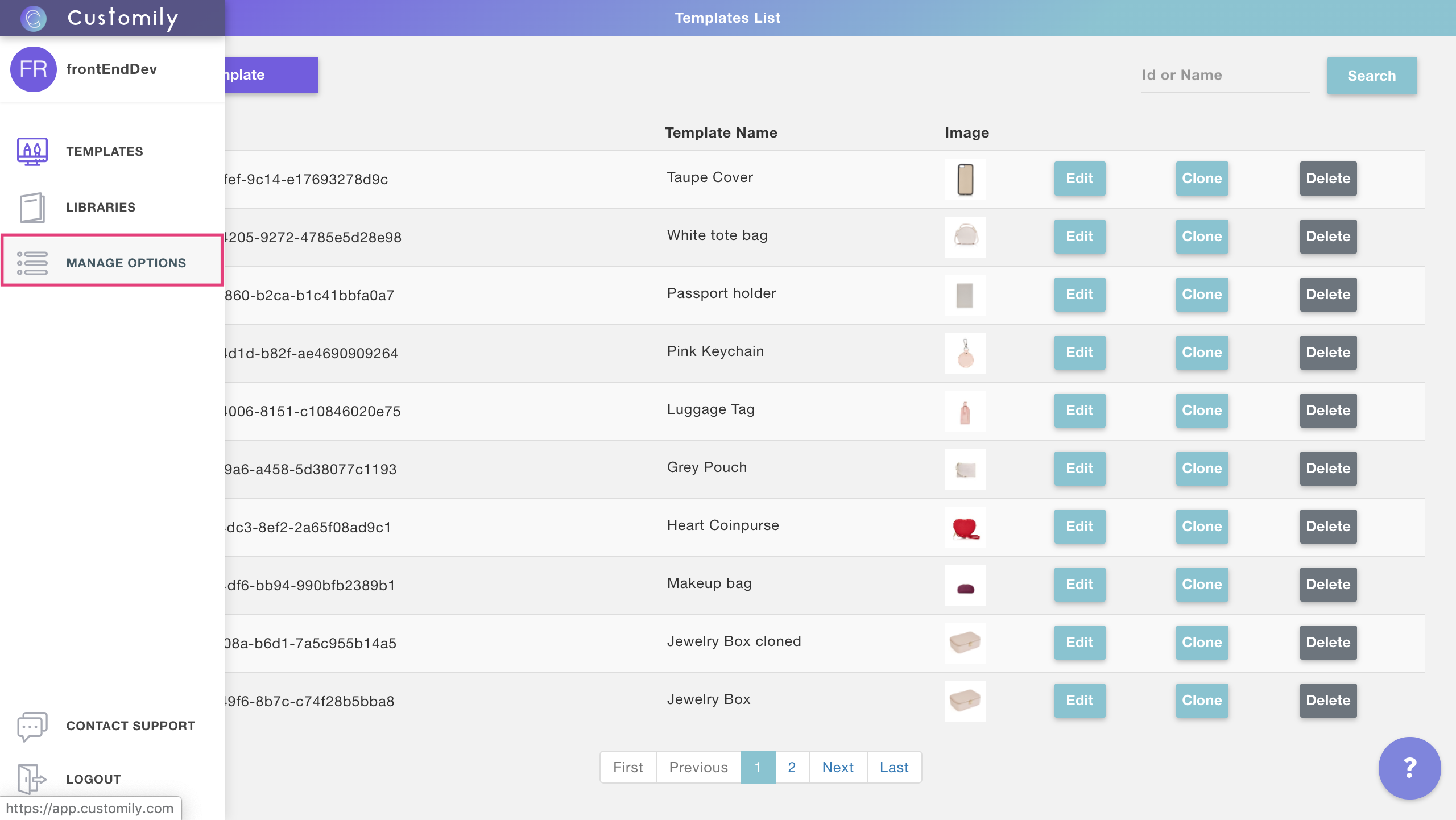
From your Customily Admin Panel, select Manage Options from the sidebar menu
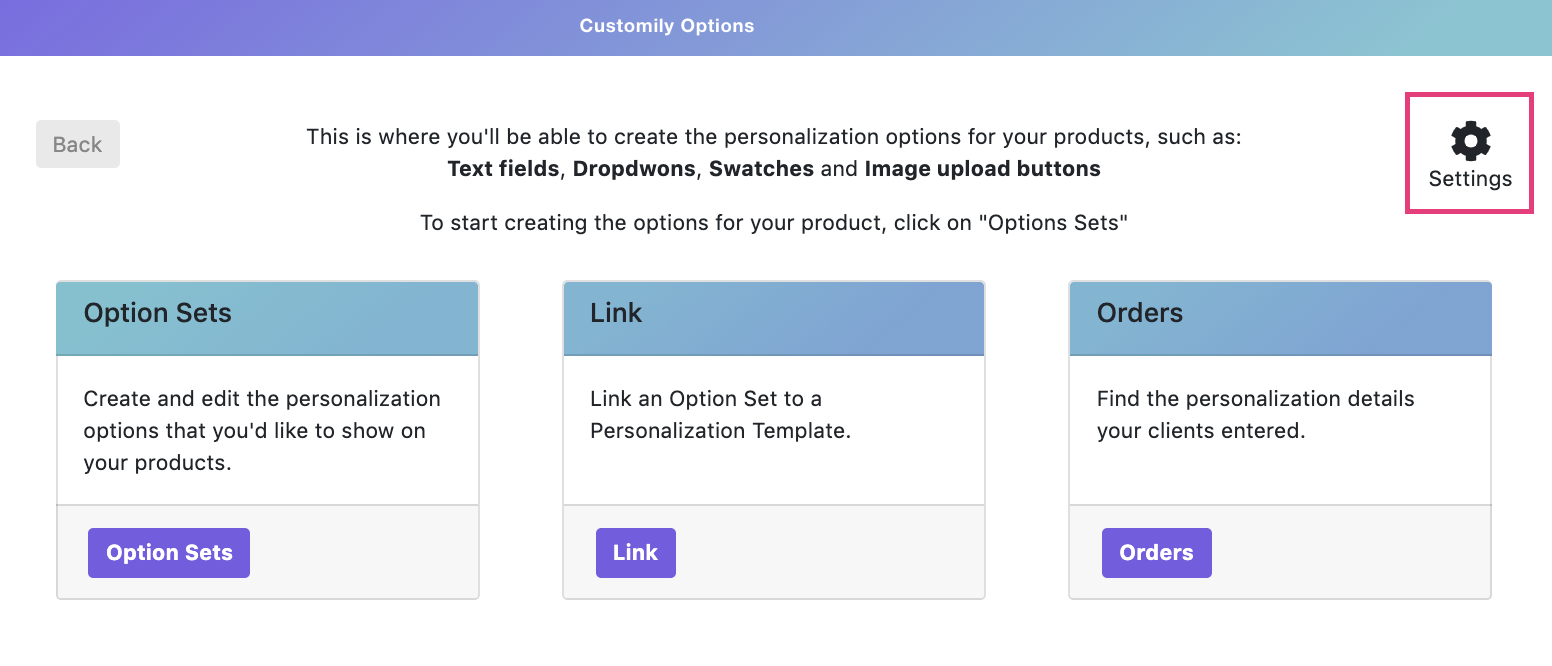
Click on settings
Open the advanced tab
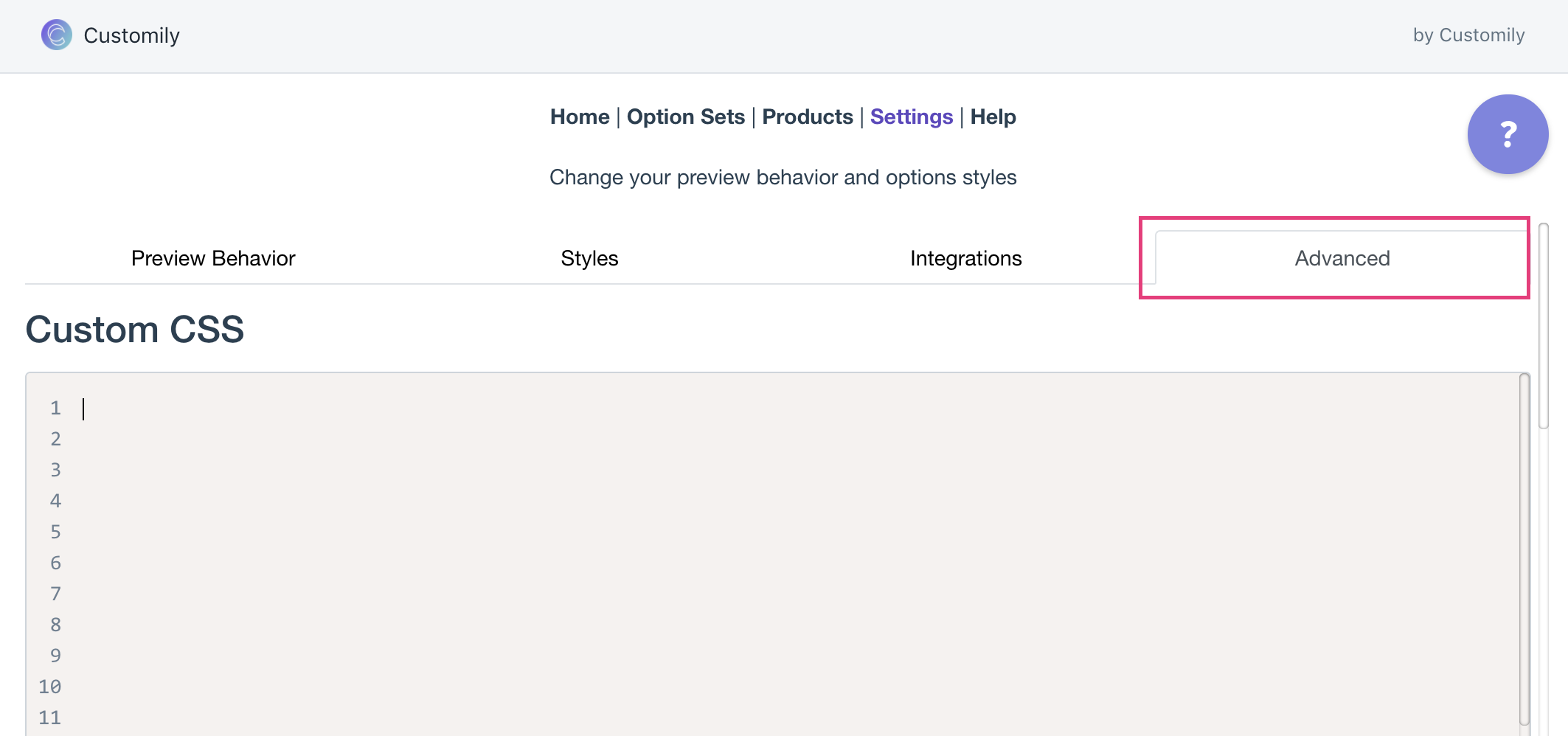
Type in any custom CSS you would like to add.
Be careful
If you are not familiar with CSS, we recommend you find someone to help you adjust the styles of your options. Changing styles without knowing how can result in breaking the layout of your product page.
CSS Classes of Customily Options
Use these class selectors to identify the different type of options and their elements
Element | Class selectors |
|---|---|
Text Input | #cl_optionsapp .customily_option input |
Drodpown | #cl_optionsapp .customily_option select |
Swatch | #cl_optionsapp .swatch-container .swatch #cl_optionsapp .swatch-container label #cl_optionsapp .swatch-container label img |
Image upload button | #cl_optionsapp .customily-download-button |
Remove uploaded photo button | .cl_remove-image |
Option Labels | #cl_optionsapp .customily_option label |
Help Text | #cl_optionsapp .help-text |
Photo size limit text | .cl_image-invalid-size |
Required message | #customily-required-after-label |