Preview Setup
Last updated: May 5, 2026
This is where you create the preview of your product — the mockup that shoppers will see on your store.
The preview combines the elements from your print file with a product image to create a realistic representation of your final product.
What you do in this step
In this step, you:
Define the background of your preview
Position and scale your design to match the product
Adjust how elements appear on the product
Add visual variations that don’t affect the print file (e.g., colors, materials)
The goal is to create a realistic mockup of your product.
How the preview relates to the print file
The preview and the print file are separate.
The print file defines what gets produced
The preview defines how your design appears on the product
Changes made in the preview:
Do not affect the print file
Only affect the visual representation of your product
Set up your preview
Add a background
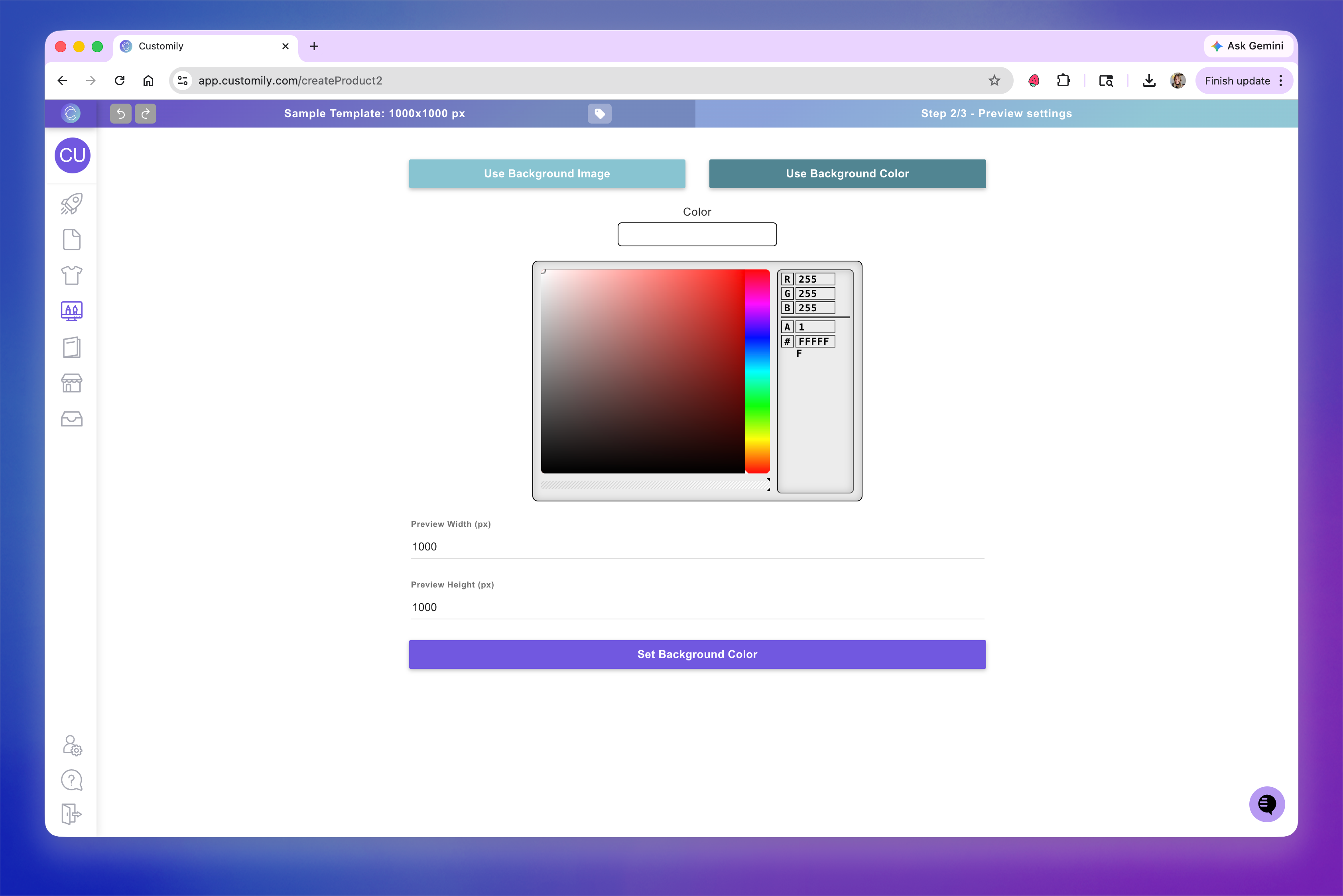
Start by defining the background of your preview. You can choose between:
Background color
Use a solid color as your background
All elements are placed on top of it
Add your product images as elements and position them behind your design layers so they don’t cover your artwork. You can use dynamic images to create variations (colors, materials, etc.)
This is the recommended approach for most use cases
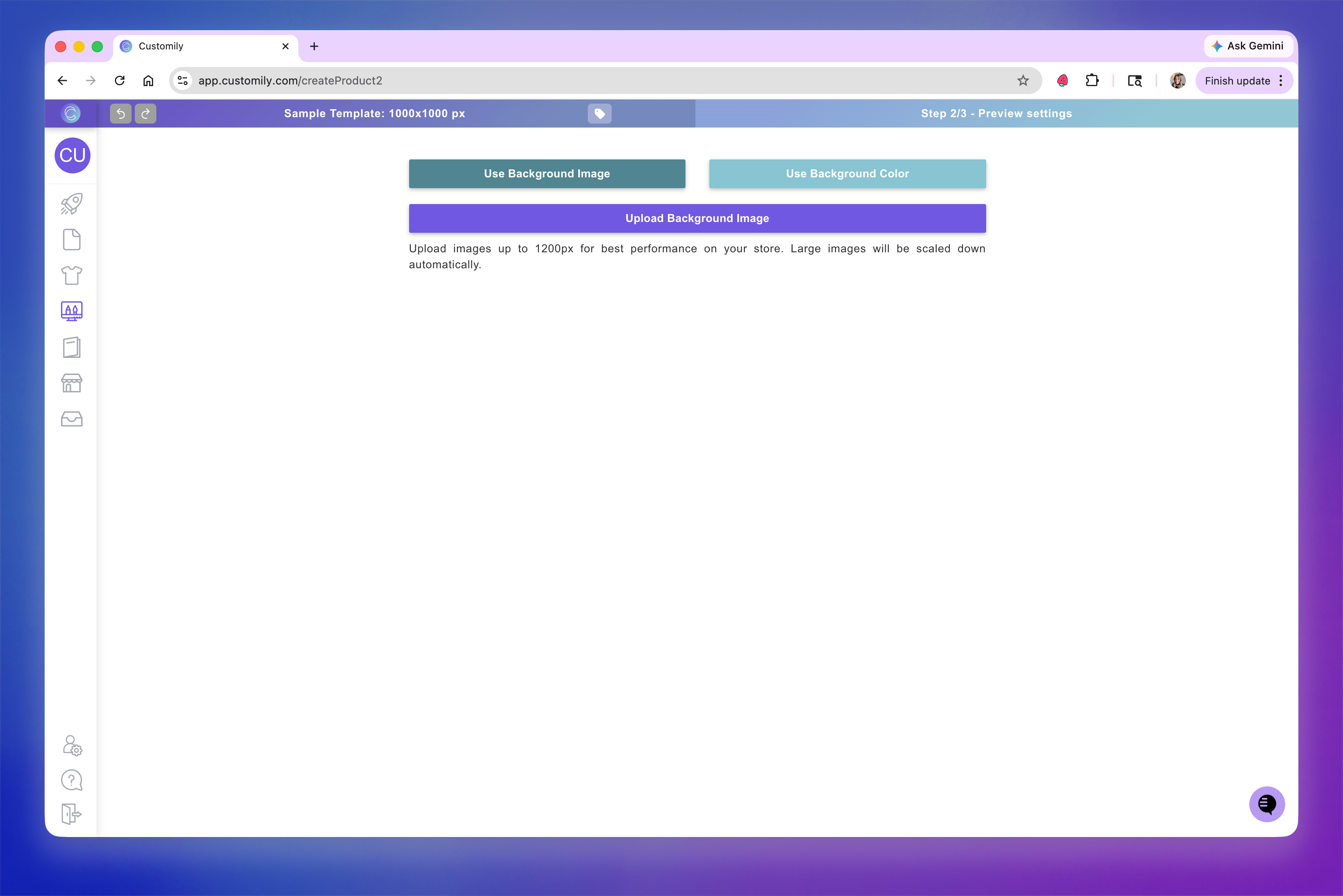
Background image
Upload a product image to use as your mockup
The image becomes the canvas of your preview
It cannot be selected, moved, or resized
All elements are placed on top of it
Works similarly to a base file in the print file
Learn more about using background images here.
Adjust your design to match the product
Once your background is set, your design elements will appear on the workspace.
Important
If you used a base file in the print file, it will not appear in the preview.
To reflect those fixed elements in your mockup, it’s best to use a background image that already includes them.
These elements will likely need adjustment to match the product image.
You can:
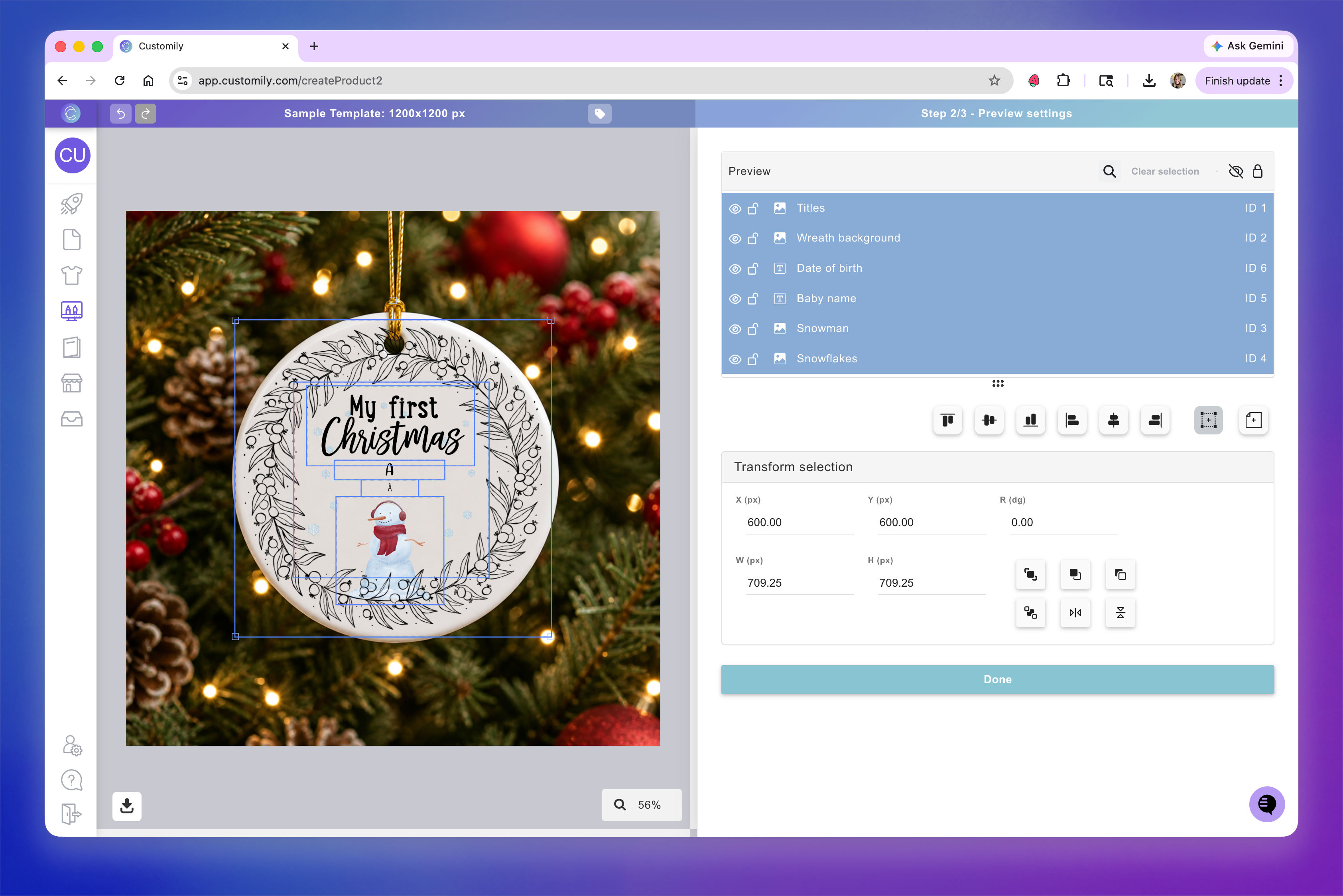
Move elements
Resize them to match the product proportions
Rotate or skew them to fit perspective
Adjust colors, textures, and opacity for realism
Hide elements using the eye icon in the layer panel
All adjustments made here only affect the preview, not the print file.
Tip
To move or resize multiple elements at once, hold Shift and select them together. This helps you keep the overall placements consistent with your print file.
Learn more about adjusting your design in the preview here.
Add visual variations to your mockup
You can enhance your preview by adding elements that don’t affect the print file.
For example:
Product colors
Materials or finishes
Fabrics
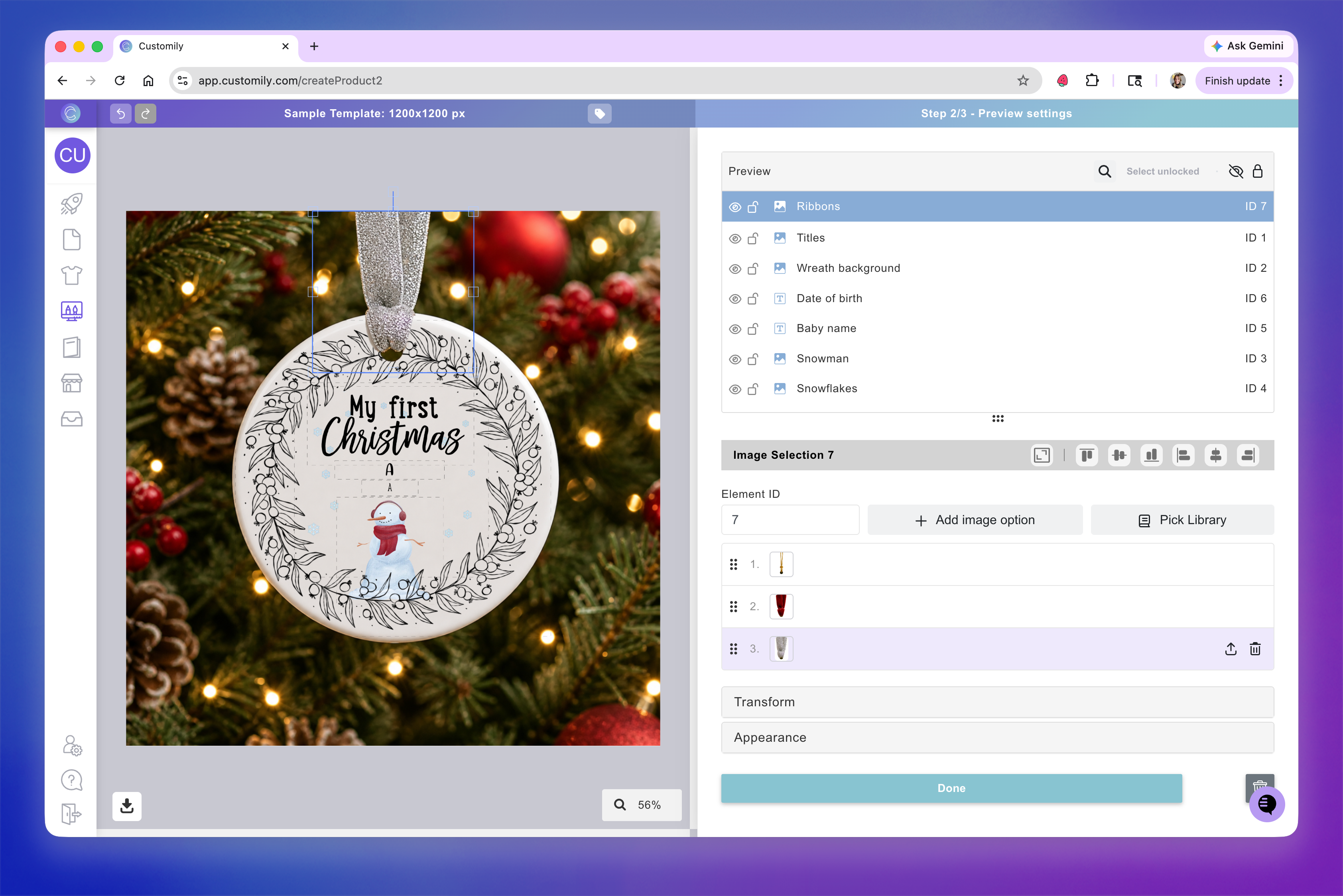
These are typically added using dynamic images, allowing shoppers to choose different visual options.
Tip:
You can add as many dynamic images as you'd like. They are great to create mix and match products, where customers can choose different materials or colors for different parts of the products.
Learn more about using dynamic images on your previews here.
Once your preview is set up, you’ll have a clear and realistic mockup of your product. When ready, click Next to review your template and finalize it.
Resetting your preview
If you want to start over, you can reset the preview step.
This is useful if you’ve made multiple adjustments and want to undo them, or if you’ve changed your print file and need the preview to reflect those changes.
For example, if you add a new element in the print file, existing elements in the preview may already be resized and positioned, while the new one won’t be. Resetting the preview brings all elements back into place as a complete composition.
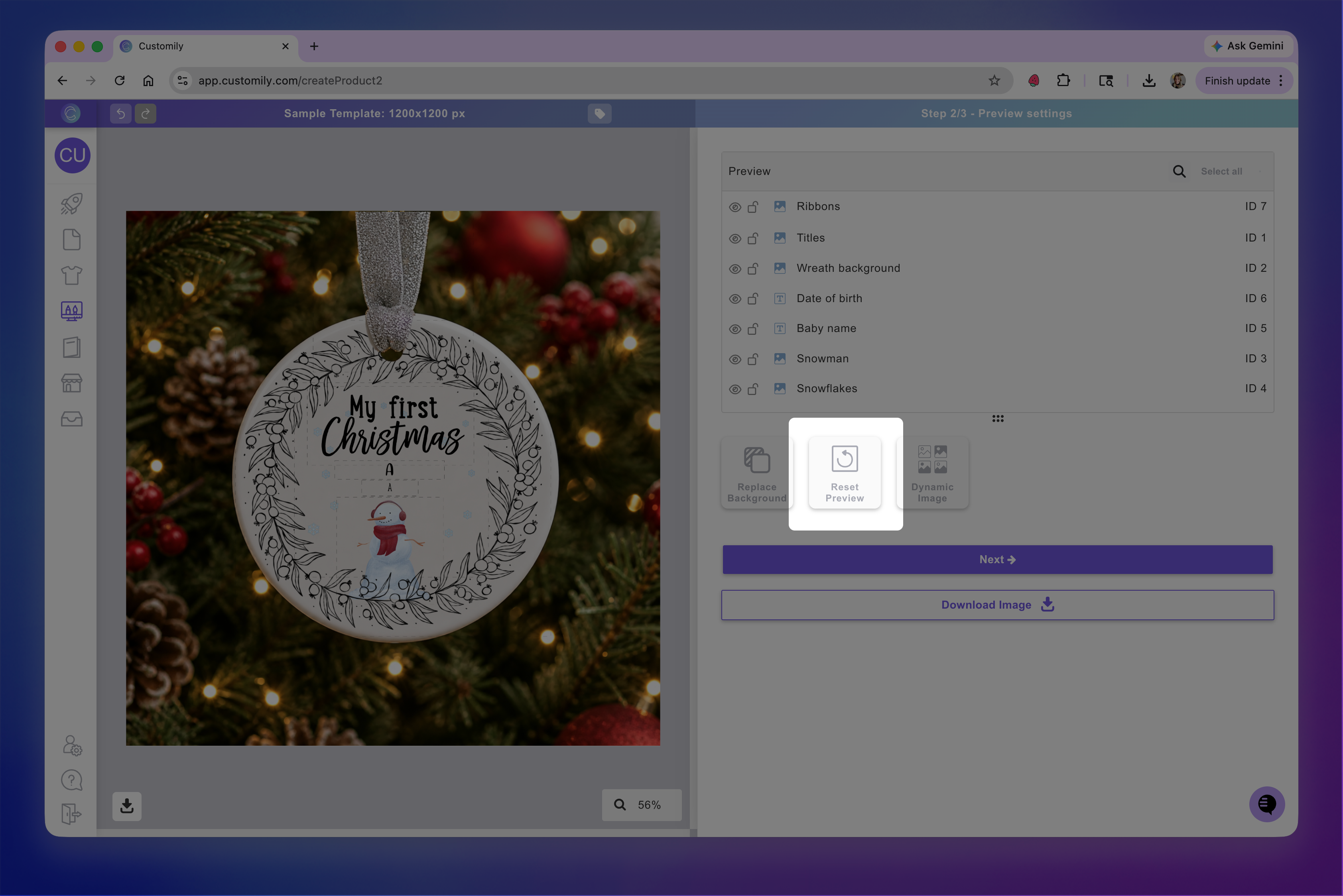
When you click Reset Preview, you can choose between:
Design Elements Only
Resets elements from the print file to their original state
Keeps your background and any elements added in the preview (such as dynamic images)
Whole Preview
Resets the entire preview
Removes all adjustments and preview-only elements (such as dynamic images)
Restores a clean starting point
Important
Resetting the preview will remove changes made in this step like positioning and resizing of elements, and things incorporated on the preview, depending on the option selected.
If you only want to change the background, use Replace Background instead.