Using background images in your template preview
Last updated: May 5, 2026
A background image is the image used as the base of your preview — the canvas where your design will be displayed.
However, using a background image is not the most common approach.
In most cases, it’s better to use a background color and add your product images as elements (for example, using dynamic images). This gives you more flexibility to create variations like different colors, materials, or configurations.
When should you use a background image?
Use a background image when:
Your print file uses a base file, and you want to reflect those fixed elements in the preview
Your product has a single visual setup
Avoid using a background image when your product has visual variations (e.g., different t-shirt colors), since those are better handled with dynamic images.
What should your background image include?
Your background image should include everything that is fixed and not personalizable, such as:
The product itself
Any static design elements
It should not include any personalization, such as text that shoppers will edit or images that shoppers will upload. These elements will be added dynamically in Customily.
To get the best results:
Use an image with a clear view of the product, so personalization can be displayed accurately
Make sure the image does not include any personalization. If your product image already has text or images, remove them before uploading
How background images work
When you upload a background image:
It becomes the canvas of your preview
It cannot be selected, moved, or resized
All elements are placed on top of it
This works similarly to a base file in the print file, but for the visual representation.
File format
Background images should be:
PNG or JPG
Recommended size
Since background images are only used for display (not production), they can be optimized for performance.
Recommended:
Around 1000 × 1000 px
Around 72 dpi
This keeps images lightweight while maintaining good visual quality.
Images do not need to be square, but square images usually work best with store layouts and product galleries.
Replacing a background image
You can replace your background image at any time.
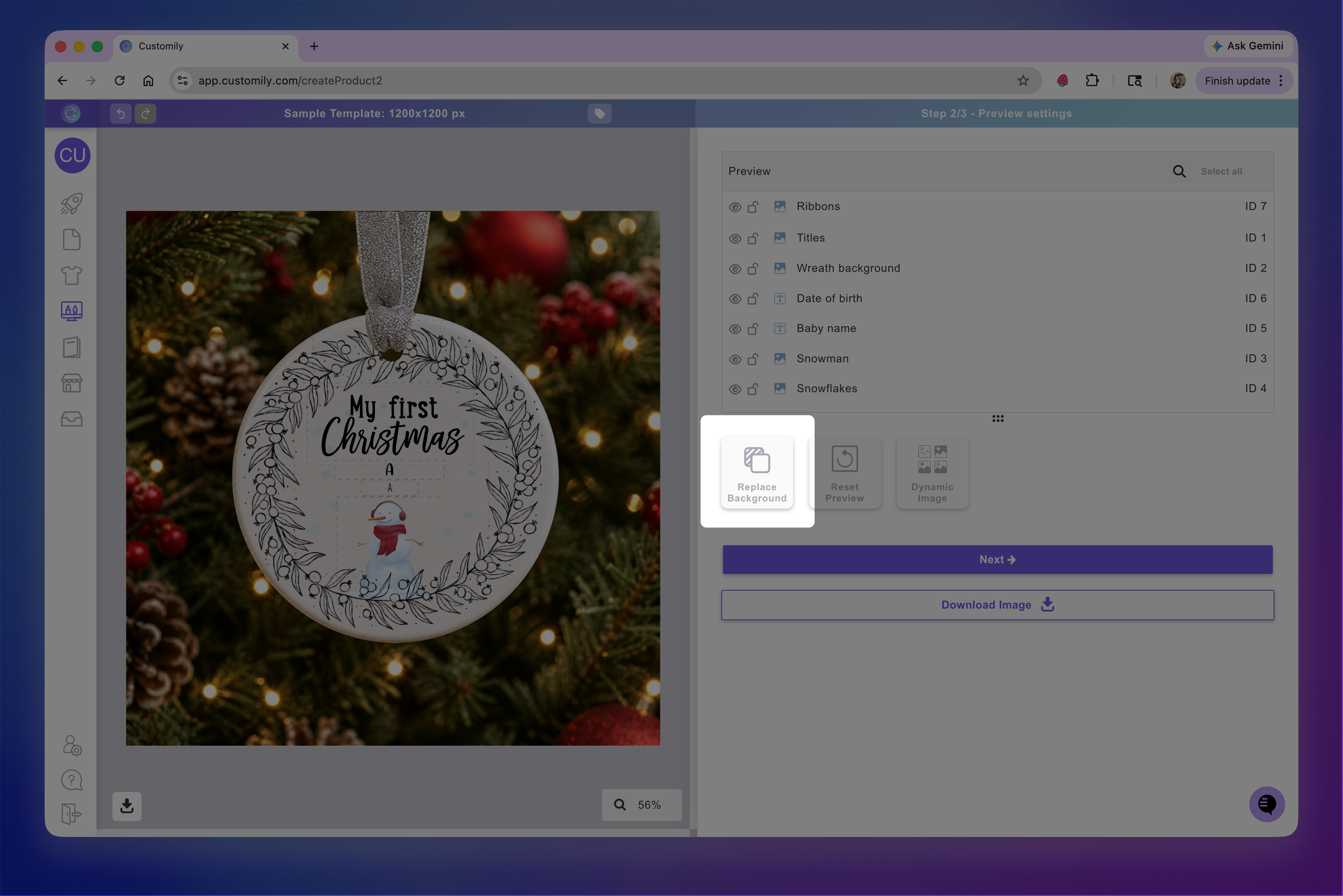
To do this:
Open your template in the Design Studio
Go to Preview Setup
Click Replace background
Upload a new image or choose a new color
When you replace it:
Only the background image or color is updated
Your design elements stay in the same position
Any dynamic images or other elements added on the preview remain unchanged
Keep in mind
If the new image has a very different size, some elements may need to be repositioned to fit the new canvas correctly.
Examples
Here are some examples showing what a background image can look like for different final products.
Engraved chopping board
For this product, the final result is an engraved design on wood.
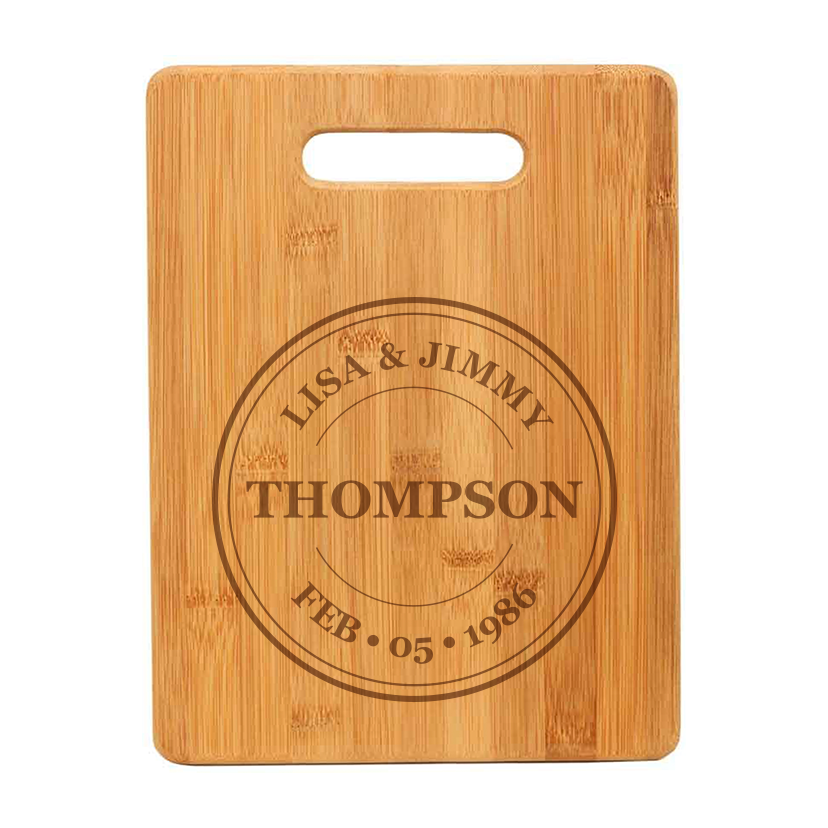
The background image shows the board, including its texture, shape, and fixed engravings, without any personalization
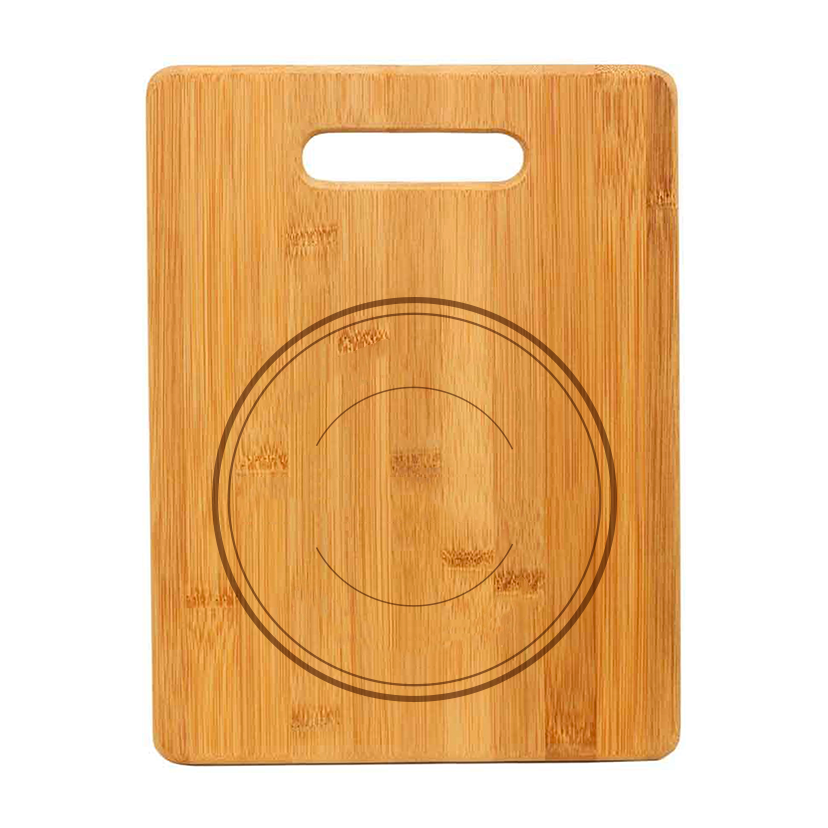
Wedding invitation
For this product, the final result is a printed design on cardstock.
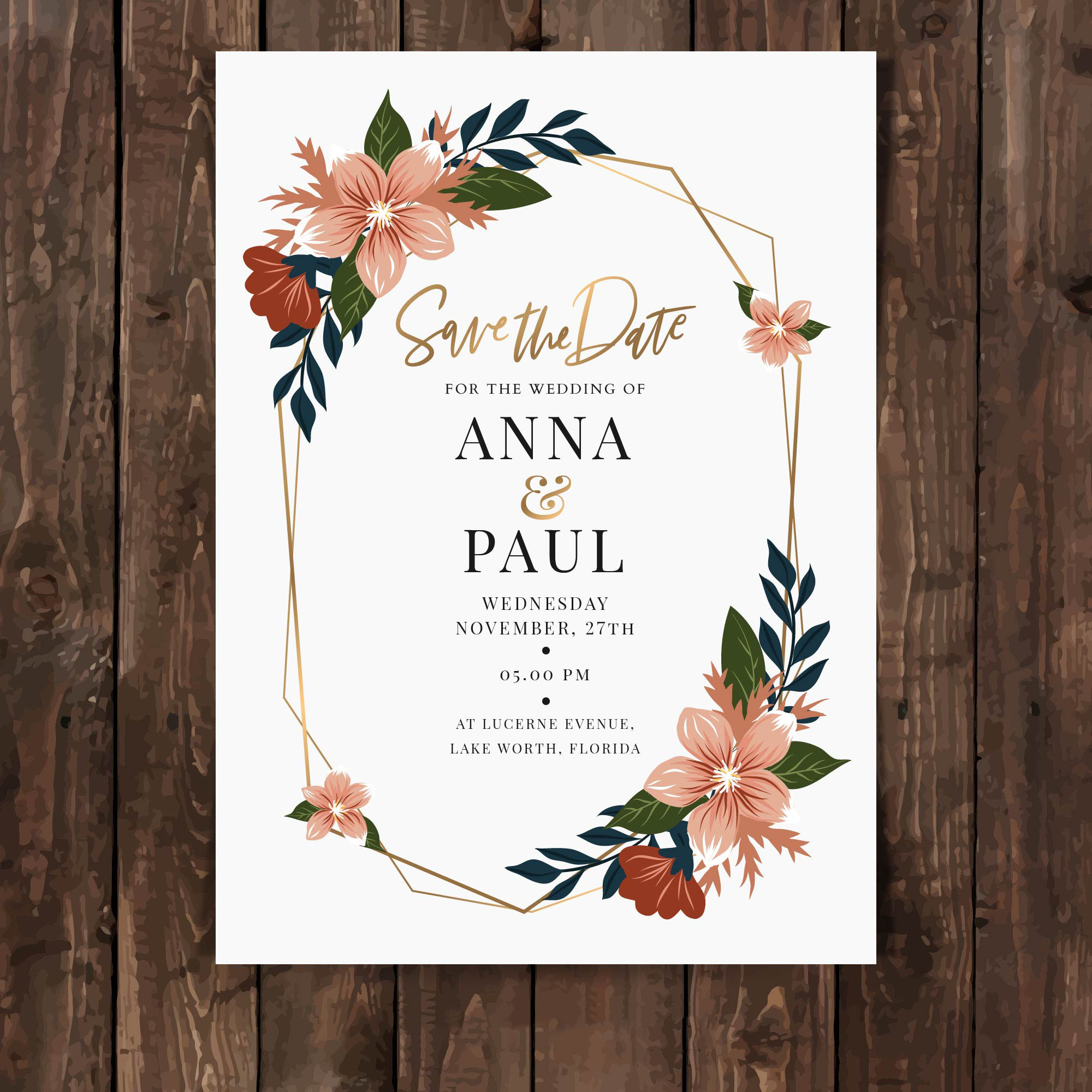
The background image includes the card with the base design and decorations, without personalized text.