Templates with multiple pages
Last updated: May 4, 2026
Templates can include multiple pages, allowing you to generate more than one print file per order.
Each page represents a separate file that will be produced when an order is placed.
Important
This feature is currently available for Shopify, Etsy and WooCommerce stores.
When should you use multiple pages?
Use multiple pages when your product requires more than one file for production.
This is common when:
You need separate files for different parts of a product (e.g., front and back designs)
You need to generate multiple files as part of the same order
How does it work?
You can add multiple pages to your template, and each page can be configured independently.
Each page can have its own size
Each page can include its own personalizable elements
Shoppers will be able to personalize all the elements across pages as needed.
When an order is placed:
A separate file is generated for each page
All files use the same format (e.g., all PNG or all PDF)
Keep in mind
Having multiple pages does not necessarily mean having multiple previews.
You can display all pages within a single preview, or
Combine this with multiple previews if needed
How to create templates with multiple pages
You can add multiple pages while setting up your print file.
Start creating a template manually
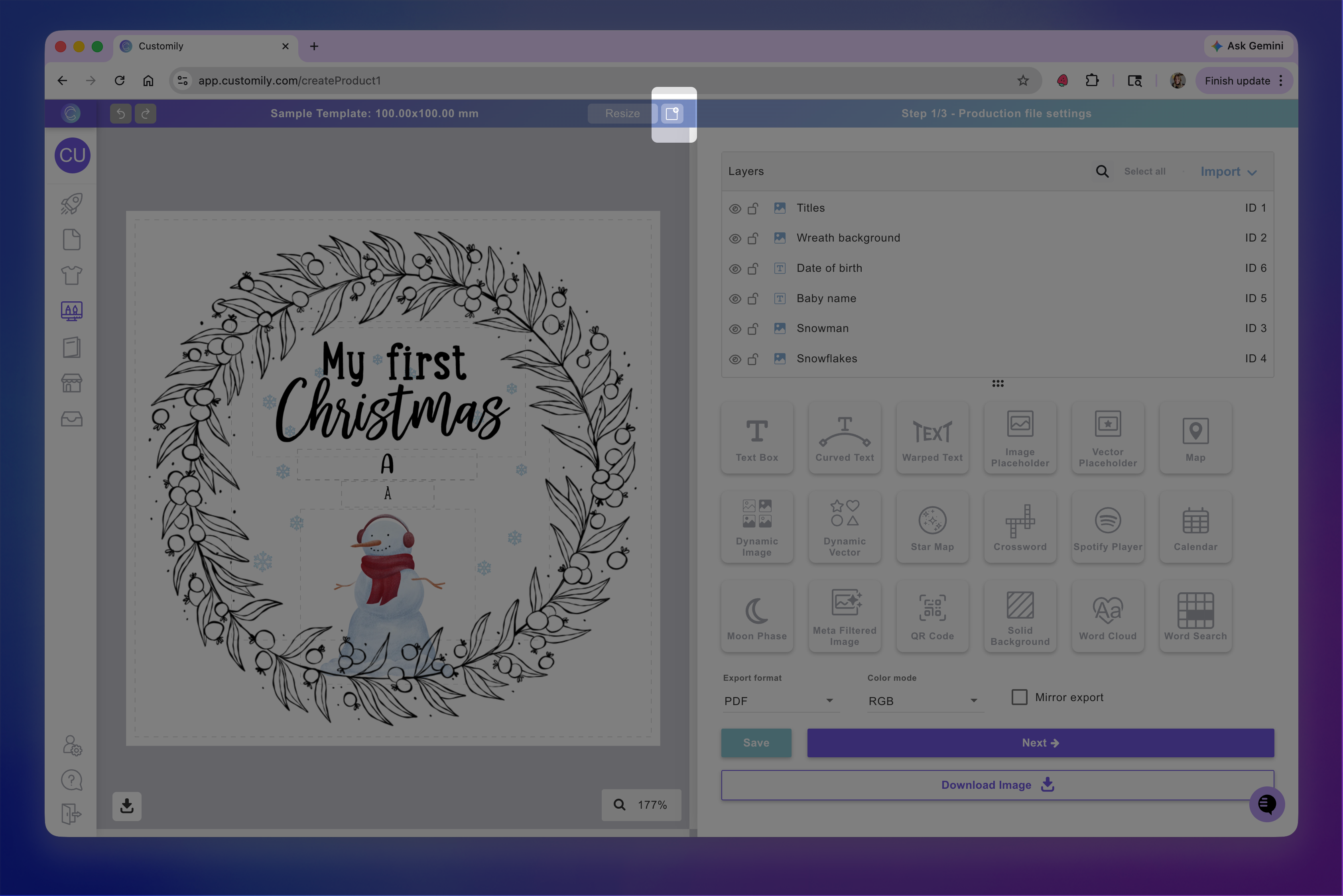
In the print file setup, click Add file to create a new page
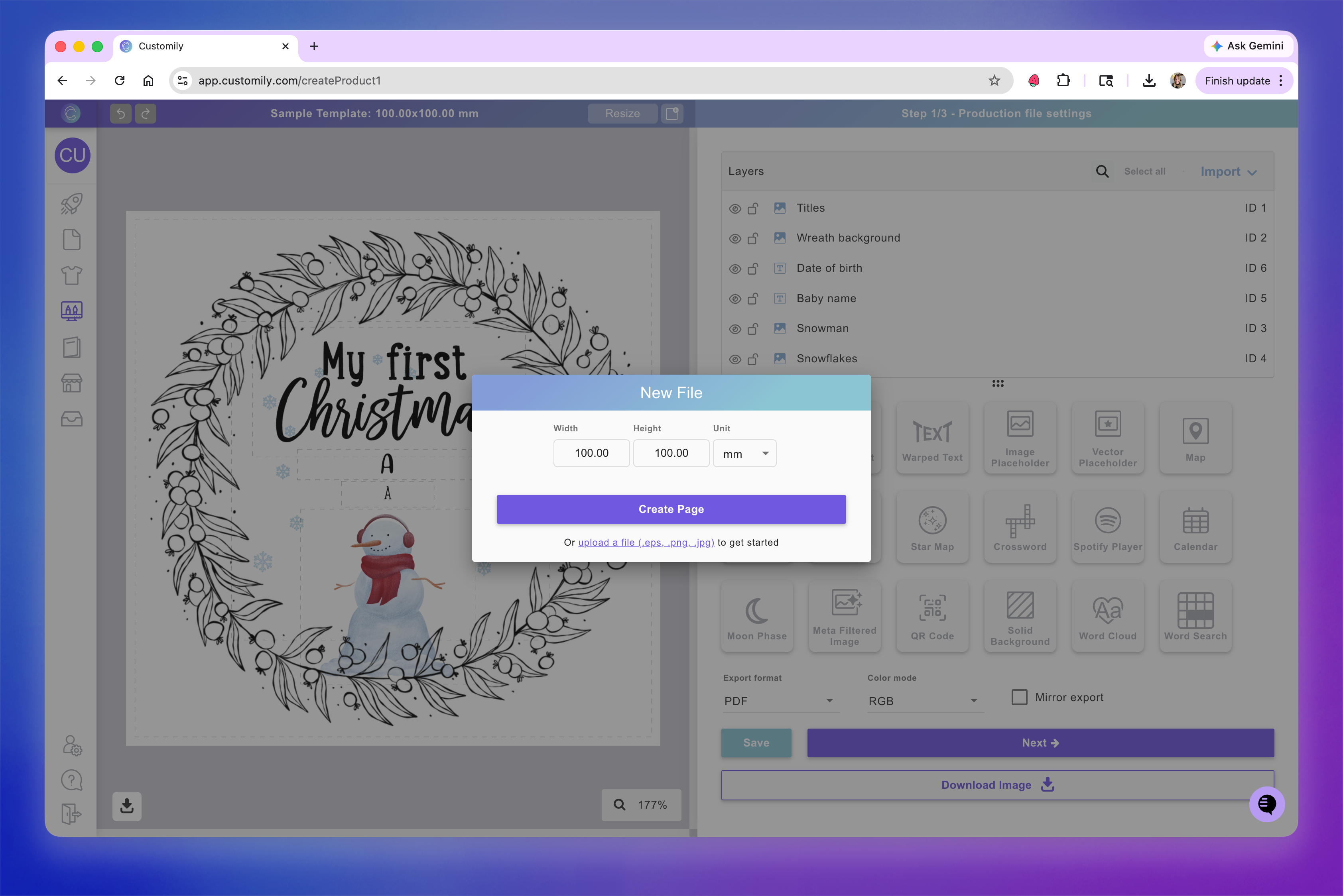
Set the size for the new page and click create
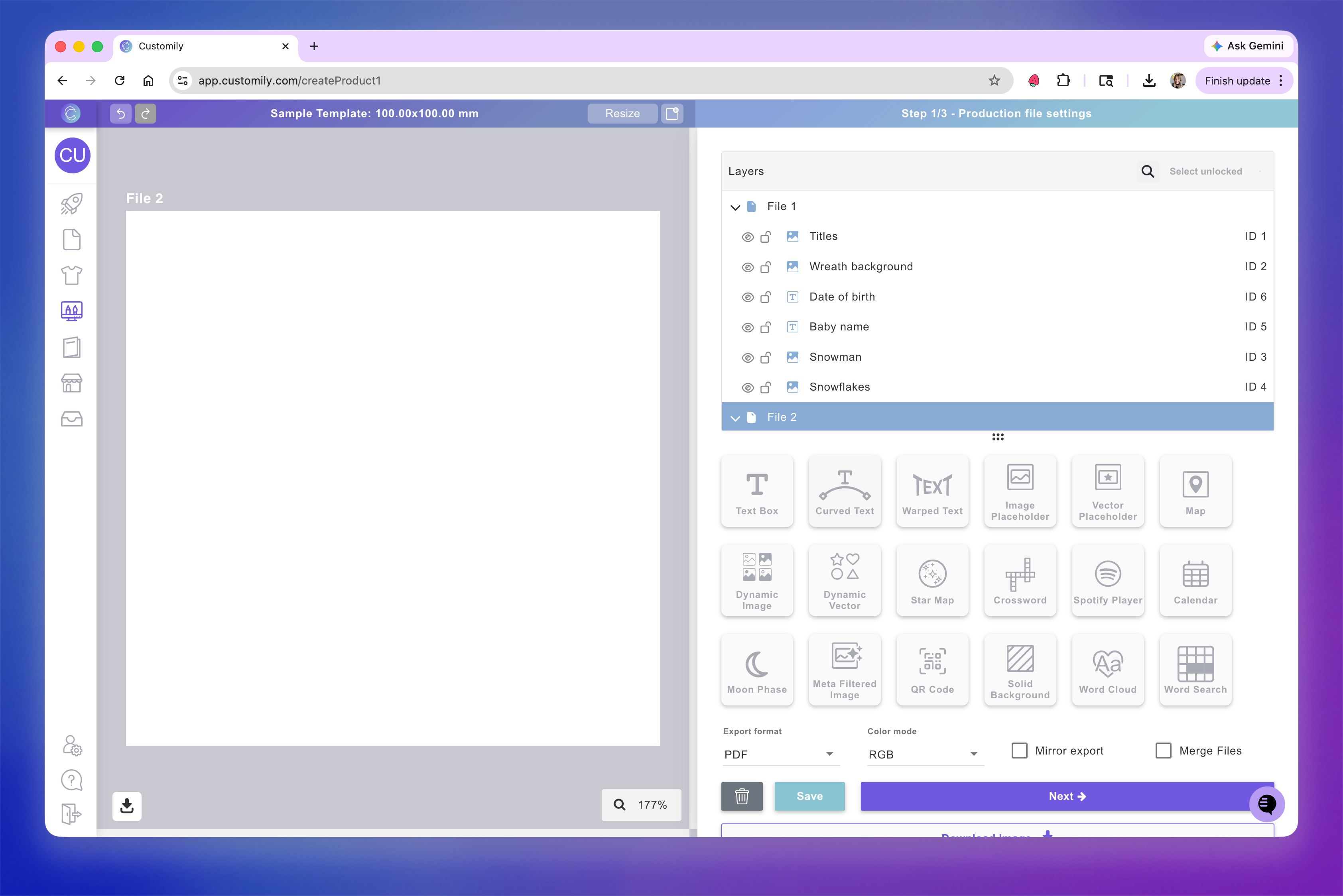
This will create a new page in your template:
Pages appear in the layer panel as File 1, File 2, etc.
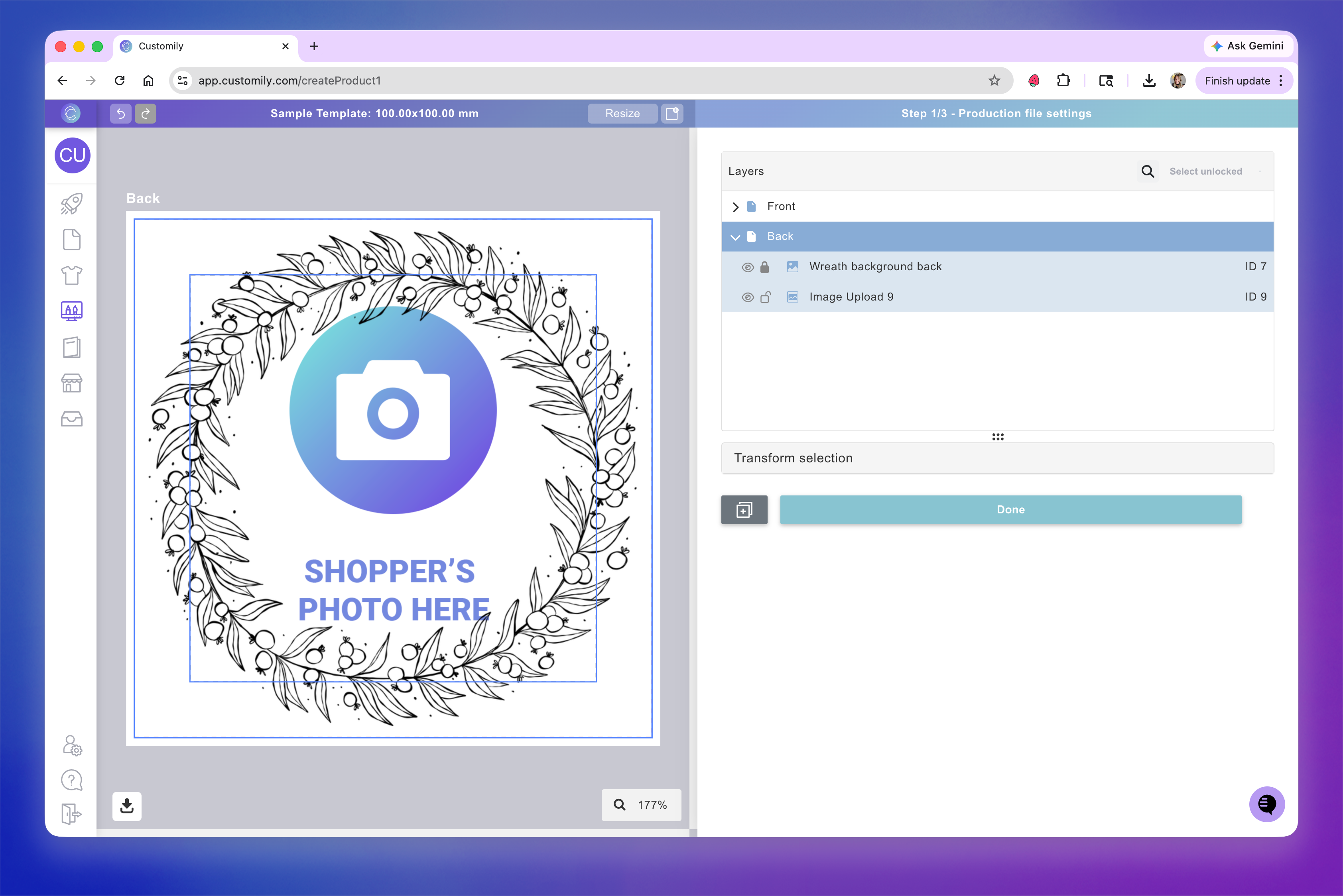
You can rename them to something more descriptive (e.g., Front, Back)
The workspace shows one page at a time, so use the layer panel to switch between pages
Build the design for each page independently:
Add and configure elements
Position them within each page
Tip
You can move elements between pages by dragging them in the layer panel.
Repeat the process to add as many pages as needed
Click Next to move on to the preview
In the preview:
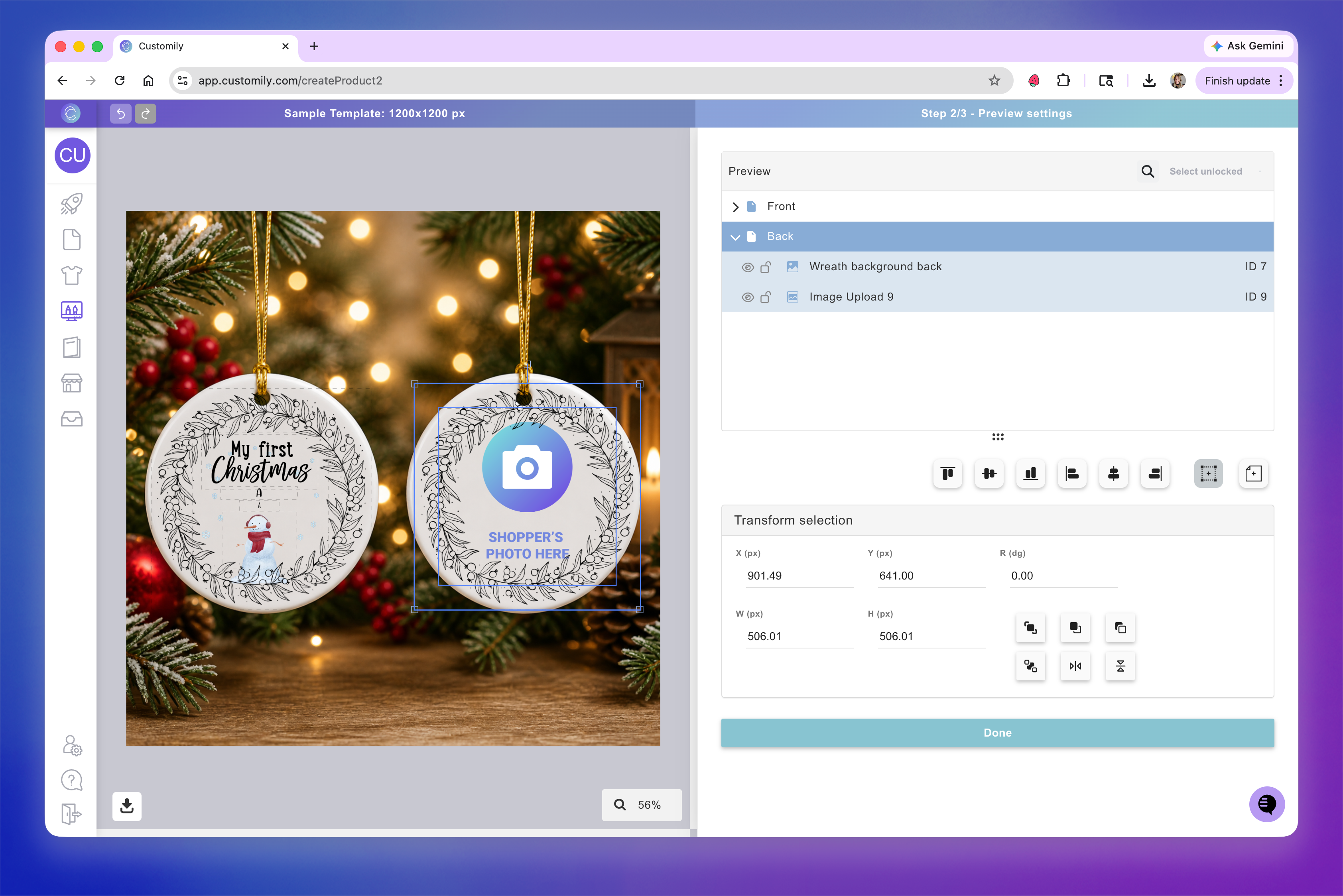
By default you will see all elements from all pages on the preview
In the layer panel, elements remain organized by page
Select each page from the layer panel to adjust its elements on the preview as needed
Keep in mind
If you want multiple pages to be visible together in the preview:
Use a background image that includes all pages (e.g., front and back in the same image)
If you prefer to show them separately:
Use multiple previews (available only for Shopify stores)
In the final review:
You can check each page independently before saving
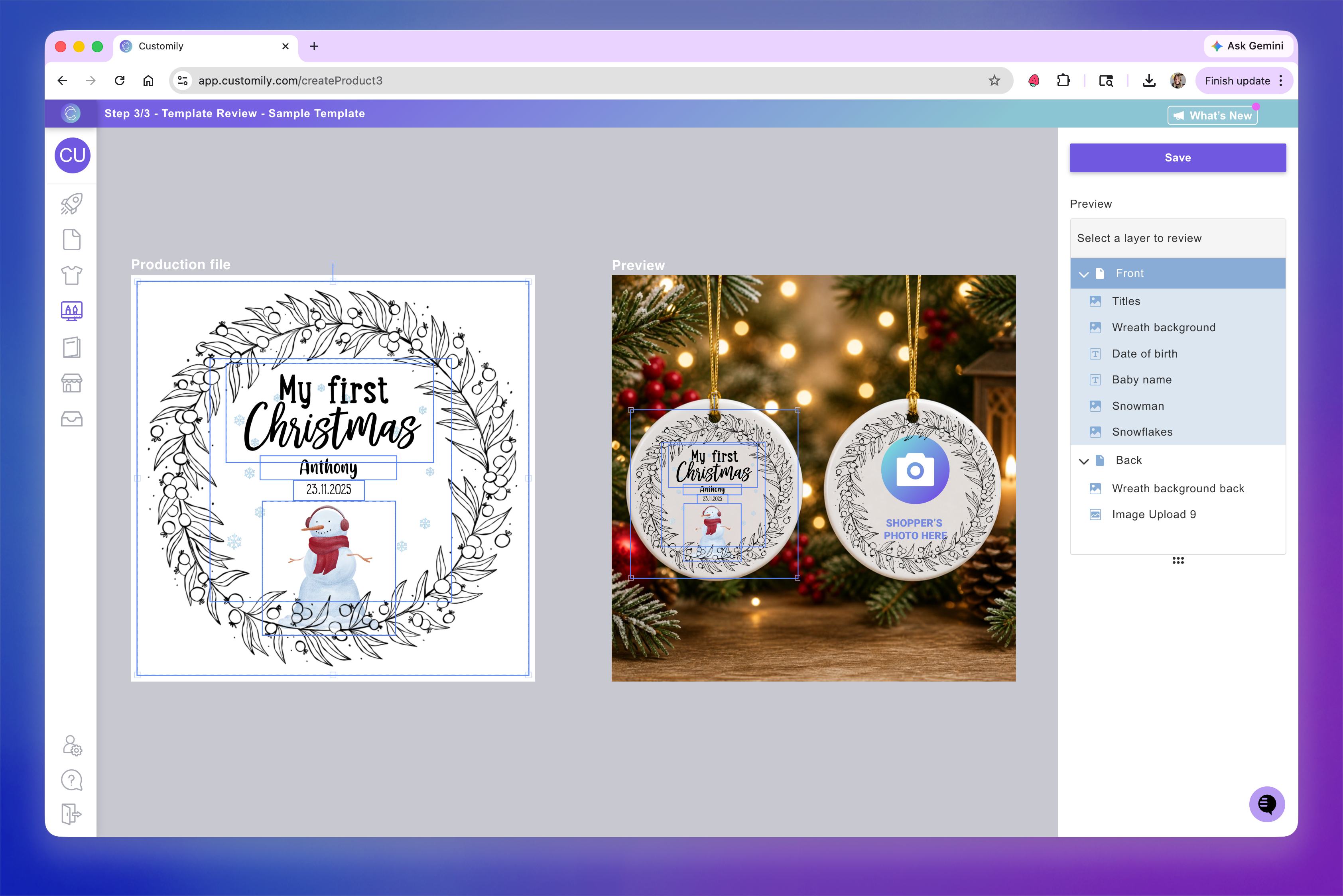
Checking page 1 "Front" 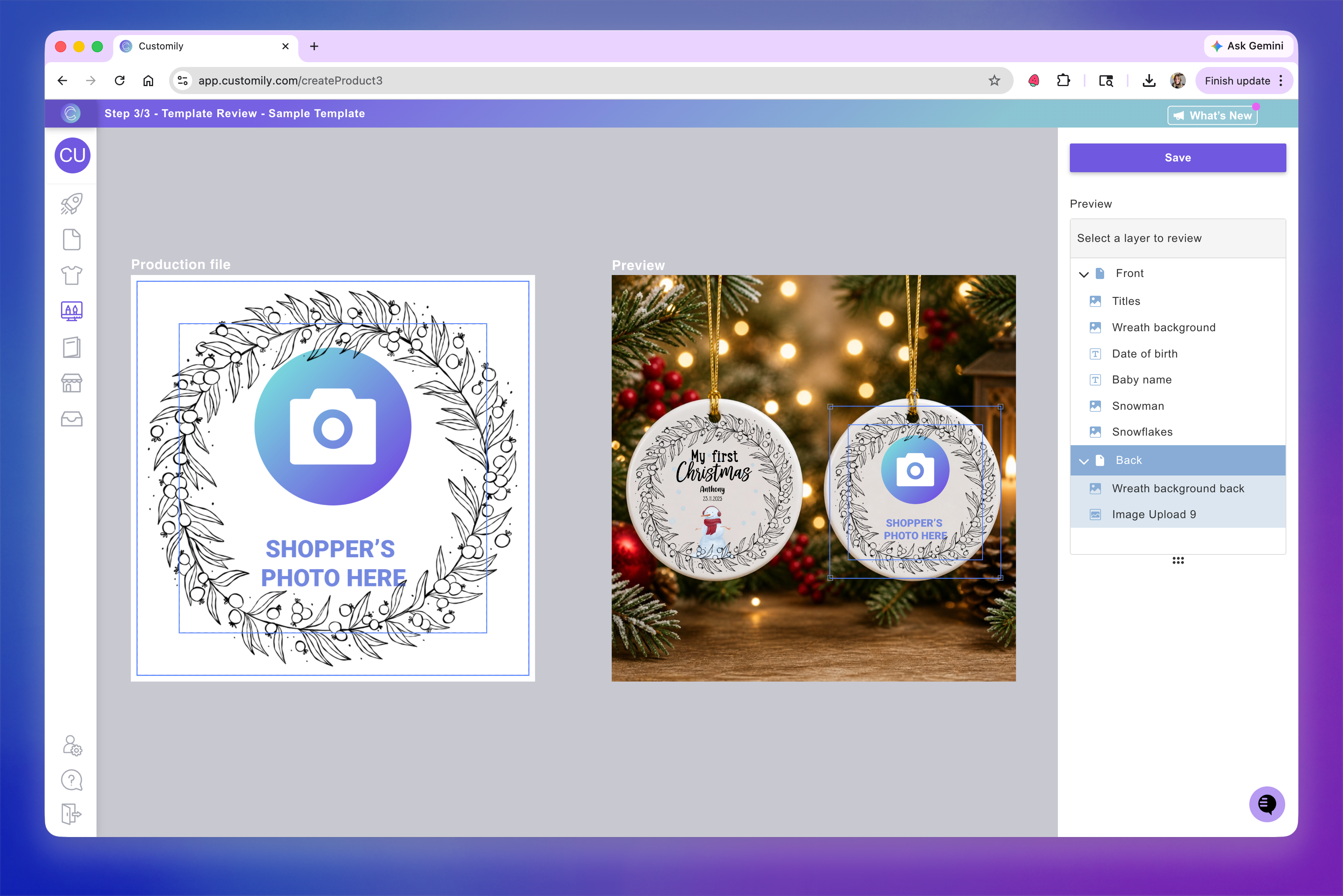
Checking page 2 "Back"