Using base files in templates
Last updated: May 4, 2026
What is a base file?
A base file is a file you upload to use as the starting point of your print file when creating a template.
It defines the size and fixed elements of your print file, before adding any personalization in Customily.
When should you use a base file?
Use a base file when you already have a file you want to work from, or when your print file requires specific elements you don’t want to recreate manually.
This is common when:
You already have a design file prepared
Your file includes margins, bleed, crop marks, or annotations
You have fixed artwork or decorations that should always be part of the design already created on a file
What should a base file include?
A base file should include everything that is fixed and not personalizable, such as:
Final dimensions (including bleed and margins)
Static design elements (decorations, frames, backgrounds)
Production details (cut lines, annotations, etc.)
These elements will always be part of the print file.
Do not include any elements that will be personalized.
This includes:
Text that shoppers will edit
Images or photos that shoppers will upload
These elements should be added inside Customily.
How base files work
When you upload a base file as the start of your template:
The canvas will match the size of your file
The content of the file will be placed on the canvas
These elements will remain part of the print file at all times, they won't show as a layer on your product, and you won't be able to select and edit them, as they are part of the canvas.
You can then add and configure personalization elements on top of it.
File formats accepted
You can upload a base file in:
EPS (recommended for vector exports)
PNG or JPG (recommended for image-based designs)
Choose the format that matches how your final print file will be exported.
Before uploading your base file, make sure it is properly set up. Learn how to prepare your base file here.
Replacing a base file
You can replace your base file at any time.
To do this, click Replace base file from the tool menu and upload the new file you want to use.
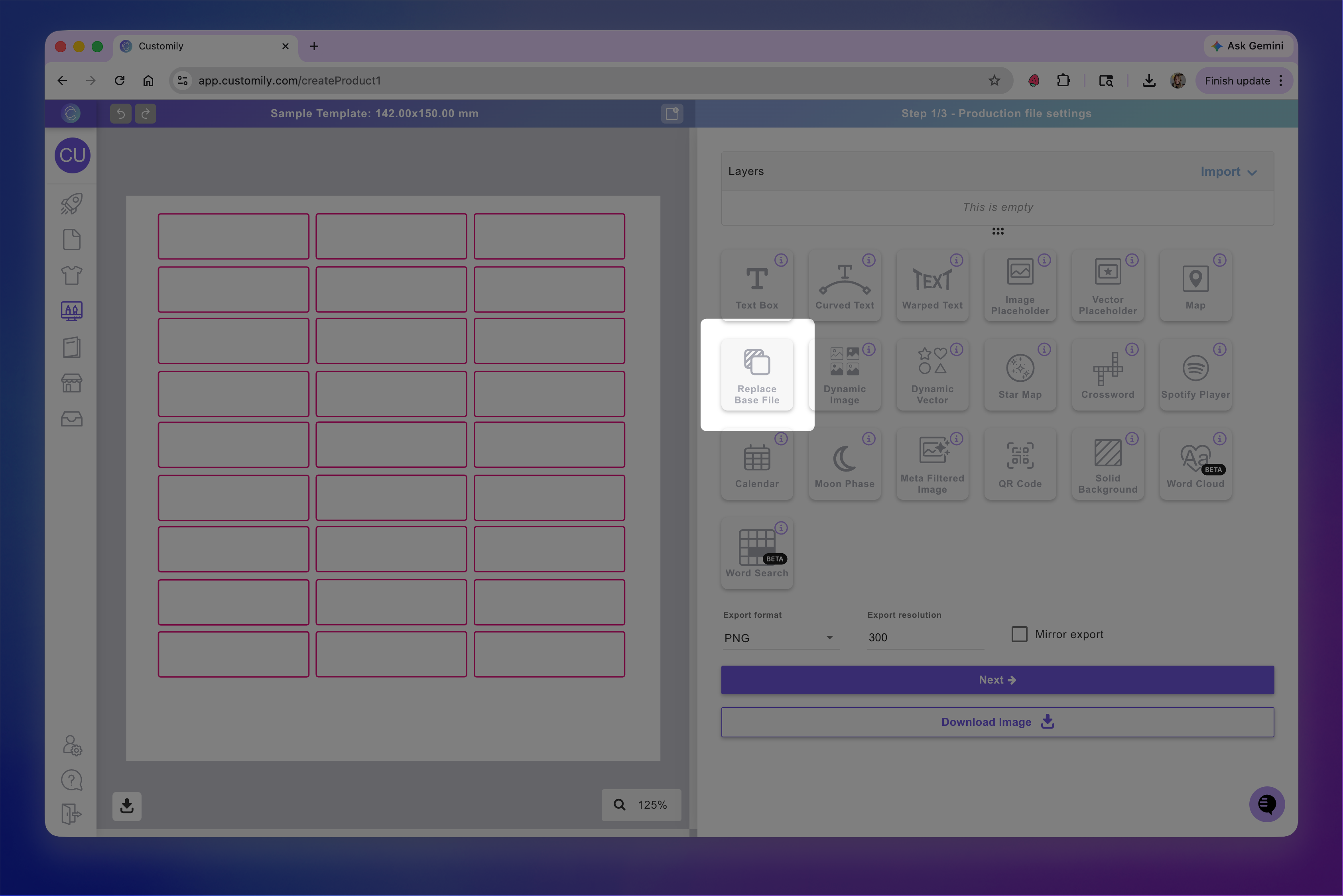
Keep in mind:
The canvas size will update based on the new file
If your design is already set up, you may need to adjust your elements after replacing it
Examples
Here are some examples showing what a base file can look like for different final products.
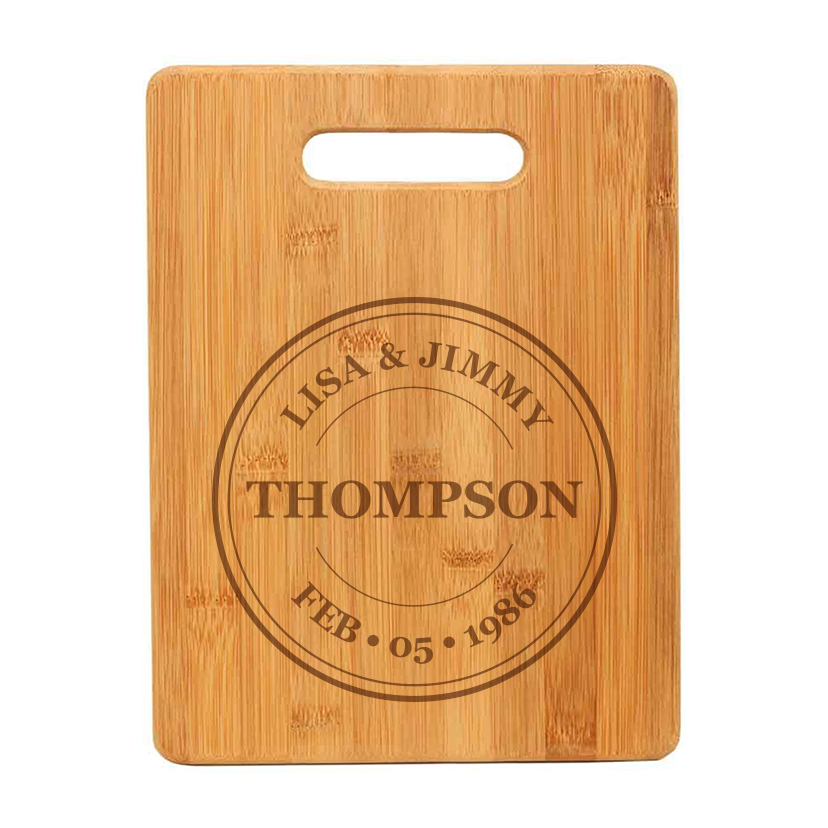
Engraved Chopping Board
For this product, the final result is an engraved design on wood.
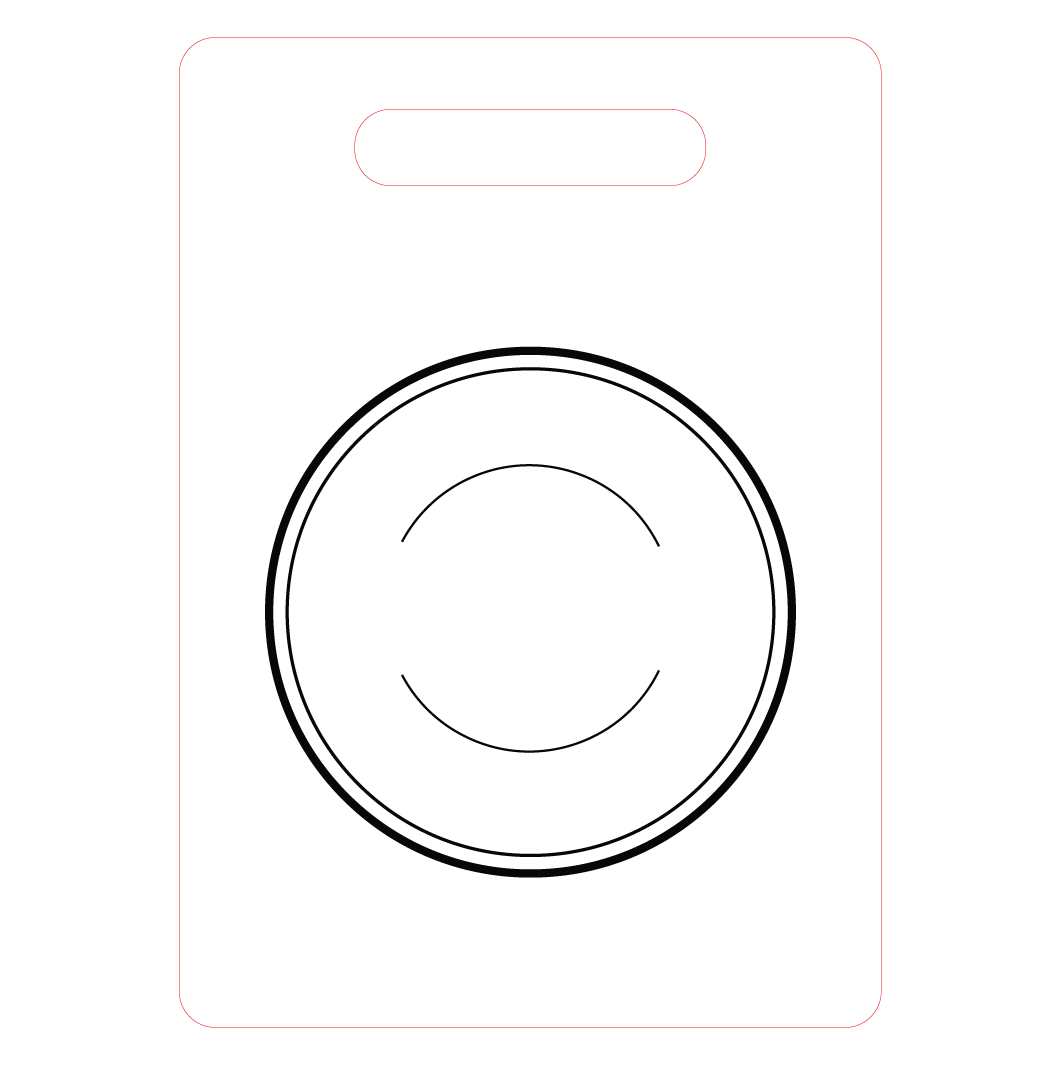
The base file contains:
The engraving paths
Any fixed elements that should always be part of the design
Since engraving requires vector output, this base file is created as an EPS file.
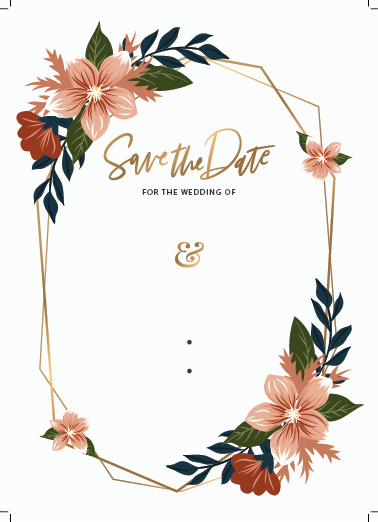
Wedding invitation
For this product, the final result is a printed design.
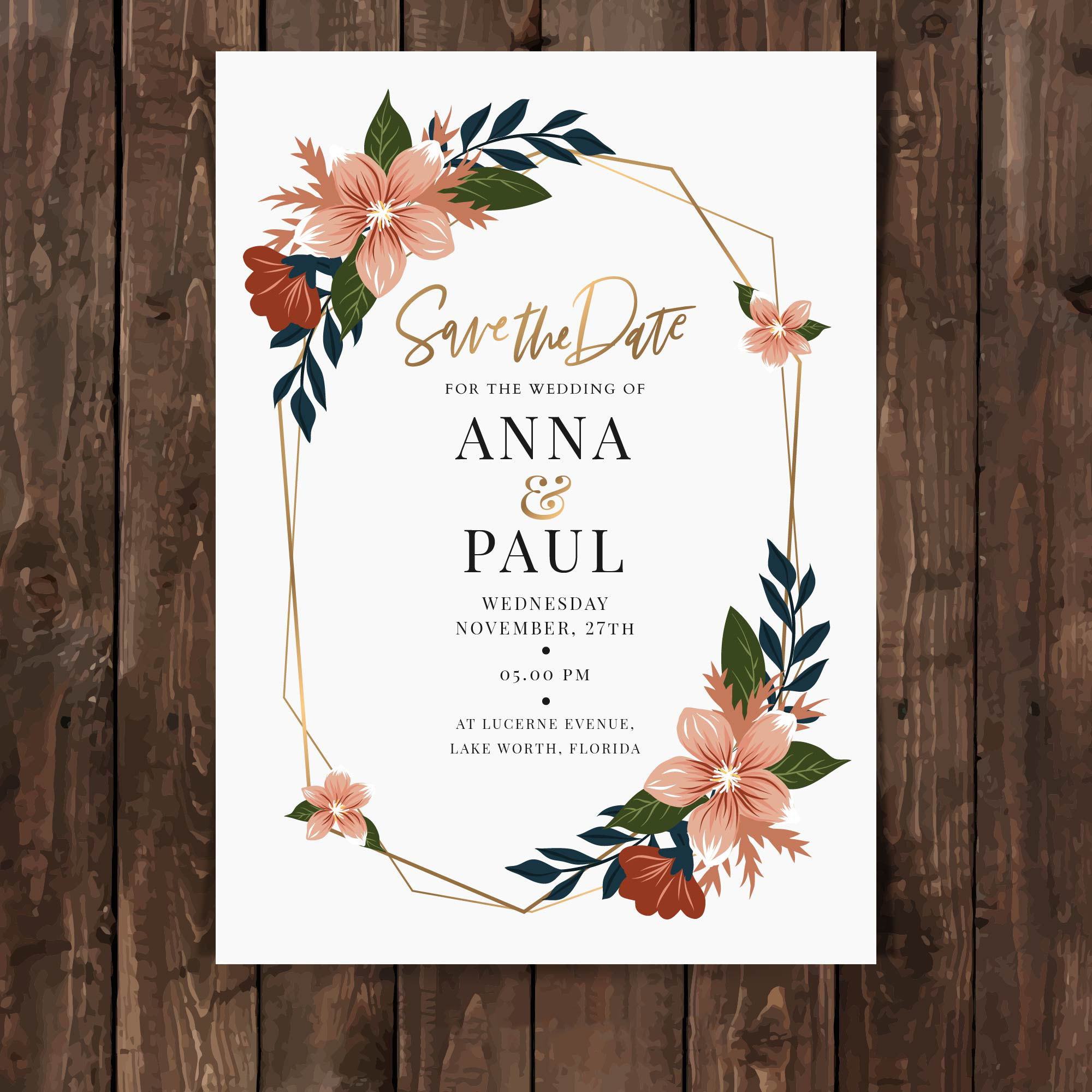
The base file contains:
The background design
Decorative elements that don’t change
Crop marks
Since this is a standard print, the base file can be an image file (PNG or JPG).