Print File Setup
Last updated: May 4, 2026
This is where you define the print file on your template — the file that will be produced for each order.
It contains everything that will be printed, engraved, or manufactured on the product.
What you do in this step
In this step, you:
Set the size of your print file
Configure how the file will be generated for production
Build your design by adding and arranging elements on the canvas
The canvas represents your print area, so everything should be placed within its boundaries.
What to include in your print file
Your print file should include everything needed for production.
This includes:
The design elements that will be printed
Production-related elements such as bleed, margins, or crop marks
Do not include:
Product images
Mockups or visual effects
Set up your print file
When creating a template manually, this is where you define the print file that will be generated for each order.
Set your print file size
You can define the size of your print file in two ways:
Set dimensions manually (most common)
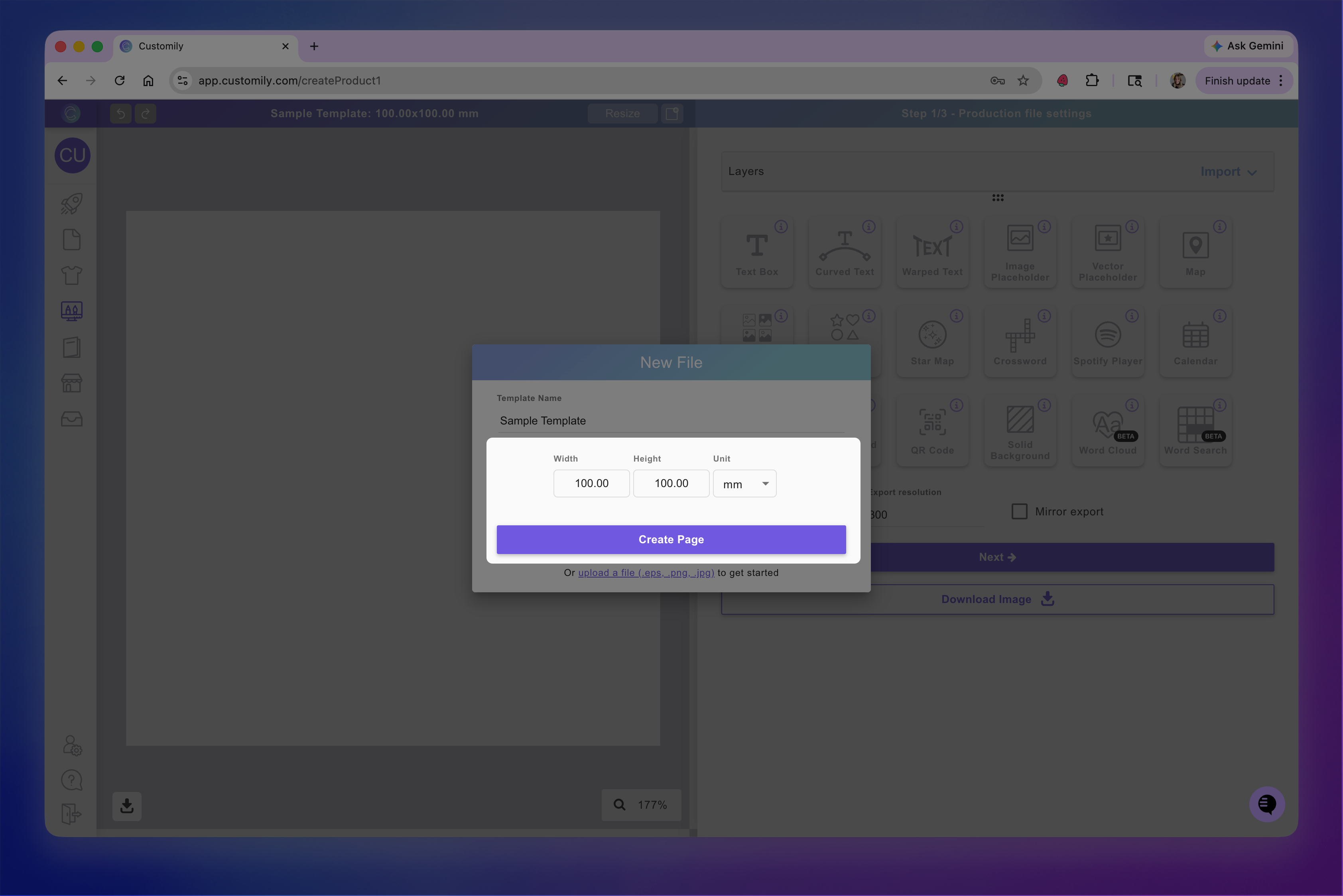
Upload a base file to use as your starting point (EPS, PNG, or JPG)
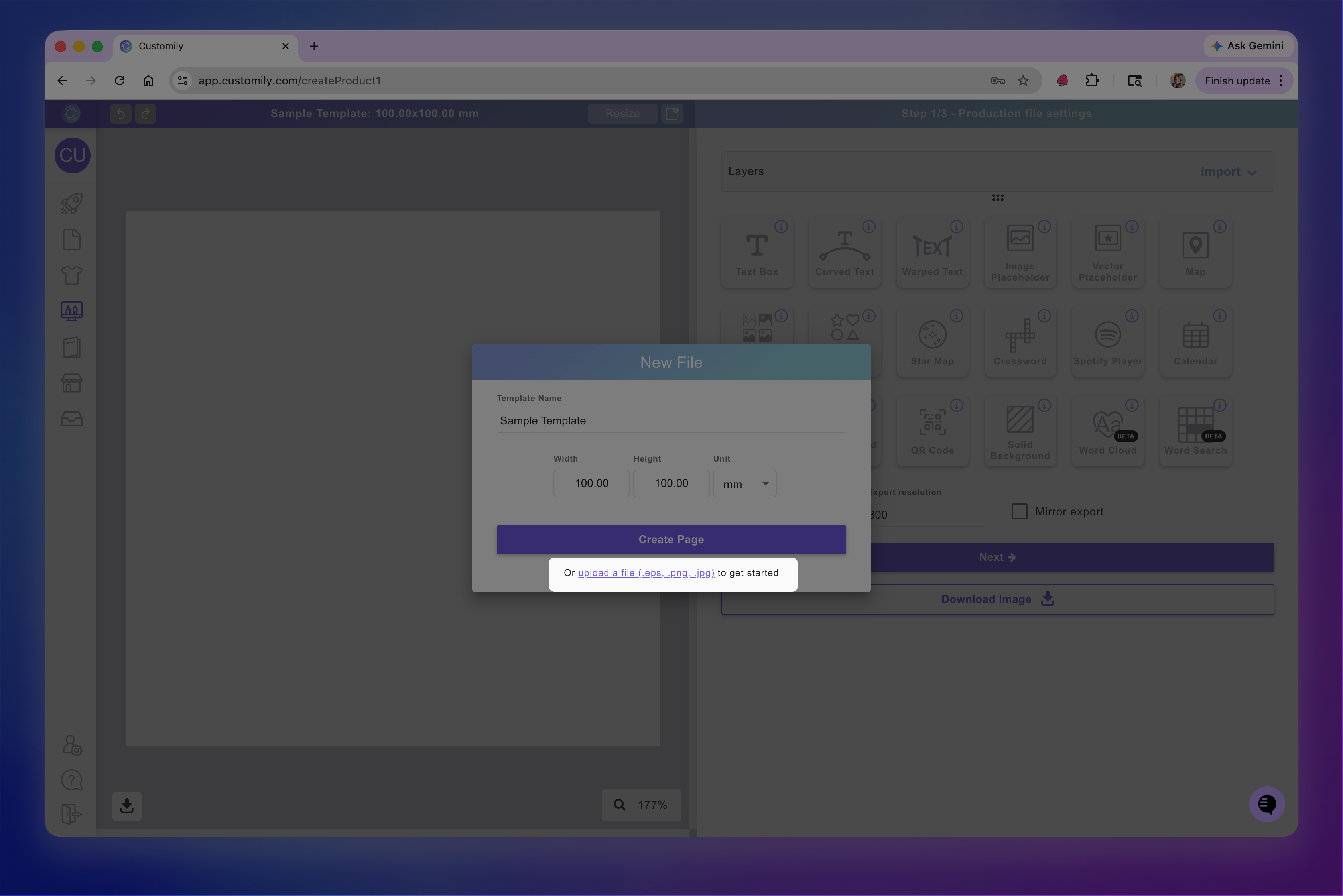
If you set dimensions manually, you will start with a blank canvas where you can build your design.
If you upload a base file:
The canvas will match the size of your file
Any elements in that file will always be part of the print file
Learn more about base files and how to use them here.
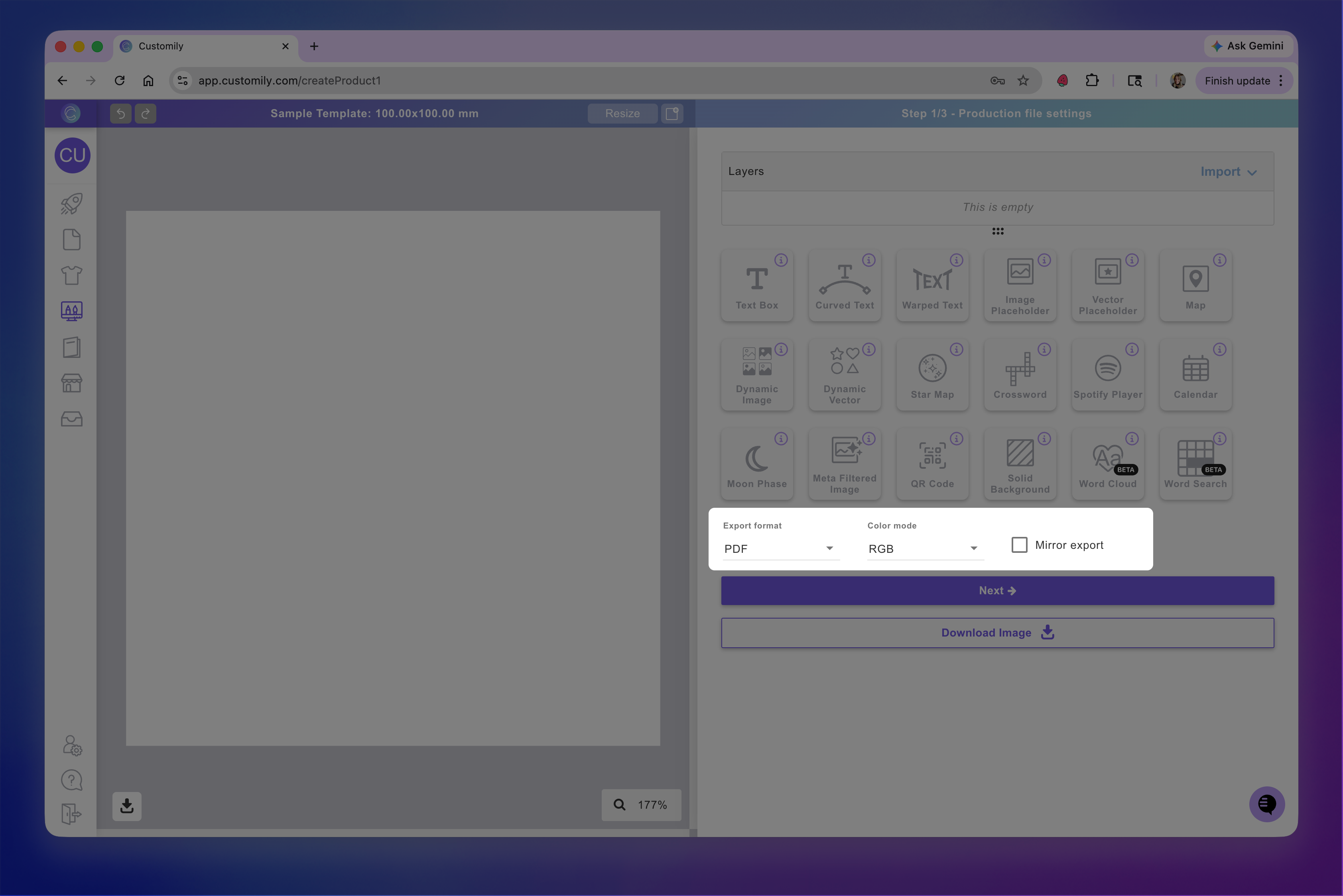
Configure output settings
Define how your print file will be generated, including:
File format (PNG, JPG, PDF, EPS, DXF, Ai, and OFM)
Resolution for image formats
Color mode for vector formats
Mirror export, for cases where the design needs to be flipped before production (e.g., transfers applied to a surface)
These settings determine how your file will be delivered for production.
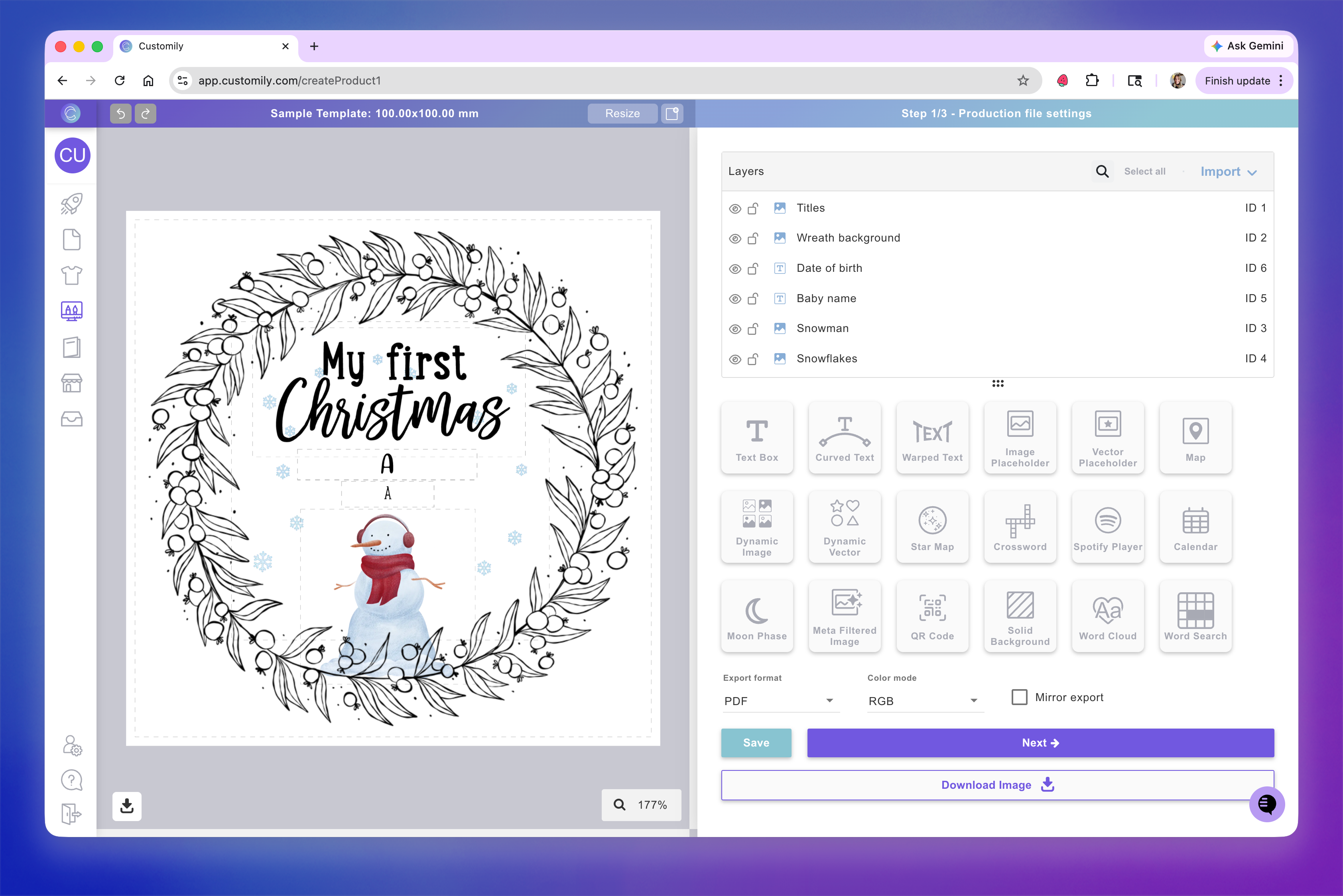
Build your design
With your canvas ready, you can start building your design:
Add personalizable elements (text, images, etc.)
Add any fixed elements that are part of the design (decorations, frames, backgrounds, etc.)
Position and size everything within the canvas
Make sure to configure your elements as needed, for example:
Set fonts, colors, and styles
Define available options (e.g., color choices, cliparts, etc.)
Everything you add here will be included in the print file that gets produced for each order.
Advanced options
You can further adjust your print file depending on your needs.
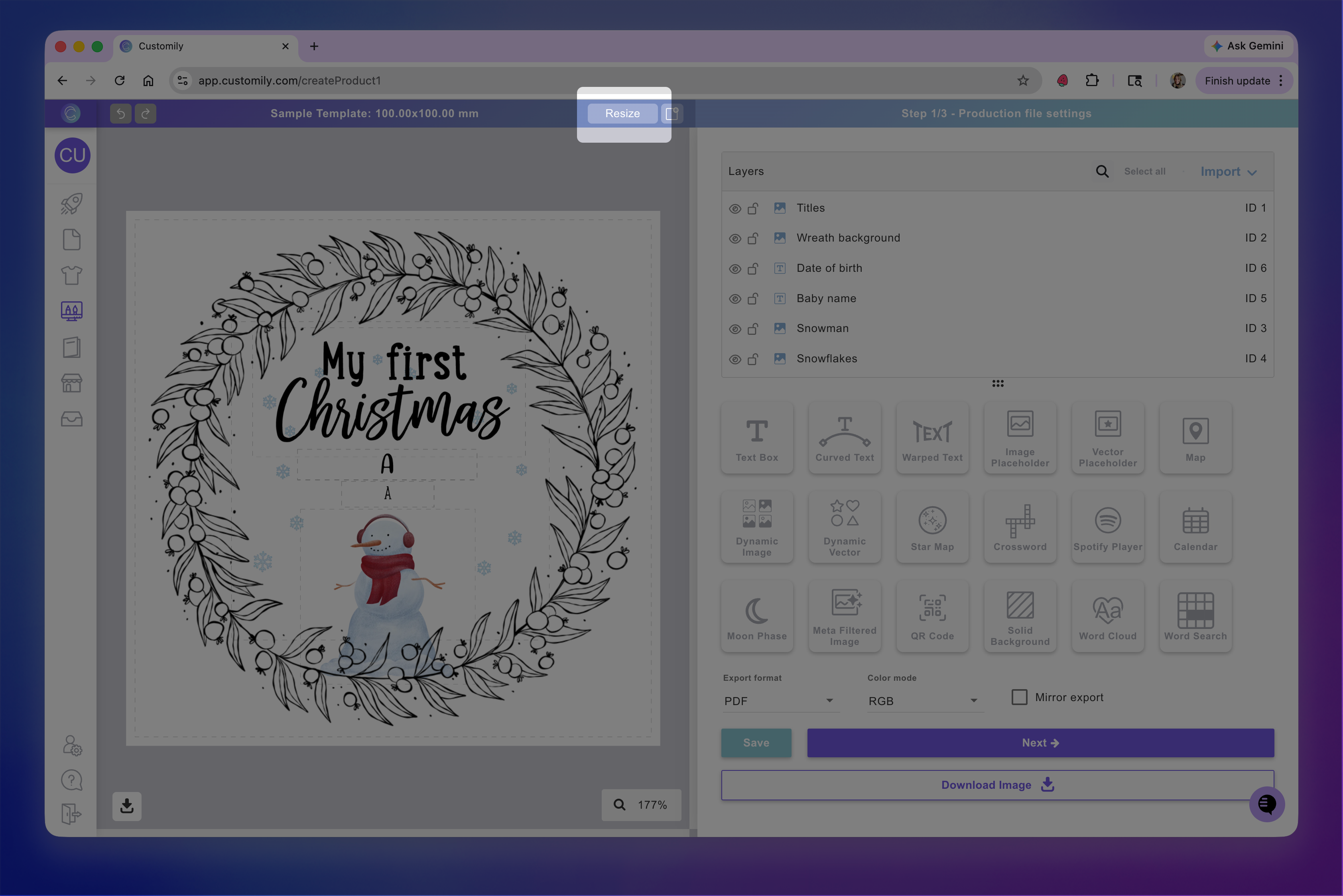
Resize your print file
You can change the size of your print file at any time.
This is useful when:
You need to adjust dimensions after starting your design
You want to adapt the same design to a different product size
Keep in mind that resizing may require you to reposition or rescale your elements to fit the new dimensions properly.
Use multiple pages
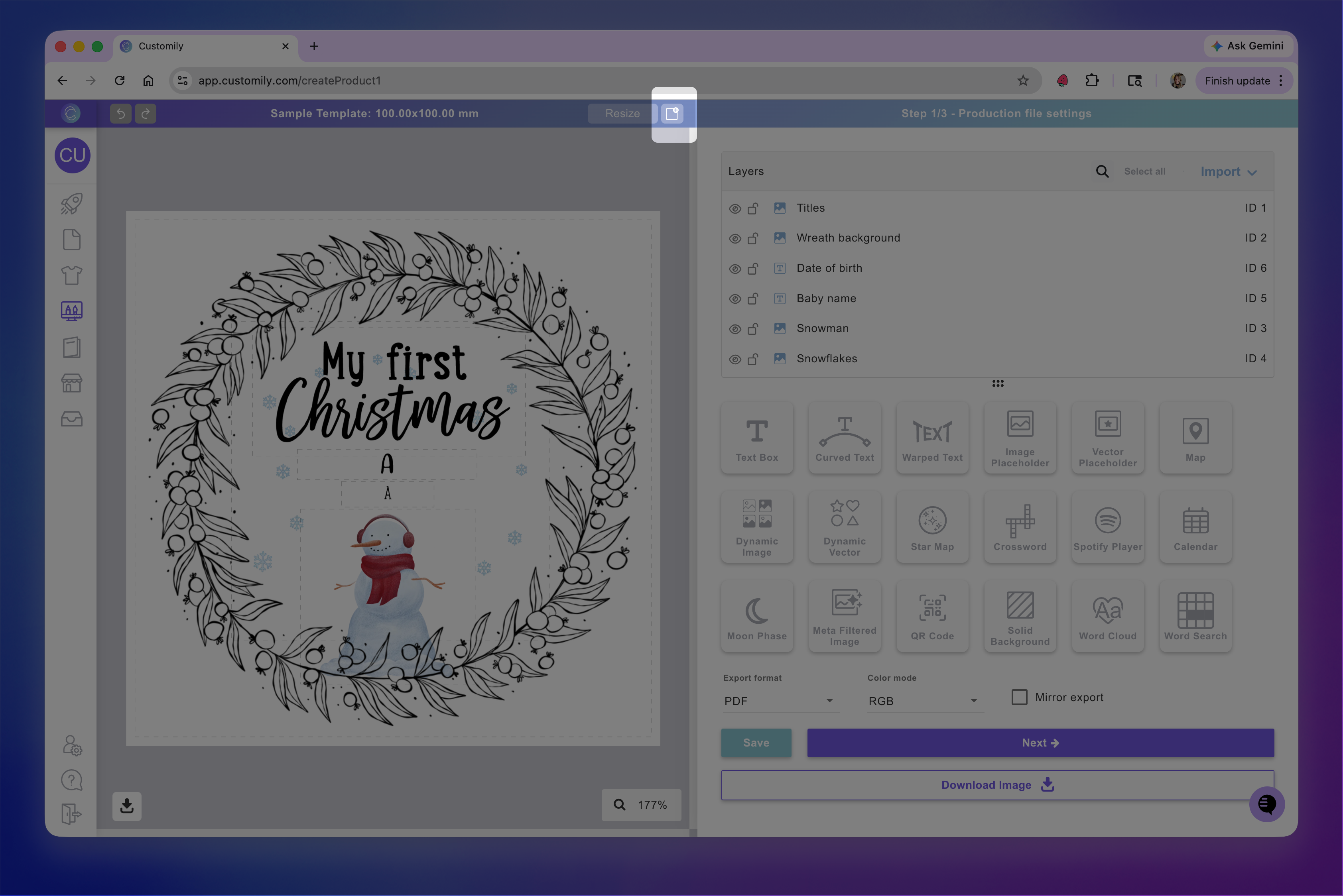
You can add multiple pages to your print file.
Each page will be exported as a separate file using the same format (e.g., all PNG or all PDF), but pages can have different sizes.
This is useful when:
Your product requires multiple print files (e.g., front and back designs)
You need to generate different files as part of the same order
Learn more about creating and using multiple print files here.
The print file defines how your product will be produced.
Once everything is set up correctly, you’re ready to move on to the preview, where you’ll control how your product is displayed to shoppers.