Movable text
Last updated: April 29, 2026
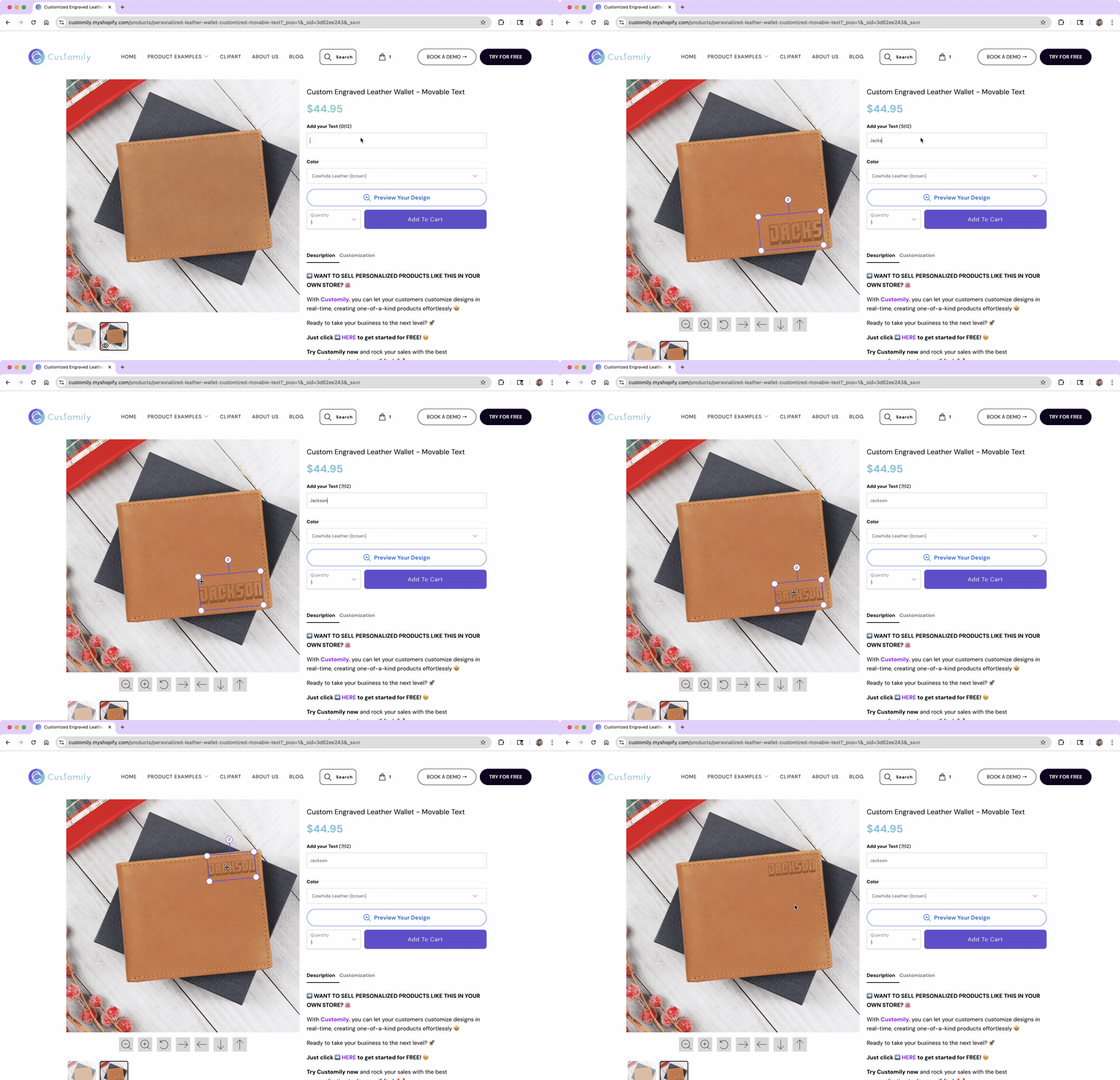
The movable text feature allows shoppers to move text around within a defined area of your design.
It works with text elements only. When enabled, shoppers can click and drag the text during personalization, giving them more control over the final result.
Important
Movable text is only available when creating Templates manually. It is not yet available when creating Designs.
How to enable movable text
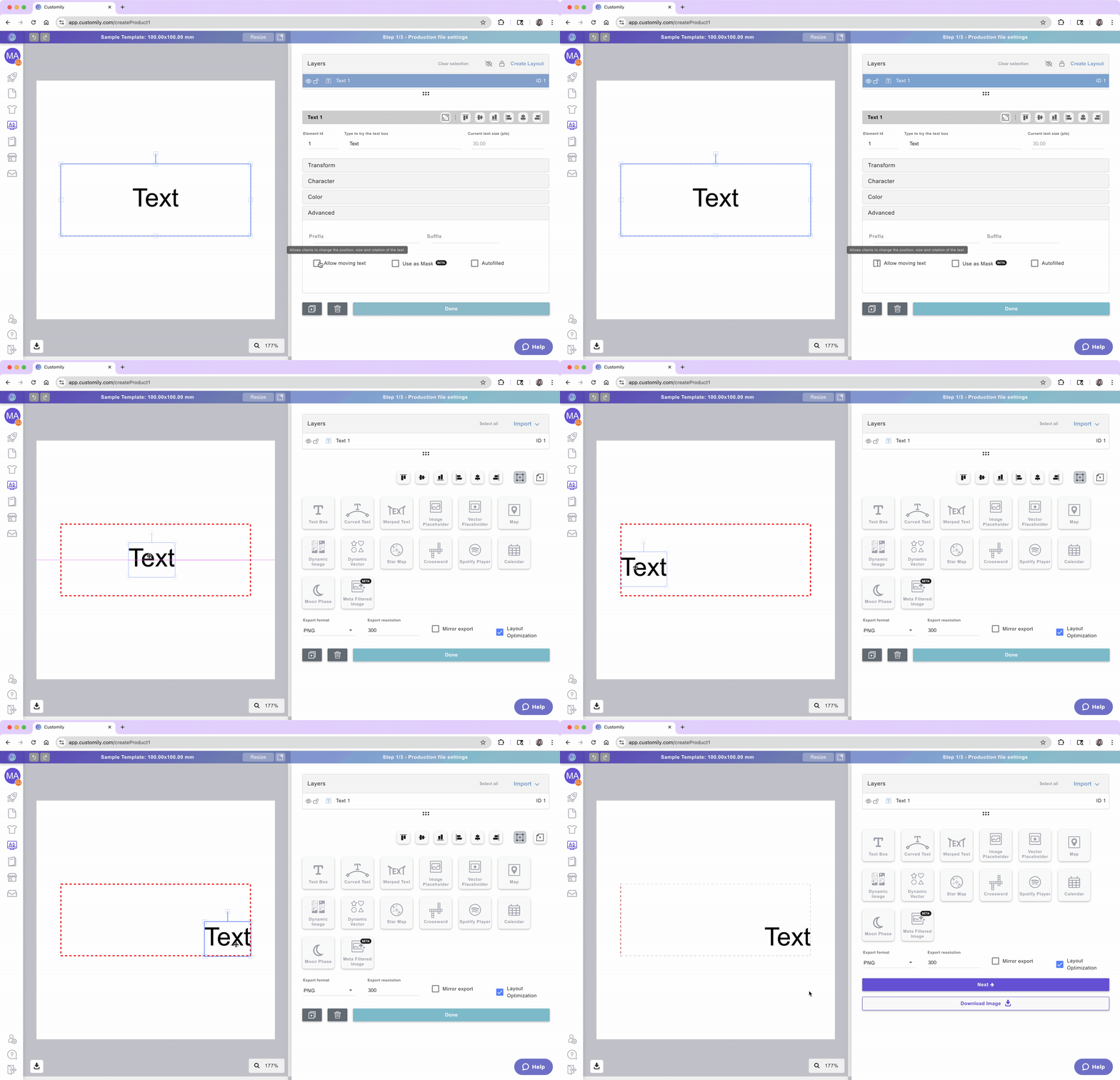
Select the Text Box you want to make movable
Expand the Advanced toolbox in the side panel
Check the box labeled "Allow moving text"
Once enabled:
The text’s bounding box turns red, showing the area within which the customer can move the text.
This red area defines the limits—the customer won’t be able to drag the text outside of it.
Tip
The position and size of the text when you configure it in the editor will be the initial state your customer sees when they load the product. You control where it starts and how large it appears before they make any changes.
How to adjust the movement area
The movement area is determined by the size of the text box on the canvas.
To allow more freedom, resize the text box larger.
To restrict movement, shrink the text box to a tighter area.
You can adjust the text box visually on the canvas or precisely using the transform toolbox.
Text can also be resized
When movable text is enabled, customers can resize the text by dragging its corners, just like they would with an uploaded image.
The text will shrink or grow proportionally, depending on how it's dragged.
However, it won’t shrink below the minimum font size you’ve defined in the settings.
Important
Always set a minimum font size for movable text to prevent customers from making their text too small to read or print. This helps ensure your designs stay functional and visually appealing.
Testing the experience
To see how it works:
Double-click on the text box while editing your design.
You’ll enter “shopper mode,” where you can move and resize the text just like a shopper would. This is indicated by the boundaries turning red
Drag the text around, and try resizing it.
Click anywhere outside the box to exit customer mode.