Text along a Path
Last updated: October 20, 2026
Text along a path lets you add text that follows a line or custom path, whether it's fixed text or something shoppers can personalize. You can create straight lines, curves, or more complex paths to control how the text flows through your design.
You can customize the font, size, color, alignment, and styling to control how the text looks.
How It Works
When you add text on a path to your design, it's personalizable by default.
Shoppers see a text input where they can enter their own text.
As they type, their text follows the path you've defined and appears live in the product preview.
If you offer multiple fonts or colors, shoppers can choose between them.
You can make the text fixed, so it appears in the design without being editable by shoppers.
To add a text on a path
You can add text on a path on Designs and on Templates, by clicking the text along a path button.
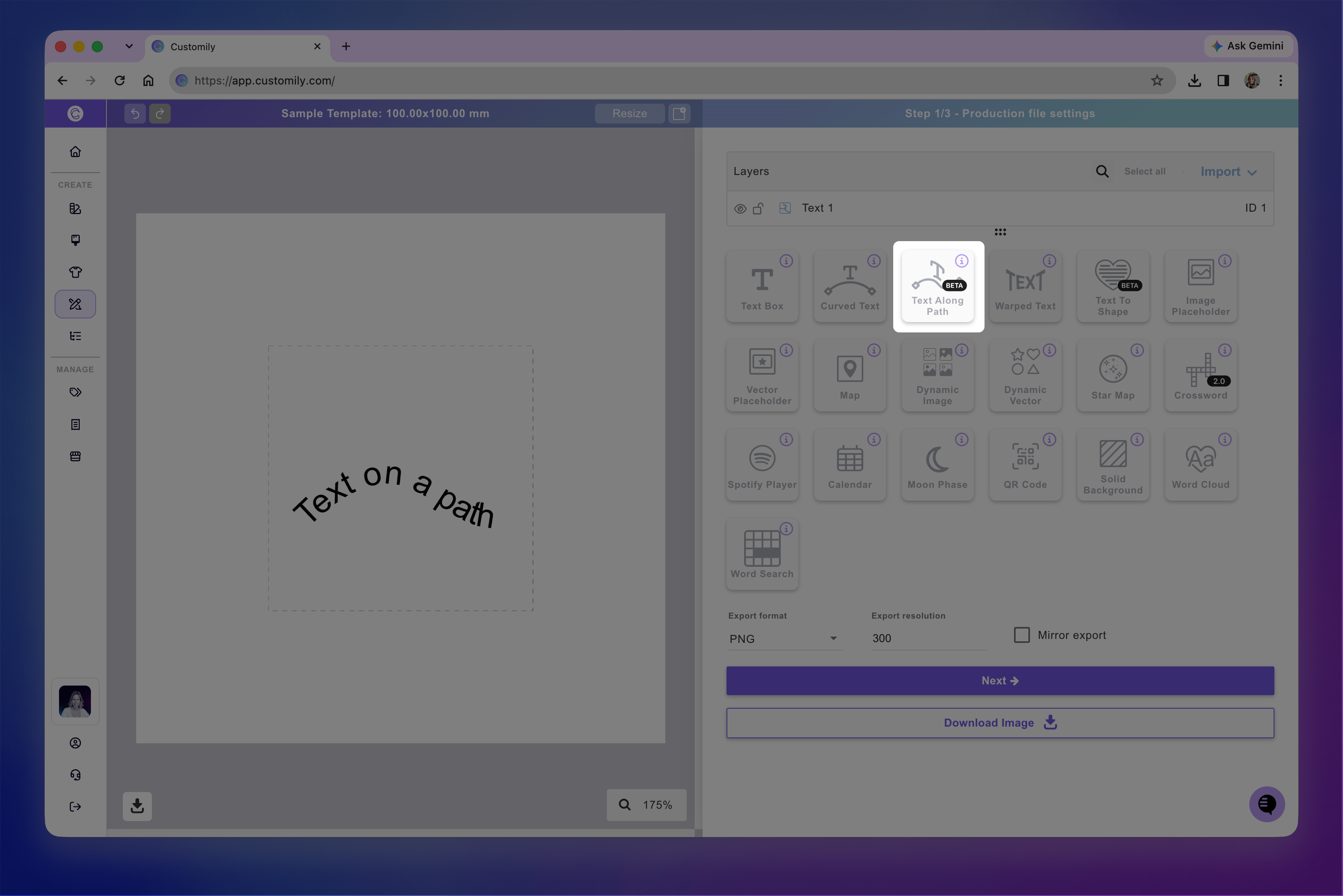
Each text on a path that you add will have a Name that you can edit, and a Unique Id for you to easily identify it.
Make text fixed or personalizable
By default, every text on a path you add is personalizable, meaning shoppers can change its content when customizing a product.
If you want to display fixed text that shoppers cannot edit, you can disable personalization for that element.
To make a text element fixed:
Select the text element.
Find the Personalizable setting.
Disable Personalizable.
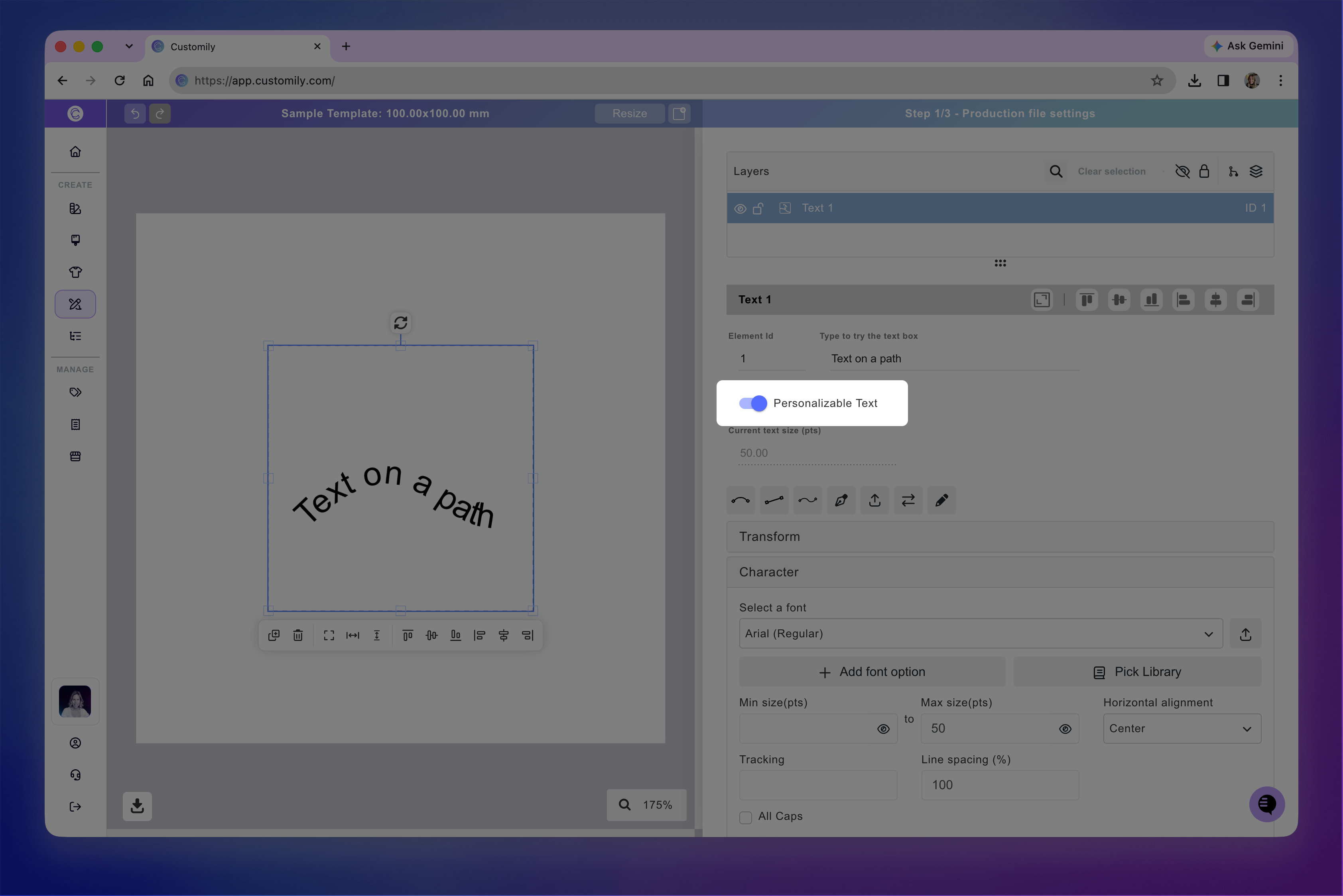
To make the text personalizable again, simply enable the setting.
How to edit the path
You can choose from predefined paths, draw your own, or upload an SVG path to control how the text flows.
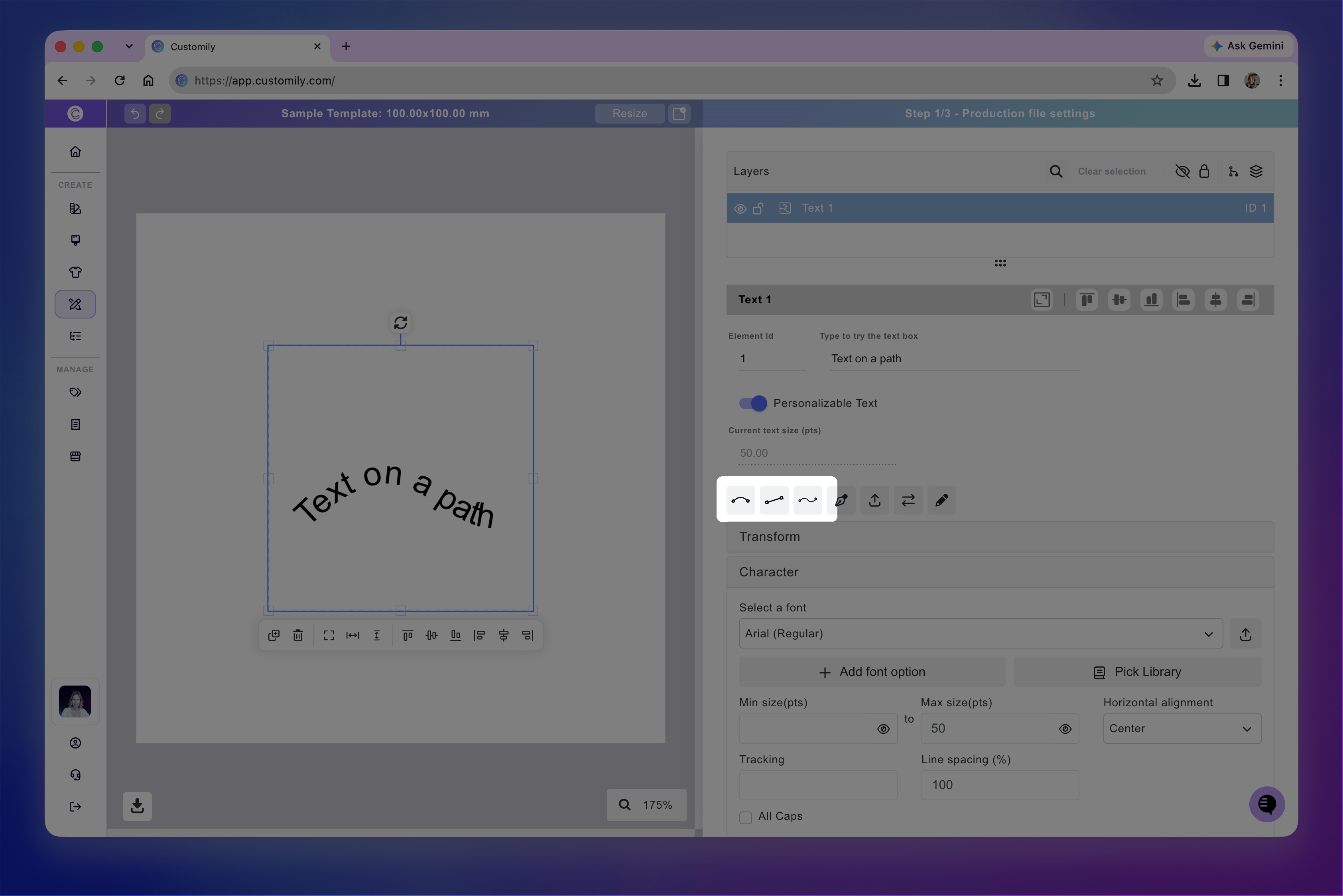
Choose a predefined path
Select the text on a path element.
Choose one of the predefined paths in the side panel to apply it to your text.
Draw a custom path
Select the text on a path element.
Click the pen icon to activate the drawing tool.
Draw a new path directly on the canvas for your text to follow.
Pres Esc to exit the drawing mode
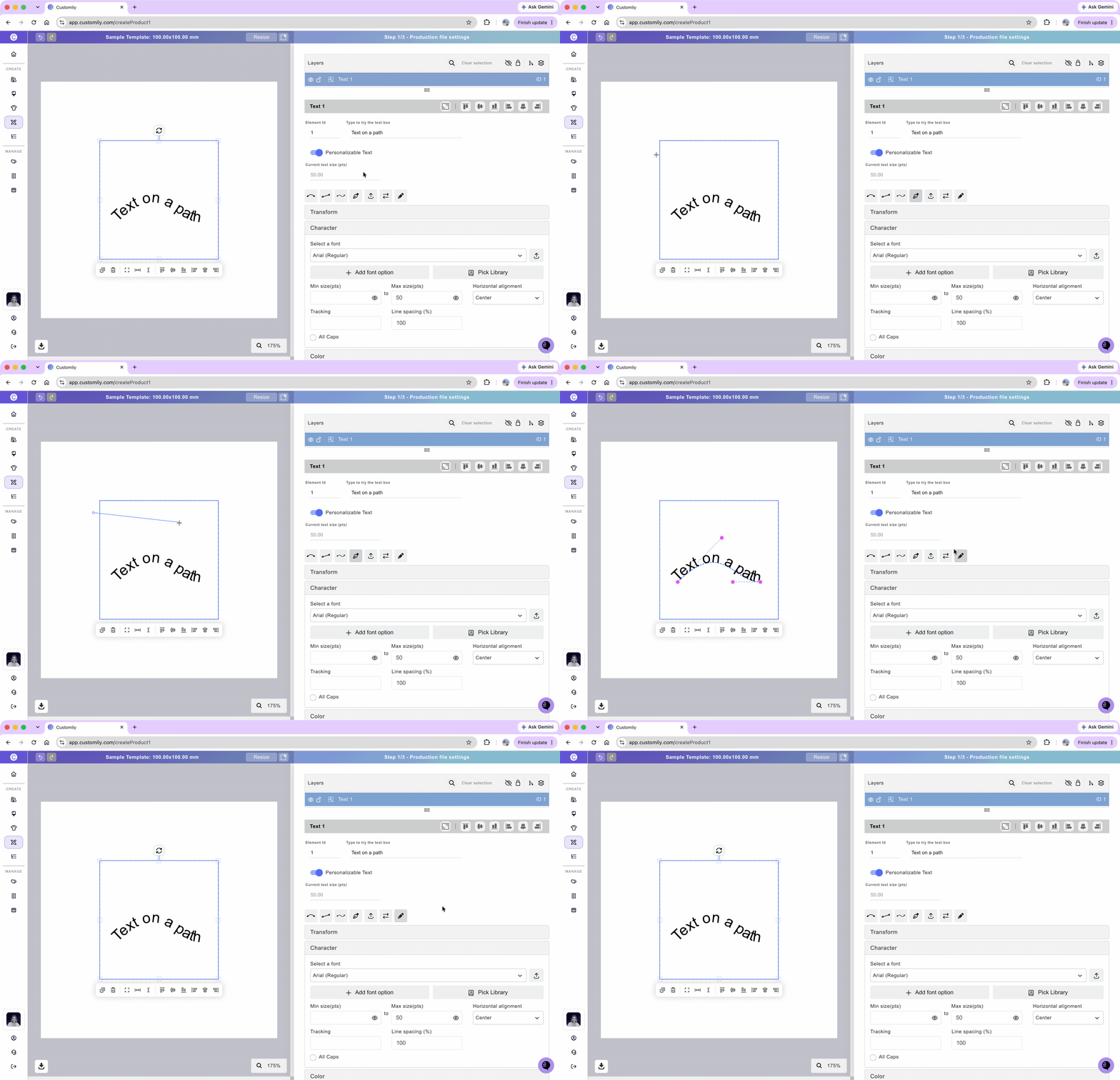
You can use these controls to create straight segments, smooth curves, waves, or more complex paths.
Edit an existing path
Select the text on a path element.
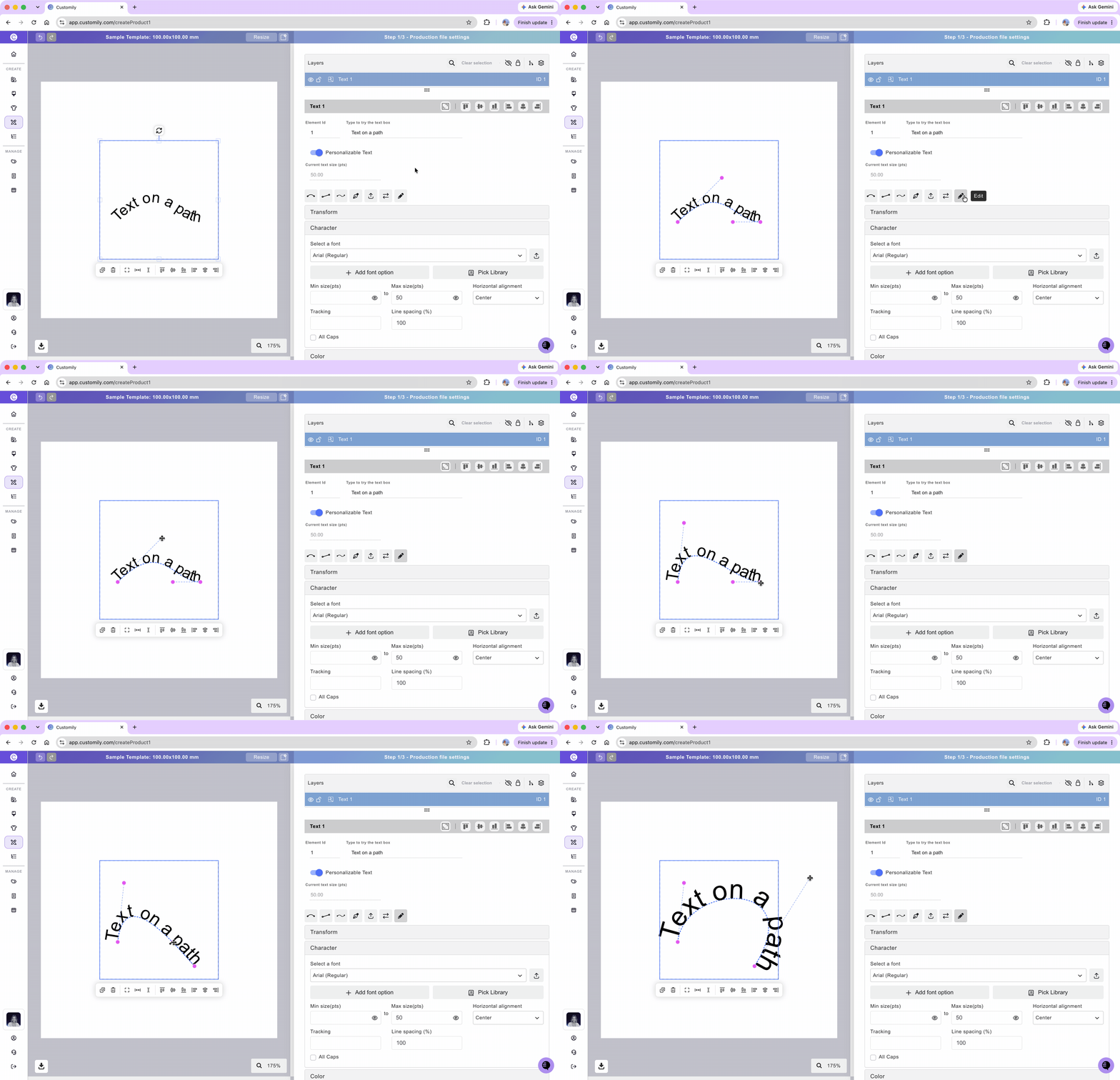
Click the pencil icon to enter path editing mode.
You'll see the path with draggable nodes and handles. You can:
Drag the nodes to change the shape and direction of the path.
Adjust the handles to control the curvature between nodes.
Upload an SVG path
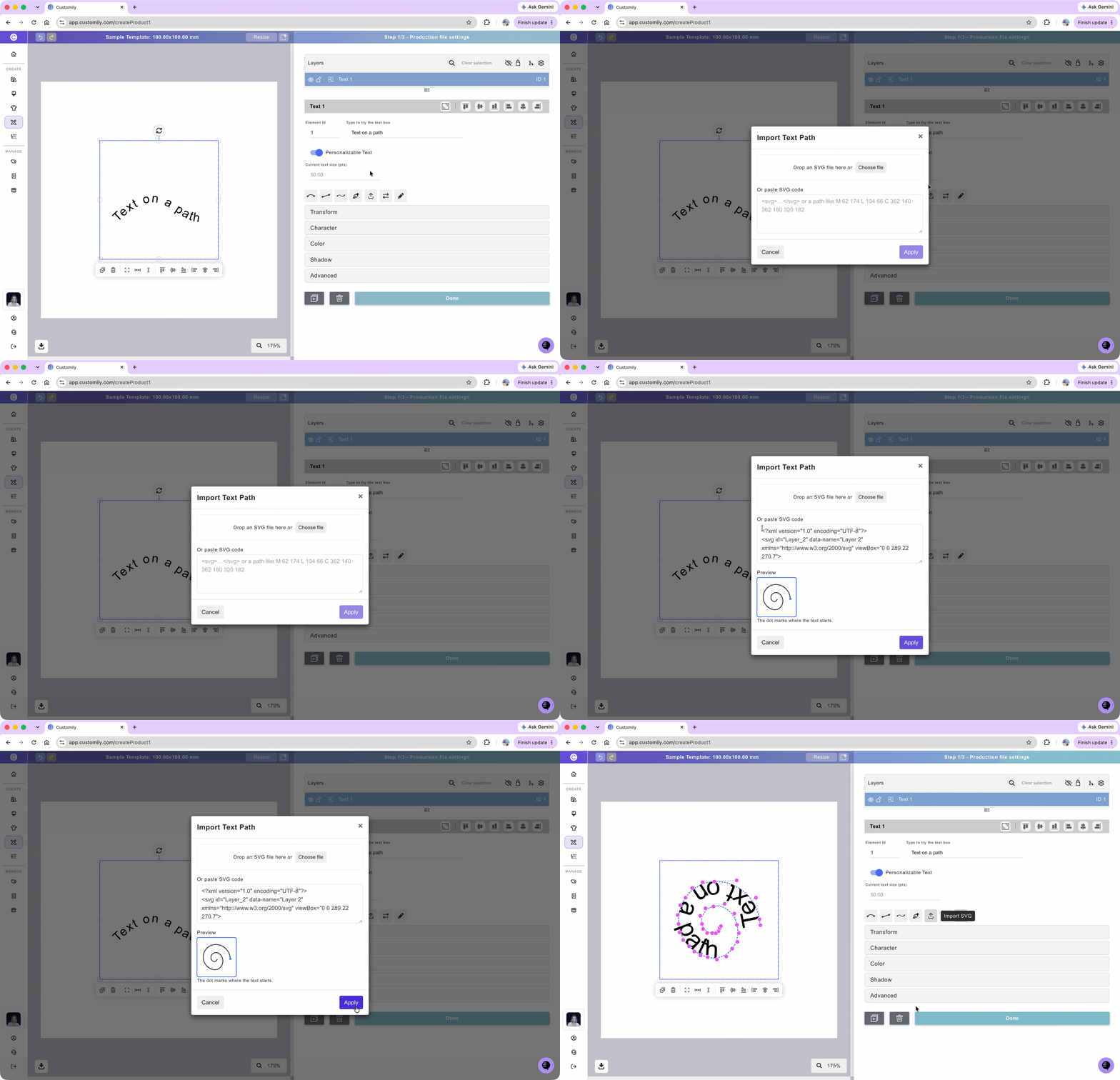
You can also use your own SVG path to create text that follows a custom shape.
Select the text on a path element.
Use the SVG upload option to import your path.
The text will follow the imported path.
Reverse the path
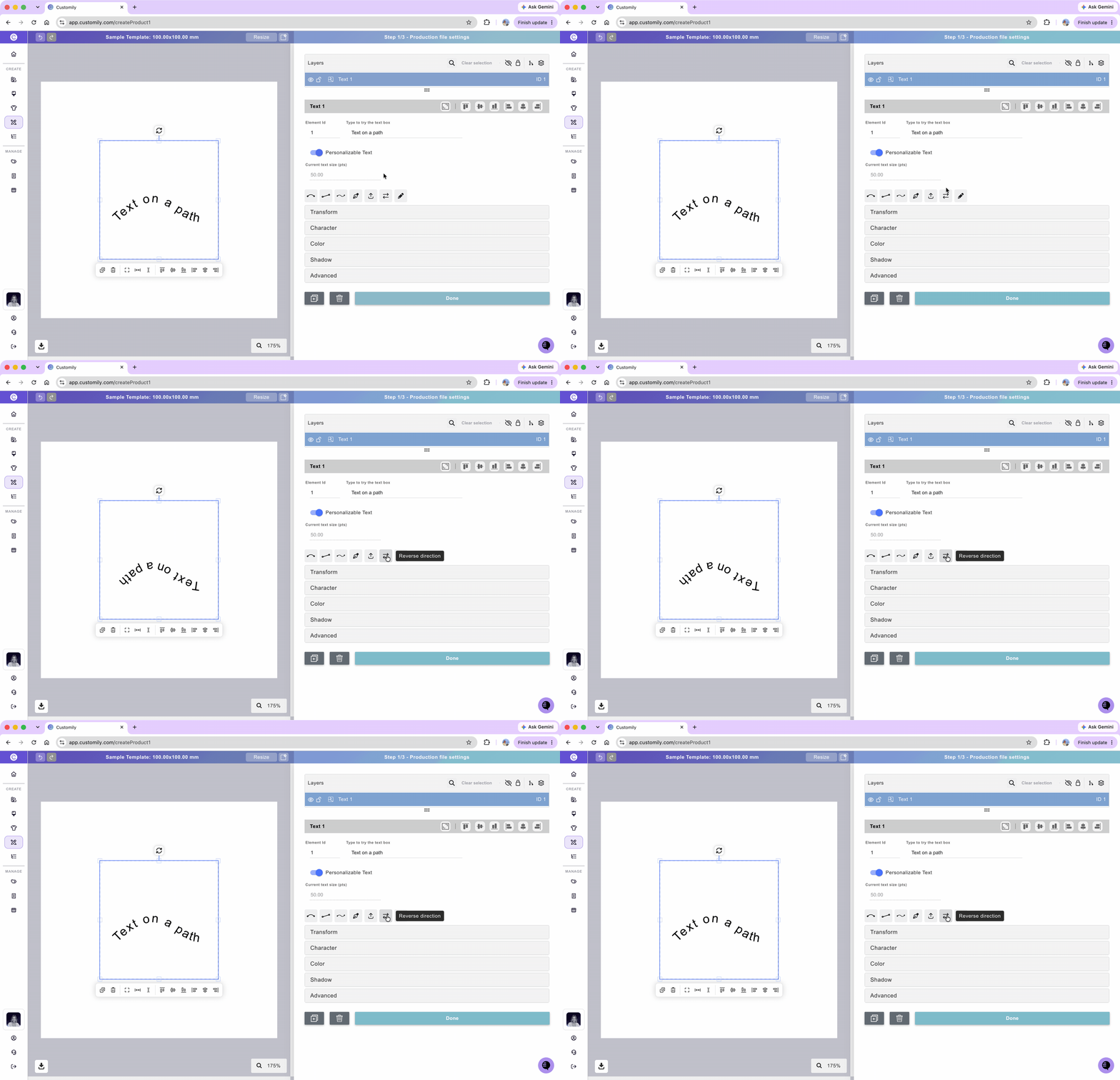
Use Reverse Path to change the direction of the path and how the text follows it.
This is useful when you want to switch the text to the opposite side of a curve, similar to changing between convex and concave curved text.
Note
Resizing or reshaping the path changes the line that the text follows, not the font size. To make the letters larger or smaller, adjust the font size in the Character toolbox.
How to move, resize and transform the text on a path
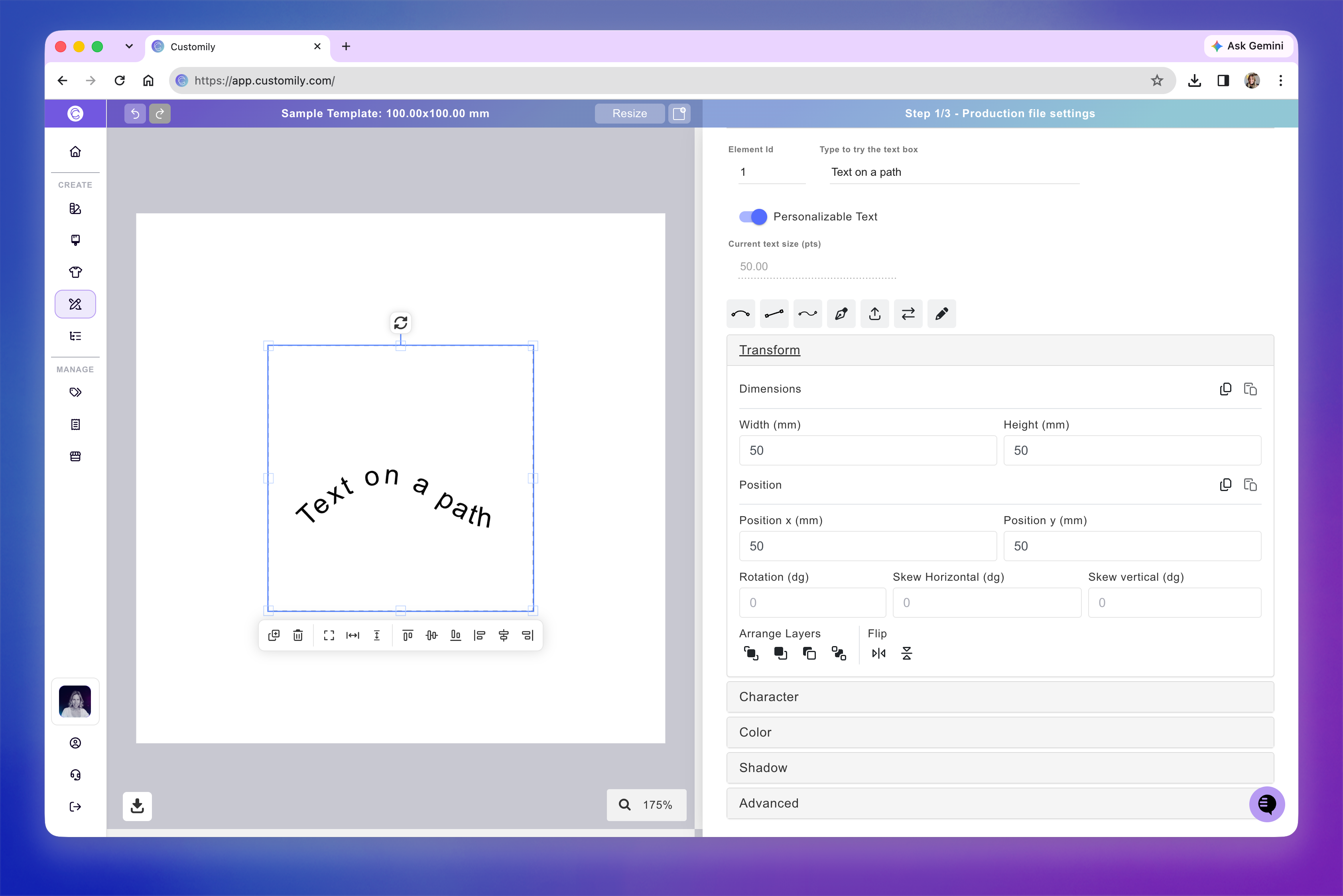
You can move, resize, and rotate a text on a path directly on the canvas.
When you select a text, a quick-action toolbar appears below it, with shortcuts to duplicate, delete, align, and distribute elements.
For more precise adjustments, expand the Transform toolbox. Use these controls to adjust the text's position, rotation, size, skew, flip, and layer order.
For detailed instructions on each transformation, see 📄 Transforming an element.
How to style and format the text on a path
Select the text element and expand the Character toolbox to customize its font, size, alignment, spacing, and other formatting options.
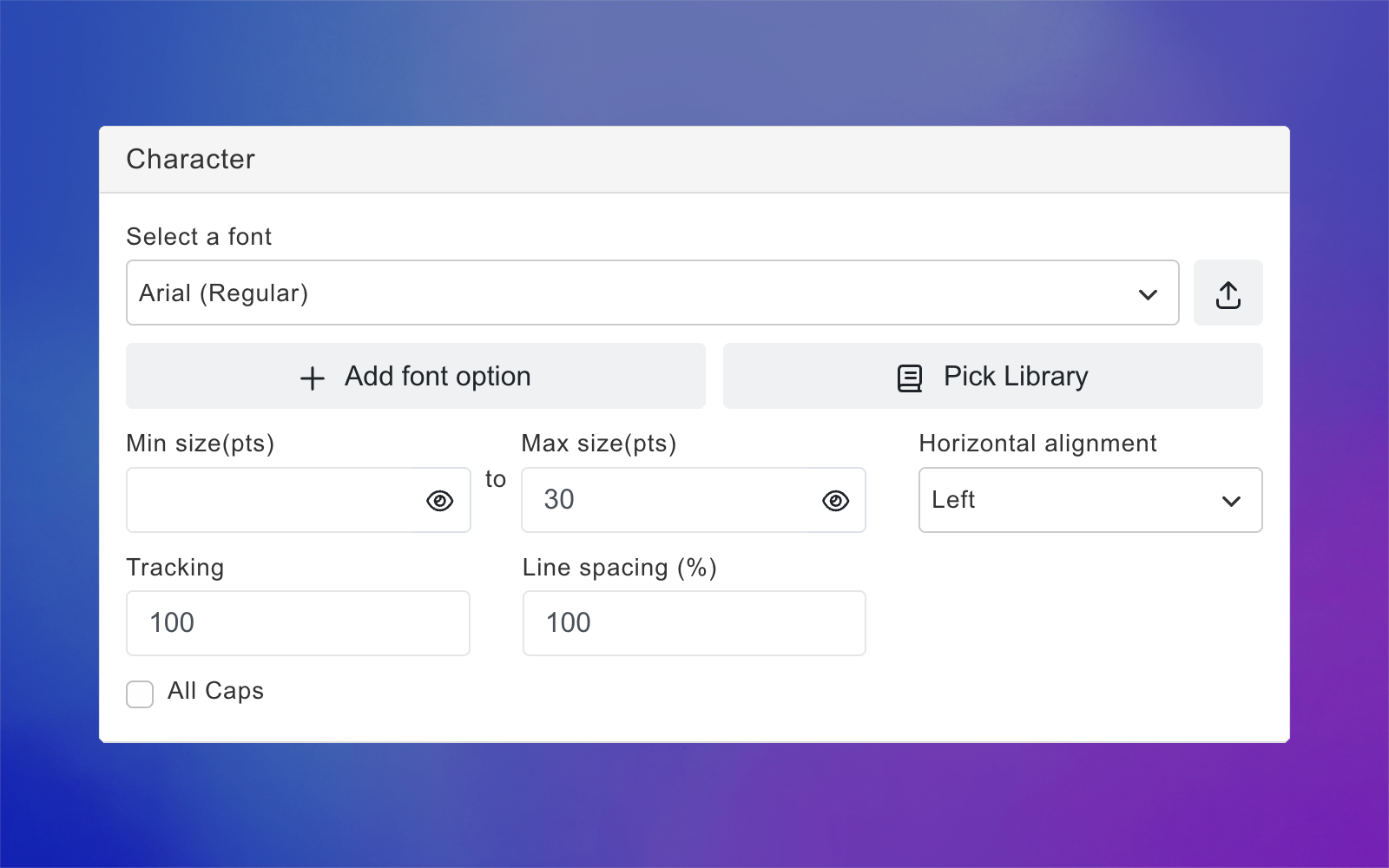
Font Option
You can apply one or multiple fonts to a text on a path.
Select the text element
Expand the Character toolbox
Click to expand the Select a Font list
Pick a font from the list
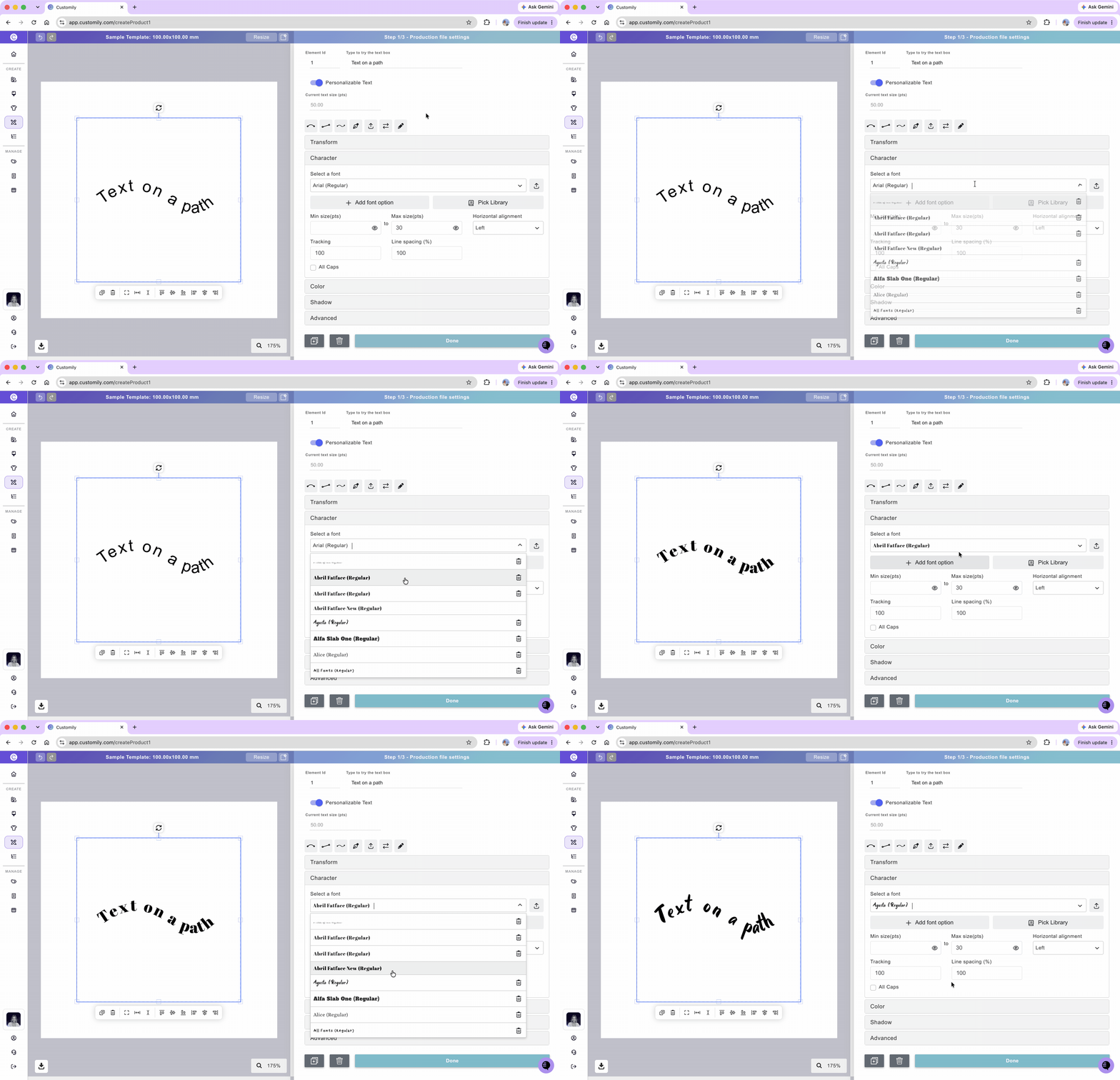
New accounts will just have a couple fonts available. You can easily add as many fonts as you want to your font list.
To learn how to add your own fonts see 📄 Upload custom fonts
Tip
You can add multiple font options to a text element by using a Font Library or clicking + Add font option to select additional fonts.
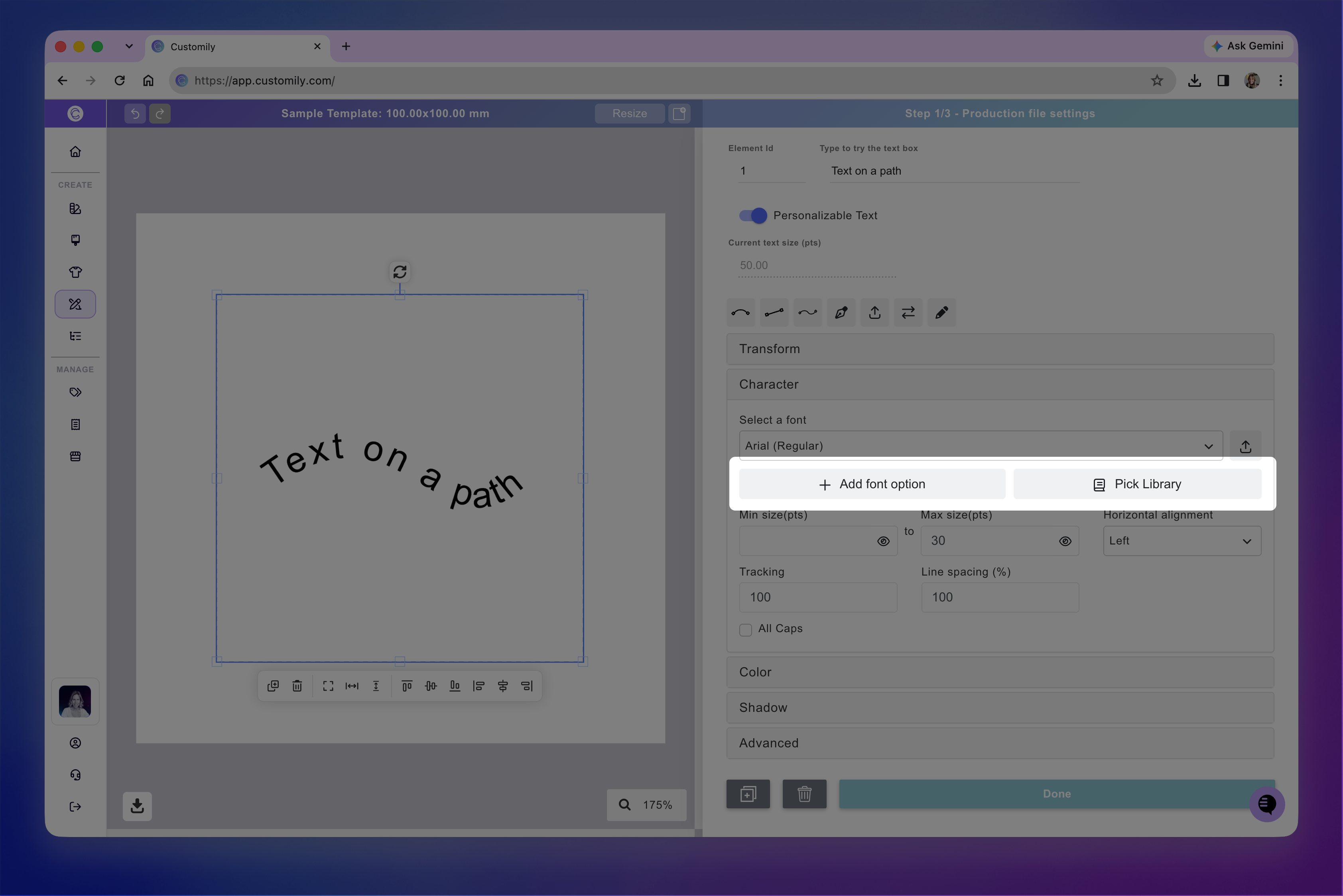
For detailed instructions, see 📄 Text with multiple font options.
Font Size
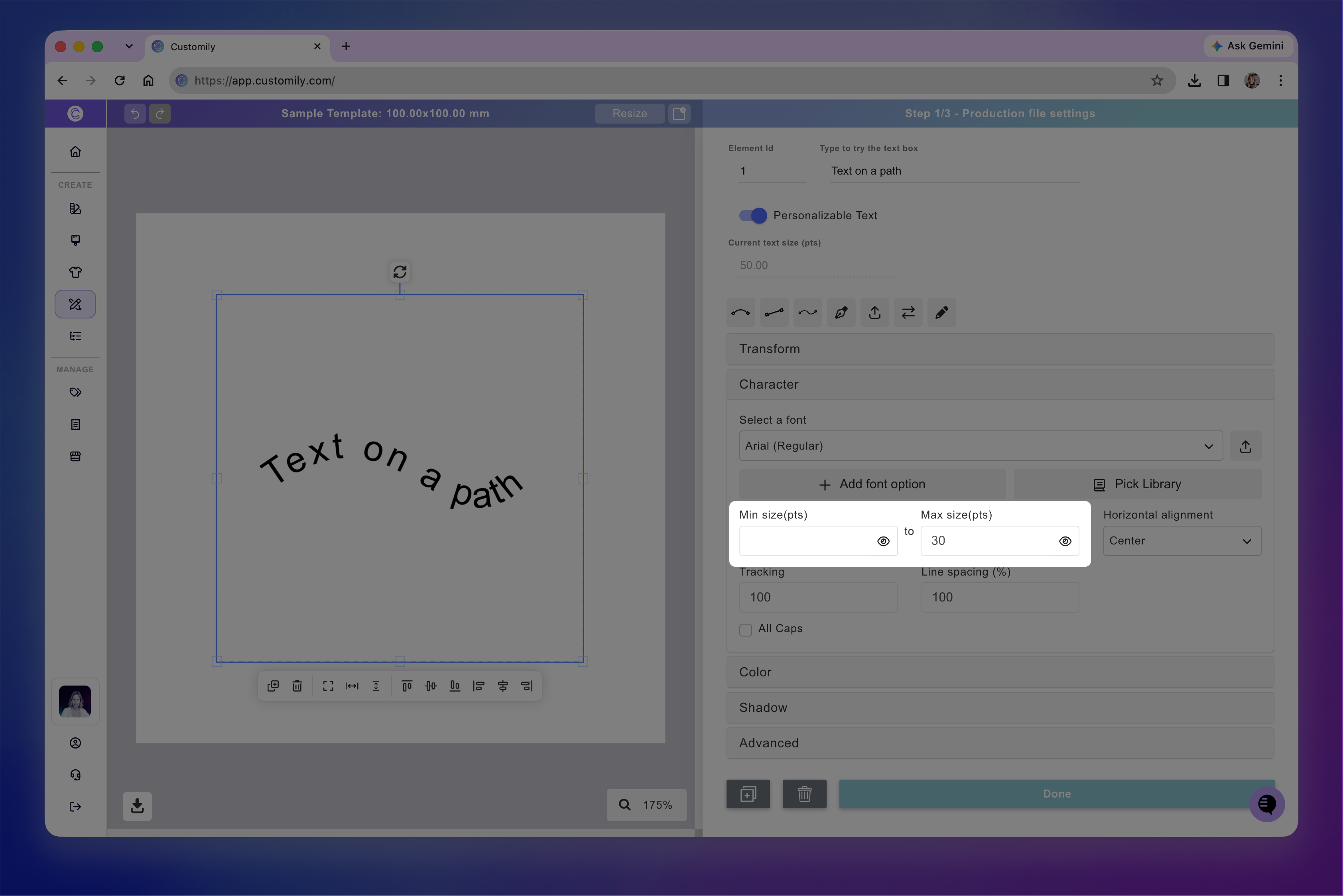
Texts on a path in Customily have a font size range, meaning you can set a minimum and a maximum font size. This is to allow text to resize when customers type something super long (making the text smaller to fit more characters).
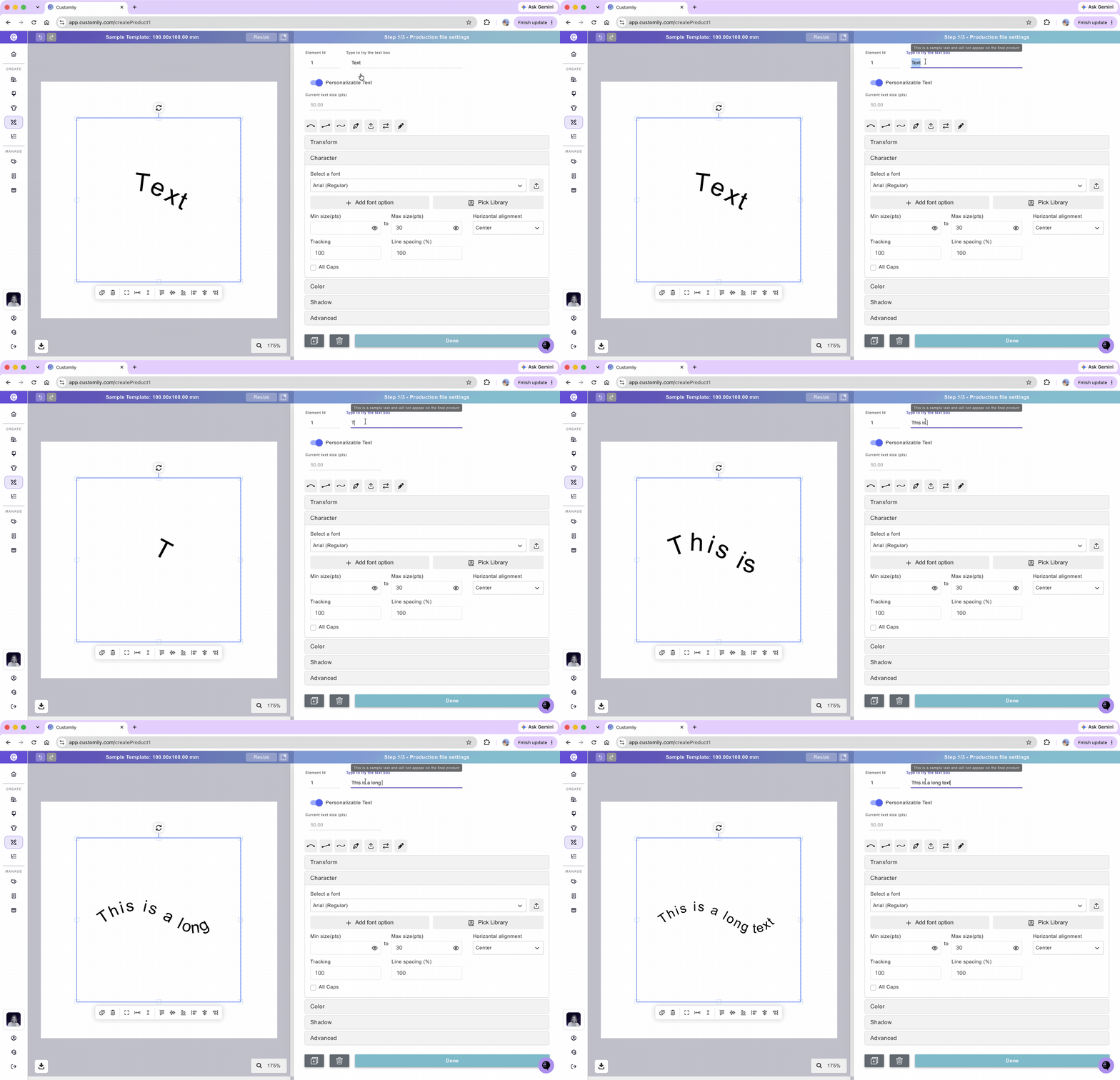
We recommend using the Max Size as the size that you want. The Min Size will be the limit of the resizing, to ensure that small texts still look good and are printable, leaving the value that comes by default is a great choice. If you don't want the text to be able to resize at all, you should use the same value on both.
Select the text element
Expand the Character toolbox
Type in the Max (and Min if desired) font size in points (pts)
Alignment
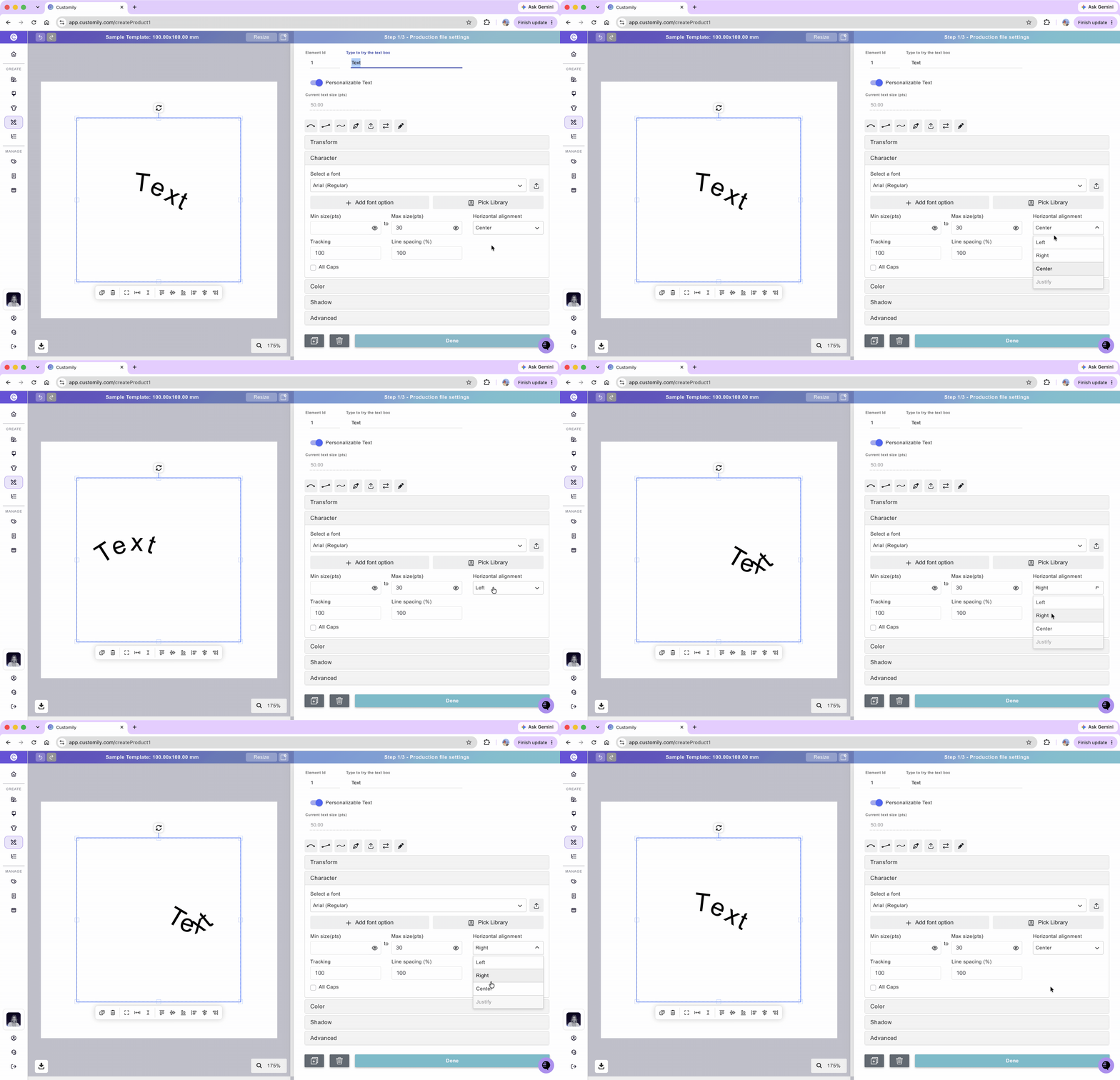
You can align a text along the path:
Left, Center, Right
Select the text element
Expand the Character toolbox
Select from the dropdown the Alignment
Tracking and Line Spacing
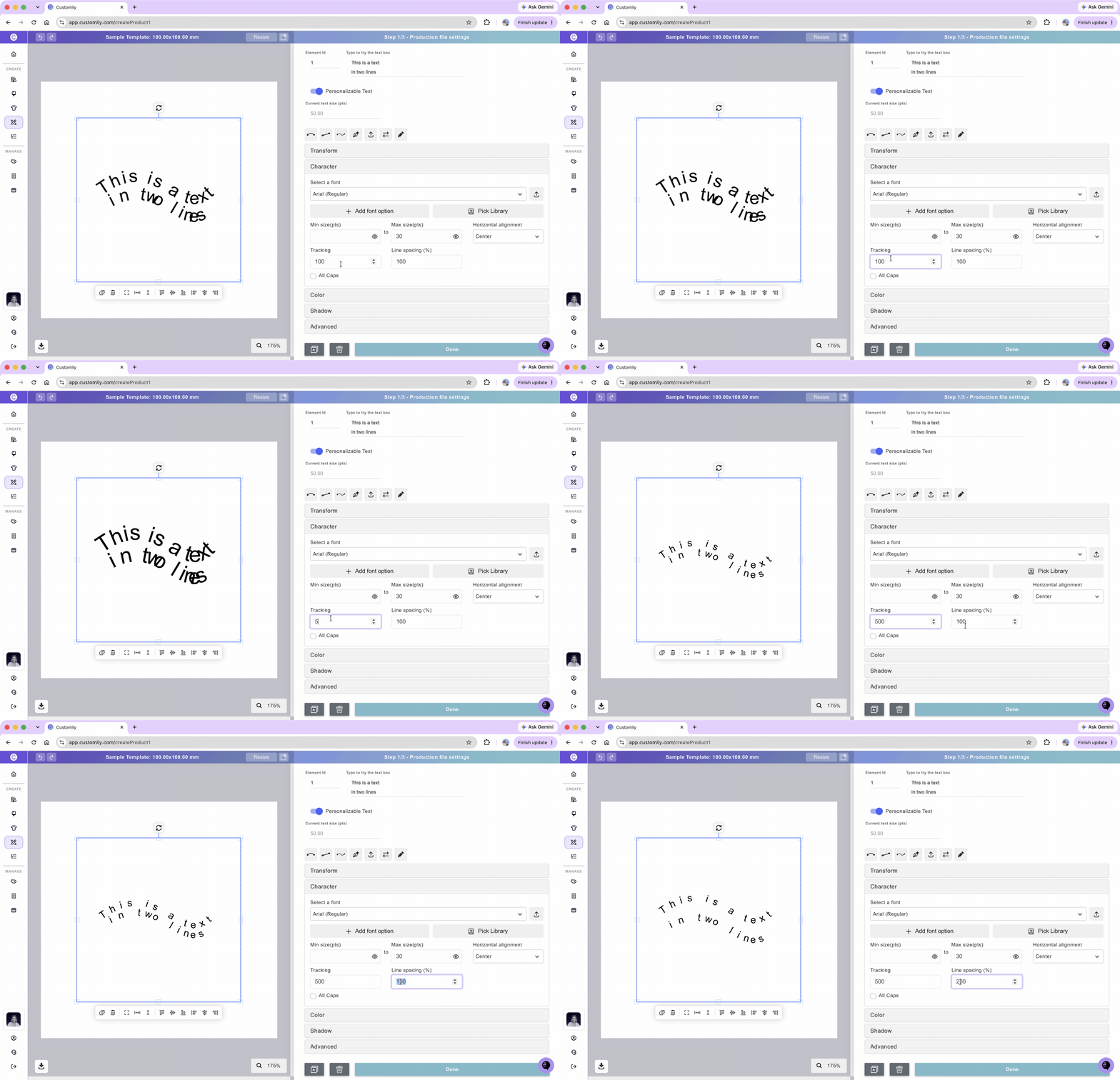
You can adjust the tracking (character spacing) and/or leading (line spacing) of your text by inputting the values. Both tracking and leading are expressed in %.
Select the text element
Expand the Character toolbox
Type in a value you want for Tracking or Line Spacing.
All Caps
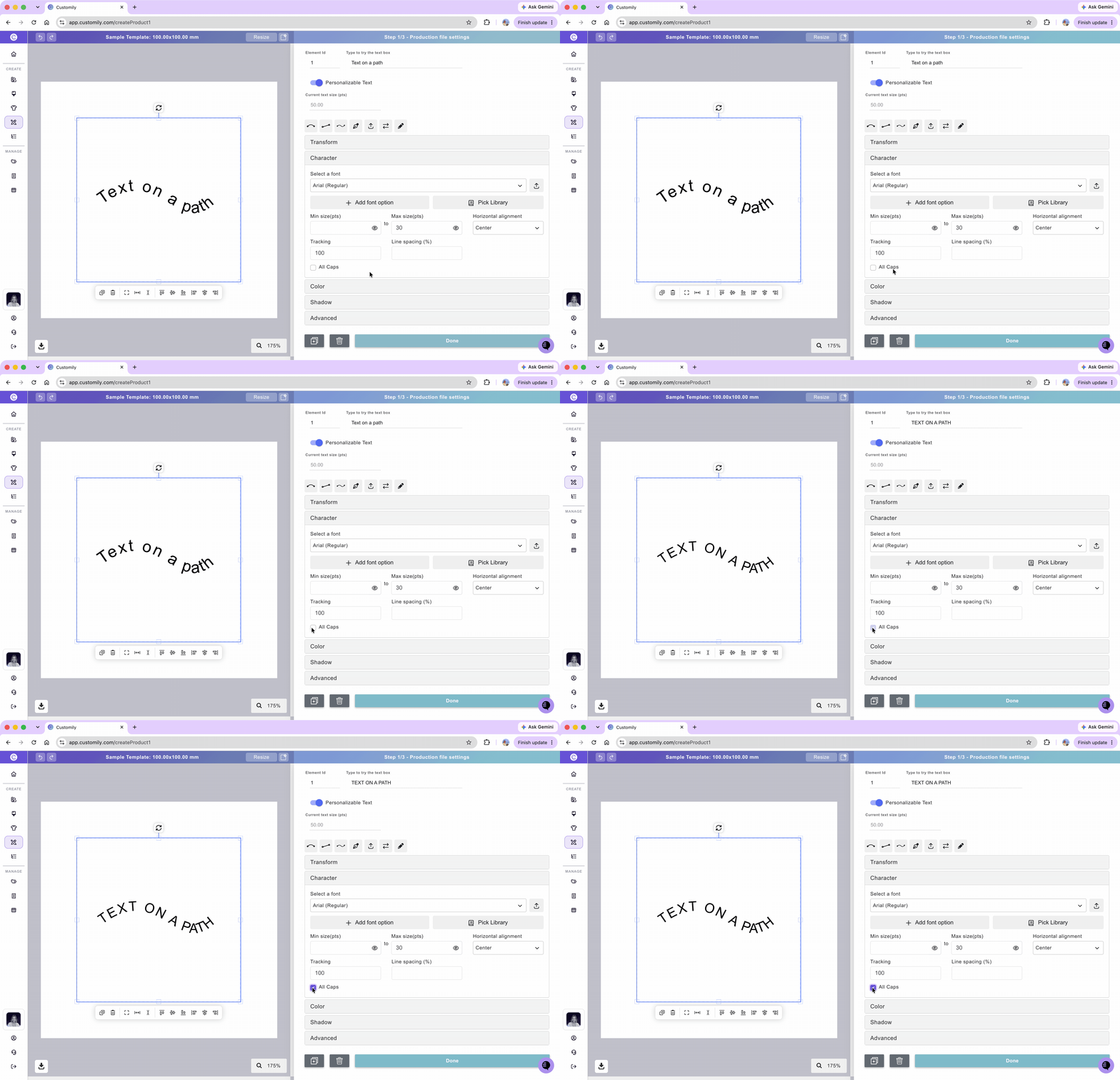
By checking All Caps, you'll force whatever text a customer types into capital letters.
Select the text element
Expand the Character toolbox
Click the All caps checkbox
How to apply color, outlines, and textures
Select the text element and expand the Color toolbox to customize its fill color and stroke.
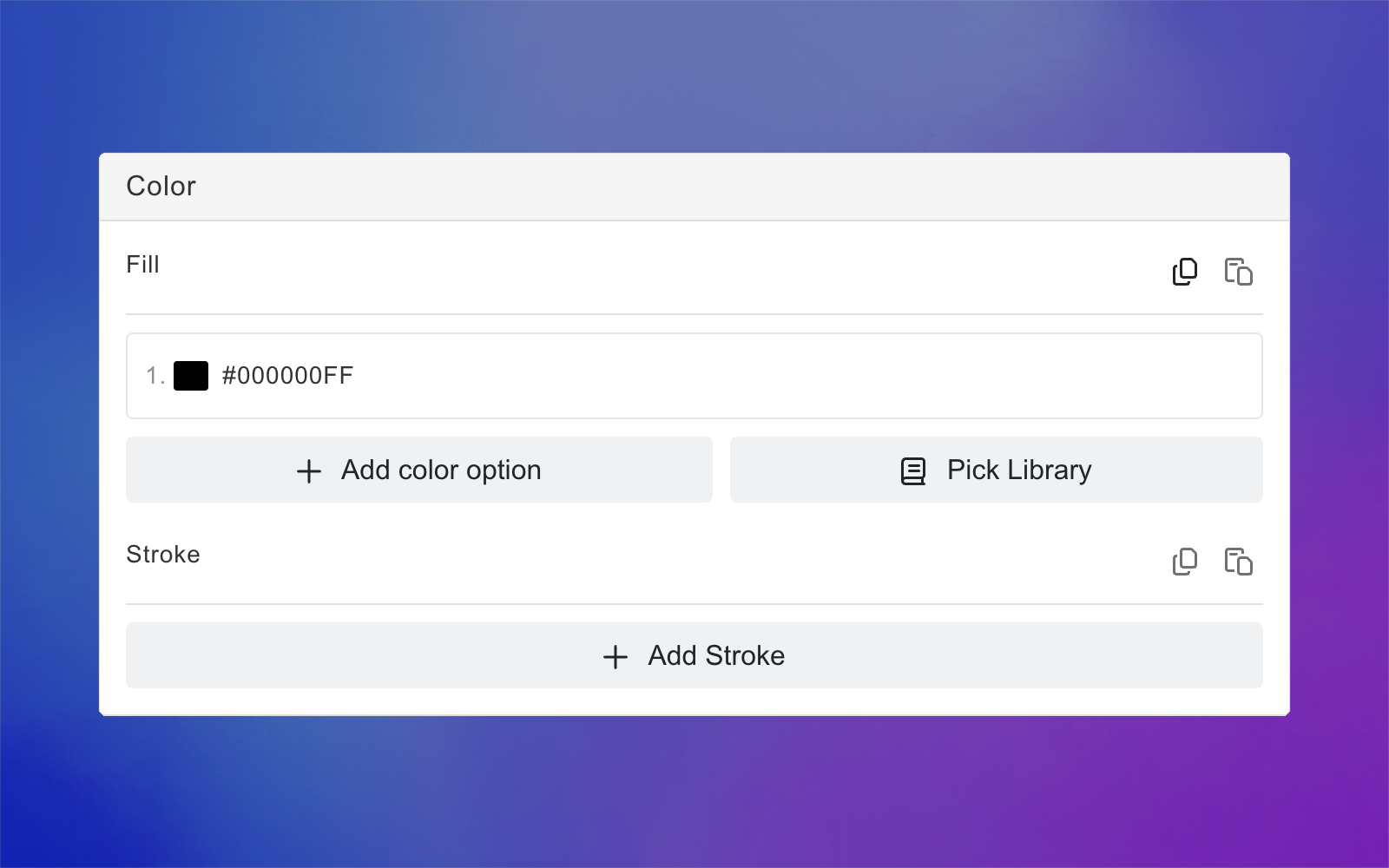
Fill Color
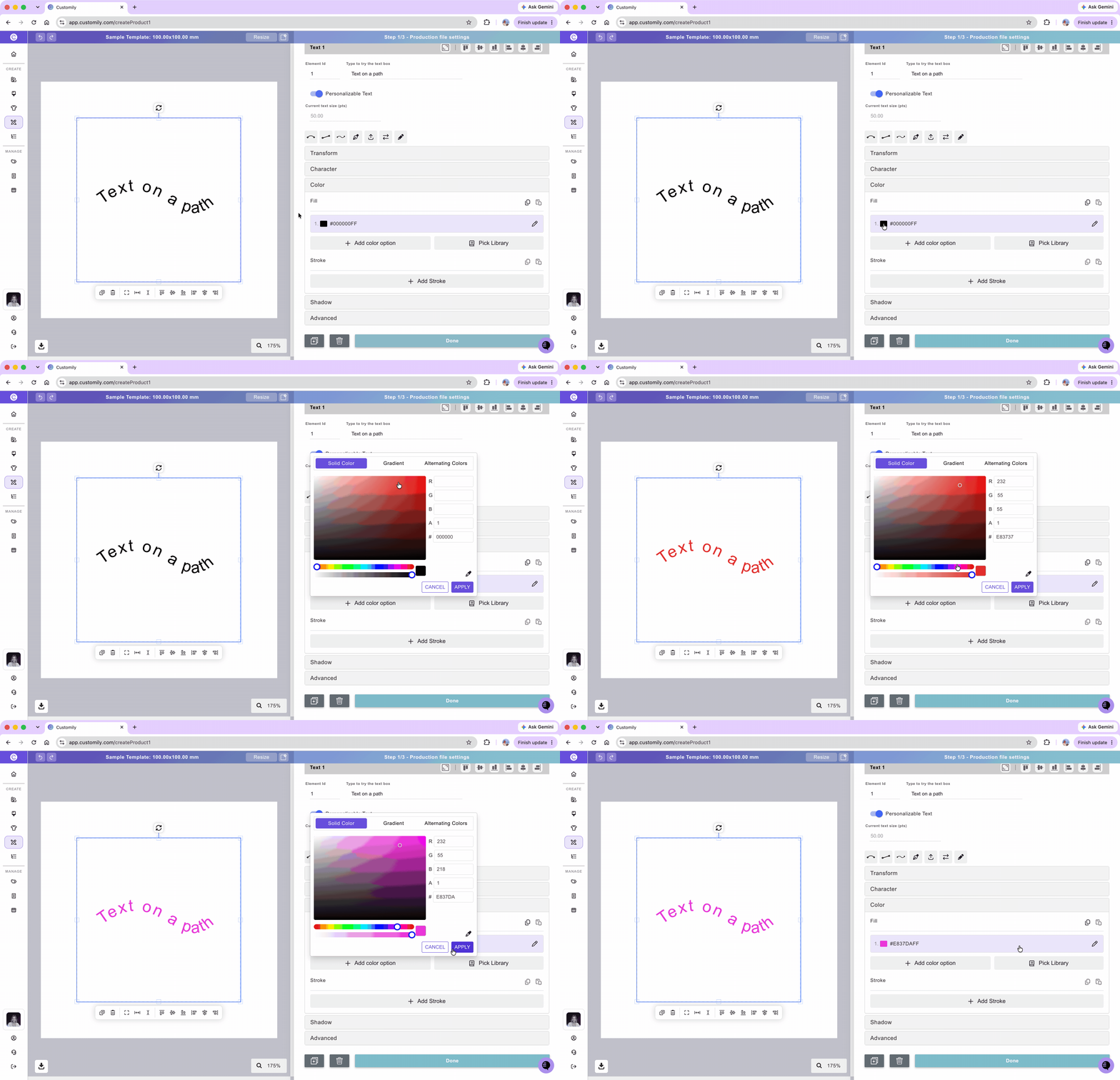
You can apply one or multiple fill colors to a text on a path. You can assign colors by Hex value, RGB-A, CMYK-A, or by using a color picker. The color chart will change from RGB-A to CMYK-A, according to the color mode of your workspace. The A stands for Alpha, which means you can also add transparency to your text colors!
When setting the fill, you can now choose between different coloring styles:
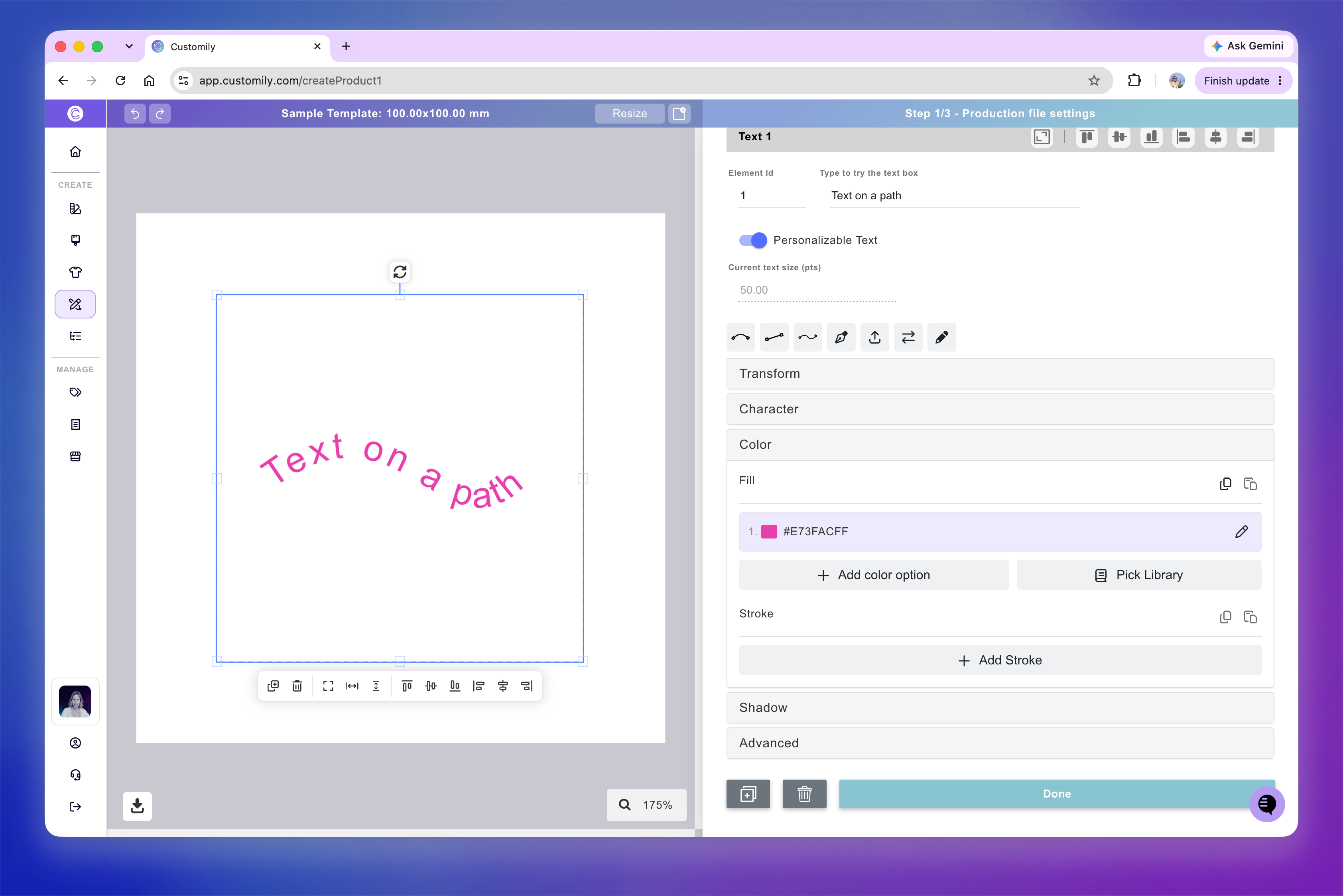
Solid
Apply a single color to the entire text.
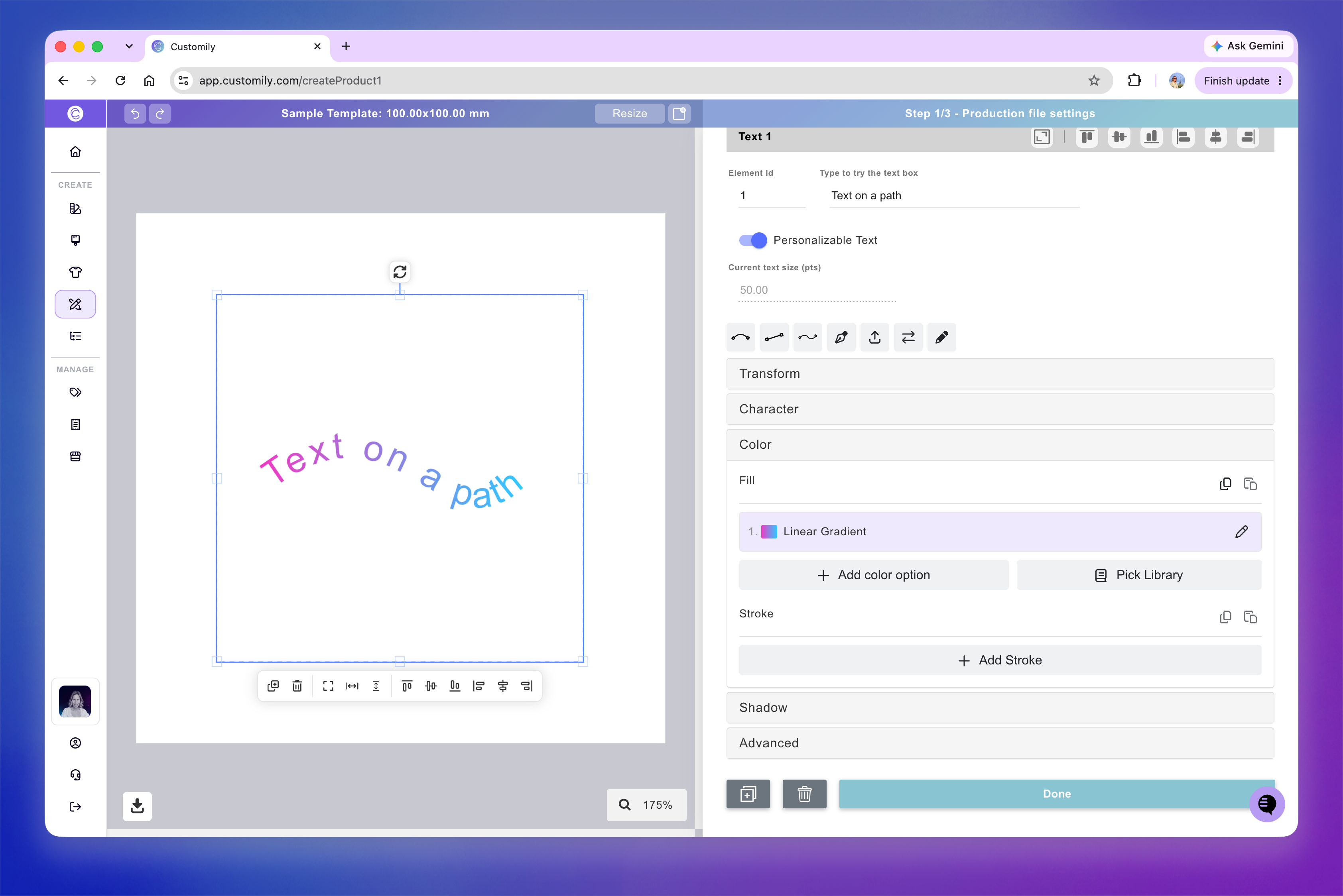
Gradient
Blend two or more colors smoothly across the text.
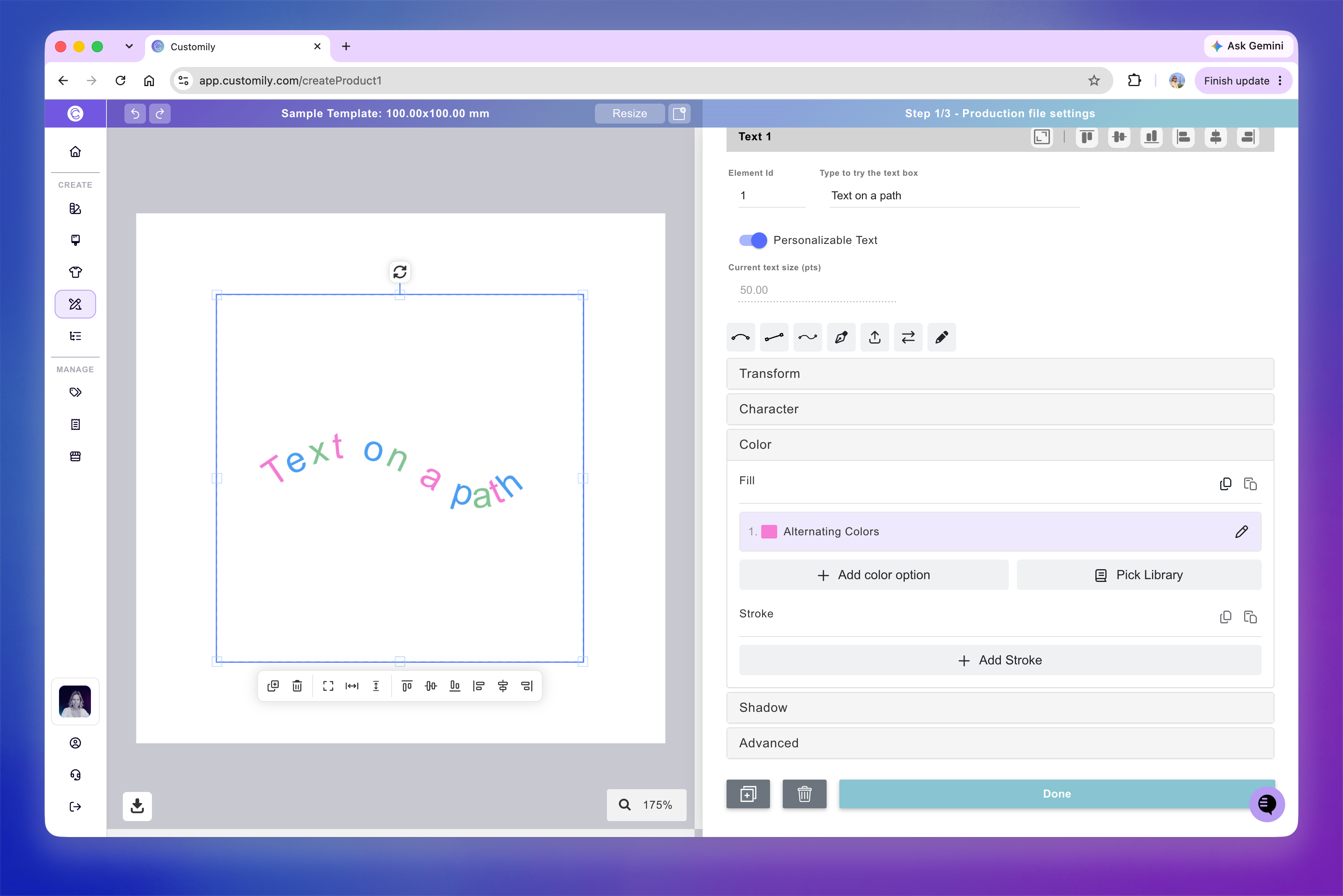
Alternating colors
Apply different colors to letters in a repeating sequence.
Select the text on a path
Expand the Color toolbox
Click the color swatch or the pencil to select a color.
Choose your coloring style: Solid, Gradient, or Alternating.
Using the swatch you can add colors with Hex, RGB-A, or CMYK-A values (the last 2 depend on the color mode of your design). You can also use the color picker to choose a color from your screen. If you want to add transparency, just slide the Alpha control on the bottom of the chart.
Click Apply
Tip
You can add multiple color options to a text element by using a Color Library or clicking +Add color option to select additional colors.

For detailed instructions, see 📄 Text with multiple color options
Stroke
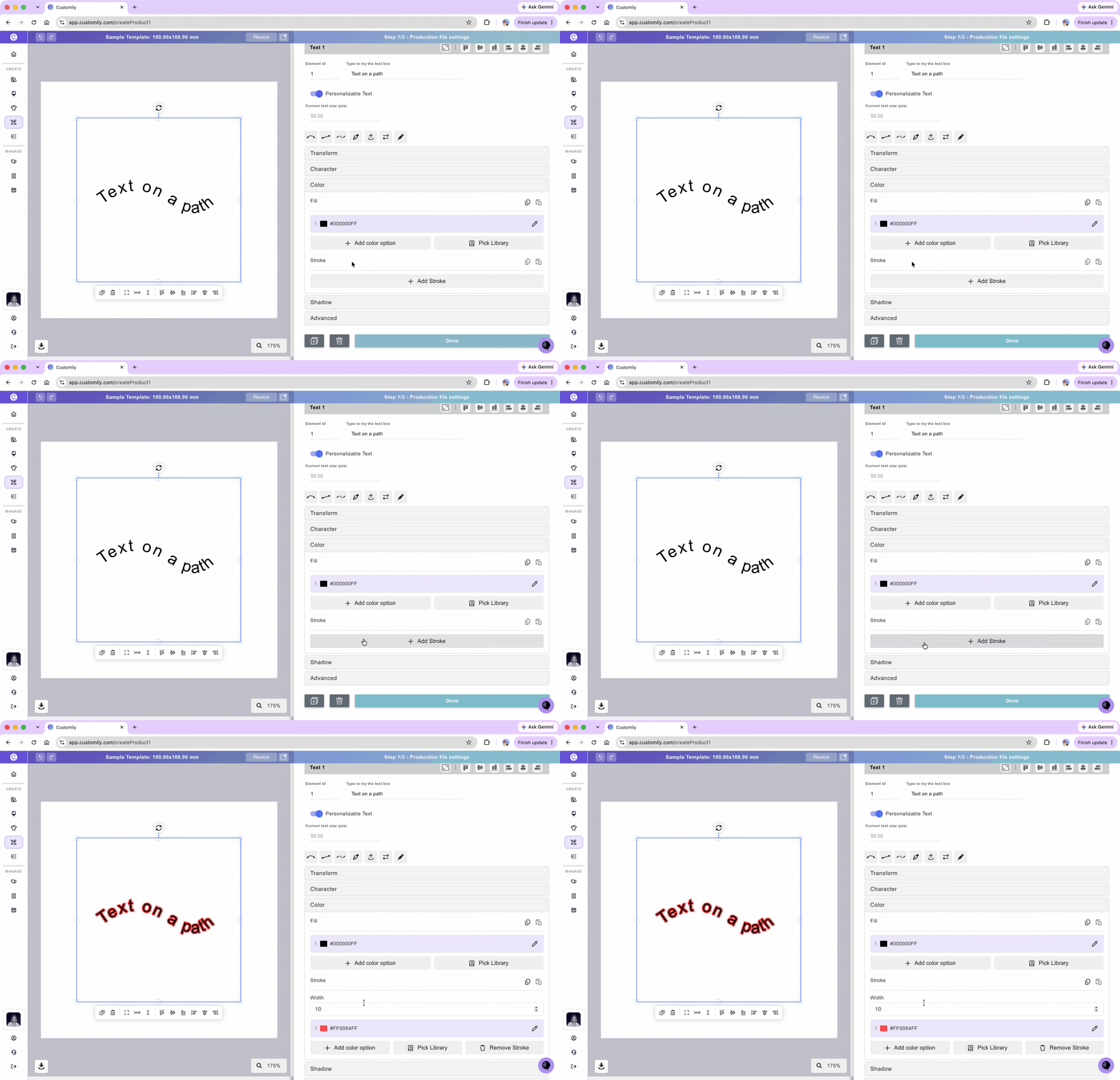
You can apply a colored stroke to the text element, this can be a different color from the fill color. The stroke will apply to the text always, so if you have multiple font options and multiple color options, the stroke will apply to all of them.
Select the text text on a path.
Expand the Color toolbox.
Under Stroke, click Add Stroke.
Adjust the stroke width and choose its color. You can add multiple colors if needed.
Tip
You can add multiple color options to the stroke by using a Color Library or clicking +Add color option to select additional colors.
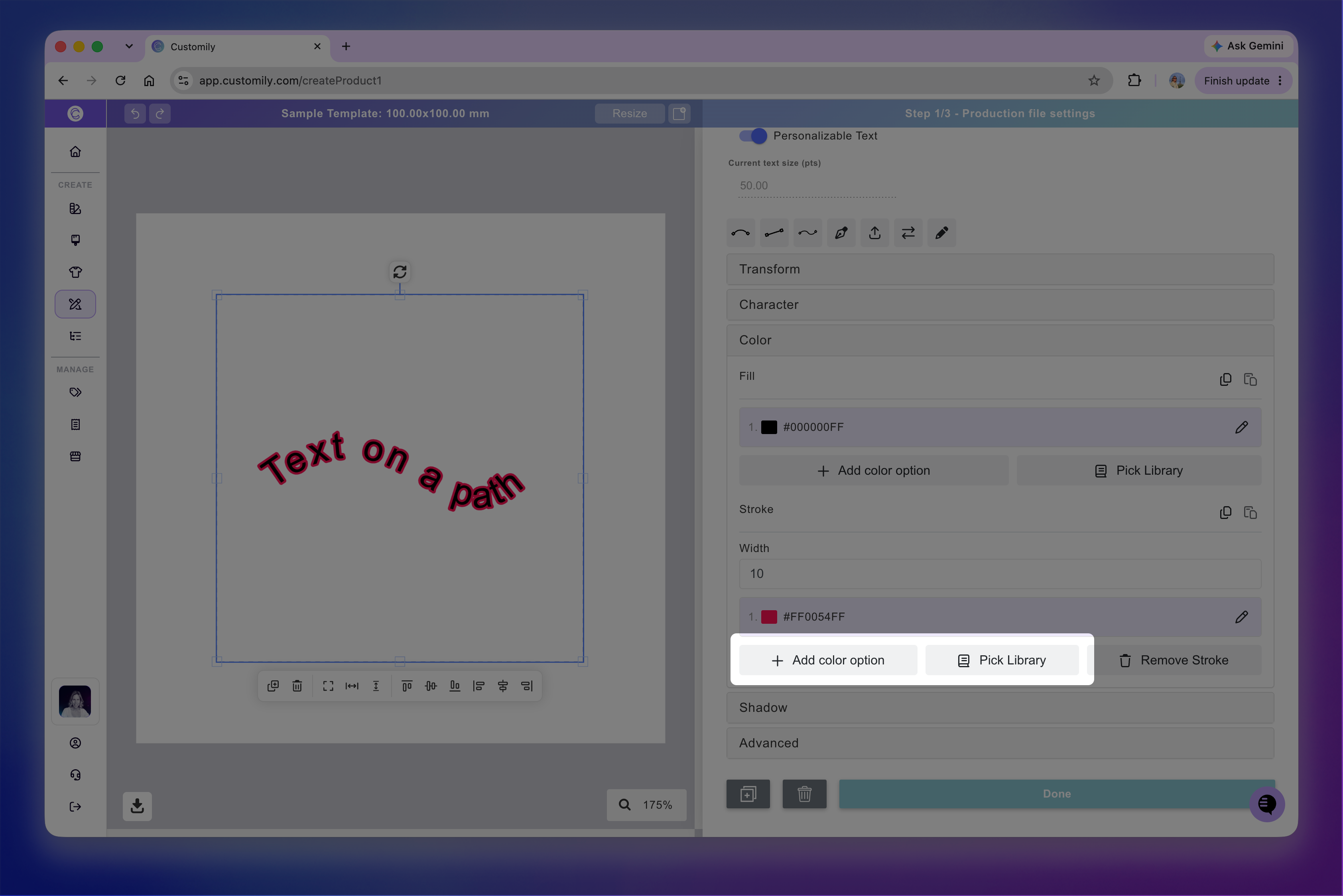
For detailed instructions, see 📄 Text with multiple color options
How to apply a shadow
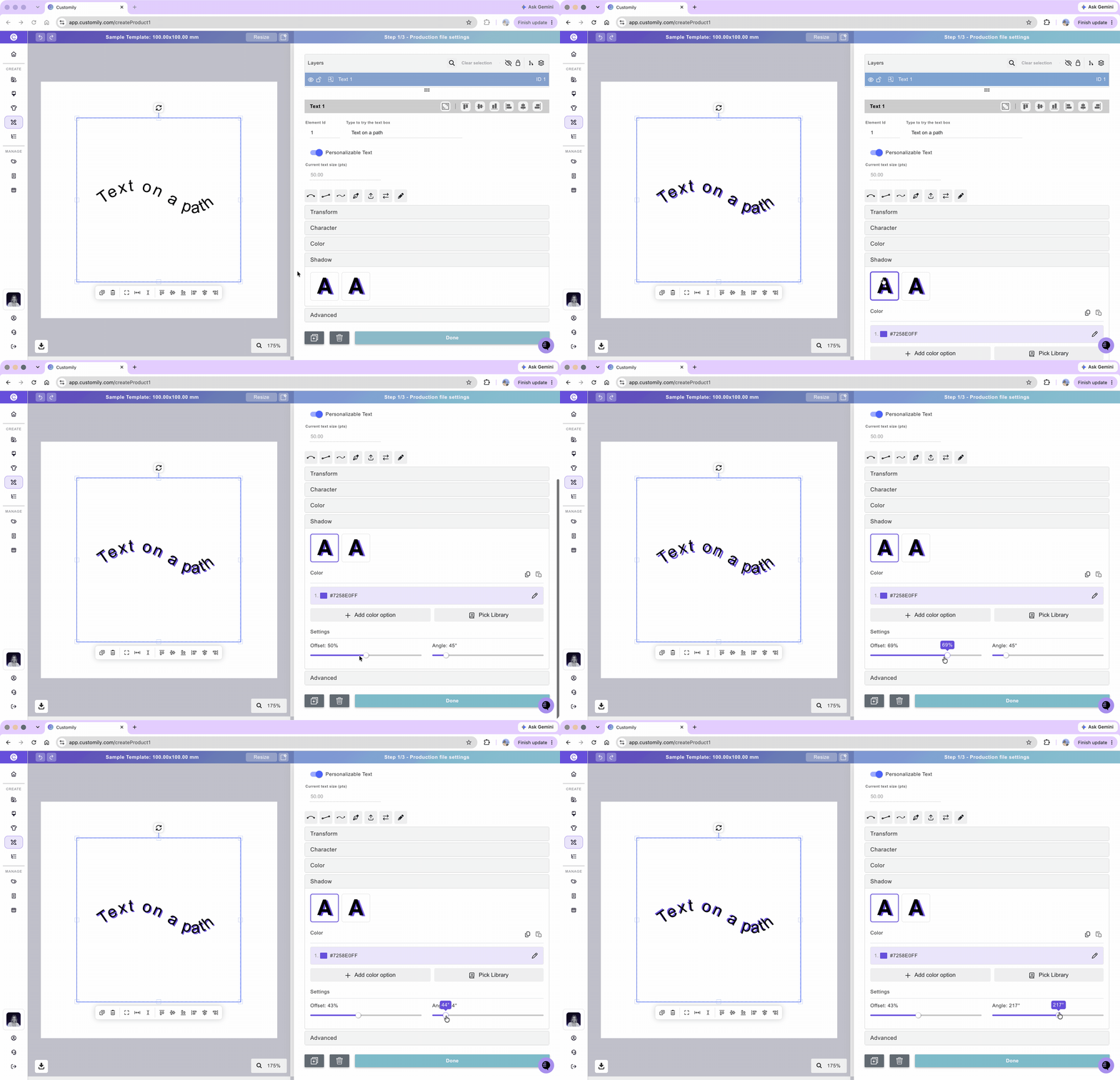
You can add a shadow to a text on a path to create depth, contrast, or a soft glow effect.
Choose between two shadow styles:
Solid shadow: Creates a sharp, defined shadow behind the text.
Blurred shadow: Creates a softer shadow with adjustable blur, which can also be used to create a glow effect.
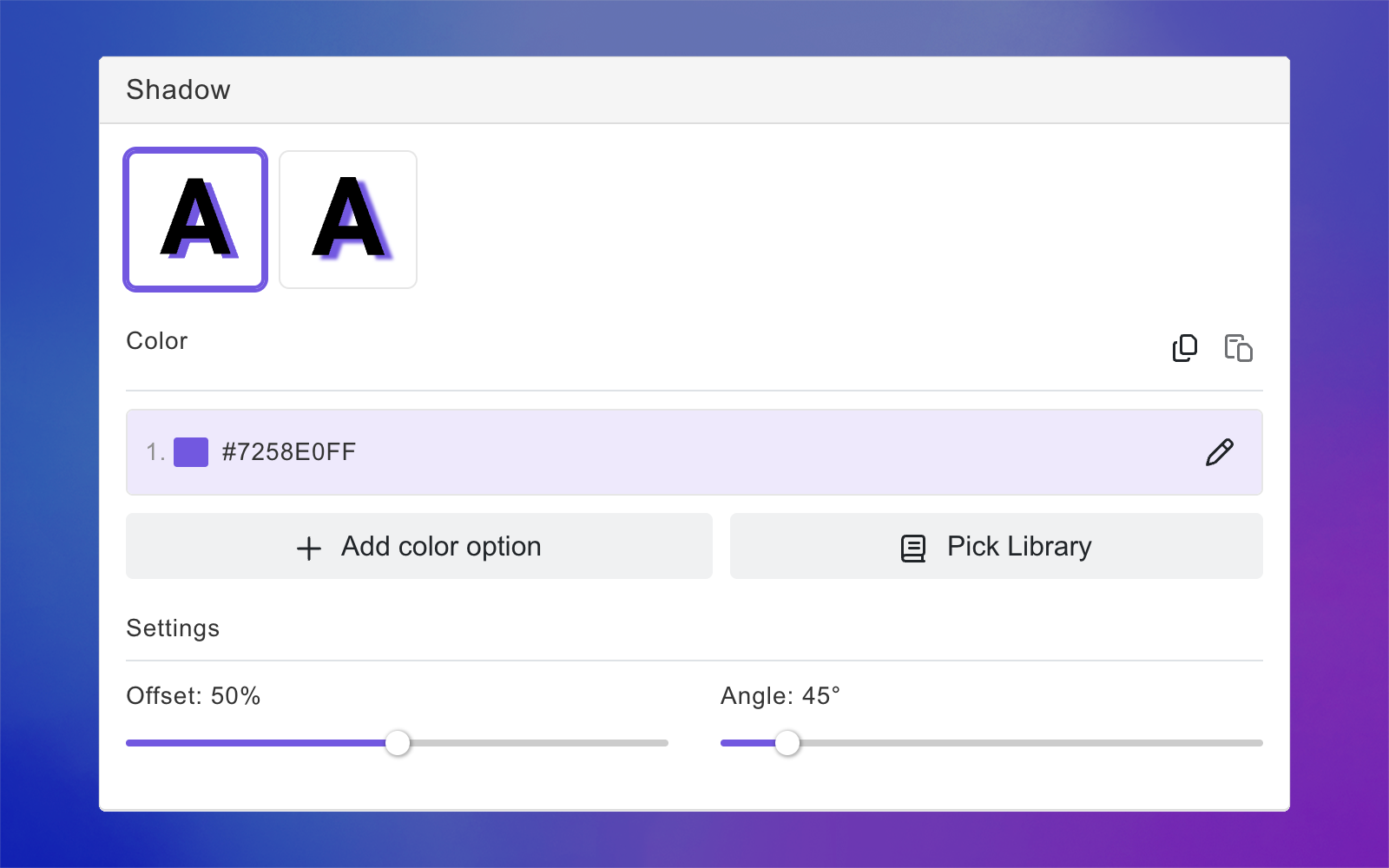
To apply a shadow:
Select the text element.
Expand the Shadow toolbox.
Choose between a solid or blurred shadow.
Click the color swatch to select the shadow color.
Adjust the Offset and Angle to position the shadow.
If using a blurred shadow, adjust the Blur slider to control its softness.
To remove a shadow, click the currently selected shadow style again to deselect it.
Tip
You can add multiple color options to the shadow by using a Color Library or clicking +Add color option to select additional colors.
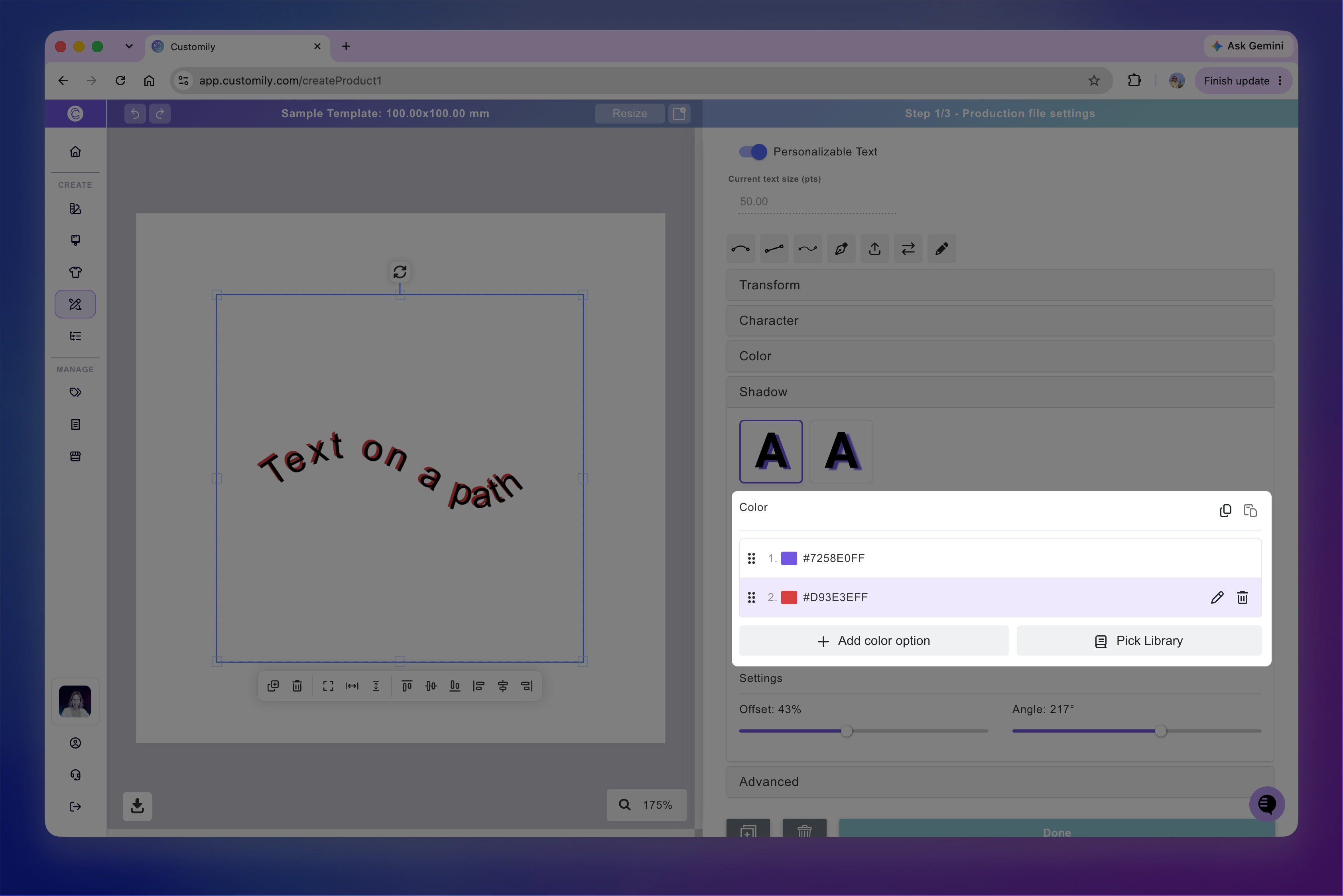
For detailed instructions, see 📄 Text with multiple color options
Advanced text settings
Select the text element and expand the Advanced toolbox to configure additional text behaviors, including fixed words and symbols, text masks, cutouts, and date formatting.
Add fixed words and symbols
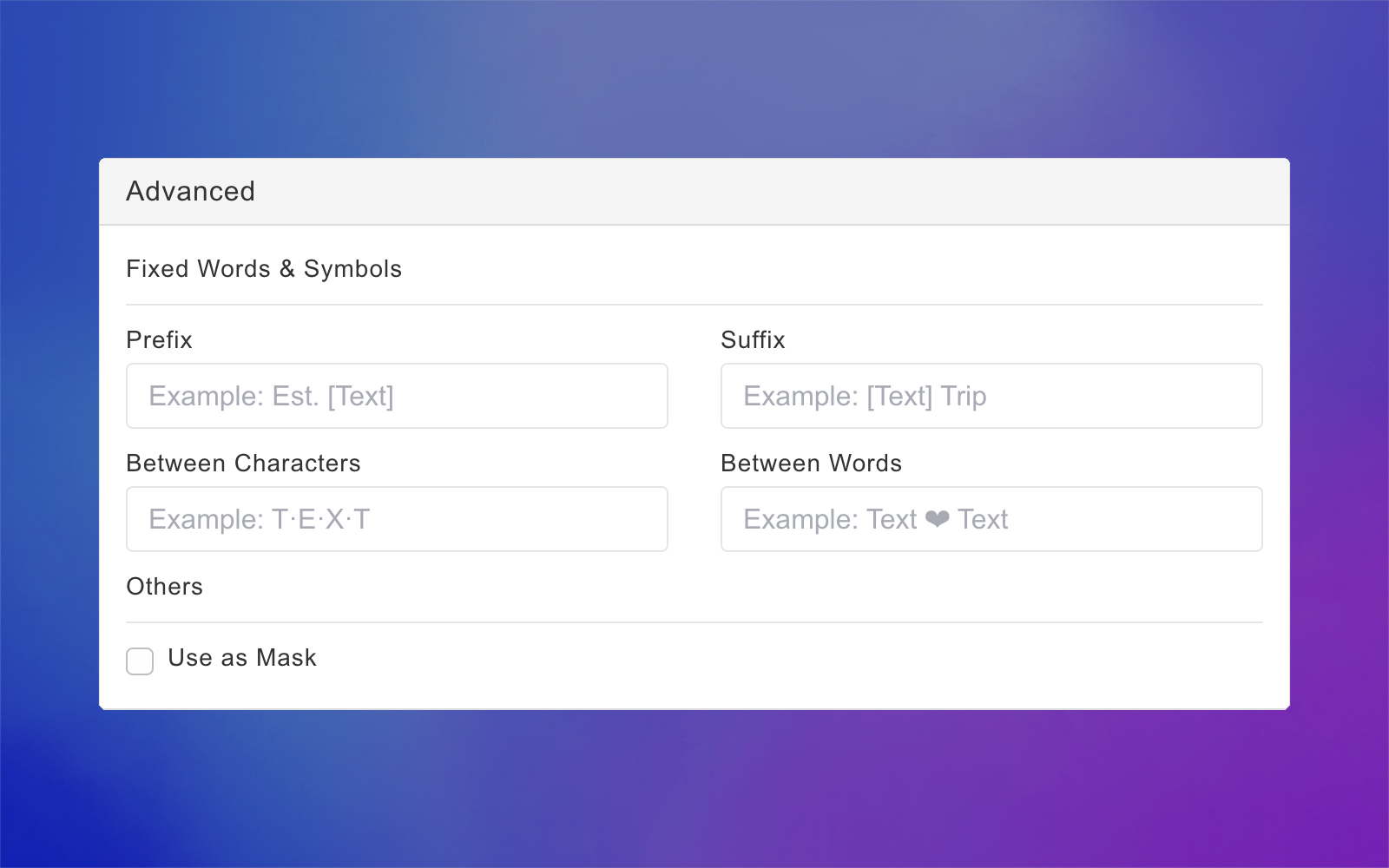
Use these settings to add text or symbols that appear automatically alongside the text entered by the shopper. These additions stay fixed and cannot be edited by the shopper.
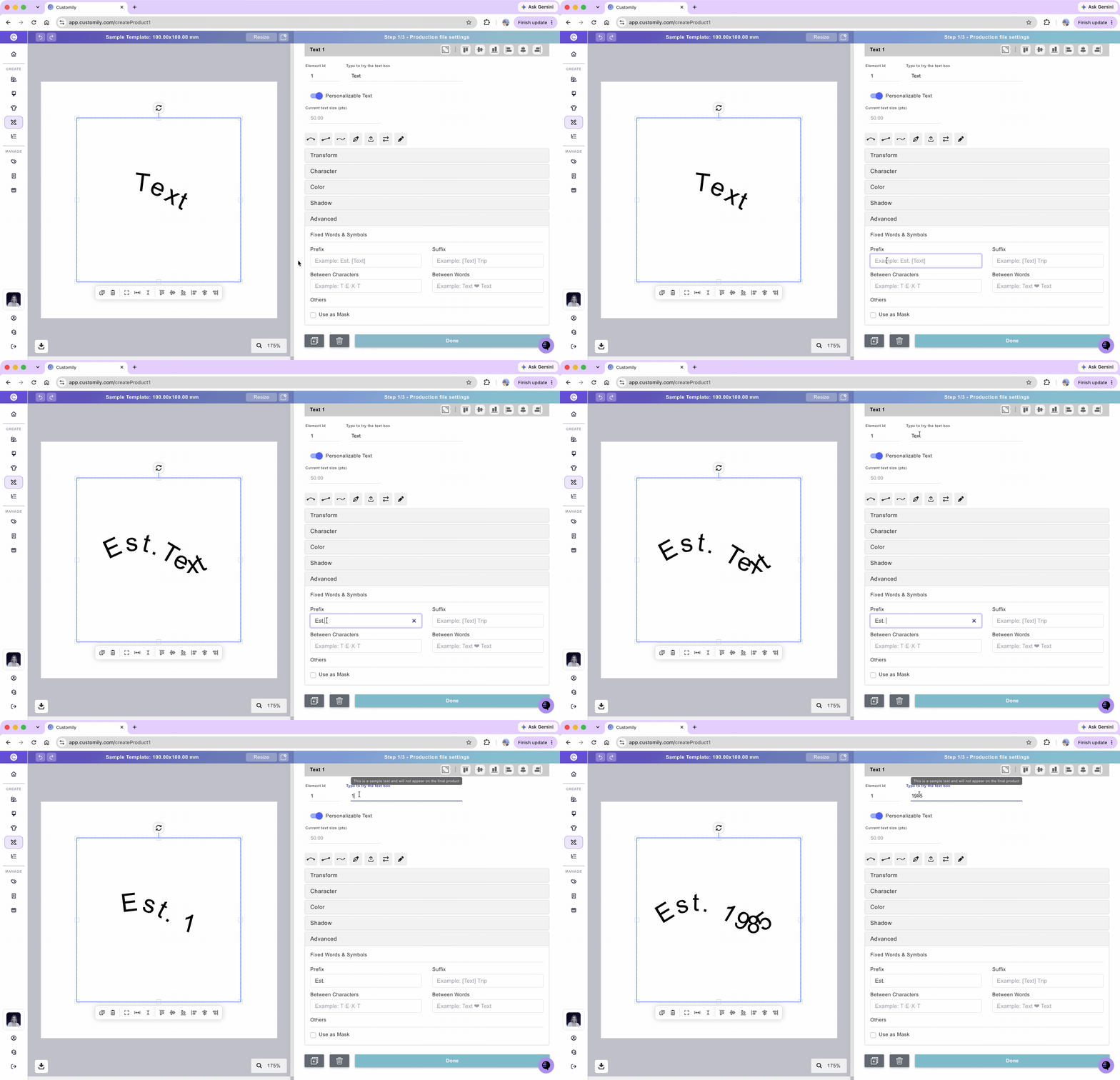
Prefix
Adds text or symbols before the personalized text. For example, entering
Est.displays Est. 1985 when the shopper enters "1985".
Suffix
Adds text or symbols after the personalized text. For example, entering
Familydisplays Johnson Family when the shopper enters "Johnson".
Between Characters
Adds a character or symbol between each letter. For example, entering
·displays J·O·H·N instead of "JOHN".
Between Words
Adds a character or symbol between words. For example, entering ♥ displays John ♥ Smith instead of "John Smith".
To add fixed words or symbols:
Select the text element
Expand the Advanced toolbox
Enter the text or symbol in the corresponding field.
Use text as mask
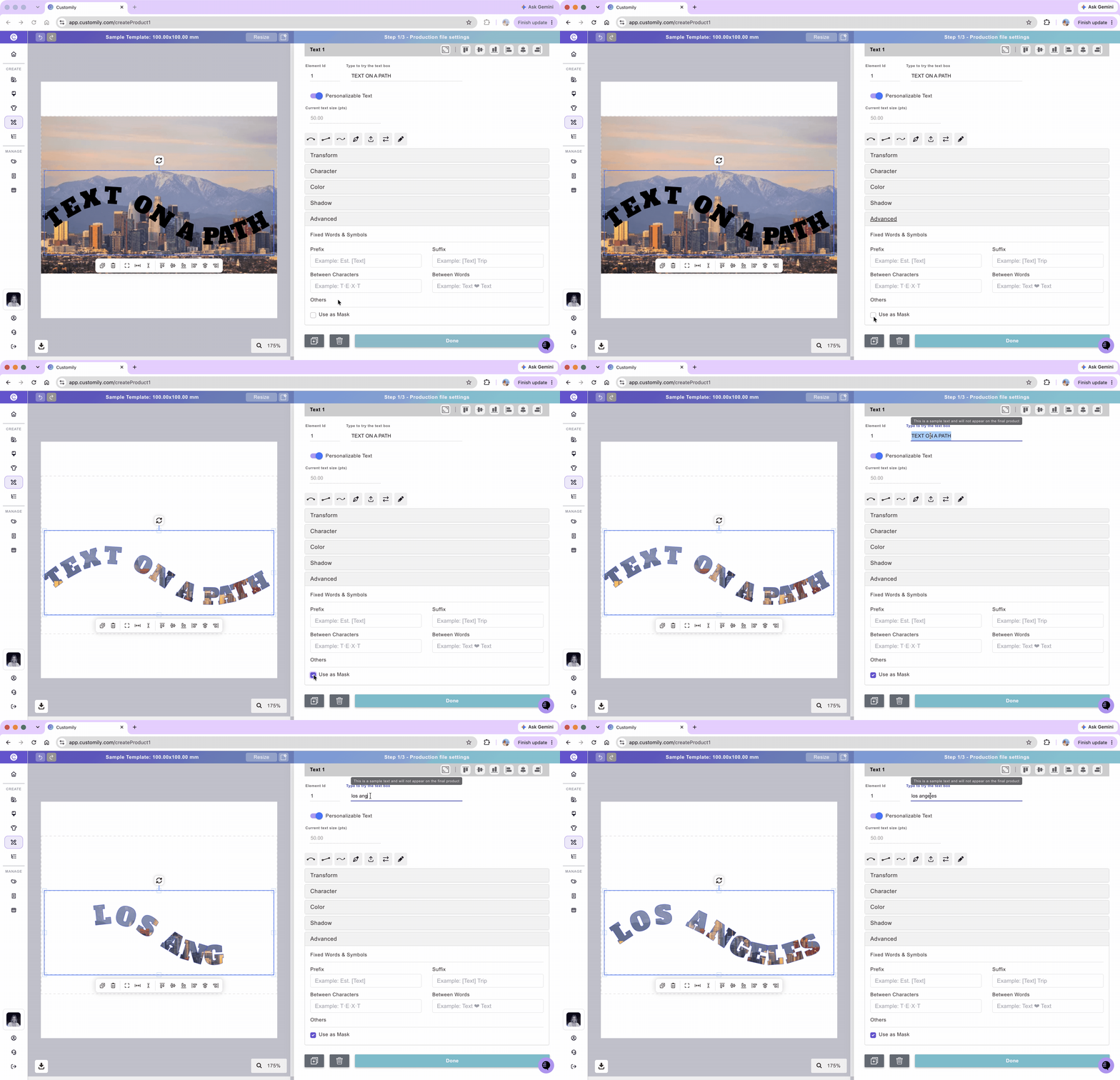
Use this setting to fill text with an image placed behind it. The image will only be visible inside the letters, creating effects such as photo-filled names or messages.
To use text as a mask:
Add an image layer beneath the text along a path layer. This can be an image upload or a dynamic image.
Select the text element.
Expand the Advanced toolbox.
Enable Use as Mask.
Note
Make sure the image behind the text is at least as large as the text box. If the image is smaller, parts of the text may appear empty because the image doesn't cover the entire text.
Text layers used as masks are identified by a mask icon in the Layers panel.

Images being masked also have their own indicator.

Test how the shopper experience will look
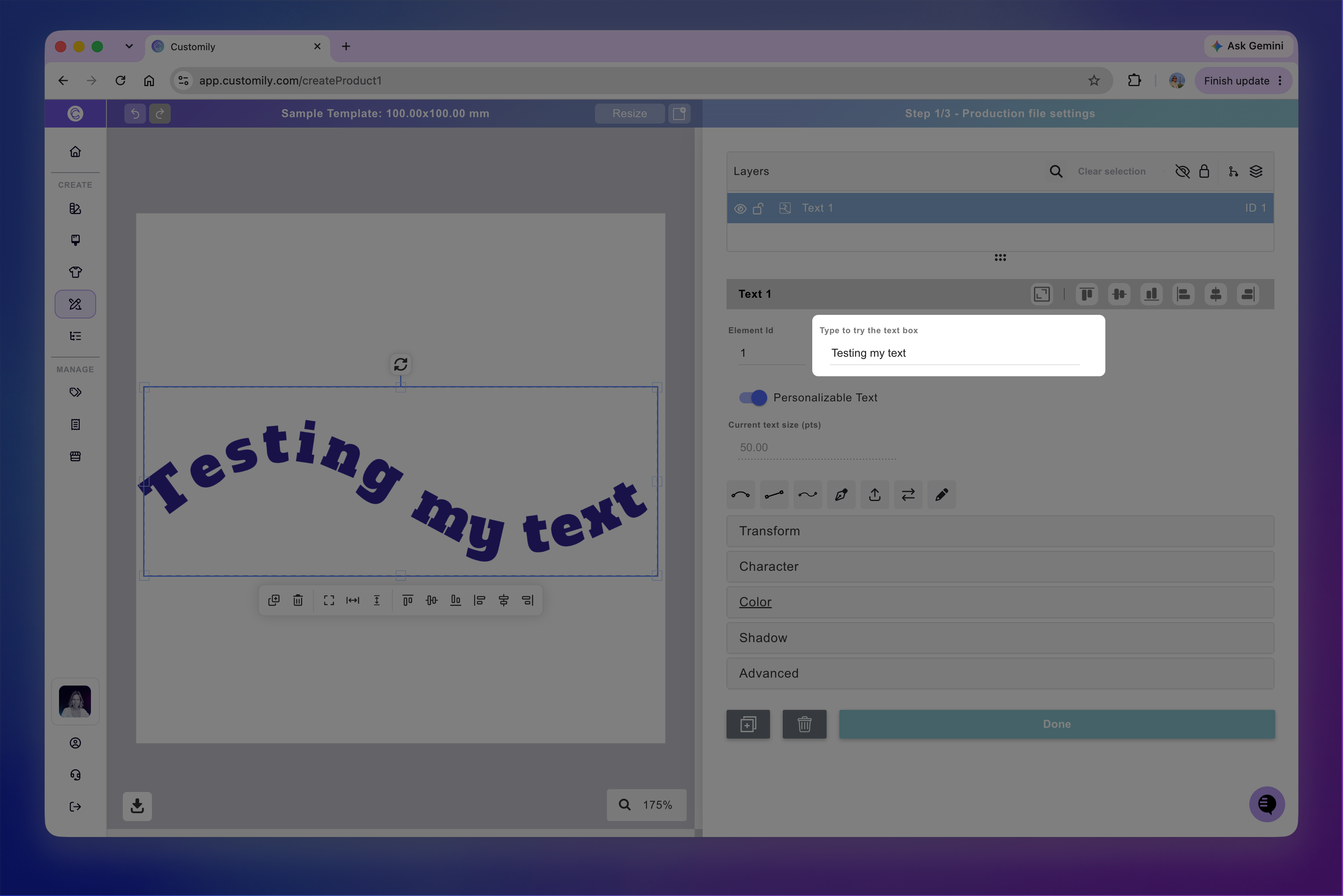
At any moment while configuring your text box, you can test how it will look on your design, by typing on the spot that reads Type to try the text box.
This is just for you to test, whatever you type there won't be saved, and won't be visible to your customers, unless you have checked make text fixed.
Tip
If you type text and you don't see anything, go check your font size. It is because your font is too big for the size of your path, so the text doesn't fit.