Add multiple color options to text
Last updated: October 19, 2026
You can add multiple color options to a text element so shoppers can choose their preferred colors when personalizing your products.
Text elements support multiple color options for:
Fill: The color of the text.
Stroke: The color of the text outline.
Shadow: The color of the text shadow.
Fill and Stroke are configured under the Color toolbox, while Shadow has its own toolbox.
You can add multiple color options in two ways: using a Color Library or adding colors manually. These steps work for Fill, Stroke, and Shadow, allowing you to configure multiple color choices for each property.
Tip
If you want shoppers to choose any color freely instead of selecting from predefined options, see Color Picker.
Add text color options using a Color Library
Using a Color Library is the easiest way to assign multiple colors to a text element.
Create a Color Library if you don't already have one. See 📄 Create and organize a Library.
Select the text element in the Design Studio.
Expand the Color or Shadow toolbox, depending on which property you want to configure.
Click Pick Library for the corresponding property.
Select the Color Library you want to use.
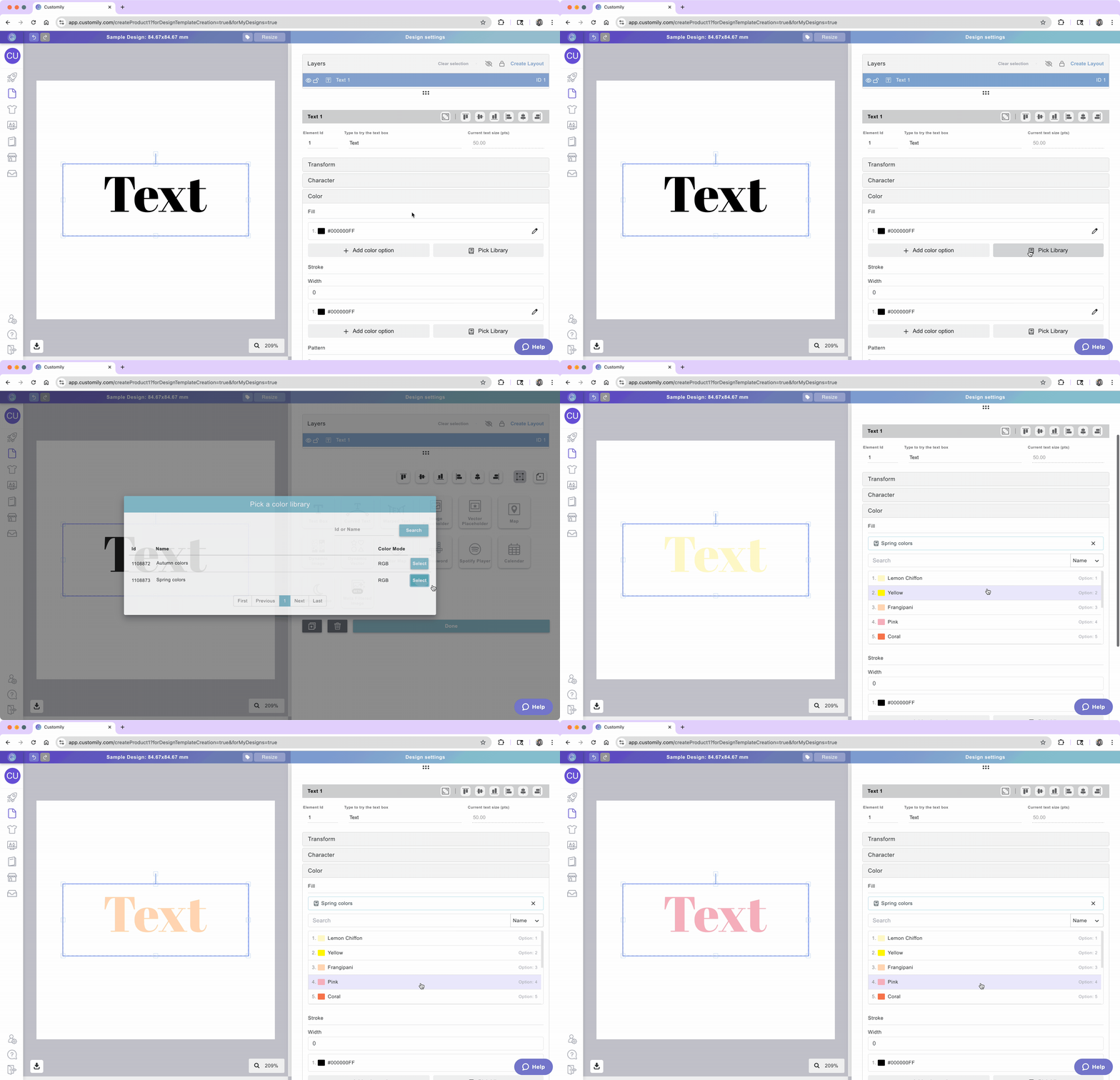
All colors from the Library will appear as options. You can click through them to preview how each one looks on your text.
Tip
To change the order of colors linked to a Library, edit the Color Library itself.
Add text color options manually
You can also create color options directly in the element settings without using a Library.
Select the text element.
Expand the Color or Shadow toolbox.
Click the color swatch for the property you want to configure.
Choose a color and click Apply.
Click + Add Color Option.
Choose another color and click Apply.
Repeat to add as many color options as you need.
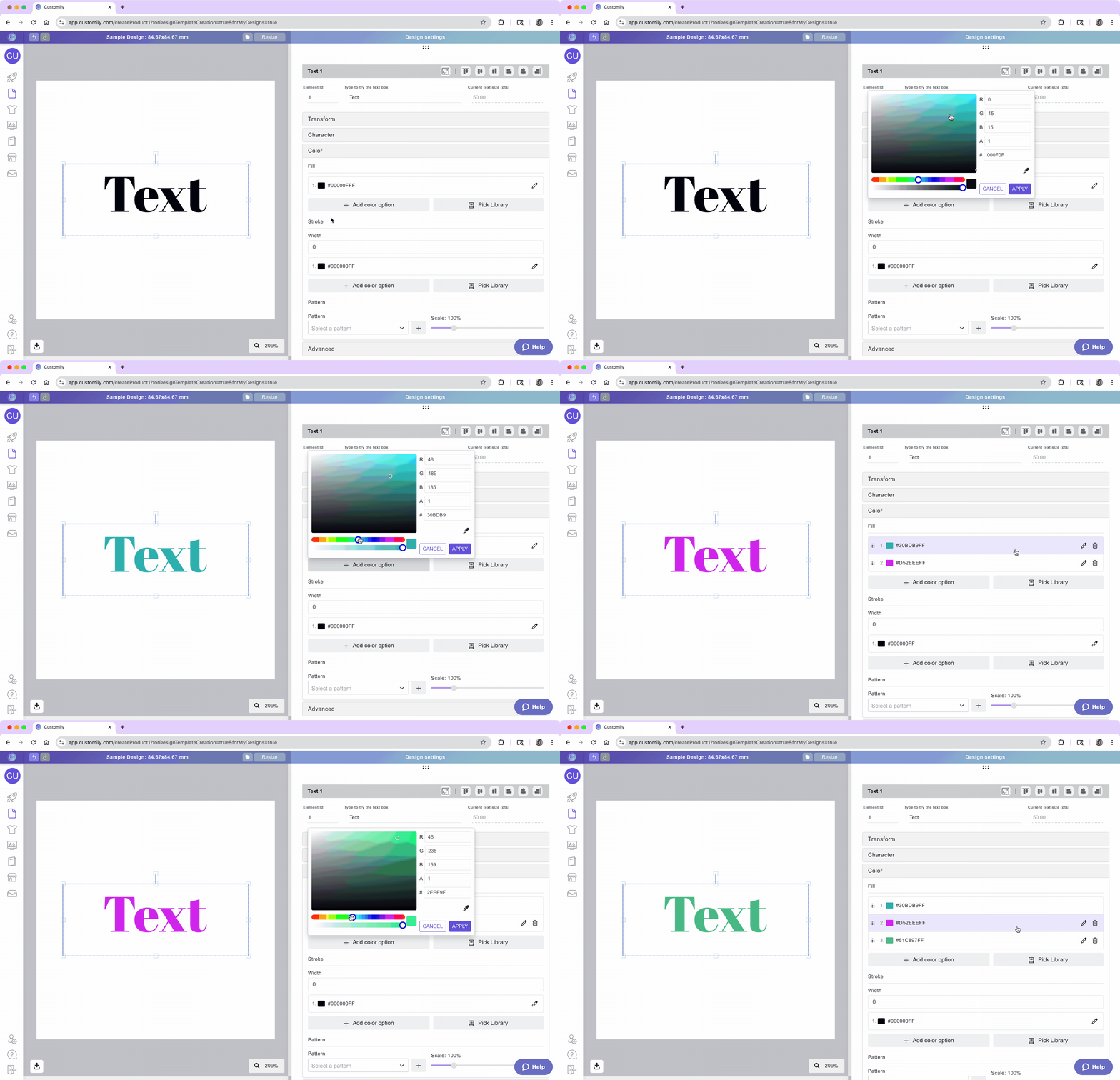
All added colors will appear as options. You can click through them to preview how each one looks on your text.
Manage manually added colors
Once you've added multiple colors, you can:
Preview: Click any color option to see how it looks.
Edit: Click the pencil icon next to a color to change it.
Delete: Click the trash icon to remove a color option.
Reorder: Drag the dots beside a color option to change its position.