Create and organize a Library
Last updated: October 19, 2026
Before you can use a Library in your Designs or Templates, you need to create it and add the assets you want shoppers to choose from.
The process for creating Libraries is very similar across all Library types. You'll first create the Library, then add your images, colors, fonts, or vectors. You can also organize them into categories and customize how shoppers choose from them when personalizing your products.
Create a Library
Go to Libraries from the left menu.
Click Create new library.
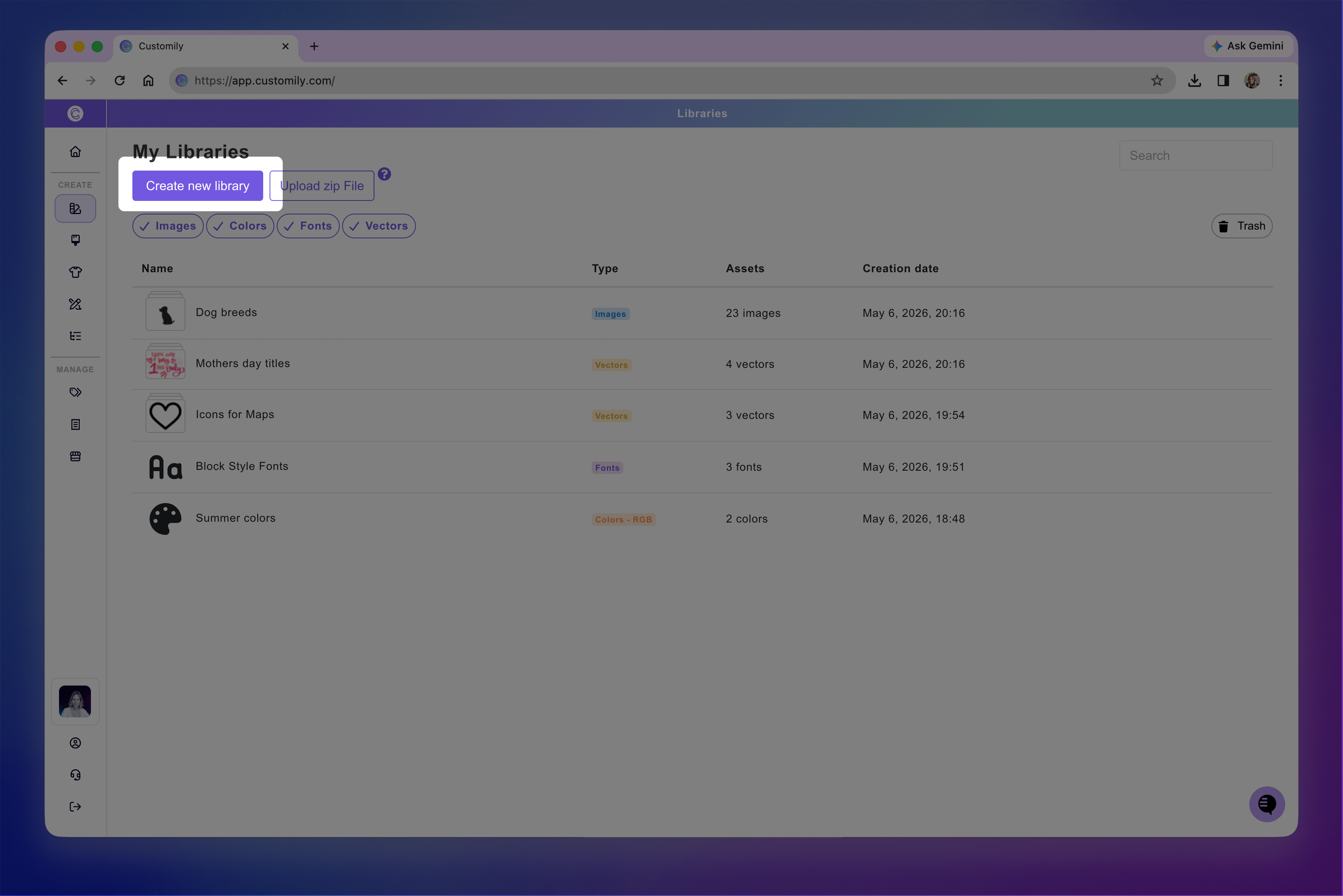
Select the type of Library you want to create: Image, Color, Font, or Vector.
Enter a name for your Library.
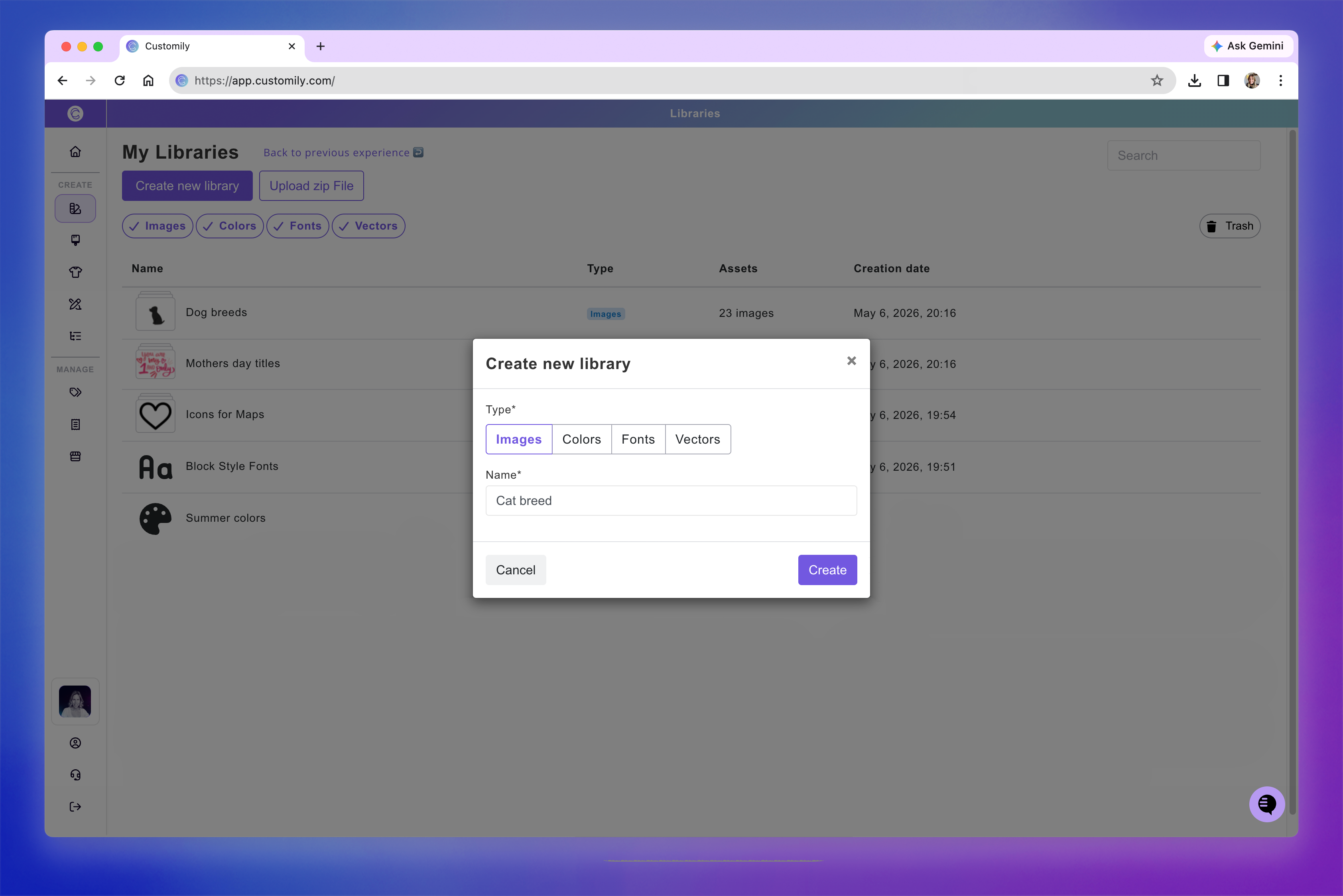
Click Create.
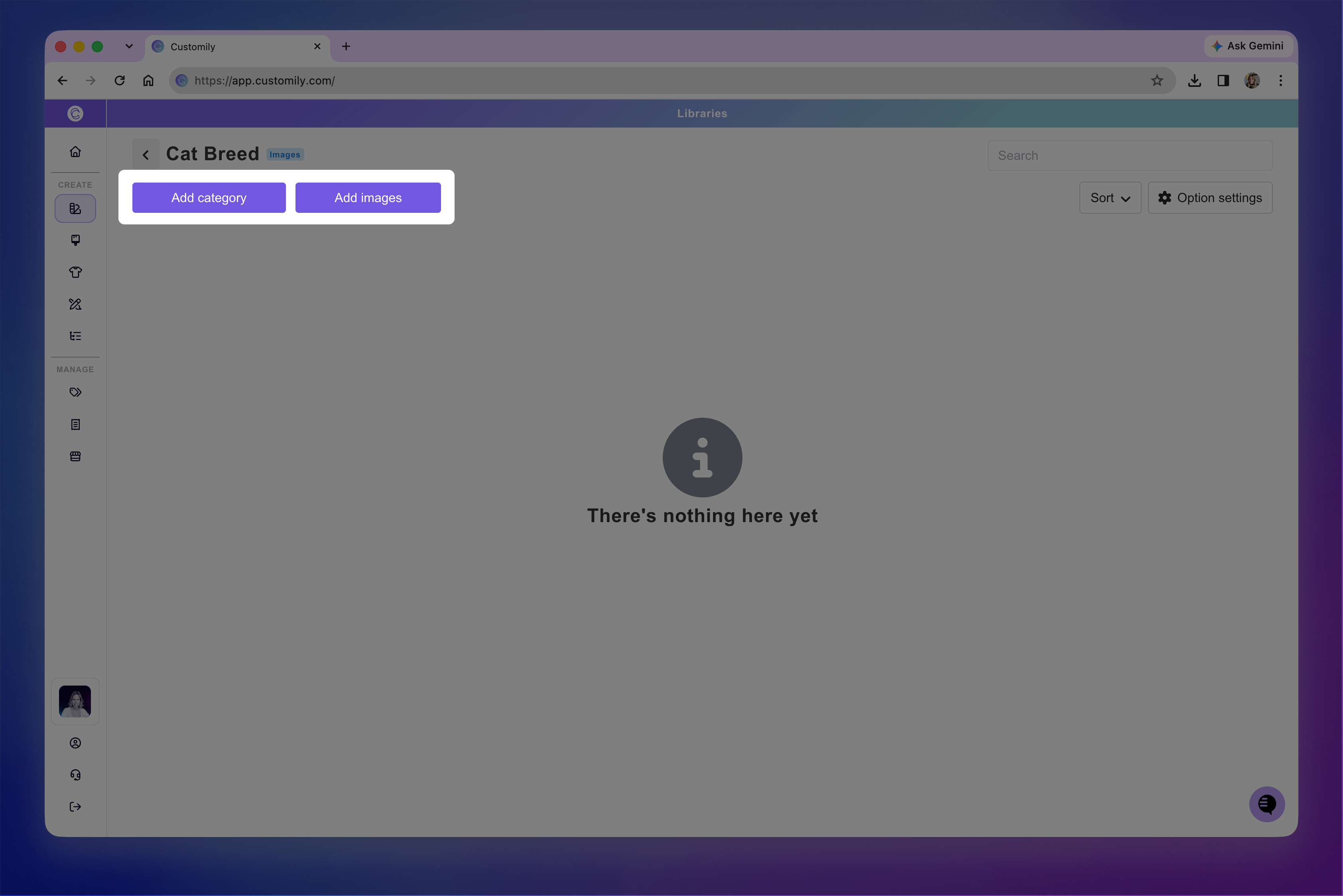
Once the library is created, it will automatically open so you can start adding assets.
You have two options:
Create categories first, then add assets inside each category.
Add assets directly to the Library without using categories.
Note
If you start by adding assets directly into the library, you won’t be able to create categories later unless those assets are removed first.
Organize assets into categories
Categories help you organize your Library into smaller groups, making it easier for shoppers to find and select the assets they want.
For example, you could use categories to separate:
Fonts by style
Dog clipart by breed
Hair style cliparts by hair length
Colors by collection
Create a category
Open your Library and click Add category.
Enter a name for the category, such as Short Hair.
If you're using an Image or Vector Library, upload a thumbnail to represent the category. This image will be used as the swatch shoppers see when selecting a category.
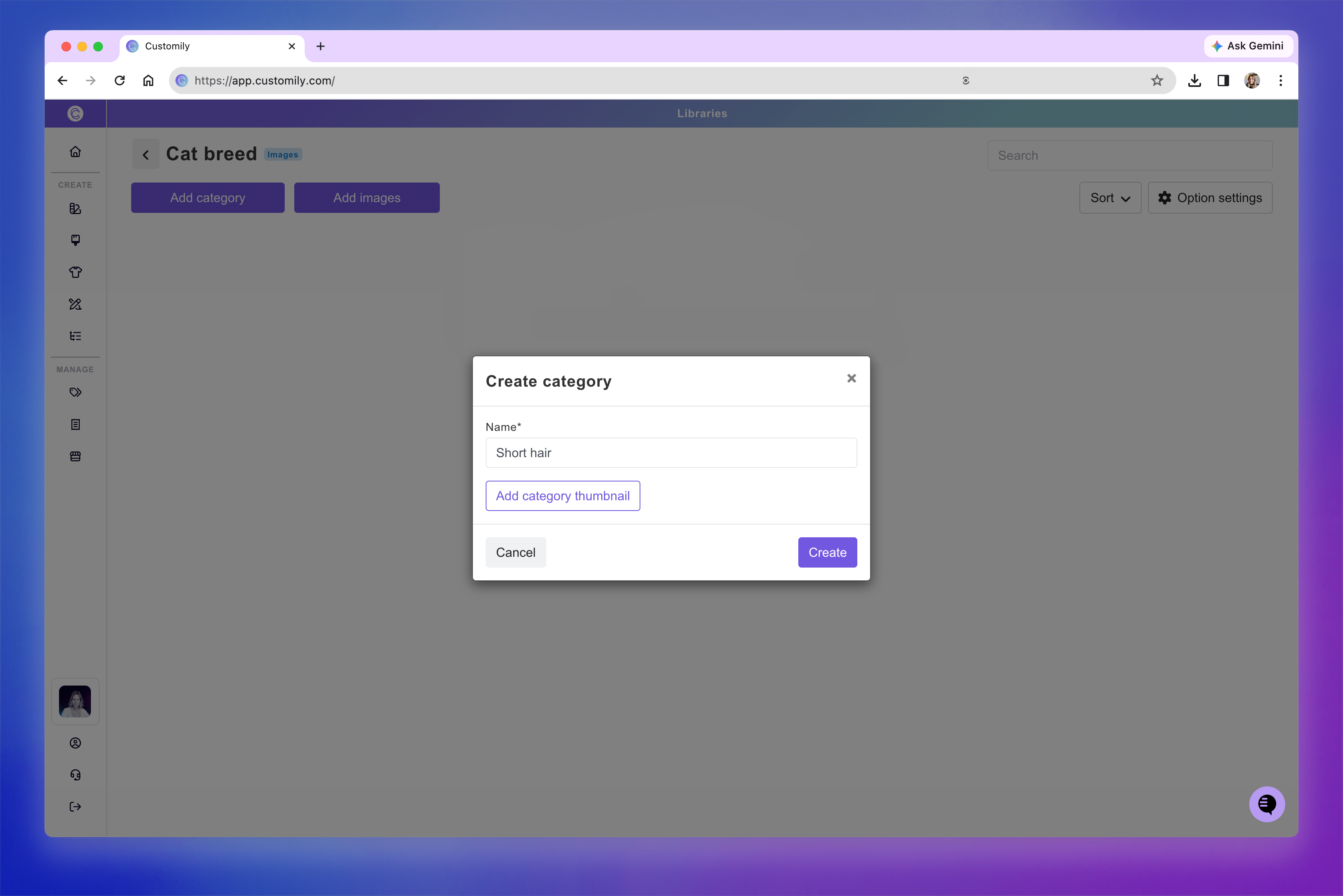
Click Create.
The new category will automatically open so you can start adding assets. When you're done, return to the Library and repeat the process to create additional categories.
Tip
Customily uses the category name and thumbnail (when available) to generate the corresponding personalization options on your storefront. You can edit both later.
Manage your categories
To manage a category, hover over it to reveal the action buttons on the right.
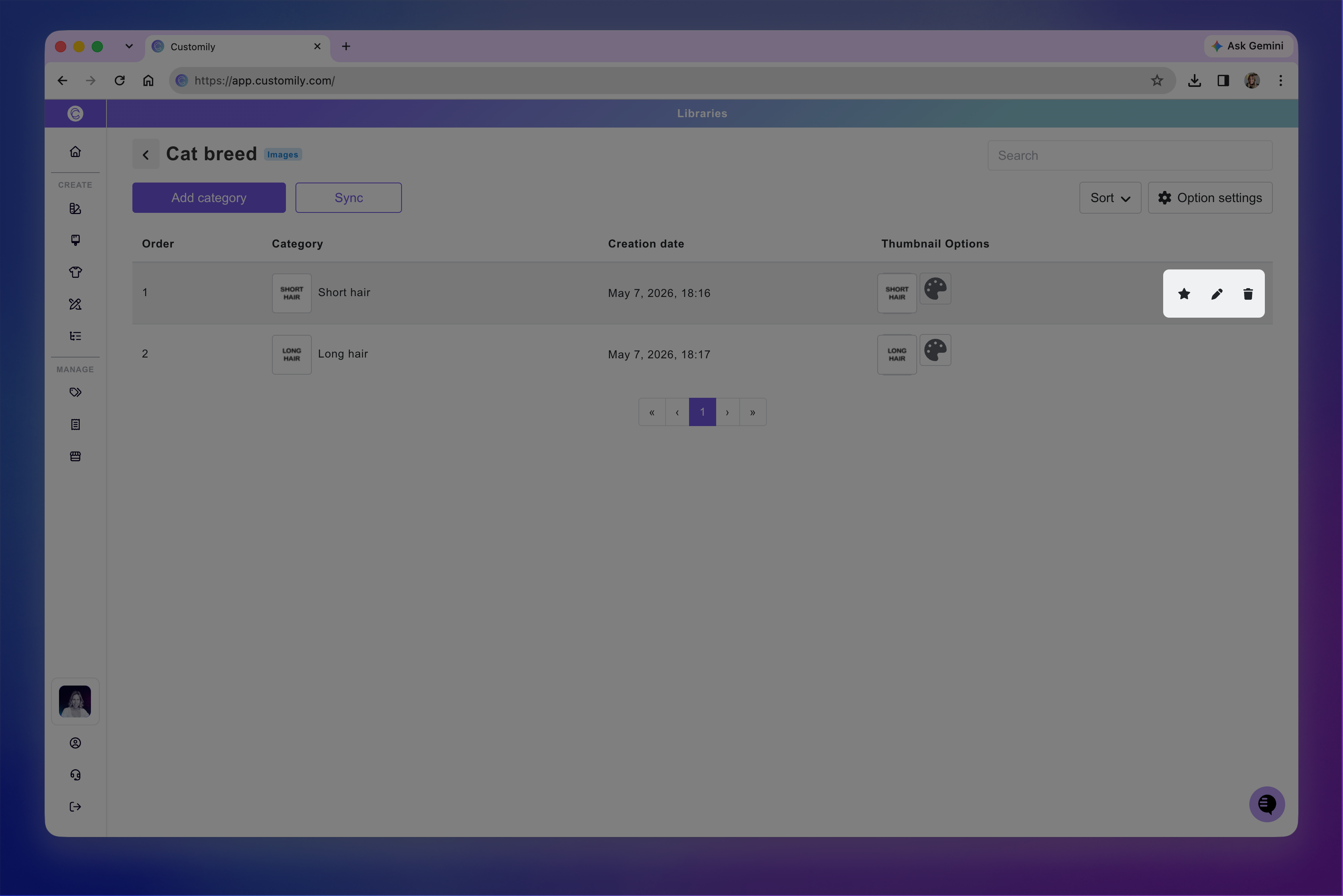
From there, you can:
Click the star icon to set the category as the default selection for shoppers.
Click the pencil icon to open the category and manage the assets inside it.
Click the trash can icon to delete the category.
You can also:
Rename a category: Hover over its name and click the pencil icon that appears.
Change the thumbnail: Click the category's current thumbnail to upload a different image or assign a color instead.
Reorder your categories
You can change the order in which categories appear in your Library and in the personalization options shoppers see.
There are three ways to reorder categories:
Drag and drop: Click and drag a category to its new position.
Change its position number: Edit the number in the # column on the left. This is especially useful when moving categories beyond the current page of results.
Use Sort: Click Sort in the top-right corner to reorder categories using the available sorting options.
Add assets to your Library
Assets are the actual colors, fonts, images, or vectors that shoppers choose from when personalizing your products. Once added to a Library, Customily can use these assets to automatically generate personalization options in your Designs and Templates.
Add assets
Depending on how you've organized your Library, you can add assets in two ways:
Without categories: Open the Library and click Add assets.
With categories: Open the category where you want to add assets, then click Add assets.
The process for adding assets depends on the Library type.
For detailed instructions, see:
Asset names and thumbnails
Customily automatically assigns names and thumbnails when you add assets:
Images and vectors: Use the uploaded file's name and image as the asset name and thumbnail.
Fonts: Use a preview generated from the font as the thumbnail.
Colors: Use the selected color as the thumbnail.
Asset names and thumbnails are used to generate the personalization choices shoppers see on your storefront. You can edit them later.
Manage your assets
Once you've added assets to your Library, you can edit, organize, and reorder them at any time.
Edit and manage assets
Hover over an asset to reveal the three action buttons on the right:
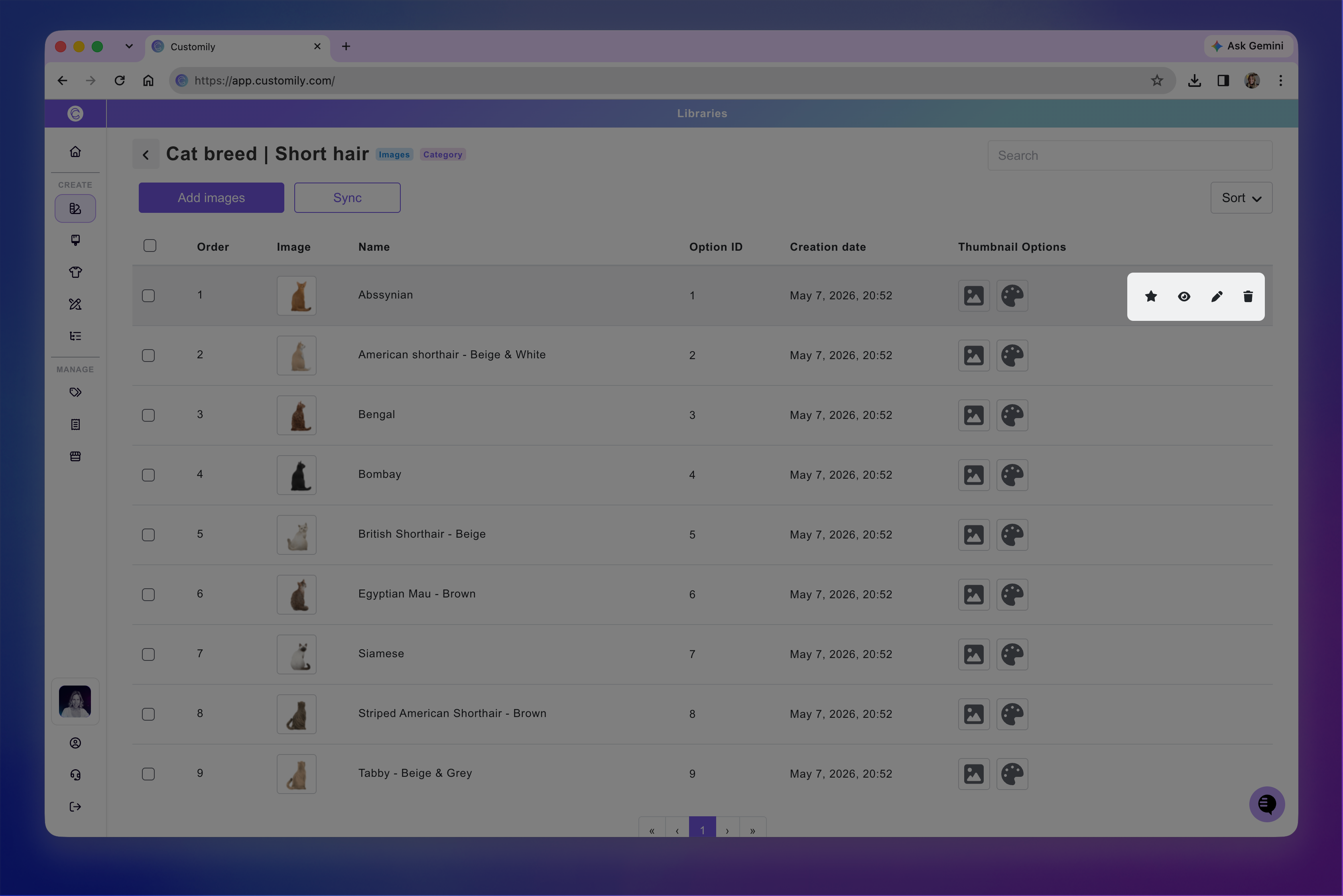
From there, you can:
Click the star icon to set the asset as the default selection for shoppers.
Click the eye icon to hide or show the asset in your personalization options.
Click the pencil icon to replace the asset.
Click the trash can icon to delete the asset.
You can also edit its name and thumbnail directly:
Rename an asset: Hover over its name and click the pencil icon that appears.
Change the thumbnail: Click the thumbnail options to upload a different image thumbnail or assign a color instead.
Tip
If you want to temporarily remove an option from your storefront, hide the asset instead of deleting it. Shoppers won't see it, and you can make it available again whenever you want.
Delete multiple assets
To delete several assets at once, select them using the checkboxes on the left, then click the trash can icon in the toolbar above the asset list.
Reorder assets
You can change the order in which assets appear in your Library and in the personalization options shoppers see.
There are three ways to reorder assets:
Drag and drop: Click and drag an asset to its new position.
Change its position number: Edit the number in the # column on the left. This is especially useful when moving assets beyond the current page of results.
Use Sort: Click Sort in the top-right corner to reorder assets using the available sorting options.
Move assets between categories
You can move assets from one category to another without deleting and uploading them again.
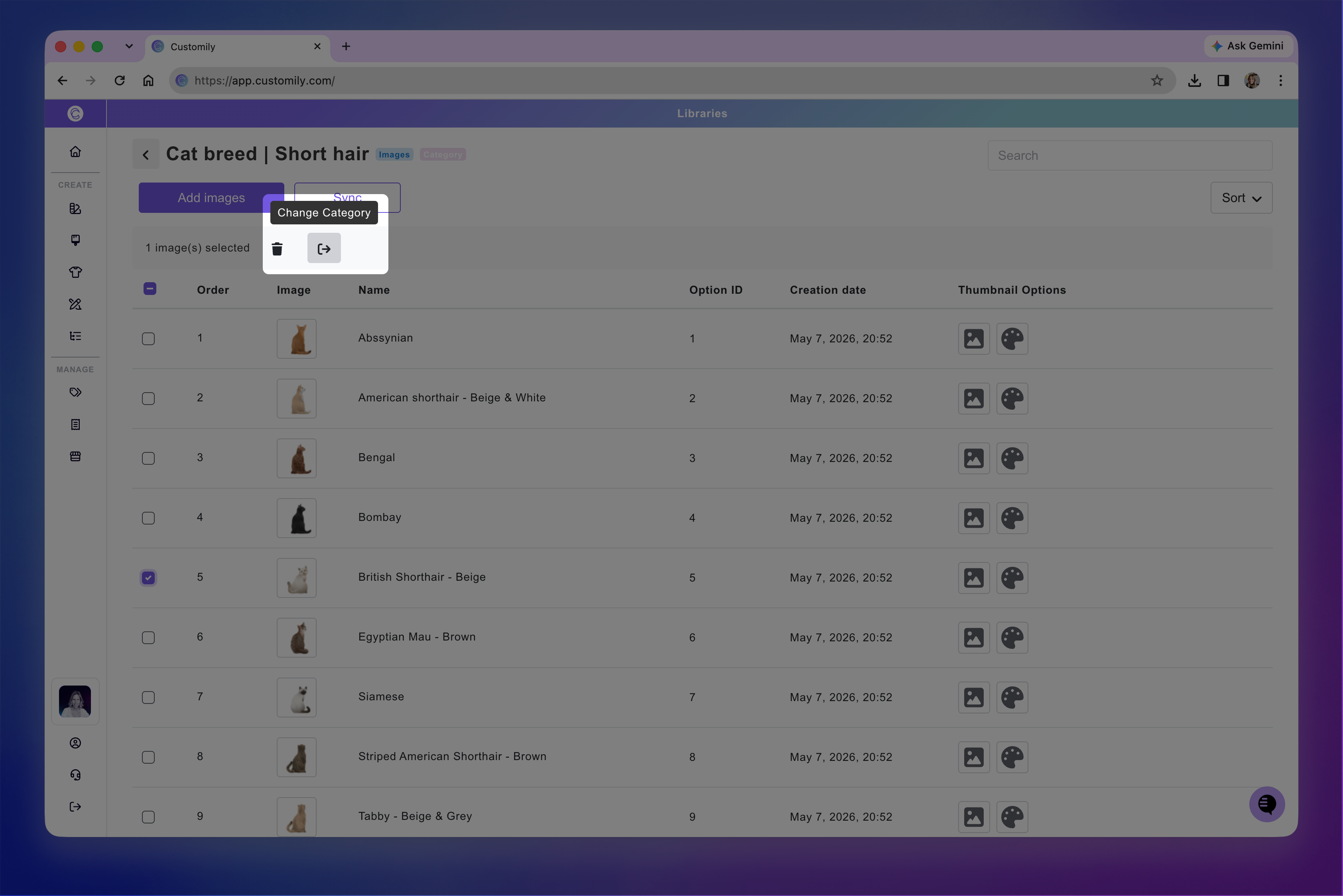
Open the category containing the assets you want to move.
Select one or more assets using the checkboxes on the left.
Click the Move to category icon in the toolbar that appears.
Select the destination category.
Note
If your Library is already used in Option Sets, click Sync after reordering assets or moving them between categories. This ensures your changes are reflected in all Option Sets linked to that Library.
Configure how Library choices appear to shoppers
Each Library has an Option settings section where you can define how Customily automatically generates personalization options for Designs, Templates, and Products that use the Library.
These settings don't create or edit options directly. Instead, they determine how the generated options will look and behave for shoppers.
To configure them:
Open your Library.
Click Option settings in the top-right corner.
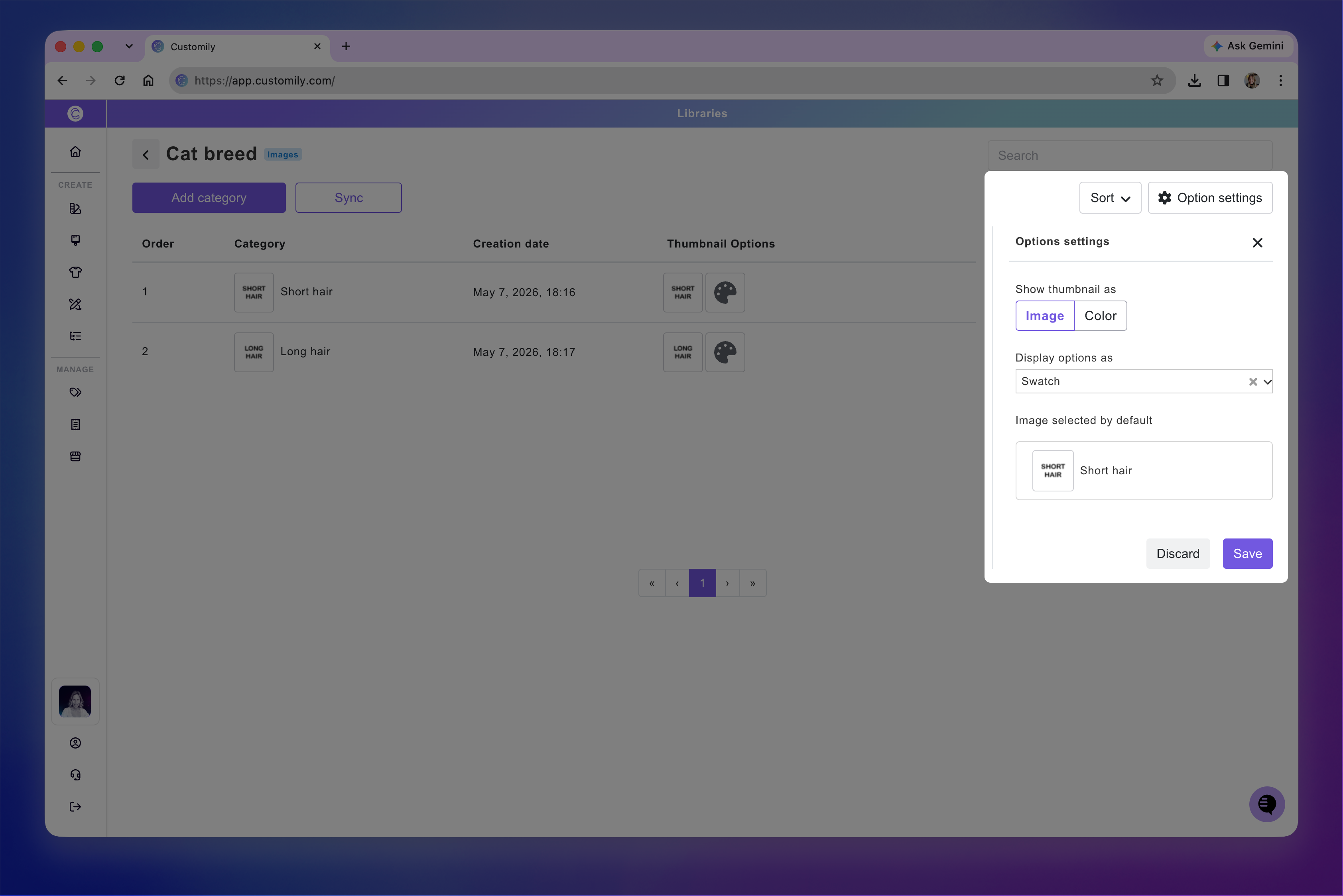
From there, you can configure:
Show thumbnail as: Choose whether swatches display an image or a color.
Display options as: Choose between Dropdown, Swatch, or Dropdown swatch.
Selected by default: See which category or asset is selected by default.
Click Save to apply your changes.
Note
These settings apply when Customily automatically generates personalization options from the Library. They don't directly modify existing options.